
Sales teams move faster when your best pitch is always ready on demand. With Pictory, you can convert a text script into a polished video pitch with captions, voiceover, brand styling, and shareable previews without relying on a production team.
This guide shows how to use a text to video AI workflow in Pictory to create repeatable video pitches for outbound, account-based selling, customer follow-ups, and sales enablement.
Why sales teams use an AI text to video generator for scalable video pitches
A consistent video pitch helps reps and enablement teams deliver the same story across markets, segments, and territories. Using an ai text to video workflow lets you turn approved messaging into video quickly, then iterate without re-recording.
- Speed: Convert text to video in minutes for campaigns, product launches, and competitive updates.
- Consistency: Apply Brand Kits to keep logos, fonts, and colors aligned across teams.
- Scale: Create multiple versions for personas, industries, and languages.
- Efficiency: Reduce production overhead with an all-in-one workspace.
To get started, you will work inside Pictory AI Studio and use the Text to Video generator to build your pitch from a script.
What to prepare before you convert text to video for sales enablement
Before you use a text to video ai generator, prepare a script that is easy for prospects to follow and easy for your team to reuse.
- Script length: Aim for 45 to 90 seconds for outbound, 90 to 180 seconds for product explainers.
- Short sentences: Keep sentences concise so scenes and captions read cleanly.
- Clear CTA: End with one next step (book a demo, reply with a time, download a one-pager).
- Approved proof: Add 1 to 2 credibility points (customer logo, metric, short testimonial quote).
- Brand assets: Logo files, brand colors, and preferred fonts for your Brand Kit.
If your pitch content lives in a web page or PDF-style landing page, you can also start from a URL and repurpose it using URL to Video, then refine the script for a tighter sales message.
Step-by-step: Text to video AI workflow for creating video pitches from text scripts
Step 1: Start a Text to Video project
From the home screen, select Text to Video to open the script input. This is the fastest way to turn text to video when you already have a sales pitch script.
- Open Pictory.
- Choose the Text to Video generator workflow.
- Paste your approved pitch script into the input field.
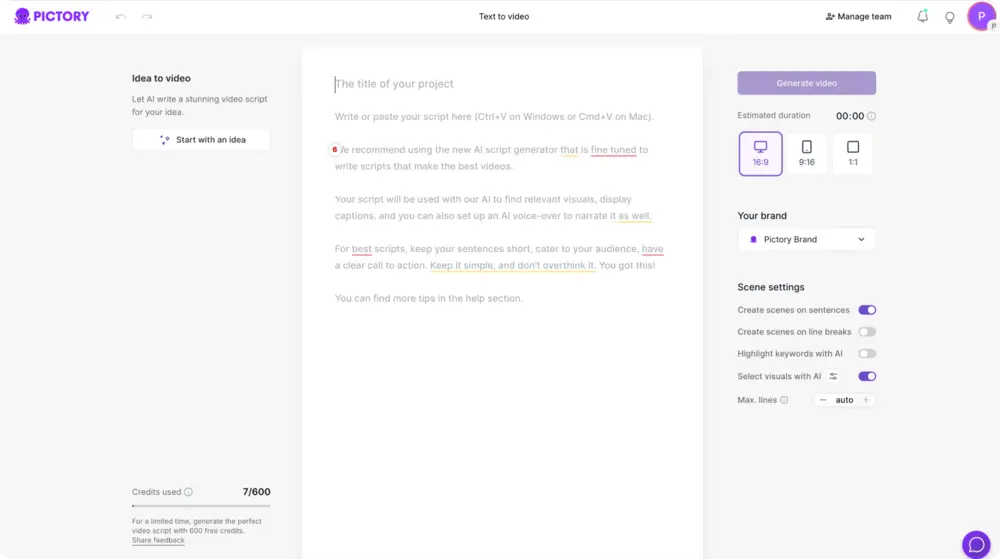
If you only have a concept, use the optional Idea-to-Video style flow to generate a first draft, then rewrite it to match your sales talk track.
Step 2: Configure scene settings for a clear sales story
In the script editor, choose how Pictory breaks your script into scenes. Good scene structure improves pacing and makes your pitch easier to skim with captions.
- Choose an aspect ratio based on distribution: 16:9 for email and LinkedIn, 9:16 for mobile-first outreach, 1:1 for feeds.
- Enable scene creation by sentences for tighter control, or by line breaks if your script is already formatted.
- Set maximum lines per scene so on-screen text stays readable.
- Toggle highlight keywords when you want product value points to pop.
- Turn on select visuals with AI to speed up initial storyboard creation.
This setup is the foundation of consistent text to video generation across multiple pitch variants.
Step 3: Apply your Brand Kit for enterprise-ready consistency
Select a Brand Kit in the right panel to apply your logo, fonts, and colors. This ensures every rep and region shares the same visual identity.
- Add or select a Brand Kit (logo, brand colors, fonts).
- Preview how branding impacts captions, titles, and layout styling.
- Use brand color palette shuffle when you want to test alternate combinations while staying on brand.
Once your script and settings are ready, click Generate video to create the storyboard.
Step 4: Choose a theme and generate the storyboard
Select a design theme that matches your pitch style such as modern minimalist for enterprise messaging or kinetic styles for high-energy products. Pictory then creates scenes and aligns visuals and captions to your script.
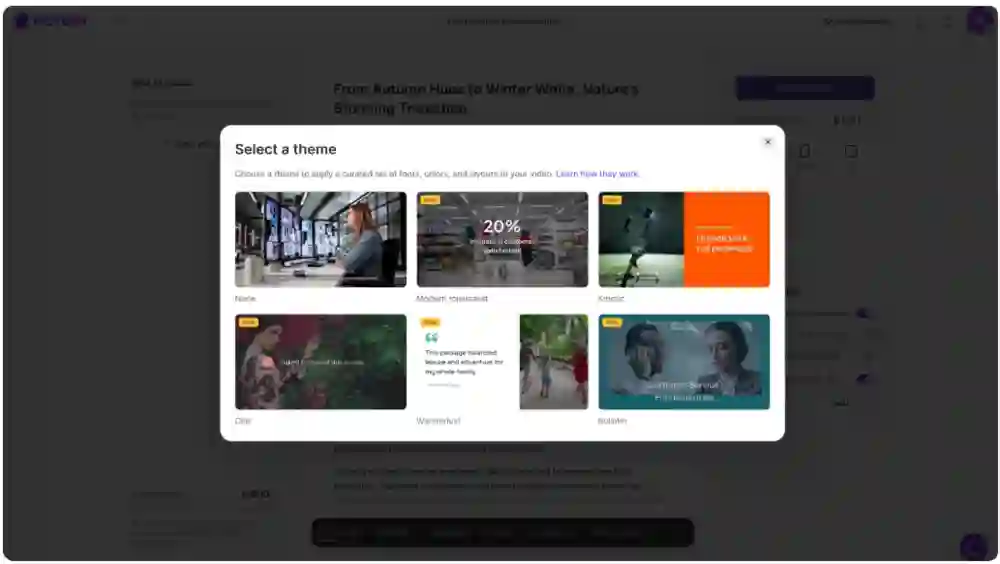
- Select a theme (or choose none if you want full manual control).
- Wait for the “Creating scenes” process to build the storyboard.
- Review the first pass for pacing, scene breaks, and emphasis points.
After storyboard creation, you will land in the editing workspace where you can refine the pitch with the same tools used in the AI Video Editor.
Editing your sales video pitch: visuals, captions, and how to add text to a video
In the editor, the left panel shows your scenes and the right panel previews the video. Use the bottom timeline to navigate quickly. This is where you polish the pitch so it is customer-facing and conversion-focused.
- Adjust scenes: Edit scene text, timing, and order to improve flow.
- Replace visuals: Use the Visuals tab to swap stock footage or add customer-approved images.
- Generate visuals: Create prompt-based images or clips inside Visuals using the AI Studio tab.
- Captions and overlays: Use the Text tools to refine on-screen messaging for clarity.
If your goal is specifically adding text to video for callouts like pricing qualifiers or meeting links, add a text layer and format it with font, size, color, outline, shadow, and alignment. This is the most direct way to add text to a video while preserving your voiceover script.
To increase engagement, select a text layer and use Animate Text in the top toolbar to add entry and exit effects like Fade, Typewriter, Wipe, or Text Reveal. Apply consistent animation across key scenes to avoid distracting motion.
Voiceover, music, and text to speech video settings for sales outreach
Sales video performs best when the audio is clear and the pacing matches the message. In the Audio tab, you can choose AI voiceover for a consistent sound or upload a recorded track from your team.
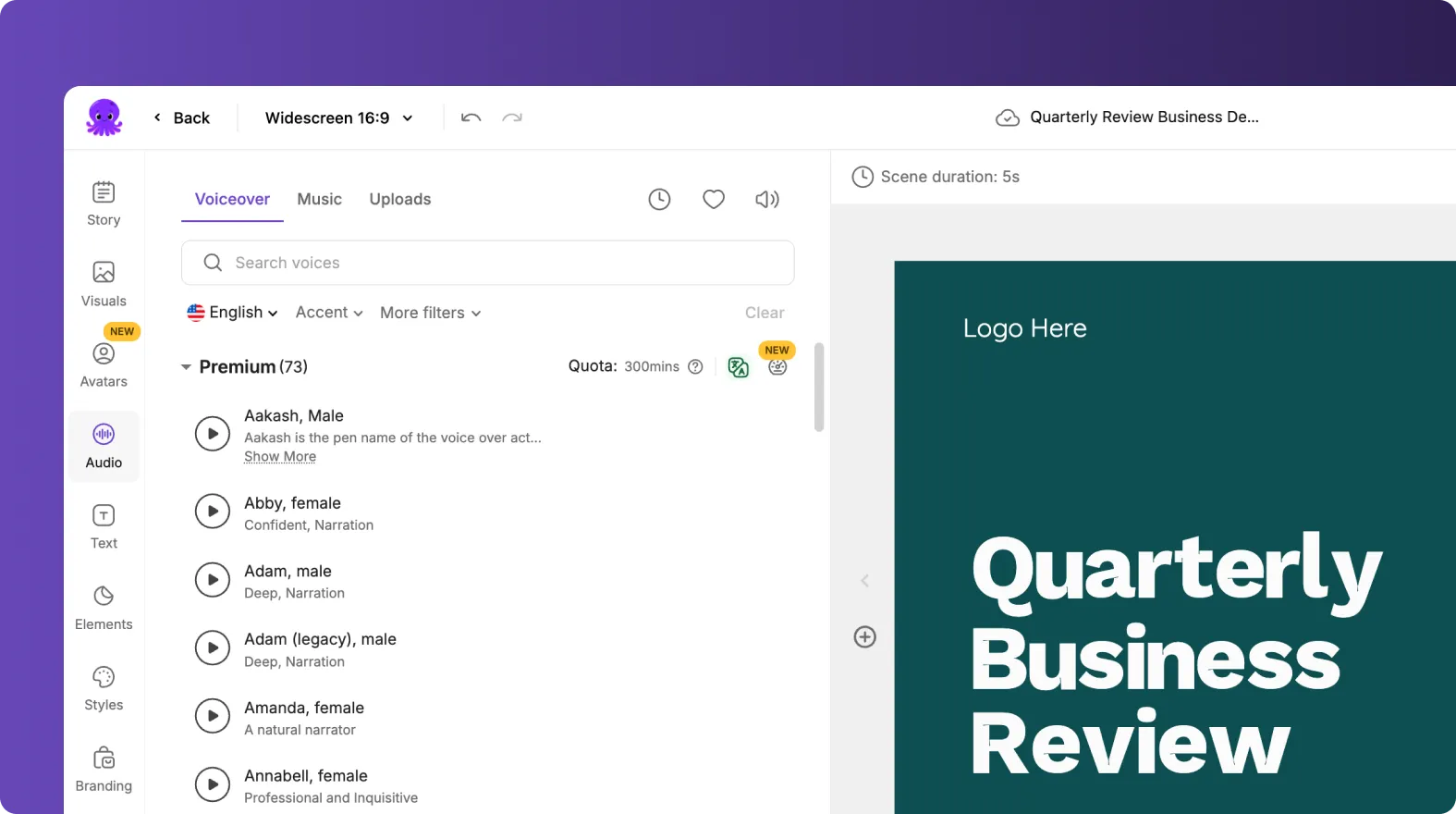
- Voiceover: Select an AI voice that matches your brand tone. Preview before applying.
- Music: Add subtle background music for energy, but keep it low so narration stays clear.
- Uploads: Import your own intro sting, compliance disclaimer, or regional audio.
For teams that also need quick product walk-throughs, record a short demo using Smart Screen Recorder, then pair the demo with the same branded captions and styling for a cohesive pitch library.
Collaborating, versioning, and sharing video pitches across sales teams
Enterprise sales enablement often requires multiple stakeholders. Save projects to keep a clean audit trail and make updates without starting over.
- Organize projects: Use Projects as your hub to find, sort, and manage pitch variants.
- Create versions: Duplicate scenes or create multiple scripts for different personas and industries.
- Share previews: Use the editor’s Share preview option to collect feedback before export.
- Export: Preview, then download the final video when approved.

If your sales org already maintains pitch decks, you can accelerate production by converting slides directly with PPT to Video and then tightening the script for outreach.
Best practices: writing text scripts that convert into sales video pitches
- Lead with the problem: First 5 seconds should identify the pain and who you help.
- One value point per scene: Keep each scene focused to improve retention.
- Use proof early: Add a metric or customer outcome by scene 2 or 3.
- Show the next step: Put the CTA on-screen and in the last line of narration.
- Build a reusable template: Keep an approved master script and swap only persona-specific lines.
This approach helps your team consistently convert text to video without losing message control, which is especially important for regulated industries and large sales teams.
FAQ: Text to Video for Sales Teams: Creating Video Pitches From Text Scripts
What is the fastest way to create a video pitch from a text script in Pictory?
Use the Text to Video generator inside AI Studio. Paste your script, configure scene settings and aspect ratio, apply your Brand Kit, then click Generate video to create the storyboard.
How do I control where scenes split in my text to video AI workflow?
In the script editor scene settings, choose sentence-based scenes for automatic splitting by sentences, or line-break-based scenes if you want to define scene breaks manually by adding line breaks in your script. You can also set max lines per scene to keep captions readable.
How do I add text to a video for pricing qualifiers or meeting links?
In the editor, add a text layer in the Text tools, then format it using the top text toolbar (font, size, color, outline, shadow, alignment). This is the simplest way to add text overlays while keeping your narration and scene structure intact.
Can I keep all sales pitch videos on brand across regions and reps?
Yes. Apply a Brand Kit to enforce your logo, fonts, and colors across videos. This is especially useful for enterprise sales enablement teams that need consistent styling across multiple pitch variations.
What if I want to create visuals that match a specific industry or account?
In the Visuals tab, use the AI Studio option to generate AI images or AI video clips from prompts, then add them to scenes. You can also upload approved customer or industry visuals using Uploads for tighter brand and compliance control.
Can I turn existing sales materials into video pitches instead of writing a new script?
Yes. If your material is a web page, start with URL to Video to extract and convert content into a script, then refine it into a concise pitch. If your material is a deck, use PPT to Video and edit down to a sales-ready runtime.
How do teams review and approve video pitches before exporting?
Use the Share preview option in the editor to circulate a reviewable version, gather feedback, and iterate. When approved, preview the final cut and download the finished video for distribution in email sequences, LinkedIn outreach, and enablement hubs.


