PICTORY FEATURES
Screen Recording Software
Capture your screen and turn recordings into professional videos. Record, edit, and share — all within one AI-powered platform.
Rated 4.7/5 on Capterra
Text to Video AI video generator
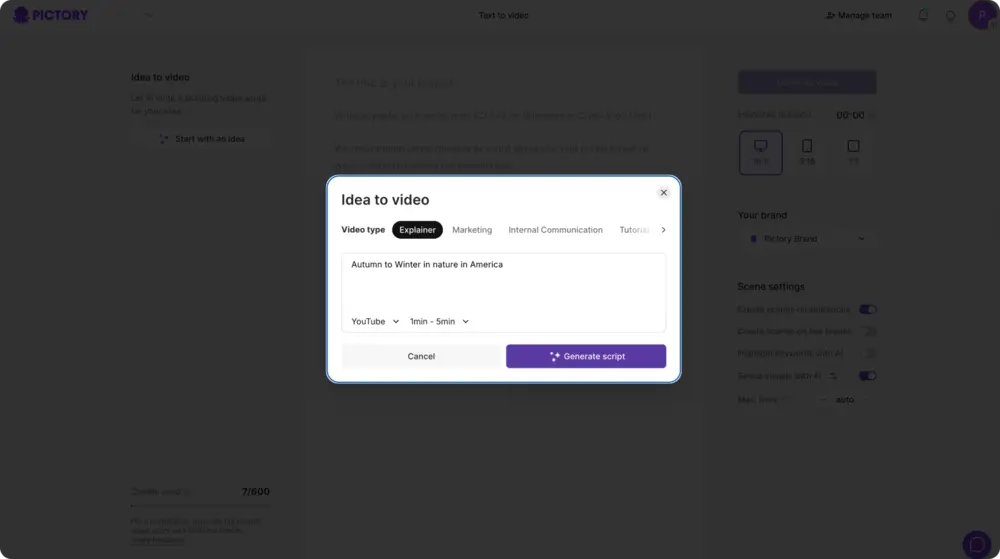
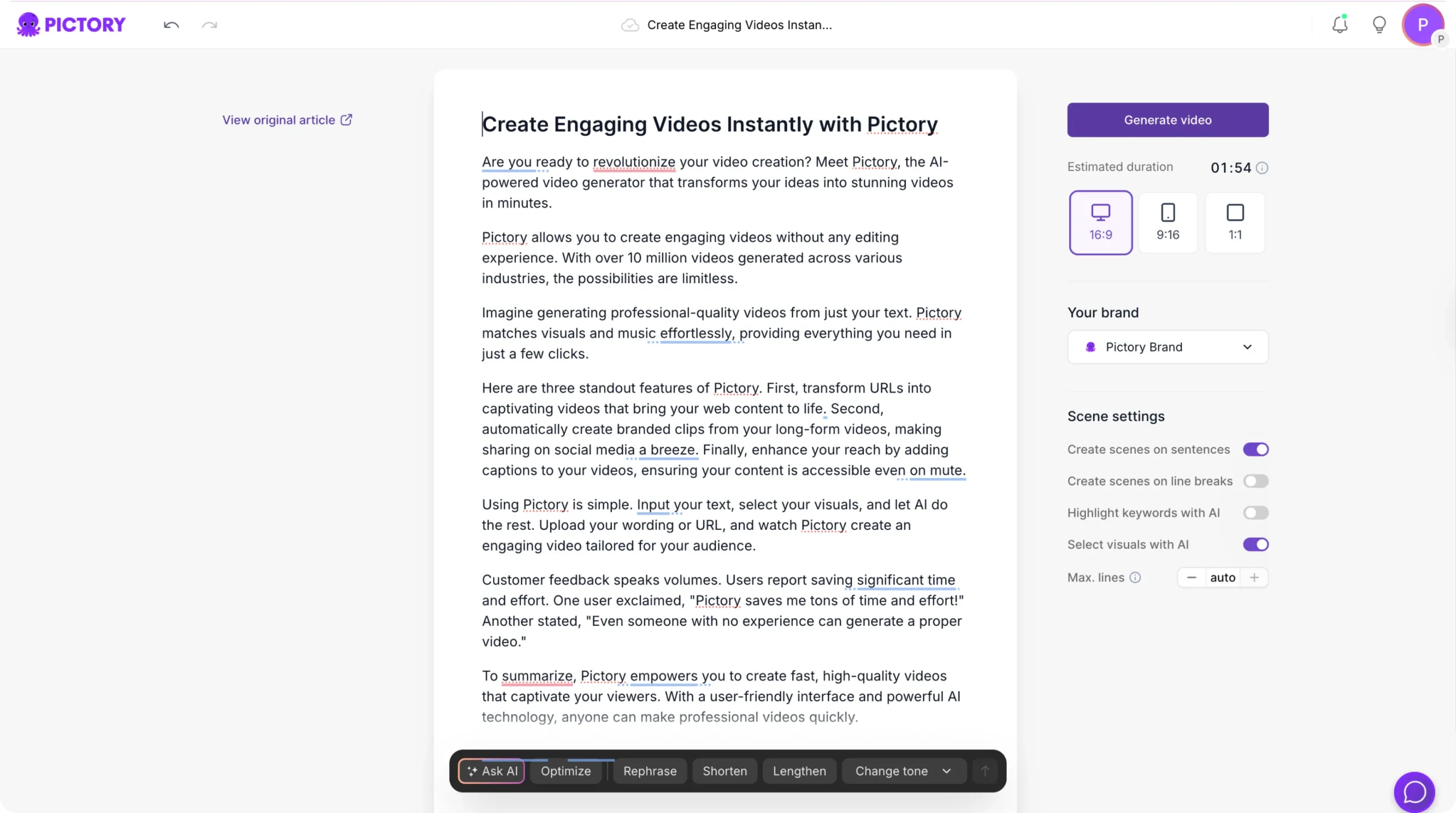
Turn prompts, text, scripts, articles, or blog posts into engaging videos with AI-selected visuals, voiceovers, and musical all in minutes.




Trusted by over 20,000 companies of all sizes
The Screen Recording Software allows you to record your screen, webcam, or both directly from your browser. Once recorded, you can edit your video, add AI-generated captions, clean audio, and insert visuals using AI Studio — all without leaving the platform. Perfect for training videos, product demos, online courses, and walkthroughs.
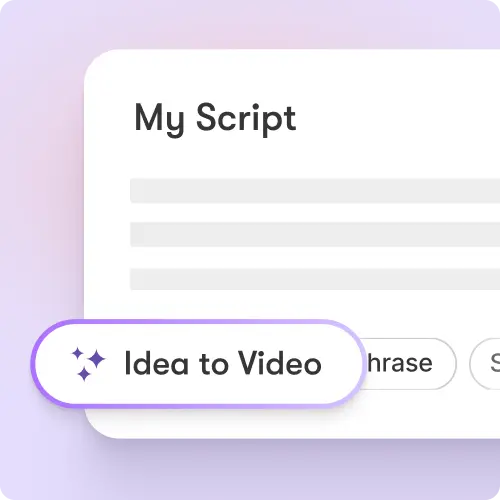
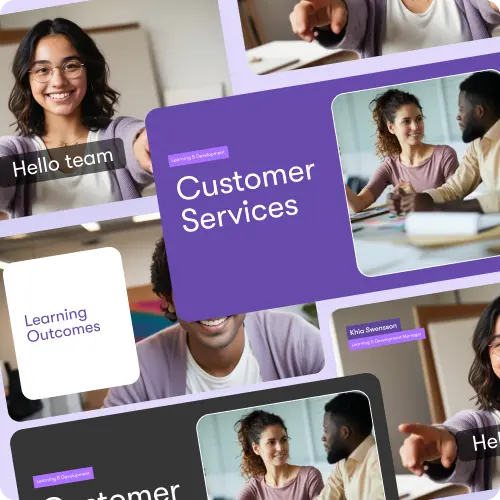
Capture screens and webcam feeds in HD quality. Automatically generate captions and clean up audio. Edit instantly with the built-in Video Editor. Add visuals, branding, and music using AI workflows. Create professional, share-ready recordings without complex setups.
Key Features of Screen Recording Software
Explore the tools that make screen recording effortless and professional.
Screen and Webcam Capture
Record your screen, webcam, or both with a single click.
Instant Editing
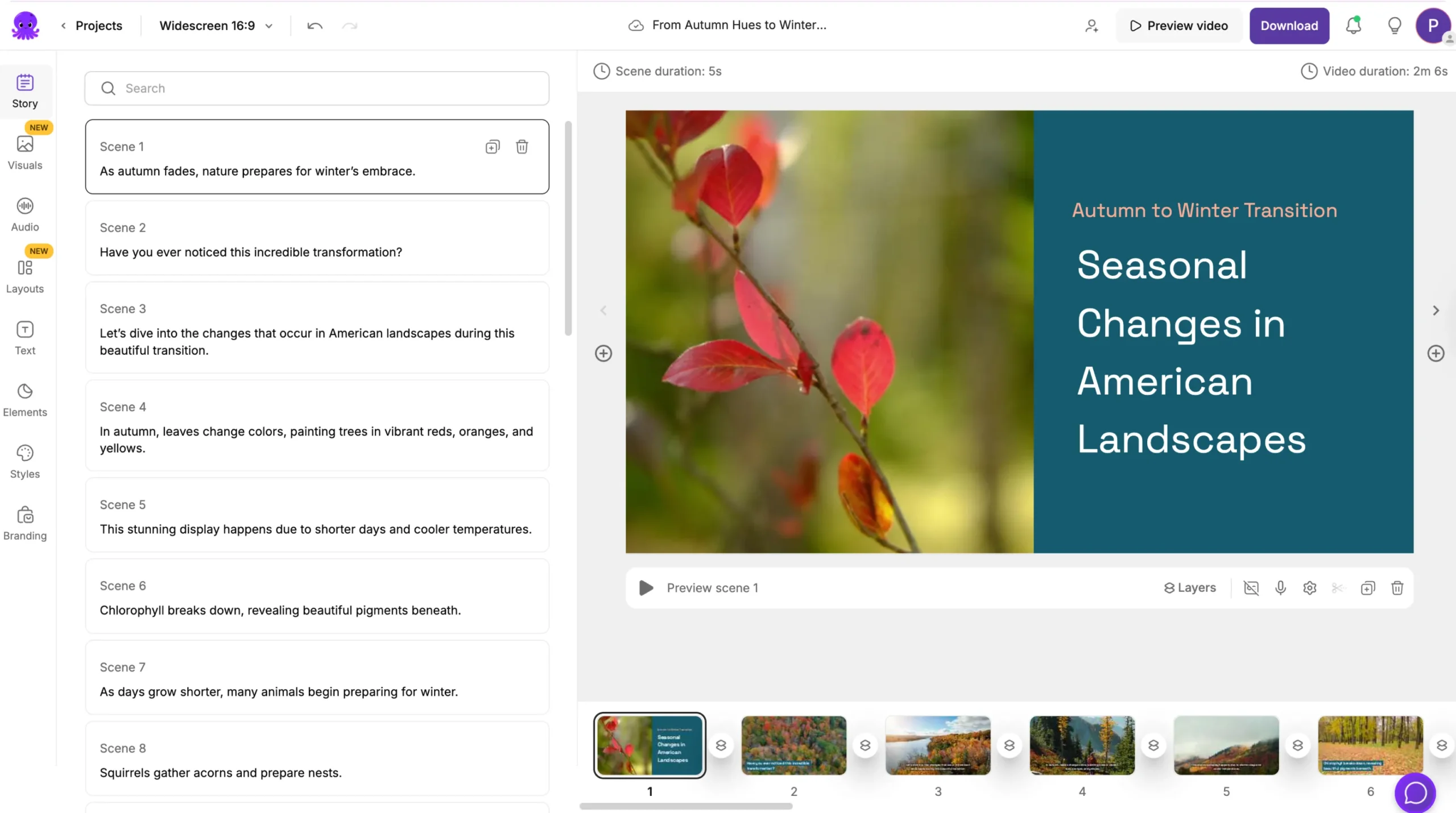
Edit your recording in the AI-powered Video Editor immediately after capture.
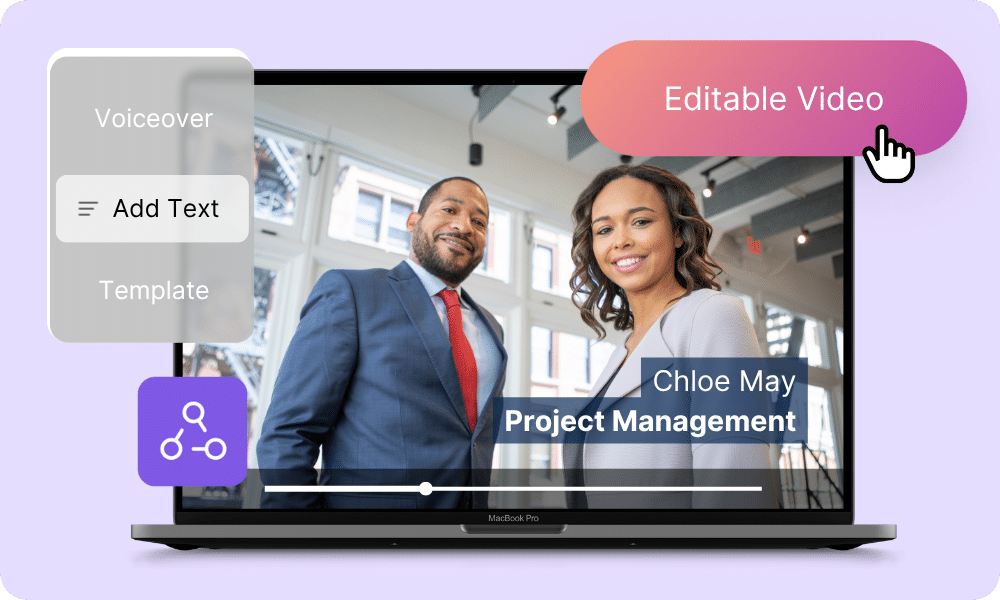
Brand Kit Integration
Apply your logo, fonts, and colors for a consistent professional look.
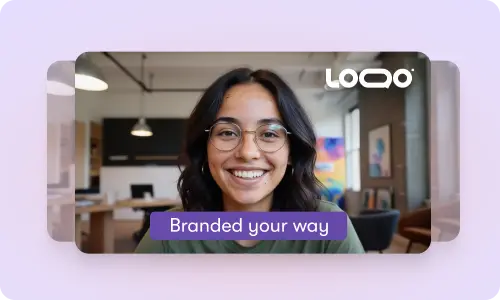
AI Audio Enhancement
Automatically clean background noise and balance voice levels.
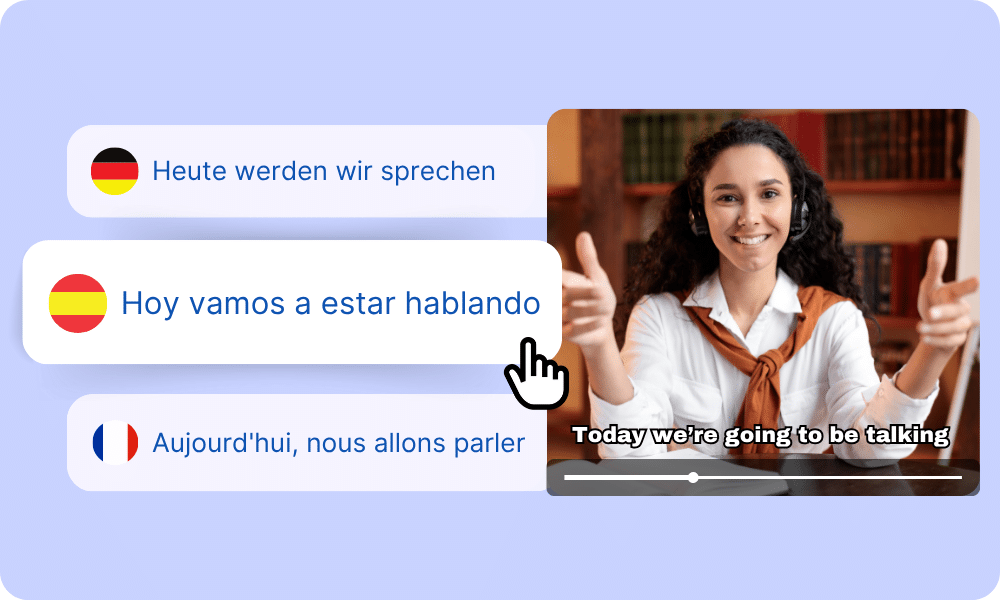
AI Captions and Subtitles
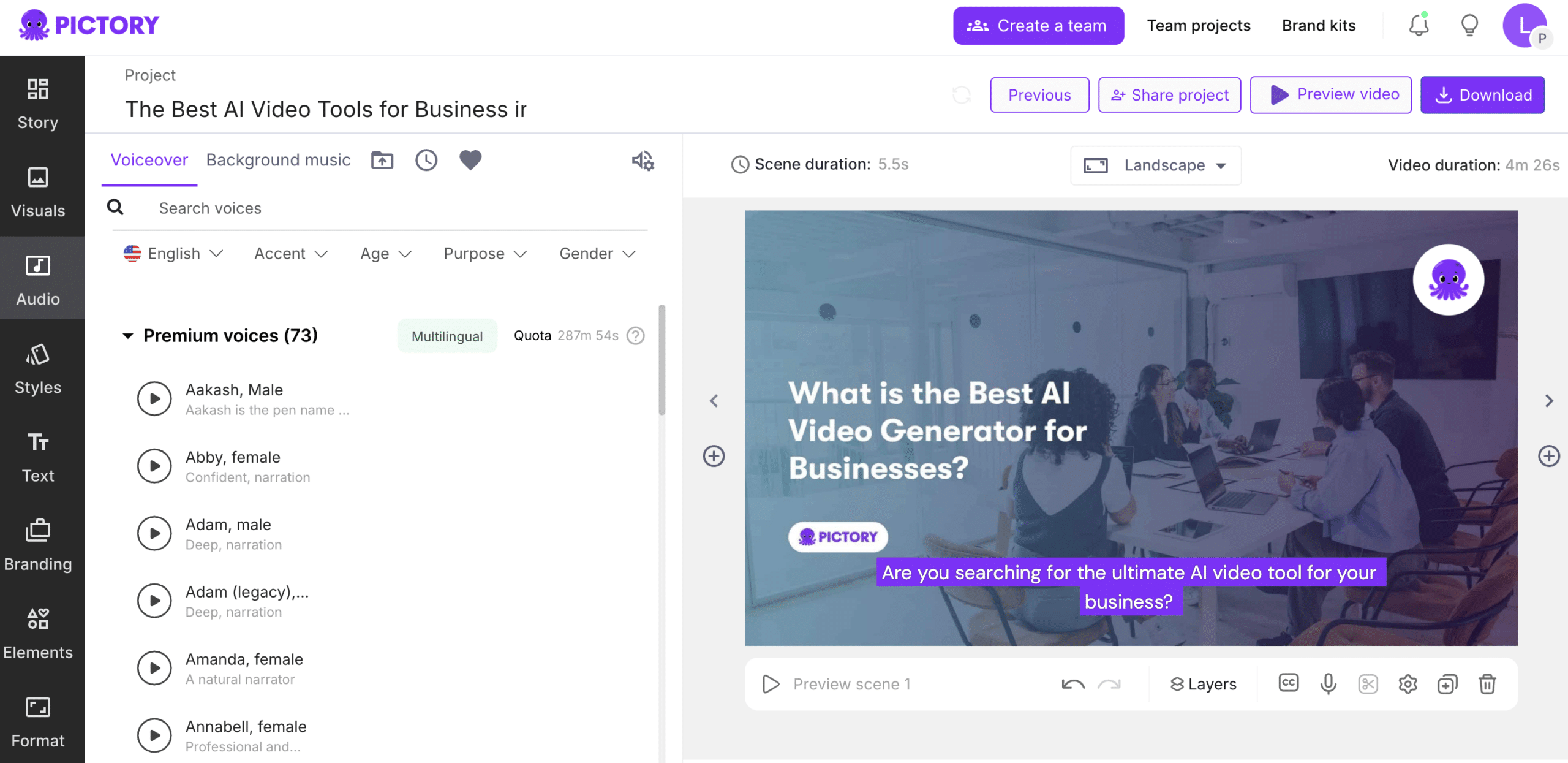
Generate accurate captions automatically in multiple languages.
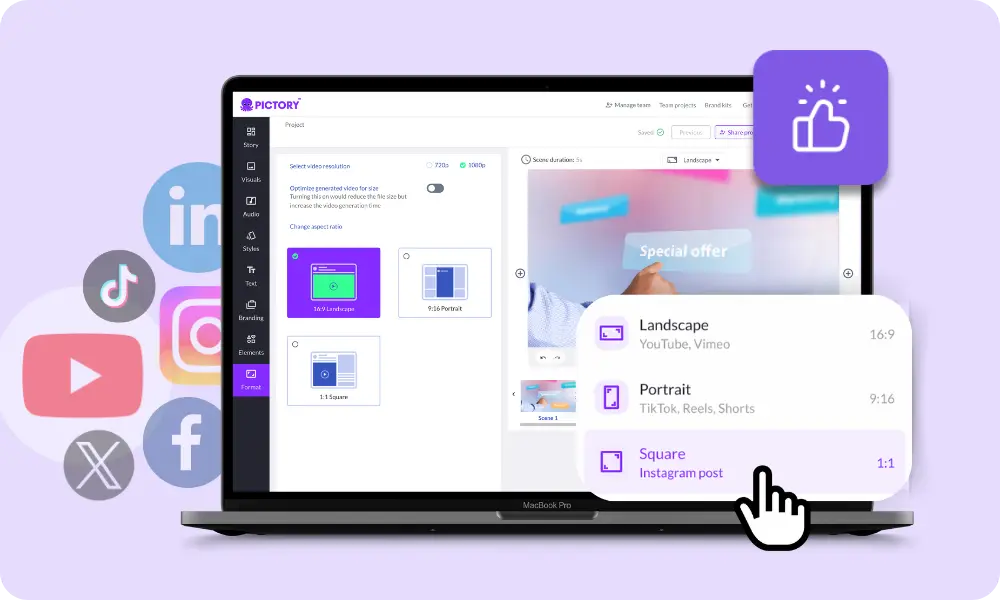
Multi-Format Export
Export in 16:9, 9:16, or 1:1 for YouTube, TikTok, or presentation formats.
Each of these features ensures your idea evolves into a polished video workflow that aligns with your goals and platform strategy.
Launch the recorder to capture your screen or webcam. When recording ends, open the built-in editor to trim clips, add AI-generated captions, insert visuals, and apply your branding. AI tools simplify editing, making your screen recordings look polished and ready to share.
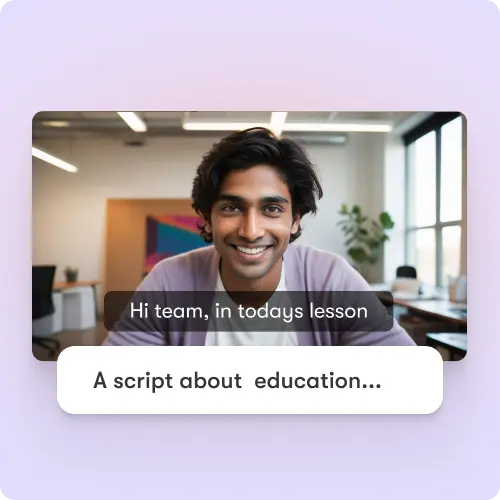
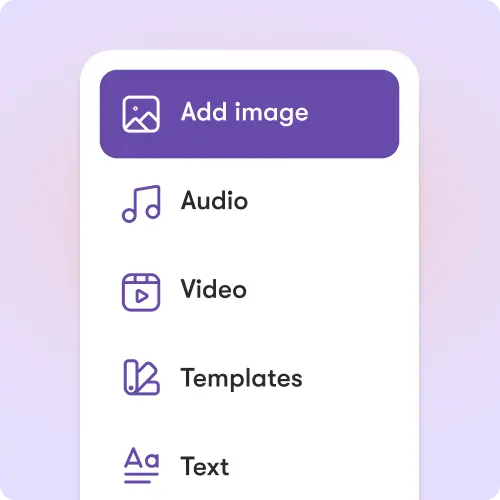
Adjust layouts, add intro and outro clips, or insert AI visuals with AI Studio. Customize audio tone, apply background music, or use templates that fit your brand or presentation style.
How to Use Screen Recording Software in 4 Easy Steps
Step 1
Start Recording
Choose to record your screen, webcam, or both with one click.
Step 2
Capture Your Content
Present, demonstrate, or teach — everything is captured in HD.
Step 3
Edit and Enhance
Use the Video Editor to trim, caption, and enhance your recording with AI.
Step 4
Export and Share
Download or share your video instantly across all major platforms.
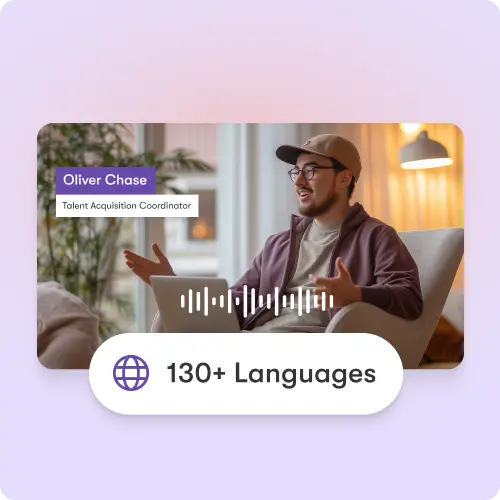
Add multilingual captions and AI voiceovers for global accessibility. Adapt screen recordings for international audiences in minutes.
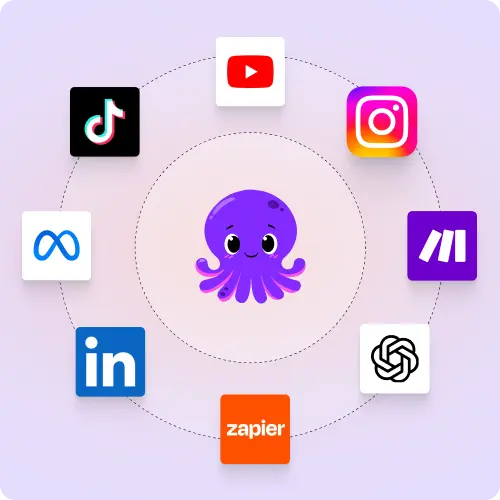
Export and share videos optimized for YouTube, LinkedIn, Vimeo, or learning platforms. Maintain perfect playback across devices and channels.
Reasons to Use Screen Recording Software
Use Cases for Screen Recording Software

Marketing Campaigns:
Generate explainer videos or product teasers from your campaign concepts instantly.

Educational Tutorials
Turn lesson ideas into complete teaching videos with narration and visuals.

Corporate Training
Convert internal communication topics into polished instructional videos.

Social Media Content
Create short-form videos tailored for brand awareness and audience engagement.
Get Started with Screen Recording Software
Record, edit, and share your screen effortlessly. Use AI-powered tools to create professional demos, tutorials, and presentations directly from your browser.
In partnership with


Screen Recording Software FAQs
What is the Screen Recording Software?
It’s an AI-enhanced tool that lets you record your screen, edit, and brand your videos in one place.
Do I need to install anything?
No — it runs in your browser and works directly with the Video Editor.
Can I record both screen and webcam?
Yes, you can capture both simultaneously or choose one.
Does it support captions and voiceovers?
Absolutely — AI automatically generates captions and can add voice narration.
How does AI help after recording?
AI assists with editing, captioning, sound balancing, and visual enhancement.
Can I share recordings instantly?
Yes, export or share videos directly to social, web, or learning platforms.


SOC 2 & GDPR compliant
Copyright 2026 Pictory.ai - Privacy Policy / Terms of Service / Copyright Policy / Sitemap