
PICTORY FEATURES
Voice Clone: Narrate Every Video in Your Own Voice without Recording
Recording a voiceover for every video you produce is a time bottleneck most teams quietly accept. Pictory removes it. Record a short audio sample, create an instant voice clone, and your voice narrates every script automatically. No studio. No re-recording. No inconsistency across projects. Your cloned voice is available in the Audio tab of every Pictory workflow -Text to Video, URL to Video, PPT to Video, and Audio to Video - from the moment you create it.
Rated 4.7/5 on Capterra
-
URL to Video
-
Audio to Video
-
AI Avatar Generator
-
AI Video Editor
-
PPT to Video
-
Image to Video
Text to Video Generator
Turn text, prompts, scripts, articles, and blog posts into videos using Gen AI visuals, AI avatars, captions, and realistic AI voices.
URL to Video
Audio to Video
AI Avatar Generator
AI Video Editor
PPT to Video
Image to Video




Trusted by over 20,000 companies of all sizes
A voice clone in Pictory is an AI-generated version of your voice created from a short recorded audio sample. Once created, it appears in your voice library inside the Audio tab and can narrate any script in any project automatically. You do not need to re-record narration each time. Write or paste a script, select your cloned voice, and Pictory converts the text to speech using your voice, syncing it to the video timeline with the same pacing and delivery as your original recording. Voice clones work alongside Pictory's full library of AI voices and can be combined with avatar clones if you also want your digital likeness on screen.
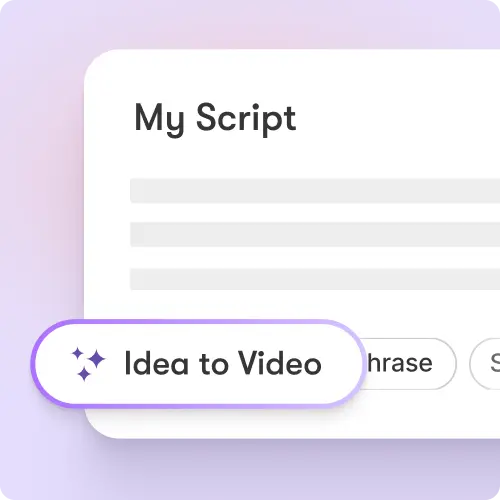
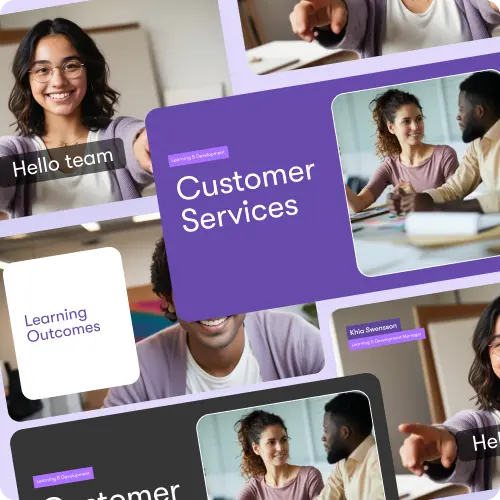
Recording narration is the single most time-consuming part of video production for most teams. A voice clone eliminates that step entirely after the initial setup. Content teams can produce ten videos with consistent narration in the time it previously took to record one. Training teams can update course content without sourcing a narrator or booking a recording session. Marketers can personalise video outreach at scale using a single presenter voice across hundreds of videos. Agencies can build a library of approved presenter voices for client projects. The voice stays consistent - same tone, same delivery, same recognition, regardless of how many videos are produced.
Core Features of Voice Cloning in Pictory
Voice cloning in Pictory is built into the Audio tab and works across all creation workflows. Here is what the feature set includes.
Instant Voice Clone Creation
Upload a clear voice sample in the Audio menu, provide consent, and Pictory generates your voice clone. The cloned voice is added to your voice library and available for use in any project immediately after processing.
Works Across All Pictory Workflows
Your voice clone is available in Text to Video, URL to Video, PPT to Video, Audio to Video, and the AI Video Editor. Any script in any workflow can be narrated using your cloned voice.
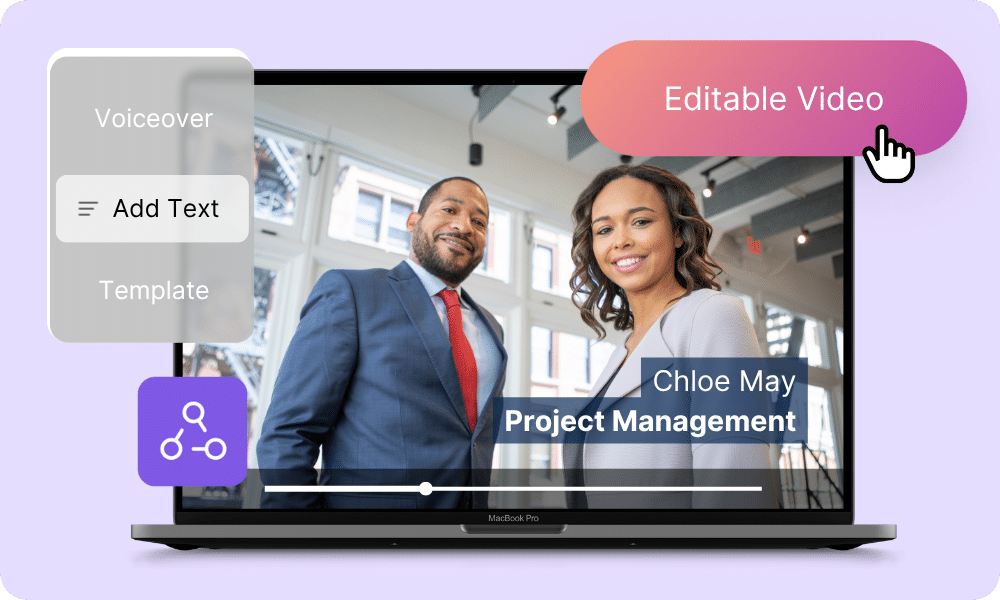
ElevenLabs-Powered Voice Quality
Pictory's voice cloning uses ElevenLabs technology to produce high-quality, natural-sounding narration. Usage counts against your ElevenLabs minutes allocation on your plan.
Automatic Script Narration
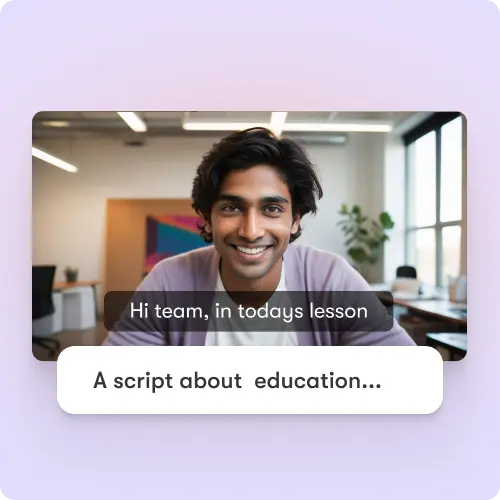
Select your cloned voice in the Audio tab and it converts your scene text into spoken narration automatically. No manual recording is required after the initial voice clone is created.
Up to 5 Instant Voice Clones per Account
Each account on Pro, Teams, or Enterprise plans supports up to 5 instant voice clones. You can create separate clones for different presenters, team members, or brand voices.
Team Sharing and Workspace Access
Voice clones can be shared across your workspace so team members can use the same presenter voice in their own projects. Shared clones appear automatically when a project or Brand Kit is shared.
Each of these features ensures your idea evolves into a professional video workflow that aligns with your goals and platform strategy.
Open the Audio menu inside Pictory and click Create New under the voice clone section. Record or upload a clear audio sample of your voice, use a quiet environment and consistent volume for the best results. Submit the consent recording required by Pictory to verify you are authorising the use of your own voice. Once processed, your cloned voice appears in the Audio menu alongside the standard AI voice library. Select it in any project to have it narrate your script automatically. Voice clone creation is free,usage counts against the ElevenLabs minutes on your plan.
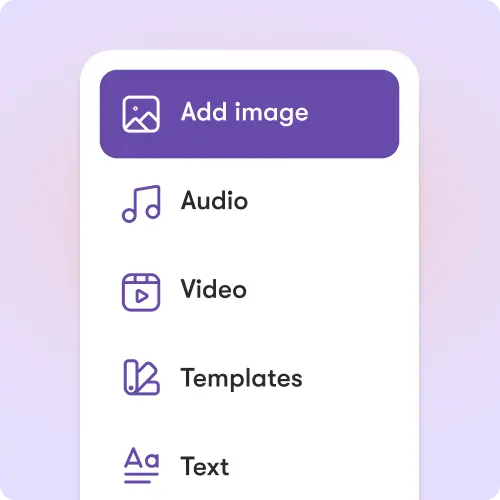
Your voice clone does not operate in isolation. Once applied to a project in the Audio tab, you have full control over the rest of the video in the same editor. Adjust scene pacing and text in the Story tab. Replace or generate visuals in the Visuals tab. Add background music alongside your cloned voice narration in the Audio tab. Apply your brand kit in the Branding tab to set logo, fonts, and color palette across every scene. Add on-screen text overlays with animation effects - Fade, Typewriter, Wipe, Elastic - using the Text tab. If you also have an avatar clone, add your digital presenter to any scene using the Avatars tab to create fully presenter-led videos at scale.
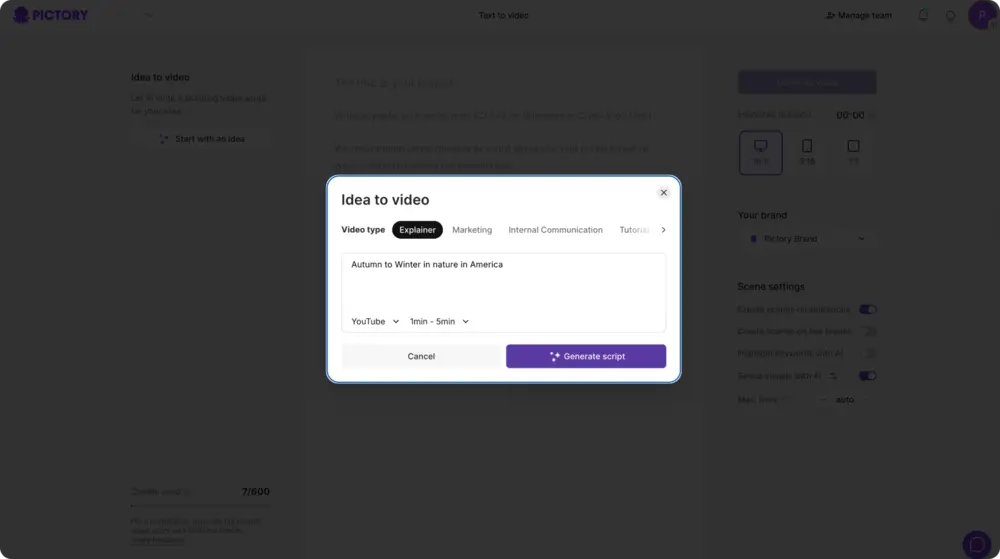
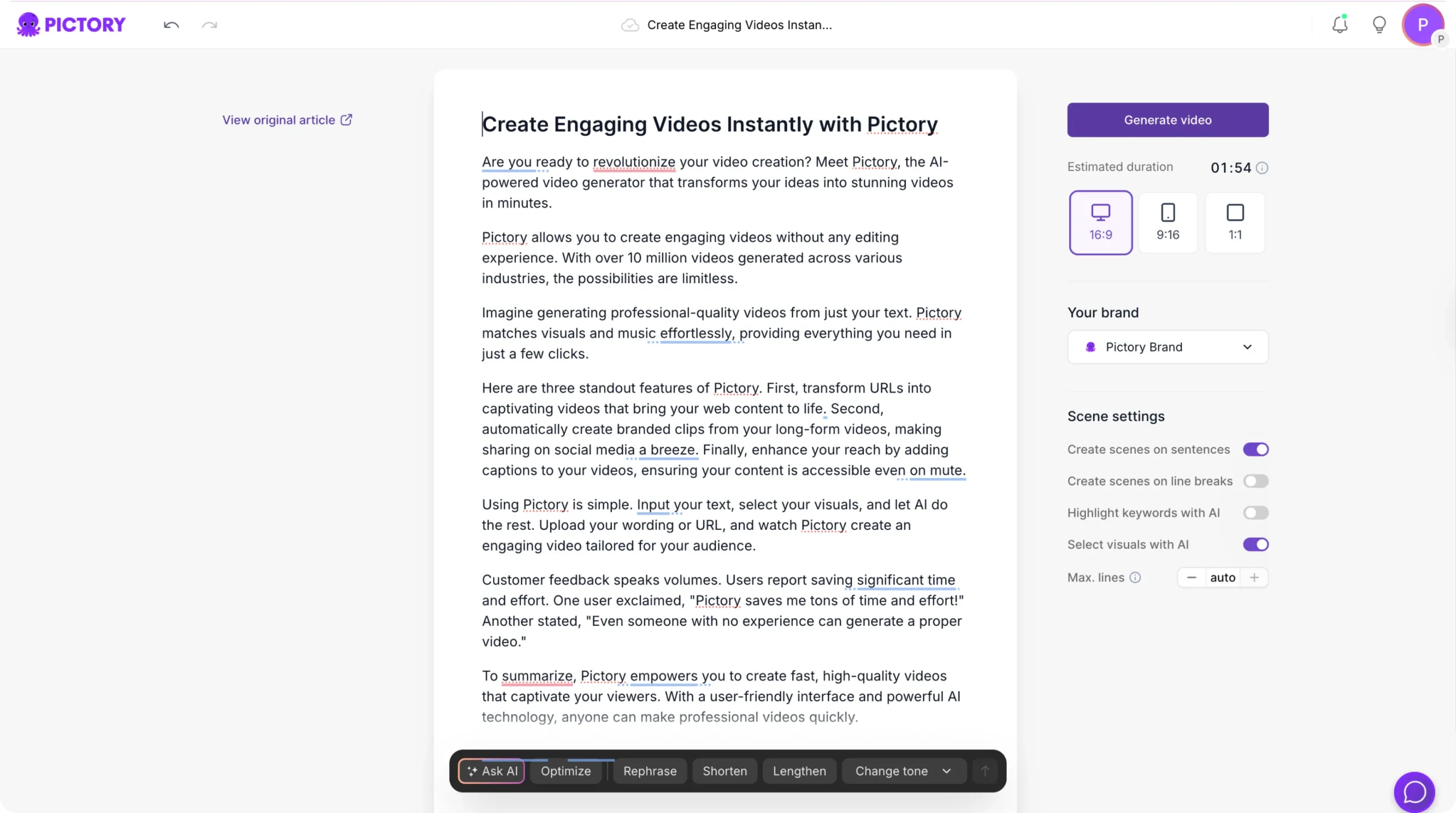
Step 1
Open a project and go to the Audio tab
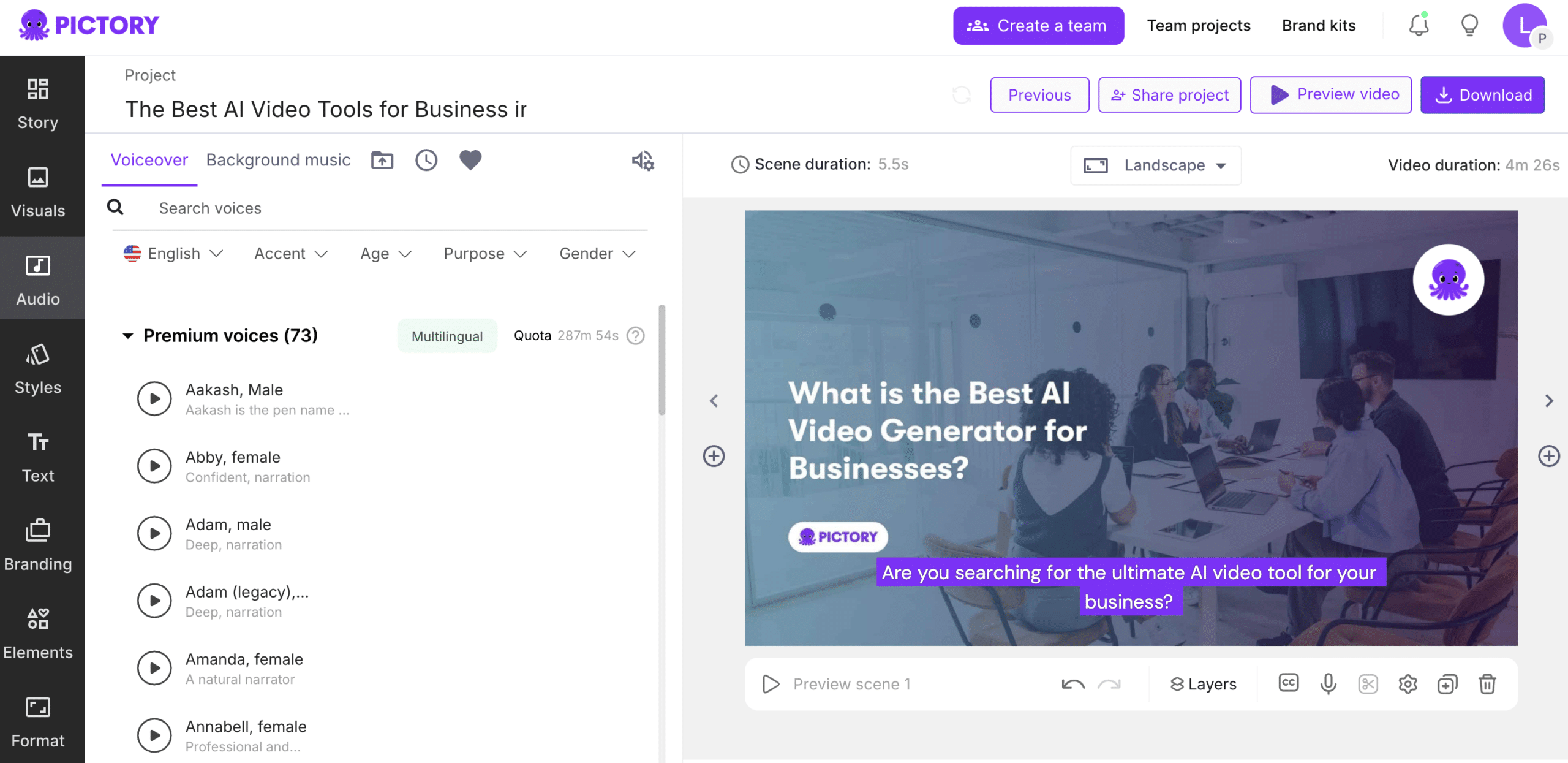
Create a new project using any Pictory workflow - Text to Video, URL to Video, PPT to Video, or Audio to Video, or open an existing project in My Projects. Once in the video editor, open the Audio tab in the left sidebar. Your voice clones appear alongside the standard AI voice library.
Step 2
Select your cloned voice
Click your voice clone from the Audio menu to select it as the narration voice for the project. You can preview the voice before applying it. Once selected, Pictory converts the scene text to speech using your cloned voice and syncs it to the video timeline.
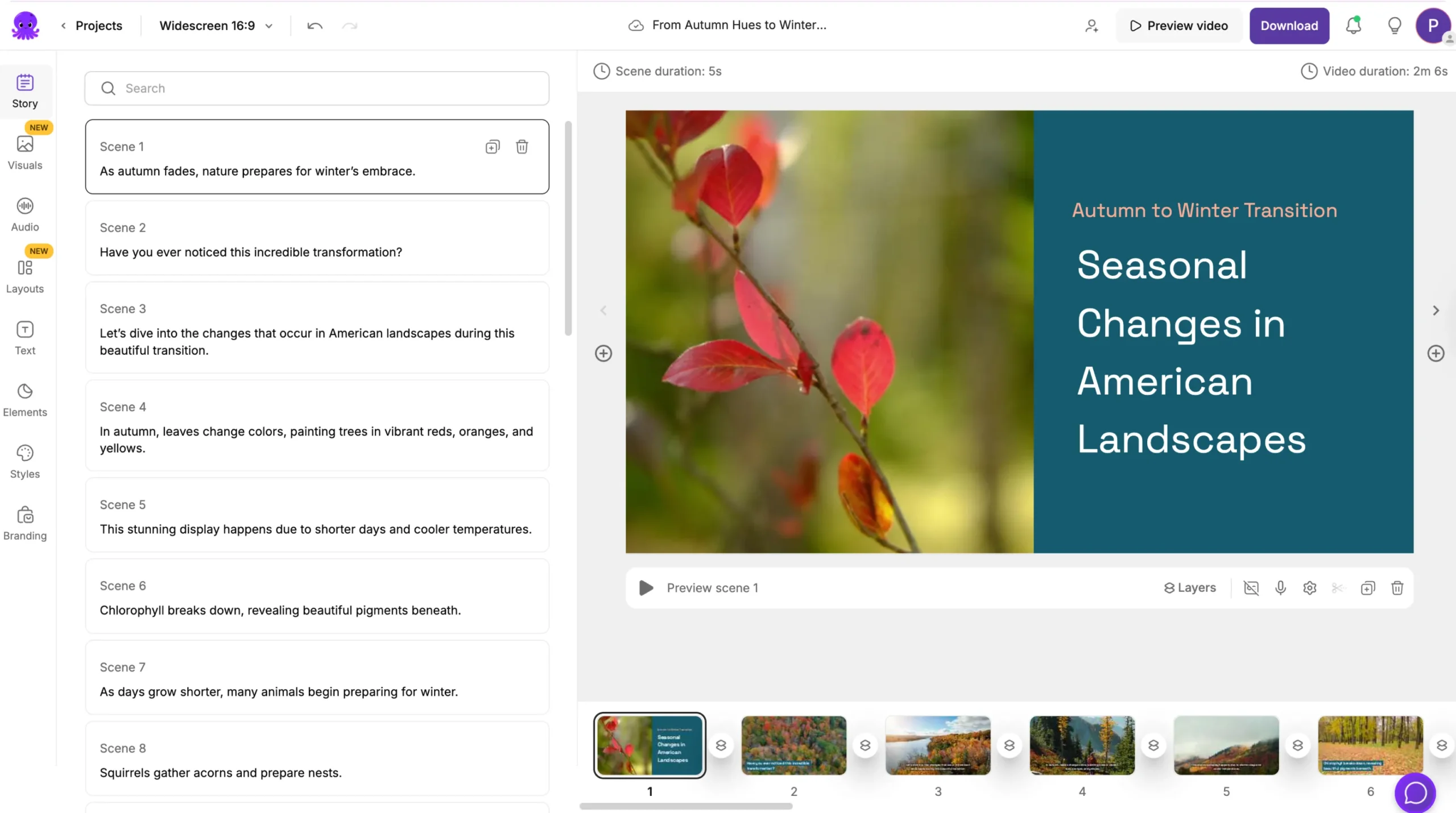
Step 3
Review narration and adjust scene text if needed
Play back the video to review how your cloned voice reads each scene. If the pacing or wording is off, edit the scene text in the Story tab and the narration regenerates automatically. You can also adjust voiceover speed and volume from within the Audio tab controls.
Step 4
Export and distribute the finished video
Once the narration sounds correct and all visual edits are complete, click Preview Video to review the full output. Click Download Video to export in your chosen aspect ratio - 16:9, 9:16, or 1:1. The project saves automatically under My Projects. Your voice clone remains available for the next project immediately.
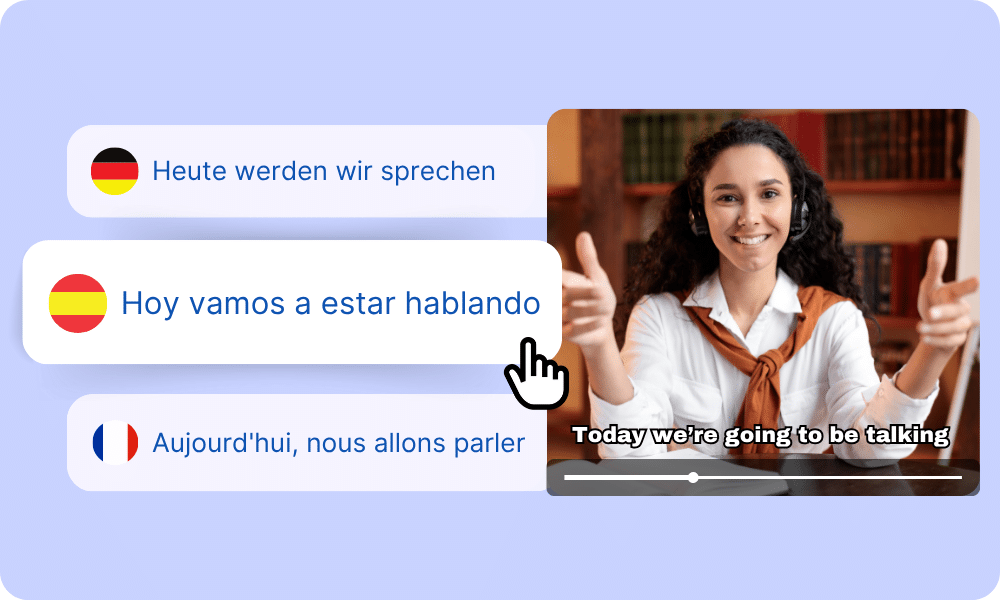
Pictory supports multilingual voiceover through its standard AI voice library. For international content, teams can use standard AI voices in the target language alongside a cloned presenter voice for the primary market. The Translations feature handles subtitle translation separately, making it practical to produce the same video content for multiple language markets from a single project. For teams running global training or marketing programmes, this reduces the production overhead of localising video content significantly.
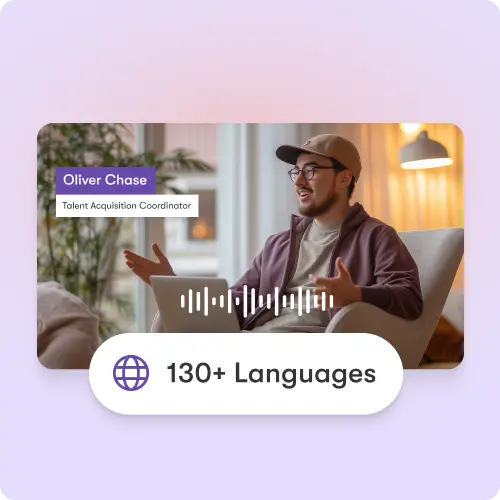
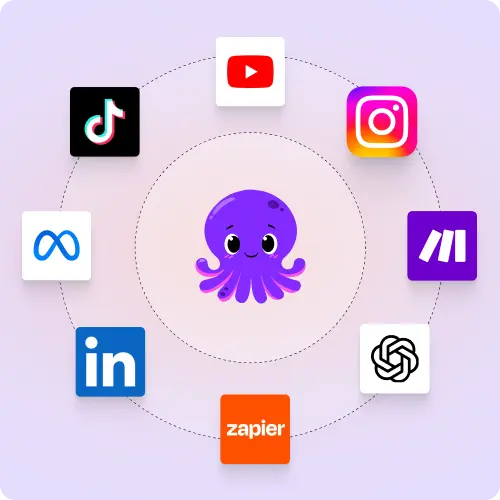
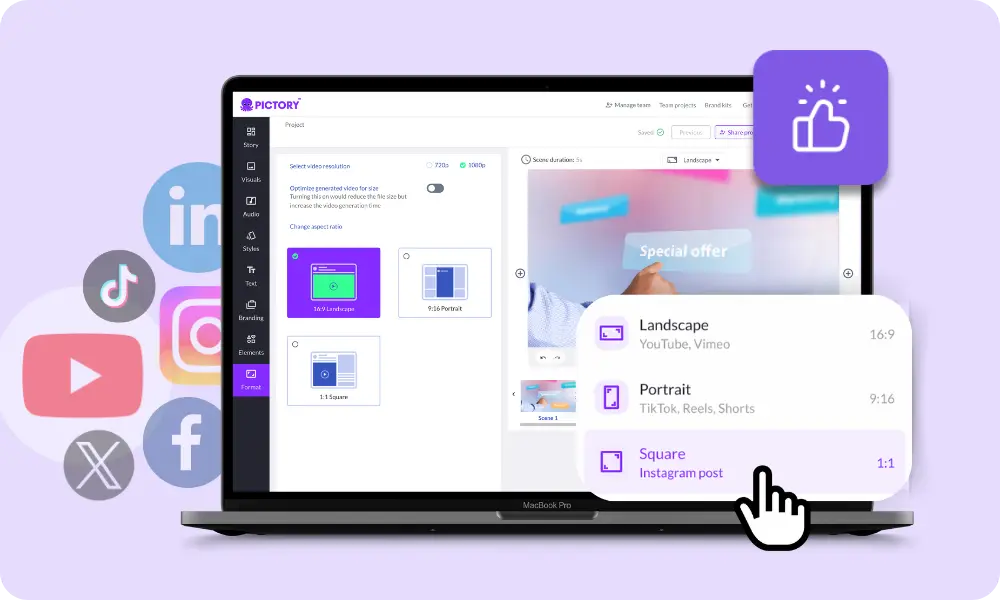
Videos narrated with a Pictory voice clone export in widescreen (16:9), square (1:1), and vertical (9:16) formats, making them ready for YouTube, LinkedIn, Instagram Reels, TikTok, Facebook, email campaigns, internal LMS platforms, onboarding portals, and sales outreach tools. Pictory integrates with Make and Zapier, allowing teams to automate voice clone video production as part of a broader content workflow.
Reasons to Use Voice Cloning in Pictory
Use Cases for Voice Cloning in Pictory

Marketing Campaigns:
Generate explainer videos or product teasers from your campaign concepts instantly.

Educational Tutorials
Turn lesson ideas into complete teaching videos with narration and visuals.

Corporate Training
Convert internal communication topics into polished instructional videos.

Social Media Content
Create short-form videos tailored for brand awareness and audience engagement.
Get Started with Voice Cloning in Pictory
Record a short audio sample, create your instant voice clone, and start narrating every video in your own voice without re-recording. Available on Pro, Teams, and Enterprise plans.
In partnership with





FAQ: Voice Clone in Pictory
What is a voice clone in Pictory?
A voice clone in Pictory is an AI-generated version of your voice created from a short audio sample. Once created, it appears in the Audio tab of every project and can automatically narrate any script using your voice without requiring you to record each time.
How do I create a voice clone in Pictory?
Go to the Audio menu in Pictory and click Create New. Upload a clear voice sample and submit the required consent recording. Pictory processes the sample and adds your cloned voice to your voice library. From that point it is available to use in any project.
Is voice cloning available on all Pictory plans?
Instant Voice Clones are available to users on Pro, Teams, and Enterprise plans. Creating a voice clone is free. Using it to narrate videos counts against the ElevenLabs minutes included in your plan.
How many voice clones can I create?
Each account supports up to 5 instant voice clones. You can create separate clones for different team members, presenters, or brand voices within the same account.
Can I share my voice clone with my team?
Yes. Voice clones can be shared across your Pictory workspace so team members can use the same presenter voice in their own projects. Shared clones appear automatically when you share a project or Brand Kit with a team member.
What happens if I delete a voice clone?
Deleting a voice clone removes it from your voice library and from all projects where it was applied. If the voice clone was created as part of an avatar clone, deleting the avatar also deletes its associated voice clone. Exported videos that used the voice clone are not affected by deletion.



SOC 2 & GDPR compliant
Copyright 2026 Pictory.ai - Privacy Policy / Terms of Service / Copyright Policy / Sitemap


