TL;DR
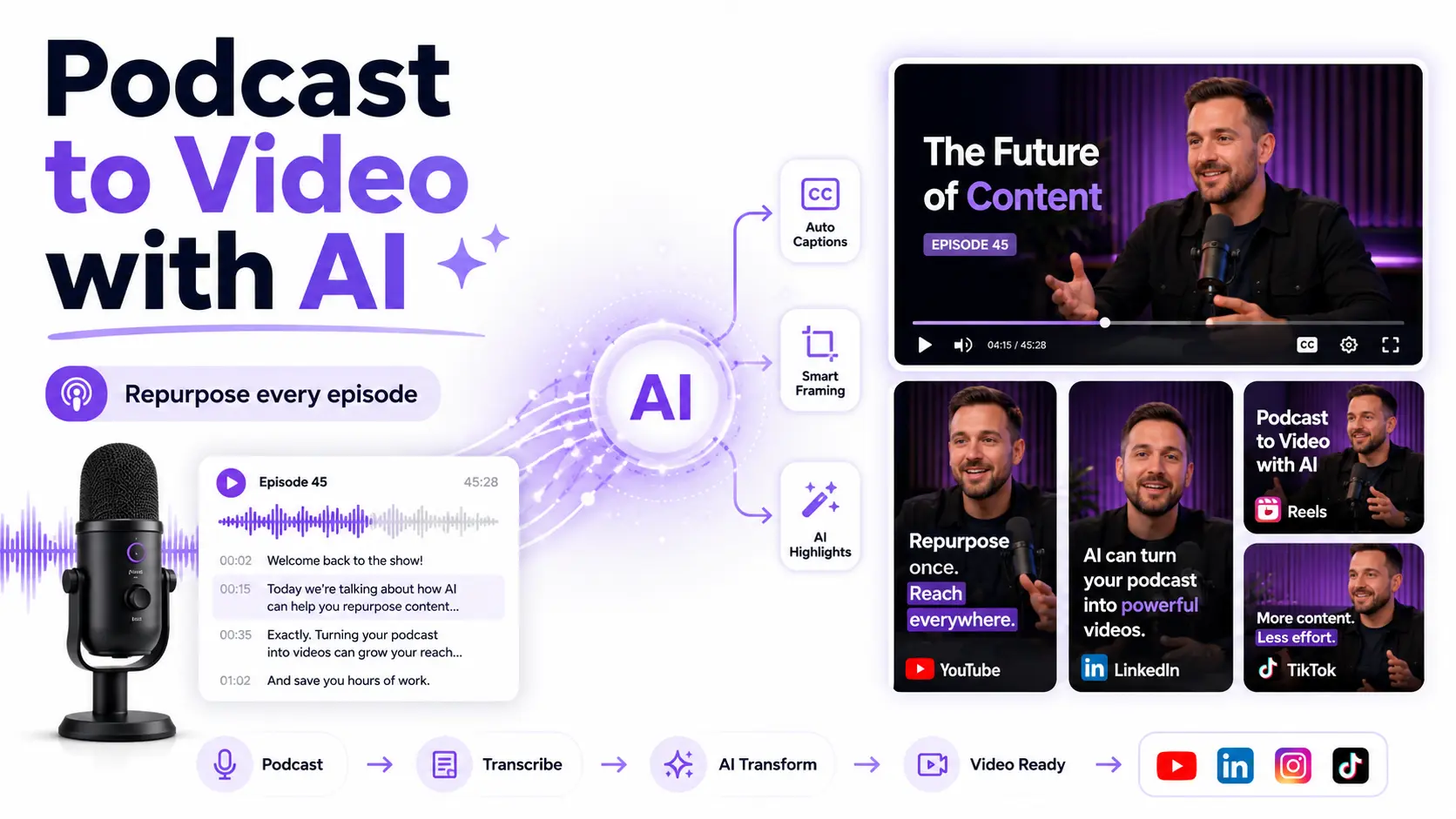
Upload your podcast audio to Pictory’s Audio to Video workflow and the AI transcribes it, builds a visual storyboard, adds captions, and lets you export for YouTube, LinkedIn, Instagram, and TikTok, all from one upload. This guide walks through the full workflow, the Auto Highlight shortcut for social clips, and how to brand every output consistently. Most episodes are production-ready in under 30 minutes.
You spent hours researching, recording, and editing your podcast. Then you hit publish, shared it once, and moved on. Most podcast content gets used exactly once, which means most of the value you created never reaches anyone. AI changes that. Teams using Pictory now produce up to 11 times more video content per month without adding headcount, and a video that once took 13 days to produce takes around 27 minutes.
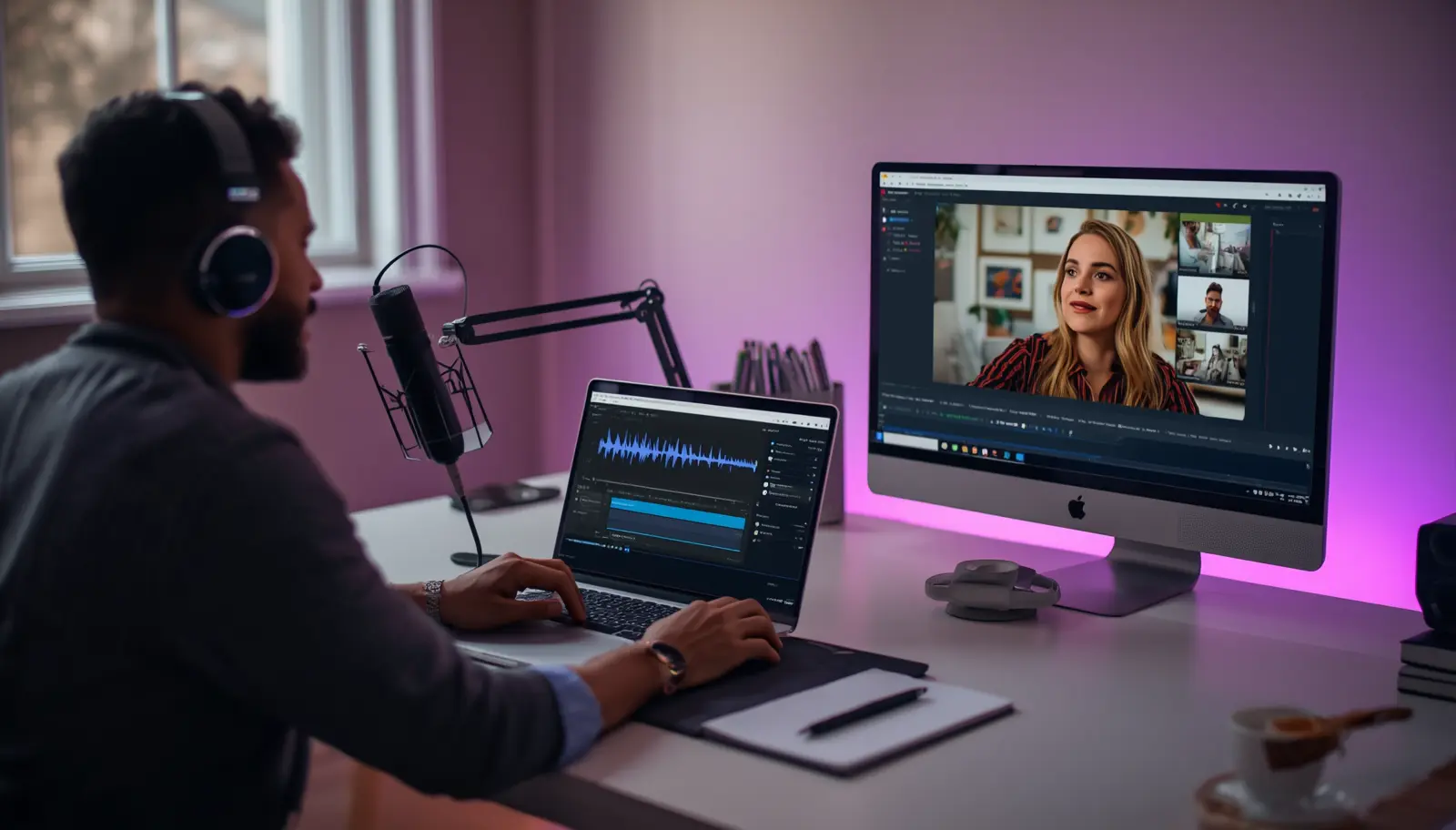
Why Podcasters Leave Most of Their Content Value on the Table
Recording a podcast is the expensive step. The research, the guest coordination, the editing, that’s where the real time goes. Distribution should be fast and cheap, but for most creators it isn’t, so they publish once and stop there.
The audience is already on video platforms. Around 70% of all podcast consumers now use YouTube to watch or listen to shows, and video podcasts repurposed into Reels, Shorts, or TikToks receive 4.6 times more total impressions than full-length episodes alone. If your podcast isn’t showing up as video, a large share of the people who’d want to hear it never will.
“Teams combining AI and human editors report producing up to 11 times more video per month without growing headcount.” Pictory, AI Video Trends 2026
The recording session you already did is all the raw material you need. AI handles everything that used to make repurposing impractical.
What Does “Podcast to Video” Actually Mean?
Podcast to video means taking your audio file and turning it into a fully produced, visually branded video without re-recording anything. There are two main outputs: a full-episode video for YouTube and a set of short-form clips for social platforms.
AI takes transcription, visual matching, caption burn-in, filler word removal, silence removal, and branding off your plate. What you still control: which moments matter most, how you want the visuals to feel, and final approval before export.
This is different from a screen recording of your audio file playing. A properly produced podcast video has matched B-roll footage or AI-generated visuals for each scene, synced captions, background music, and your logo and brand colors applied throughout. Pictory builds all of that automatically from your audio. For more on the voiceover controls, see Pictory’s guide on applying and editing voiceovers.
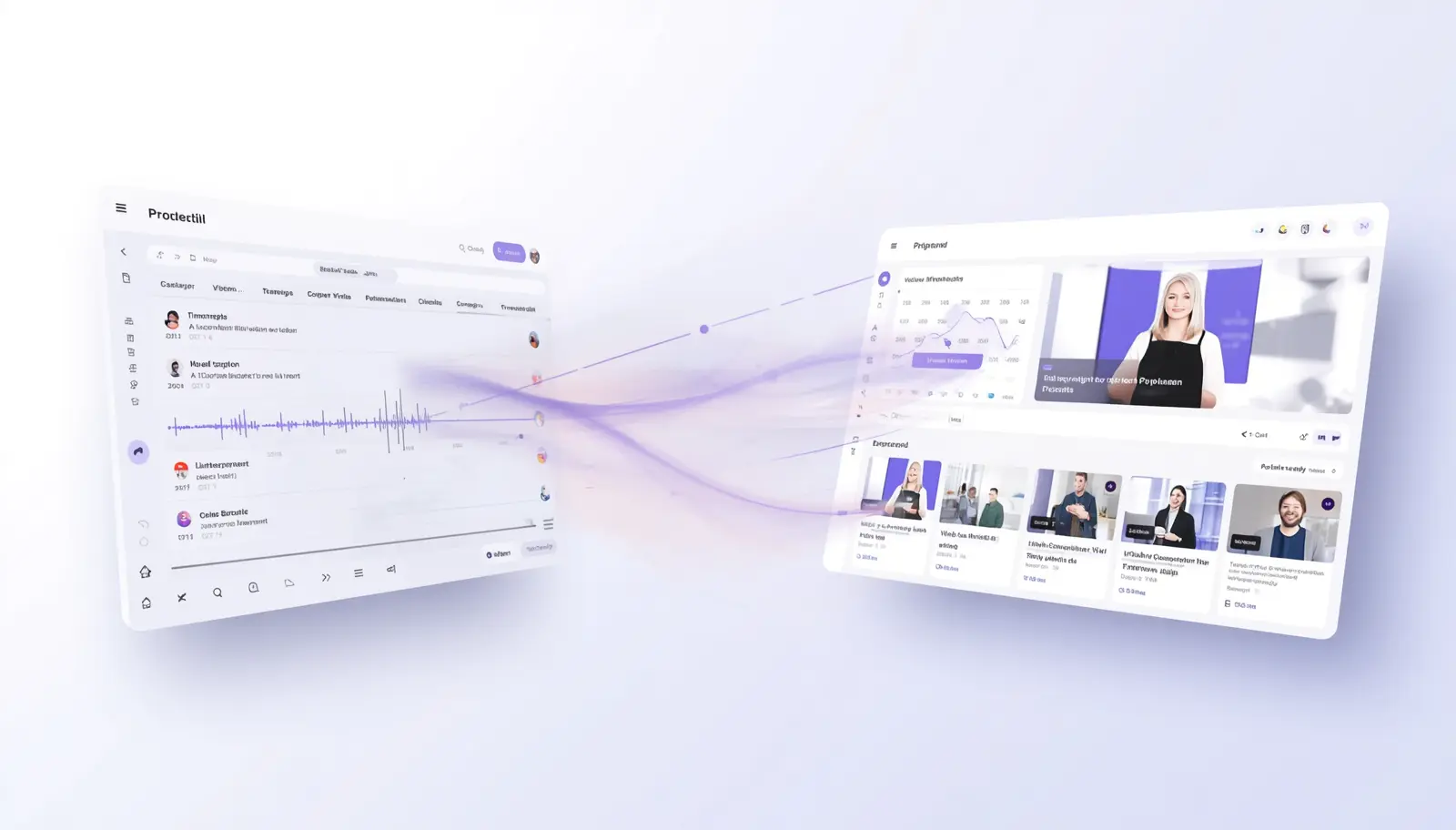
How to Turn a Podcast into a Video with Pictory (Step by Step)
The full workflow runs inside Pictory’s Audio to Video feature. Here’s how each step works.
Step 1: Upload your audio file
From the Pictory home page, select Audio to Video. Drag and drop your audio file or browse from your computer. Files up to 5 GB and 180 minutes are supported. If your episode is longer than that, split it by segment first.
Step 2: Select your language
Choose the language spoken in the episode (for example, English US or UK) before uploading. Then hit Open Transcript Editor. Pictory begins transcribing automatically, and you’ll get a notification when it’s done, so you can work on other projects while you wait.
Step 3: Review the Transcript Editor
The Transcript Editor opens with two tabs: Transcription (the full editable text) and Highlights (AI-identified key moments). Start in Transcription, fix any names or terms the AI misheard, then toggle Remove Filler Words and Remove Silences to tighten the pacing. See Pictory’s guide on removing silences automatically for more detail.
Step 4: Apply your brand kit
In the right panel, open the Brand Kit selector and choose your brand. This applies your logo, brand colors, and fonts to every scene automatically. Pick a style from the Styles library (Navy Blue, Indigo Ink, Sleek, Clean, or Bold Edge) to set the visual tone for the whole video.
Step 5: Generate the storyboard and refine in the Video Editor
Select Create Video. Pictory builds a scene-by-scene storyboard with matched visuals and captions. In the Video Editor, you can swap any visual in the Visuals tab, adjust scene timing, edit text overlays in the Text tab, and preview before exporting. For a full editing walkthrough, see How to Edit Videos with the AI Video Editor.
Step 6: Export in the right format for each platform
Choose your aspect ratio: 16:9 for YouTube, 9:16 for Instagram Reels and TikTok, 1:1 for LinkedIn. Pictory exports the same project in any format, no re-editing required between platforms. Download the finished video and publish.
How to Get More from Each Episode with Auto Highlight
The Highlights tab is where a single podcast episode becomes a week of social content. Pictory’s Auto Highlight analyses your transcript and marks the strongest moments automatically, a key insight, a quotable line, a surprising stat. Each one becomes a standalone clip.
After transcription, select the Highlights tab in the Transcript Editor. Review the AI-identified moments, click any one to jump to that point in the preview, then hit Create Video or Customize Video to turn it into a short clip. Export in 9:16 for Reels and TikTok, or 1:1 for LinkedIn. For the full walkthrough, see Pictory’s Auto Highlight guide.
Creators who post teaser clips within 24 hours of a full episode see a 39% increase in cross-platform traffic. One recording session can fuel a full week of social content.
You don’t need to select highlights manually if you don’t want to. Auto Highlight does the identifying, you just decide which ones to keep. That’s usually a few minutes of work.
AUDIO TO VIDEO
Turn your next podcast episode into a full week of video content
Upload your audio file to Pictory, and the AI builds the storyboard, captions, and visuals while you move on to the next thing.
Branding Your Podcast Videos for Consistency
Consistent branding makes your show recognizable across platforms. When someone sees your clip on TikTok with the same logo, color scheme, and caption style as your YouTube video, they know it’s you without reading your name. Podcasts with consistent visual branding are 39% more likely to be recommended by viewers.
In Pictory, you apply your brand kit once and it carries through every scene in the project. Your logo appears in the position you’ve set. Your brand colors replace the default palette. Your chosen font applies to all text overlays. You can also save a custom style in the Styles tab, locking in your preferred caption treatment, text size, and color combination so every future episode starts from the same visual baseline.
This is what Fuse Venture Capital found. Before Pictory, they only shared video for major events because production was too heavy a lift for the team. Once they could apply consistent branding fast, frequent content sharing became routine, without a steep learning curve or the need for editing expertise.
Which Platforms Should You Publish Podcast Videos On?
Publish wherever your audience already spends time. Here’s how each platform works and what format Pictory exports for it.
YouTube
70% of podcast consumers use YouTube to watch or listen to shows. Upload the full-episode video here with a keyword-rich title and description. This is your highest-reach platform for long-form content.
The right platform for B2B marketers and L&D professionals. Full episodes and two-minute summaries both perform well. Square format works best in the feed.
Instagram Reels and TikTok
Short clips under 60 seconds drive 57% of all video podcast social shares. Use your Auto Highlight clips here. Vertical format, punchy captions, and your brand colors on every frame.
Pictory exports in the right aspect ratio for each platform from the same project. No re-editing between YouTube, LinkedIn, and Reels. Three exports from one source file. For more on repurposing video across social channels, see Pictory’s guide to repurposing video for social media.
Is Podcast to Video Right for You?
This workflow works best for marketers, educators, and content teams who already record podcasts, webinars, or audio interviews and want to extend their reach without adding production hours. If you publish at least one episode a month and want that content to show up on YouTube, LinkedIn, and social channels, the time investment is small and the return in reach is real.
It’s a less obvious fit if your podcast is personality-driven and the visual of the host talking is the point. In that case, a talking-head video of the actual recording session may serve you better than an AI-generated storyboard. The Highlights workflow still adds value in that scenario: short, captioned clips of your best moments will outperform sharing a raw audio file on social every time.
If you’re producing any kind of audio content and not yet turning it into video, the distance between what you’re creating and what your audience is seeing is larger than it needs to be. Pictory covers that in one upload. For a broader look at turning every content format into video, see the complete guide to AI content repurposing.
Your next podcast episode is already a week of video content
Upload your audio file to Pictory and get a fully produced, branded, captioned video ready for YouTube, LinkedIn, and social, in under 30 minutes.
FAQ: Repurpose Podcast to Video
Can I turn a podcast audio file into a video without editing skills?
Yes. Pictory’s Audio to Video workflow handles transcription, visual matching, and caption generation automatically. Upload your file, review the AI-generated storyboard in the Transcript Editor, apply your brand kit, and export. No timeline editing or video production experience needed.
How long does it take to convert a podcast episode to video with AI?
For a 30 to 45 minute episode, expect around 15 to 30 minutes of active work after Pictory completes transcription and storyboard creation. Pictory notifies you when processing is done, so you can work on other projects in the meantime.
What file types does Pictory accept for podcast to video conversion?
Pictory’s Audio to Video workflow accepts standard audio formats up to 5 GB and 180 minutes in length. If your episode exceeds that limit, split it by segment before uploading.
Can I create short social clips from a long podcast episode?
Yes. Use the Highlights tab in the Transcript Editor. Pictory’s Auto Highlight identifies the strongest moments automatically, select any highlight, hit Create Video, and export in 9:16 for Reels and TikTok or 1:1 for LinkedIn, all from the same upload. The Auto Highlight guide walks through the full process.
Do I need to re-record anything to add voiceover to my podcast video?
No. Your original podcast audio becomes the voiceover. Pictory syncs captions to your speech and overlays matching visuals automatically. If you’d prefer a different AI voice instead, you can replace it in the Audio tab. See Pictory’s guide on applying and editing voiceovers for the full steps.