
Voiceovers help your video feel more personal, clear, and engaging.
They guide viewers through your content and improve understanding. Pictory AI makes it easy to apply AI voiceovers or upload your own, then edit and sync them directly inside the editor.
This guide shows you how to apply and edit voiceovers in Pictory AI.
What the Voiceover Tools Do
The voiceover tools allow you to:
• Apply natural sounding AI narration
• Upload your own recorded voiceover
• Auto sync your narration to scene text
• Edit timing and pacing
• Replace or adjust voiceovers at any time
These tools help you create polished audio without using external software.
Step 1: Open the Audio Tab
Select the project or scene you want to add narration to. Click the Audio tab on the left side of the editor. You will see three sections:
• Voiceover
• Music
• Uploads
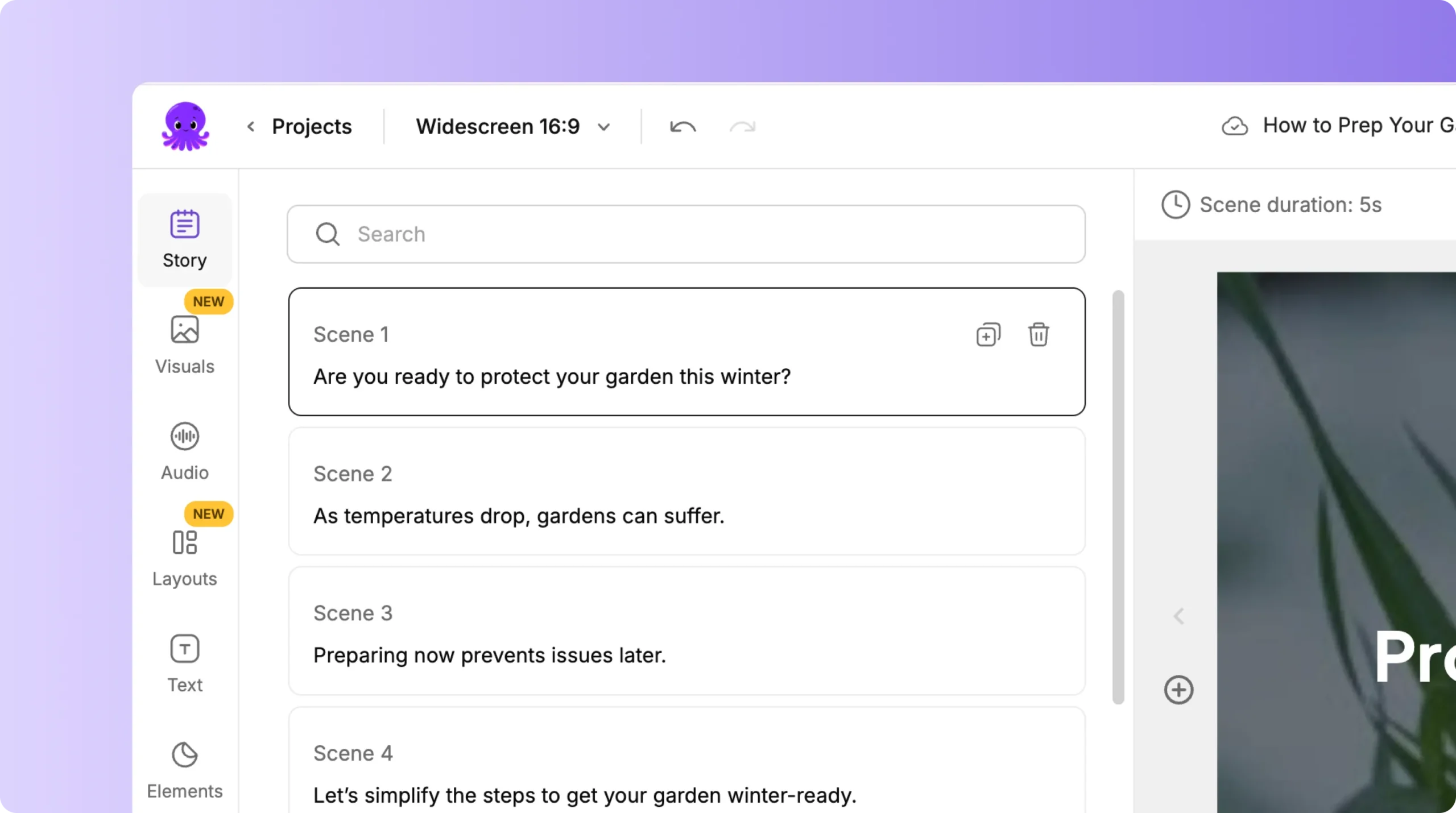
Start by choosing Voiceover if you want to use AI narration.
Step 2: Apply an AI Voiceover
In the Voiceover section, you can browse Pictory’s library of AI voices. Each voice has its own tone, accent, and style.
To apply an AI voice:
- Preview different voices
- Choose the one that fits your video
- Click Apply Voice
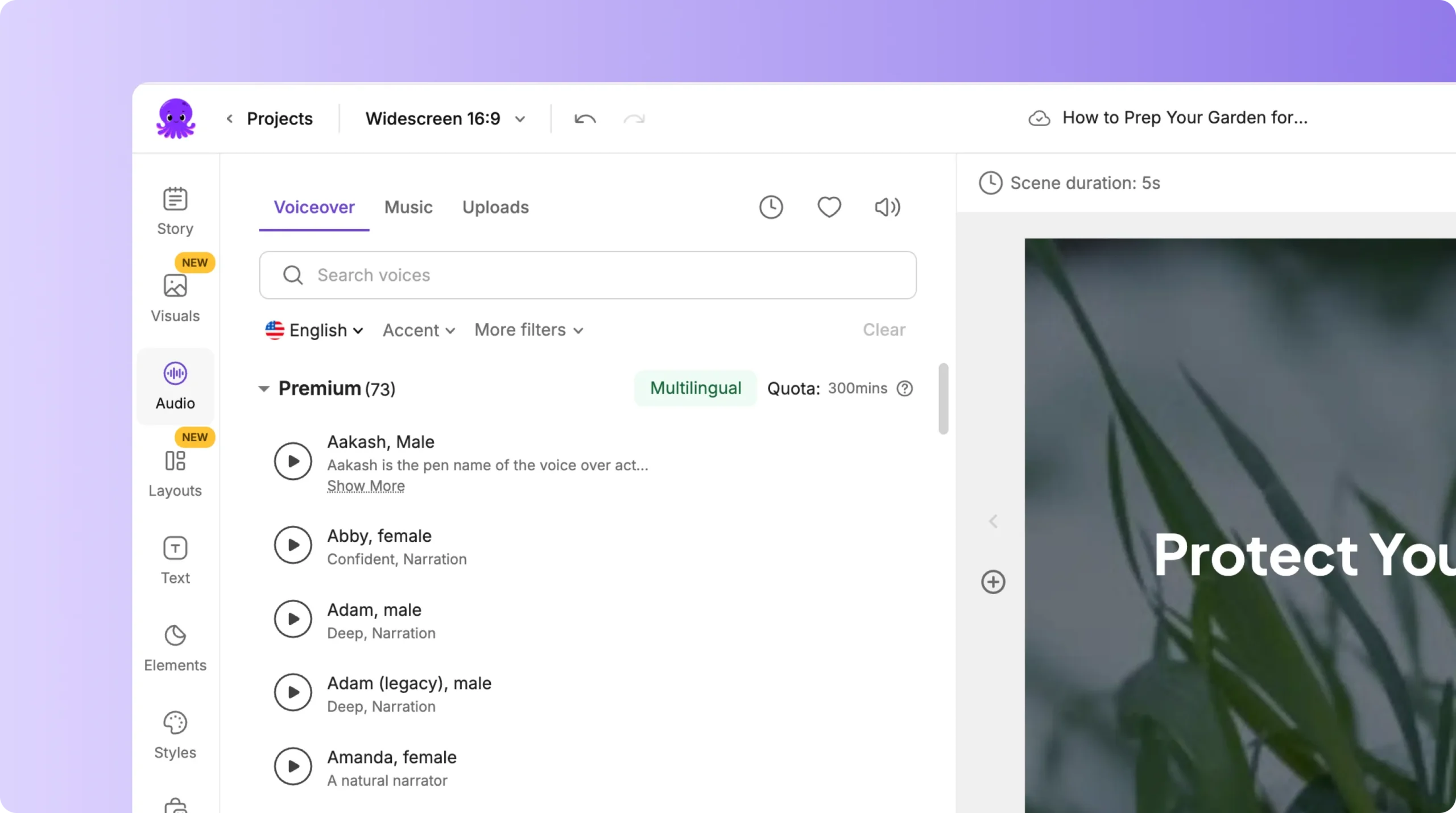
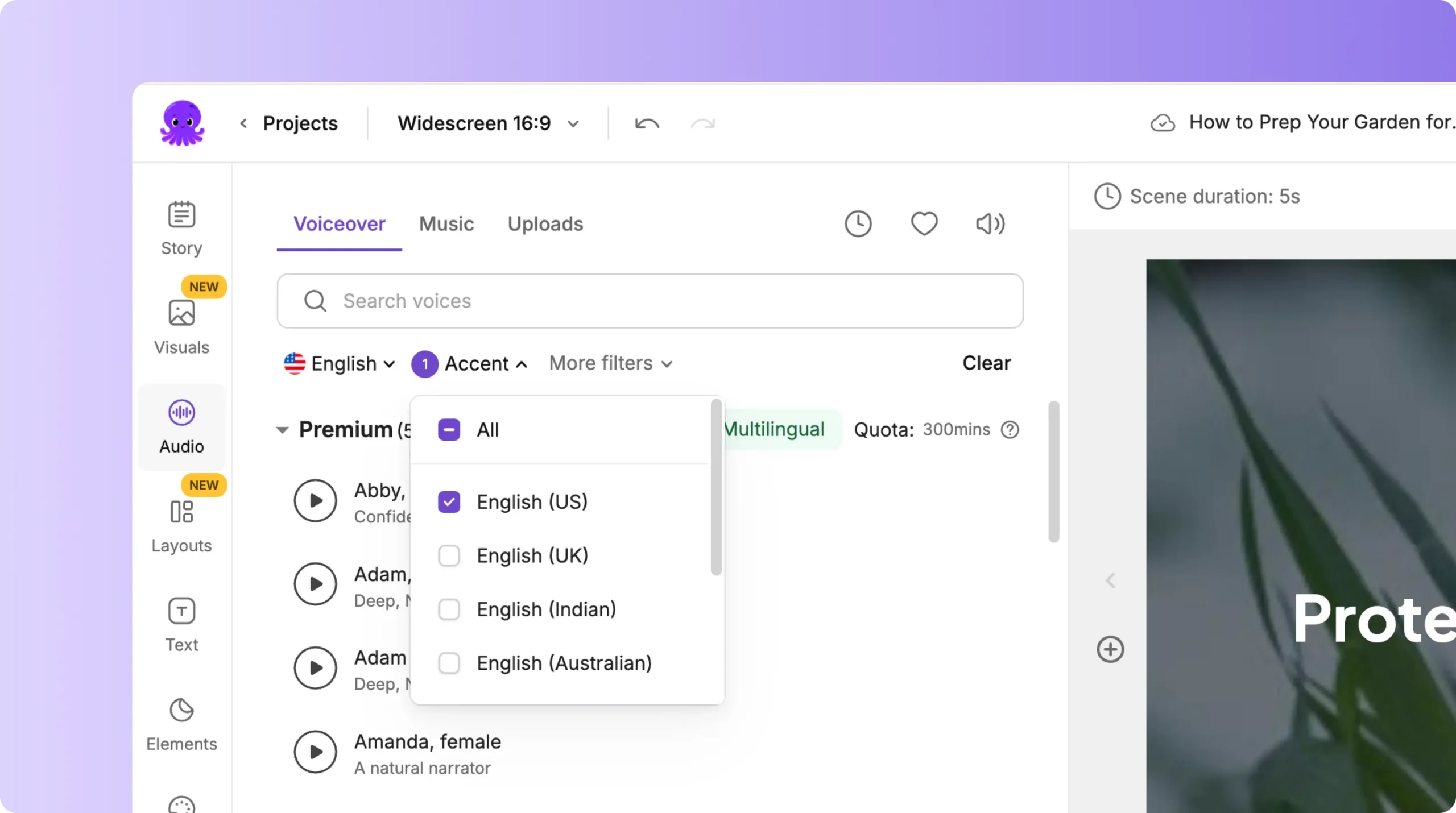
Pictory automatically narrates your script based on your scene text.
AI voiceovers are ideal for explainers, tutorials, training videos, and announcements.
Step 3: Upload Your Own Voiceover
If you prefer to use your own voice or a client’s recording:
- Open the Uploads section
- Click Upload Audio File
- Select your voice recording
- Apply it to your project
- Use Auto Sync to match the narration to your scene text
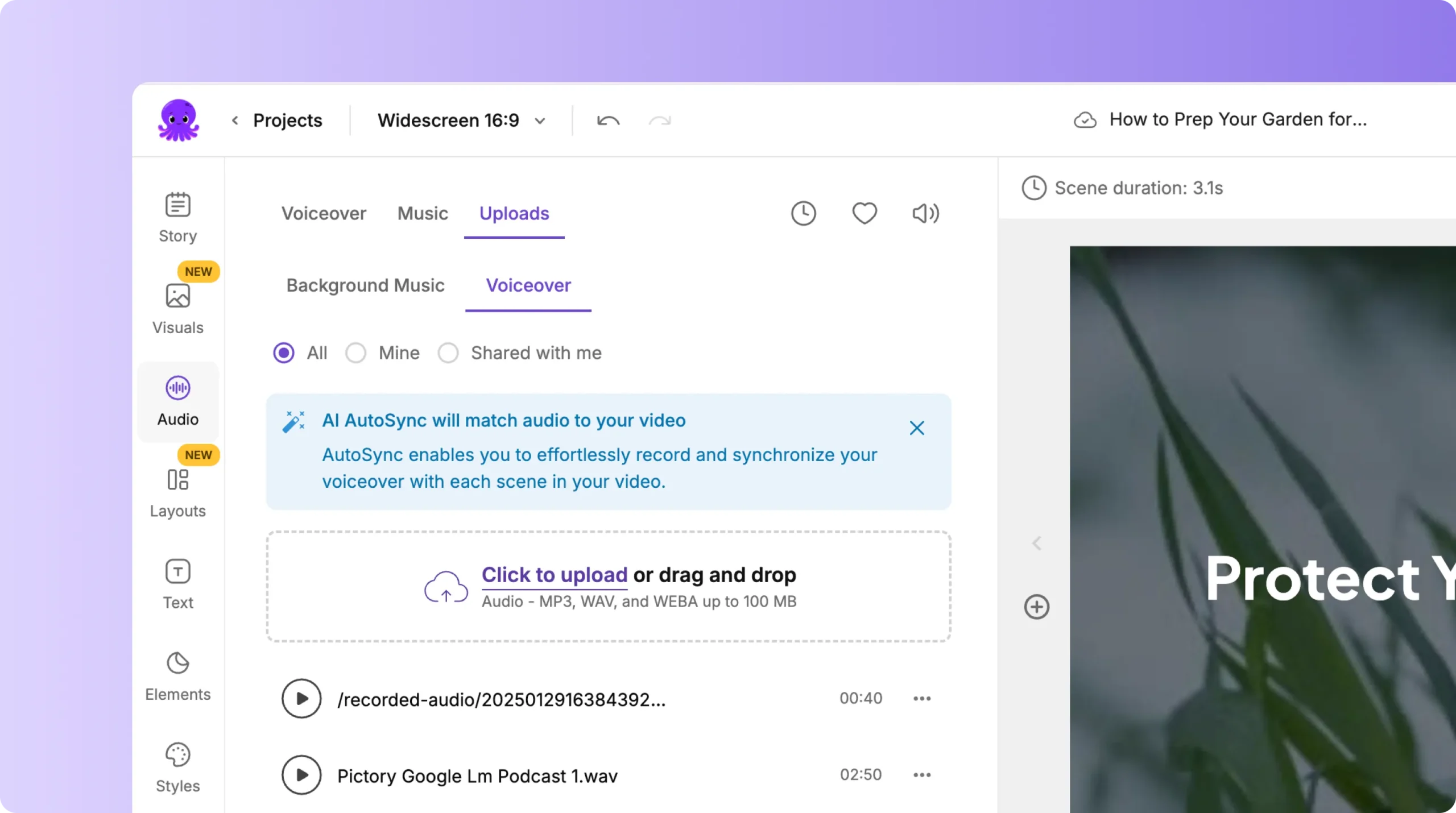
Auto Sync aligns your audio with the timing and structure of your video.
This works well for talking head videos, brand content, and personalized training.
Step 4: Edit Your Voiceover Volume
Once a voiceover is applied, you can adjust the volume.
Inside the Story tab or the preview panel, you can:
• Adjust the background music volume
• Adjust the voiceover volume
• Review the scene duration
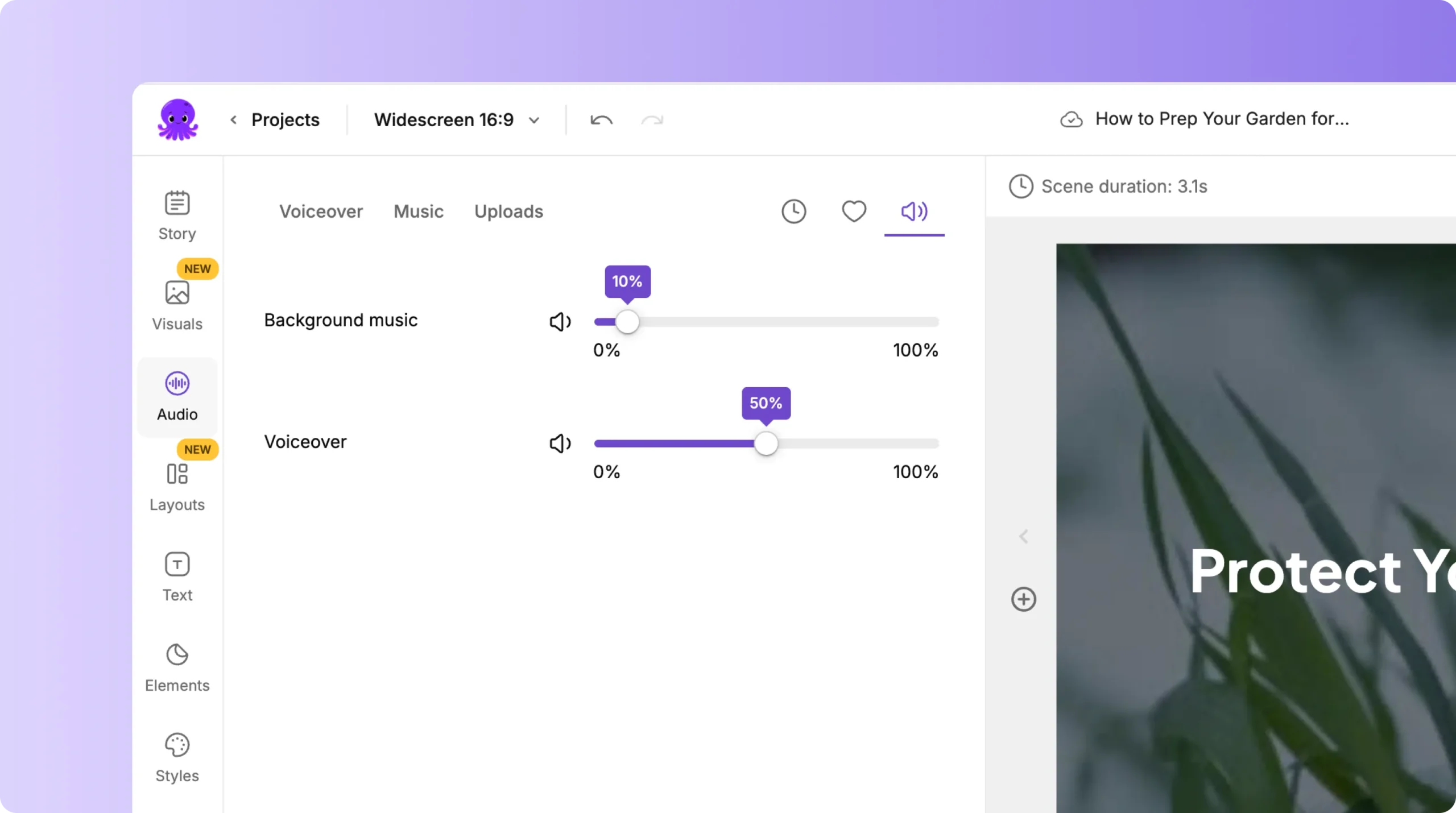
These controls help your narration feel natural and well timed.
Step 5: Replace or Change Your Voiceover
You can change your voiceover at any time during editing.
To replace AI narration:
• Open the Voiceover section
• Choose a new voice
• Apply it
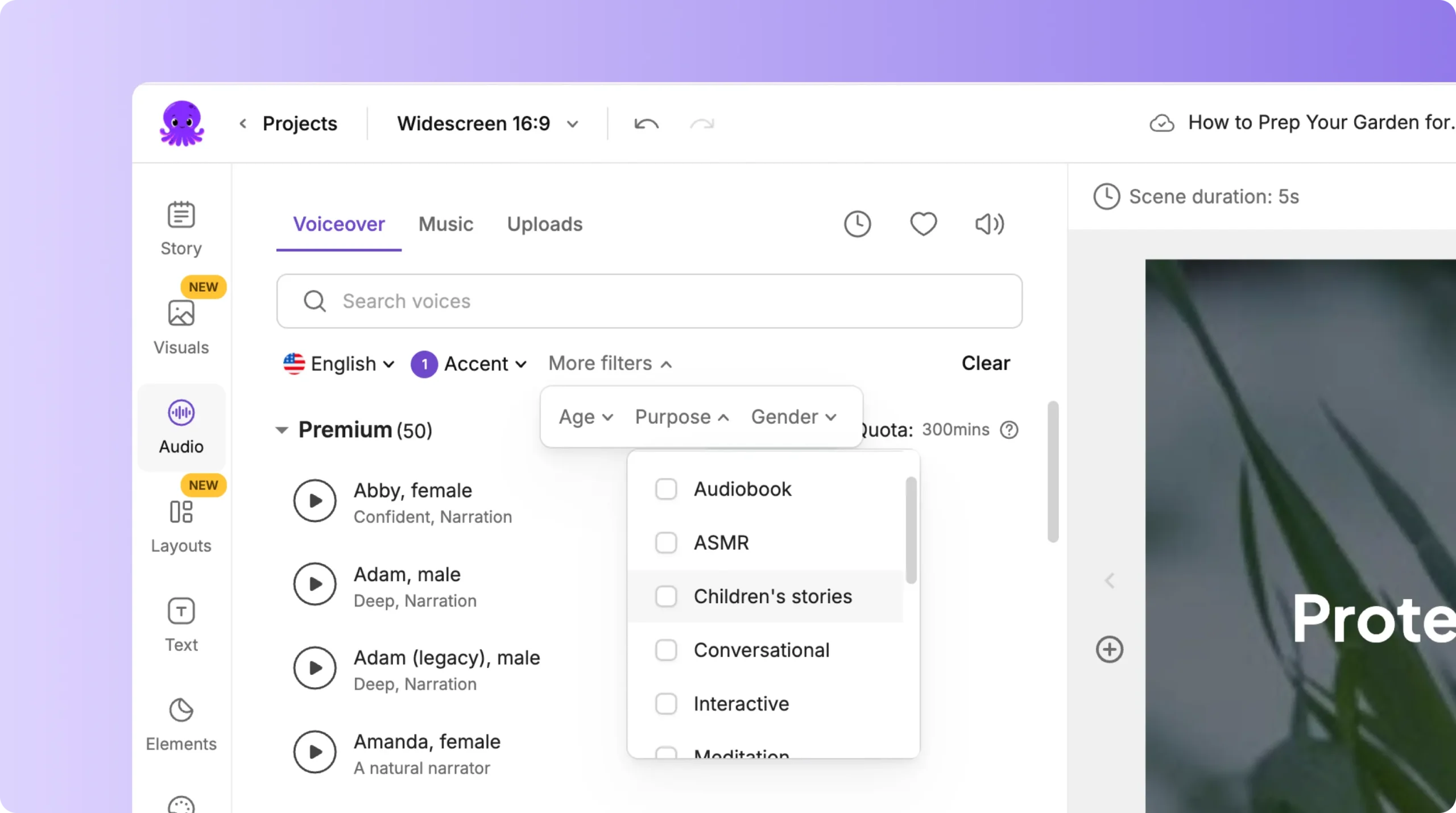
To replace uploaded narration:
• Delete the current audio
• Upload a new file
• Apply Auto Sync again
Voiceovers update instantly without affecting visuals or text.
Step 6: Preview Your Audio Before Exporting
Before exporting your final video:
- Click Preview Video
- Listen to the full narration
- Confirm pacing, tone, and clarity
- Adjust voiceover or music if necessary
Once everything sounds right, export your video.
Create Clear, Professional Narration With Voiceovers in Pictory AI
The voiceover tools in Pictory AI help you create videos that sound clear and polished. Whether you use AI narration or upload your own voice, you can sync, edit, and refine your audio inside the platform. This helps you produce high quality videos quickly, without external audio tools.
Start applying and editing your voiceovers today in Pictory AI.


