TL;DR
You can convert any PDF, Word document, or presentation into a polished, narrated video in minutes using Pictory. Copy the text into Script to Video, or upload your slide deck with PPT to Video. The AI handles the visuals, voiceover, captions, and branding. No camera, no editor, no production queue.
You’ve already written the content. It’s sitting in a PDF, a Word doc, or a PowerPoint. The research is done, the thinking is done, but it’s stuck in a format that gets emailed, downloaded once, and never opened again.
Video changes that. The same content as a short narrated video gets watched, shared, and rewatched. This guide shows you exactly how to make that conversion happen with Pictory, in minutes, without any production skills.
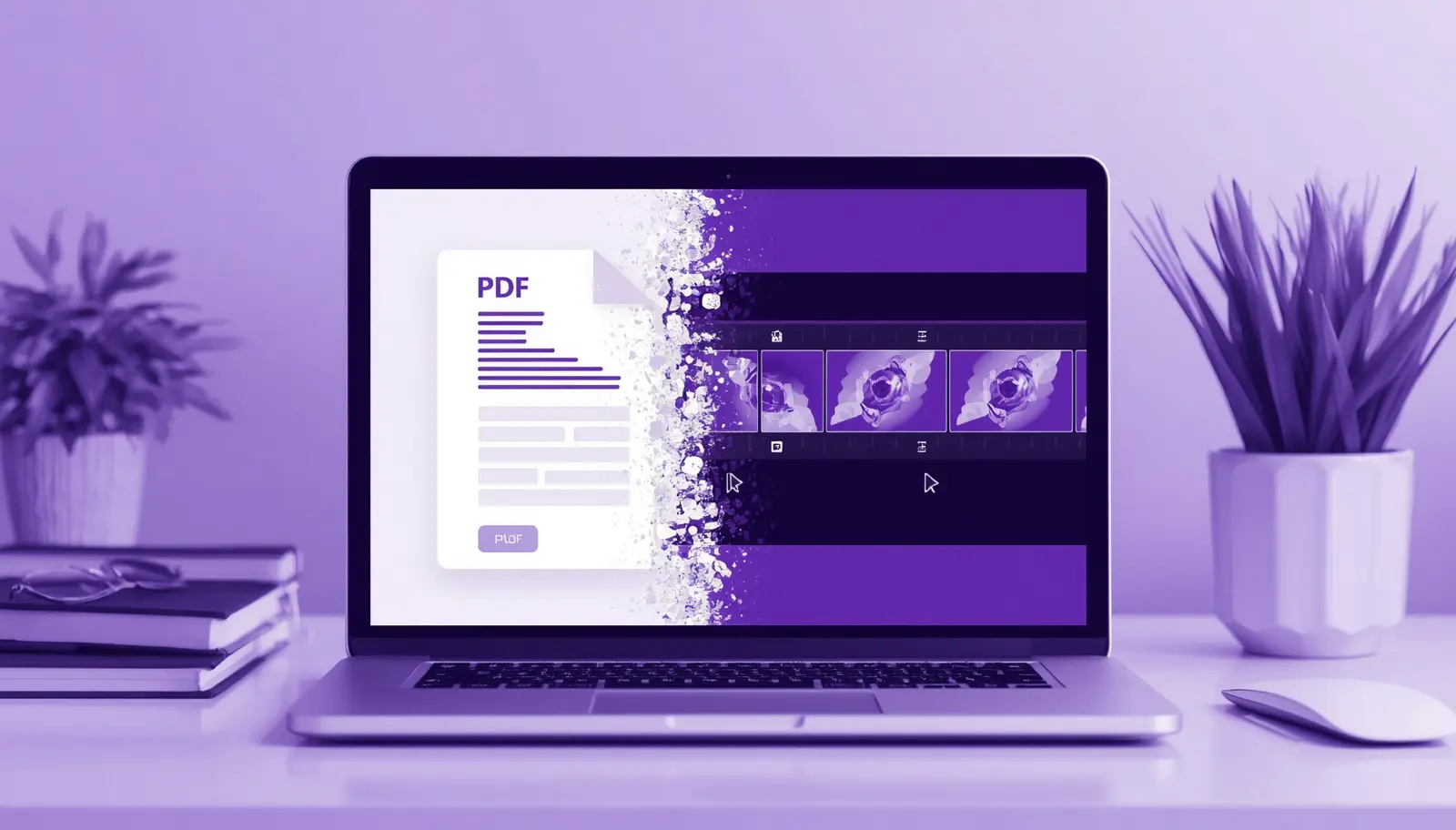
Why converting documents to video is worth doing
Documents are passive. They sit in inboxes waiting for someone to have the time and motivation to open them. Most don’t. Video plays. That difference in format is a difference in reach.
People retain 65% of information from video vs 10% from text alone. Product pages with video see a 47% higher engagement rate and significantly more time on page.
Converting a document to video isn’t just a format change — it’s a reach multiplier. Your training guide, your product overview, your quarterly report: each one becomes a watchable asset that works on social media, in an LMS, on your website, or in a sales email.
What types of documents convert well to video?
Training and compliance docs
Policy manuals, onboarding guides, compliance briefings — content people should read but rarely do.
Marketing and sales decks
Pitch decks and product overviews that currently sit in attachments — turn them into videos prospects actually watch.
Reports and research papers
Industry reports, survey results, and data summaries that have a much larger potential audience as video.
Blog posts and articles
Paste the text and get a video version of your content for social, email, and YouTube. Pairs with blog-to-video workflows.
How to convert a PDF or Word document to video with Pictory
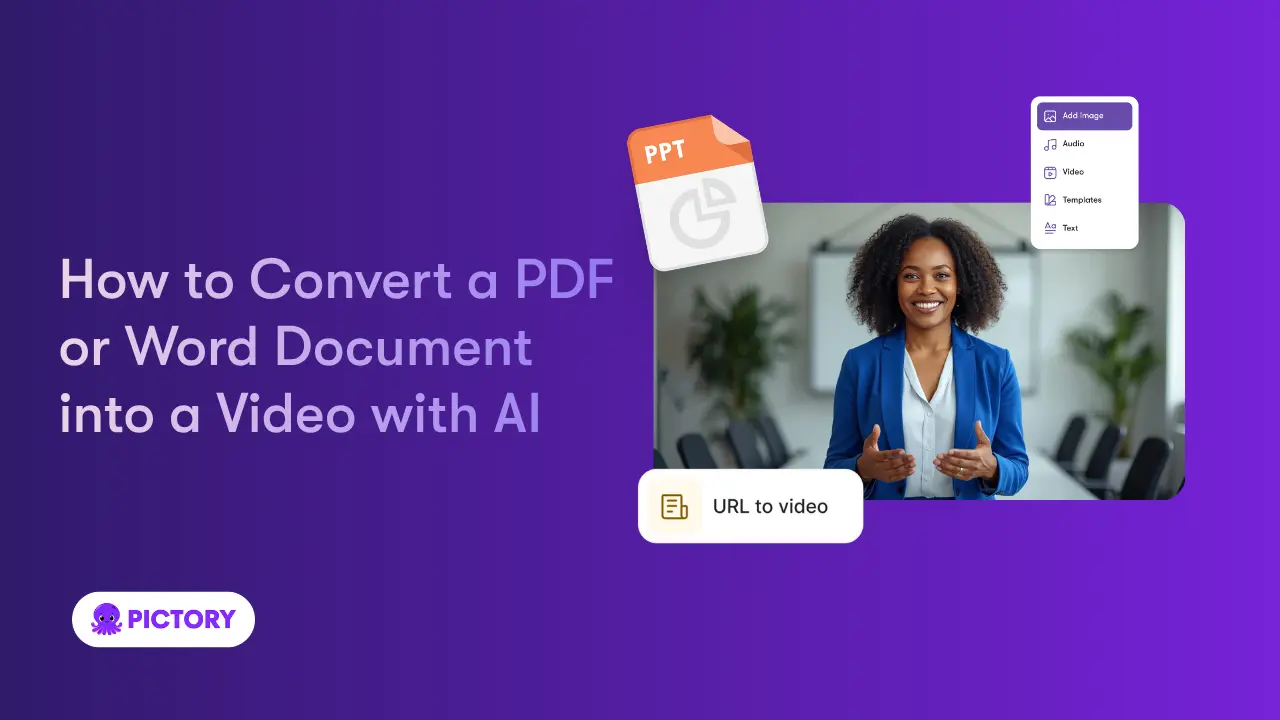
This workflow applies whether you’re starting from a script, a policy document, a slide deck, or a recorded meeting. Pictory handles every input type. For a full walkthrough, see the Pictory Academy guide to converting a PDF or Word document into a video.
Open your document and copy the text
Open your PDF or Word file and select the content you want to convert. For a two to four minute video, aim for 300 to 500 words. Longer documents work too — Pictory will process the full text and generate more scenes.
Paste into Pictory’s Script to Video
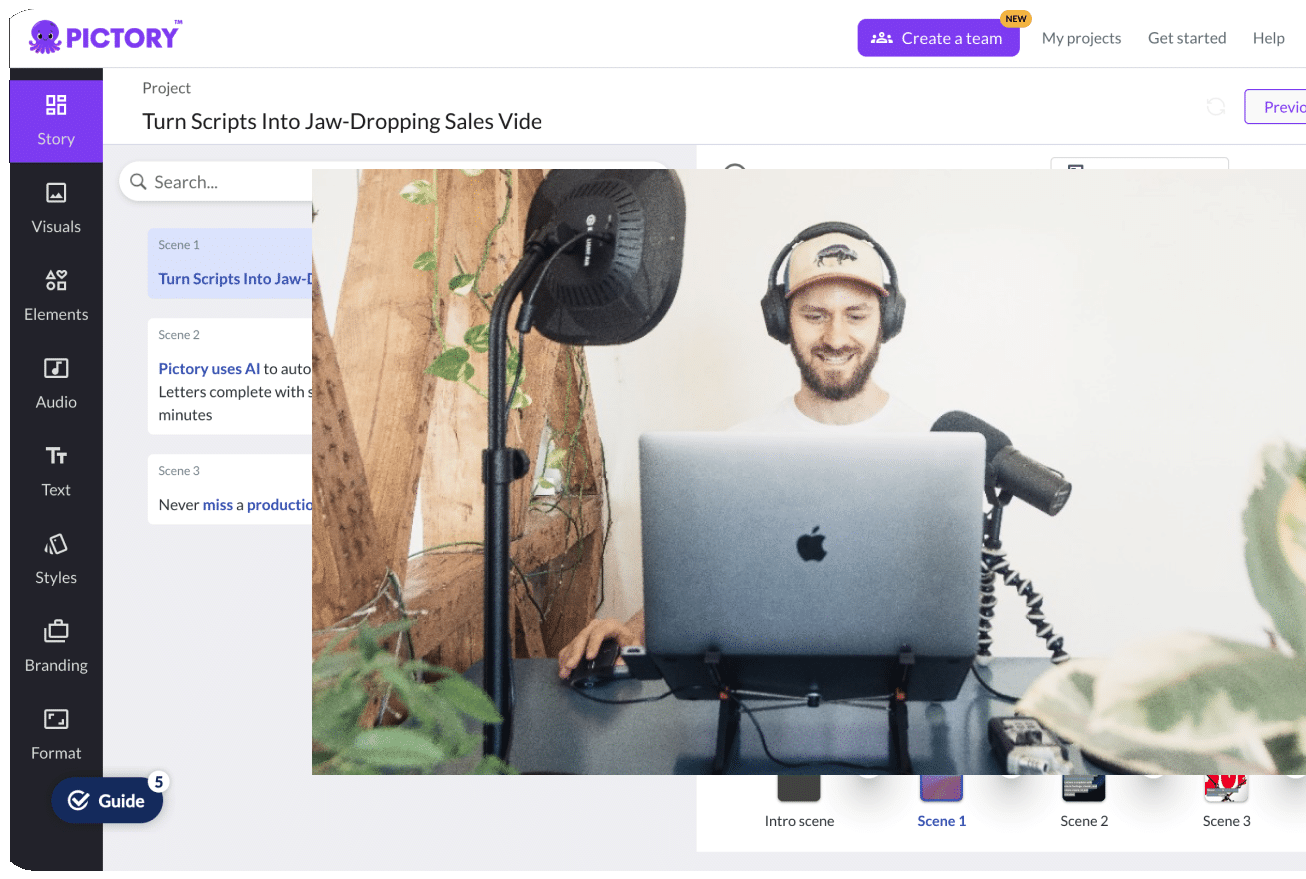
Go to Script to Video, paste your text, and click Generate. Pictory reads the content, identifies key phrases, and builds a scene-by-scene structure automatically.
For slide decks: use PPT to Video instead
If you’re converting a PowerPoint presentation, use PPT to Video. Upload your file directly. Pictory reads the slide content and builds a narrated video from the deck structure — no text copying required. The Pictory Academy PPT to Video guide walks through this in full detail.
Review and swap visuals
Pictory matches your content to footage from its library of millions of licensed clips. Review each scene and swap out any visuals that don’t fit. This usually takes five to ten minutes for a typical business document.
Add voiceover, captions, and branding
Select an AI voice from Pictory’s library, generate captions automatically, and apply your brand kit. Optionally add an AI avatar presenter to give the video a human face.
Export and publish
Download your finished video and publish it wherever you need it: your website, social media, your LMS, or in a sales email. The whole process from paste to export typically takes 20 to 40 minutes.
Tips for better document-to-video conversions
Edit for conversational tone first
Document language is formal. Video language is conversational. Shorten sentences before pasting. “In accordance with company policy” becomes “Here’s what you need to do.”
Break long documents into sections
A 20-page guide converts better as five four-minute videos than one 20-minute video. Learners find what they need faster.
Keep it under five minutes
Aim for 300 to 500 words of script for a two to four minute video. Anything longer and completion rates drop sharply.
Always add captions
Most document-to-video content gets watched in environments where sound is off. Captions are non-negotiable for accessibility and reach.
Where to publish your document videos
Once your video is exported, it can work across every channel your document was never able to reach. Here are the most effective places to put it.
Your LMS or intranet
Replace static policy PDFs and training guides with watchable video modules. Completion rates for short video modules run 80-90% vs 30% for long-form documents. Export from Pictory and upload directly to your LMS, SharePoint, or Notion.
LinkedIn and social media
A report or whitepaper becomes a 60-90 second video that performs in the feed. Export at 1:1 or 9:16 for Instagram and TikTok, or 16:9 for LinkedIn and YouTube. Pictory lets you choose the aspect ratio before export.
Sales emails and proposals
Embedding a video summary of a product overview or pitch deck in an outreach email consistently outperforms a PDF attachment. Your prospect watches a two-minute narrated summary instead of opening a 12-slide deck.
Website and landing pages
A video version of your best-performing blog post or guide keeps visitors on page longer and gives you a second content asset from work you have already done. Add it above the fold or embed it alongside the original article.
Convert your first document to video today
Paste your script or upload your slide deck. Your video is ready in minutes — branded, captioned, and ready to publish.
FAQ: Converting PDFs and Documents to Video with AI
Can I convert a PDF directly to a video?
Yes. Open your PDF, copy the text content, and paste it into Pictory’s Script to Video tool. Pictory builds a scene-by-scene video from the text automatically, matching each section to relevant visuals from its licensed clip library. The conversion typically takes 20 to 40 minutes from paste to export.
How do I convert a PowerPoint to video?
Use Pictory’s PPT to Video feature. Upload your PowerPoint file directly — no text copying required. Pictory reads the slide content, builds a scene structure from the deck, adds a voiceover, and produces a narrated video ready for export. Works with .ppt and .pptx files.
Do I need to edit the document before converting it to video?
It helps. Document language tends to be formal and dense — not ideal for video narration. Before pasting into Pictory, it’s worth shortening sentences, removing passive voice, and converting any bullet points into conversational statements. This takes five to ten minutes but significantly improves how the video sounds.
What’s the best document length to convert to video?
For a two to four minute video, aim for 300 to 500 words of source text. Longer documents convert better as a series of short videos rather than one long clip. A 20-page guide, for example, works well as five or six focused videos, each covering a distinct section of the original content.
Can I add my company’s branding to the video?
Yes. Pictory applies your brand kit automatically — logo, colours, and fonts drop into every video you create. So every document you convert looks like it came from the same team, regardless of who produced it.