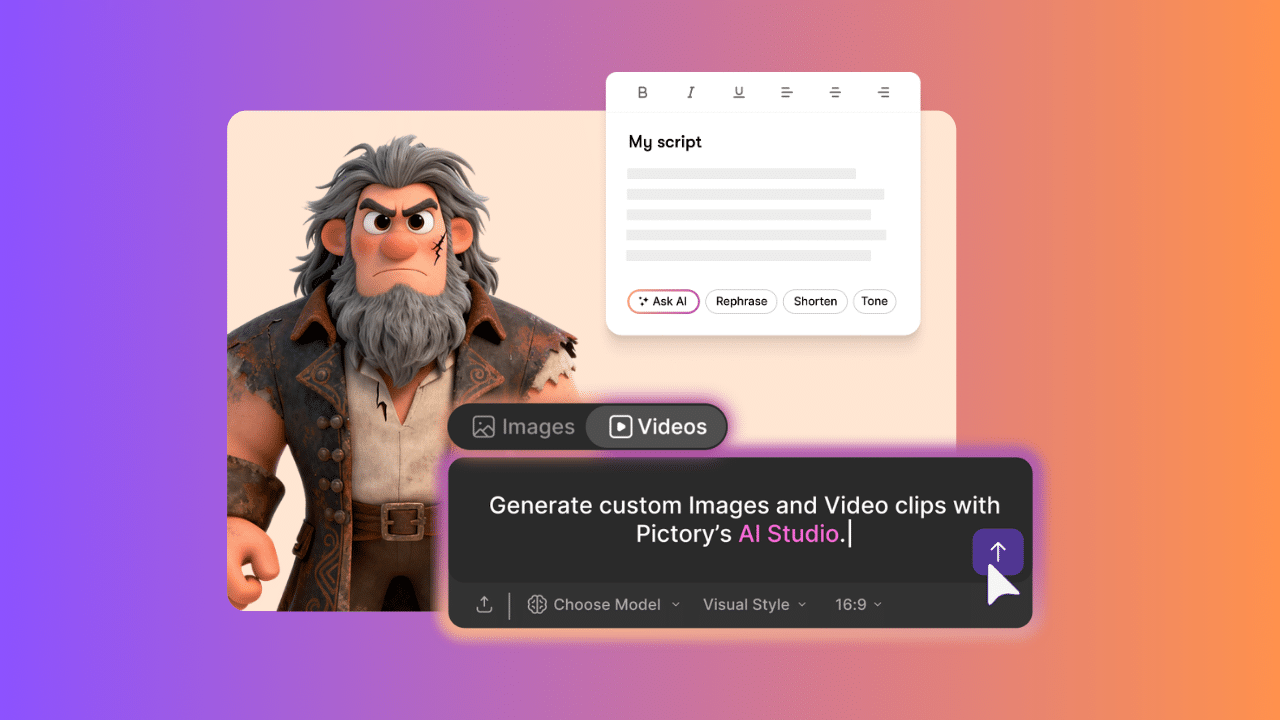
This step-by-step guide shows you how to create cinematic AI videos using an audio-first workflow. You will use Pictory for structure and editing, AI Studio for generating visuals, and Text to Video to build and manage scenes.
This method ensures consistent characters, clean storytelling, and professional-quality results.
Step 1 – Add Your Script
You have two ways to start:
Option A: Paste your script (from ChatGPT)
Option B: Use Pictory’s AI script generator
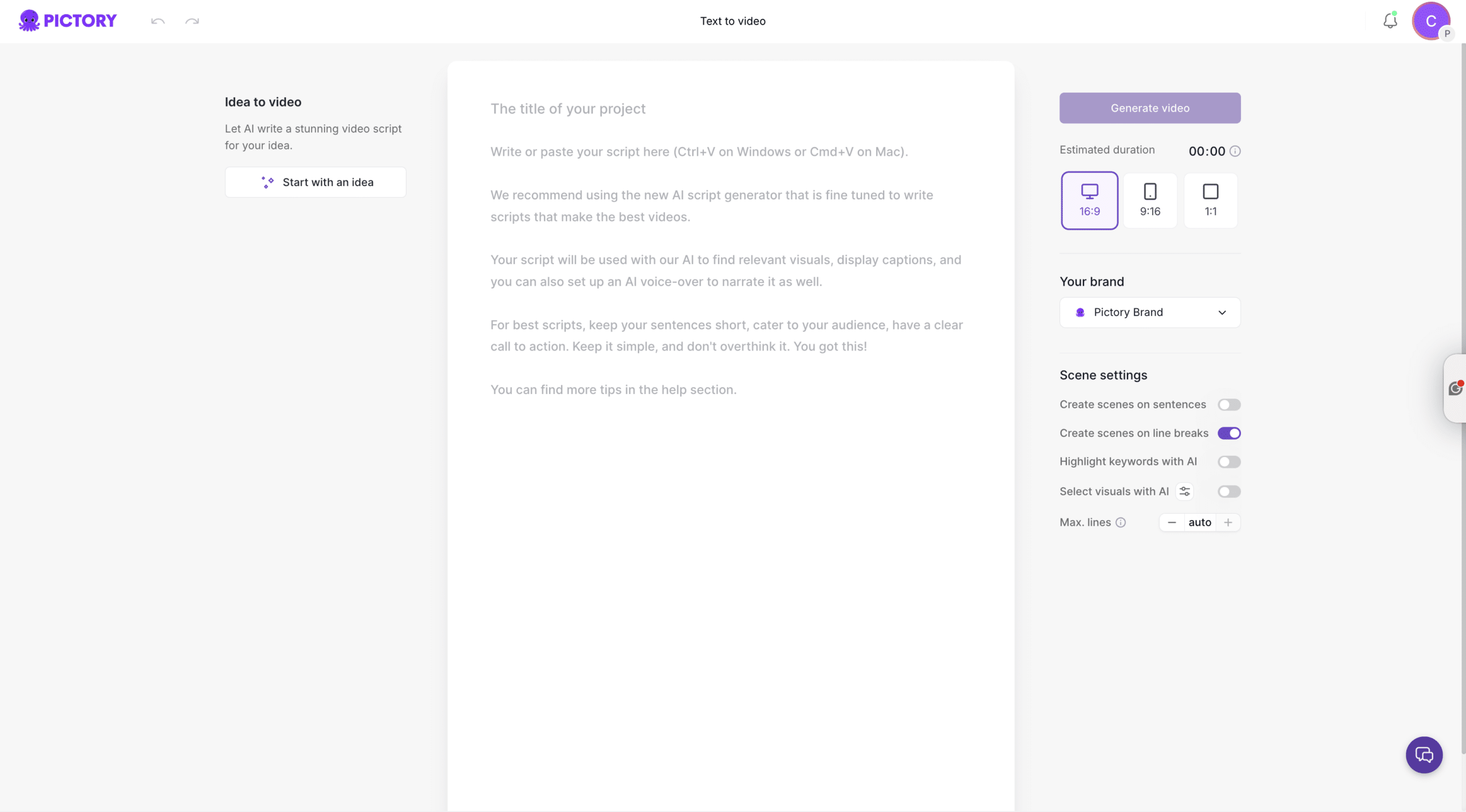
Then:
- Click Generate Video
- Choose a template (this can be changed later)
Keep your script simple and structured so each line represents a clear scene.
Step 2 – Start with Voice (Audio First)
- Add or generate your voiceover
- Let Pictory split your script into scenes
- Adjust timing and pacing
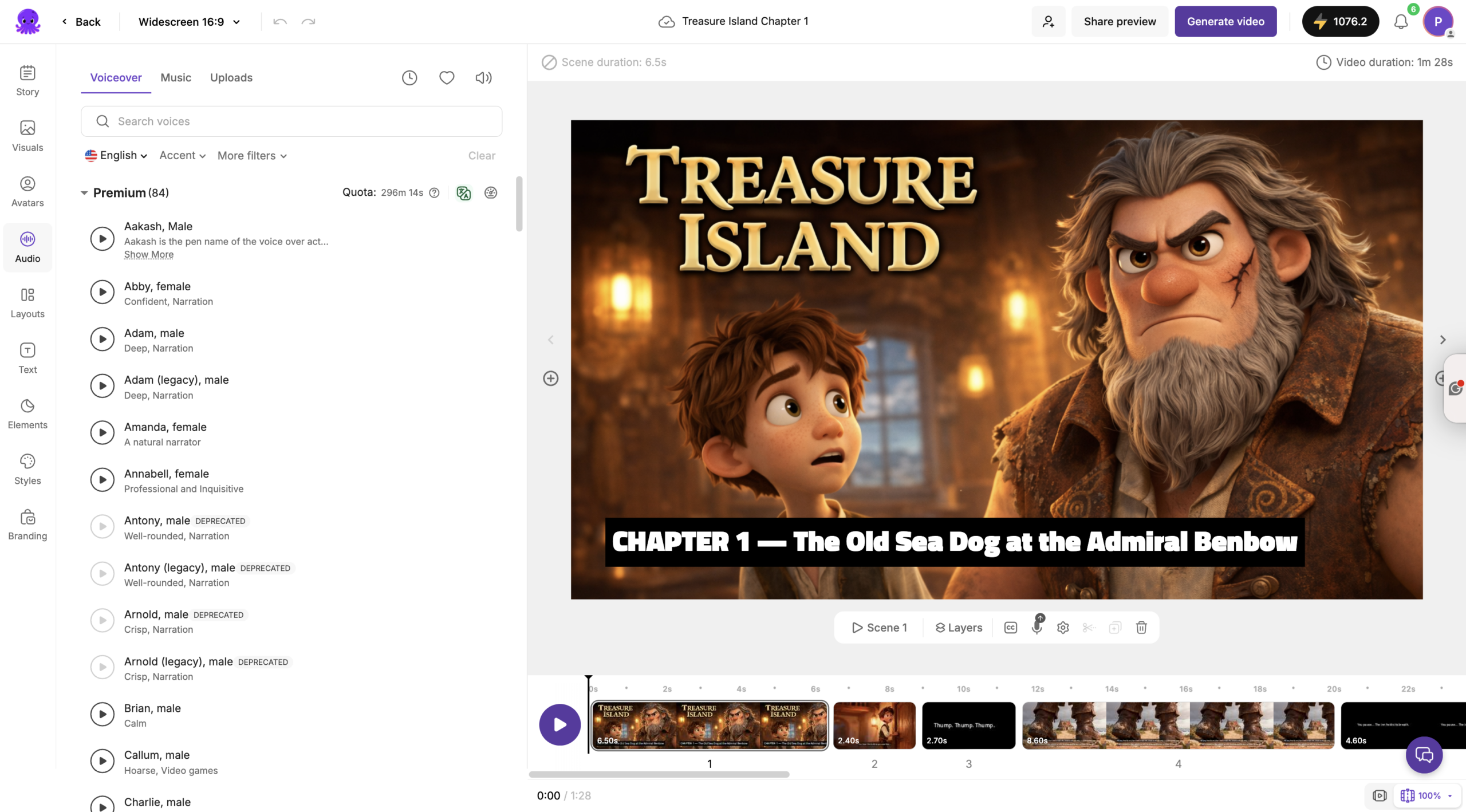
Your voiceover controls the entire video. All visuals will follow this structure.
Step 3 – Add Background Music Early
- Go to the Audio tab
- Select background music
- Keep volume low
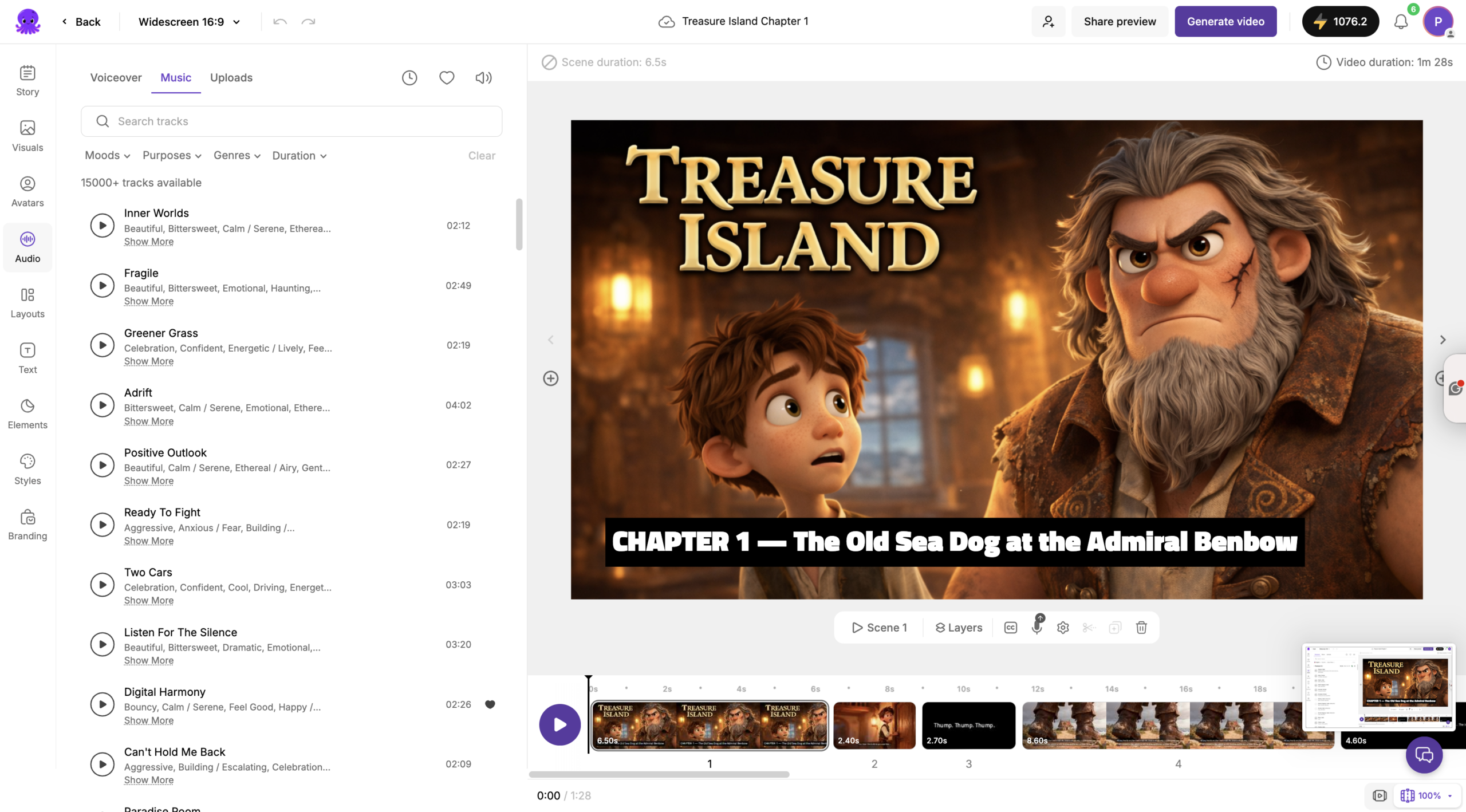
Music should support the mood, not overpower the narration.
Step 4 – Create Your Characters (AI Studio)
Create your characters once, then reuse them across all scenes.
Pro Tip:
Always use reference images in the same aspect ratio as your final video output (for example, 16:9 for landscape videos).
AI models perform best when the input matches the output format. If you mix ratios, the model may generate incorrect layouts like vertical 9:16 when you want 16:9.
This keeps framing consistent and avoids cropping issues.
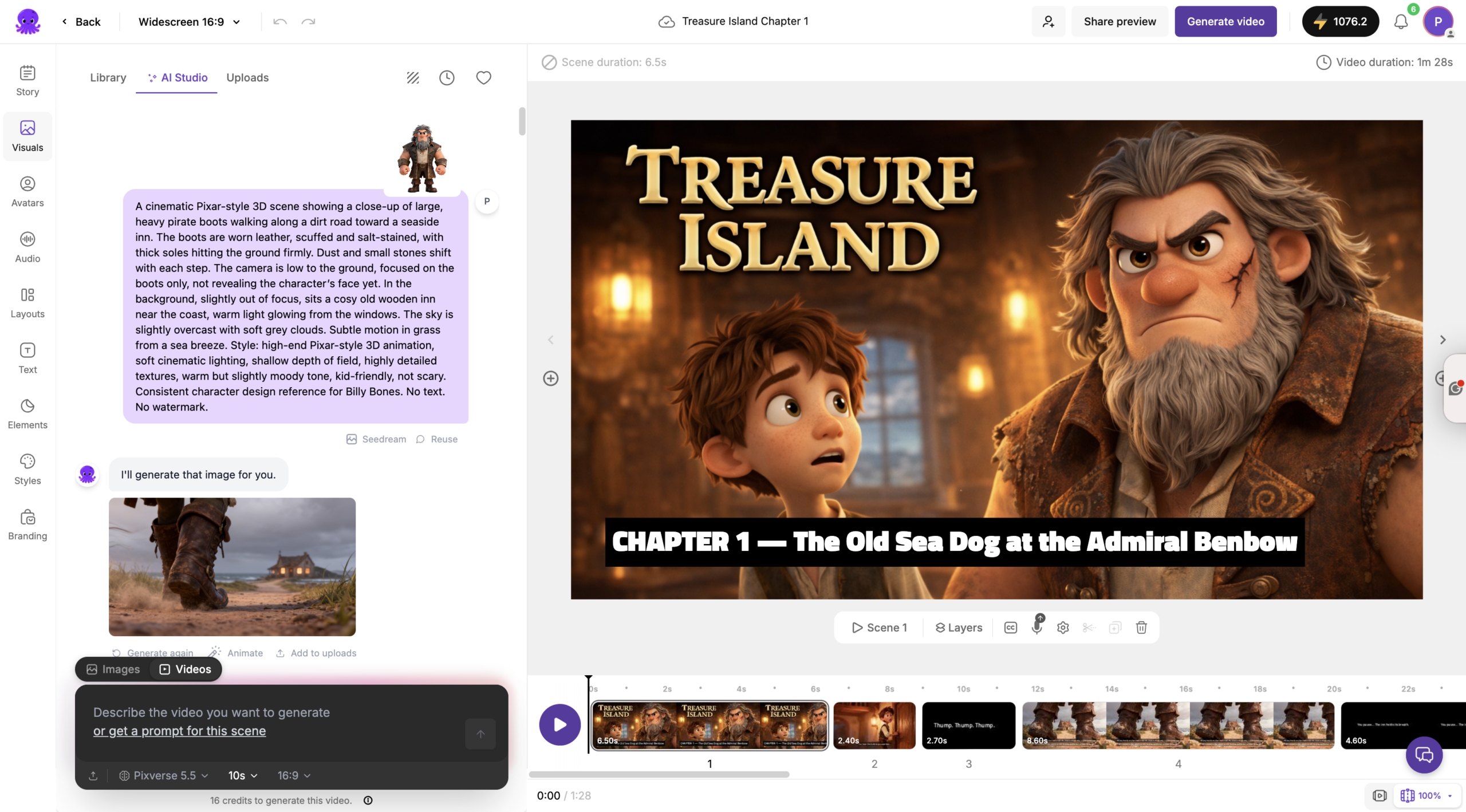
Example prompts:
Jim Hawkins:
“Teen boy, brown hair, 18th century clothes, cinematic lighting, realistic”
Billy Bones:
“Old pirate, scarred face, grey beard, worn pirate coat, cinematic lighting, realistic”
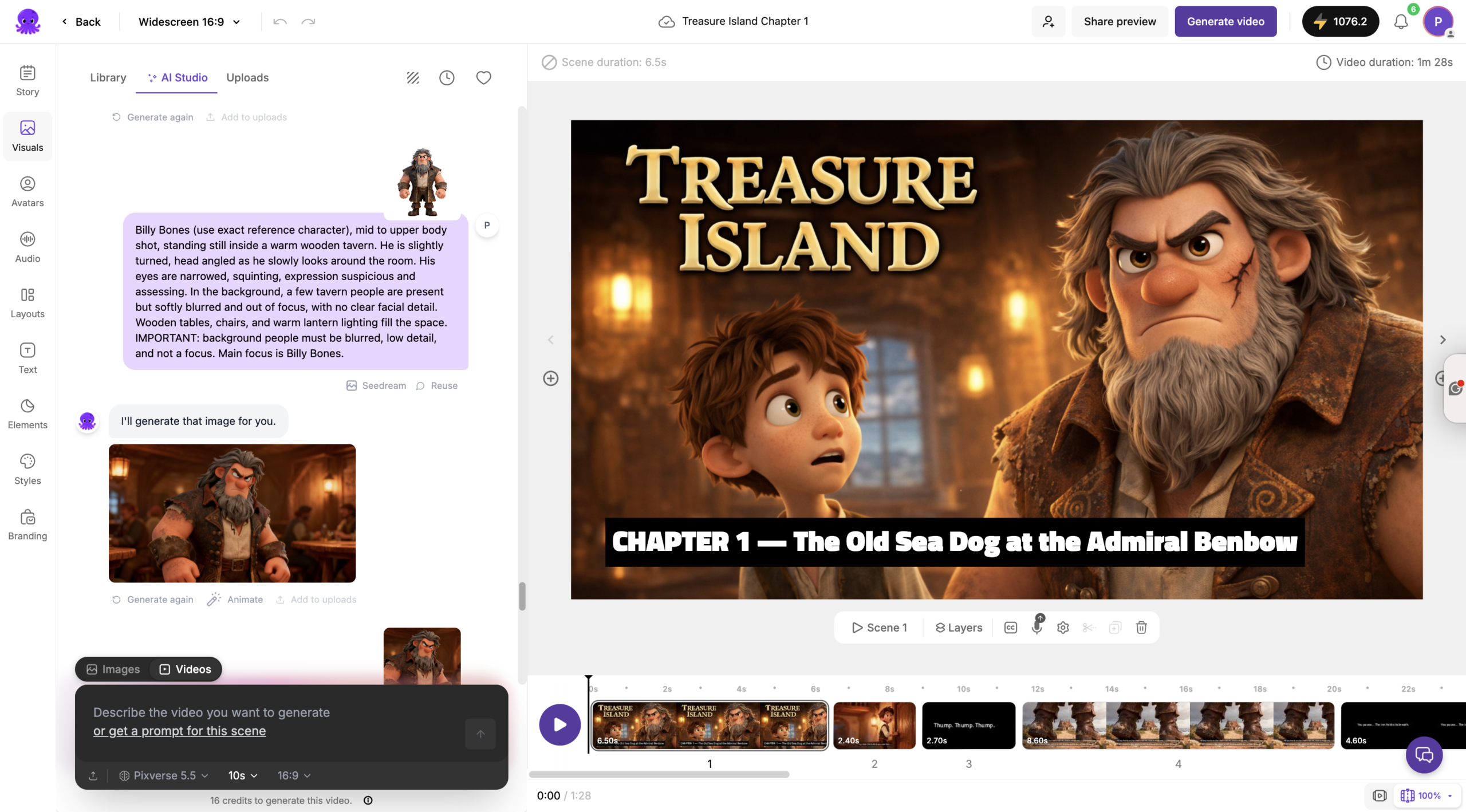
Save your best versions and reuse them.
Step 5 – Plan Your Scenes
Go through each scene in Pictory:
- Decide which character appears
- Match visuals to the narration
- Keep each scene focused and simple
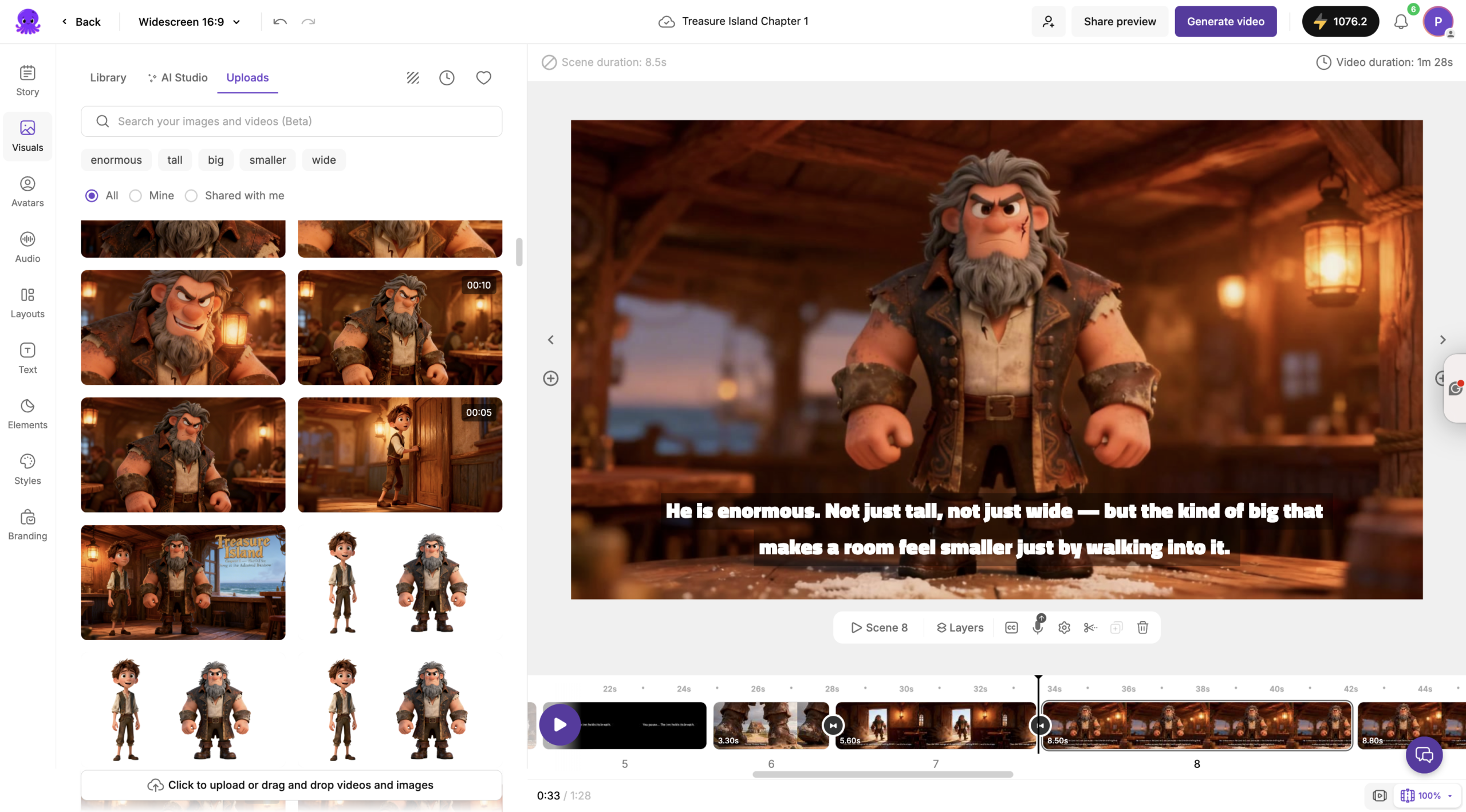
This step prevents random or inconsistent visuals.
Step 6 – Generate and Animate Scene Images
At this stage, your scene already includes the character because you added the reference image earlier.
Now follow this exact workflow:
- Click Edit AI on the scene
- Open AI Studio
- Generate your scene image using a prompt (your character will be included)
- Add that generated image back into the scene
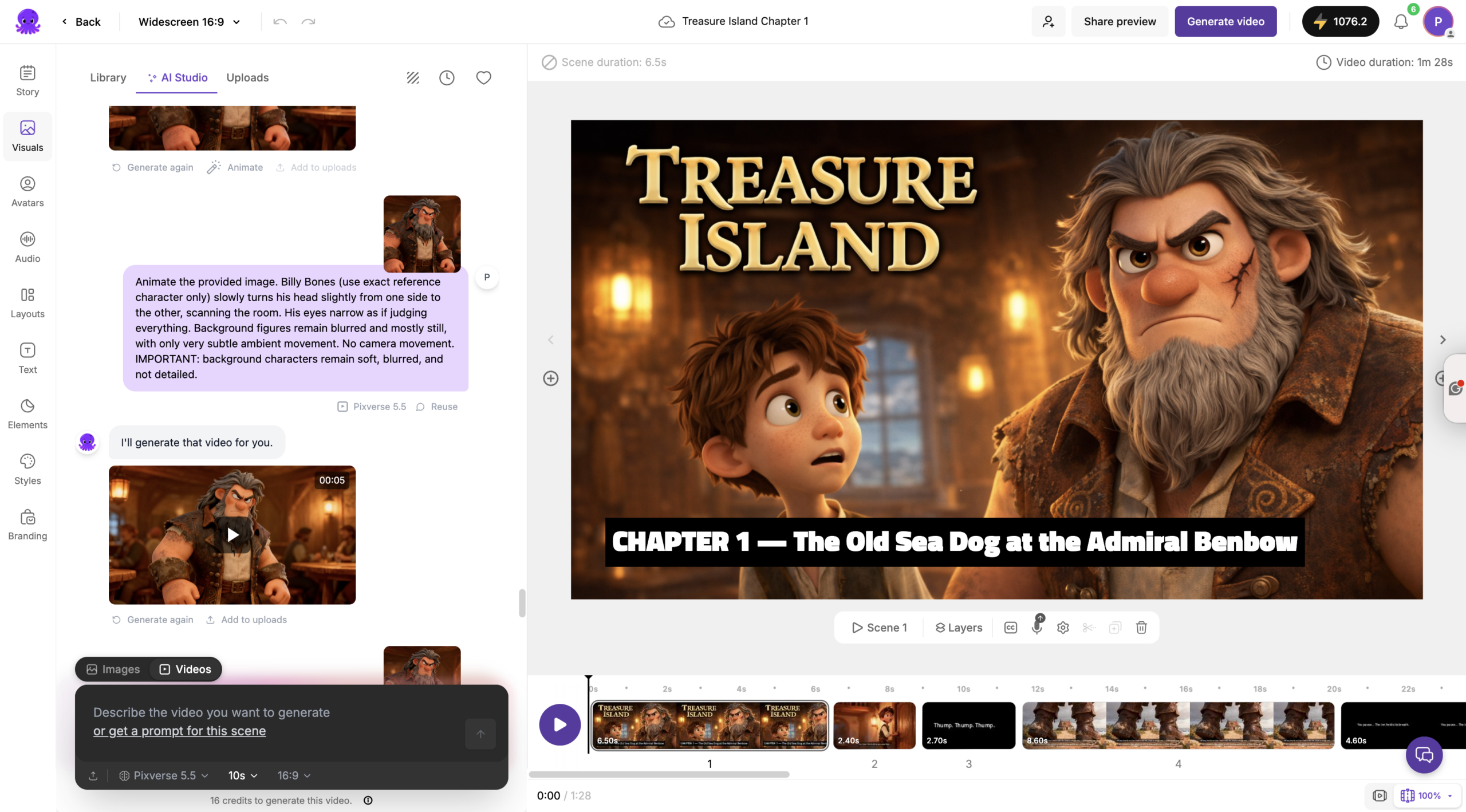
Then animate it:
- Click Edit AI again
- Use AI Studio or Text to Video (Gesture) to animate the image
- Add the animated video back into the scene
Pro Tip:
You can paste your character reference image into every scene where that character appears.
This ensures:
- The character looks the same in every scene
- AI generates more accurate visuals
- You avoid random changes in appearance
Always save your best character images and reuse them across your entire video.
Example scene prompt:
“Jim Hawkins standing outside a seaside inn at sunset, holding a lantern, cinematic lighting, realistic”
Keep style, lighting, and composition consistent across scenes.
Step 7 – Repeat for All Scenes
Follow the same pattern for every scene:
Character → Generate Image → Animate → Add to Scene
This creates consistency and a smooth cinematic flow.
Step 8 – Finalise Your Video in Pictory
- Align all visuals with narration timing
- Use simple cuts between scenes
- Avoid excessive transitions
- Keep voice as the primary audio
- Keep music low
- Add text only when necessary
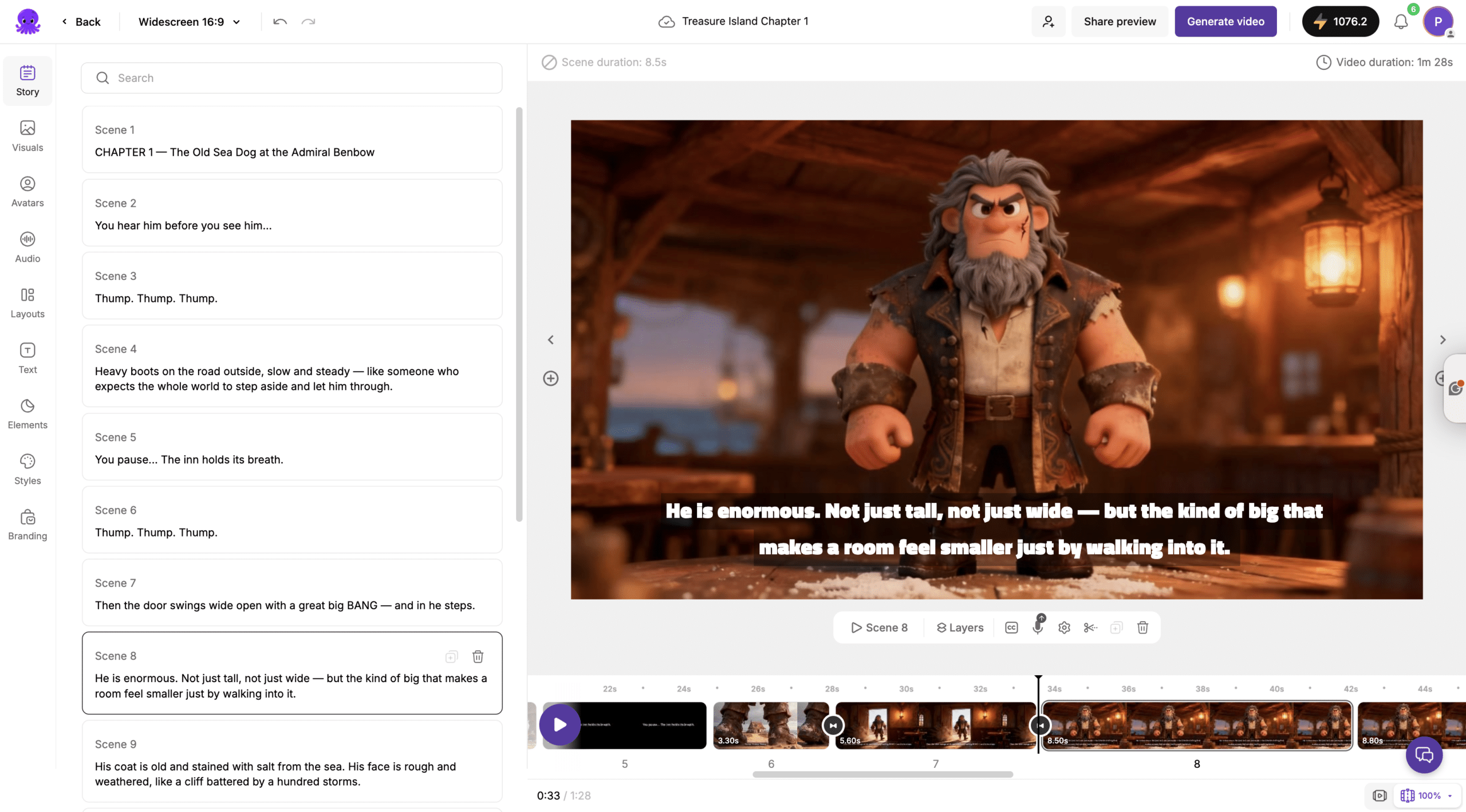
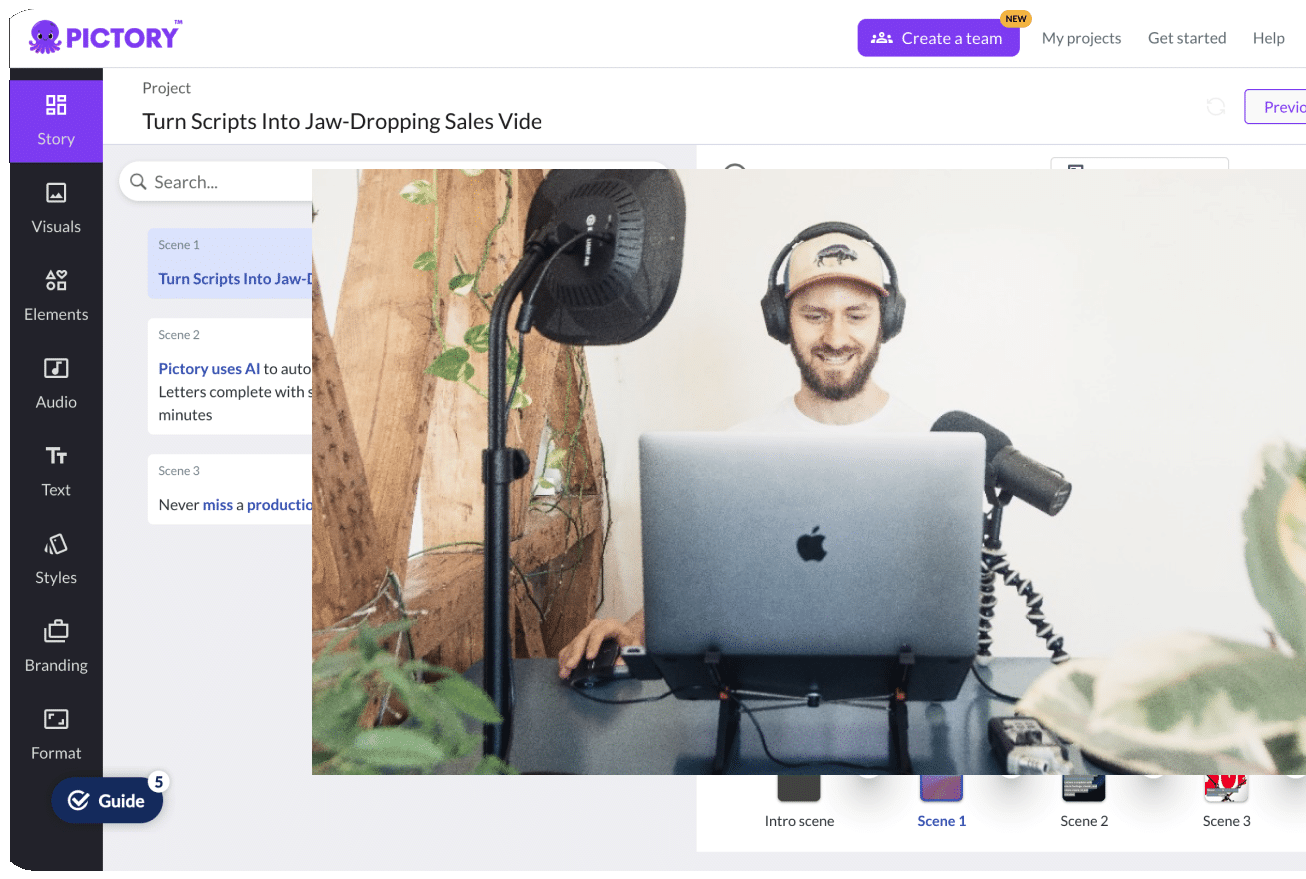
Use the Story, Visuals, Audio, and Text tabs to refine your video.
Tips for Better Cinematic Results
- Reuse the same character images in every scene
- Keep prompts consistent
- Use cinematic lighting (moody, soft, directional)
- Use slow camera motion like pans and zooms
- Avoid overloading scenes with too much detail
- Let narration control pacing
FAQ
What is the most important step in this workflow?
Starting with voiceover. It defines timing, pacing, and structure for the entire video.
How do I keep characters consistent?
Always reuse the same reference images and include them in every scene where the character appears.
Why does aspect ratio matter?
AI models work best when the input image matches the output format. Using the wrong ratio can lead to incorrect framing or vertical outputs.
When should I animate scenes?
After generating your scene image. First create the image, then animate it using AI Studio or Text to Video (Gesture).
What is the biggest mistake beginners make?
Not using reference images consistently and over-animating scenes. Keep it simple and controlled.
This workflow gives you a clear, repeatable system to create cinematic AI videos with consistent characters, smooth visuals, and professional storytelling using Pictory, AI Studio, and Text to Video.