

Loved by Creators Worldwide | Rated 4.7/5 on G2
AI Video Creator from Text
Convert text, scripts, and long-form content into videos using AI-supported tools.
Rated 4.7/5 on Capterra
-
URL to Video
-
Audio to Video
-
AI Avatar Generator
-
AI Video Editor
-
PPT to Video
-
Image to Video
Text to Video Generator
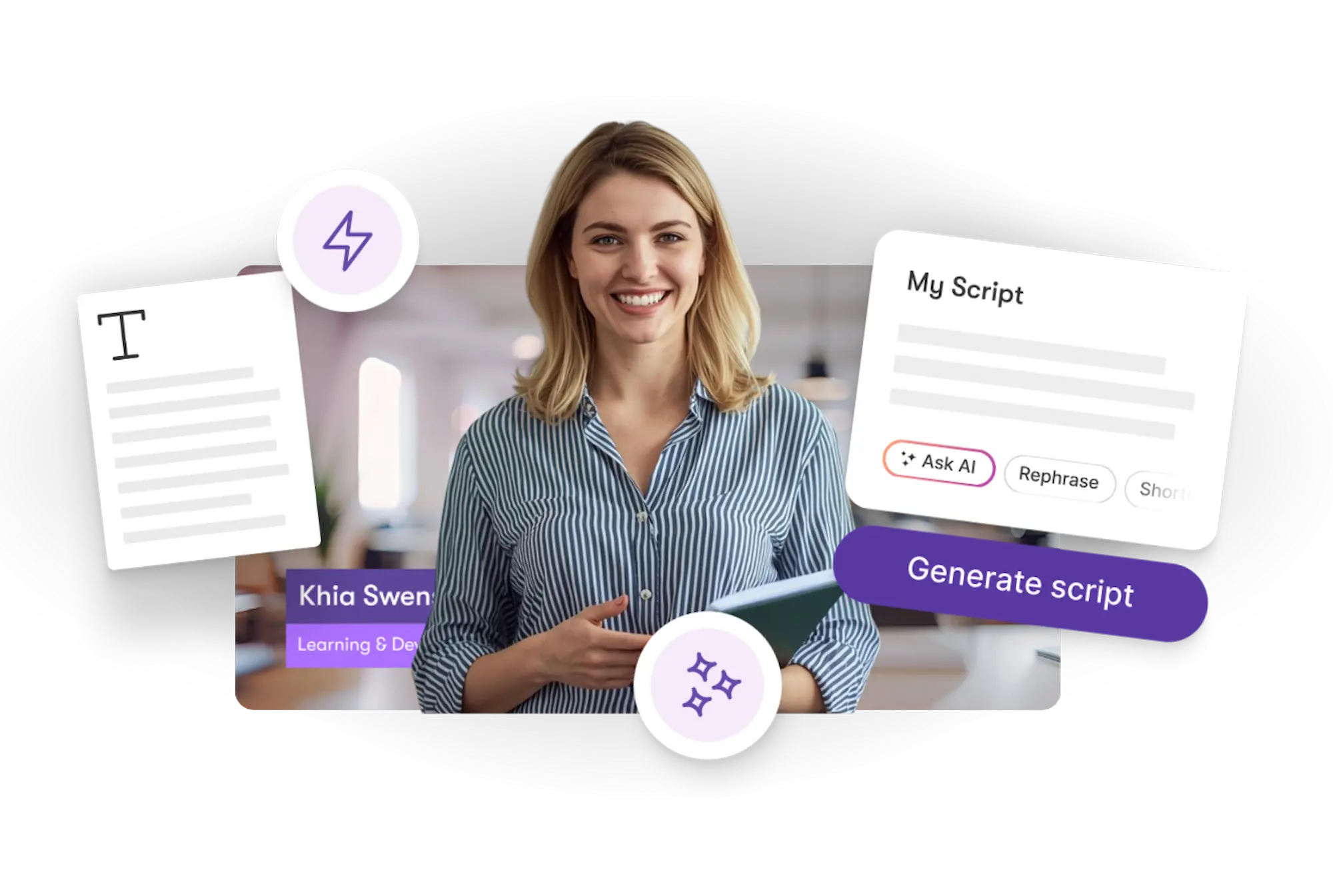
Turn text, prompts, scripts, articles, and blog posts into videos using Gen AI visuals, AI avatars, captions, and realistic AI voices.
URL to Video
Audio to Video
AI Avatar Generator
AI Video Editor
PPT to Video
Image to Video






Trusted by over 20,000 companies of all sizes
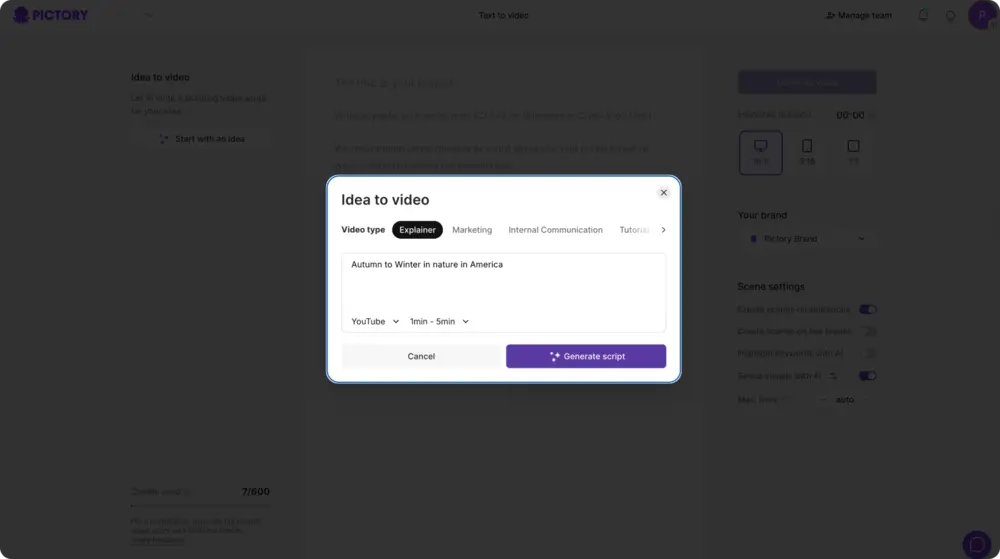
Many teams rely on text-based materials—scripts, articles, training notes, and summaries—to build video content. Pictory’s AI video creator from text converts this material into structured videos. You can start with text, generate a script, or use Idea-to-Video when you only have a concept. Layouts, visuals, captions, and pacing can all be refined in the editor.
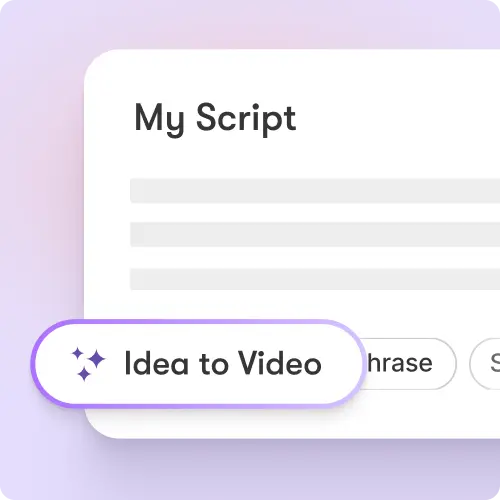

AI extracts key ideas from text, organizes scenes, applies layouts, recommends visuals, and generates captions. This helps teams convert written content into platform-ready videos without manual editing timelines.
Tools for Converting Text into Video
Features designed for consistent and scalable text-to-video workflows.
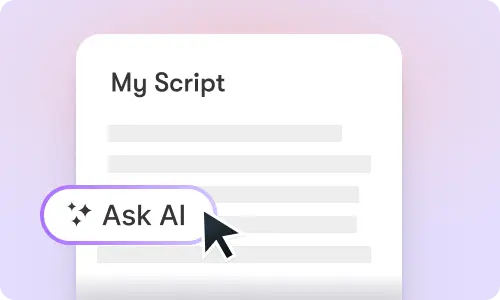
Text-to-Video Workflow
Convert text or scripts into an initial video structure.
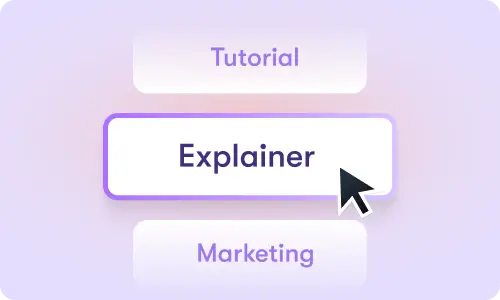
Layout Styles
Apply layouts that organize on-screen text and visual placement.
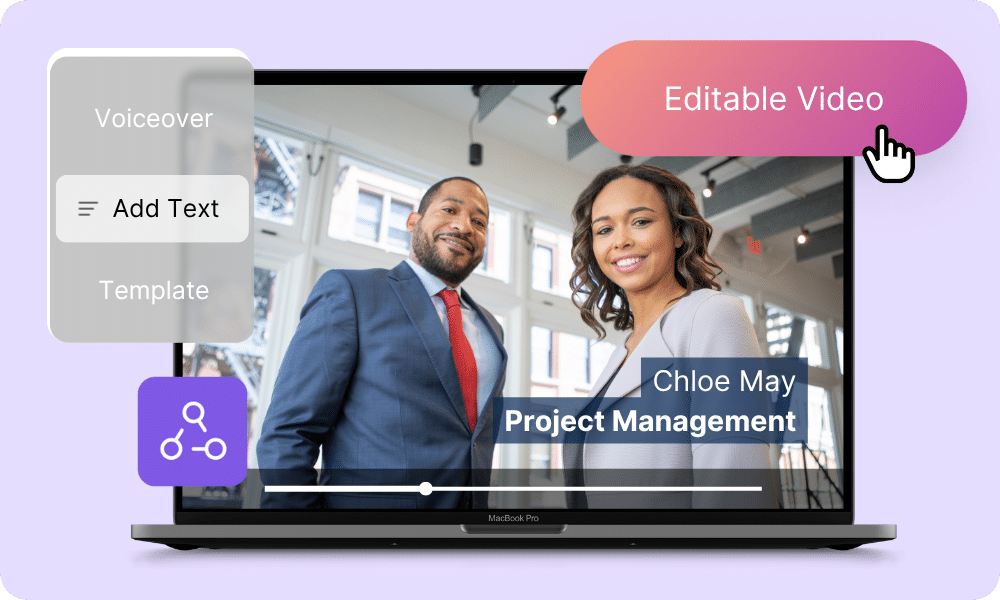
Auto Captions
Generate captions directly from the text content.
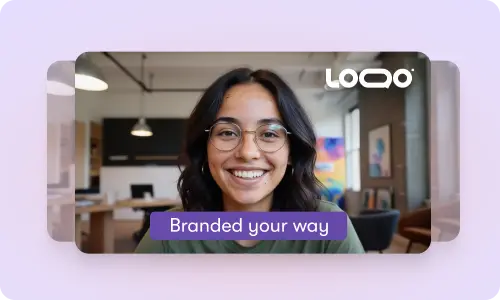
AI Script Generator
Build structured scripts automatically when starting from notes or outlines.
AI Visual Suggestions
Recommended visuals based on your written content.
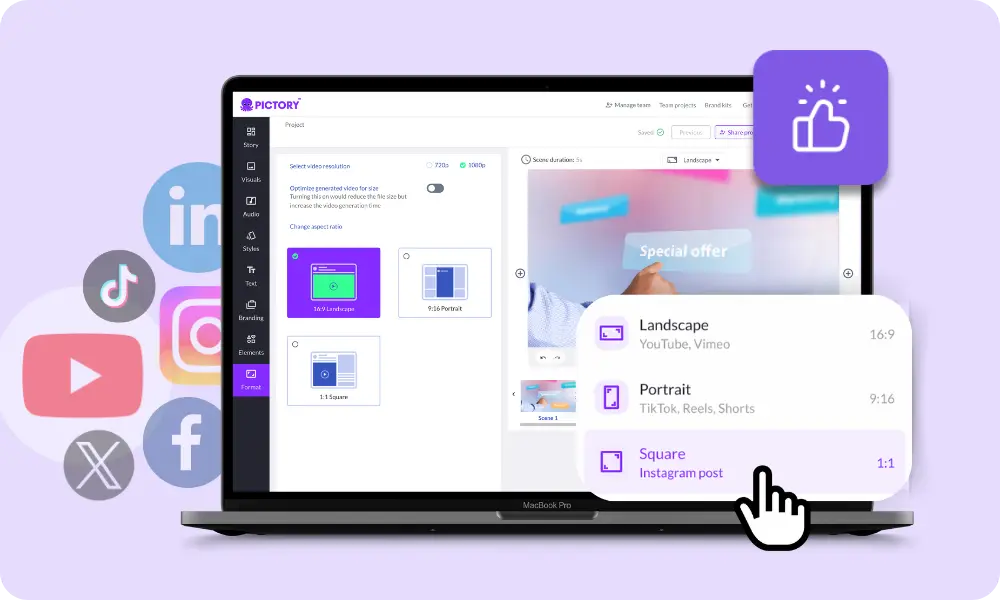
Multi-Format Export
Export vertical, square, or widescreen.
Each of these features ensures your idea evolves into a professional video workflow that aligns with your goals and platform strategy.
Add your text, script, or long-form content. Pictory generates a structured draft with scenes, captions, layouts, and visuals. You can refine imagery, narration, pacing, and overlays before exporting.

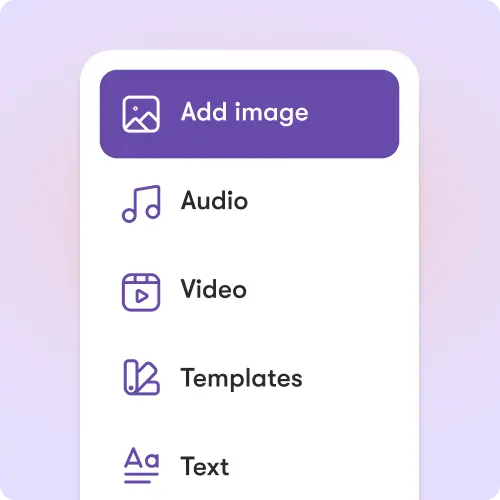
Adjust layouts, replace visuals, refine pacing, edit captions, or use AI Studio to update or generate imagery that aligns with your content.
How to Create a Video from Text
Step 1
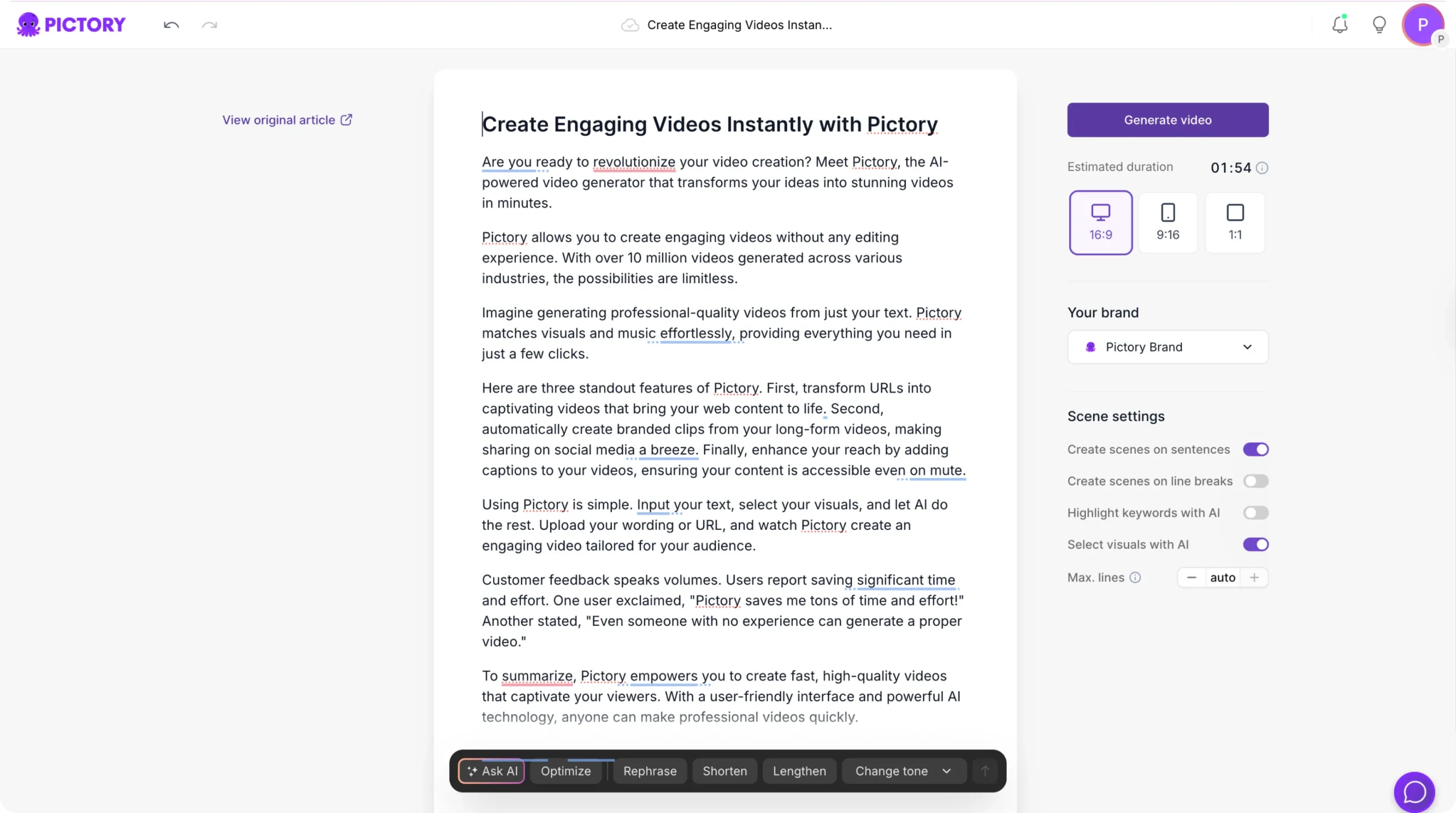
Add Your Text
Upload text, scripts, articles, or notes.
Step 2
Generate a Structured Draft
Pictory identifies key points and builds a scene-based video.
Step 3
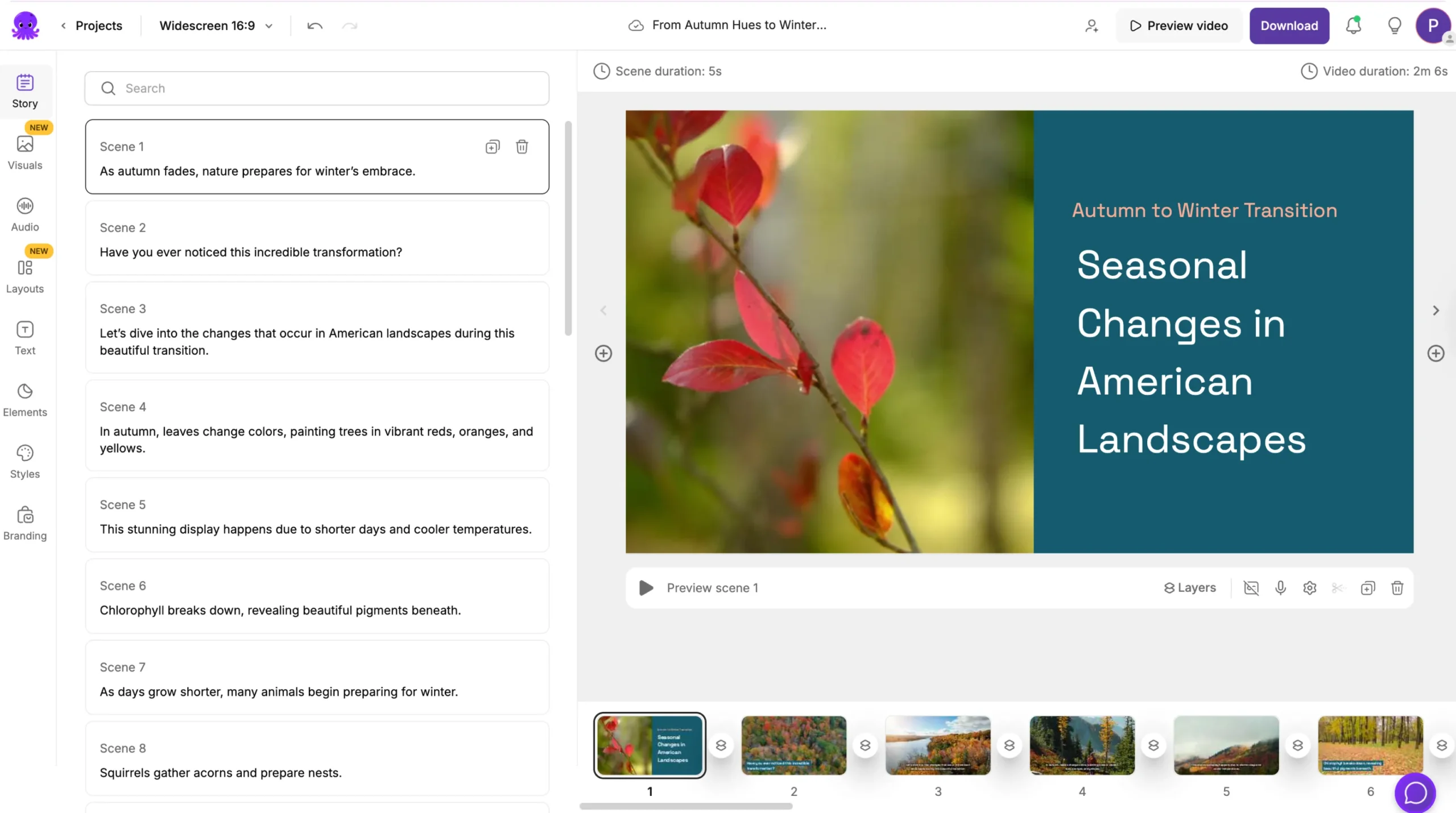
Refine Scenes and Visuals
Update visuals, pacing, captions, and layouts.

Step 4
Export Your Final Video
Download in vertical, square, or widescreen formats.
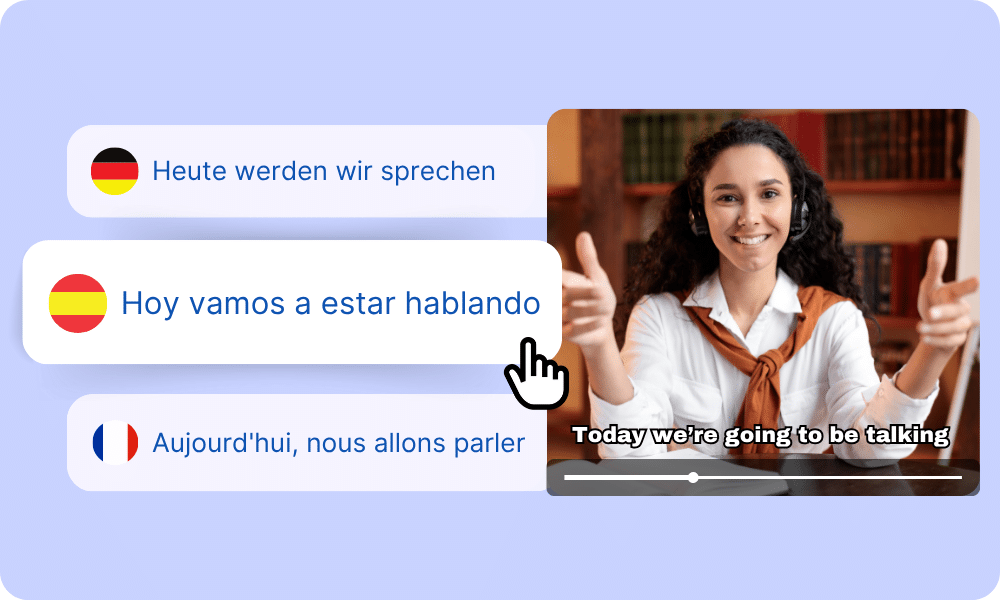
Add captions or narration in multiple languages with auto-formatting.


Export for YouTube, TikTok, Instagram, LinkedIn, training systems, websites, and internal communication. Works with Make, Zapier, and the Chrome extension.
Reasons to Use This Text-to-Video Creator
Use Cases for AI Video Creator from Text

Marketing Campaigns:
Generate explainer videos or product teasers from your campaign concepts instantly.

Educational Tutorials
Turn lesson ideas into complete teaching videos with narration and visuals.

Corporate Training
Convert internal communication topics into polished instructional videos.
Social Media Content
Create short-form videos tailored for brand awareness and audience engagement.
Get Started with the AI Video Creator from Text
Convert text into videos using AI-supported workflows designed for scalable production.
In partnership with










AI Video Creator from Text FAQs
Is this tool free?
Pictory offers a free trial for creating and exporting videos.
Can I upload long-form text?
Yes. Upload articles, blogs, scripts, or documents.
Can I generate a script from notes?
Yes. Use the AI Script Generator or Idea-to-Video.
Can I refine visuals?
Yes. AI Studio can enhance or generate imagery.
Does this run in the browser?
Yes. No installation required.
Can I export vertical videos?
Yes. Export vertical, square, and widescreen.




SOC 2 & GDPR compliant
OPE0072201
Copyright 2026 Pictory.ai - Privacy Policy / Terms of Service / NSFW / Copyright Policy / Sitemap


