
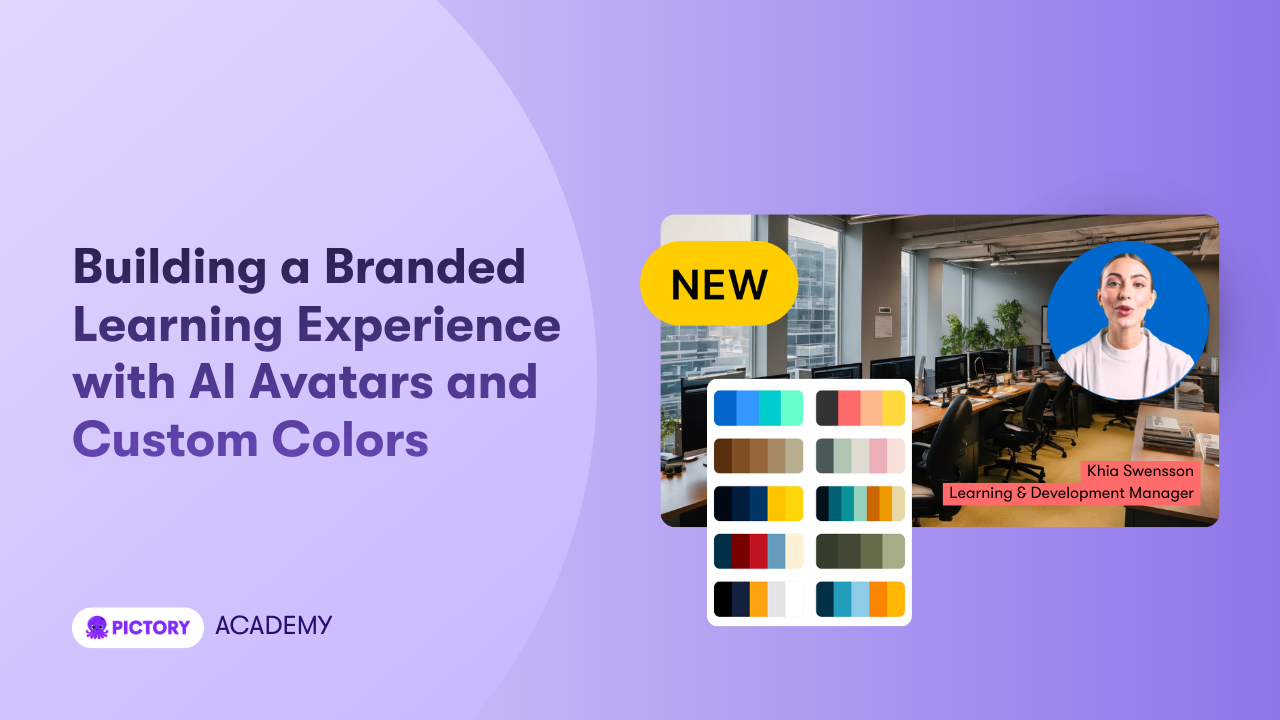
Creating a professional learning experience is no longer just about delivering information. It is about building a cohesive, branded environment that reinforces trust, authority, and engagement. With Pictory’s AI Avatars, Brand Kits, and Color Palette features, you can create consistent, visually compelling training and educational videos at scale.
In this step by step guide, you will learn how to build a branded learning experience using AI avatars and custom brand colors inside Pictory.
Why Branding Matters in Learning Videos
Whether you are creating internal training modules, online courses, LMS content, or customer education videos, branding plays a critical role in:
Building brand recognition
Increasing learner trust
Creating visual consistency across modules
Reinforcing professionalism
Improving content retention
By combining AI avatars with custom color palettes and brand kits, you can transform standard instructional videos into fully branded learning experiences.
Step 1: Create or Select Your Brand Kit
The foundation of a branded learning experience starts with your Brand Kit.
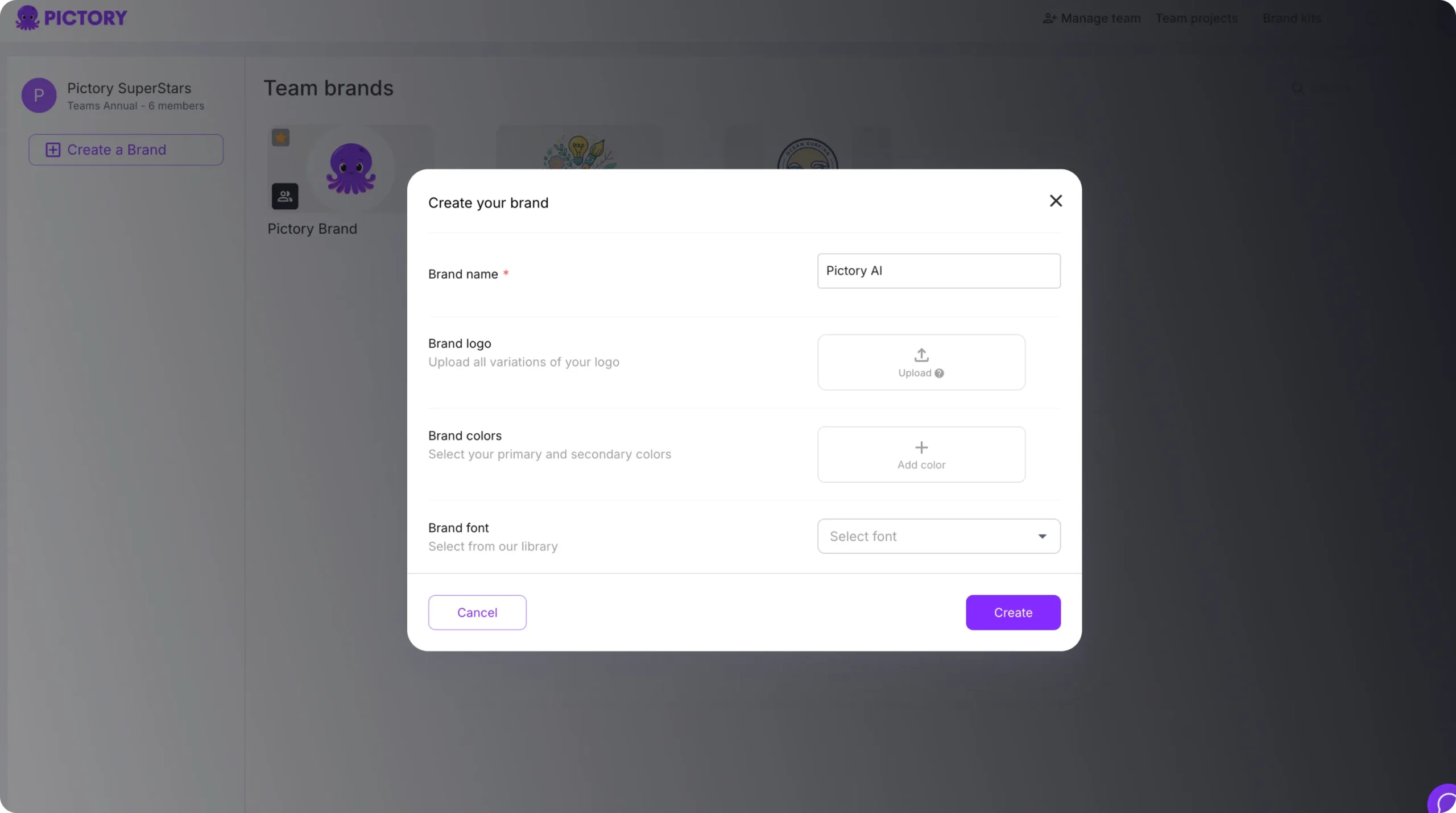
How to Create a Brand Kit in Pictory
Go to Brand Kits from the left sidebar.
Click Create a Brand.
Add your:
Brand name
Logo
Primary and secondary brand colors
Brand fonts
Click Create to save your brand kit.
You can define up to seven brand colors. These will automatically generate your custom brand palette.
Why This Matters for Learning Content
When applied to your training videos, your Brand Kit ensures:
Consistent color usage across scenes
Branded text styling
Logo placement
Unified typography
If you select your Brand Kit during project creation, the brand palette is automatically applied to your video.
Step 2: Choose the Right Workflow for Your Learning Content
Pictory offers multiple workflows depending on how your learning content is created:
Text to Video for scripted lessons
PPT to Video for slide-based training
URL to Video for repurposing articles into learning modules
AI Video Editor for refining recorded sessions
Screen Recorder for tutorials and software walkthroughs
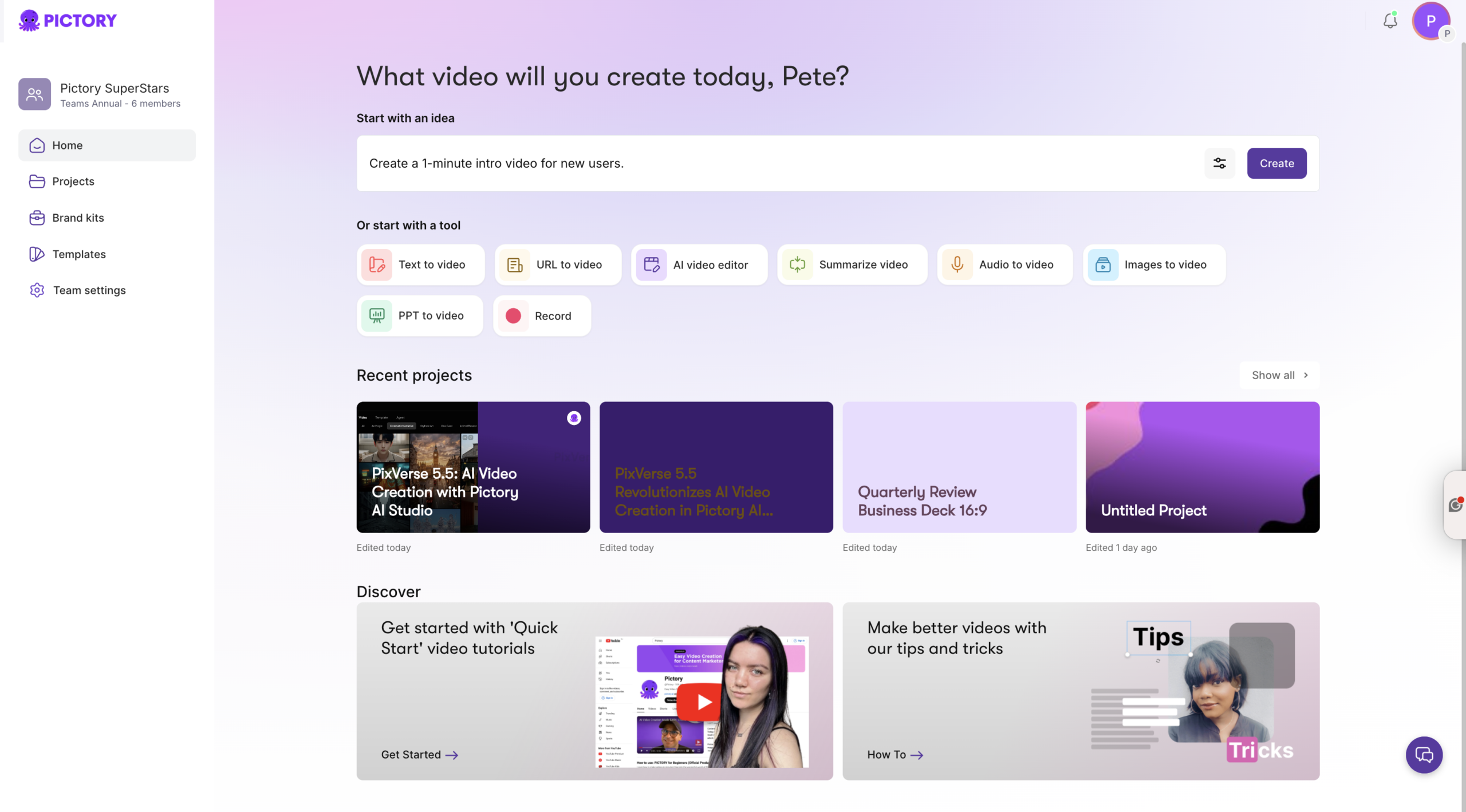
Choose the workflow that fits your content format, then generate your storyboard.
Step 3: Add an AI Avatar to Personalize the Learning Experience
AI avatars create a human presence in your training videos without requiring on-camera recording.
Why Use AI Avatars in Learning Videos
Increases engagement
Builds instructor presence
Creates consistency across lessons
Saves time compared to filming
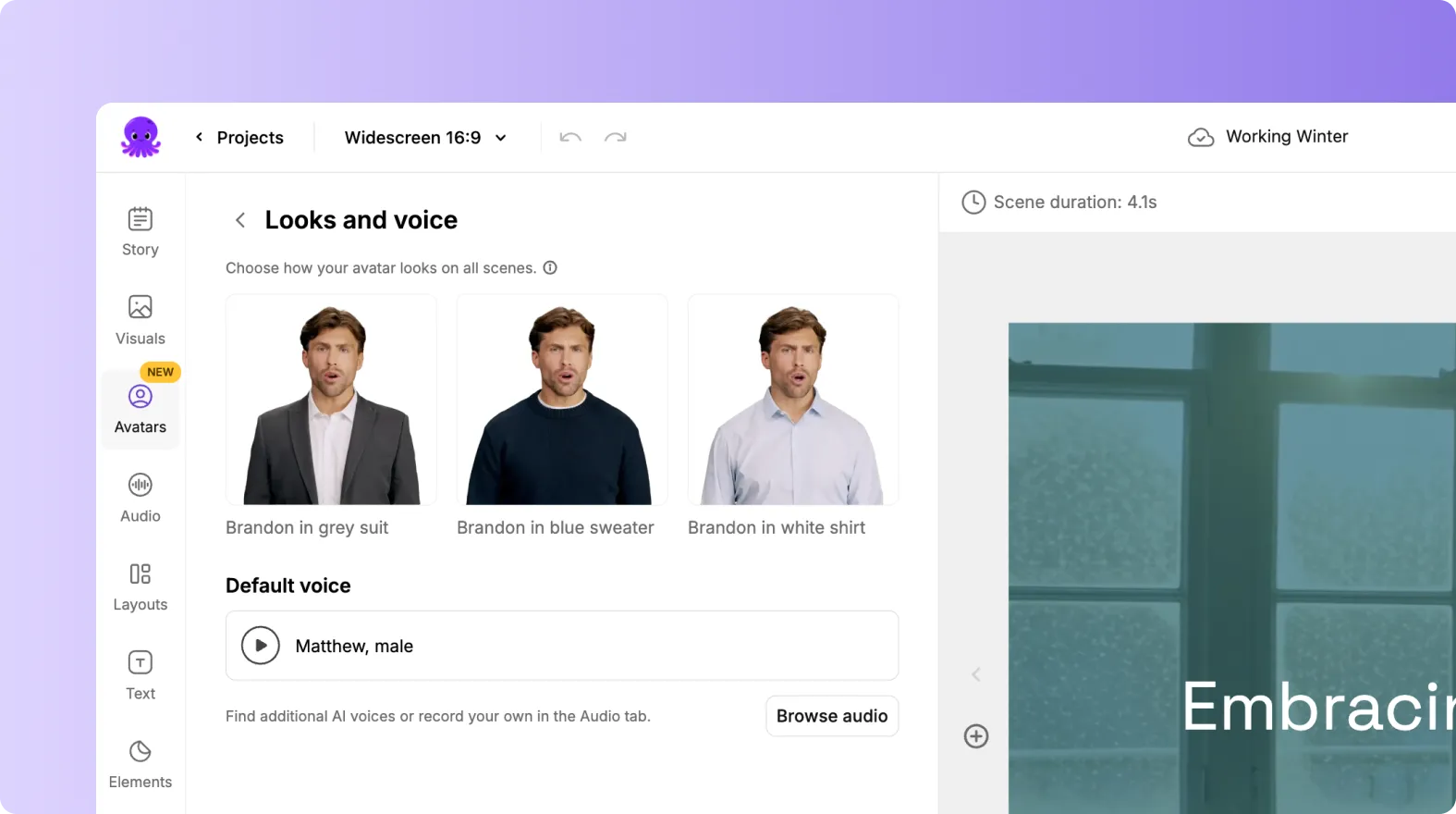
After generating your storyboard:
Open your project in the Video Editor.
Add your AI avatar to the scene.
Position and resize the avatar as needed.
Sync the avatar with your script and voice-over.
AI avatars work especially well for:
Course introductions
Lesson summaries
Explainer modules
Compliance training
LMS-based microlearning
Step 4: Apply Custom Color Palettes to Reinforce Branding
Color consistency strengthens your learning brand identity.
How to Apply a Color Palette
Inside the Video Editor:
Click the Styles tab.
Open the Color Palettes submenu.
Choose your preferred palette.
Apply it to the current scene or all scenes.
If you selected your Brand Kit at the start, your brand palette will already be applied.
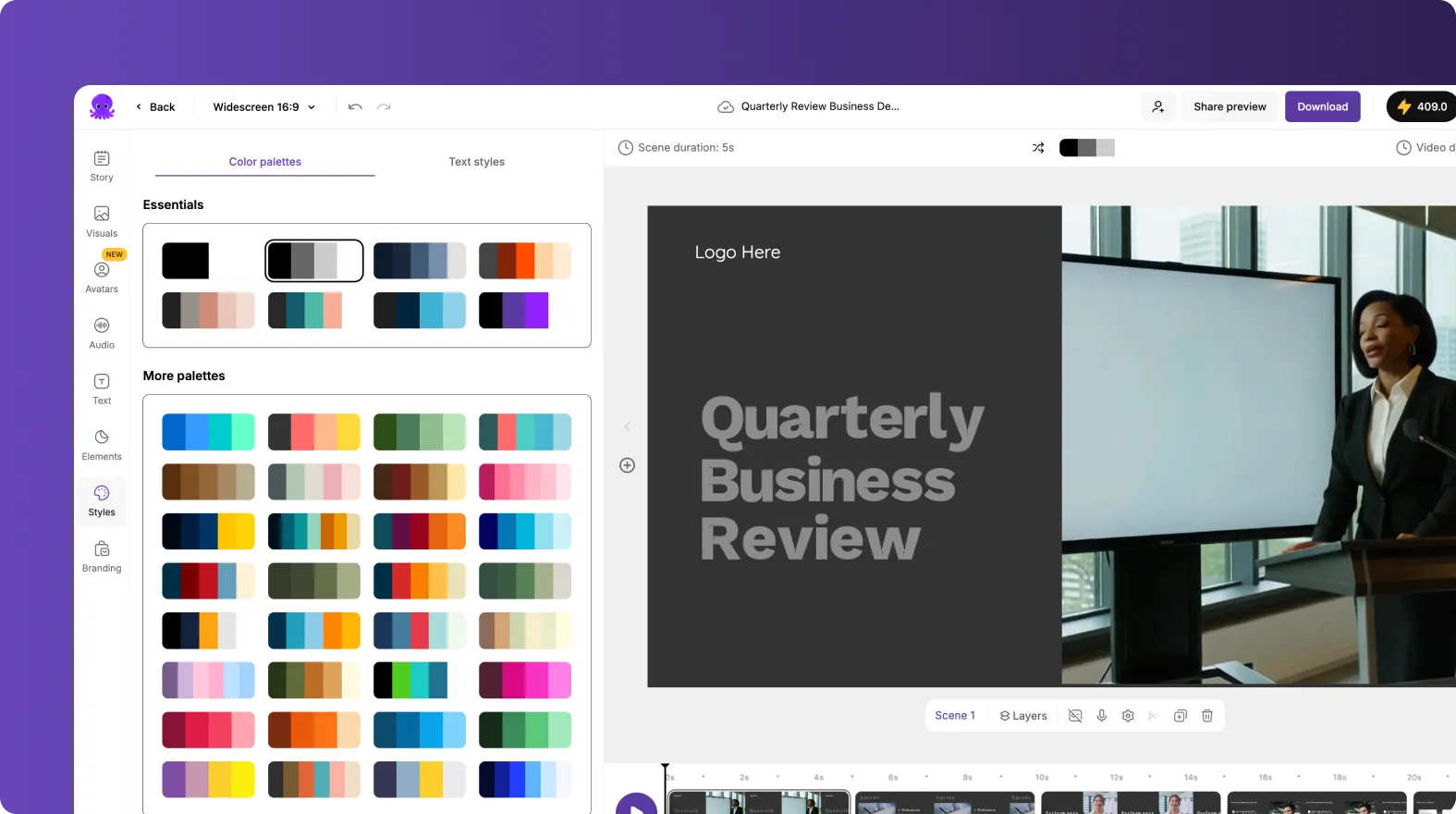
Pictory automatically recolors:
Text
Text backgrounds
Scene backgrounds
Overlays
Graphic elements
This ensures every lesson follows the same visual identity.
Step 5: Fine-Tune Scene Colors with Shuffle and Manual Controls
If a specific scene needs better contrast or emphasis:
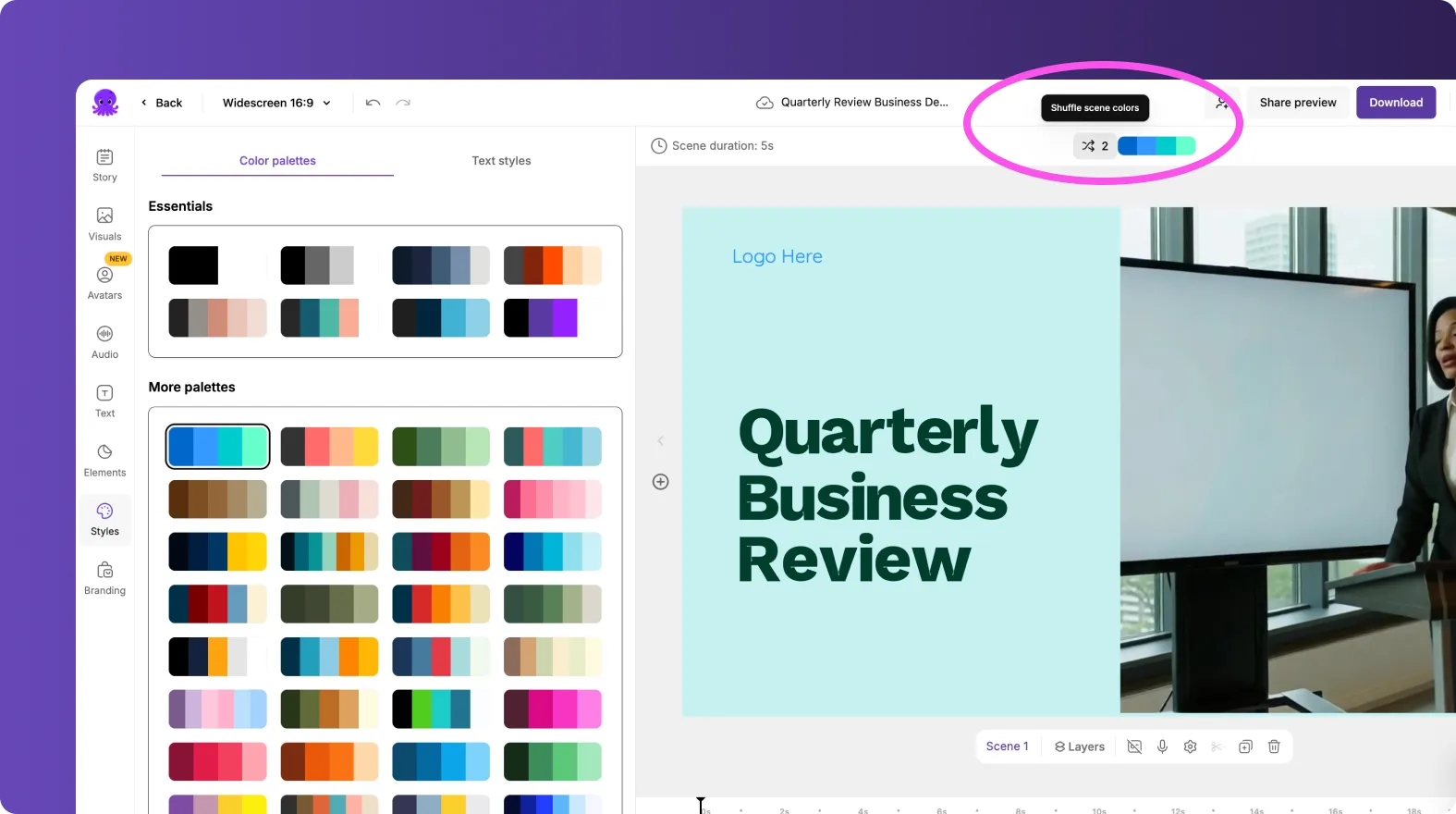
Use the Shuffle Feature
Each color palette includes multiple color combinations.
Select a scene.
Click the shuffle icon.
Cycle through different color variations.
Shuffling affects only that scene, allowing localized adjustments without disrupting the entire course.
Manually Adjust Elements If Needed
You can also manually edit:
Text color
Background color
Shapes and overlays
This helps maintain readability and accessibility in learning environments.
Step 6: Maintain Consistent Layouts and Text Styling
A branded learning experience is not only about colors. It also includes layout consistency.
Use:
Layouts tab to standardize scene structure
Text tab for headings and subheadings
Styles tab to apply consistent typography
Branding tab to ensure logo placement
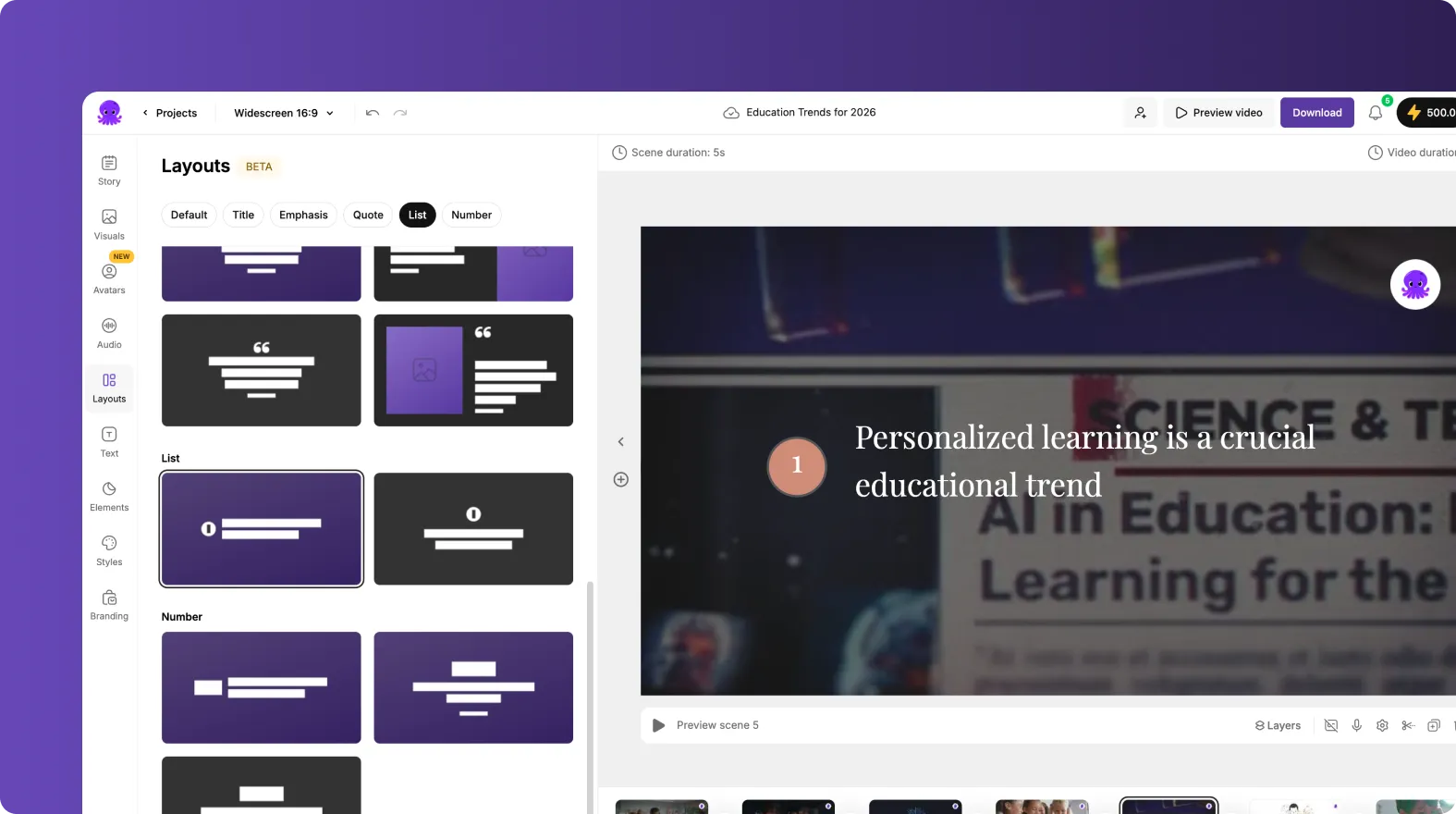
Consistency across lessons improves learner navigation and perceived course quality.
Step 7: Enhance Engagement with Text Animations
To improve learner attention and retention:
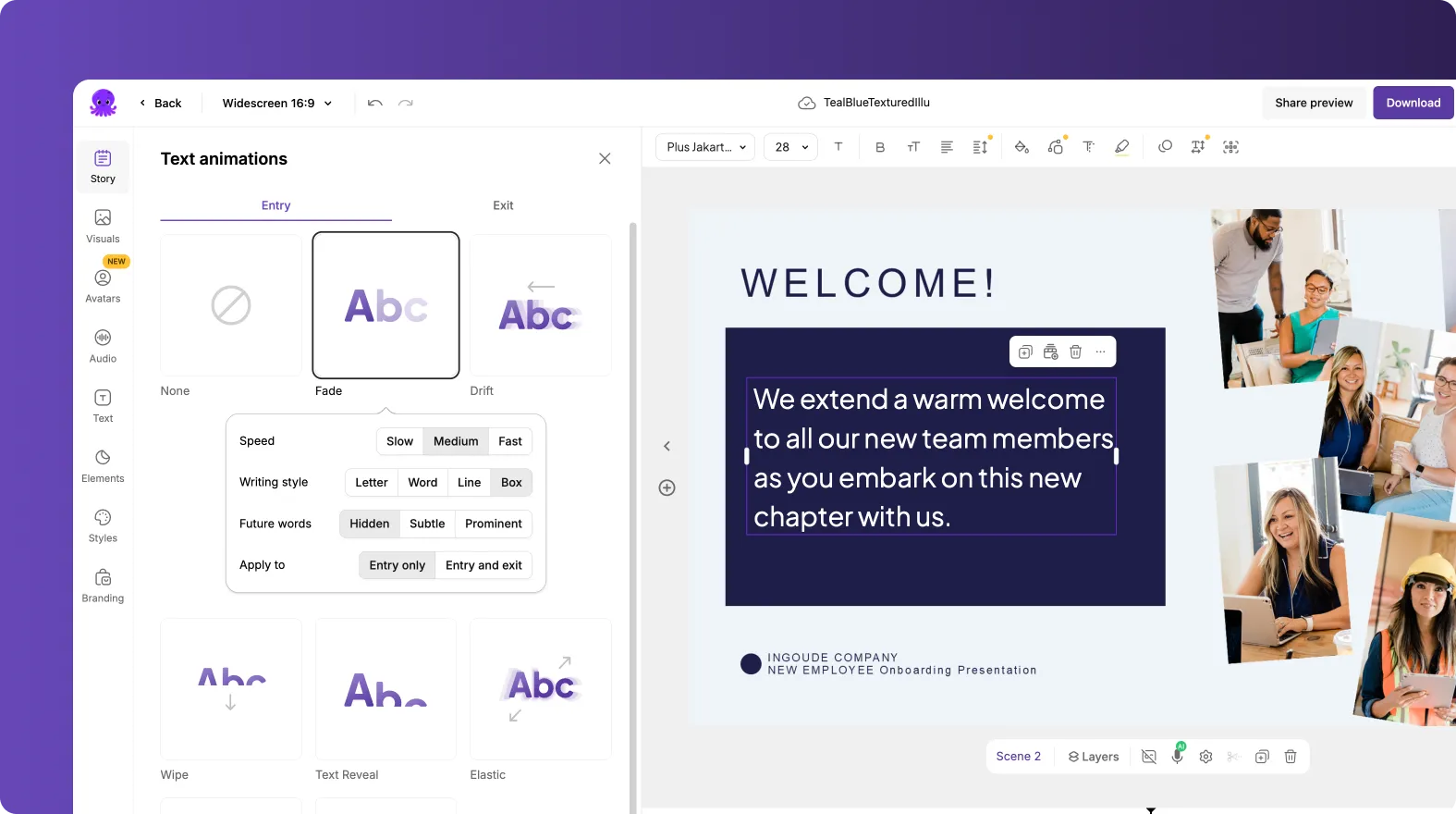
Select a text element.
Click Animate Text in the top toolbar.
Choose entry and exit animations.
Adjust speed and writing style.
Use animations strategically for:
Key takeaways
Definitions
Step-by-step instructions
Quiz prompts
Subtle animation enhances engagement without distracting learners.
Step 8: Add Voiceover and Audio for a Professional Finish
In the Audio tab, you can:
Choose AI voiceovers
Upload custom narration
Add background music
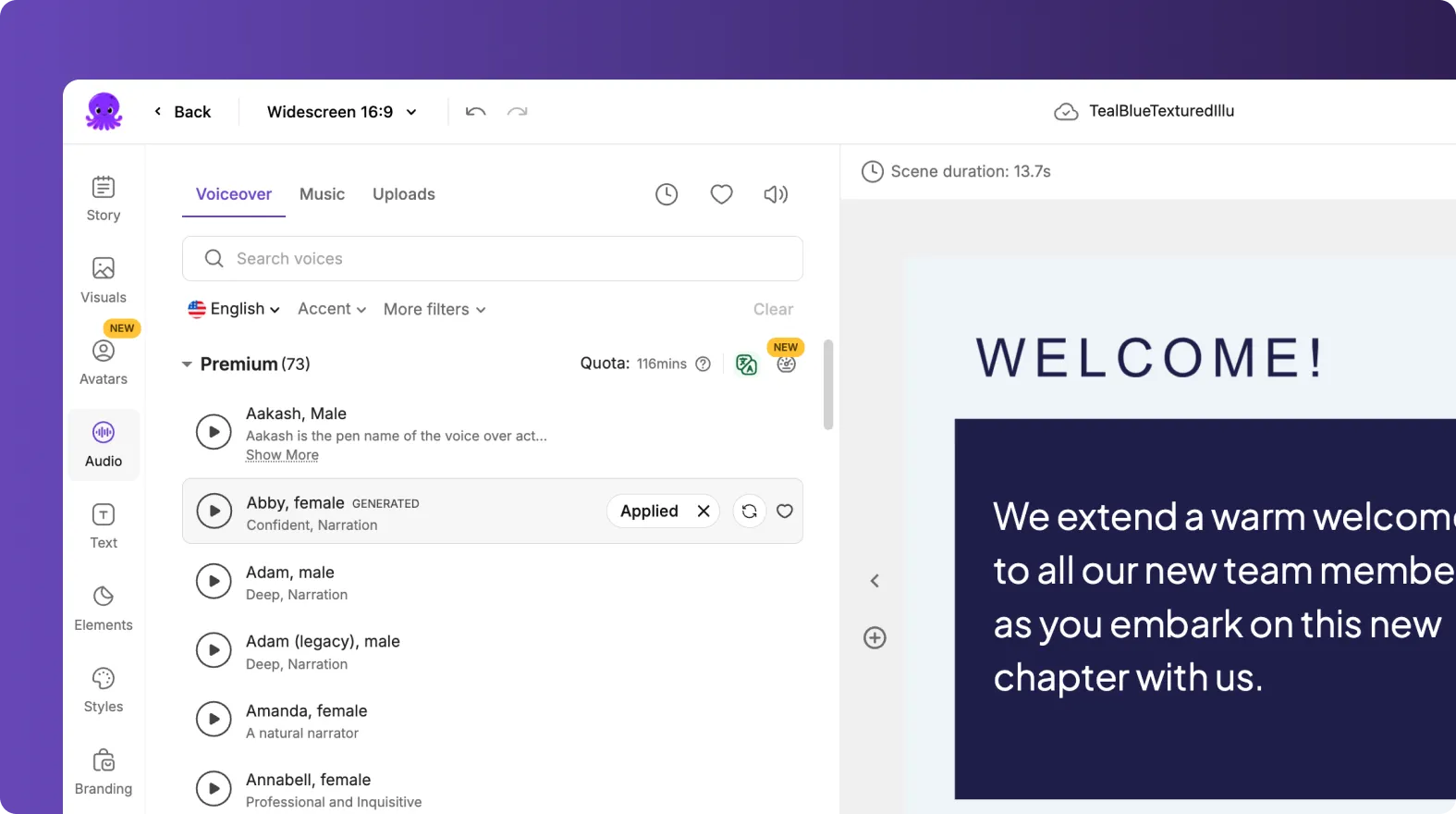
For branded learning content, choose voice tones that align with your organization’s personality, whether corporate, conversational, or instructional.
Step 9: Preview and Export Your Branded Learning Video
Before exporting:
Preview the entire video
Check color consistency across scenes
Confirm avatar placement
Ensure text readability
Verify branding elements
Once finalized, download your video or deploy it to your LMS, training portal, or video hosting platform.
Best Practices for Building a Branded Learning Experience
To create scalable and consistent learning modules:
Always select your Brand Kit before generating videos
Use the same AI avatar across modules for continuity
Apply one primary color palette across a full course
Keep layouts consistent for lesson structure
Maintain high contrast for accessibility
Standardize intro and outro scenes
When done correctly, learners immediately recognize your content as part of a professional, unified learning program.
Frequently Asked Questions
Can I use my own brand colors in learning videos
Yes. You can define up to seven brand colors inside your Brand Kit and apply them automatically to your video projects.
Do AI avatars work for training and LMS content
Yes. AI avatars are ideal for structured learning modules, tutorials, compliance training, and online courses.
Can I apply my brand palette to all scenes at once
Yes. When selecting a color palette in the Styles tab, you can apply it to all scenes in the project.
Does shuffling color combinations affect the entire video
No. Shuffling only changes the selected scene.
Can I reuse the same branding across multiple learning videos
Yes. Once your Brand Kit is created, you can apply it to all future projects to maintain consistent branding.


