
The new Video Preview and Timeline in Pictory give you more control, faster navigation, and a clearer view of how your video comes together scene by scene. Whether you are editing a script-based video, an AI-edited recording, or a presentation turned into video, these updates make it easier to preview, refine, and finalize your content with confidence.
This step by step guide shows exactly how to use the new video preview and timeline inside the Pictory video editor so you can edit faster and produce more polished videos.
What Is the New Video Preview and Timeline in Pictory
The Video Preview and Timeline are core parts of the Pictory AI video editor. Together, they let you see your video as it plays while quickly navigating between scenes.
The new experience includes:
- A larger, more responsive video preview panel
- A visual timeline with scene thumbnails at the bottom
- Easier scene navigation and playback control
- Real time feedback as you edit text, visuals, audio, and styles
These improvements help you understand pacing, flow, and structure before exporting your video.
Where to Find the Video Preview and Timeline in Pictory
You will see the Video Preview and Timeline automatically once your storyboard is created.
This applies to all major workflows, including:
- Text to Video
- URL to Video
- AI Video Editor for uploaded or recorded videos
- Audio to Video
- Images to Video
- PPT to Video
After Pictory finishes generating scenes, the editor opens with:
- Left panel for features
- Right top panel for scenes tools
- Bottom panel for the timeline with scene thumbnails
How to Use the Video Preview in Pictory
Step 1: Play and Preview Your Video
In the video editor, the preview panel on the right shows your current scene or full video playback.
You can click play to preview the full video. This helps you immediately spot timing issues, text errors, or visual mismatches.
Step 2: Preview Changes Instantly While Editing
As you make edits in Pictory, the video preview updates automatically.
For example, you can:
- Edit scene text in the Story tab and see captions update
- Change visuals in the Visuals tab and preview them instantly
- Adjust voiceovers, music, or subtitles and hear changes right away
- Apply styles or brand kits and see the design refresh in real time
This eliminates guesswork and speeds up the editing process.
How to Use the Timeline in Pictory
Step 1: Understand the Timeline Layout
The timeline appears at the bottom of the editor and displays:
- Scene thumbnails in sequential order
- A visual representation of your entire video
- Quick navigation between scenes
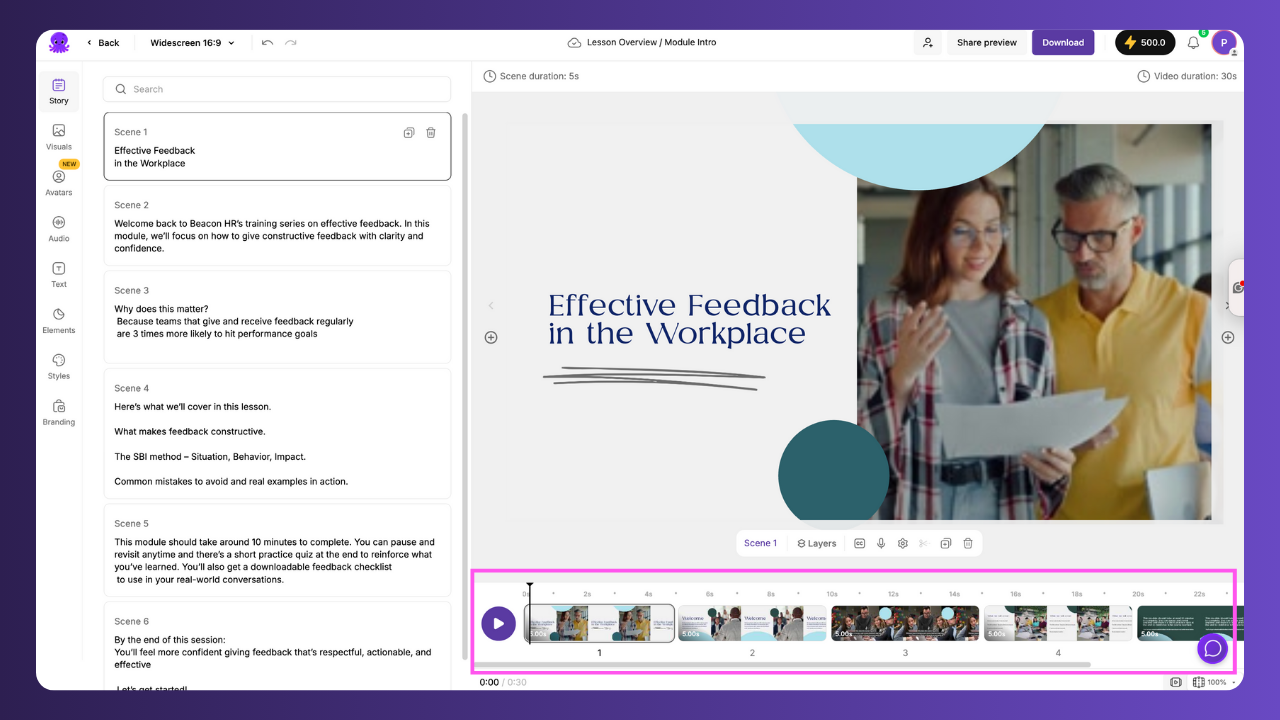
Each thumbnail corresponds to one scene in your storyboard.
Step 2: Navigate Between Scenes Using the Timeline
You can click any scene thumbnail in the timeline to:
Jump directly to that scene
Edit text, visuals, or audio for that scene
Preview only that section of the video
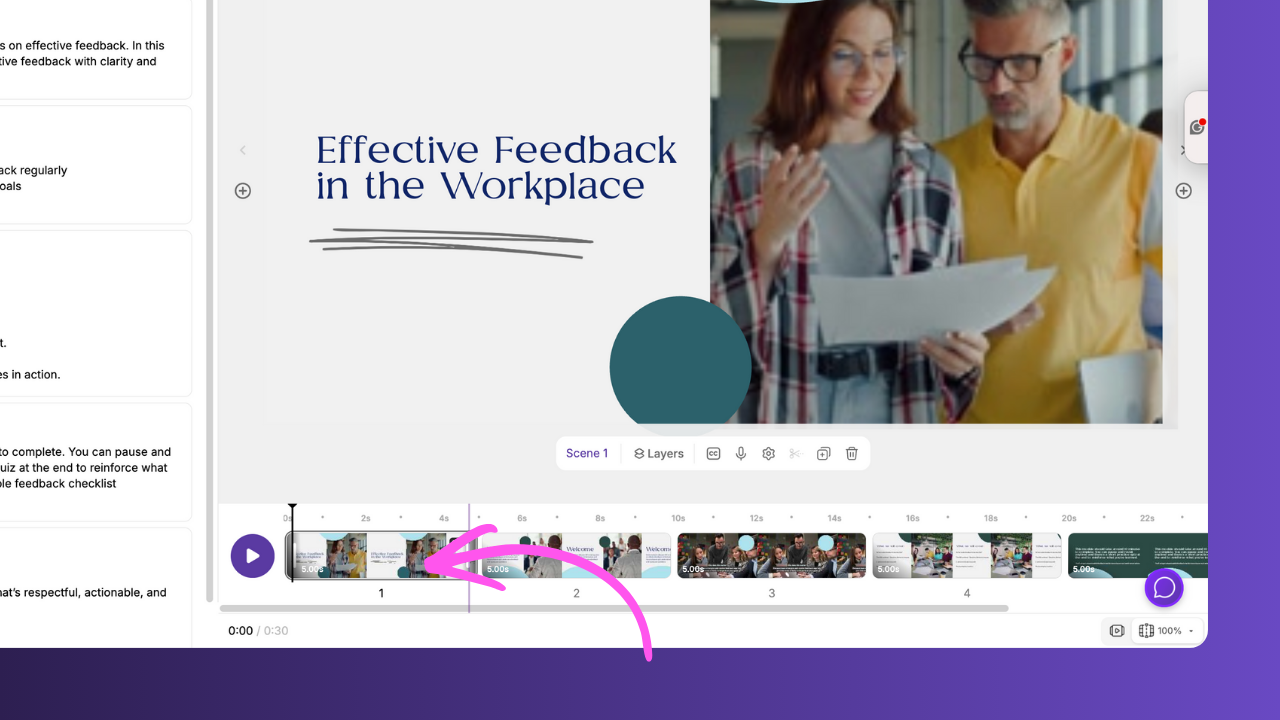
This is especially helpful for longer videos with many scenes.
Step 3: Review Scene Order and Structure
The timeline makes it easy to review the overall structure of your video.
Use it to:
Confirm scenes are in the correct order
Identify scenes that may be too short or too long
Spot repetitive visuals or layouts

You can then adjust individual scenes from the left panel while using the timeline as your visual guide.
Step 4: Combine Timeline Navigation With the Preview
For the best workflow, use both tools together:
Click a scene in the timeline
Watch it play in the video preview
Make edits in the left panel
Replay the scene instantly to confirm changes
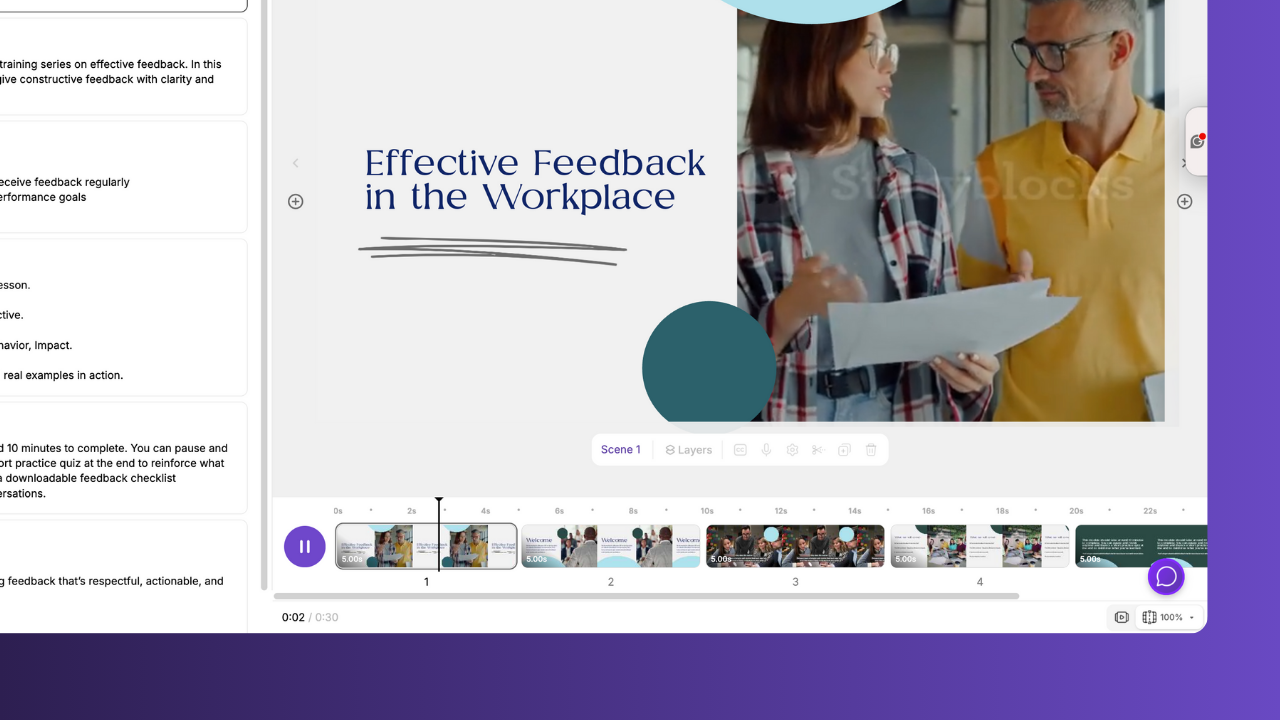
This loop helps you refine your video efficiently without exporting multiple drafts.
Best Practices for Using the Video Preview and Timeline
Preview your video from start to finish before downloading
Use the timeline to jump to problem scenes instead of scrubbing manually
Check caption readability and pacing in the preview
Review branding and styles across multiple scenes for consistency
Preview again after adding music or voiceovers to confirm audio balance
When to Use Preview Video vs Download Video
Use Preview Video when:
You are still editing scenes
You want to review pacing and flow
You are testing visuals, text, or animations
Use Download Video only after:
All scenes are finalized
The full preview plays smoothly
Text, audio, and branding look correct
Frequently Asked Questions About Video Preview and Timeline in Pictory
Can I preview individual scenes instead of the full video
Yes. Click a scene in the timeline or left panel and press play to preview only that scene.
Does the timeline work for all Pictory video creation workflows
Yes. The timeline and video preview appear in all Pictory editor workflows once the storyboard is created.
Can I see text animations and transitions in the preview
Yes. Entry and exit text animations, transitions, and styles are fully visible in the video preview.
Why is the timeline important for longer videos
For long videos, the timeline helps you quickly navigate, review structure, and fix specific scenes without watching the entire video repeatedly.
Do changes in the editor automatically update the preview
Yes. Most edits update instantly so you can preview changes in real time before exporting.


