
Tone affects how your message sounds to your audience. Whether you want your script to feel friendly, professional, authoritative, or conversational, Pictory AI gives you tools to rewrite your copy with the tone that best fits your video purpose. You can quickly adjust your script before generating visuals or apply tone changes during editing.
This guide shows you how to change the tone of your script in Pictory AI.
Why Tone Matters
Choosing the right tone helps you:
• Match the personality of your brand
• Connect with your audience more effectively
• Adapt content for different platforms
• Improve clarity and professionalism
• Keep viewers engaged
Tone affects how your message is perceived, so selecting the right one is important.
Step 1: Start With the Script to Video Workflow
To change tone before generating your video:
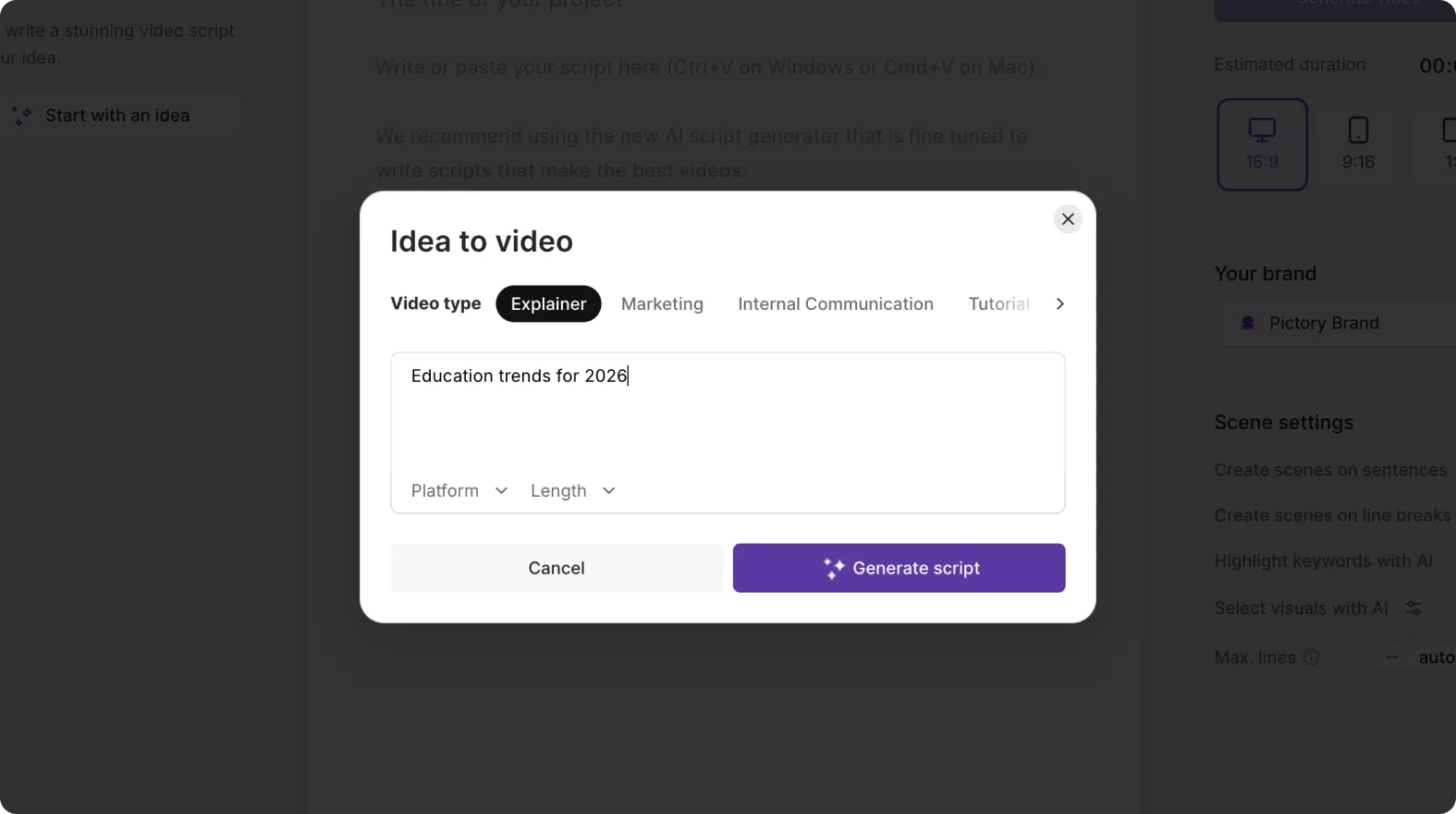
Go to the Script to Video workflow
Paste your script into the editor
Look for the Tone options beneath the script box
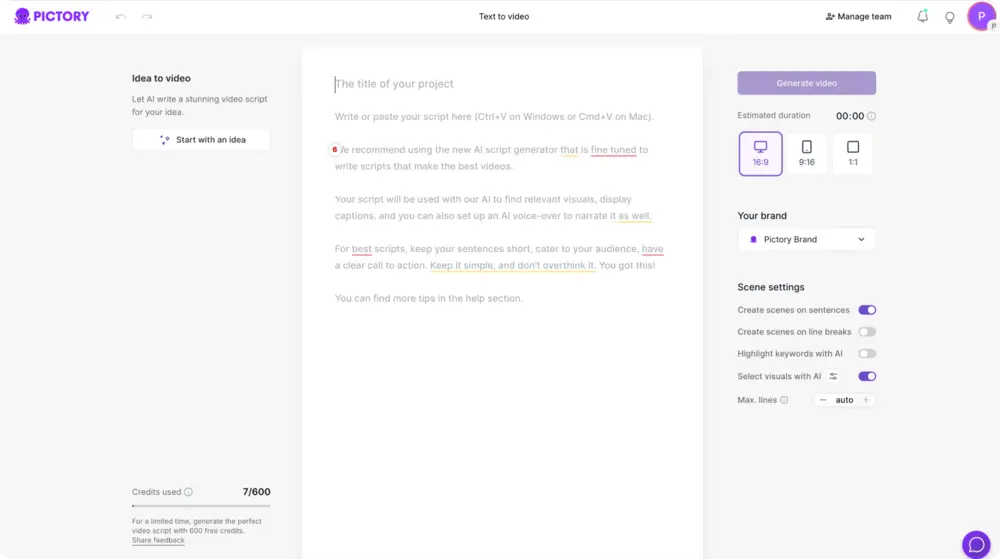
This allows you to transform your script before scenes are created.
Step 2: Choose a Tone From the Available Options
Pictory provides several tone choices depending on your goal.
Examples include:
• Friendly
• Professional
• Confident
• Conversational
• Informative
• Enthusiastic
• Formal
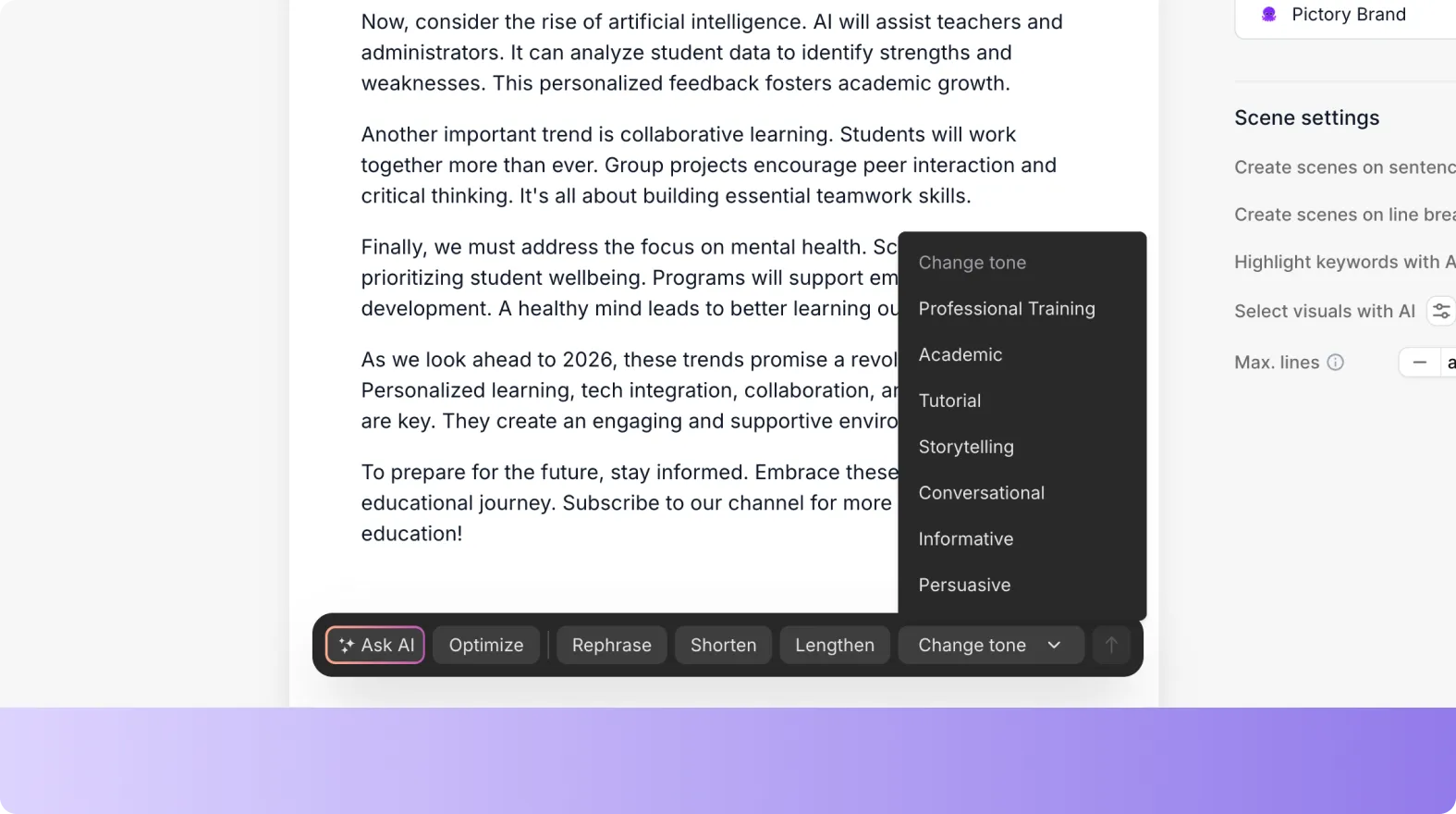
Select the tone that fits the message and audience of your video.
Step 3: Apply the Tone to Your Script
After selecting a tone:
Click Apply Tone
Pictory rewrites your script to match the selected tone
Review the updated text in the script box
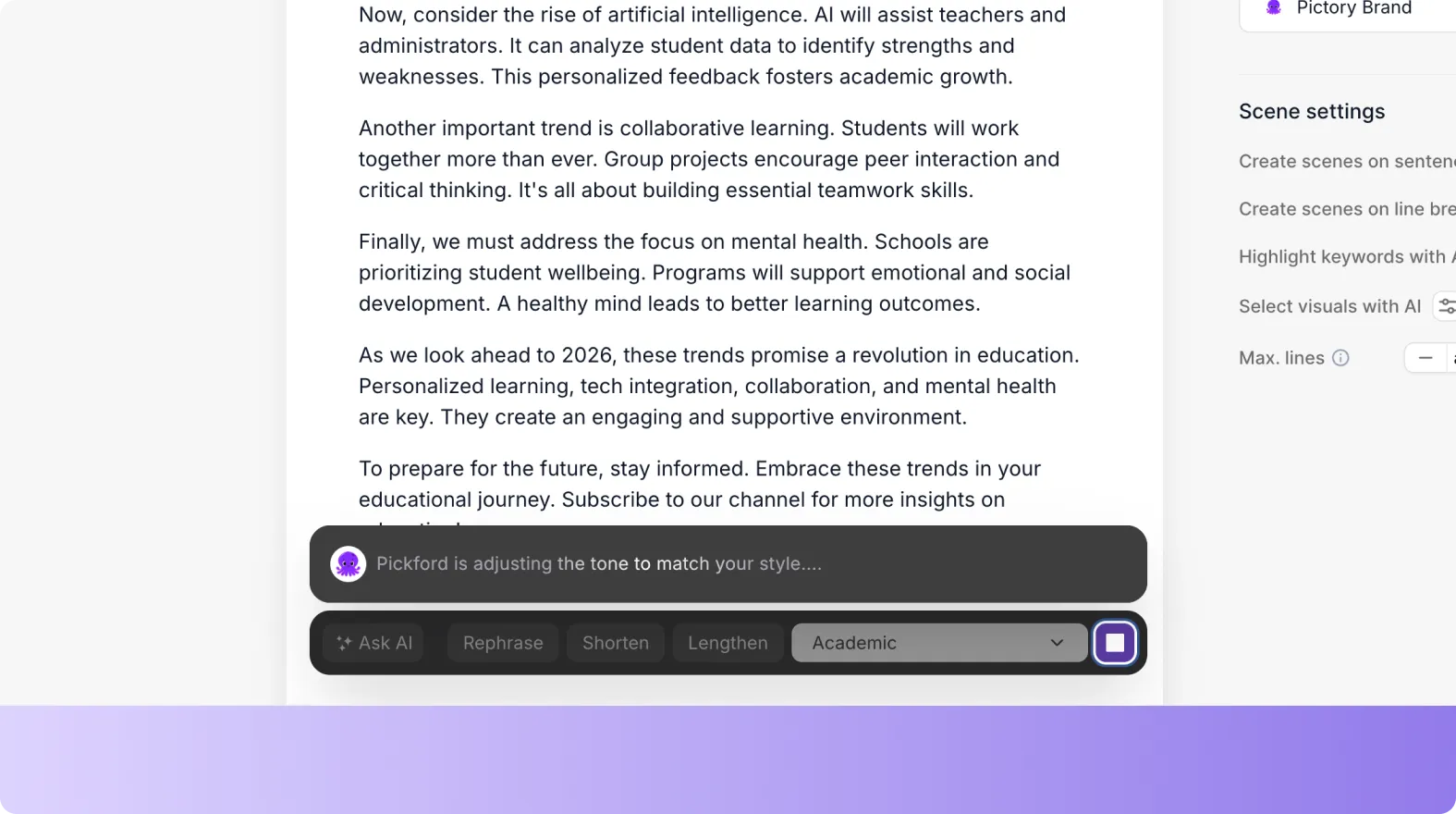
Your script is now rewritten with the new tone but keeps your original meaning.
Step 4: Review and Edit the Updated Script
Once the tone is applied, read through the rewritten script.
Check for:
• Clarity
• Flow
• Proper phrasing
• Brand alignment
• Accuracy of technical points
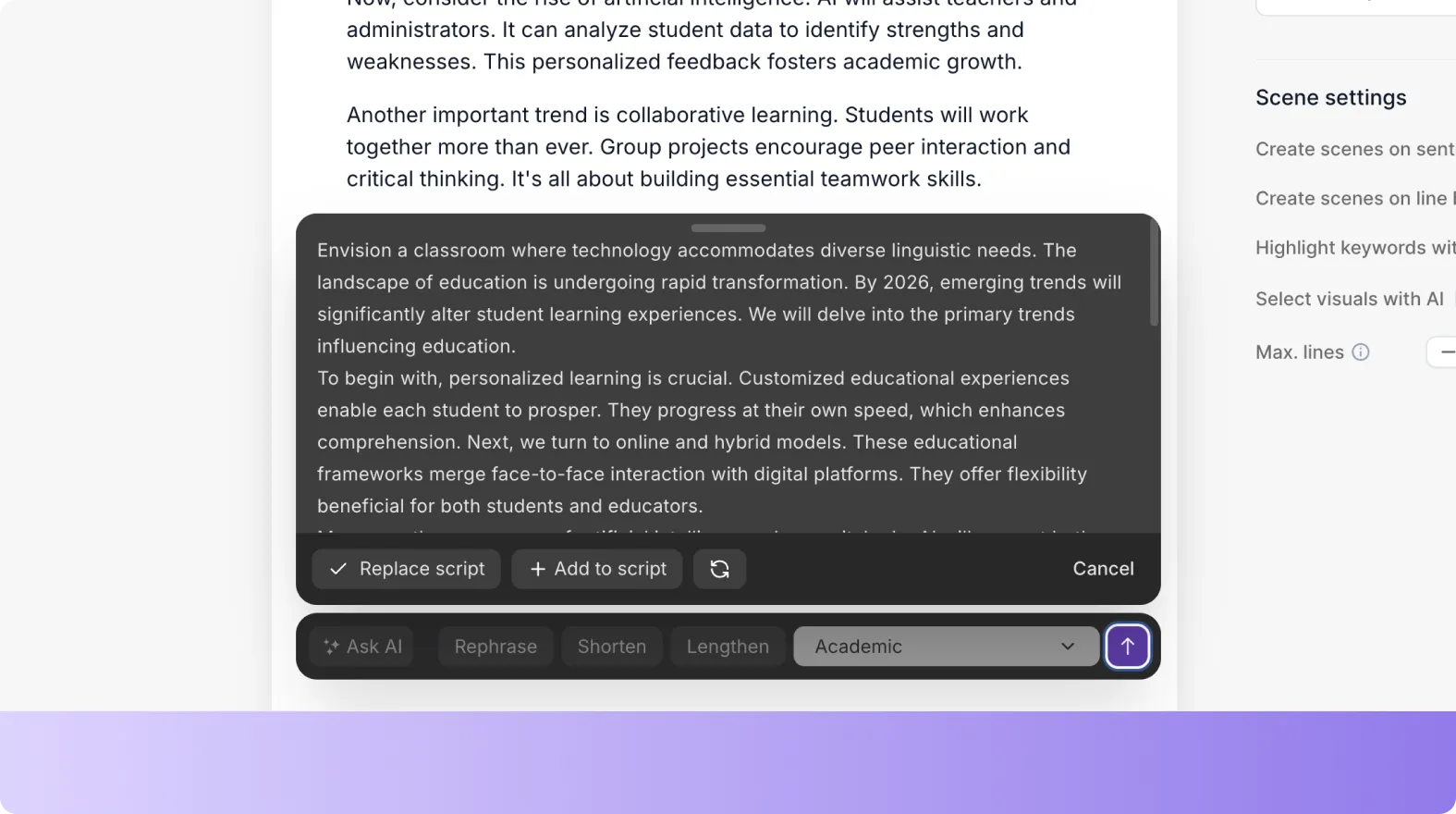
You can edit any lines manually before generating your video.
Step 5: Generate Your Video With the Updated Tone
When your script looks good:
- Click Generate video
- Pictory generates your scenes based on the rewritten script
- Continue editing visuals, text, and audio as usual
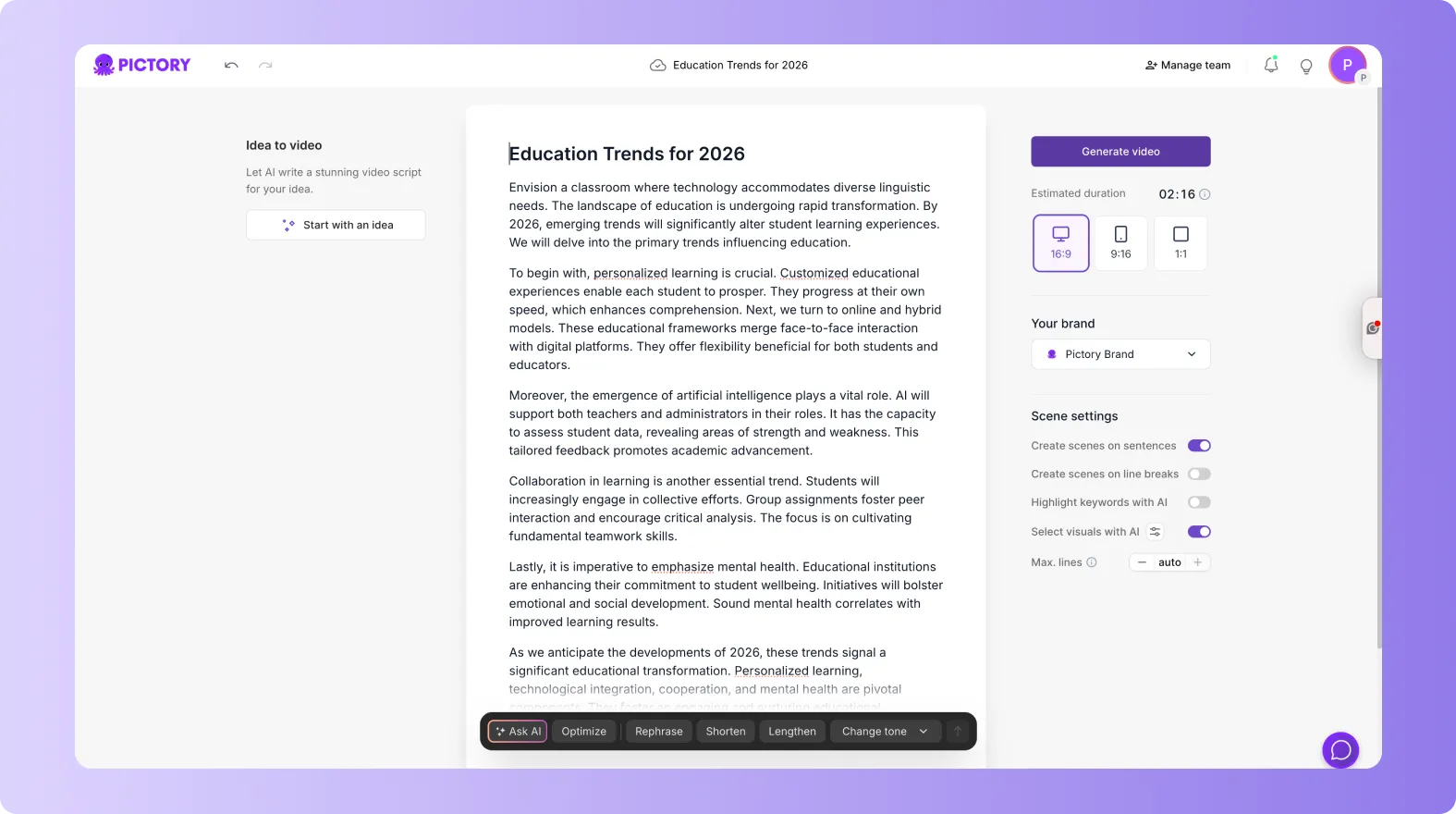
Your video now reflects the tone you selected.
Step 6: Preview and Export Your Video
Before exporting:
- Click Preview Video
- Listen to the flow of narration
- Confirm the tone fits your intended audience
- Make final edits if necessary
- Export your finished video
Your video will now match the tone you selected for your script.
Shape Your Message With Tone Controls in Pictory AI
Changing the tone of your script helps you tailor your message to your audience. With Pictory AI, you can transform your script instantly using tone presets, refine specific lines manually, and create multiple tone versions for different platforms or viewers. It gives you full control over how your content feels and sounds.
Start adjusting your script tone today in Pictory AI.


