
Multilingual voiceovers help you create videos for global audiences. Pictory AI makes it easy to replace or translate your narration into different languages using AI generated voices. This allows you to localize content, expand your reach, and deliver videos that feel native to each audience.
This guide shows you how to use multilingual voiceovers inside Pictory AI.
Why Multilingual Voiceovers Matter
Using multilingual narration helps you:
• Reach international viewers
• Create inclusive and accessible videos
• Localize training and onboarding content
• Support global marketing campaigns
• Improve viewer engagement
• Communicate accurately across regions
This feature is valuable for creators, educators, enterprises, and global teams.
Step 1: Open the Audio Tab
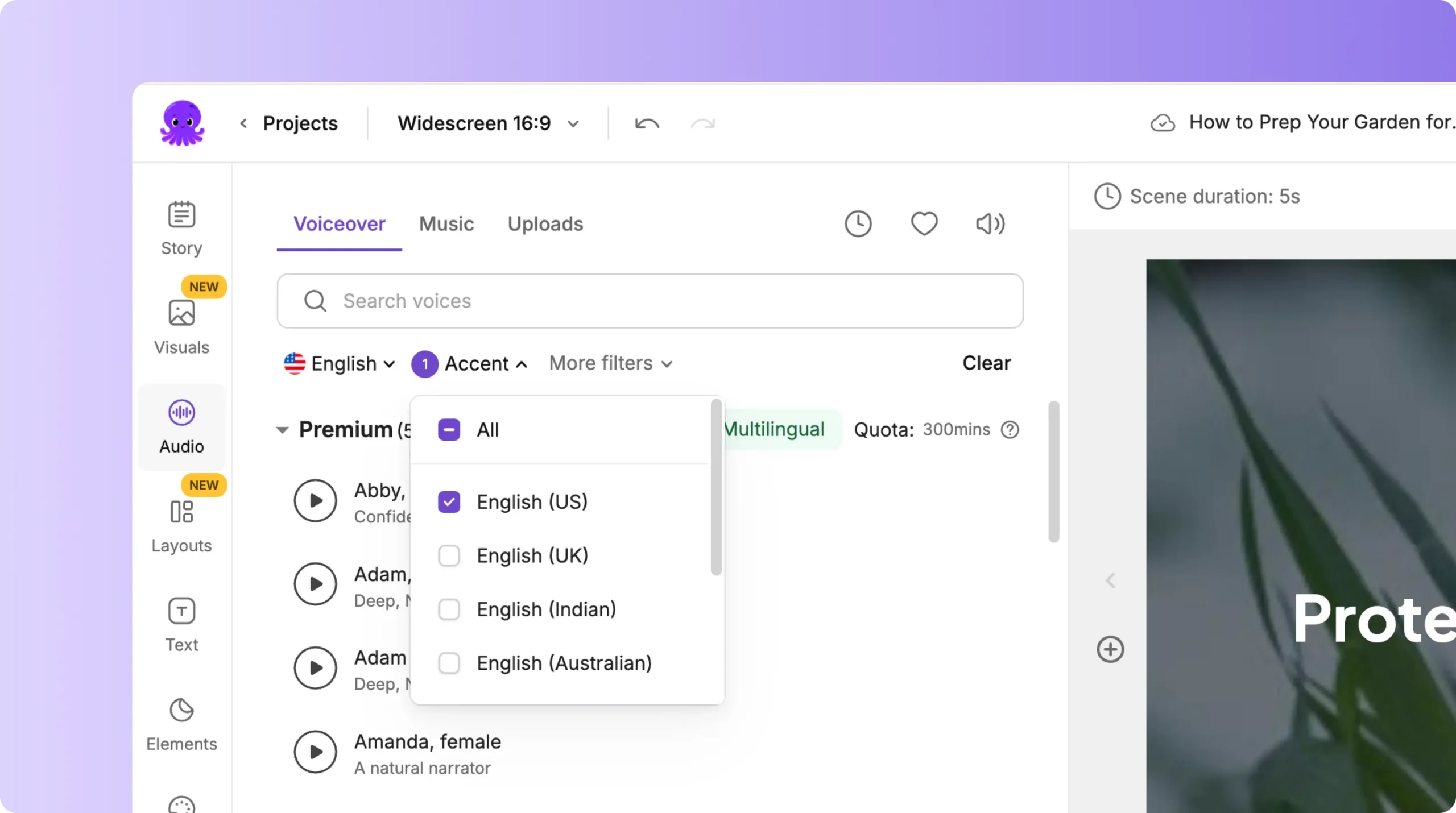
Start by opening your project in Pictory. Click the Audio tab on the left side of the editor.
Inside the Audio panel, you will see:
• Voiceover
• Music
• Uploads
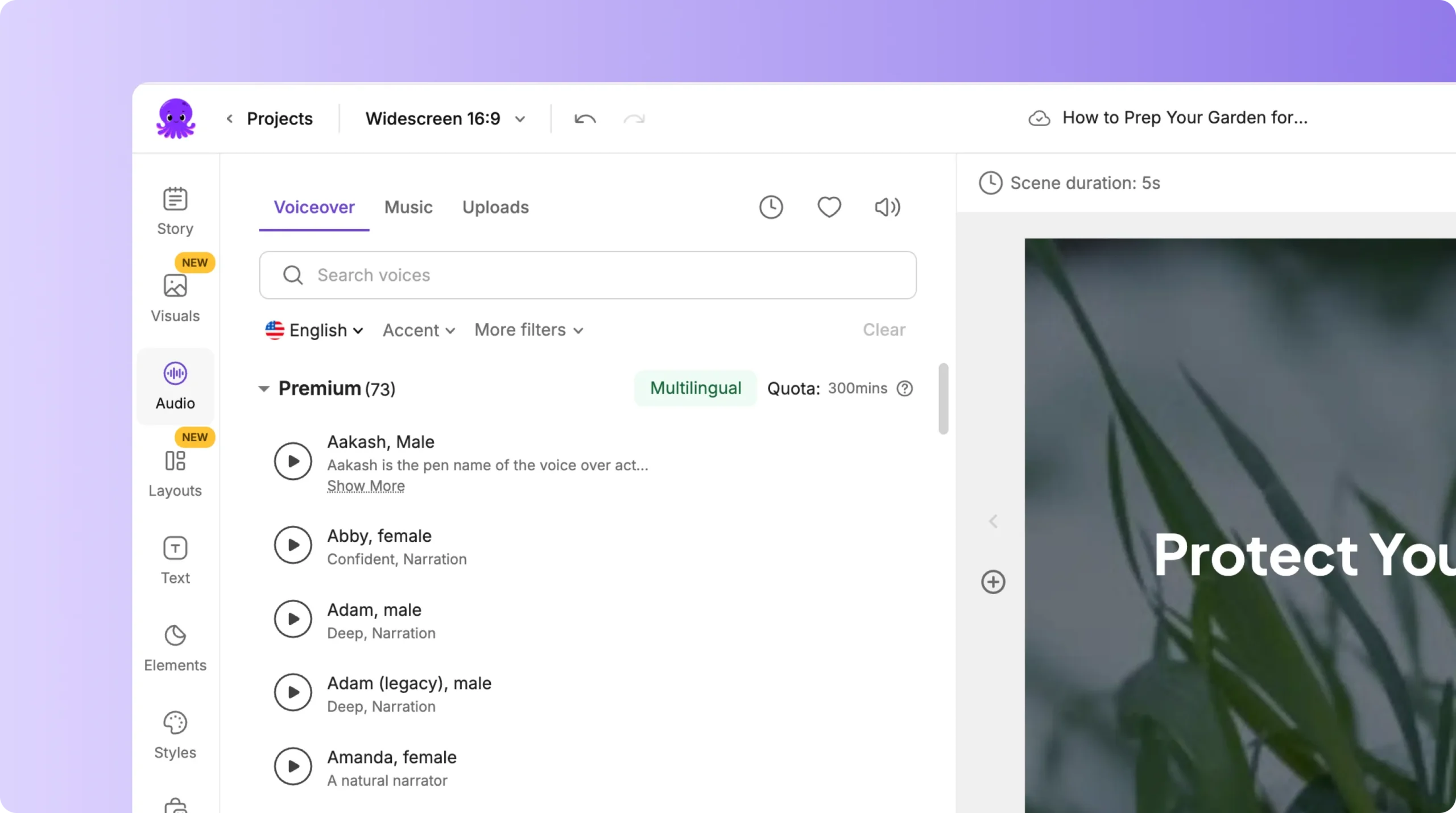
Select the Voiceover section.
Step 2: Choose a Multilingual Voice
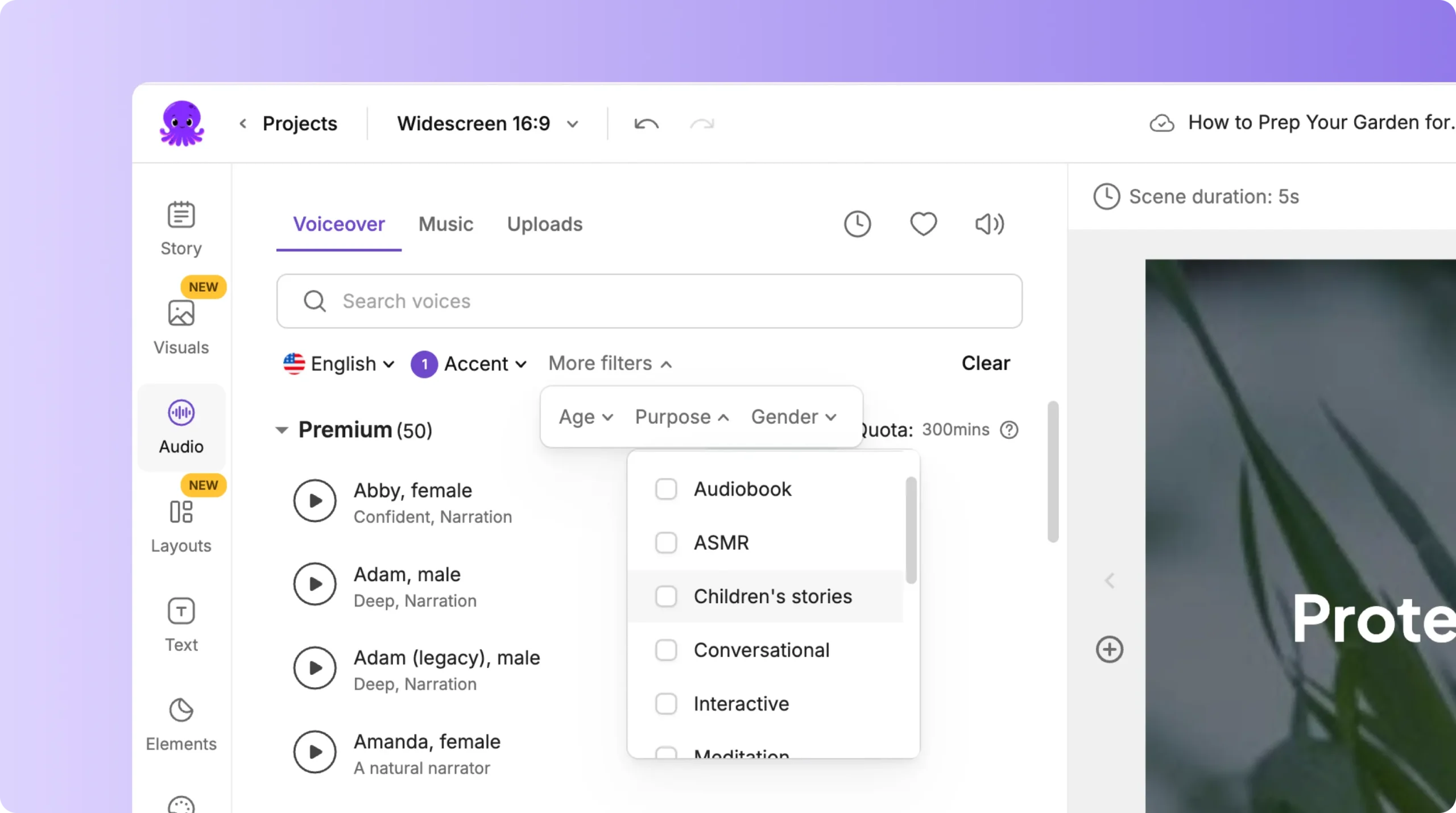
Pictory provides a wide range of AI voices in different languages and accents. Browse the voice gallery and look for language filters such as:
• Spanish
• French
• German
• Italian
• Portuguese
• Hindi
• Japanese
• Korean
• Chinese
• Arabic
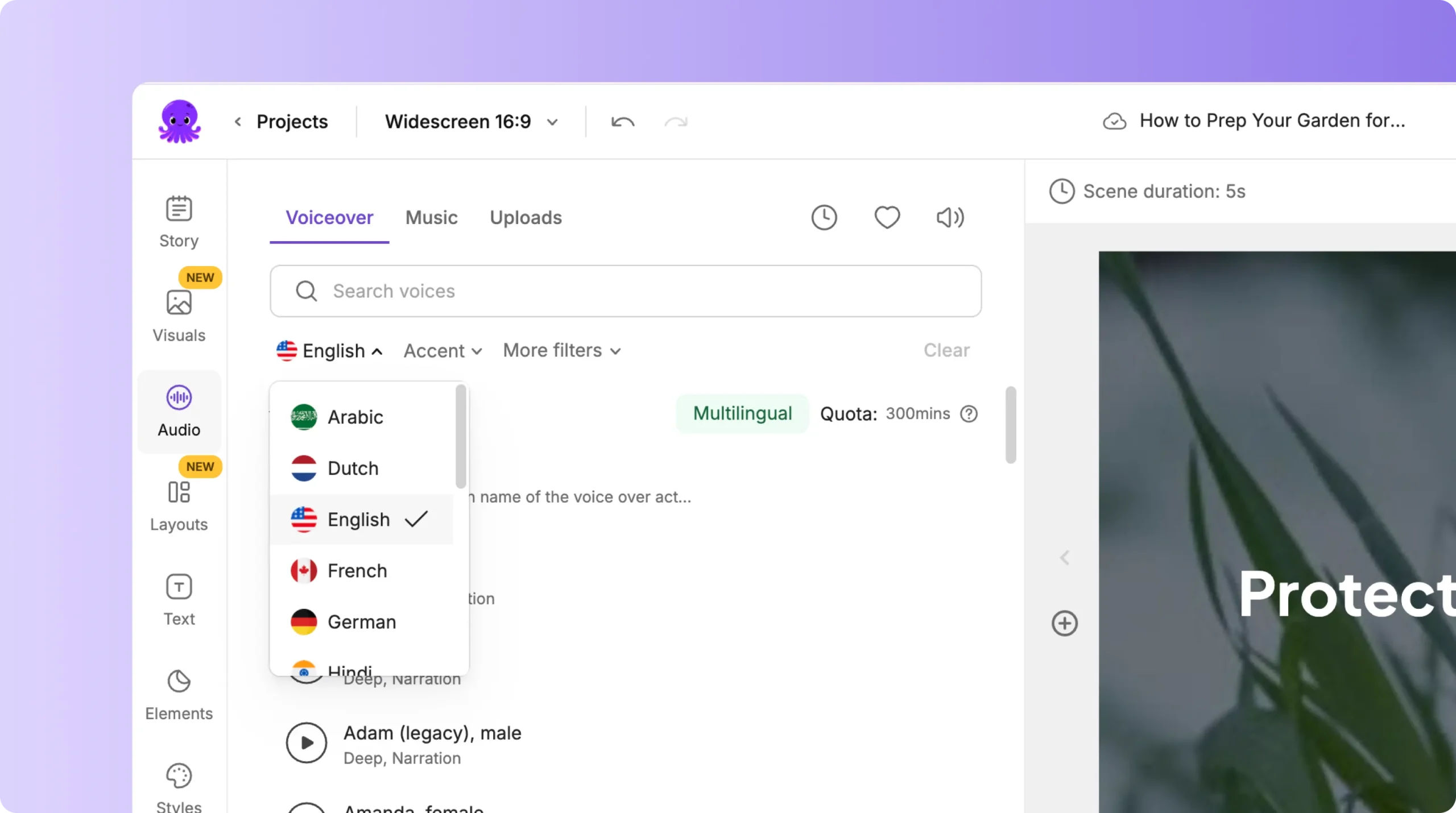
Each language may include multiple voice options.
Step 3: Preview Voices Before Selecting One
Click a voice to preview how it sounds. Check for:
• Tone
• Accent
• Speed
• Clarity
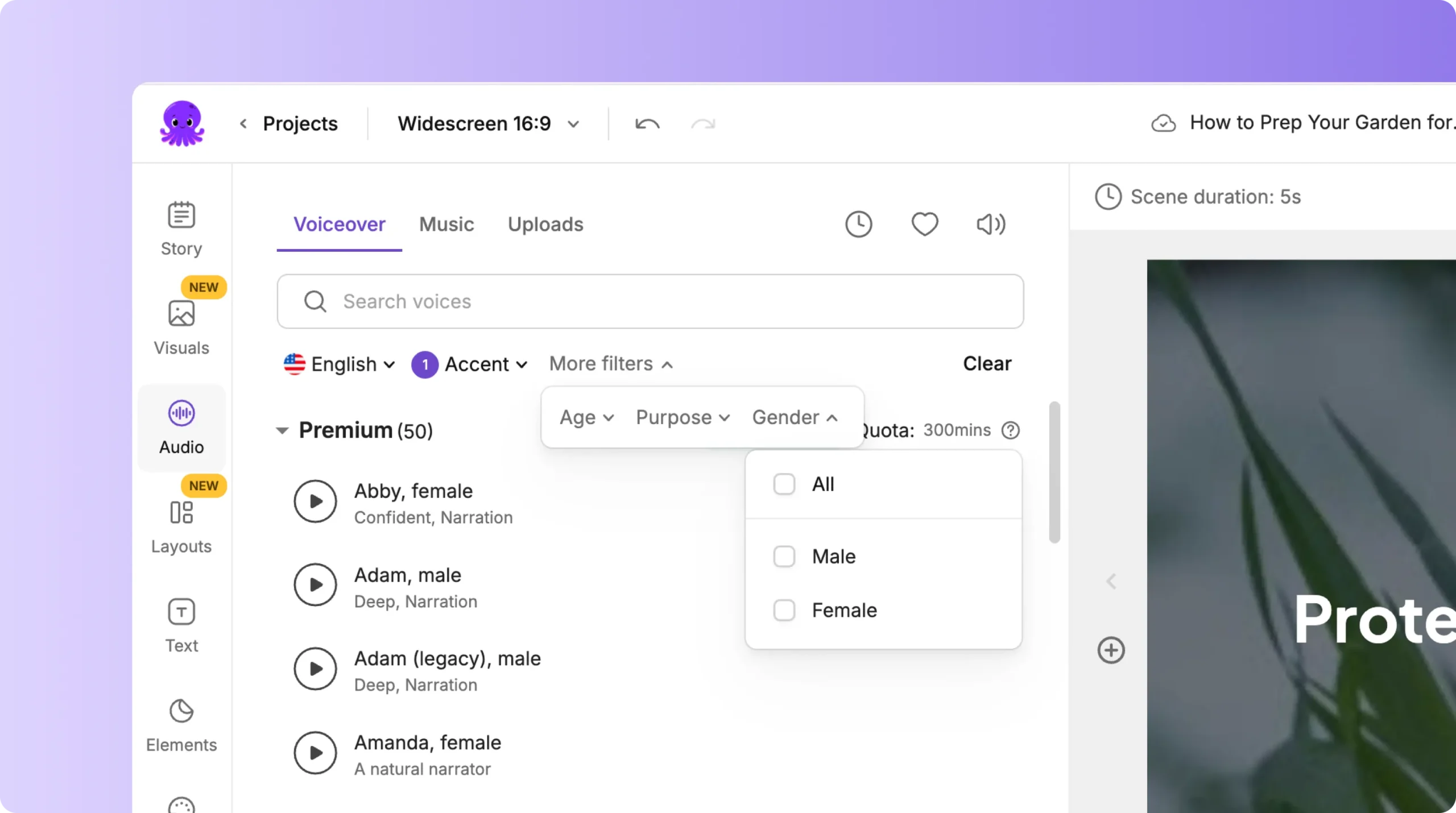
Choose a voice that feels natural for your content and audience.
Step 4: Apply the Voiceover
When you find the right voice:
- Click Apply Voice
- Pictory replaces your current voiceover
- The narration updates scene by scene based on your script
Your video now speaks in the selected language.
Step 8: Combine Multilingual Voiceovers With Brand Kits
Your voiceover language changes, but your branding stays consistent.
Brand Kits ensure your:
• Fonts
• Colors
• Logos
• Styles
remain the same across all language versions.
This makes it simple to publish multiple versions for global audiences.
Step 9: Preview Your Multilingual Video
Before exporting:
- Click Preview Video
- Listen to the full narration
- Check pacing and clarity
- Ensure subtitles match the voiceover
- Make adjustments if needed
Previewing helps catch translation or timing issues.
Step 10: Export and Publish Your Multilingual Content
Once everything looks correct:
- Click Download Video
- Choose your desired format
- Export your multilingual version
You can export multiple language versions for:
• YouTube
• Websites
• LMS systems
• Social platforms
• Internal communications
This increases your content reach without repeating your editing work.
Expand Your Global Reach With Multilingual Voiceovers in Pictory AI
Multilingual voiceovers help you localize content quickly and effectively. With AI generated narration, script translation support, and full customization options, you can create videos that feel native to any audience. Pictory AI makes the process simple, flexible, and efficient.
Start creating multilingual videos today using Pictory AI.


