
YouTube Shorts are short, vertical videos designed for fast discovery and high engagement. They are ideal for repurposing long form content, sharing quick tips, or highlighting key moments. Pictory AI makes it easy to create YouTube Shorts that match the platform’s format and viewing behavior.
This guide shows you how to create YouTube Shorts using Pictory AI.
Why YouTube Shorts Matter
YouTube Shorts help you:
• Reach new viewers through Shorts discovery
• Increase channel visibility
• Repurpose long videos efficiently
• Share bite sized educational or promotional content
• Grow engagement with minimal production time
Shorts perform best when they are clear, fast paced, and optimized for mobile viewing.
Step 1: Start With a New or Existing Project
You can create a YouTube Short from scratch or repurpose existing content.
Common starting points include:
• Script to Video
• AI Video Editor
• Auto Highlights from long videos
• Instant Templates
• An existing project you want to shorten
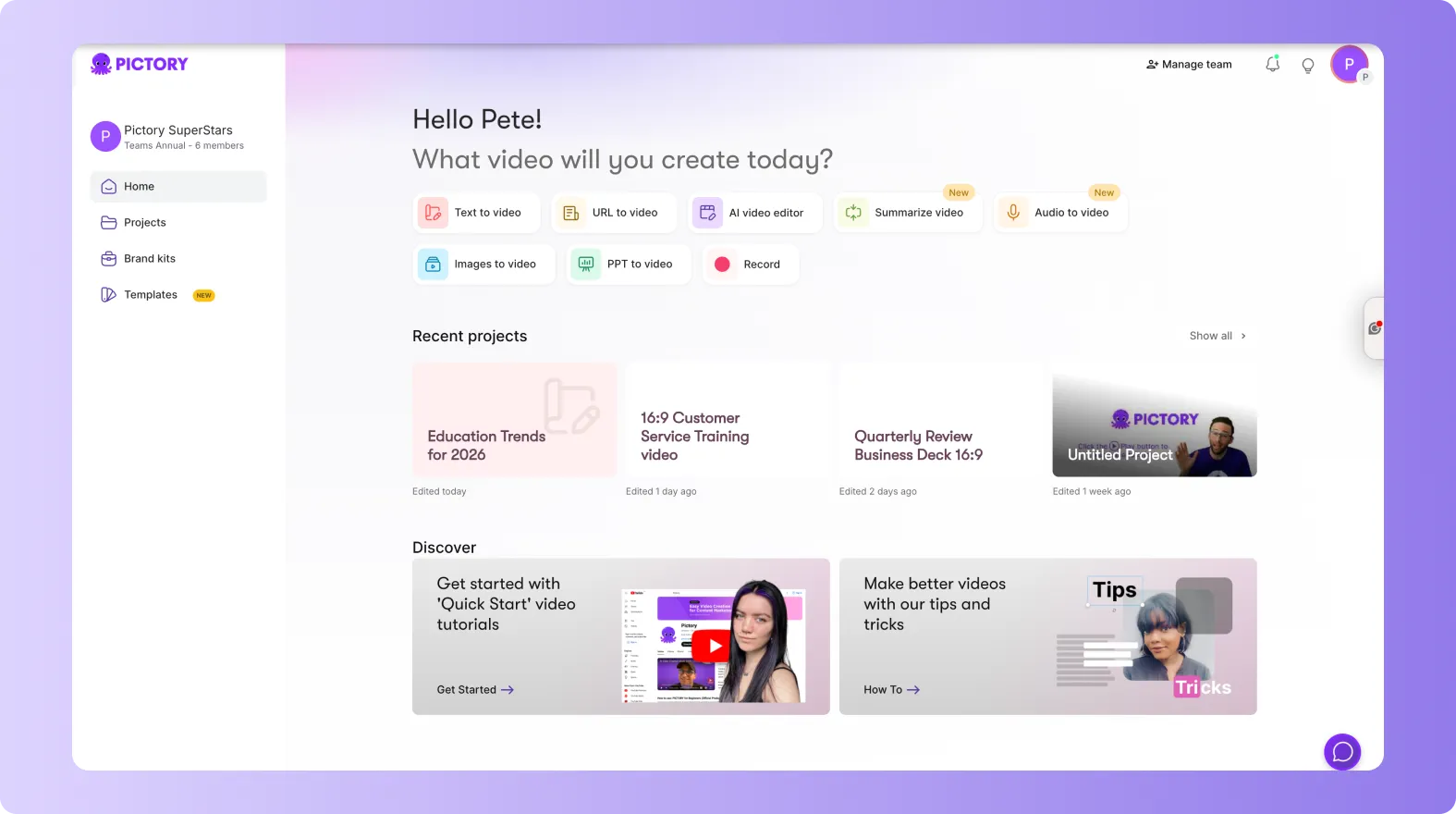
Choose the workflow that best fits your content.
Step 2: Set the Aspect Ratio to Vertical
YouTube Shorts require a vertical video format.
Inside the editor:
Click the Aspect Ratio selector
Choose 9:16
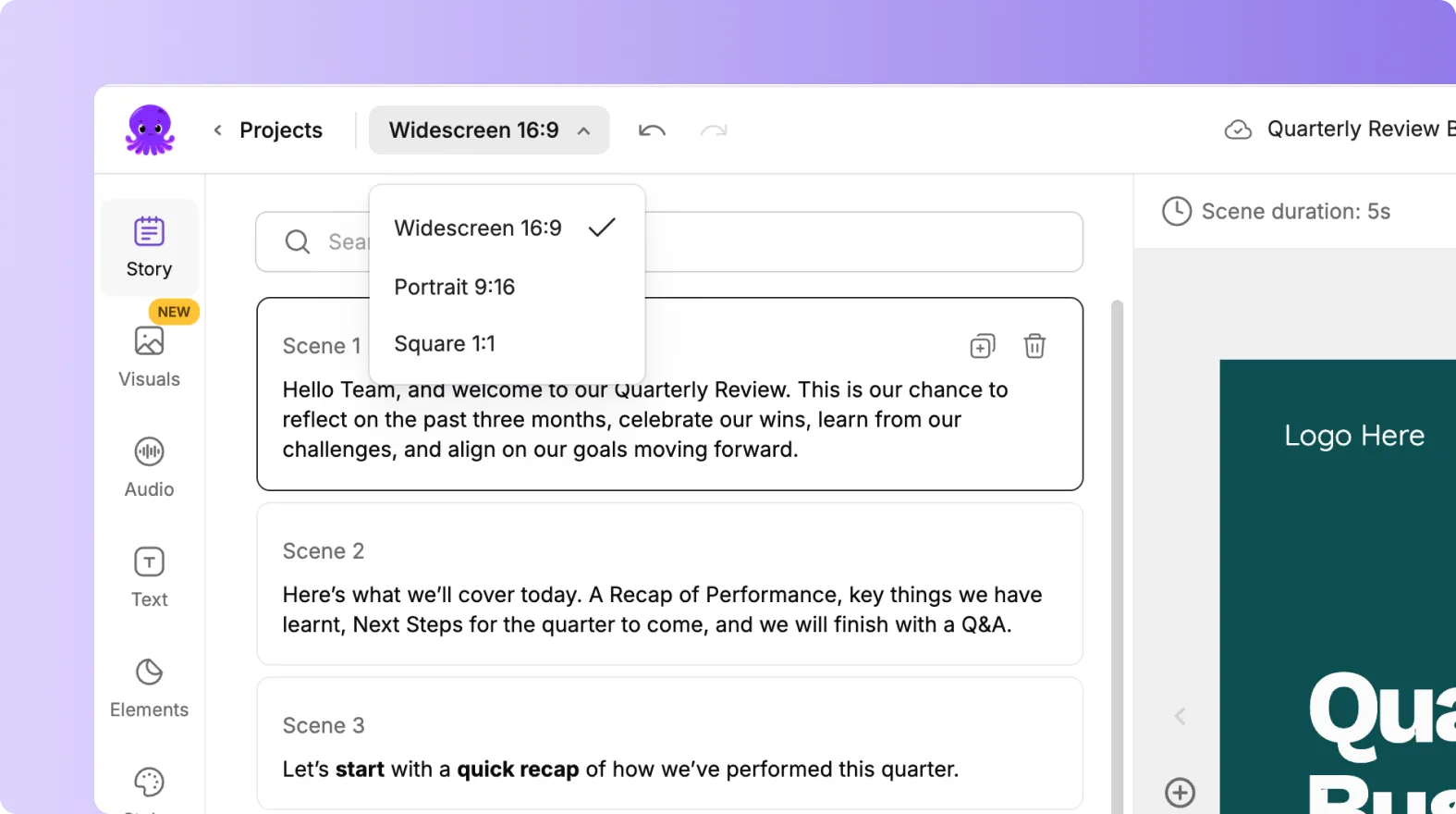
Pictory automatically adjusts scenes, text, and visuals for vertical viewing.
Step 3: Keep Your Video Short and Focused
YouTube Shorts should be concise and engaging.
To optimize length:
• Focus on one key idea
• Remove unnecessary scenes
• Lead with a strong opening line
• Keep pacing fast and direct
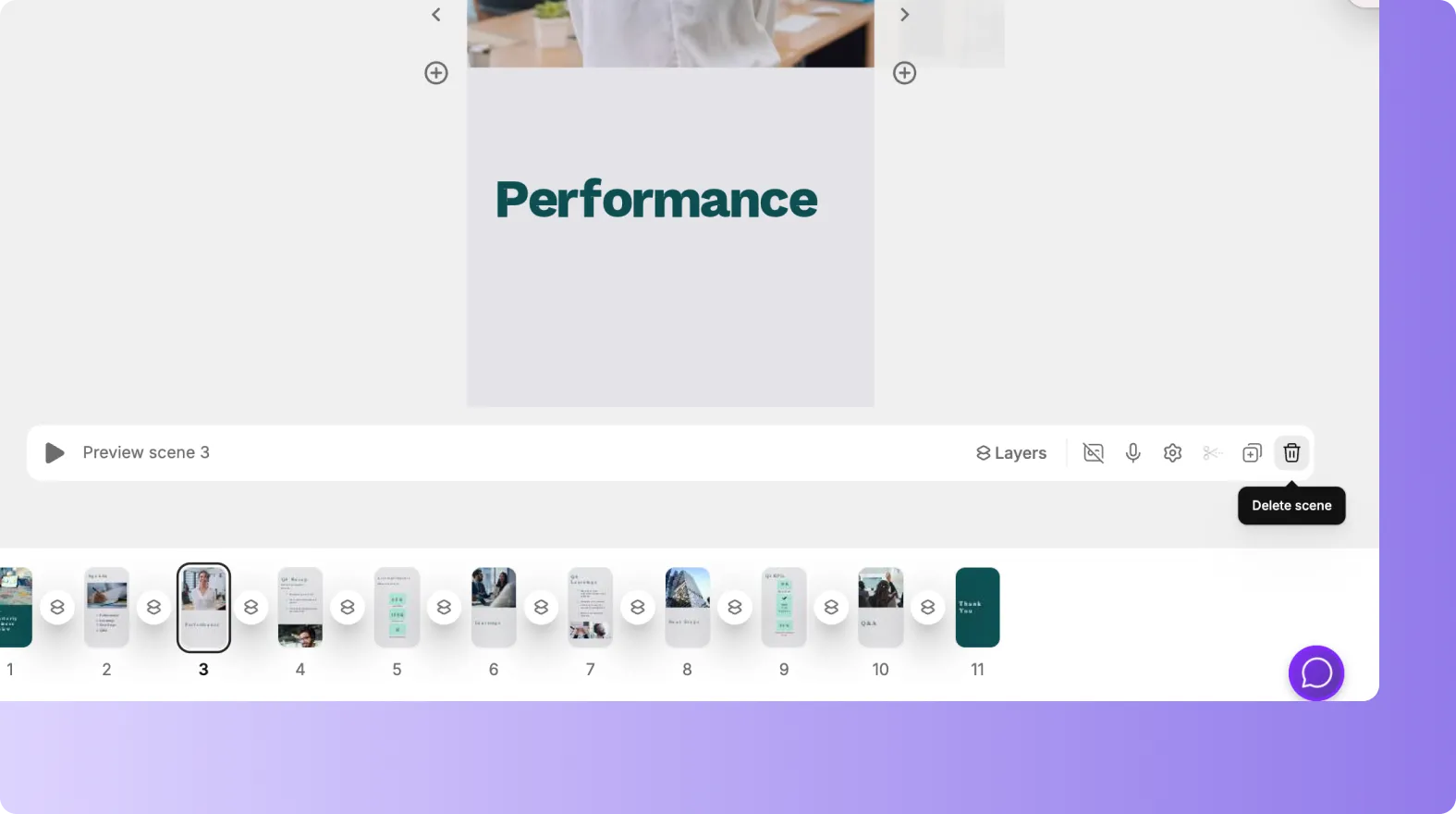
Use the Story tab to delete or rearrange scenes until the video feels tight.
Step 4: Use Large, Clear Text Overlays
Most Shorts are watched on mobile devices.
For better readability:
• Increase text size
• Use bold fonts
• Keep text centered
• Avoid placing text near the top or bottom edges

Clear text helps viewers understand your message instantly.
Step 5: Add Subtitles for Silent Viewing
Many viewers watch Shorts without sound.
To improve engagement:
• Enable auto generated subtitles
• Use high contrast subtitle styling
• Limit lines to keep text readable
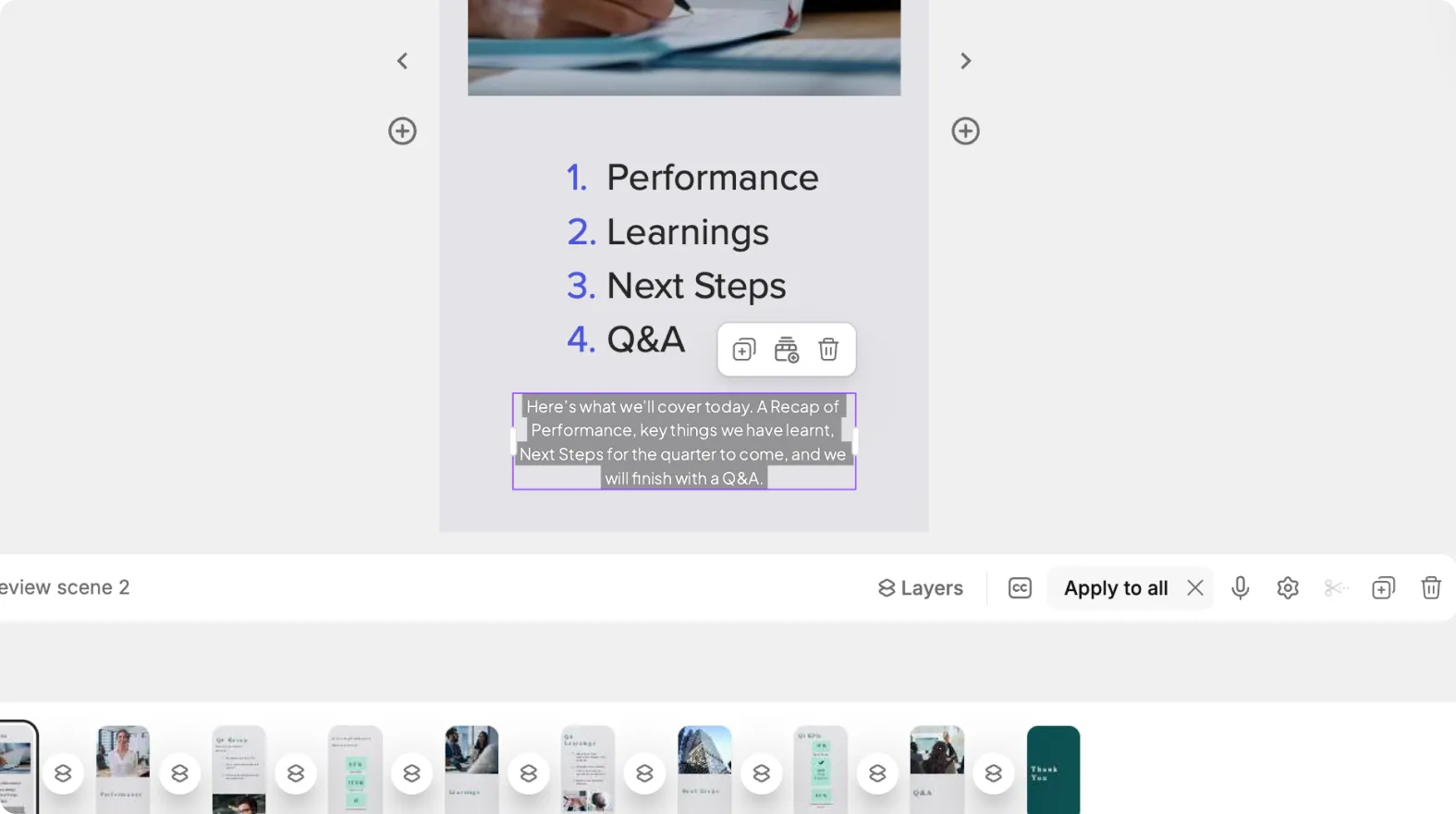
Subtitles improve accessibility and watch time.
Step 6: Use Engaging Visuals
Strong visuals help stop the scroll.
You can use:
• High energy stock clips
• AI generated visuals
• Screen recordings
• Clear product or talking head footage
Replace slow or cluttered visuals to maintain attention.
Step 7: Add Voiceover or Background Music
Audio helps enhance your Short.
You can:
• Apply an AI voiceover
• Upload your own narration
• Add background music
• Balance voice and music levels
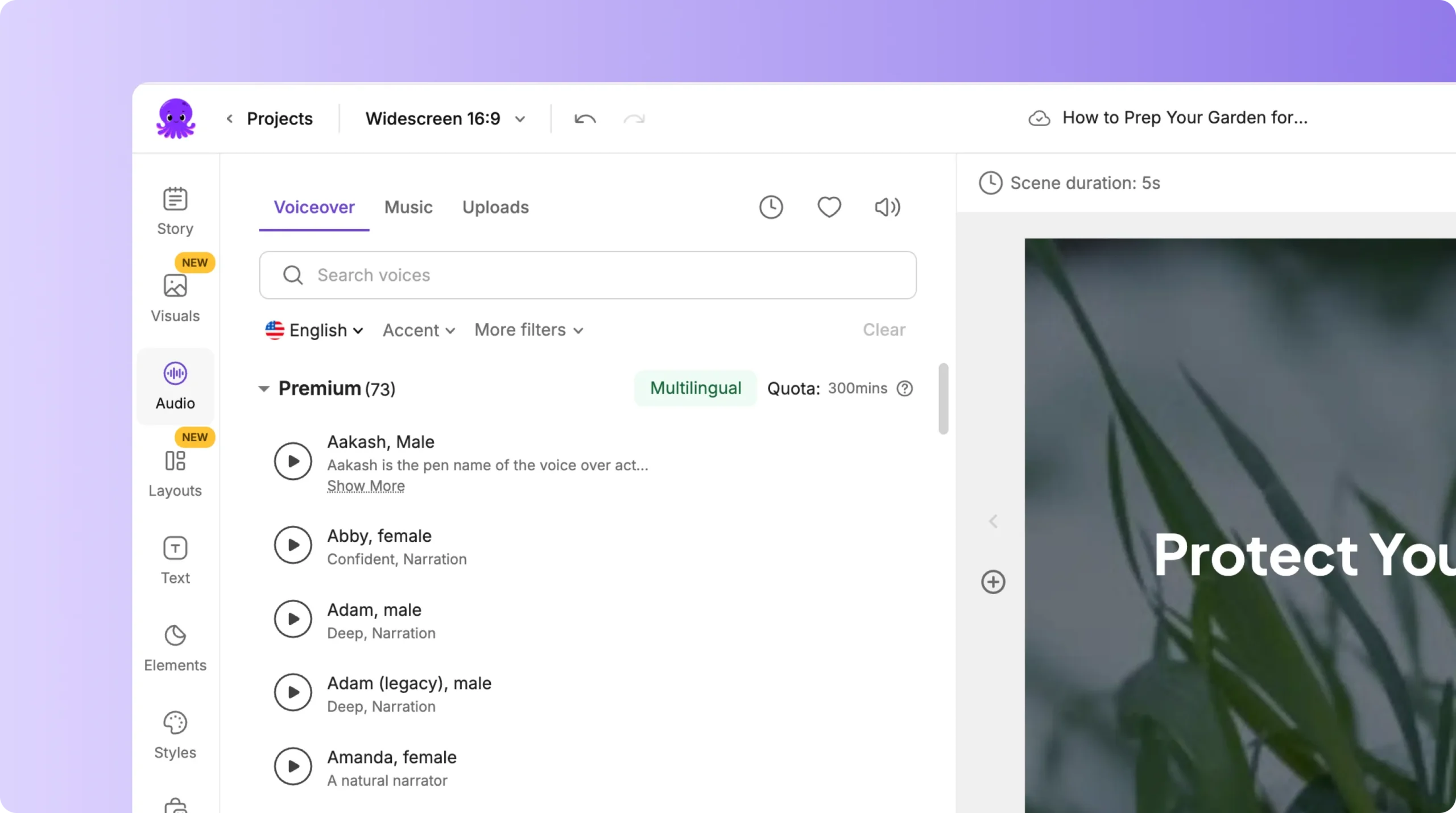
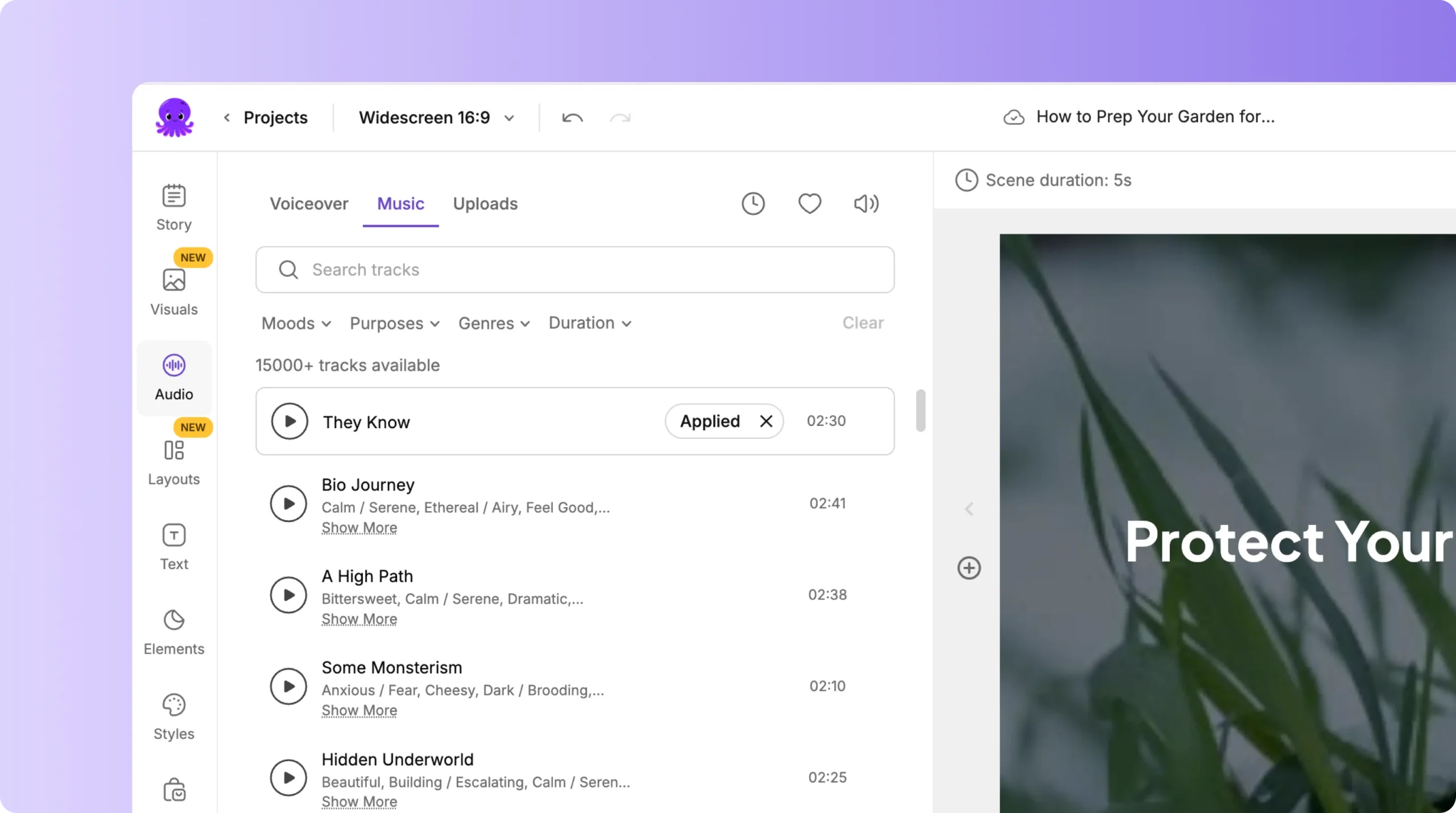
Make sure the voice remains clear and easy to understand.
Step 8: Apply Animations and Motion
Subtle motion keeps Shorts dynamic.
You can:
• Animate text overlays
• Use animated layouts
• Add quick transitions
Keep animations clean and fast to match Shorts pacing.
Step 9: Preview Your Short in Vertical View
Before exporting:
Click Preview Video
Watch the full Short
Check text placement and timing
Confirm visuals are not cropped
Make final adjustments
Previewing ensures your Short looks native to YouTube.
Step 10: Export Your YouTube Short
When ready to publish:
Click Download Video
Select 9:16 aspect ratio
Export in high quality
Upload to YouTube Shorts
Your video is now ready for Shorts distribution.
Create High Performing YouTube Shorts With Pictory AI
Pictory AI helps you create YouTube Shorts quickly and efficiently. By using vertical formatting, clear text, subtitles, and engaging visuals, you can produce Shorts that attract attention and perform well. Whether you are repurposing long videos or creating new content, Pictory gives you the tools to succeed with Shorts.
Start creating YouTube Shorts today using Pictory AI.


