
Multilingual subtitles make your videos accessible to viewers who speak different languages. They improve comprehension, support global communication, and help your content perform better on platforms where users watch without sound. Pictory AI gives you simple tools to translate, edit, and apply subtitles in multiple languages.
This guide shows you how to use multilingual subtitles inside Pictory AI.
Why Multilingual Subtitles Matter
Multilingual subtitles help you:
• Reach international viewers
• Support accessibility requirements
• Improve viewer retention
• Deliver content in low sound environments
• Broaden your audience on social platforms
• Localize training, onboarding, and marketing content
They enhance clarity while keeping your video engaging across regions.
Step 1: Open Your Project and Access the Transcript
Start by uploading or opening your video in Pictory. Pictory generates subtitles automatically through transcription.
To begin working with subtitles:
Go to the Transcript Editor
Review your auto generated subtitles in the original language

This is your base subtitle track.
Step 2: Translate Your Script or Subtitles
Pictory currently allows you to insert translated text manually. To add multilingual subtitles:
Translate your script or captions into the target language
Copy your translated text
Replace the original subtitle lines inside the Transcript Editor
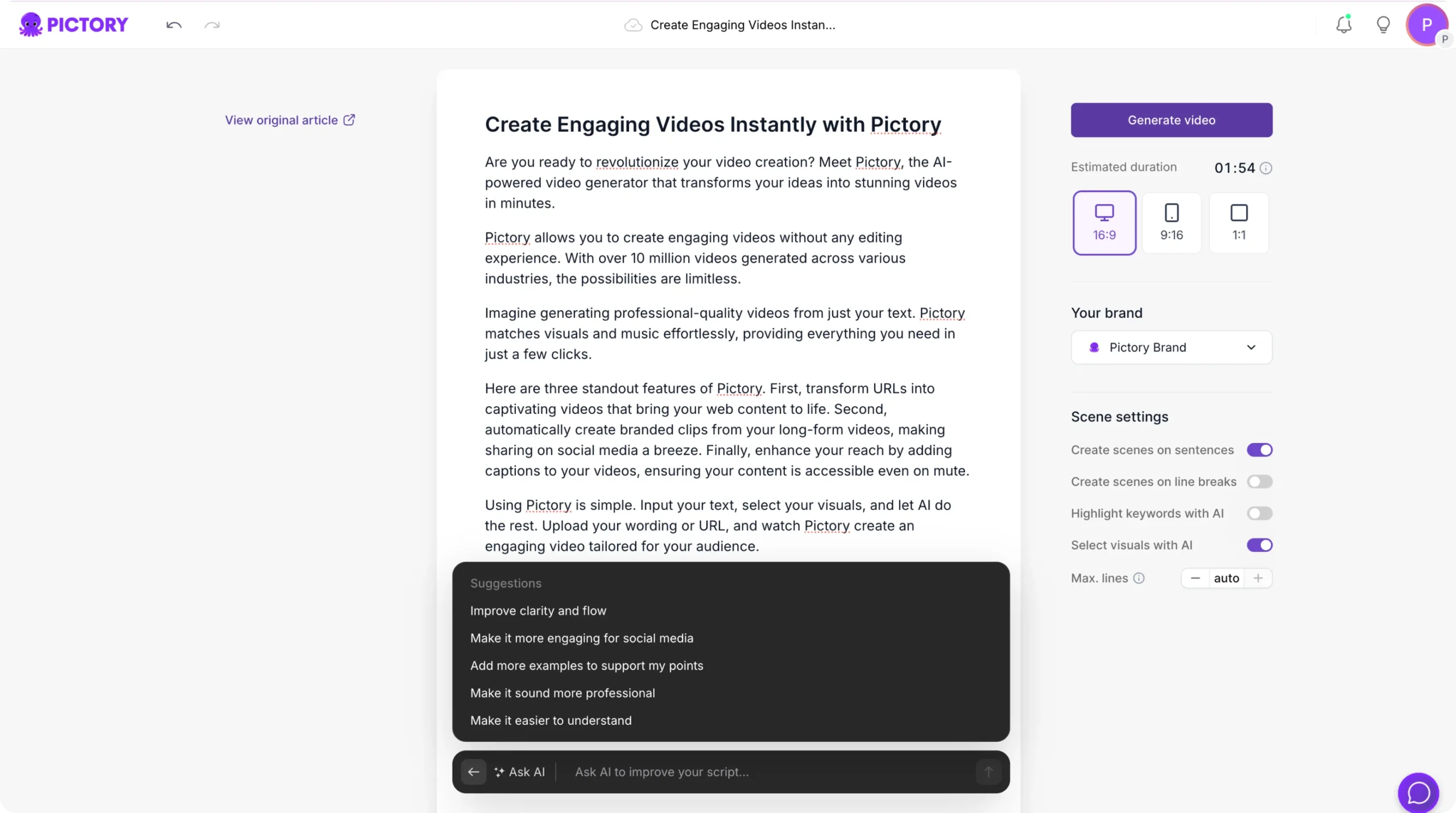

Your subtitles update across the entire video.
For best results, ensure your translation:
• Matches your message accurately
• Fits timing constraints
• Uses clear, region appropriate wording
Step 4: Format Subtitles for Readability
Open the Subtitle Styling panel to adjust:
• Font size
• Font color
• Background highlight
• Line spacing
• Maximum subtitle lines
• Subtitle placement
Use these settings to ensure your translated subtitles stay clear on all visuals.
Step 5: Combine Multilingual Subtitles With Multilingual Voiceovers
For the most localized experience, pair translated subtitles with:
• A matching multilingual voiceover
• A translated script
• Region specific visuals (optional)
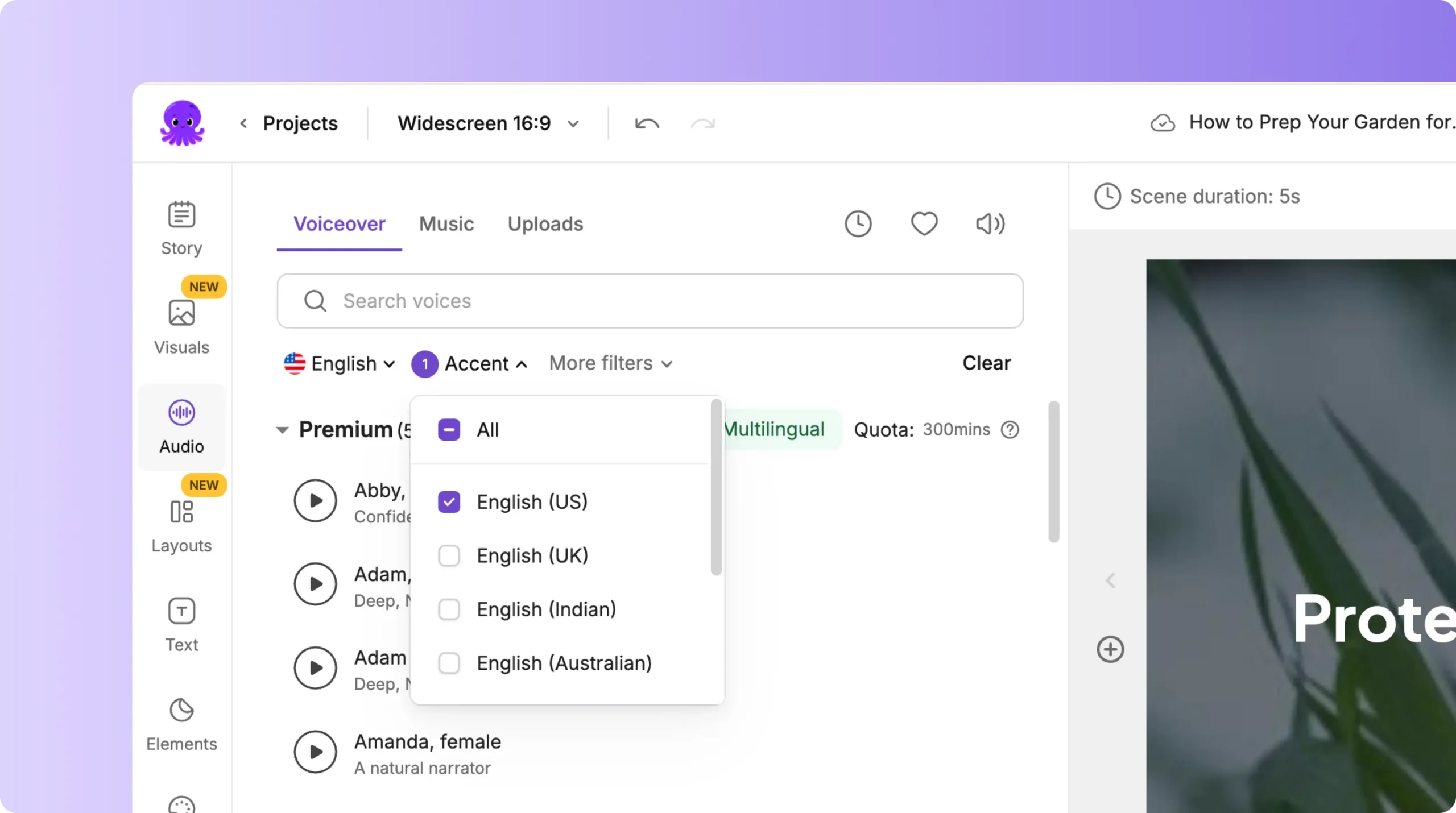
This creates a fully localized version of your video.
Step 6: Preview Your Multilingual Subtitles
Before exporting:
- Click Preview Video
- Watch the full video with subtitles
- Confirm readability and timing
- Adjust text if needed
- Double check spelling and line breaks
Previewing ensures your subtitles support the viewer experience.
Step 7: Export Your Video With Burned In Subtitles
When exporting multilingual subtitle versions:
- Click Download Video
- Enable burned in subtitles
- Export in your desired aspect ratio
Burned in subtitles ensure every viewer sees the correct language, even on platforms that disable closed captions.
Deliver Clear, Accessible Content With Multilingual Subtitles in Pictory AI
Multilingual subtitles help you reach global audiences and ensure every viewer understands your message. With Pictory AI, you can translate, edit, style, and export subtitles quickly, making localization simple for any type of video. Whether you produce training content, marketing videos, or corporate communications, multilingual subtitles expand your reach and improve accessibility.
Start adding multilingual subtitles to your next video using Pictory AI.


