
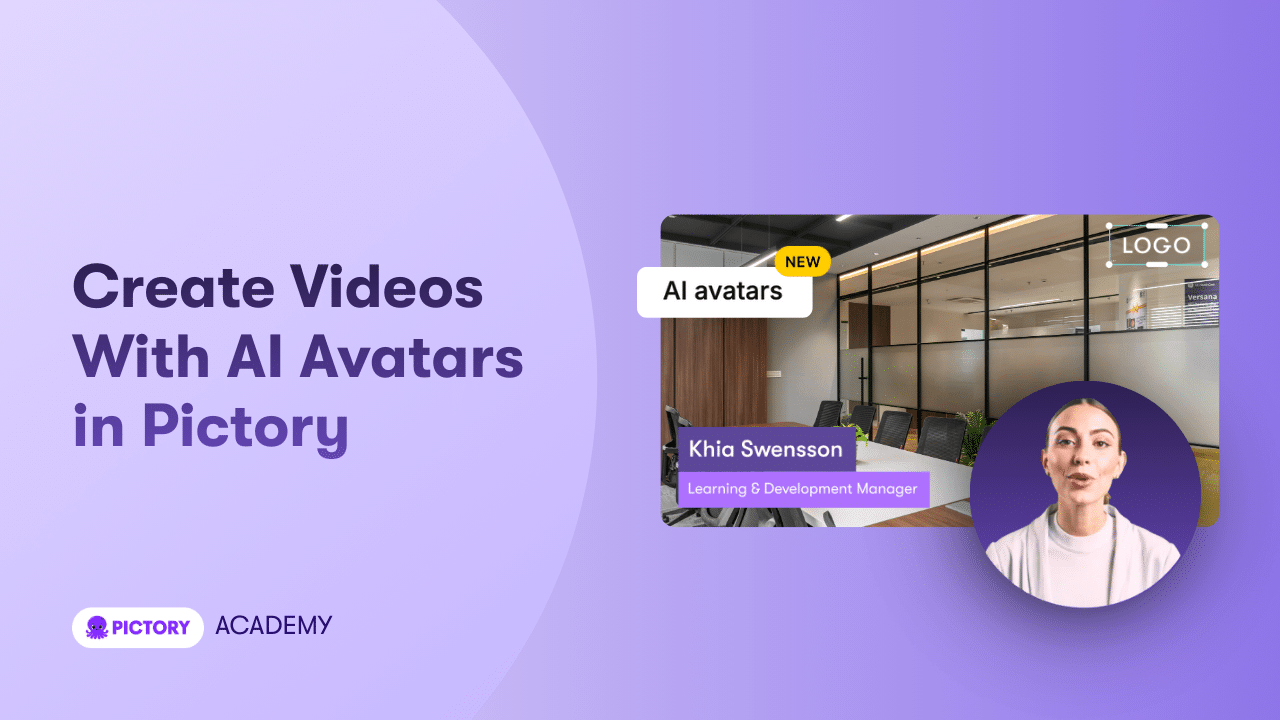
AI Avatars in Pictory let you add a realistic, on-screen presenter to your videos without recording yourself on camera. You can use avatars to narrate scripts, introduce topics, explain ideas, or guide viewers through content using a professional, consistent visual presence.
This guide walks you through exactly how to use AI Avatars in Pictory, including how to choose an avatar, customize its appearance and voice, place it in your scenes, and export your final video.
What Are AI Avatars in Pictory
AI Avatars are digital presenters that appear directly inside your video scenes.
Each avatar is paired with an AI voice and automatically narrates the text from your scenes.
Avatars function as a layer inside the Pictory video editor. They can be resized, repositioned, styled, shown or hidden per scene, and applied across an entire video.
Lip-syncing is generated automatically when you download the video.
Where to Find AI Avatars in Pictory
AI Avatars are available directly inside the video editor.
To access AI Avatars:
Open any video project in Pictory.
In the left-hand navigation, click Avatars.
Browse the AI avatar library to view available presenters.

The Avatars section appears alongside other editor tools such as Story, Visuals, Audio, Layouts, Text, and Styles.
How to Choose an AI Avatar
Pictory provides a library of AI avatars with different appearances, styles, and personas.
To select an AI avatar:
Open the Avatars tab in the left menu.
Scroll through the avatar library.
Click an avatar to apply it to your video.
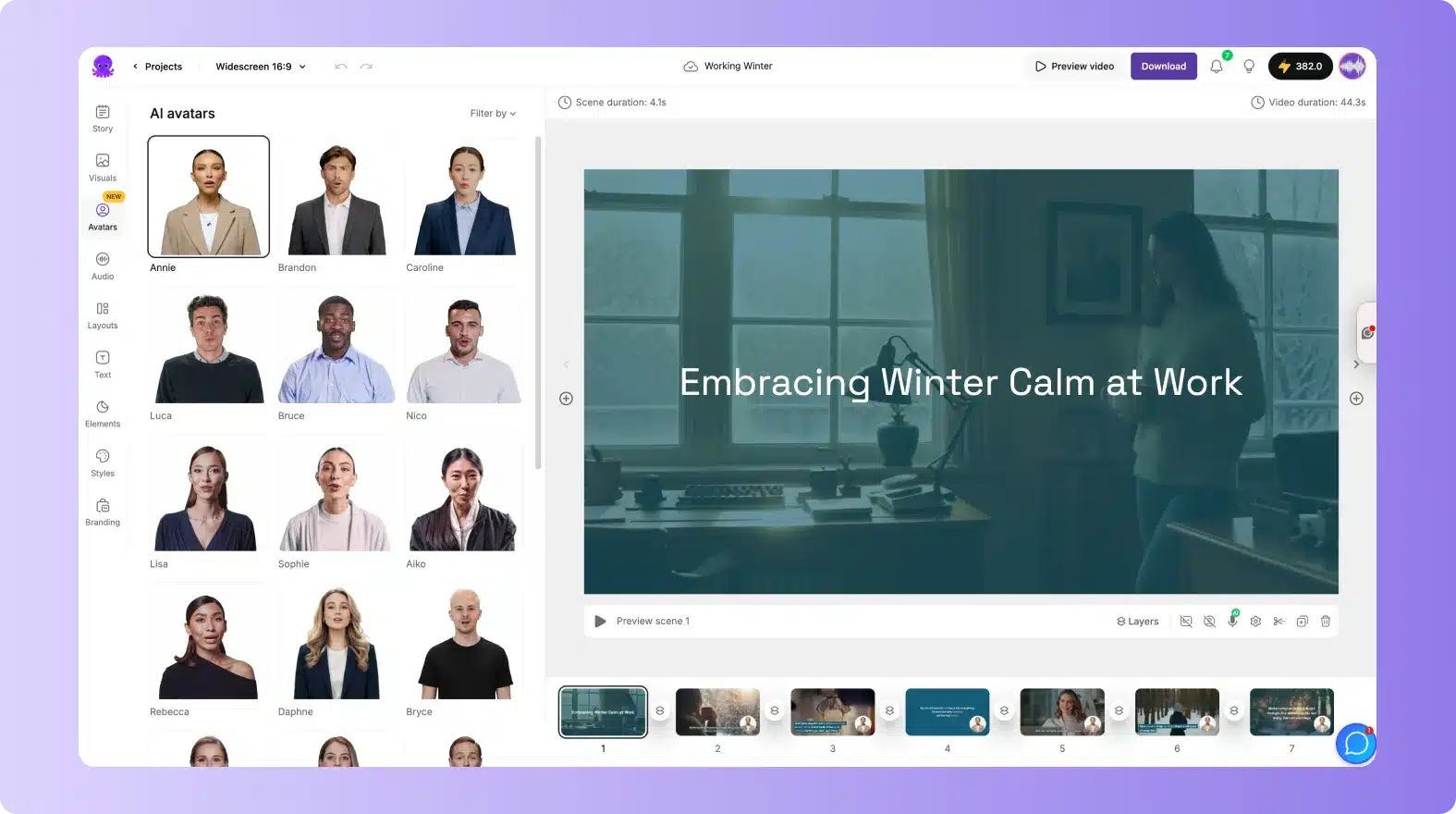
Once selected, the avatar appears in your current scene and becomes editable on the canvas.
How to Change an Avatar’s Look
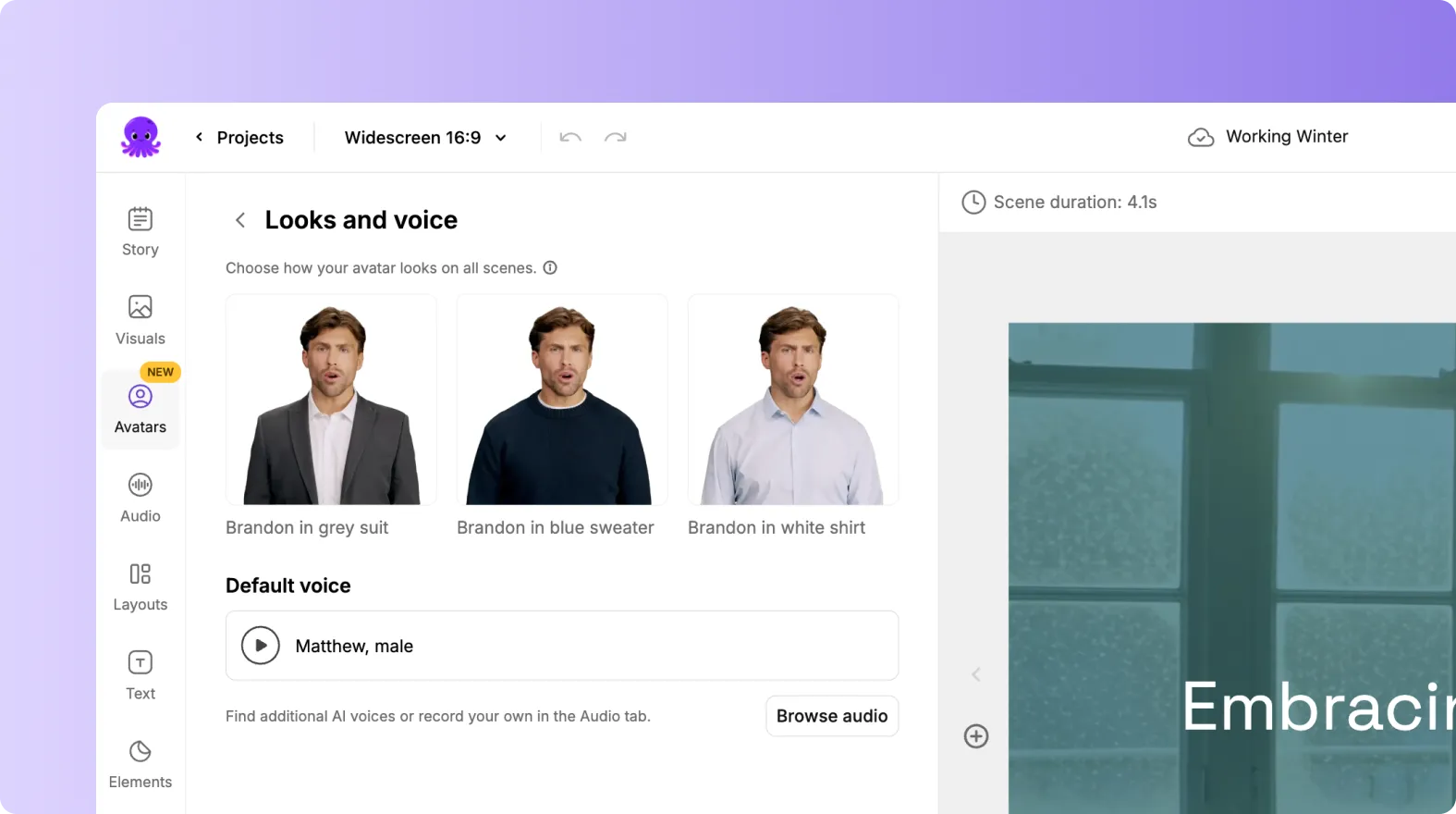
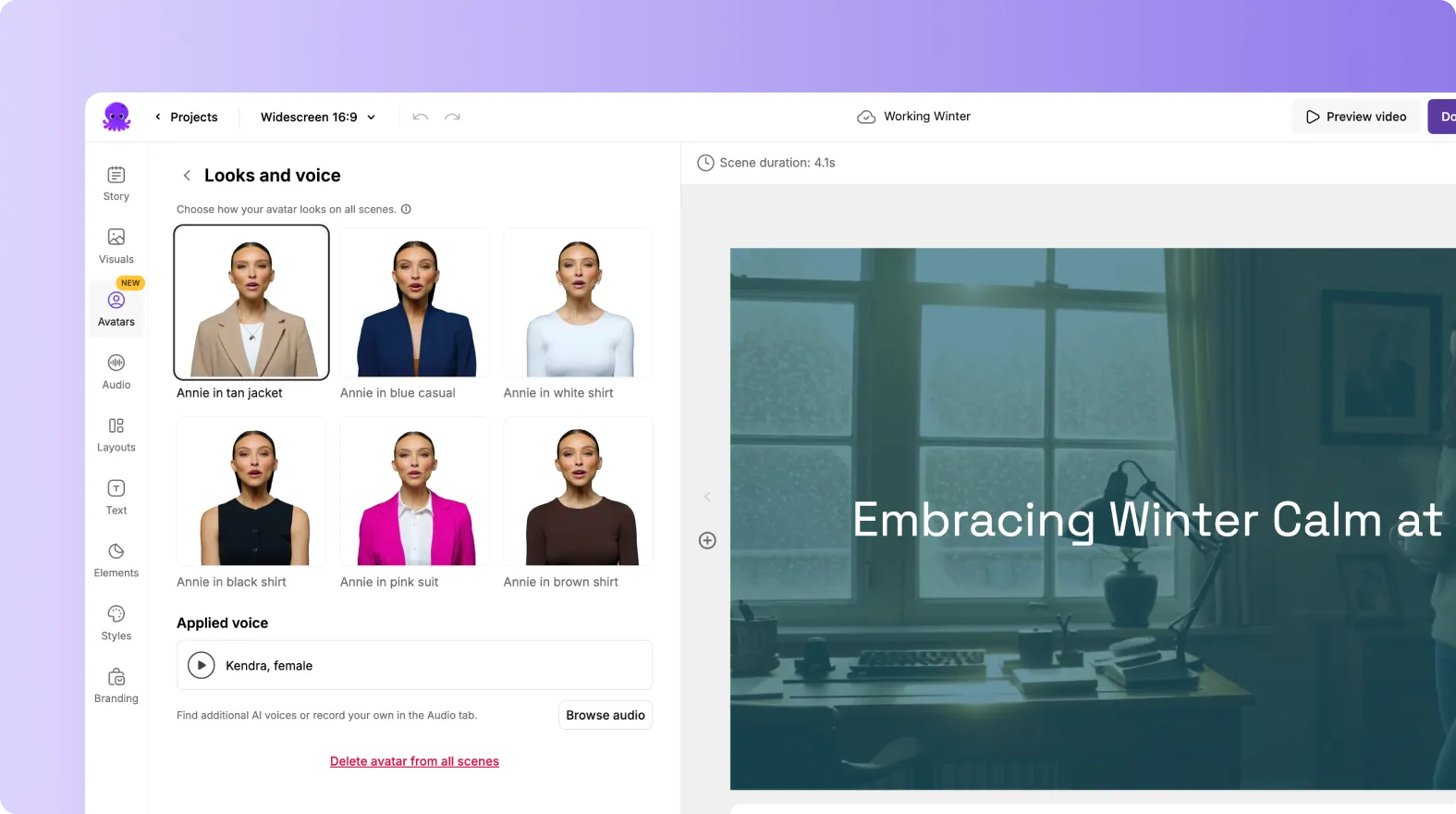
Many avatars offer multiple outfit and appearance variations.
To change how an AI avatar looks:
Select the avatar in your scene.
In the Looks and voice panel, choose from the available outfit options.
The selected look can be applied to the current scene or all scenes.
This makes it easy to match the avatar’s appearance to different video styles or audiences.
How to Customize Avatar Shape and Frame
You can control how the avatar is framed inside the video.
Available shape options:
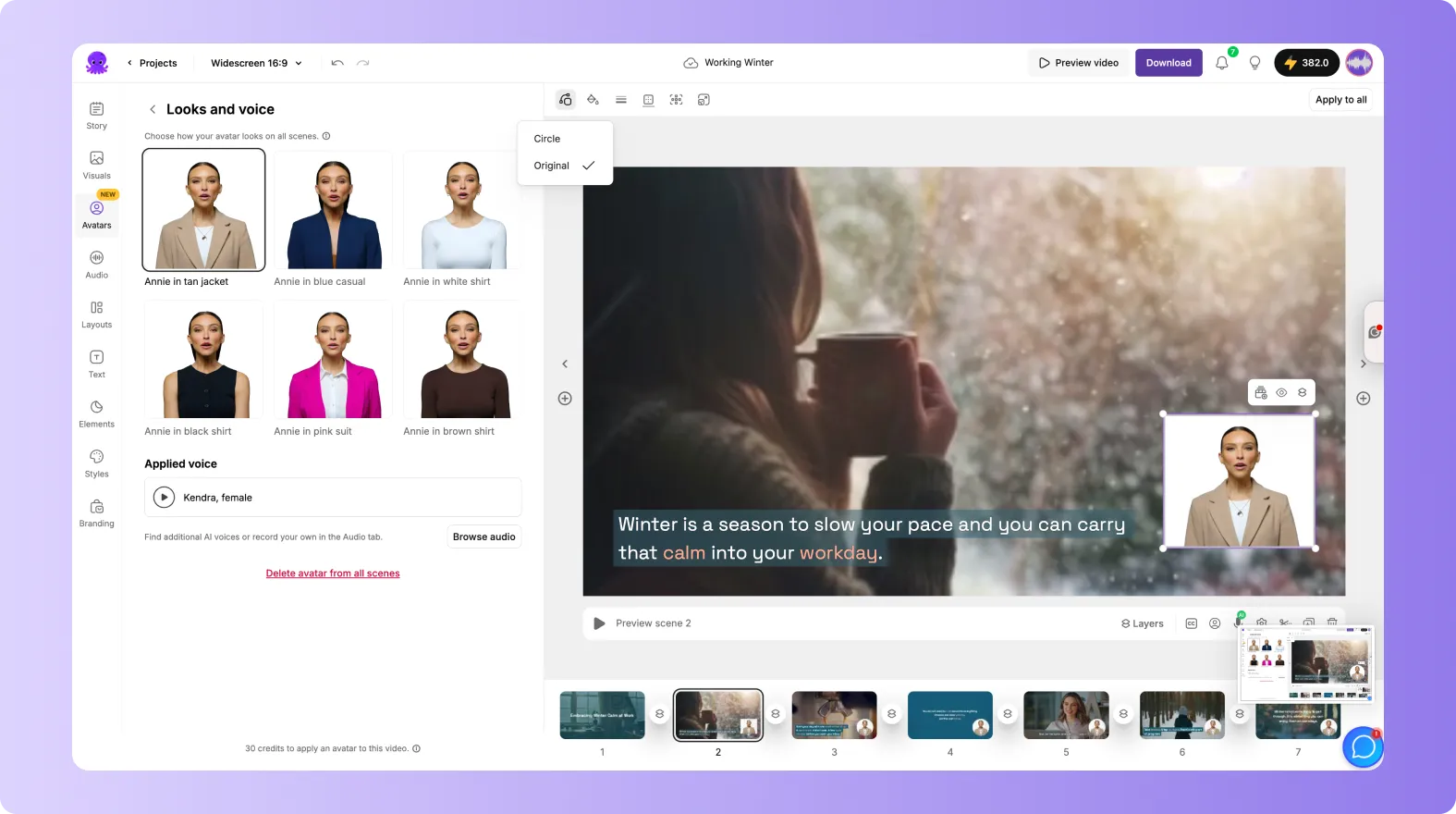
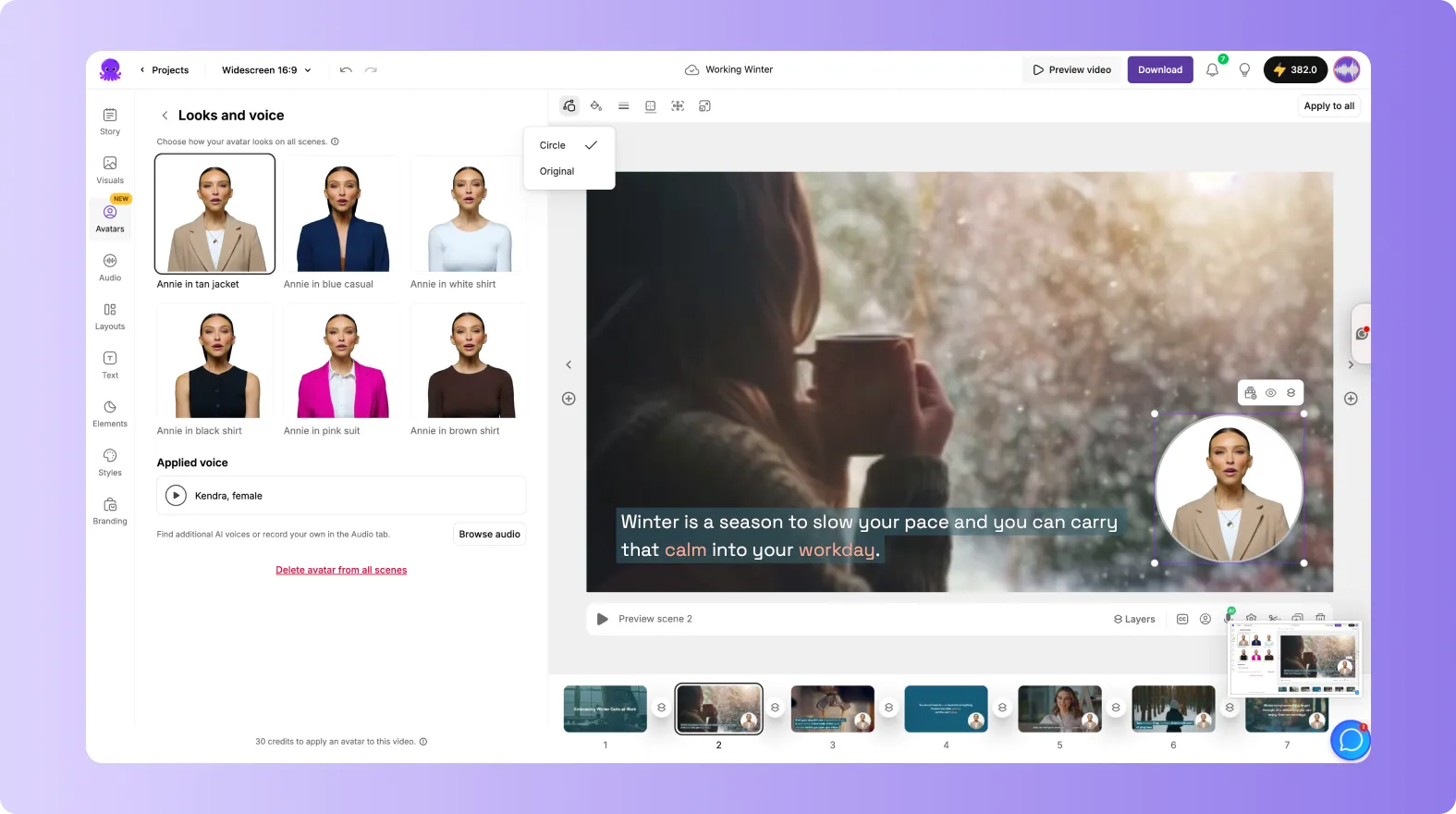
Circle for picture-in-picture style videos
Original for full-frame presentation
To change AI avatar shape:
Click the avatar in the scene.
Open the shape menu.
Select Circle or Original.
How to Adjust Avatar Size and Position
Avatars can be resized and moved freely within a scene.
To resize or reposition:
Drag the avatar to move it.
Use the resize handles to make it smaller or larger.
Choose preset sizes such as Small, Medium, or Large if available.
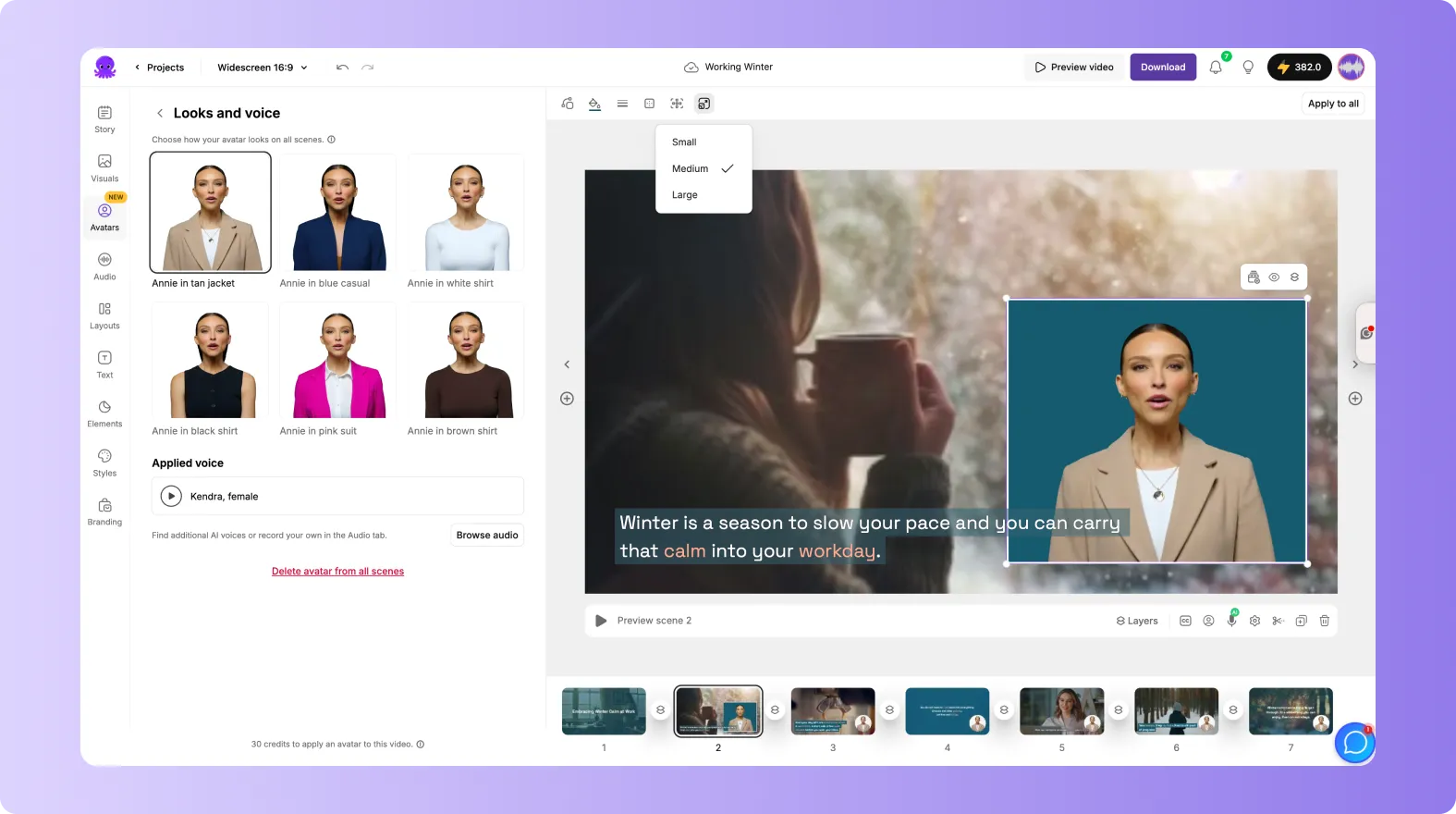

This allows you to place avatars alongside visuals, text, or screen recordings without blocking key content.
How to Customize Avatar Background and Border
Pictory allows you to style the avatar container to better match your video design.
Background options include:
Transparent background
Preset background colors
Custom background colors
Border options include:
Outline color selection
Adjustable border thickness in pixels
To customize background or border:
Select the avatar in the scene.
Open the background or outline controls.
Choose your color and border thickness.
Apply changes to the current scene or all scenes.


How to Show or Hide an Avatar Per Scene
Avatars are controlled at the scene level.
You can:
Show the avatar in some scenes
Hide the avatar in others
Remove the avatar from a scene entirely
To hide or remove an AI avatar:
Select the avatar.
Use the visibility or remove option in the avatar controls.


This is useful when you want the avatar only for introductions, explanations, or closing scenes.
How to Apply an Avatar to All Scenes
If you want the same avatar styling across the entire video, you can apply it globally.
To apply AI avatar settings to all scenes:
Customize the avatar’s appearance, size, and styling.
Click Apply to all.
The avatar will update across every scene in the video.

How to Choose and Change the Avatar Voice
Each avatar uses an AI voice for narration.
Voice options:
Default voice assigned to the avatar
Ability to select a different AI voice
Preview voice before applying
Reset to default voice
To change the voice:
Open the Looks and voice panel.
Click the voice preview button.
Browse or select a different AI voice.
Apply the voice to the avatar.

The avatar’s narration follows the text in each scene.
How Avatar Lip Sync Works
Avatar lip sync is generated automatically during export.
While editing, you will see a notice that lip sync will be applied on download. No additional steps are required.
Exporting a Video with AI Avatars
When your video is ready:
Click Preview video to review your scenes.
Click Download to export.
Pictory generates the final video with avatar lip sync applied.
Avatar usage consumes credits, which are shown in the editor before export.
Best Practices for Using AI Avatars
Keep scene text concise for natural narration.
Use avatars for key explanations rather than every scene.
Place avatars where they do not block important visuals.
Maintain consistent styling across scenes for a polished look.
Preview your video before downloading to confirm placement and voice.
Frequently Asked Questions About Pictory AI Avatars
Do I need a camera or microphone to use AI Avatars?
No. AI Avatars do not require recording. Everything is generated from text.
Can I use different avatars in the same video?
Yes. You can change avatars per scene if needed.
Can I hide the avatar in certain scenes?
Yes. Avatars can be shown, hidden, or removed on a scene-by-scene basis.
When is lip sync generated?
Lip sync is generated automatically when you download the video.
Are AI Avatars available in all projects?
AI Avatars are available inside the Pictory video editor for supported plans.


