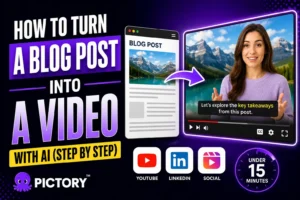
Link to video AI technology allows you to instantly convert any webpage, article, or URL into a fully edited, ready to publish video. Whether you want to repurpose a blog post, simplify a long webpage, or summarize online content into a video, the Link to Video workflow inside Pictory makes the process fast and intuitive.
This guide explains how Link to Video works, how to generate videos from URLs step by step, and how to use the official Pictory Chrome Extension to create videos from any webpage with one click.
What Is Link to Video?
Link to Video refers to the process of taking any URL and converting it into a complete video using AI. Instead of manually writing a script, gathering visuals, and editing your video from scratch, AI analyzes the webpage content and builds the entire foundation for you.
There are two common meanings for “link to video”:
- Turning a URL into a video using a tool like Pictory’s URL to Video feature
- Turning a video into a shareable link (YouTube, Google Drive, etc.)
This article focuses primarily on Option 1, because Pictory’s Link to Video system helps marketers, educators, and businesses transform written web content into videos automatically.
How Link to Video AI Works
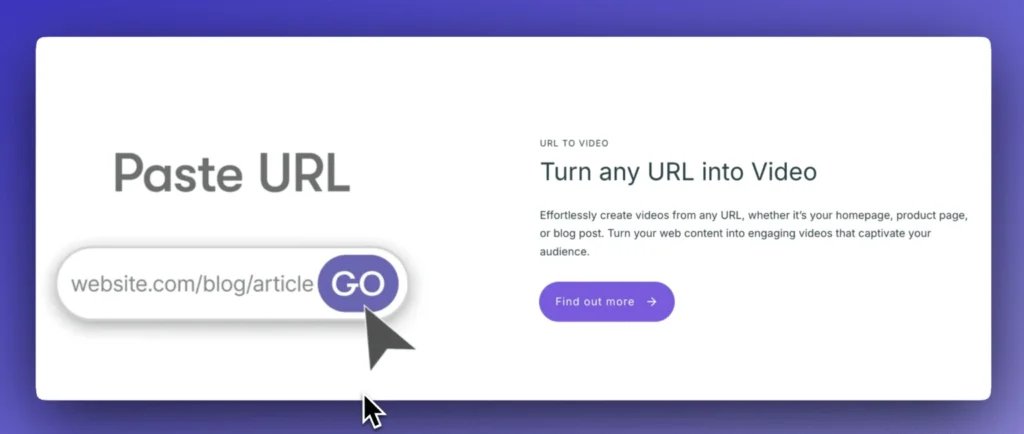
Link to Video AI reads the URL you provide, extracts the key ideas from the page, writes a script, builds a storyboard, selects visuals, creates captions, and assembles the entire video.
Here is the workflow in simple terms:
- Paste a URL into Pictory’s Link to Video tool
- AI scrapes content and summarizes the main points
- AI writes a video script automatically
- You edit and refine the script
- Pictory generates the full video storyboard
- You customize visuals, audio, branding, captions, and layout
- Export a polished video ready for YouTube, TikTok, LinkedIn, or websites
Because this process uses the same editor as Pictory’s Text to Video AI, everything is fully customizable.
How To Create a Link to Video Using Pictory (Step by Step)
Below is the complete workflow using Pictory’s URL to Video / Link to Video feature.
Step 1. Choose Link to Video (URL to Video) in Pictory
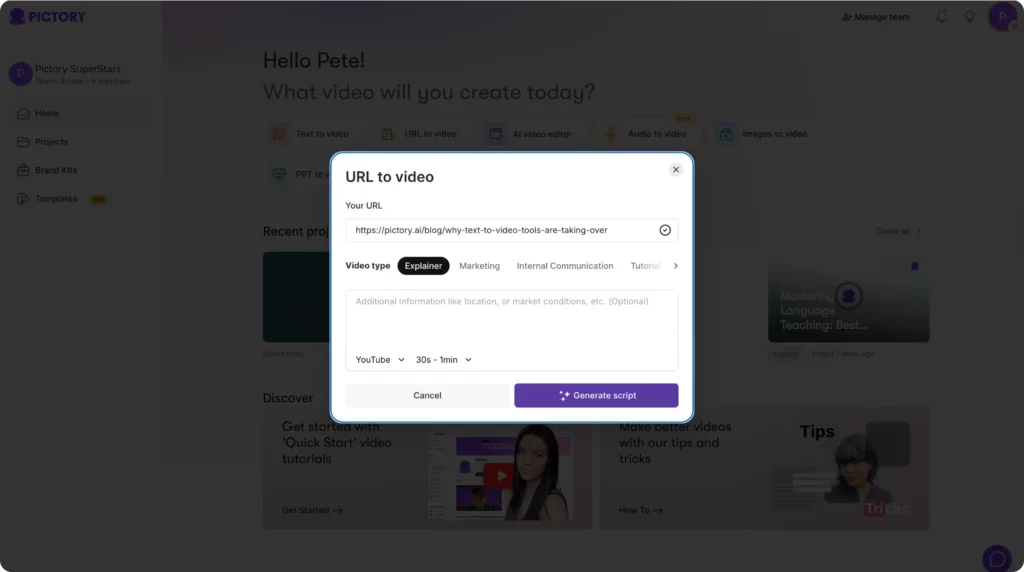
From the Pictory dashboard, select URL to Video.
Paste any webpage link such as:
- Blog post
- Article
- Landing page
- Case study
- Documentation page
Choose your video type (explainer, marketing, tutorial, internal communication).
You can also select platform-specific formats like YouTube, LinkedIn, or TikTok.
Step 2. Generate the Script From the Link
Click Generate Script.
Pictory will:
- Extract the key points from the webpage
- Summarize the content
- Create a structured, editable script
- Prepare your project for video generation
This works similarly to Pictory’s AI Video Generator From Text.
Step 3. Edit the Script in the Script Editor
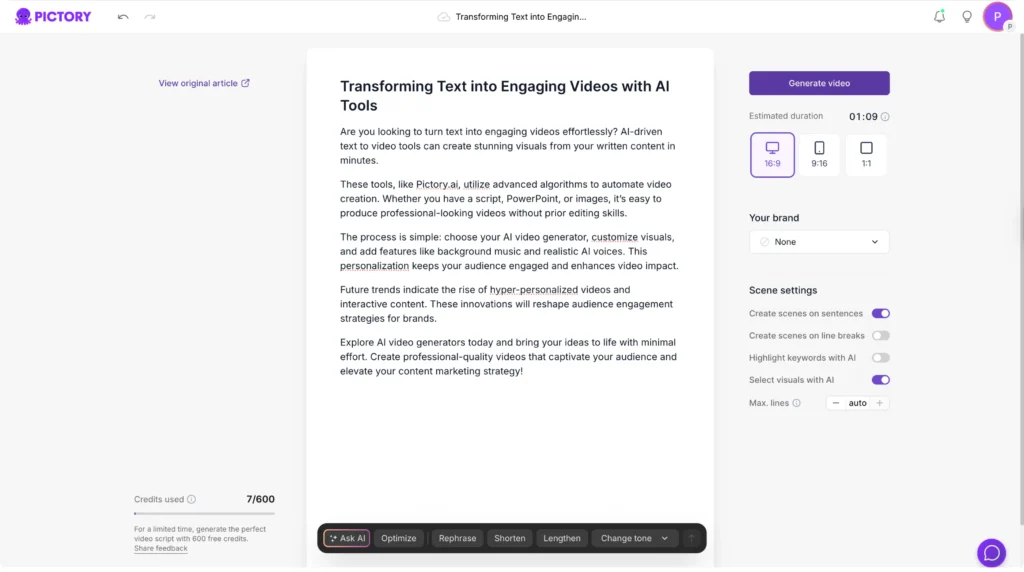
In the script editor, you can:
- Rephrase sentences
- Ask AI to optimize or shorten text
- Adjust tone
- Add or remove key points
- Include your brand messaging
You can also adjust:
- Aspect ratio
- Brand kit selection
- Keyword highlights
- Estimated video length
When your script is ready, click Generate Video.
Step 4. AI Storyboard Creation
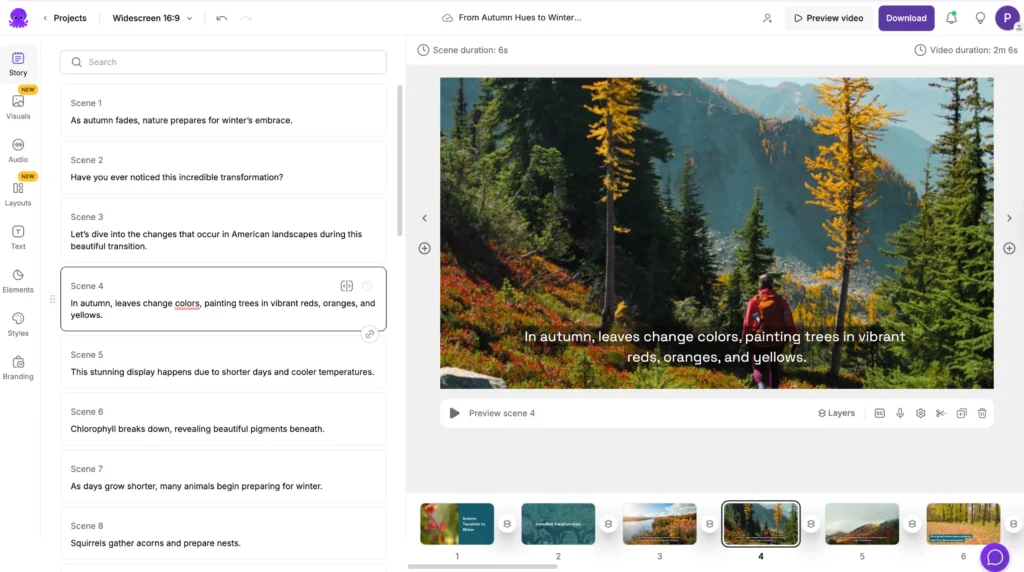
Pictory automatically:
- Splits your script into scenes
- Matches visuals to each segment
- Prepares captions
- Applies your theme or style
This stage works exactly like the storyboard generation in Pictory’s Text to Video workflow.
Step 5. Customize in the AI Video Editor
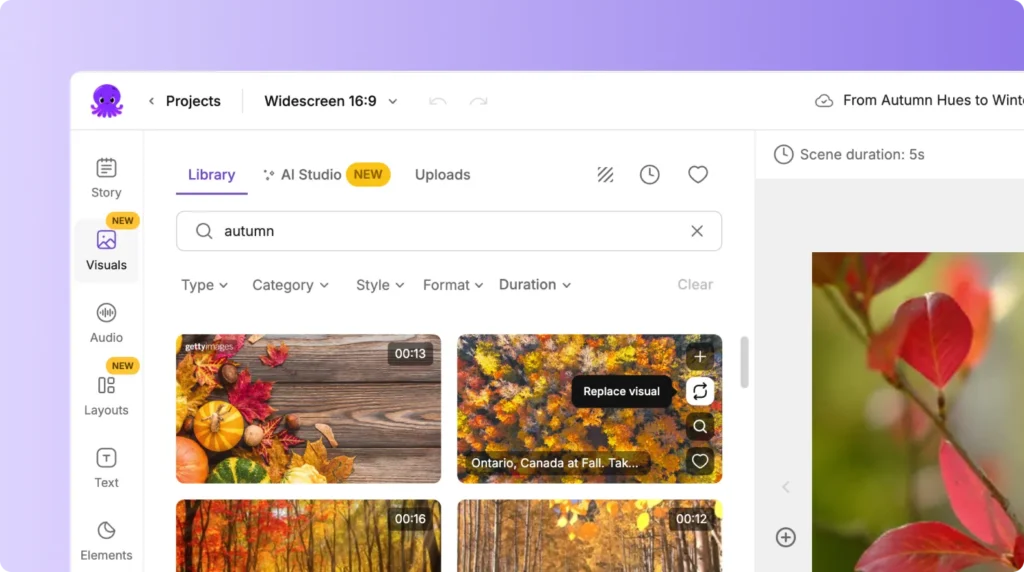
Inside the main editor, you have full creative control.
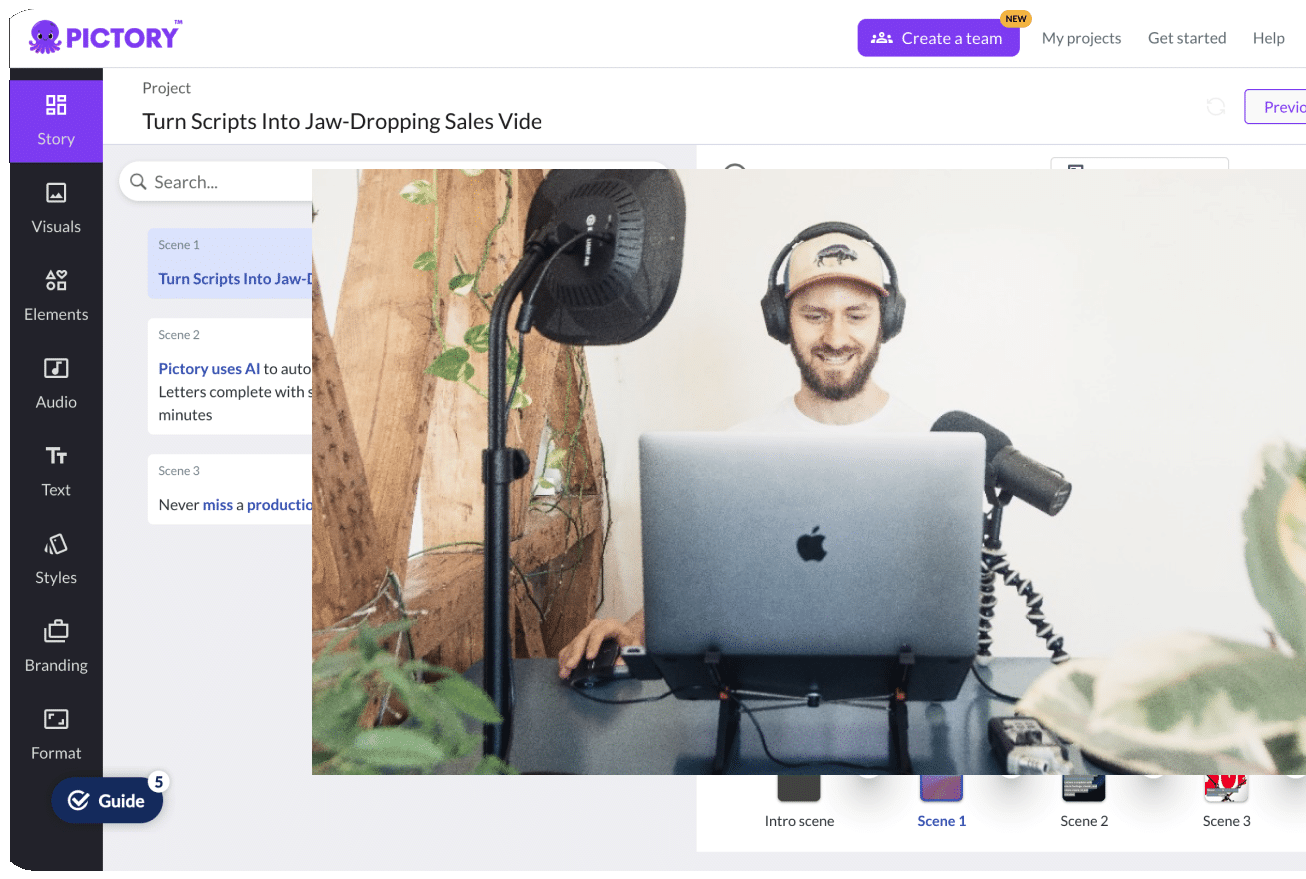
Using the left sidebar tools:
- Story: Edit script text
- Visuals: Swap stock footage, your own uploads, or AI generated visuals from AI Studio
- Audio: Select AI voiceovers or music
- Text: Customize text overlays
- Styles: Apply themes
- Branding: Add your brand kit
- Elements: Add logos, icons, overlays
The bottom timeline provides easy scene navigation.
The preview window shows updates in real time.
Step 6. Export Your Link to Video Project
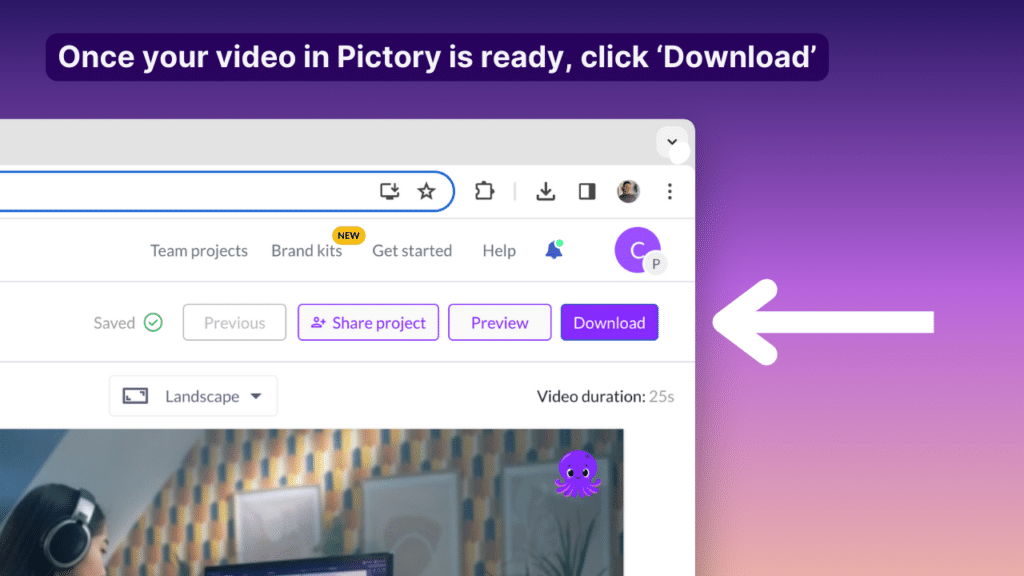
Click Export and choose your resolution.
You can now upload your video to:
- YouTube
- TikTok
- Google Drive
- Dropbox
- Websites
- Social media platforms
Once uploaded, the platform provides a shareable video link.
Use Link to Video Even Faster With the Pictory Chrome Extension
You can also create link-to-video projects instantly using Pictory’s official Chrome extension:
TEXT TO VIDEO + URL TO VIDEO EXTENSION:
https://chromewebstore.google.com/detail/text-to-video-ai-video-cr/aaaeoelkococjpgngfokhbkkfiiegolp
The extension allows you to convert any webpage you are browsing into a video in seconds.
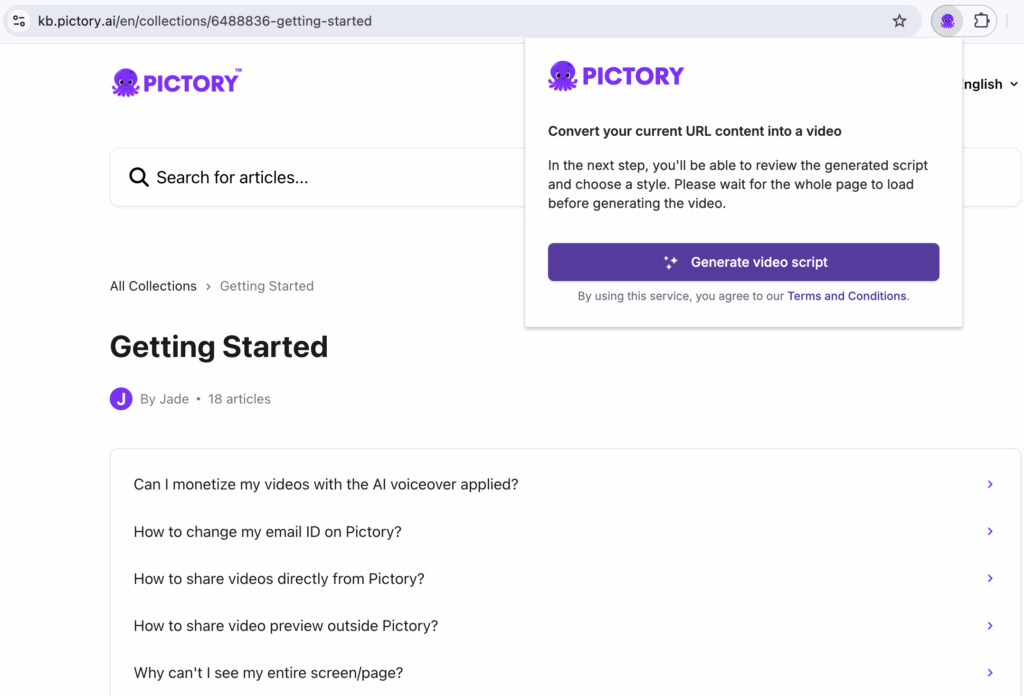
What the Chrome Extension Does
- Automatically captures the active URL
- Lets you choose a video type
- Summarizes the page and generates a script
- Sends the project into your Pictory editor
- Allows full customization of visuals, captions, and brand kits
No need to copy and paste links manually.
How the Chrome Extension Works
Step 1 – Capture a URL or Enter Text
Click the extension while browsing any page. It automatically grabs the URL.
Step 2 – Choose Video Type
Select explainer, marketing, internal communication, or tutorial.
Step 3 – Generate Script
AI summarizes the webpage into a concise script.
Step 4 – Edit in Pictory
You are redirected to your project in Pictory, where you can customize using the full editor.
Step 5 – Generate and Download Your Video
Preview, export, and publish your Link to Video creation anywhere.
What Links Work Best With Link to Video?
Link to Video works best with URLs containing structured text such as:
- Blog posts
- Articles
- Landing pages
- Product pages
- Tutorials and guides
- Research papers
- Documentation and FAQ pages
For blog posts specifically, Pictory also provides a dedicated Blog to Video workflow.
Link to Video vs Text to Video vs Blog to Video
Here’s how these Pictory workflows differ:
Link to Video / URL to Video
Convert any webpage link into a summarized video.
Text to Video
Start from a script or prompt.
Great for content that does not exist as a webpage yet.
Blog to Video
Specialized for long-form blog posts.
All three share Pictory’s editor, brand kits, AI voiceovers, and visual tools.
How To Make a Video Into a Link (If That’s What You Meant)
Many users search:
- How to make a video into a link
- How to create a video link
- How to send a video as a link
Here’s how to do it:
- Create your video in Pictory
- Upload it to:
- YouTube
- Google Drive
- Dropbox
- Vimeo
- YouTube
- Click “Copy Link”
- Share the link anywhere
Pictory handles video creation.
Platforms like YouTube and Drive handle video hosting and links.
When Should You Use Link to Video?
Link to Video is ideal when you want to:
- Repurpose blog posts into short-form videos
- Summarize articles into video explainers
- Turn landing pages into marketing videos
- Transform research papers into visual summaries
- Create internal communication videos from documentation
- Produce rapid, consistent content for social media
If your content already exists as a URL, Link to Video is the fastest way to turn it into a complete video.
FAQs About Link to Video
What is Link to Video?
Link to Video is the process of converting any URL into a fully edited video using AI.
How do I turn a URL into a video?
Use Pictory’s URL to Video. Paste the link, generate your script, customize visuals, and export.
Does the Chrome Extension support Link to Video?
Yes. It captures any URL instantly and lets you convert it with one click.
Extension: https://chromewebstore.google.com/detail/text-to-video-ai-video-cr/aaaeoelkococjpgngfokhbkkfiiegolp
Can I add branding to my Link to Video projects?
Yes. Use Pictory’s brand kit to apply your colors, fonts, and logo.
Do all URLs work?
Most public pages do. Content behind paywalls or logins may not load but our chrome extension can be used to access this content.
Is Link to Video the same as Text to Video?
No. Link to Video extracts text from a URL.
Text to Video starts from a manually written script.
Can I turn a video into a link?
Yes. Upload your video to YouTube, Drive, or Dropbox and copy the shareable link.