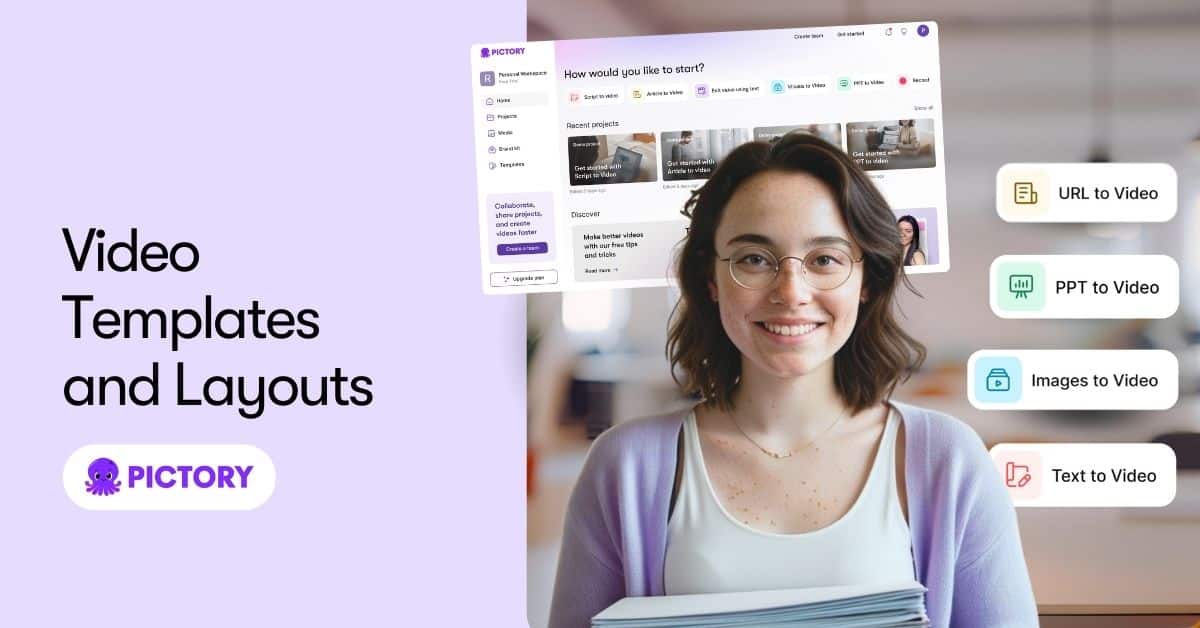
Creating professional videos consistently can be challenging, especially if you publish content regularly across multiple platforms. Pictory solves this with two powerful features that speed up production: video templates and video layouts. Templates allow you to start with pre-designed, ready-to-edit video structures, while layouts help you format text and visuals cleanly inside any Text to Video workflow.
Together, these features help creators, marketers, agencies, and educators build high quality videos at scale without design experience or manual editing.
This guide explains what video templates are, how layouts work, where they appear in Pictory, and how each feature contributes to fast, professional video creation.
What Are Video Templates in Pictory?
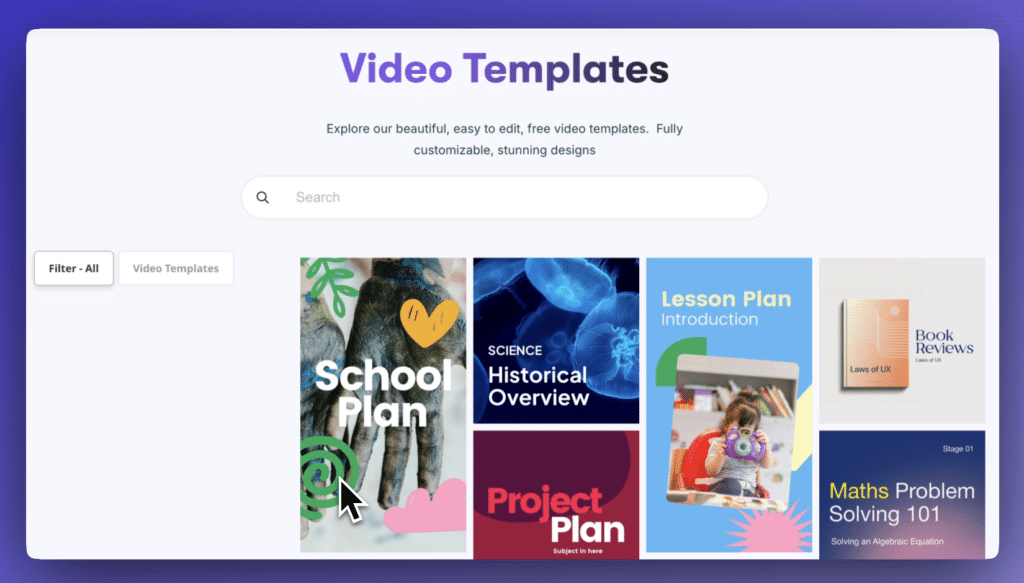
Video templates are pre-designed, fully editable video projects available in Pictory. Instead of starting from scratch, you can choose a template with:
- Prebuilt scenes
- Professional visual styles
- Text placement
- Music and pacing
- Transitions and animations
Templates are ideal when you want to create:
- Short promotional videos
- Quick social media posts
- Announcements
- Brand messages
- Educational or informational clips
You can browse available template styles through the main template library:
https://pictory.ai/video-templates-page
Once you load a template into the AI Video Editor, you can replace visuals, update text, insert your branding, or change the layout entirely.
Why Video Templates Matter for Content at Scale
Templates save time because they eliminate repetitive design work. Instead of deciding:
- How scenes should be structured
- Where text should appear
- What animations to use
You can begin with a polished, prebuilt layout and focus on messaging.
Templates allow you to produce:
- Multiple videos with consistent branding
- Campaign assets faster
- A full content series with matching design
- Daily social clips or weekly educational content
Because templates are editable, they work for both quick productions and high volume content schedules.
What Are Video Layouts in Pictory?
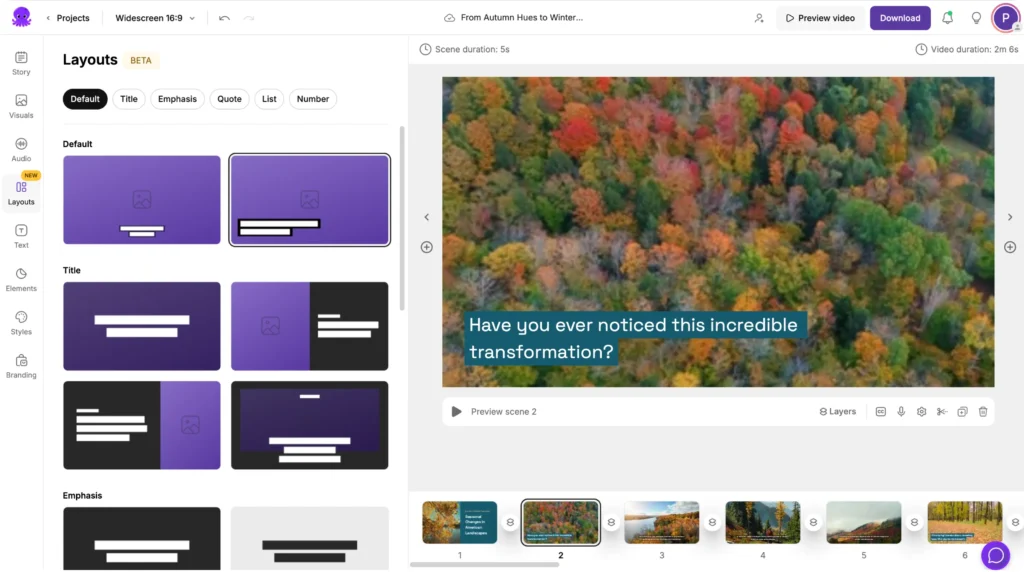
Layouts define how on screen text and visuals are arranged inside a scene. They appear inside the Text to Video workflows such as:
These layouts help shape your scenes professionally without needing manual design.
Examples of layout types include:
- Full screen media with captions
- Media on left, text on right
- Media on right, text on left
- Lower third text blocks
- Sidebars
- Split screen formats
- Text driven scenes
- Hybrid image/text styles
Layouts instantly adjust:
- Text placement
- Font styling
- Visual hierarchy
- Caption positioning
- Visual emphasis
This helps your video look modern and consistent.
How Layouts Work in the Text to Video Journey
When you create a video from a script, idea, or URL, the layout system shapes every scene. Here is how it fits into each workflow.
1. Idea to Video
In the Idea to Video workflow, layouts turn short prompts into clean, structured scenes. After AI generates the script, layouts add:
- Headline areas
- Bullet structures
- Visual framing
- Professional formatting
2. Script to Video
In Script to Video, layouts break your script into scenes and apply consistent formatting so your video feels coherent from start to finish.
3. Text to Video
The classic Text to Video journey lets you apply layouts that control:
- Caption position
- Scene style
- Where visuals appear
- Reading flow
This gives you a polished video without graphic design skills.
4. Blog to Video and URL to Video
For long form content like blog posts and articles, layouts help structure the extracted text into digestible chapters.
- Blog to Video: https://pictory.ai/blog-to-video
- URL to Video: https://pictory.ai/url-to-video
Layouts break text heavy content into visually clear segments, making long content easier to consume.
Templates vs Layouts: What’s the Difference?
Templates and layouts work together but serve different purposes.
Templates
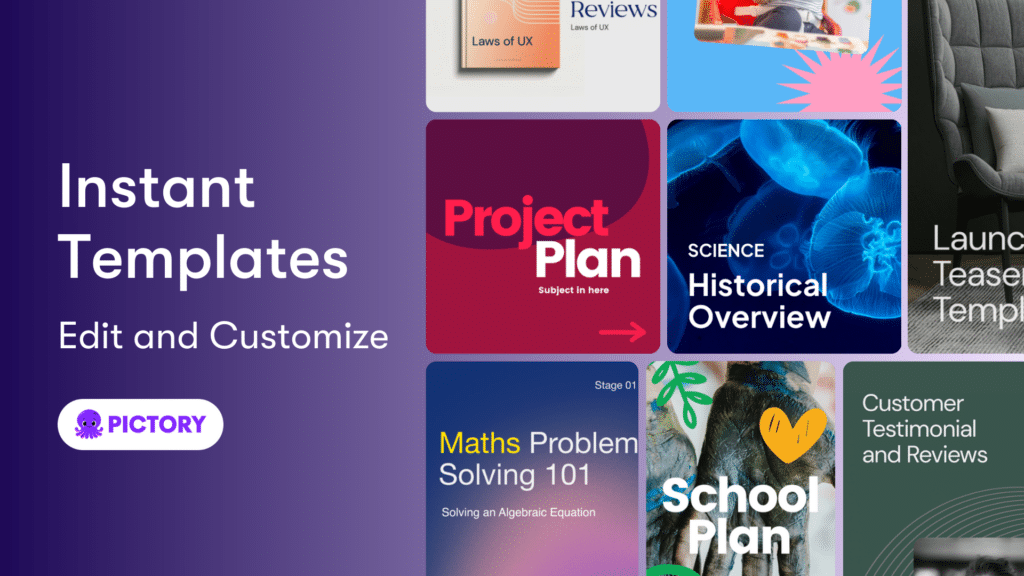
- Entire video projects
- Pre-designed scenes
- Fastest way to build videos
- Best for quick posts and campaigns
- Available in the template library
Layouts
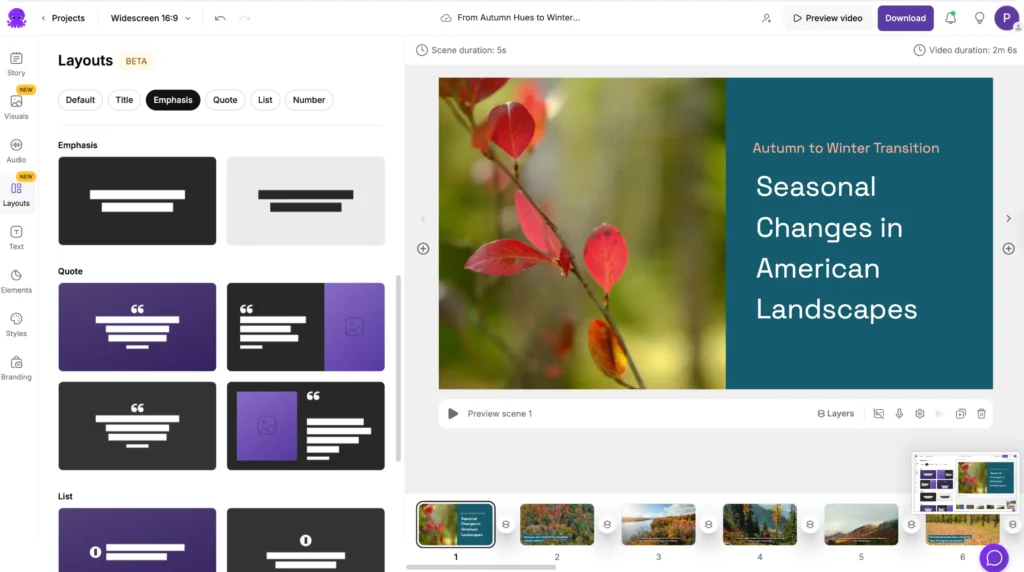
- Individual scene structures
- Used during Text to Video workflows
- Allow script driven videos to look professional
- Adjust styling and text placement
- Best for long form or narrative videos
Think of templates as “ready-made videos” and layouts as “tools that structure each scene.”
How Templates and Layouts Help You Create Content at Scale
Both features together allow teams and individuals to produce large volumes of professional content quickly.
1. Consistency
Brand kits, reusable scene formatting, and pre-designed sequences keep visuals aligned.
2. Speed
Templates provide immediate starting points. Layouts automate the design of every new scene.
3. Flexibility
You can adjust layouts or override templates at any time in the AI Video Editor.
4. Team Efficiency
Teams can standardize video output without relying on video editors or designers.
5. Multi-Platform Output
Templates and layouts help produce:
- Wide formats for YouTube
- Square formats for ads
- Vertical formats for Reels, Shorts, and other short video content
6. High Volume Production
Ideal for:
- Weekly blog repurposing
- Product update videos
- Educational series
- Daily social clips
- Event recaps
- Training material
- Internal communications
With Pictory, volume does not compromise quality.
How To Use Video Templates in Pictory
- Open the template library:
https://pictory.ai/video-templates-page - Choose a template that matches your video goal
- Load it into the AI Video Editor
- Replace visuals, text, and audio
- Add your brand kit
- Export a ready to publish video
Templates are especially useful for creators who want fast, consistent content.
How To Use Layouts in Pictory
Layouts appear automatically while building videos in:
- Text to Video
- Script to Video
- Blog to Video
- URL to Video
- Idea to Video
To use layouts:
- Generate your script
- Let Pictory create scenes
- Open the Styles or Layouts panel
- Choose your preferred layout style
- Preview how your text and visuals reposition
- Save or adjust per scene
Layouts give you the control to design every scene without manual editing.
FAQs About Video Templates and Layouts
What are video templates in Pictory?
Templates are pre-designed video projects you can edit instantly. They speed up production and ensure consistency.
Where do video templates live?
You can browse them at the main template library:
https://pictory.ai/video-templates-page
What are video layouts?
Layouts define how text and visuals are arranged inside scenes during Text to Video workflows.Do templates and layouts work together?
Yes. Templates give you a predefined structure, while layouts allow detailed formatting inside each scene.
Can I customize all templates and layouts?
Yes. You can edit visuals, audio, text, branding, timing, and styles using the AI Video Editor.
Do layouts work in Idea to Video and Script to Video?
Yes. Layouts are foundational in all script-based workflows including Idea to Video and Script to Video.
Can layouts improve long form video structure?
Yes. Layouts help break long blog posts or articles into clear video chapters using Blog to Video and URL to Video workflows.