
Online learning is booming, but producing high-quality training and educational videos can take hours of editing and design. That’s why Learning & Development professionals and course creators are turning to Pictory AI — an all-in-one video creation platform that transforms scripts, slides, and audio into visually engaging, branded learning videos in minutes.
In this guide, you’ll learn how educators and trainers can use Pictory AI to design professional eLearning content that enhances engagement, boosts retention, and saves production time.
Why Pictory AI Is Perfect for Learning & Development
Educators face the challenge of producing frequent, engaging training content for diverse learners — often with limited design or video editing support.
Pictory AI solves that by combining automation with creative control. It enables instructors, L&D teams, and coaches to:
Convert lesson scripts or notes into videos automatically
Turn PowerPoint presentations into narrated learning modules
Add AI voiceovers or upload recorded lectures
Ensure brand consistency with templates and Brand Kits
Easily repurpose learning materials for multiple platforms
Whether you’re creating an online course, internal employee training, or certification module, Pictory makes professional educational video production simple and scalable.
Step 1: Start with Your Learning Material
Begin by deciding what type of educational content you want to create. Pictory supports multiple entry points for learning workflows:
Text to Video – Turn lesson notes, scripts, or outlines into engaging video lessons.
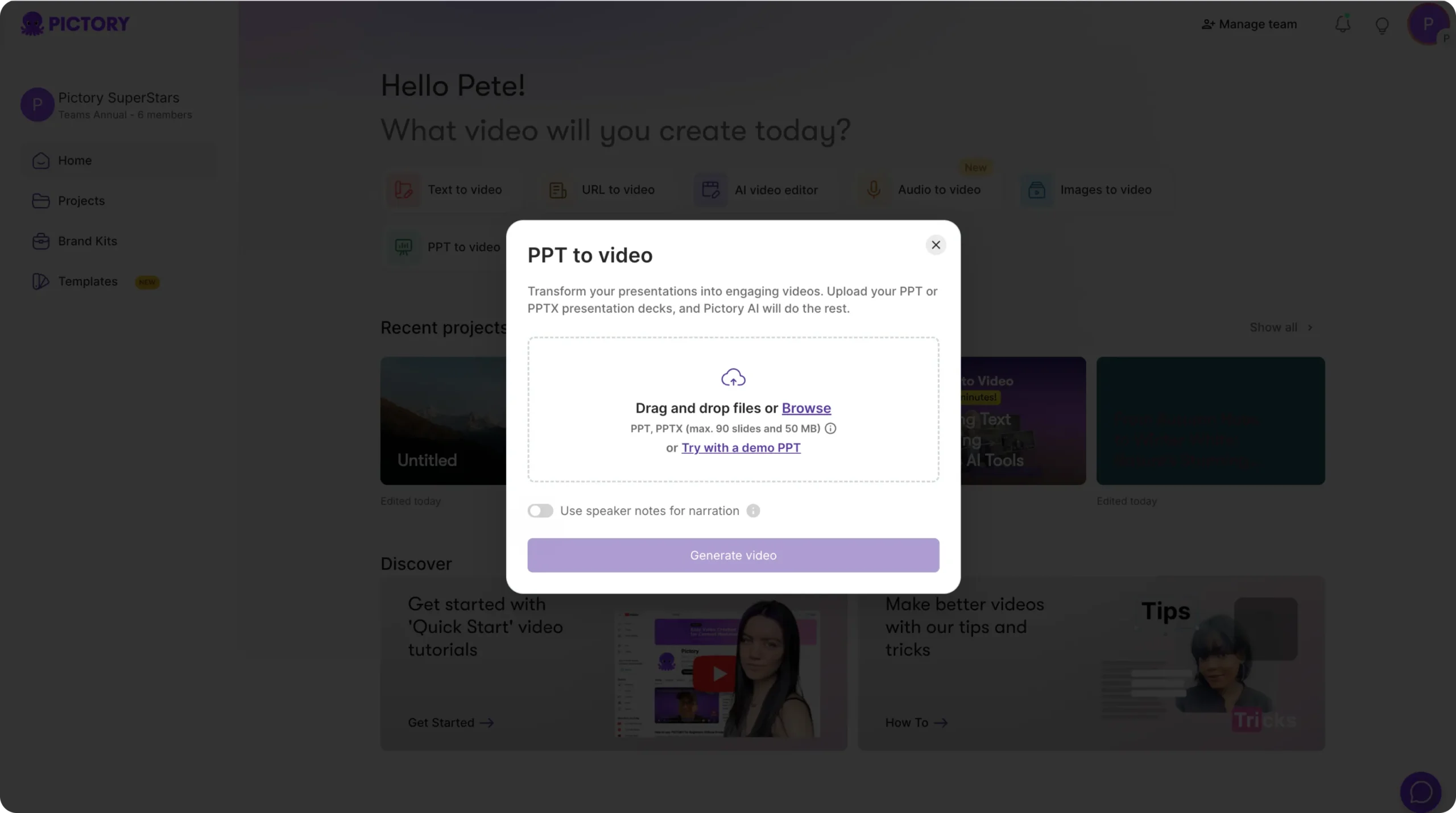
PPT to Video – Convert existing PowerPoint decks into narrated, branded training modules.
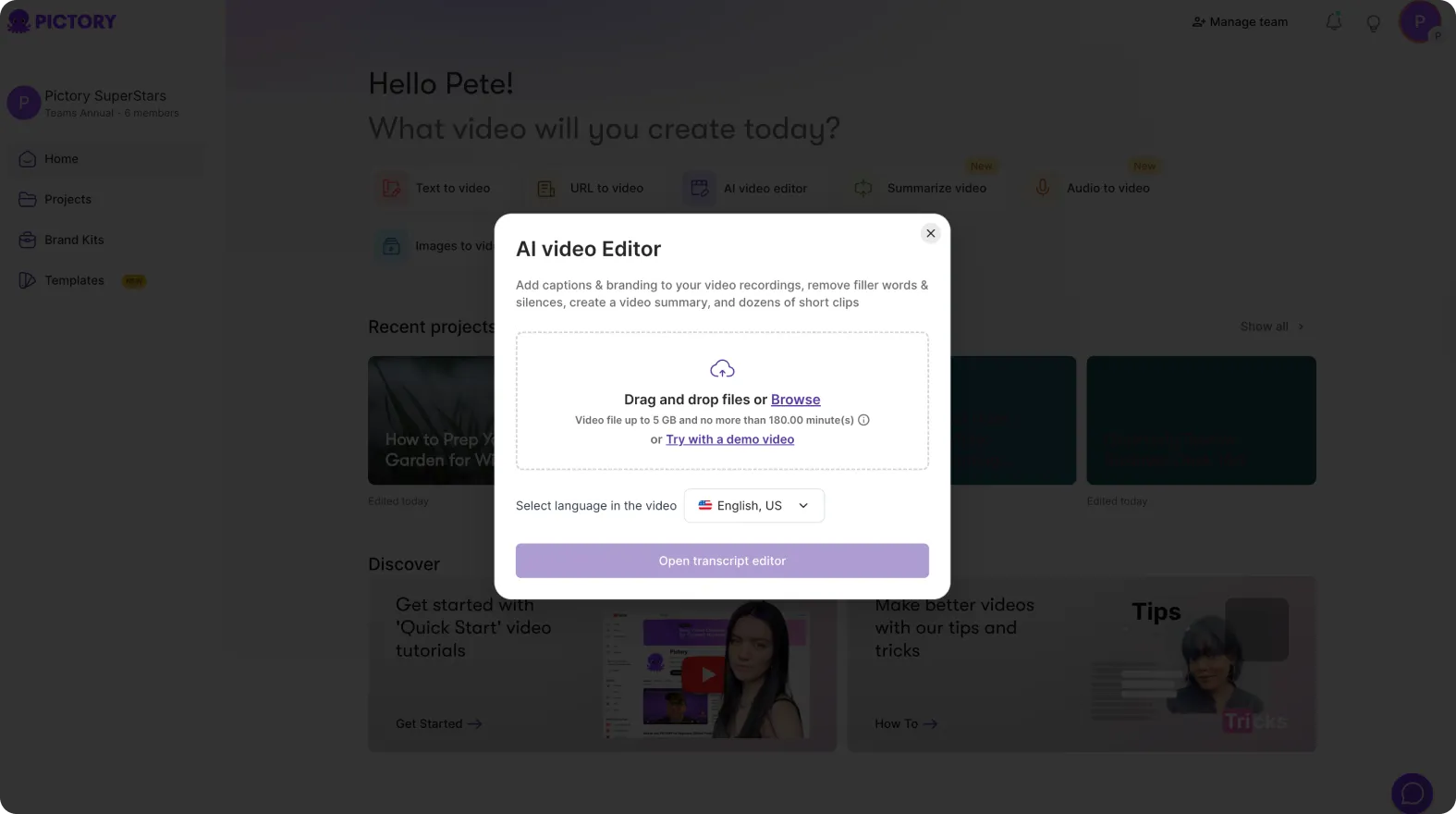
Audio to Video – Upload recorded lectures or podcasts to create visualized learning content.
Record Screen/Camera – Capture demonstrations or software tutorials for your students.
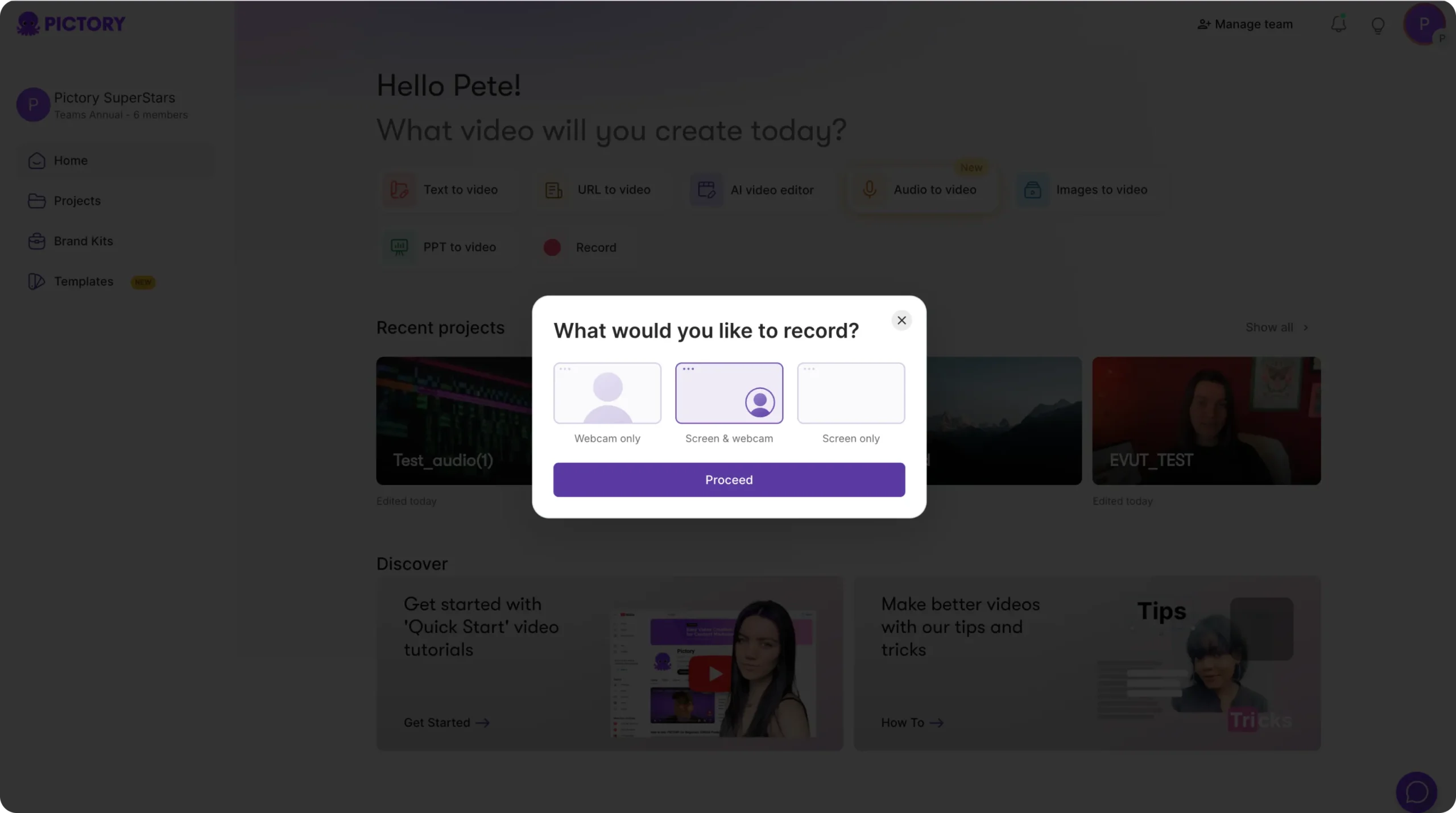
This flexibility means L&D teams can start with almost any content format and let Pictory handle the conversion.
Step 2: Use AI to Generate or Optimize Your Lesson Script
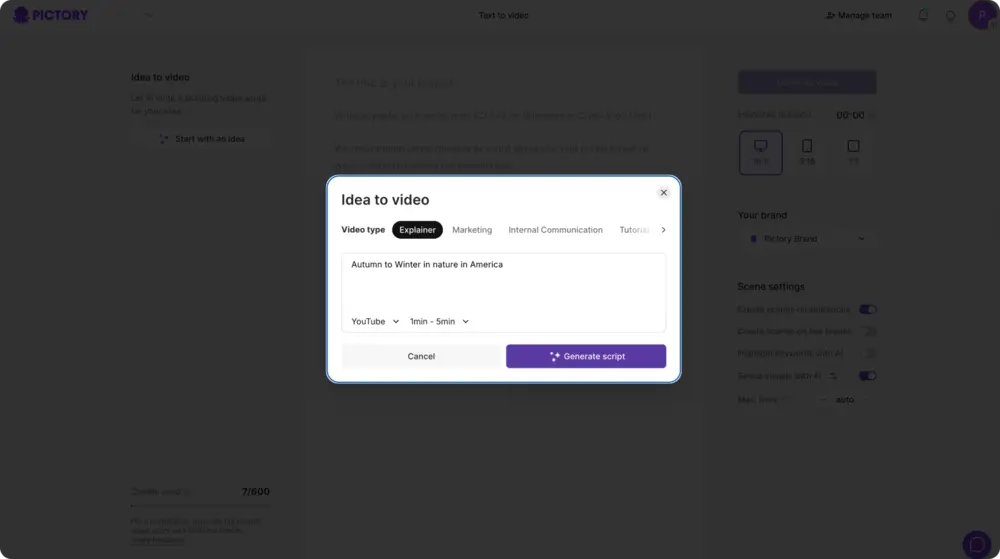
If you don’t have a full script yet, use Pictory’s AI Script Generator to create one based on your topic or learning outcome.
Select Text to Video from your dashboard.
Enter your lesson idea (e.g., “How to use data visualization in Excel”).
Choose your content type — tutorial, explainer, or walkthrough.
Click Generate Script and let Pictory AI build a complete draft.
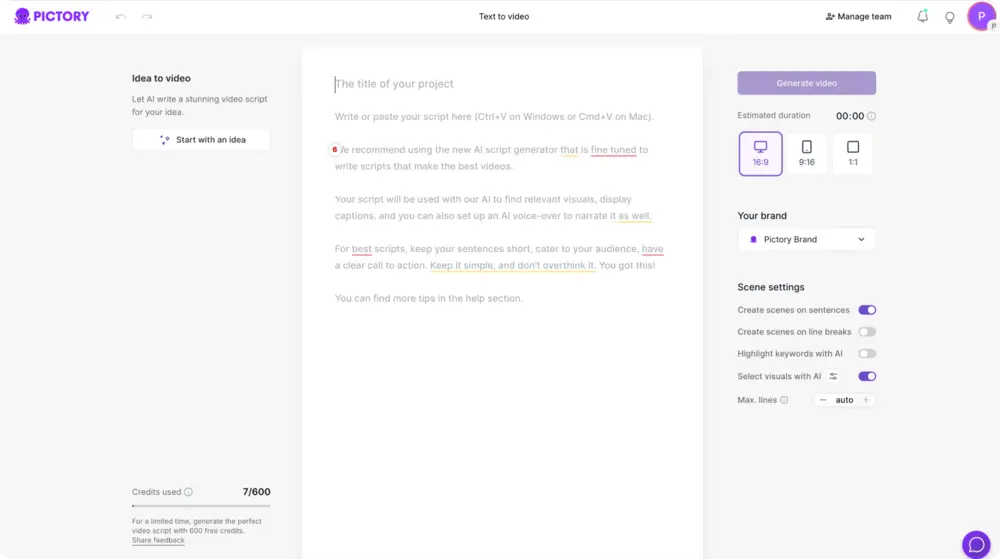
You can refine the tone using the Ask AI tools — Optimize, Shorten, Rephrase, or Lengthen — to match your learners’ comprehension level.
Step 3: Build Your Storyboard and Add Visuals
Once your script is ready:
Click Generate Video to create a Storyboard.
Pictory automatically divides your script into scene-based visuals.
Use the Visuals tab to add relevant images, stock videos, or AI-generated graphics.
Adjust scene length and layout using the Layouts tab for titles, lists, or key points.
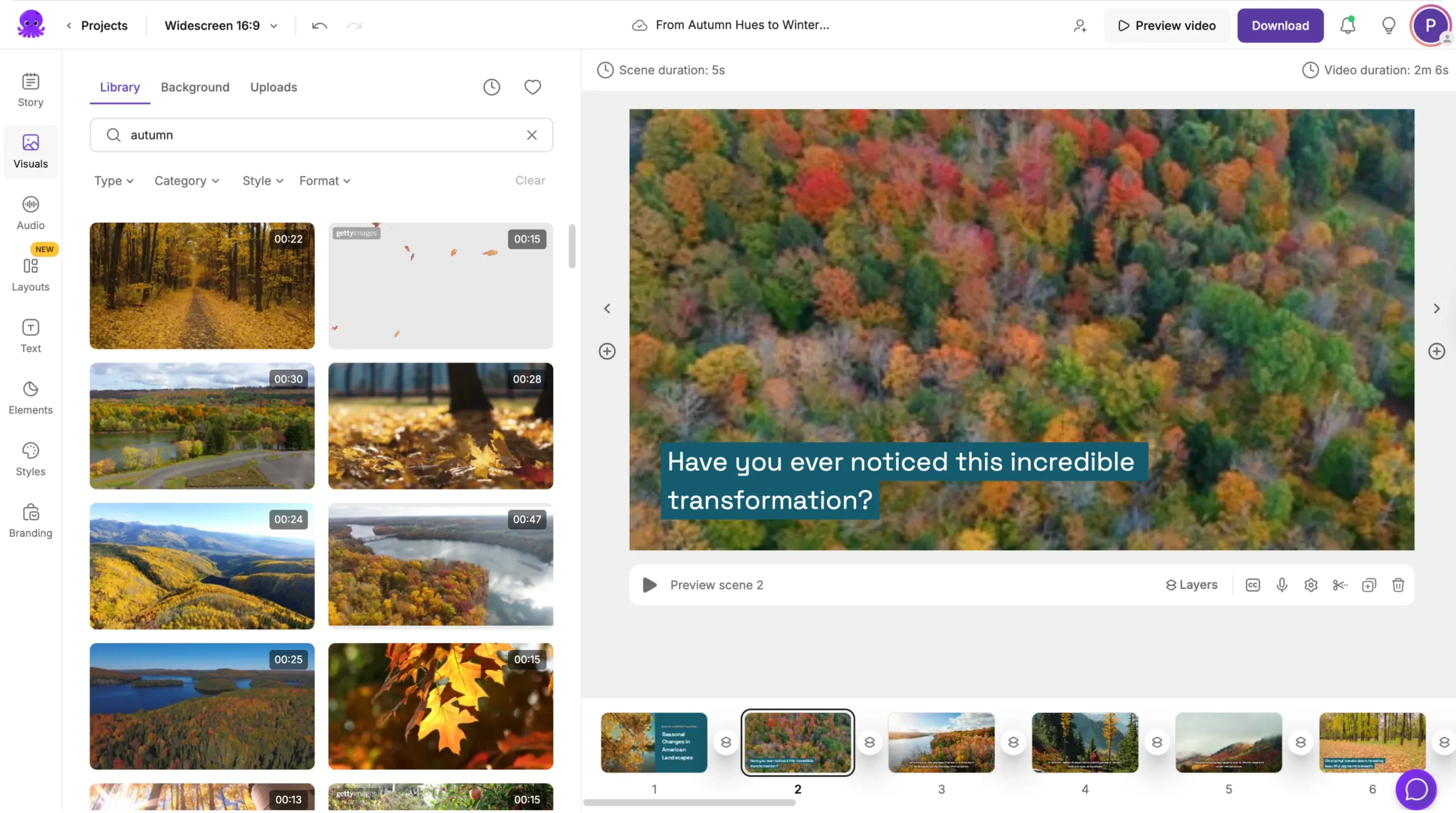
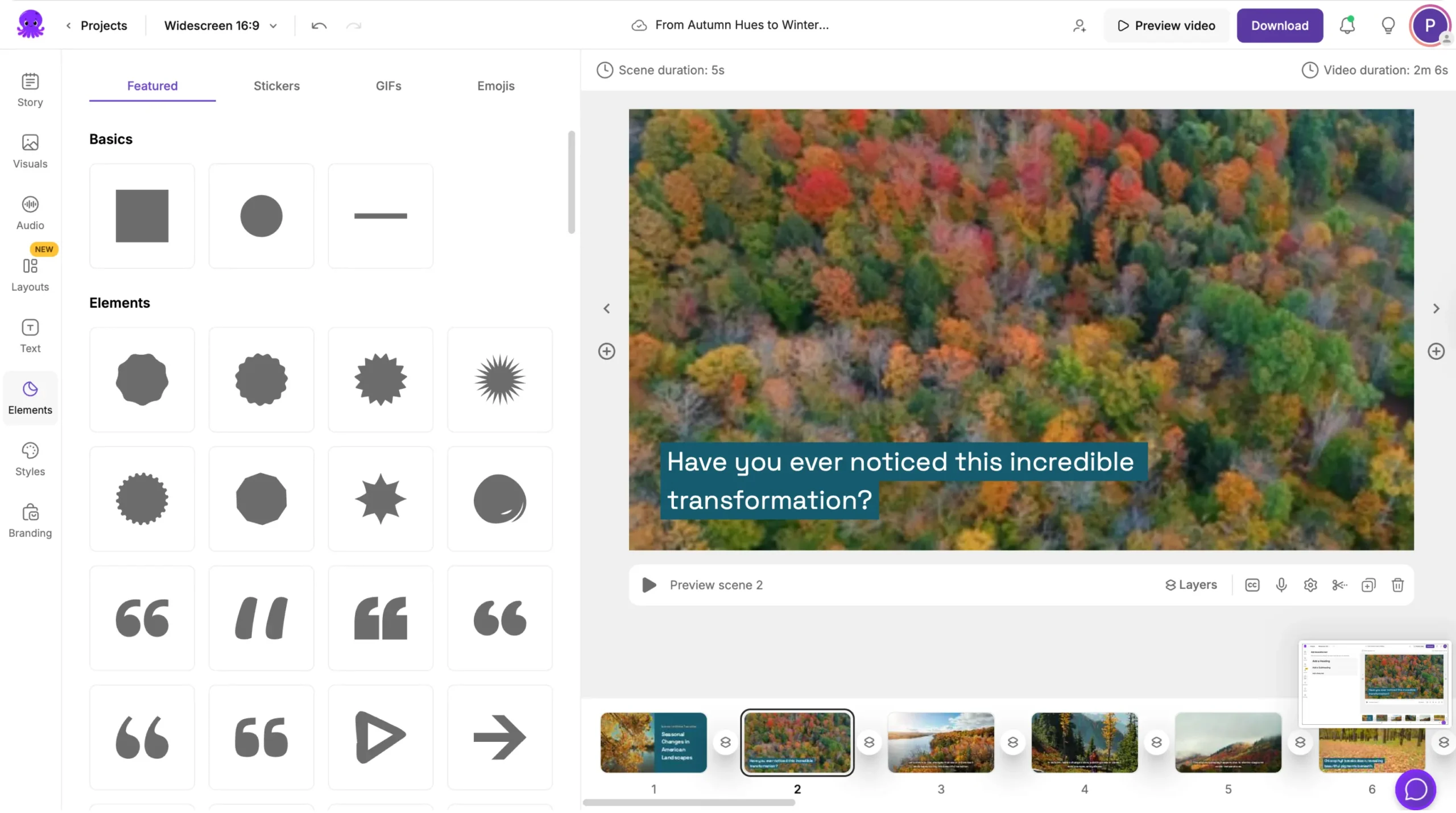
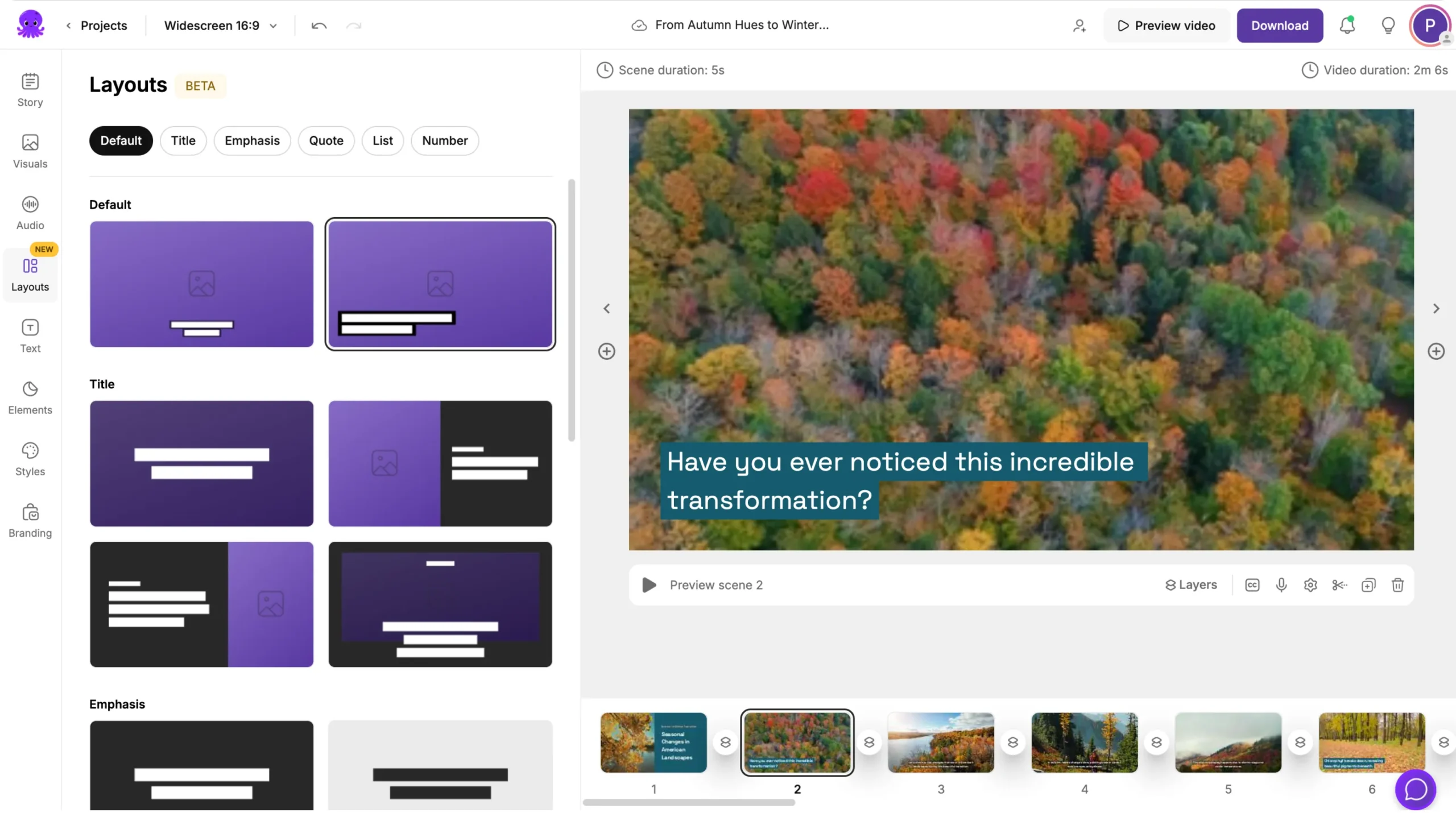
This visual workflow helps L&D creators explain complex topics more clearly with supporting visuals and captions.
Step 4: Add Voiceovers and Captions
Audio narration adds clarity and human connection to your learning content. You have two options:
AI Voiceovers – Choose from Pictory’s natural-sounding multilingual voices to narrate your script.
Upload Your Own Voiceover – Record your lesson and use Auto-Sync to align it perfectly with your video scenes.
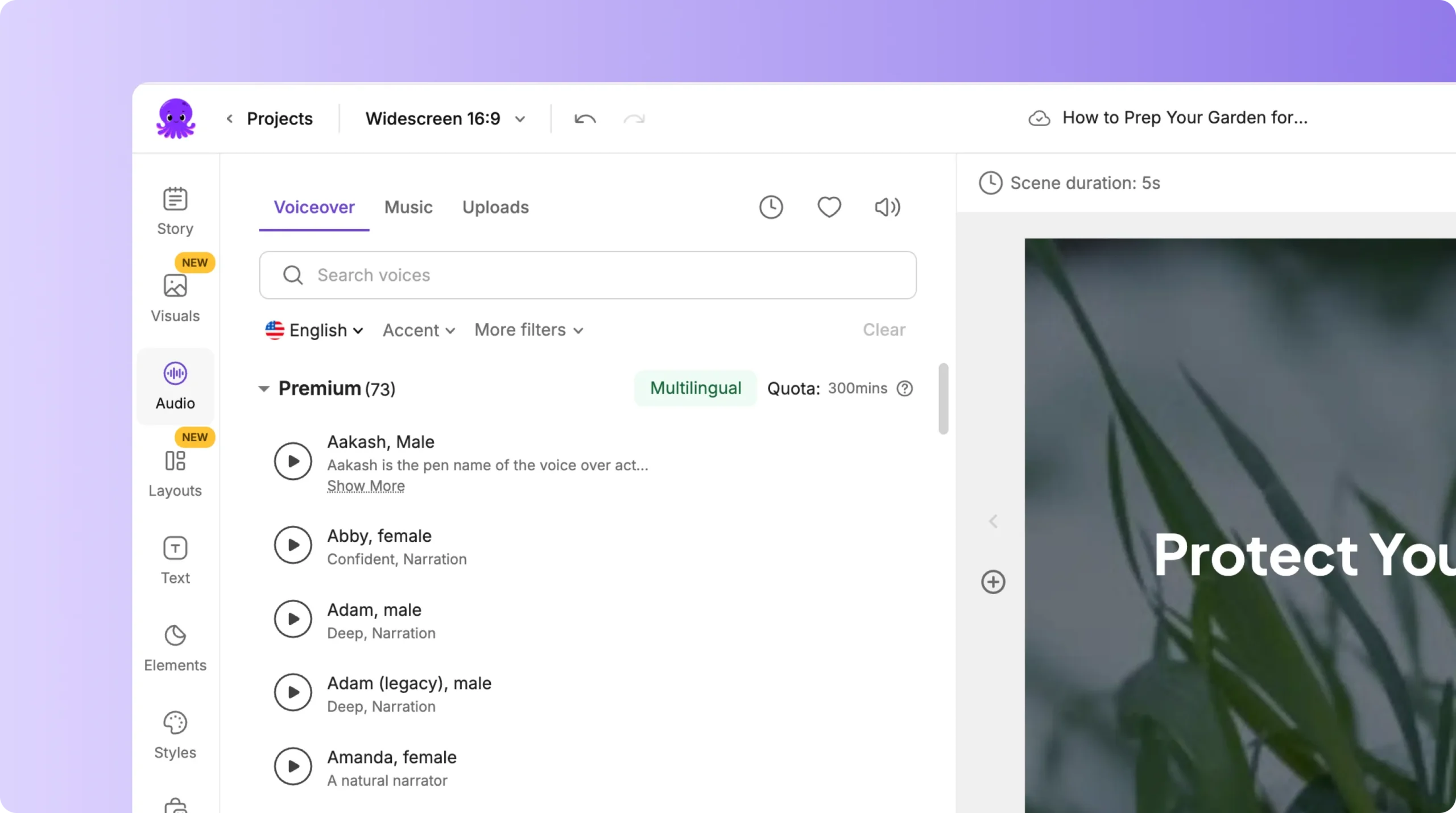
Pictory also auto-generates captions and subtitles, improving accessibility and retention for global learners.
Step 5: Apply Branding for Cohesive Course Design
Consistency is essential for professional eLearning materials.
Use Pictory’s Brand Kits to automatically apply your educational brand identity:
Upload your logo.
Choose brand fonts and colors.
Apply your kit across all training videos.
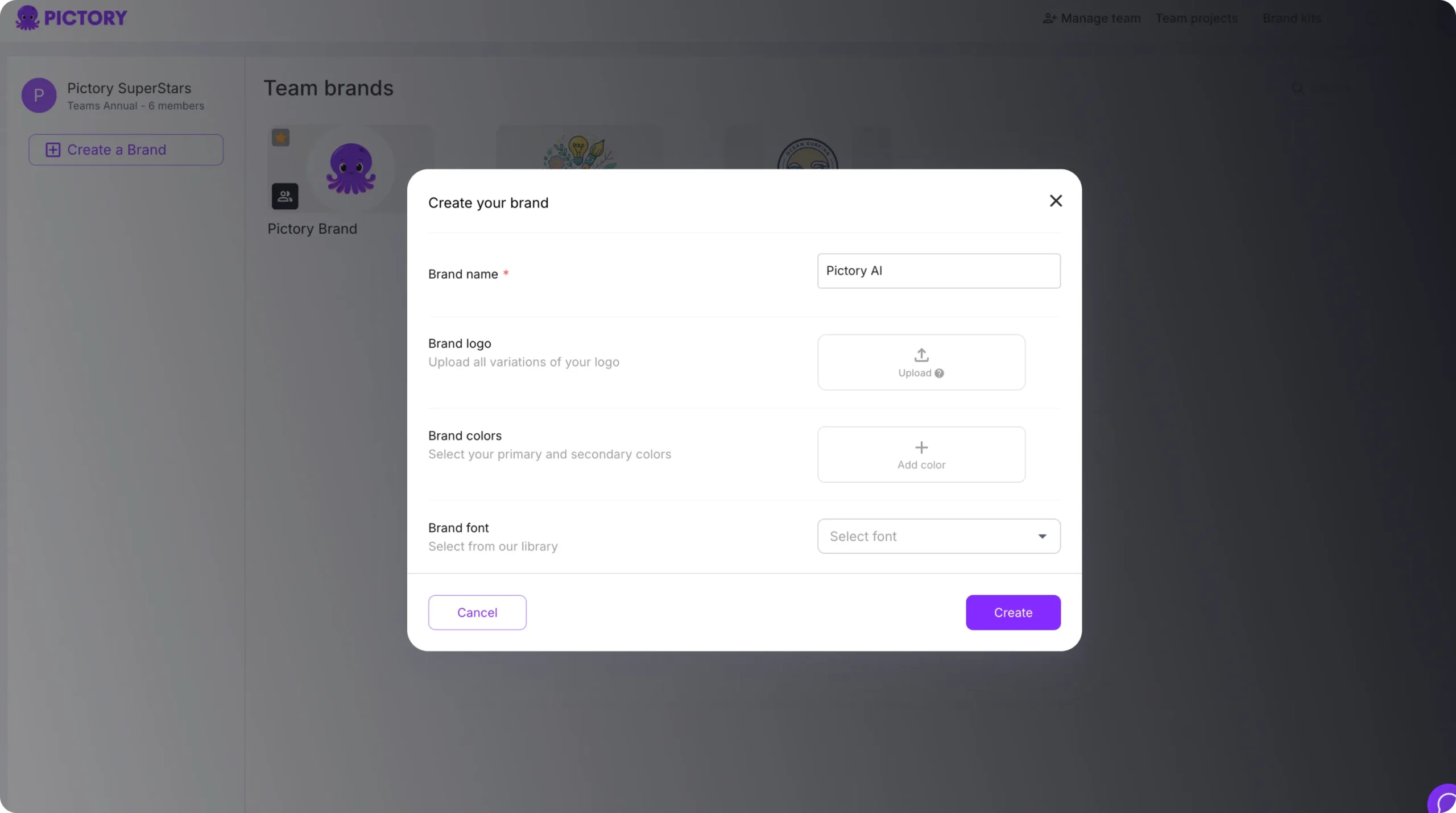
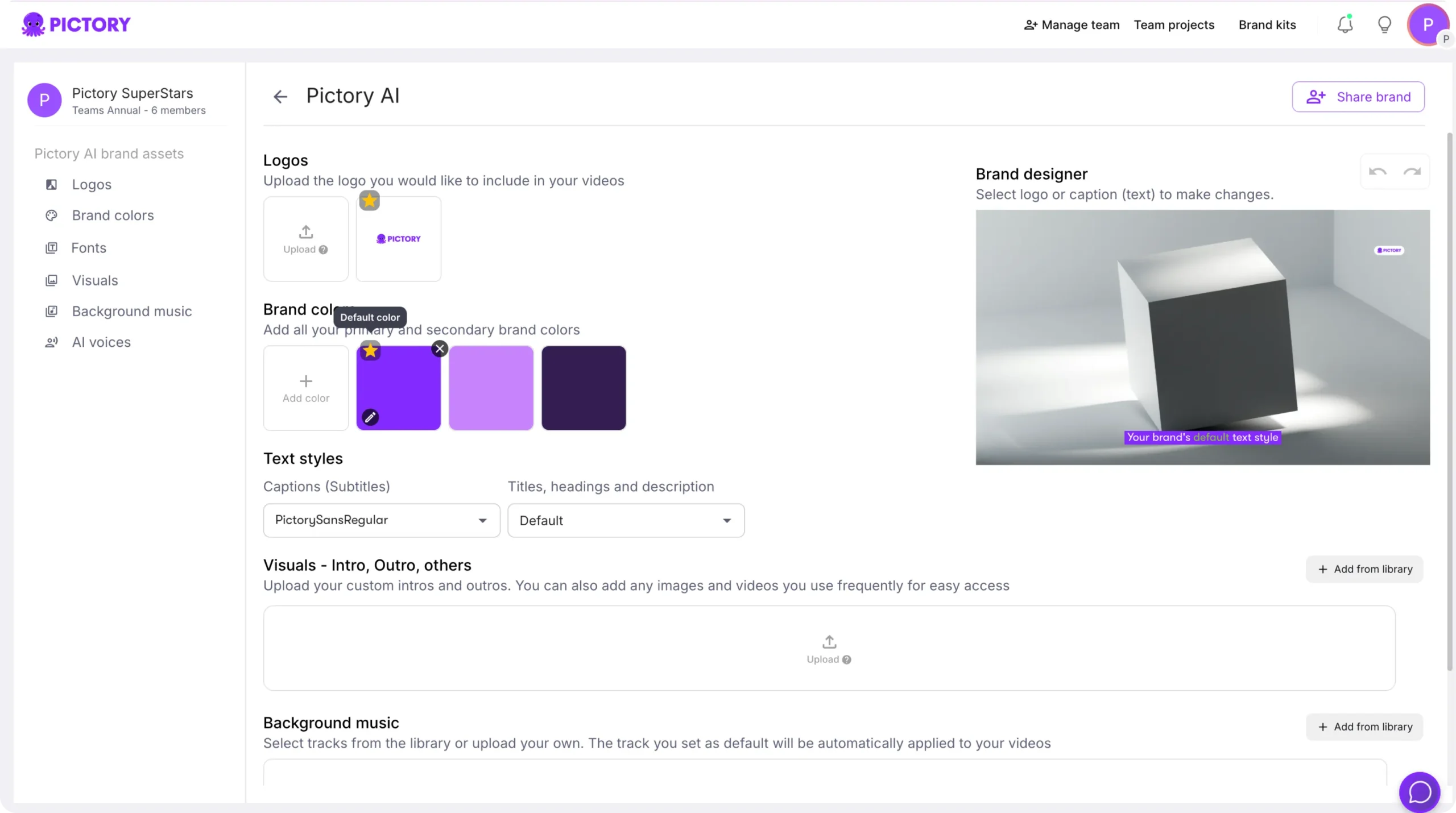
This ensures every lesson, module, and promo video reflects your learning brand and visual standards.
Step 6: Export and Share Your Learning Content
When your video is complete:
Click Preview Video to review your visuals, captions, and voiceovers.
Download your file or export directly to learning platforms or social media.
Choose aspect ratios for your delivery channel:
16:9 for LMS and YouTube courses
1:1 for social learning posts
9:16 for mobile learning formats
All your course videos are stored in My Projects, making updates, re-edits, or new versions easy to manage.
Create Professional, Engaging Learning Videos with Pictory AI
With Pictory AI, Learning & Development professionals can deliver consistent, high-quality learning experiences without complex tools or editing skills.
From lesson scripting to branding, every step is streamlined for educators who want to focus on teaching — not post-production.
Start transforming your training materials into professional, on-brand video lessons today with Pictory AI.


