

Shapes and icons help you highlight key information, guide viewer attention, and create clearer visuals. They work well for tutorials, training content, product demos, social videos, and any project that needs visual emphasis. Pictory AI makes it easy to add, position, and style shapes and icons on any scene.
This guide shows you how to add shapes and icons inside Pictory AI.
Why Shapes and Icons Are Helpful
Shapes and icons allow you to:
• Highlight important text
• Point out objects on screen
• Create callouts and annotations
• Build step by step instructions
• Add visual clarity to complex topics
• Improve storytelling through simple visuals
They help your audience understand your message faster.
Step 1: Open the Elements Tab
Start by selecting the scene where you want to add a shape or icon. Click the Elements tab on the left side of the editor.
Inside this tab, you will find:
• Shapes
• Icons
• Stickers
• GIFs

Shapes and icons appear at the top of the panel.
Step 2: Choose a Shape or Icon
Scroll through the options to find the shape or icon that fits your purpose.
Available shapes include:
• Circles
• Rectangles
• Squares
• Lines
• Arrows
Available icons include:
• Checkmarks
• Warning icons
• Pointers
• Tech icons
• Simple symbols
• UI style markers
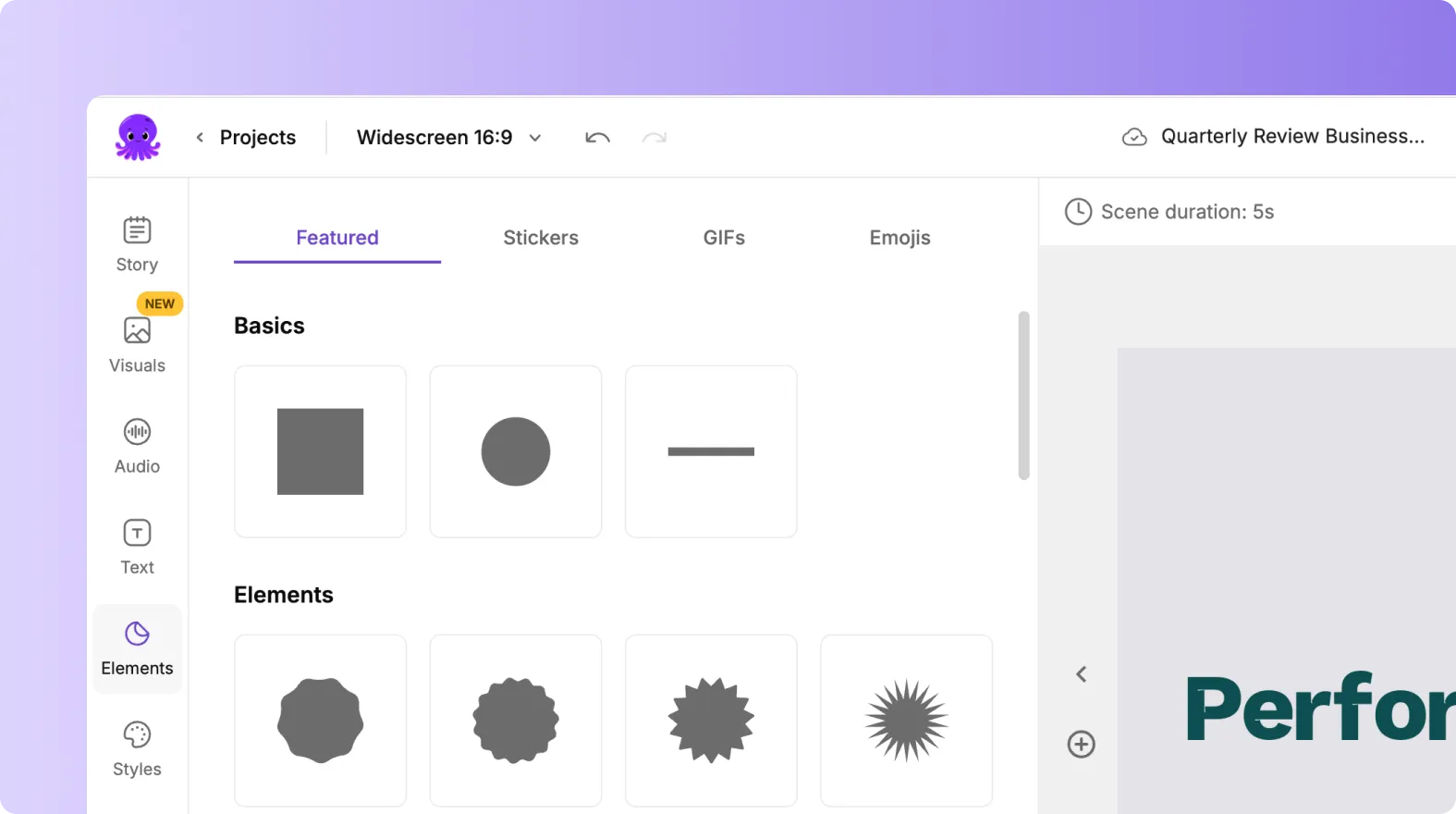
Choose the one that supports your scene.
Step 3: Add the Shape or Icon to Your Scene
Click any shape or icon to add it. It appears instantly on your scene and can be customized right away.
You can:
• Move it anywhere on the screen
• Resize it by dragging the edges
• Rotate it using the rotation handle

Place it where it improves clarity.
Step 4: Customize Color and Style
Select your shape or icon and open the formatting toolbar.
You can adjust:
• Fill color
• Border color
• Border thickness
• Transparency
• Shadow (if available)
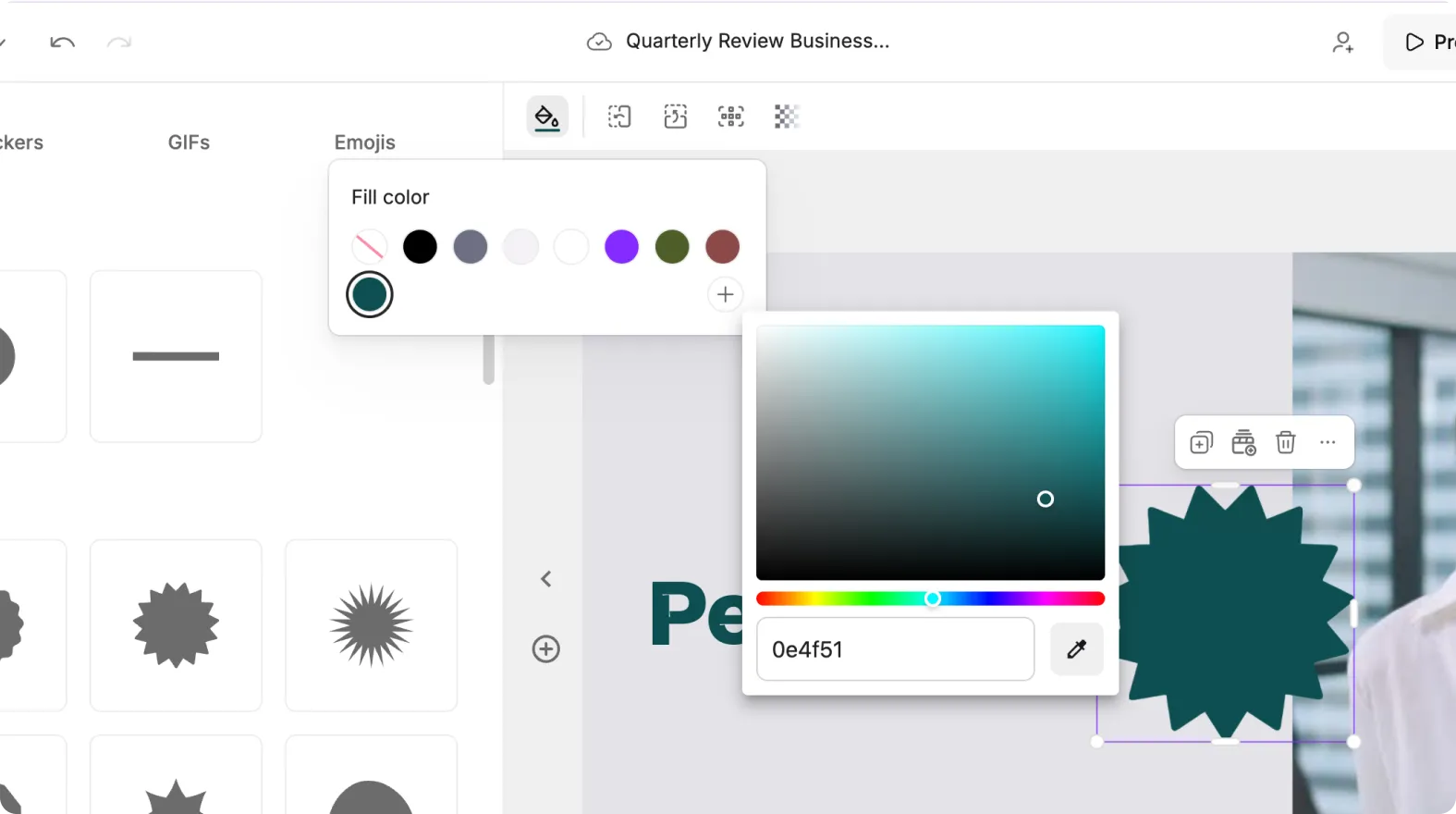
Use brand colors if you are working with a Brand Kit for consistency.
Step 5: Use Shapes to Highlight Key Areas
Shapes work especially well for emphasis.
You can use them to:
• Circle important objects
• Underline key phrases
• Add contrast behind text
• Frame sections of the screen
• Point attention using arrows
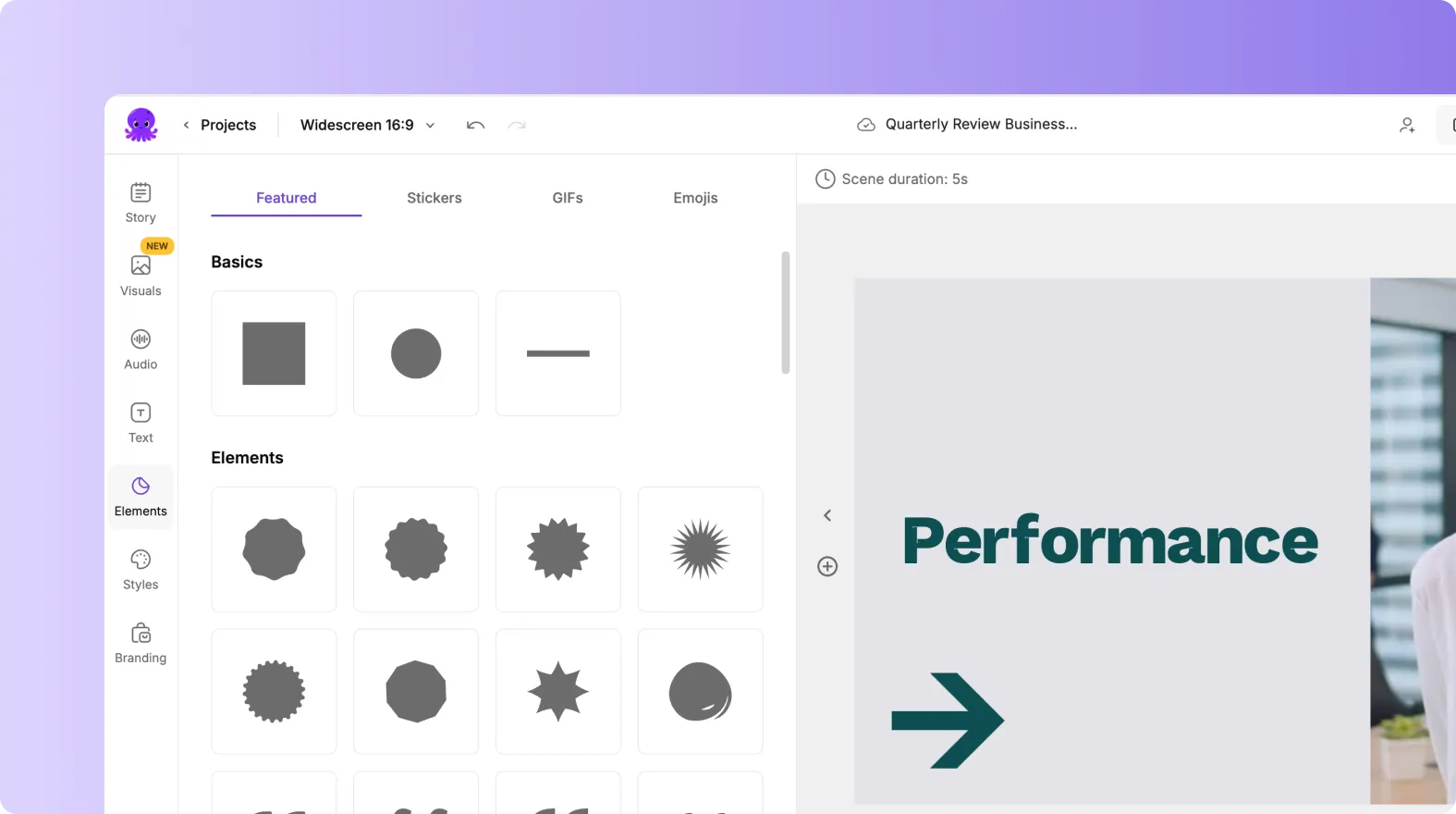
Clear visual emphasis improves viewer understanding.
Step 6: Use Icons for Instructions and Steps
Icons help support instructions or structured content.
Use icons to:
• Identify steps in a tutorial
• Mark important notes
• Show success or completion
• Warn about potential issues
• Represent features or tools
Icons make information more digestible.
Step 7: Preview Your Scene and Make Adjustments
Click the play button for the current scene to preview your layout.
Check for:
• Proper alignment
• Clear visibility
• Good contrast against your background
• Non distracting placement
Make adjustments until everything looks balanced.
Step 8: Export Your Video With Styled Shapes and Icons
When you finish editing:
- Click Preview Video
- Review your shapes and icons across all scenes
- Make final refinements
- Export your finished video
Your shapes and icons will be included in the final file.
Add Clear Visual Highlights Using Shapes and Icons in Pictory AI
Shapes and icons help you guide attention, emphasize key points, and improve the clarity of your video. With Pictory AI, you can add, customize, and position these elements easily to support tutorials, demos, social content, and more. They help your message stand out and make your content easier to understand.
Start adding shapes and icons to your next video in Pictory AI.


