
Pictory AI gives you the ability to generate custom images using AI prompt technology. This is helpful when you need visuals that are unique, brand specific, or hard to find in stock libraries. Once generated, you can add these AI images directly to your video scenes to improve clarity, storytelling, and design.
This guide shows you how to create AI images and add them to your scenes using Pictory AI.
Why Use AI Generated Images in Pictory AI
AI generated images give you full creative control. They allow you to create visuals that match your script, your brand, and your style without relying on existing footage.
AI images are useful when you need:
• Custom story visuals
• Brand specific illustrations
• Concept images
• Abstract or stylized designs
• Images not available in stock libraries
With AI image generation, your videos can become more original and more visually aligned with your message.
Step 1: Open the Visuals Tab
Start by selecting the scene where you want to add a custom image.
Click the Visuals tab in the left side menu. Then open the AI Studio section.
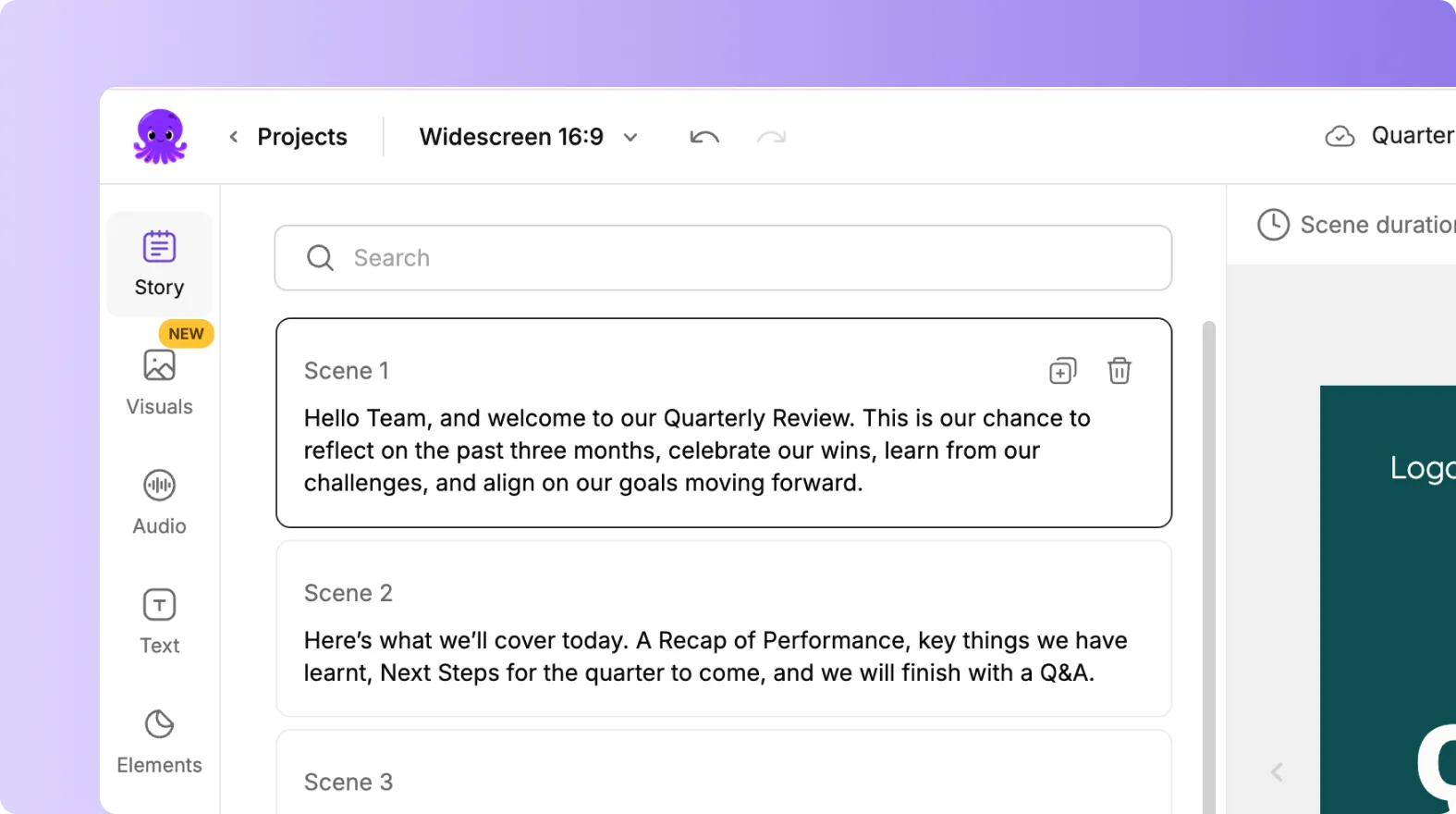
This is where you create your AI generated images.
Step 2: Write a Clear Prompt
AI image generation is guided by prompts. A clear and detailed prompt will give you better visual results.
Good prompts describe:
• The subject
• The setting
• The style
• The mood or tone
Examples include:
• “Illustration of a person writing on a laptop in a bright workspace”
• “Simple flat design icon of a camera”
• “Photo realistic image of a coffee cup on a desk”
• “Minimal line art of a team working together”

Well written prompts help AI Studio understand exactly what you want.
Step 3: Generate Your AI Image
After writing your prompt, click Generate. Pictory will produce several image options based on your description.
Scroll through your results to view them. If the results are not what you expected, adjust your prompt and try again.
Step 4: Preview and Select Your AI Image
Hover over each generated image to preview it. Review the image for:
• Clarity
• Relevance
• Style
• Scene fit
• Color tone
Once you choose your image, click it to apply it to your selected scene.
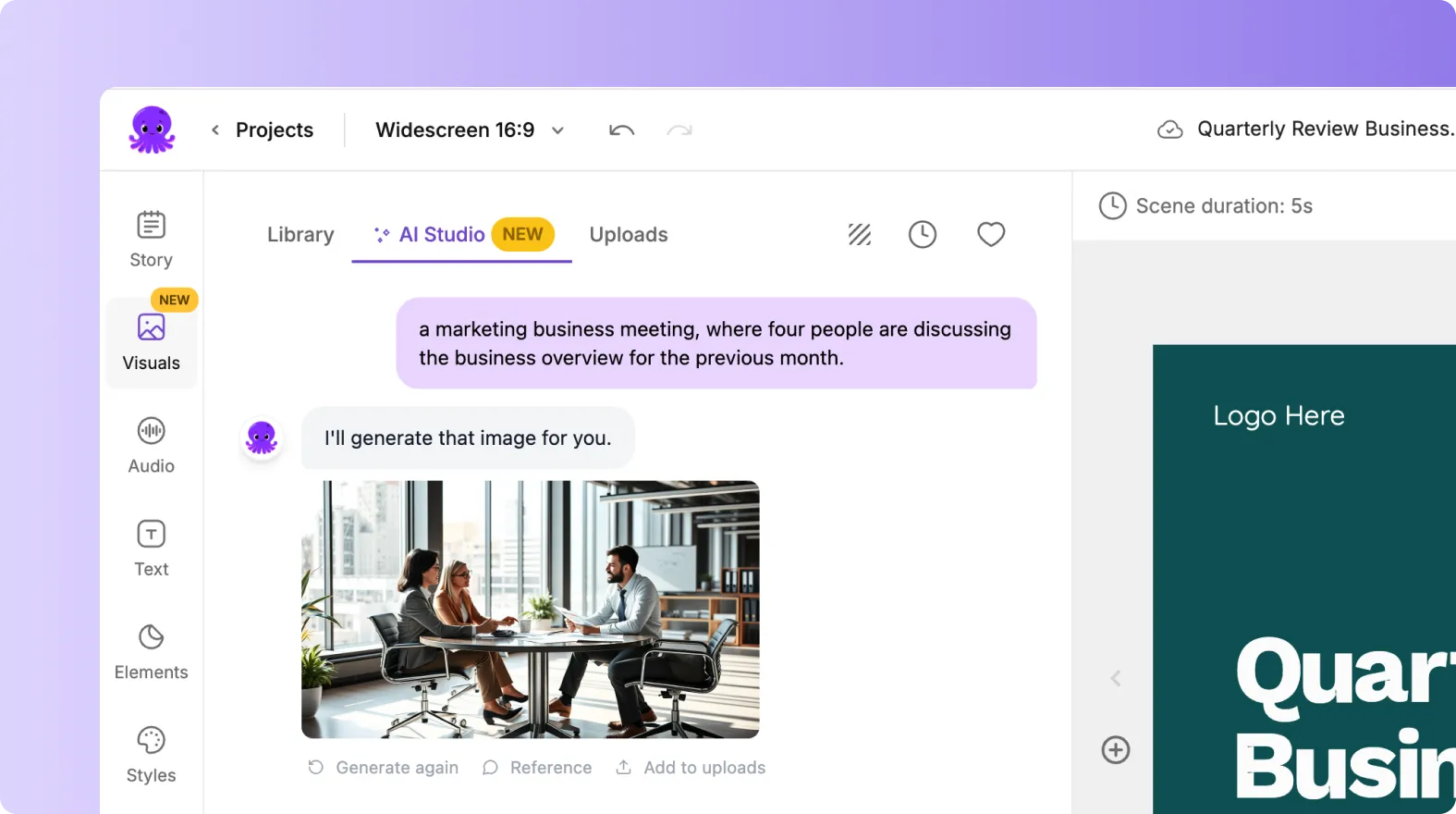
Your scene preview updates instantly.
Step 5: Add the AI Image to Your Scene
After selecting your generated image, it becomes the visual for that scene. You can now customize the scene as needed.
You can:
• Move your text for better contrast
• Adjust layout to fit the new visual
• Add elements such as arrows or labels
• Change text style for readability
Small adjustments help your new image look professional on screen.
Step 6: Save AI Images for Future Projects
You can save any AI generated image to your personal library. This allows you to reuse visuals across multiple videos.
Saved images appear under the Uploads section. This is helpful when creating consistent branding or recurring themes.
Step 7: Generate More Images to Explore Variations
AI Studio creates fresh results each time you generate. Experiment with different versions by changing:
• Style keywords
• Color descriptions
• Character or scene detail
• Perspective or focus
Testing variation prompts helps you discover images that match your creative direction.
Step 8: Preview Your Video Before Exporting
When your AI generated visuals are added:
Click Preview Video
Watch your scenes in order
Check that your AI images support the script
Ensure text remains clear and readable
Export your final video
Previewing helps you maintain consistency across all scenes.
Create Unique Custom Images With AI Studio in Pictory AI
AI generated images give you creativity and flexibility inside Pictory AI. By writing clear prompts and generating visuals that match your story, you can create highly personalized content. Whether you are building explainers, marketing videos, training content, or product demos, AI image generation helps your videos stand out.
Start creating custom AI images today and apply them to your scenes in Pictory AI.


