

How to Use Brand Kits and Layout Presets in Pictory 3
Save reusable brand settings and assets, then review how they appear in your video. A brand kit can hold your colors, fonts, logos, intros, outros, and defaults for voice and music.
How do you create a brand kit?
Open Brand kits and create a kit with a clear name. Add settings manually, extract them from a website URL, or upload brand guidelines. Then review the colors, fonts, and logos, and correct any extraction errors.
Step 1: Create the kit
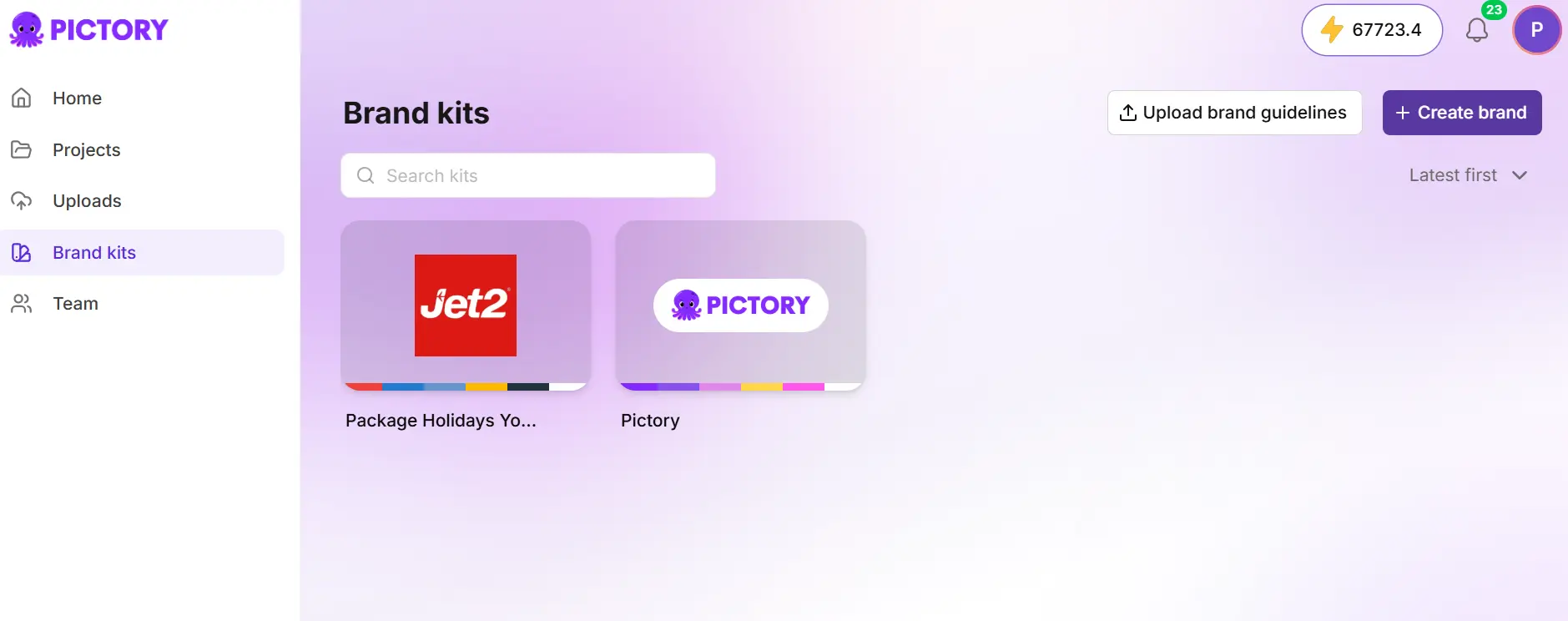
Open Brand kits and create a kit with a clear name.
Step 2: Add your settings
Add them manually, extract them from a website URL, or upload brand guidelines.
Step 3: Review and correct
Check the colors, fonts, and logos, and fix any extraction errors.
Step 4: Set the defaults
Set the offered defaults for voice, music, and other brand assets.
Step 5: Wait for saving, then set a default kit
Wait for automatic saving to finish. Set a default kit if you want it suggested for your own future videos.
Tip: Brand guidelines uploads accept PDF, DOC, and DOCX up to 40 MB. These limits apply to brand guidelines only. Documents you use as video content have different limits. If the guidelines cover several sub-brands, check which brand was extracted.
How do you apply branding and slates?
Choose a kit during setup or open Branding in the editor. Preview several scenes after applying it. Intro and outro assets become scenes and add to the total duration, so check their audio against your project music.
Add logos, intros, and outros in the kit sections, and remove any accidental duplicate intro or outro scenes. Keep logos away from captions, faces, and slide content. A brand logo is separate from any Pictory watermark your account or export settings require.
How do you upload brand fonts?
Open font management from your brand settings and upload TTF, OTF, WOFF, or WOFF2 files. After uploading, select the font in the relevant setting. Then check long captions, headings, accented characters, and the script your language uses.
A font change can alter text width and cause overflow. Use a supported fallback if needed, and generate again after corrections.
How do you choose a layout preset?
During setup, review the available presets and choose one, or select No preset. A preset can define composition, typography, and palette. Some preset families keep their own fonts and colors even when brand assets are applied.
Available presets can depend on your workspace. Review the result rather than assuming a kit overrides every preset setting.
How do you use your own media?
Add images or clips in Uploads and wait for the upload to finish. Choose personal uploads as a visual source during creation, or replace a scene visual from your library in the editor. Choose extracted visuals when your document or web source supplies usable images. Check that each chart or screenshot appears in the right scene.
A clip added as a visual supplies the picture and can also play its original sound. To remove recorded speech or make clips from a full recording, use the transcript-editing workflow in Record, clean up, and repurpose existing videos.
Name reusable assets clearly. Brand kits, uploads, custom avatars, cloned voices, and music can have separate sharing controls, so share them explicitly when teammates need them. See Save, share, and translate your projects.
Try it on your next video
Bring a brief or a source and review the story before it renders.
Try Pictory free, no credit card required →Related Academy guides
Academy guide.
Academy guide.
Academy guide.
Academy guide.
The hub for everything in Pictory 3.
Frequently asked questions
How do I create a brand kit in Pictory 3?
Open Brand kits and create a kit with a clear name. Add settings by hand, extract them from a website URL, or upload brand guidelines. Review the colors, fonts, and logos, set defaults for voice and music, and wait for automatic saving to finish.
Which files can I upload as brand guidelines?
Brand guidelines uploads accept PDF, DOC, and DOCX files up to 40 MB. These limits apply only to brand guidelines. Documents you use as video content have different limits. If your guidelines cover several sub-brands, check which brand the extraction picked.
Which font files can I upload?
You can upload TTF, OTF, WOFF, or WOFF2 files from font management in your brand settings. After uploading, select the font in the relevant setting. Then check long captions, headings, and accented characters, because a font change can alter text width and cause overflow.
Does a brand kit override my layout preset?
Not always. A preset can define composition, typography, and palette, and some preset families keep their own fonts and colors even when brand assets are applied. Preview several scenes after applying a kit, or choose No preset if you want the kit to lead.
Can teammates use my brand kit?
Not automatically. Brand kits, uploads, custom avatars, cloned voices, and music can have separate sharing controls, so share them explicitly when teammates need them. Each person also has their own default brand-kit preference, which is suggested for their own future videos.
How to Use Brand Kits and Layout Presets in Pictory 2
The Brand Kits feature in Pictory AI lets you maintain a consistent look and feel across all your videos. By saving your brand logo, colors, and fonts in one place, you can instantly apply your visual identity to any new project.
Whether you are creating marketing videos, internal training materials, or social media content, Brand Kits ensure every video aligns with your company or personal brand style.
What Is a Brand Kit in Pictory AI?
A Brand Kit is a saved collection of your brand’s visual identity elements that you can apply to any video inside Pictory.
Each kit includes your logo, color palette, and font selections. Once created, your Brand Kit appears in the Branding Tab of the AI Video Editor, where you can apply it instantly to update your video’s text, visuals, and overlays.
With Pictory’s Brand Kits, you can:
Upload and manage multiple brand identities
Save logos, colors, and fonts for reuse
Apply your brand instantly to any project
Maintain a consistent look across all videos
Perfect for:
Businesses managing multiple brands or clients
Agencies creating branded content for different customers
Marketers maintaining brand consistency in campaigns
Creators keeping visual uniformity across channels
Step-by-Step: How to Create and Apply Brand Kits in Pictory
Follow these steps to set up and use Brand Kits in your videos.
Step 1: Access Brand Kits
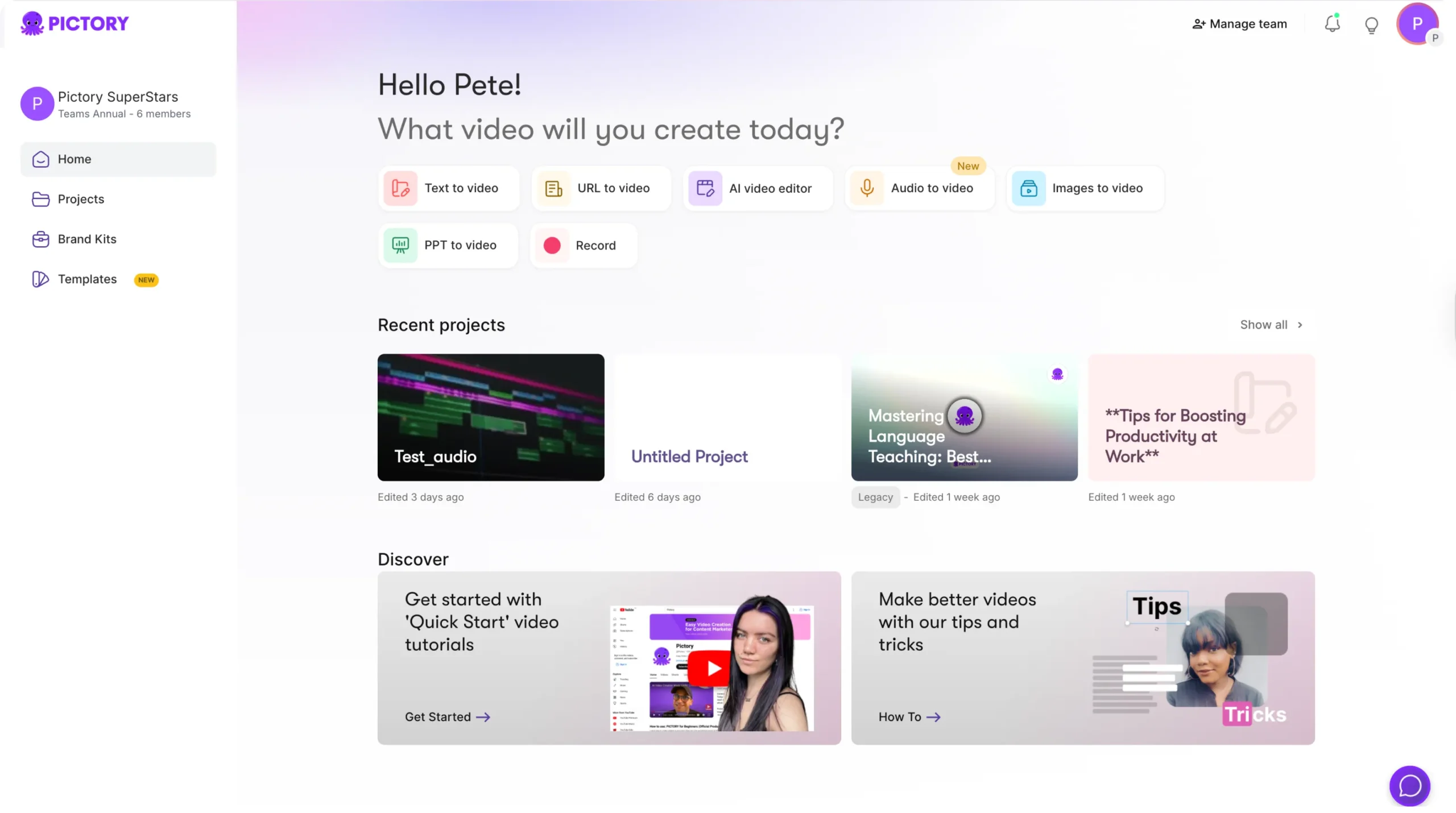
You can access Brand Kits from the left-hand sidebar on your Pictory dashboard or directly from the AI Video Editor under the Branding Tab.
From the Home Page, click Brand Kits in the navigation panel.
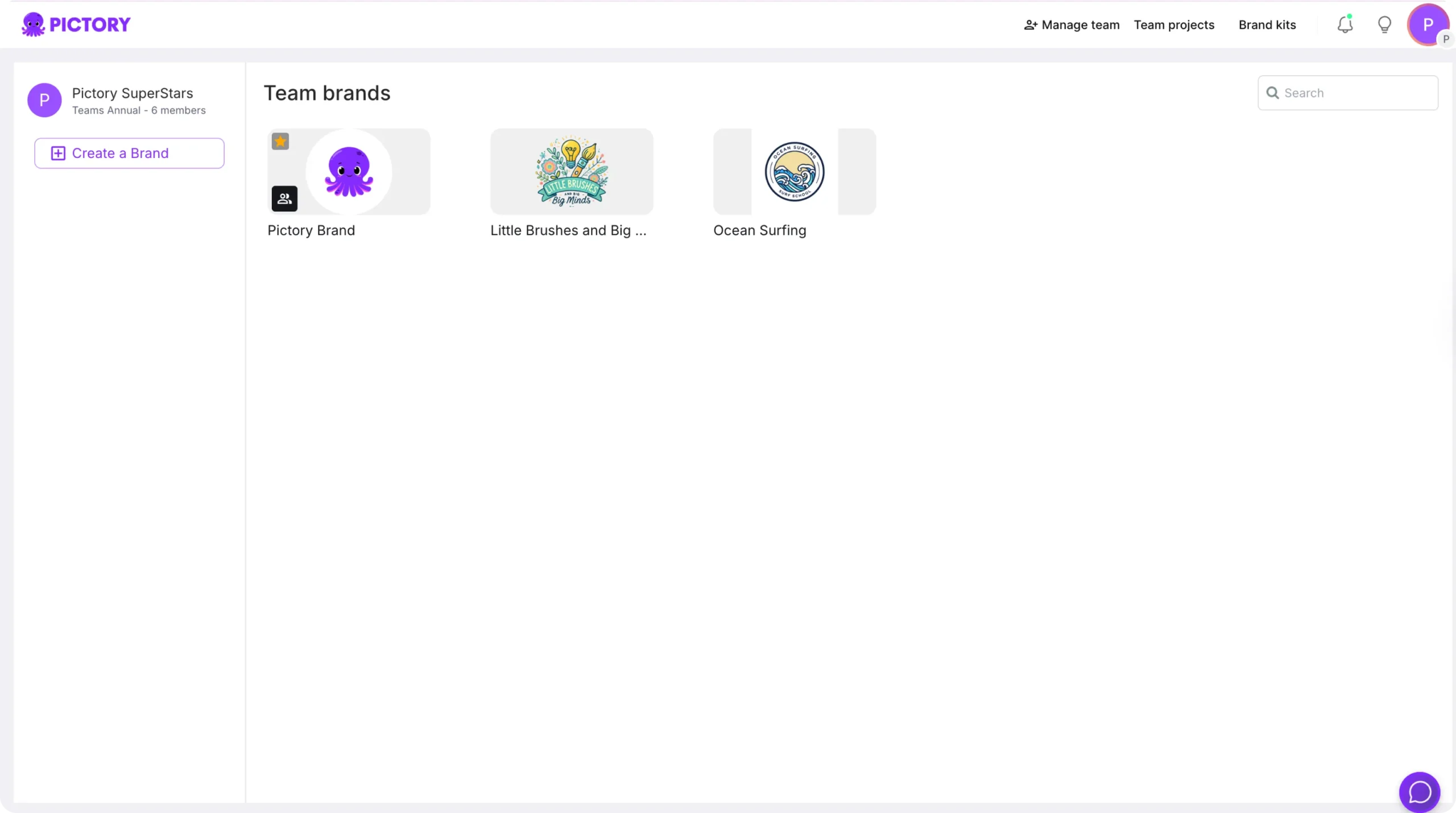
The Brand Kits Page displays all existing kits under My Brands.
To add a new one, click Create a Brand on the left panel.
Step 2: Create a New Brand Kit
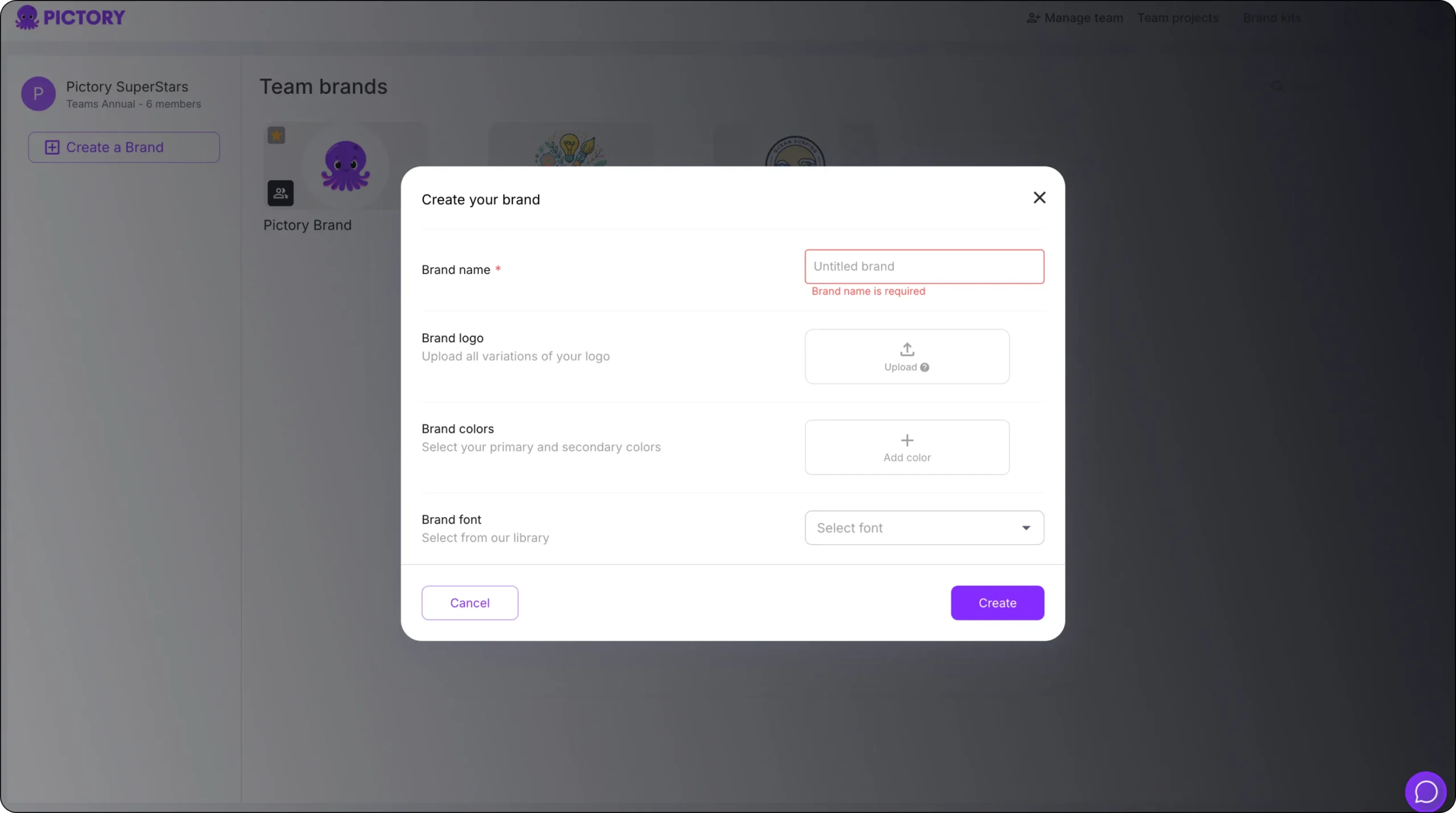
A Create a Brand window will open, allowing you to enter your brand details.
You can:
Name your Brand Kit: Enter a name to identify it easily.
Upload your Logo: Add your logo file by dragging and dropping or browsing from your computer.
Choose Brand Colors: Pick your primary and secondary colors using the built-in color picker.
Select Brand Fonts: Choose from Pictory’s font library to match your brand’s typography.
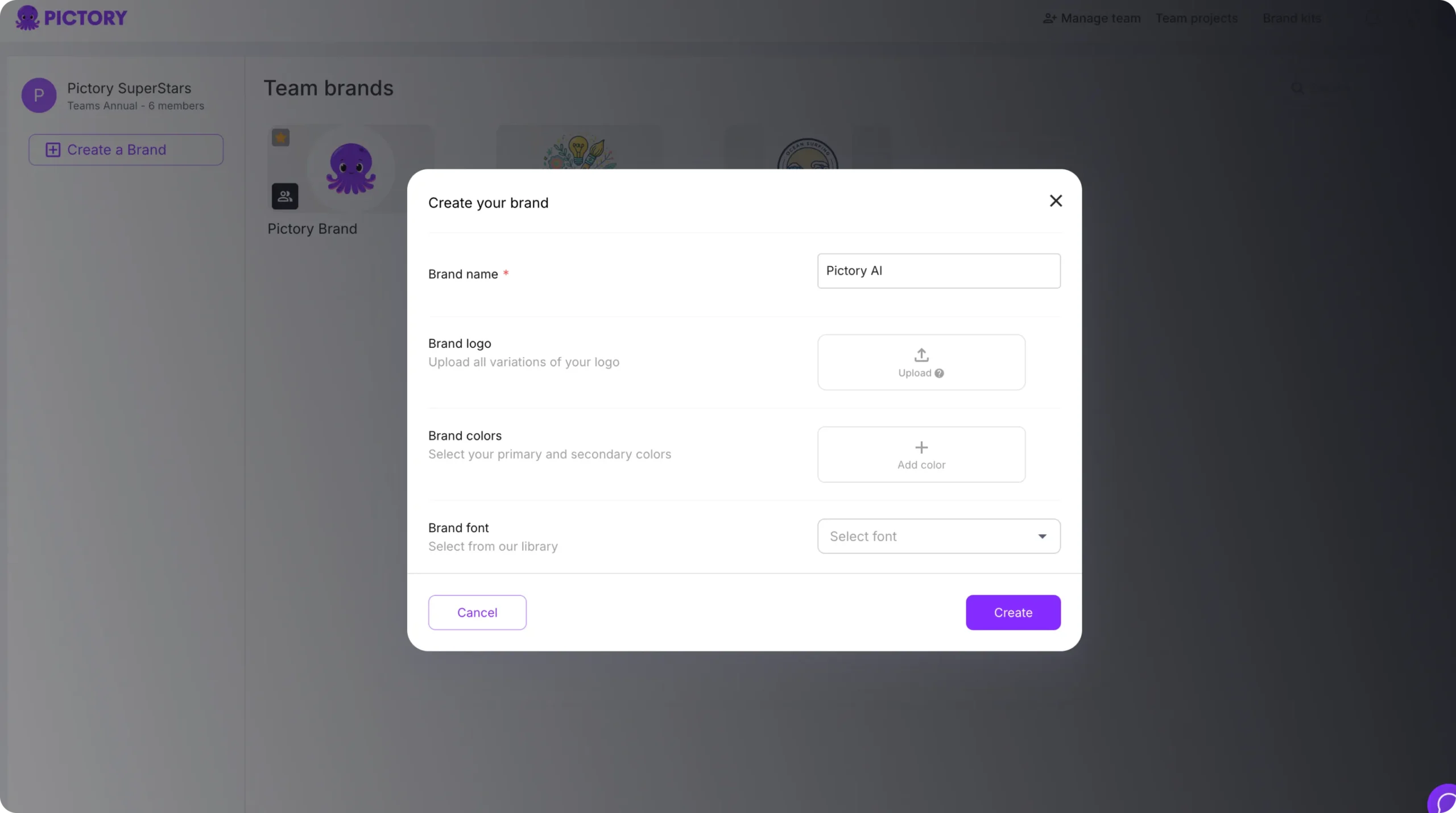

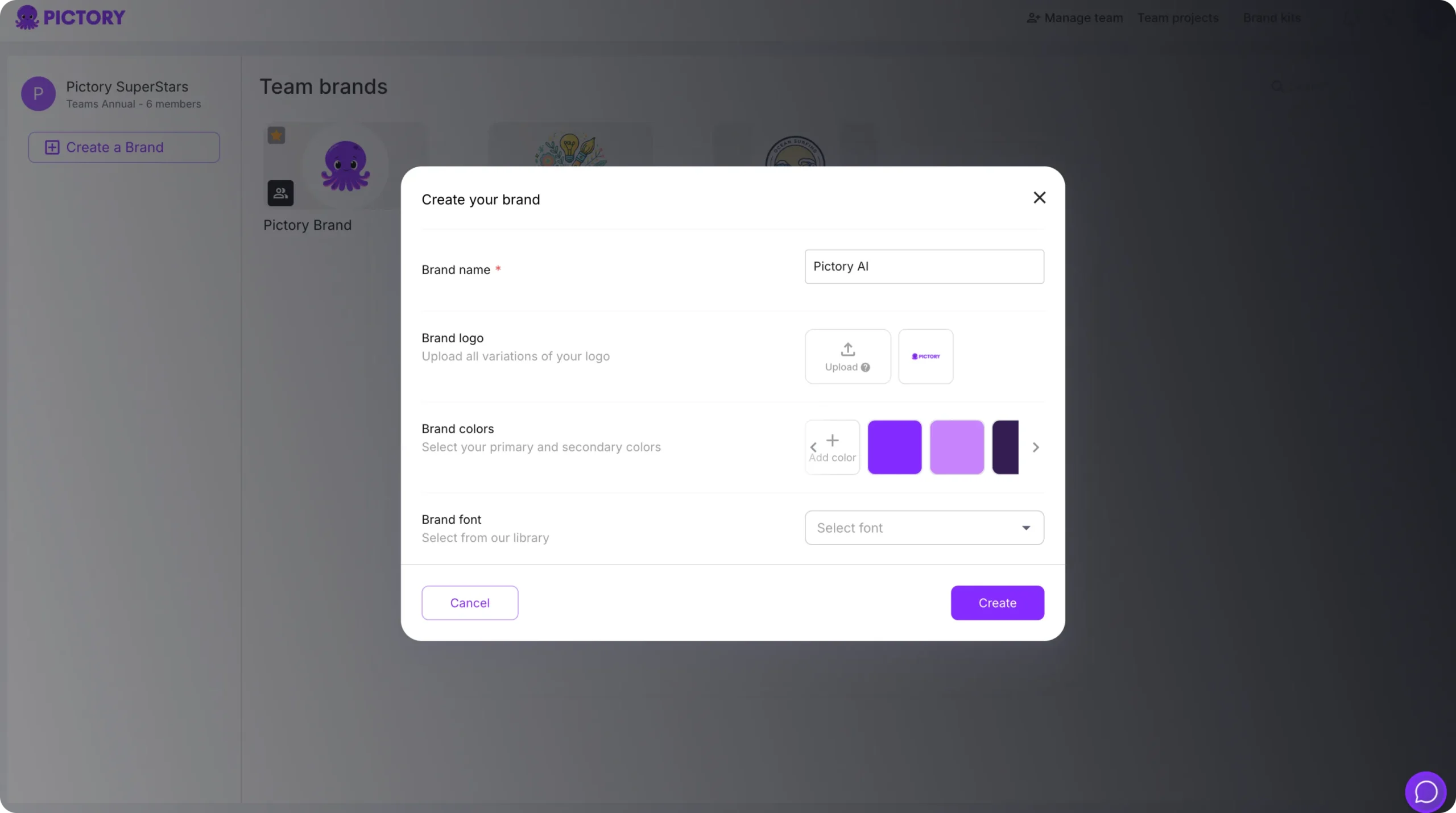

Once all elements are added, click Create to save your Brand Kit.
Your new kit will now appear under My Brands on the Brand Kits Page.
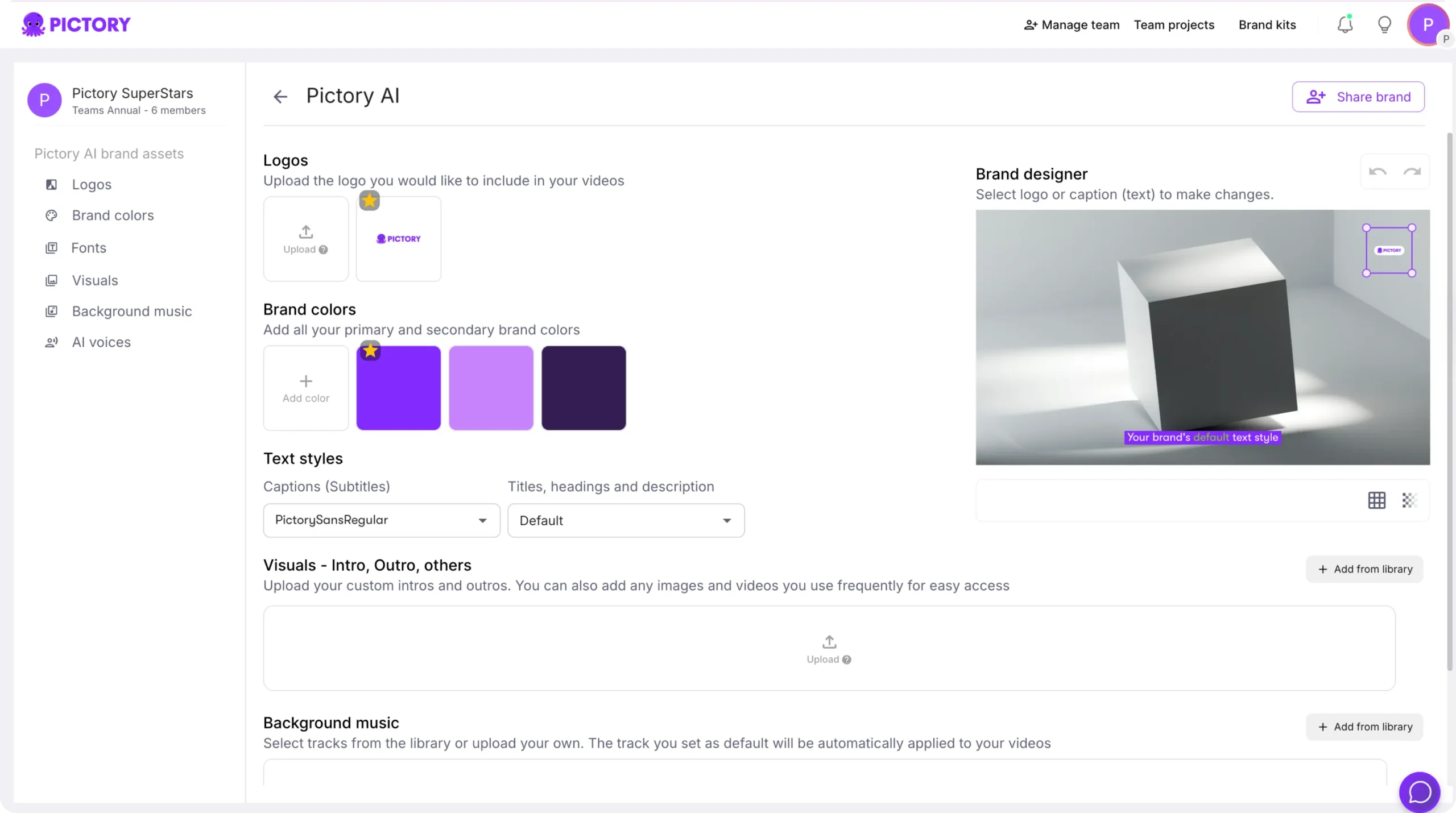
Step 3: Manage Your Brand Kits
Once created, you can manage your Brand Kits directly from the Brand Kits Page.
You can:
Edit an existing Brand Kit to update logos, colors, or fonts
Delete old or unused kits
View a preview of your brand style before applying it to videos
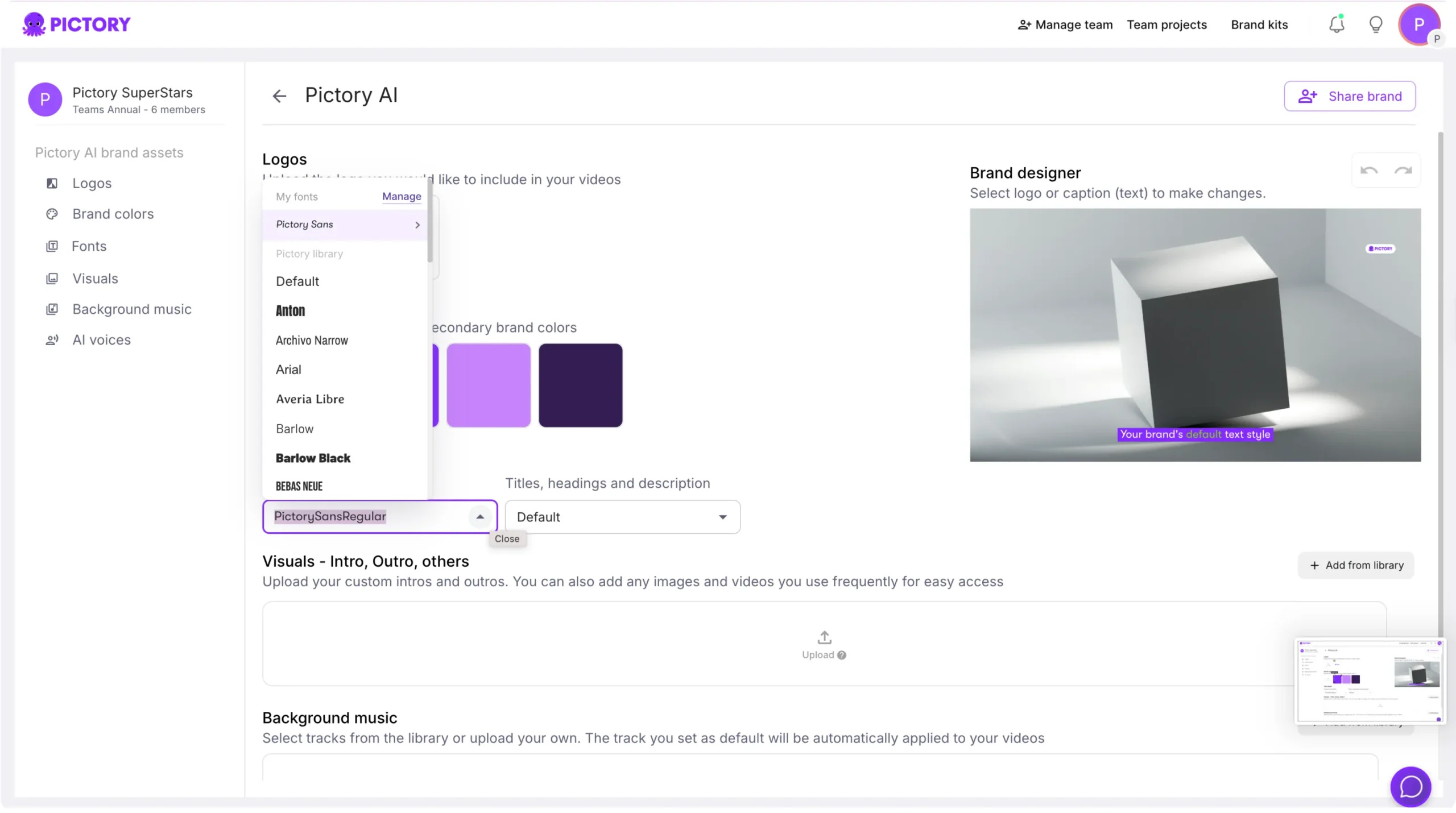


Having multiple Brand Kits allows agencies or creators to switch easily between brands or clients.
Step 4: Apply a Brand Kit in the AI Video Editor
To apply your Brand Kit to a video:
Open any project in the AI Video Editor.
Click on the Branding Tab in the left-hand sidebar.
Select your Brand Kit from the Brand Kit dropdown list.
Once selected, your logo, brand colors, and fonts automatically update across your video’s text, captions, and overlays.
This feature ensures visual consistency without manual adjustments in every scene.
Step 5: Customize and Fine-Tune
After applying your Brand Kit, you can still make small adjustments to text, colors, and layouts for individual videos.
You can:
Change text color or font size for specific scenes
Reposition your logo to fit the layout
Adjust transparency or background styles
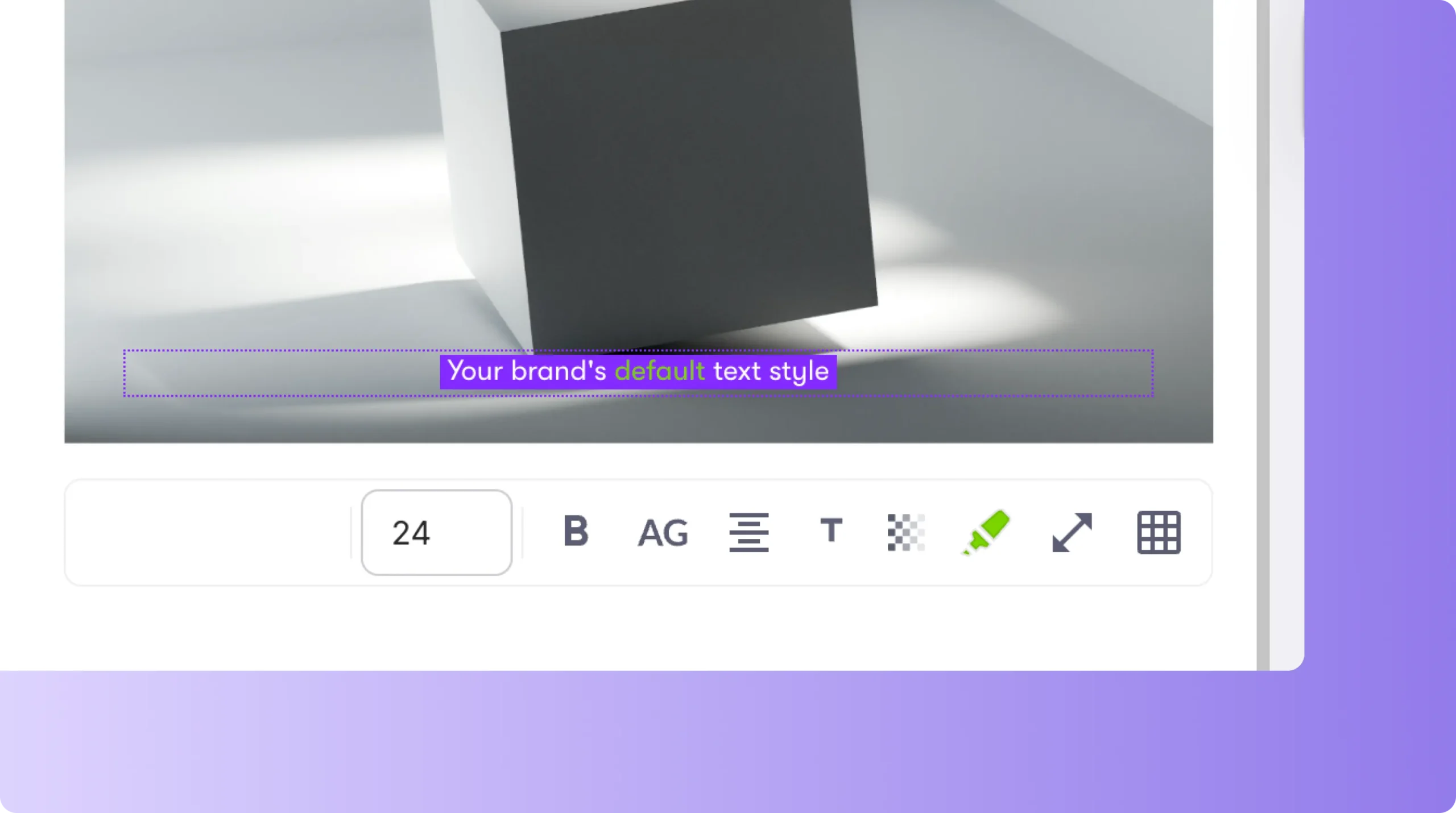


These refinements allow flexibility while still maintaining brand alignment.
Step 6: Preview and Export Your Branded Video
Click Preview Video to review how your logo, fonts, and colors appear throughout your video. Check that all text and overlays are readable and consistent.
When satisfied, click Download Video to export. Your brand styling will remain applied automatically for any future edits.
Pro Tips for Using Brand Kits
Keep your Brand Kit simple with two to three main colors for clarity.
Use the same logo and fonts across all videos to strengthen brand identity.
Save separate kits for different brands, products, or clients.
Apply your Brand Kit early in the editing process for consistency.
Always preview before export to verify readability on different backgrounds.
Why Use Pictory AI Brand Kits
Pictory’s Brand Kits feature saves time and ensures your videos always look on-brand.
You get:
Centralized brand management for all projects
Instant application of logos, fonts, and colors
Consistent video design without manual reformatting
Support for multiple brand identities
Seamless integration inside the AI Video Editor
It is the easiest way to maintain professional, cohesive video branding at scale.
Frequently Asked Questions
Can I create more than one Brand Kit?
Yes. You can create and manage multiple Brand Kits for different brands, clients, or campaigns.
What elements can I include in a Brand Kit?
Each kit can include a logo, brand colors, and brand fonts.
Can I edit or delete a Brand Kit after saving it?
Yes. You can edit or delete any Brand Kit directly from the Brand Kits Page.
How do I apply a Brand Kit to a video?
Open your video in the AI Video Editor, go to the Branding Tab, and select your Brand Kit from the dropdown menu.
Will my Brand Kit settings save for future projects?
Yes. Once created, your Brand Kit remains available for all new and existing projects.