
Custom Styles allow you to control the design of your videos beyond the default style templates. With Custom Styles, you can define your own text settings, animations, and layout preferences so every video matches your brand or creative direction. Pictory AI makes it easy to build and save your own styles for repeat use.
This guide shows you how to create Custom Styles inside Pictory AI.
What Custom Styles Do
Custom Styles let you create unique design settings for:
• Fonts
• Text sizes
• Text colors
• Entry and exit animations
• Background settings
• Layout preferences
These settings apply across all scenes and help you produce videos with a consistent visual identity. Custom Styles are ideal for creators, brands, agencies, and anyone producing recurring content.
Step 1: Open a Project and Apply a Base Style
Before creating your own style, start by applying one of Pictory’s default styles.
Open your project
Click the Styles tab
Choose a base style to start from
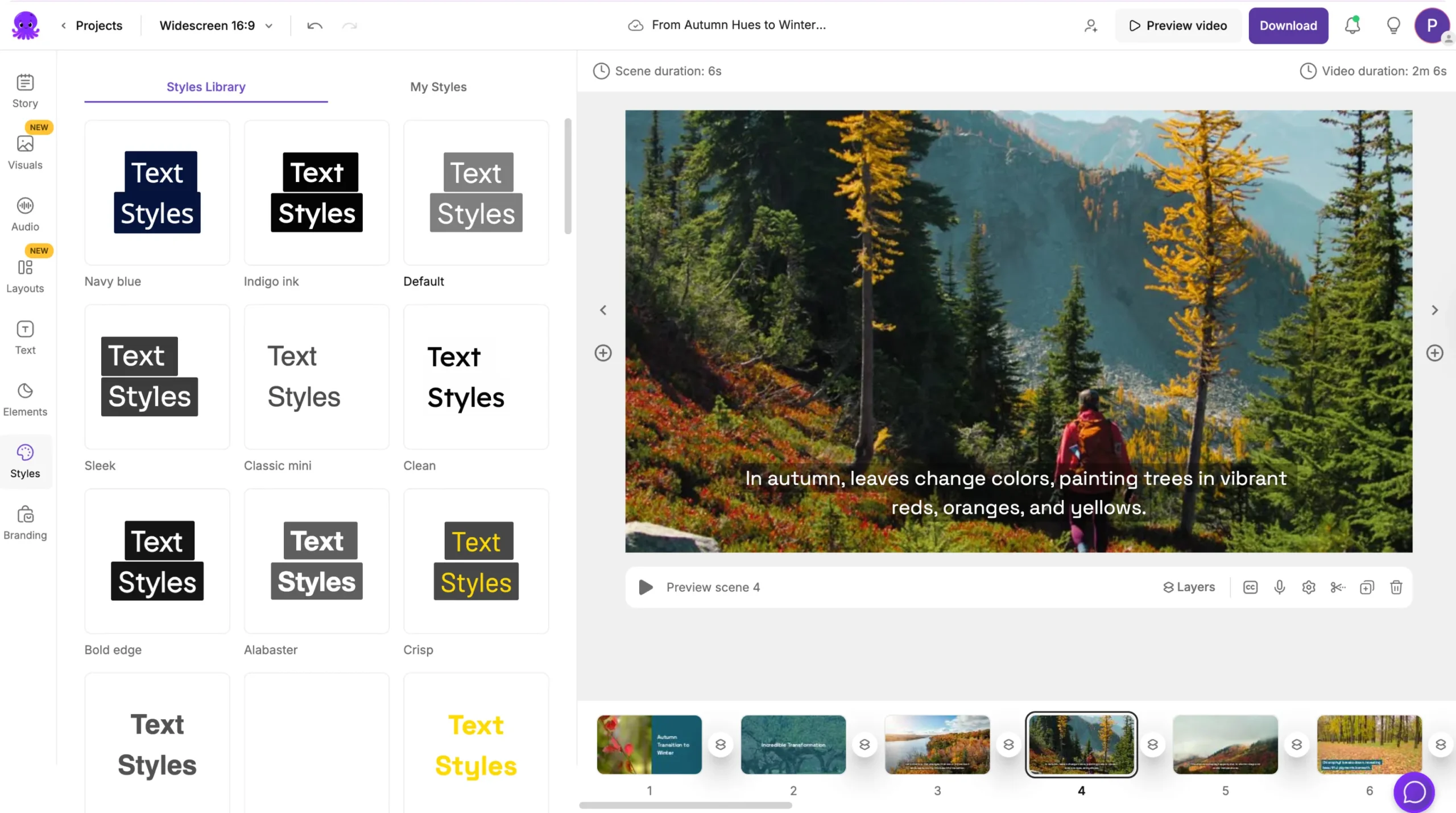
Your Custom Style will build on top of this foundation.
Step 2: Customize Your Text Settings
Open the Text tab and adjust your text to match your preferred design. You can update:
• Font type
• Text size
• Text color
• Line spacing
• Background highlight color
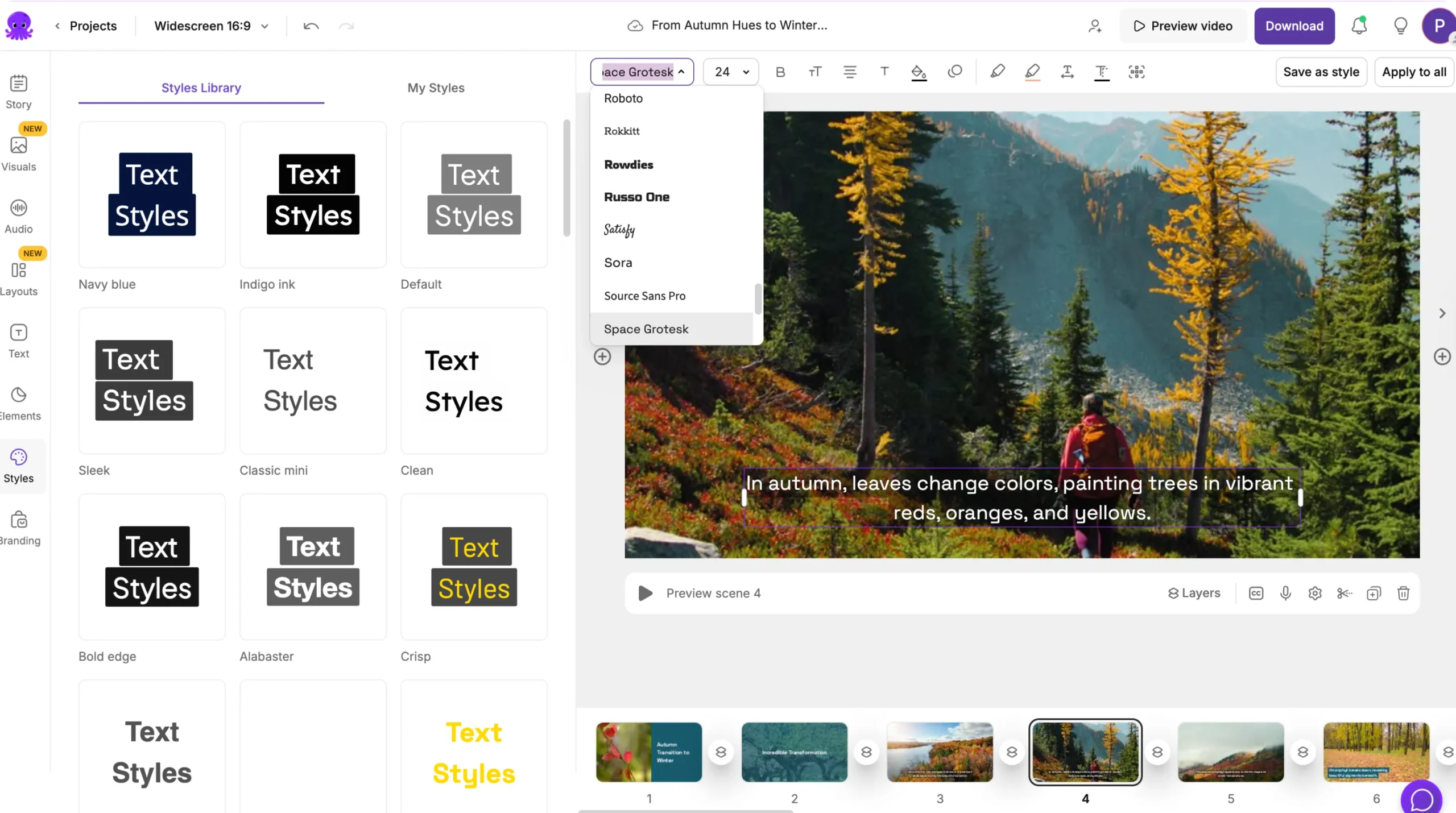
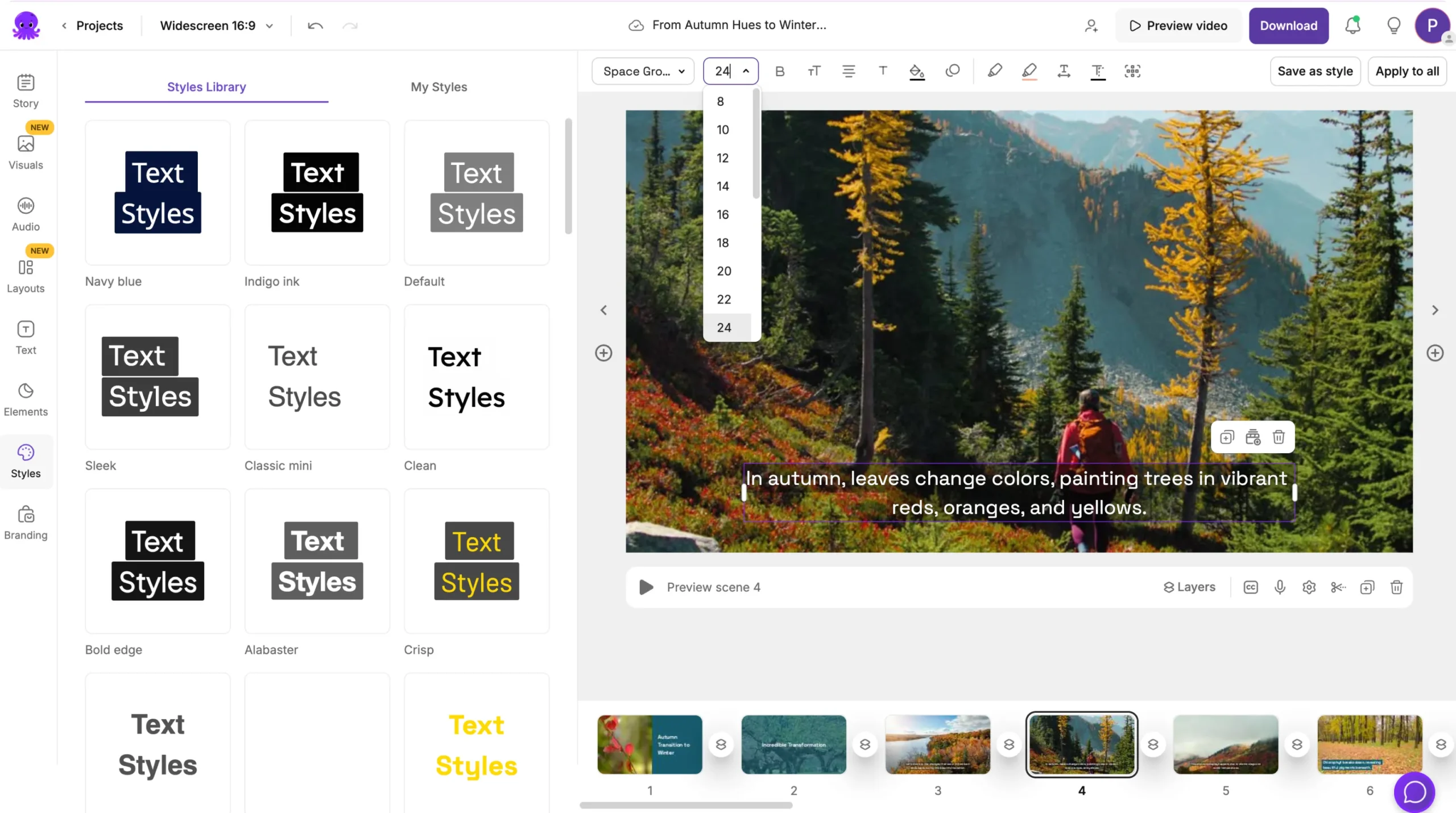

These settings become part of your Custom Style.
Make sure your text remains readable on all backgrounds.
Step 3: Add Text Animations
If you want animations included in your style:
Select a text element
Click the Animate Text icon
Choose the animation type
Adjust the speed
Apply to multiple text elements
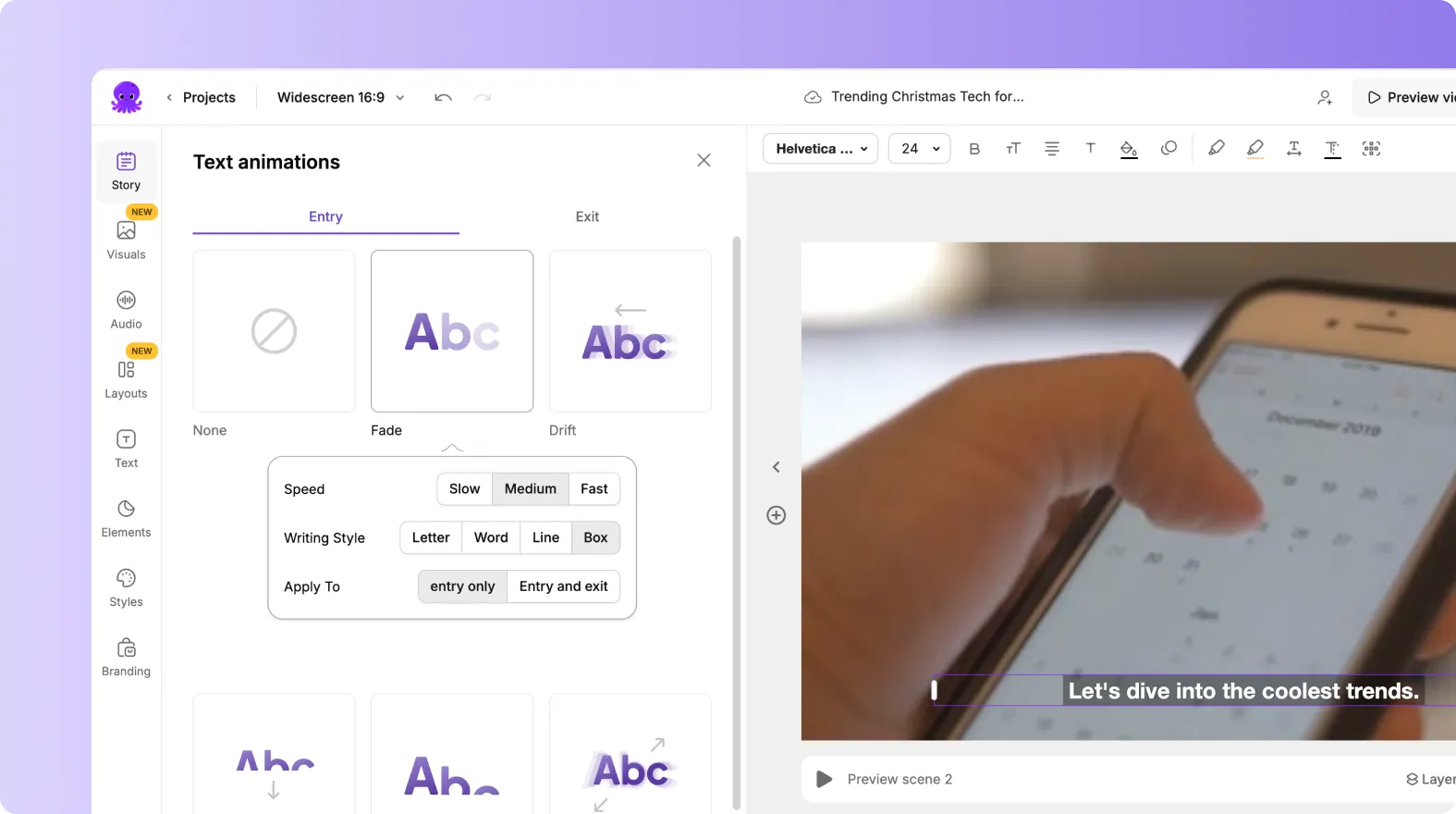
Animations in Custom Styles help create consistent motion across all scenes.
Step 4: Adjust Layout and Positioning
Use the Layouts tab to choose a text and visual arrangement that fits your style. Your Custom Style will save this layout as the default structure for your scenes.
You can refine:
• Text alignment
• Visual placement
• Spacing
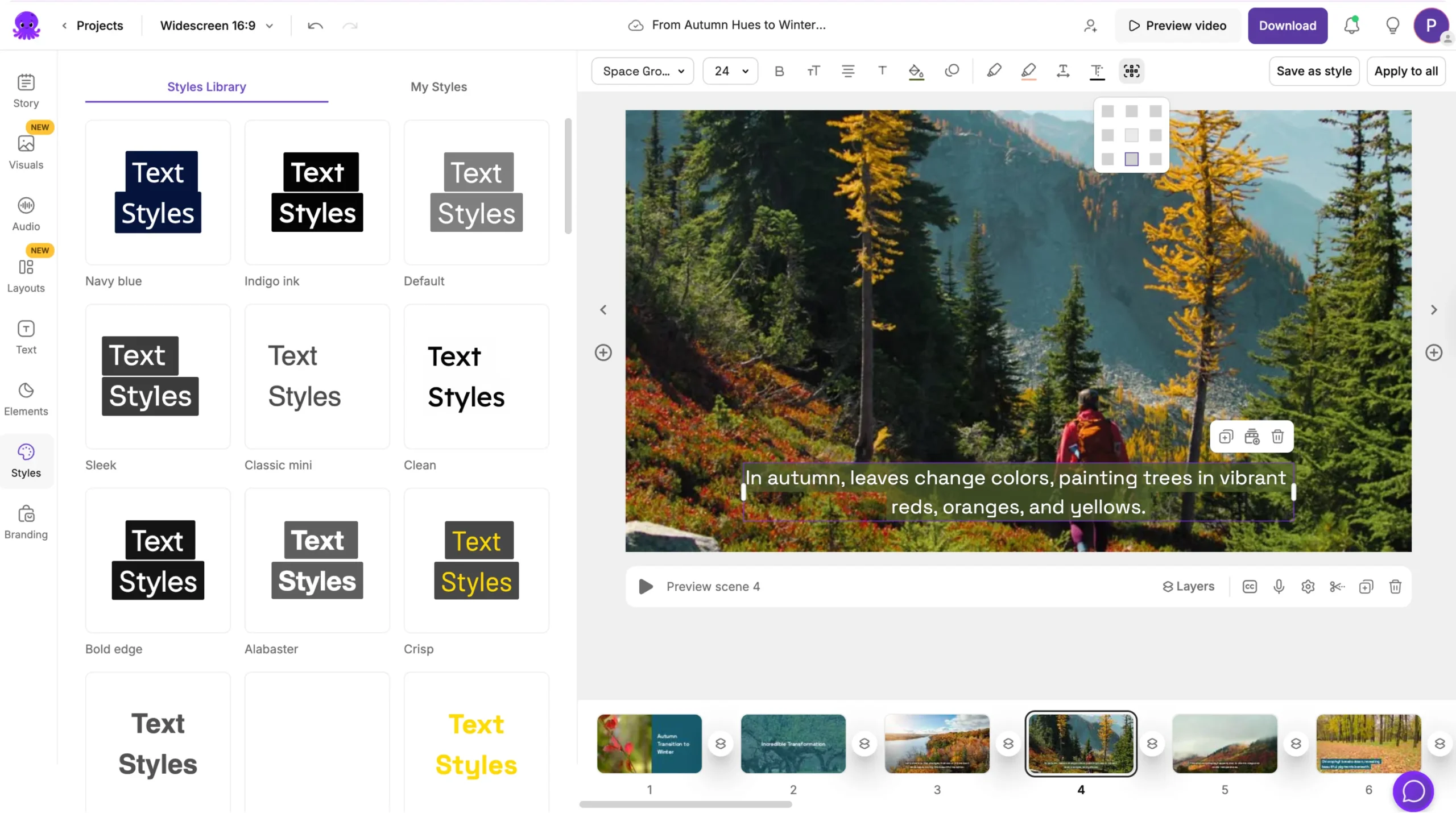
Choose a layout that reflects your content type, such as clean layouts for tutorials or bold layouts for marketing content.
Step 5: Apply Brand Kit Settings
If you use a Brand Kit, apply it before saving your Custom Style. This ensures your Custom Style includes:
• Brand fonts
• Brand colors
• Logo placement
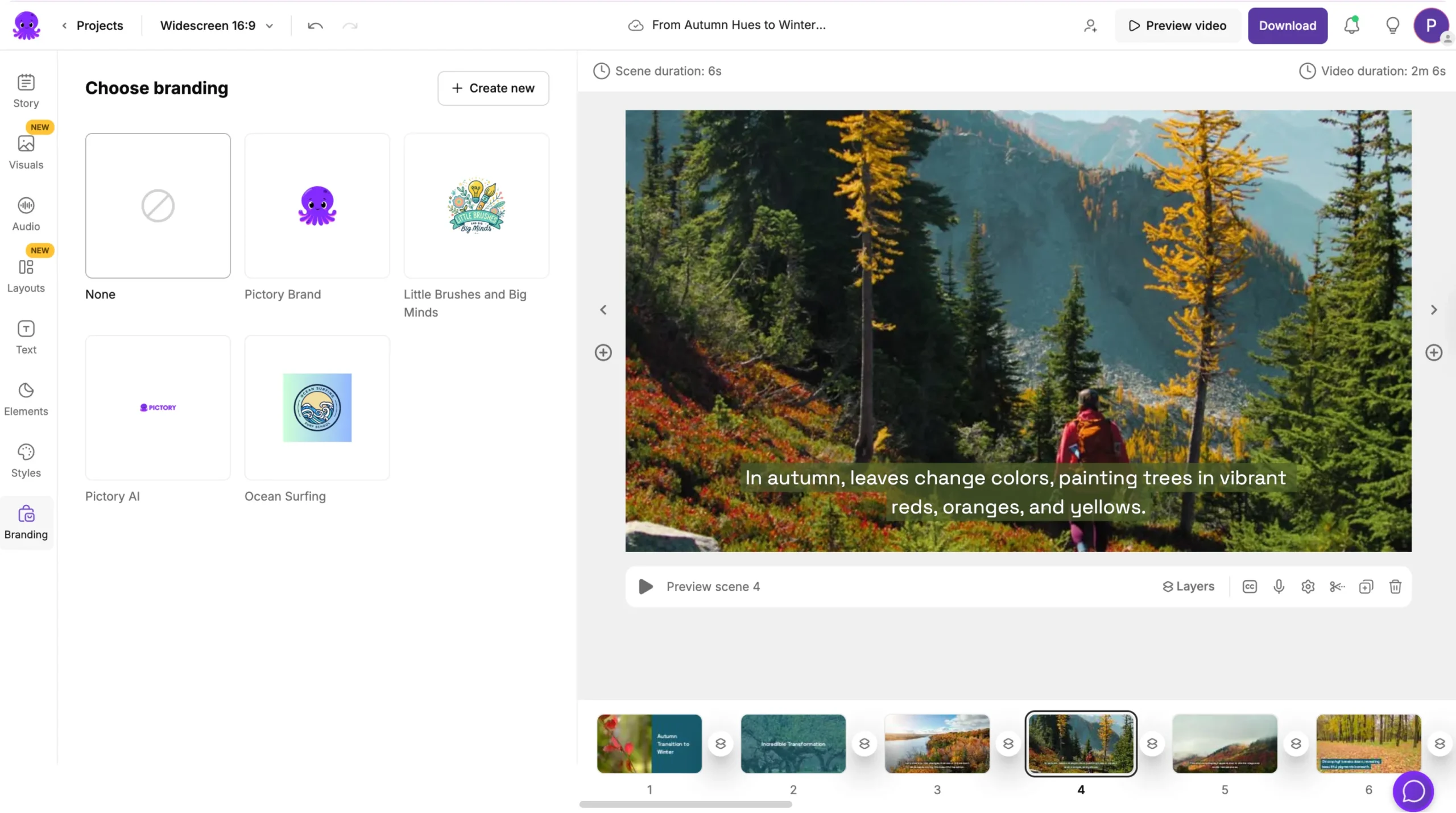
Brand Kits work together with Custom Styles to deliver a unified look.
Step 6: Save Your Custom Style
Once you are happy with your adjustments:
Go to the Styles tab
Click Save Style or Create New Style
Name your Custom Style
Save it for future use
Your Custom Style now appears in your Styles library.
Step 7: Apply Your Custom Style to New Projects
You can use your Custom Style in any project.
Open a new or existing project
Go to the Styles tab
Choose your saved Custom Style
Apply it with one click
All text, layouts, animations, and design preferences update instantly.
Step 8: Edit or Update Your Custom Style Anytime
If you want to refine your style:
Open a project using the style
Adjust your design settings
Save the changes to the existing Custom Style
Or save it as a new style variation
This helps you evolve and maintain consistent design across your content.
Create Consistent, Professional Designs With Custom Styles in Pictory AI
Custom Styles help you produce videos that reflect your brand or creative identity. By setting up your own fonts, layouts, animations, and design rules, you save time and ensure every video looks clean and consistent. Whether you create tutorials, marketing videos, or client projects, Custom Styles help streamline your production workflow.
Start building your Custom Styles today in Pictory AI.


