
Pictory AI allows you to upload and organize your own media so your videos can include personal footage, branded assets, product visuals, or client content. When you import your own images and videos, you can build more authentic and customized scenes that align with your brand or message.
This guide shows you how to upload and manage your own media inside Pictory AI.
Why Uploading Your Own Media Matters
Using your own media helps you create videos that feel personalized and consistent with your brand. It is especially useful for:
• Product demos
• Client projects
• Tutorials and walkthroughs
• Branded content
• Social media campaigns
• Training and internal videos
Your own media lets you combine real world visuals with Pictory’s editing tools for a more polished result.
Step 1: Open the Visuals Tab
Select the scene where you want to add your custom media. Click the Visuals tab in the left side menu. Then click the Uploads section.
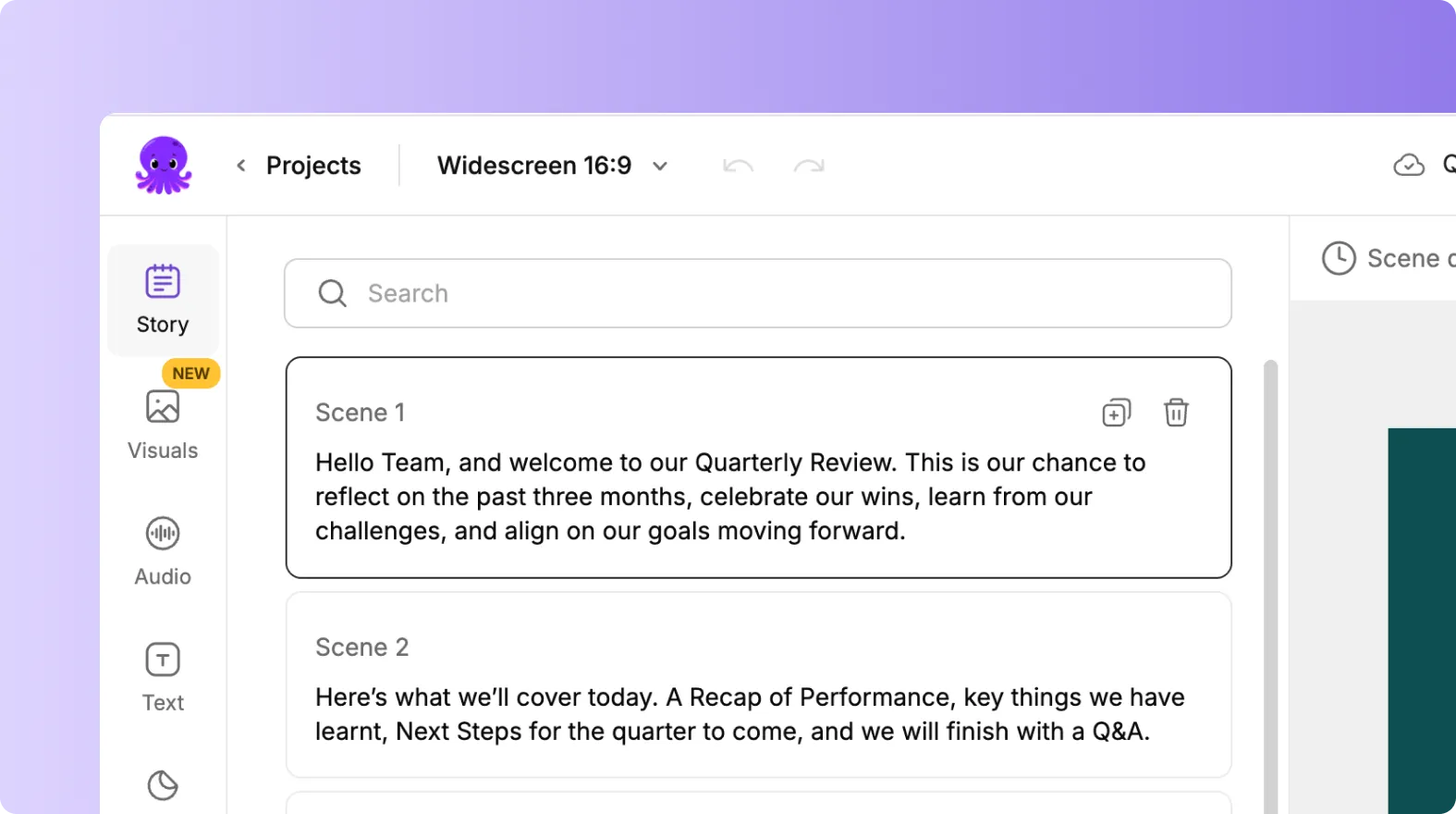
This is your personal library where all uploaded content is stored.
Step 2: Upload Your Media Files
Click Upload Media or drag and drop your files directly into the Uploads area. You can upload:
• Images (PNG, JPG, JPEG)
• Video clips (MP4, MOV, and other common formats)
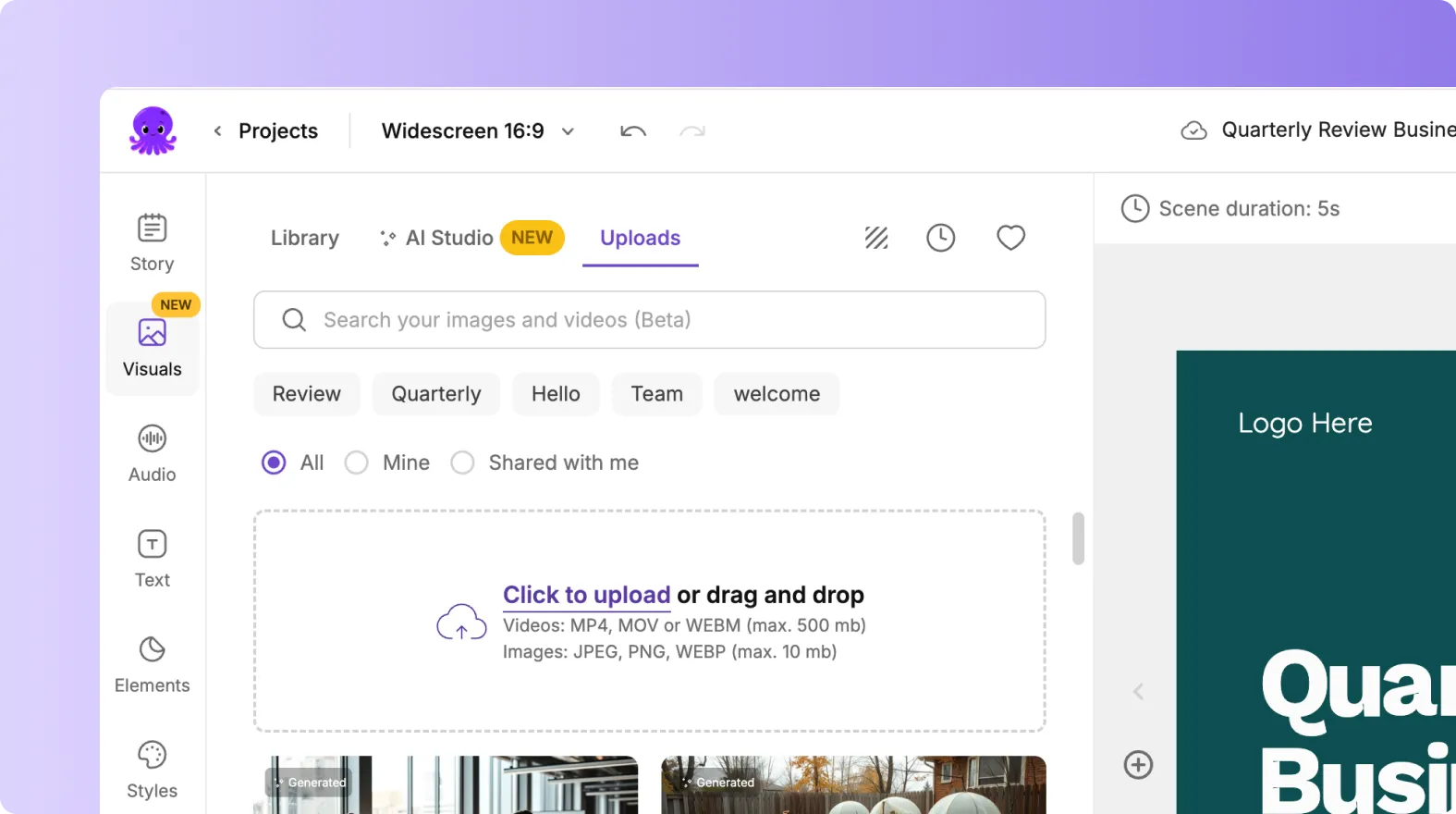
There is no need to prepare content in advance. Pictory accepts most standard media types and processes them automatically.
Step 3: Apply Your Uploaded Media to a Scene
After uploading, your media appears in the Uploads section. Click any image or video to apply it to your selected scene. The preview updates immediately so you can see how it looks.
You can swap between uploads and stock visuals at any time.
Step 4: Organize and Manage Your Uploaded Files
The Uploads section stores all your imported content. You can scroll through your media, preview it, and select the items you want.
To manage your uploads effectively:
• Delete files you no longer need
• Reupload updated versions if necessary
• Keep frequently used brand visuals available
• Store product images for demos and marketing videos
This gives you a clean, organized workspace for ongoing content creation.
Step 5: Add Uploaded Media as Layered Elements
Your uploaded files can be used as background visuals or layered elements.
For example, you can add:
• Product screenshots
• Logos
• Infographics
• Charts
• Device mockups
Switch to the Elements or Text tab to add overlays on top of your uploaded visuals. This helps you create instructional scenes and branded content.
Step 6: Use Uploaded Videos for Demonstrations
If you upload video clips, you can use them in scenes just like stock footage. Uploaded videos are ideal for:
• Product walkthroughs
• Screen recordings
• Physical product demonstrations
• Event footage
Apply them to scenes and edit them in the same way you use any Pictory visual.
Step 7: Replace Media When Changing Aspect Ratios
When switching between 16:9, 1:1, or 9:16, some uploaded visuals may not fit perfectly. Use the Visuals tab to replace or reposition your uploads so they stay clear in the new format.
This keeps your content looking clean and professional on every platform.
Step 8: Preview Your Video Before Exporting
Before exporting your final video:
Click Preview Video
Check each scene that uses uploaded media
Ensure visuals are positioned correctly
Make adjustments for clarity
Previewing ensures your custom media appears exactly the way you want.
Create Personalized, Branded Videos Using Your Own Media in Pictory AI
Uploading your own media allows you to build videos that match your brand, your products, and your message. With simple upload tools and a clear management system, you can combine personal visuals with Pictory’s editing features to create polished professional content.
Start adding your own images and videos to your next project using Pictory AI.


