
Adding your own voiceover to a Pictory AI video is a powerful way to personalize your content and keep your authentic tone. Whether it’s your narration, podcast segment, or a client’s recorded script, Pictory’s Upload Voiceover & Auto-Sync feature automatically aligns your audio with the video scenes—no manual syncing required.
This guide walks you through exactly how to upload, sync, and customize your own voiceover inside Pictory AI’s video editor.
What Is the Upload Voiceover & Auto-Sync Feature?
Pictory AI’s Upload Voiceover & Auto-Sync lets you bring in a pre-recorded narration and automatically match it to your video timeline.
Once uploaded, the AI analyzes your audio track, detects timing and pauses, and syncs it perfectly to your video scenes.
This feature is ideal for:
YouTubers who record voiceovers separately
Brands who prefer using their official spokesperson
Podcasters converting episodes to video
Educators adding lectures or lessons to visuals
No more manual alignment—Pictory’s AI does the heavy lifting in seconds.
Step 1: Open Your Project in the Video Editor
Log in to your Pictory AI dashboard.
Open an existing project or create a new one using any workflow (Text to Video, Script to Video, or AI Video Editor).
Once your storyboard and visuals are ready, click on the Audio Tab from the left-hand toolbar.
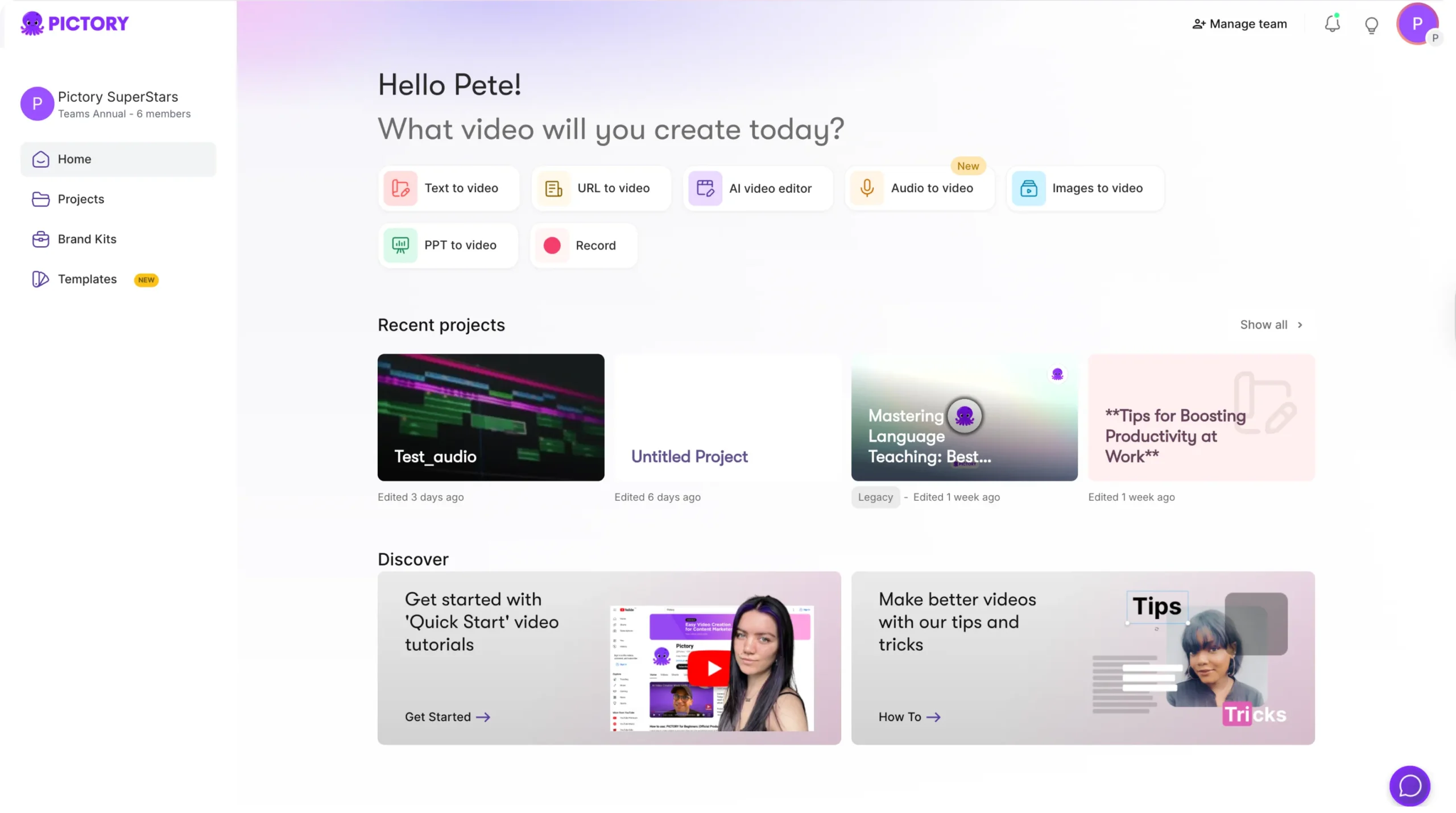
This is where all audio controls—voiceovers, background music, and uploads—are managed.
Step 2: Upload Your Voiceover
Inside the Audio Tab, you’ll see three main sections:
Voiceover (AI Voices)
Music Library
Uploads
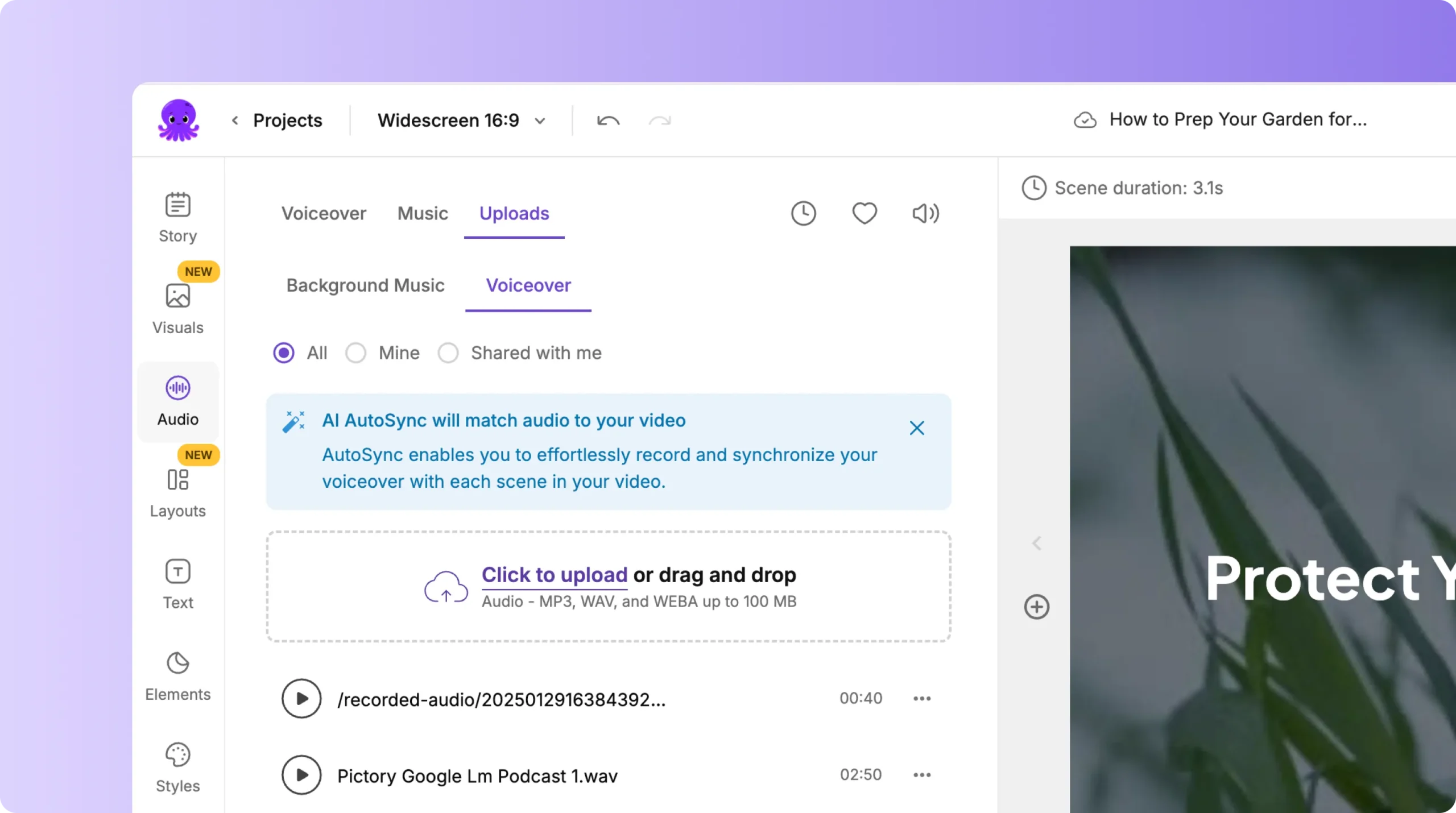
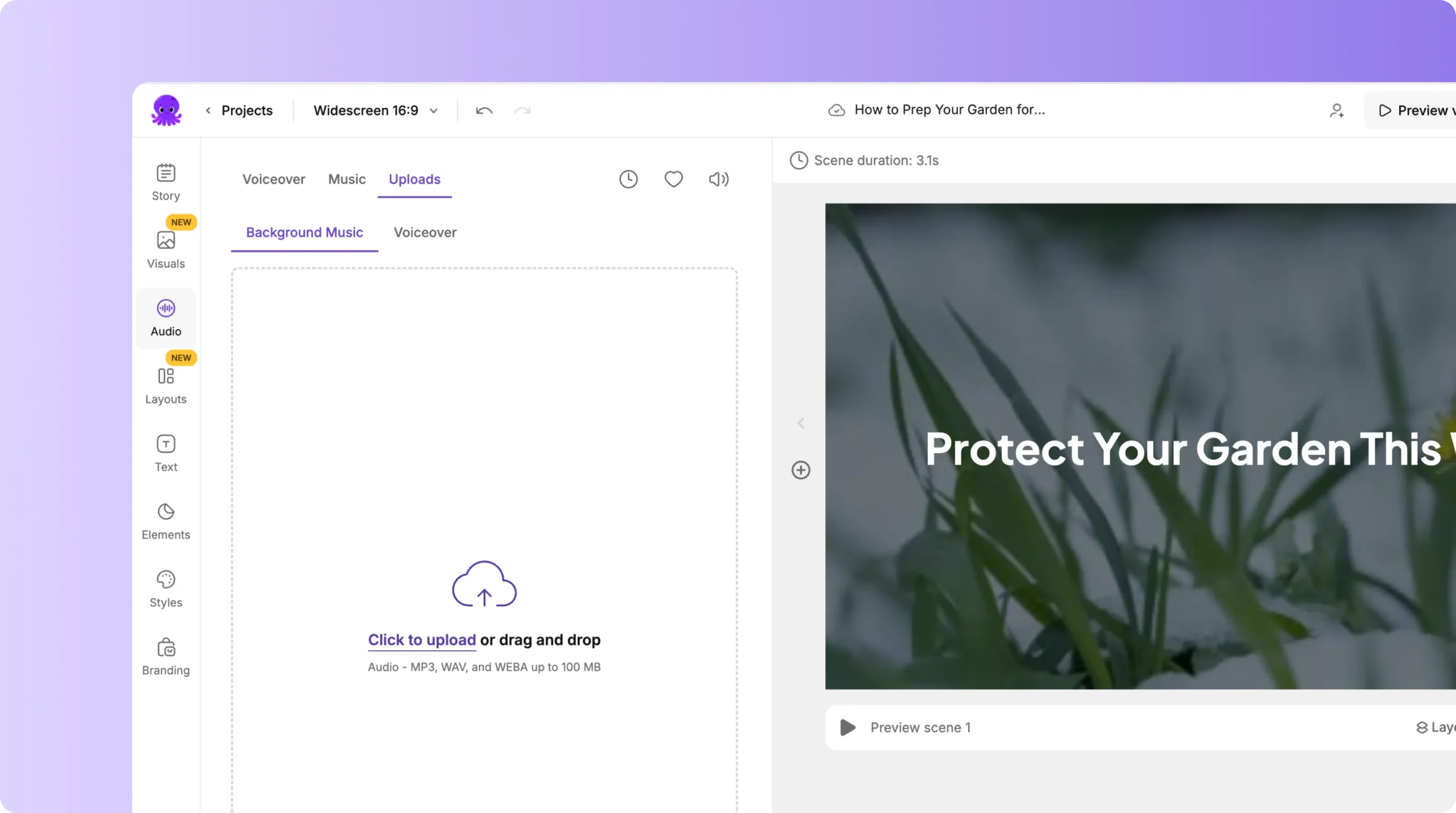
Select Uploads, then click Upload Voiceover File. You can drag and drop or browse your computer for the file.
Supported formats: MP3, WAV, and M4A Maximum size: 200 MB
Once uploaded, the file appears in your project’s audio list, ready for syncing.
Step 3: Use Auto-Sync to Align Your Voiceover
After your file finishes uploading:
Click the Auto-Sync button next to your voiceover file.
Pictory automatically analyzes your narration and matches it with your video timeline.
The system detects pauses, sentence breaks, and tone variations to align each scene accurately.
Within moments, your audio and visuals are synchronized—no dragging or trimming required.
Step 4: Preview and Adjust Timing (Optional)
To ensure perfect alignment:
Click Preview Video in the top toolbar.
Watch your synced scenes play with your uploaded voiceover.
If you need to fine-tune, use Manual Sync Mode, where you can adjust scene timing or fade transitions for smoother pacing.
This combination of automation and control ensures your voiceover feels natural and professionally timed.
Step 5: Add Background Music (Optional)
You can layer background tracks for emotional tone or brand consistency:
Stay in the Audio Tab.
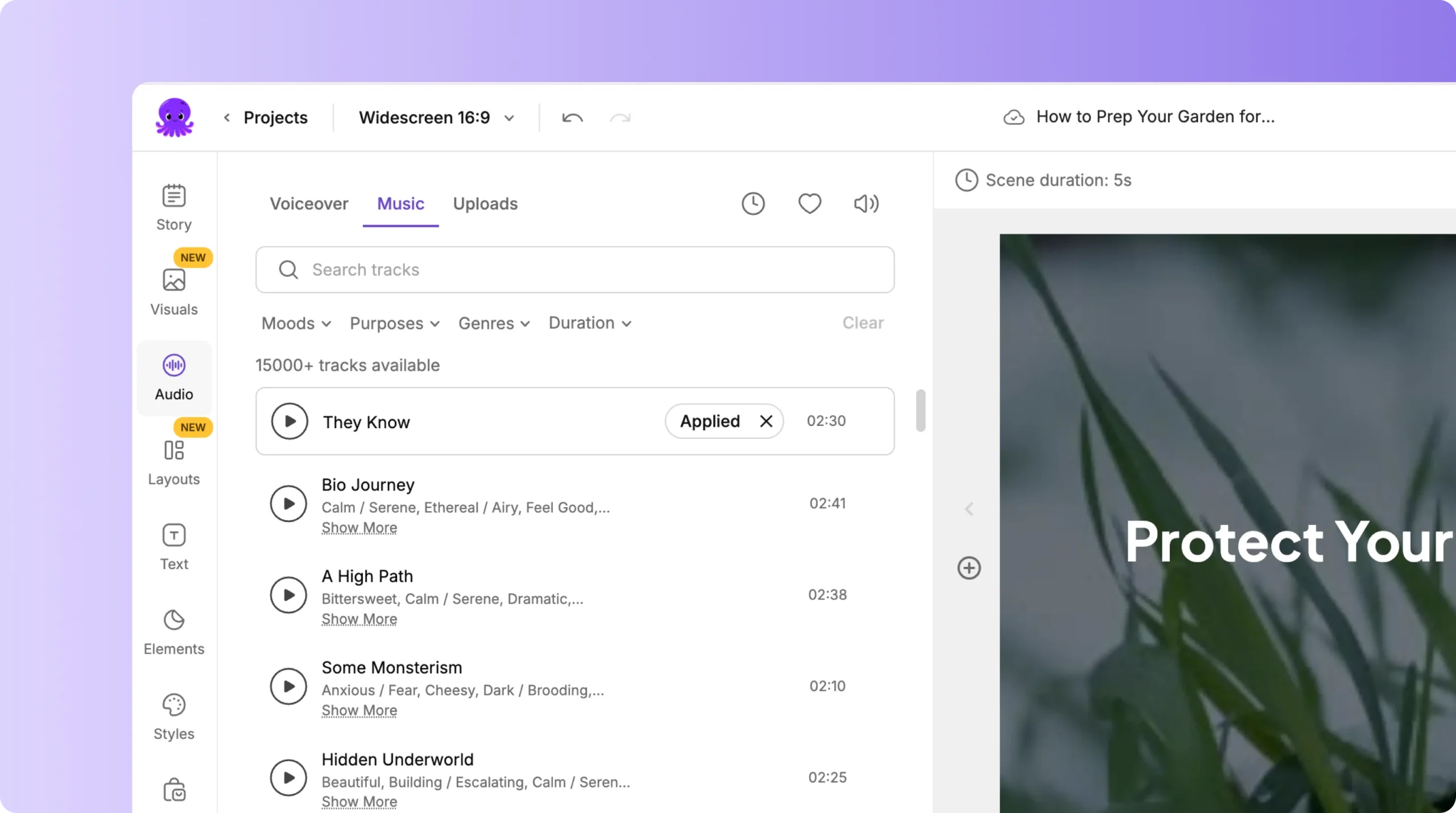
Go to the Music section.
Choose a track from Pictory’s royalty-free music library or upload your own.
Adjust music volume so your voiceover remains clear and dominant.
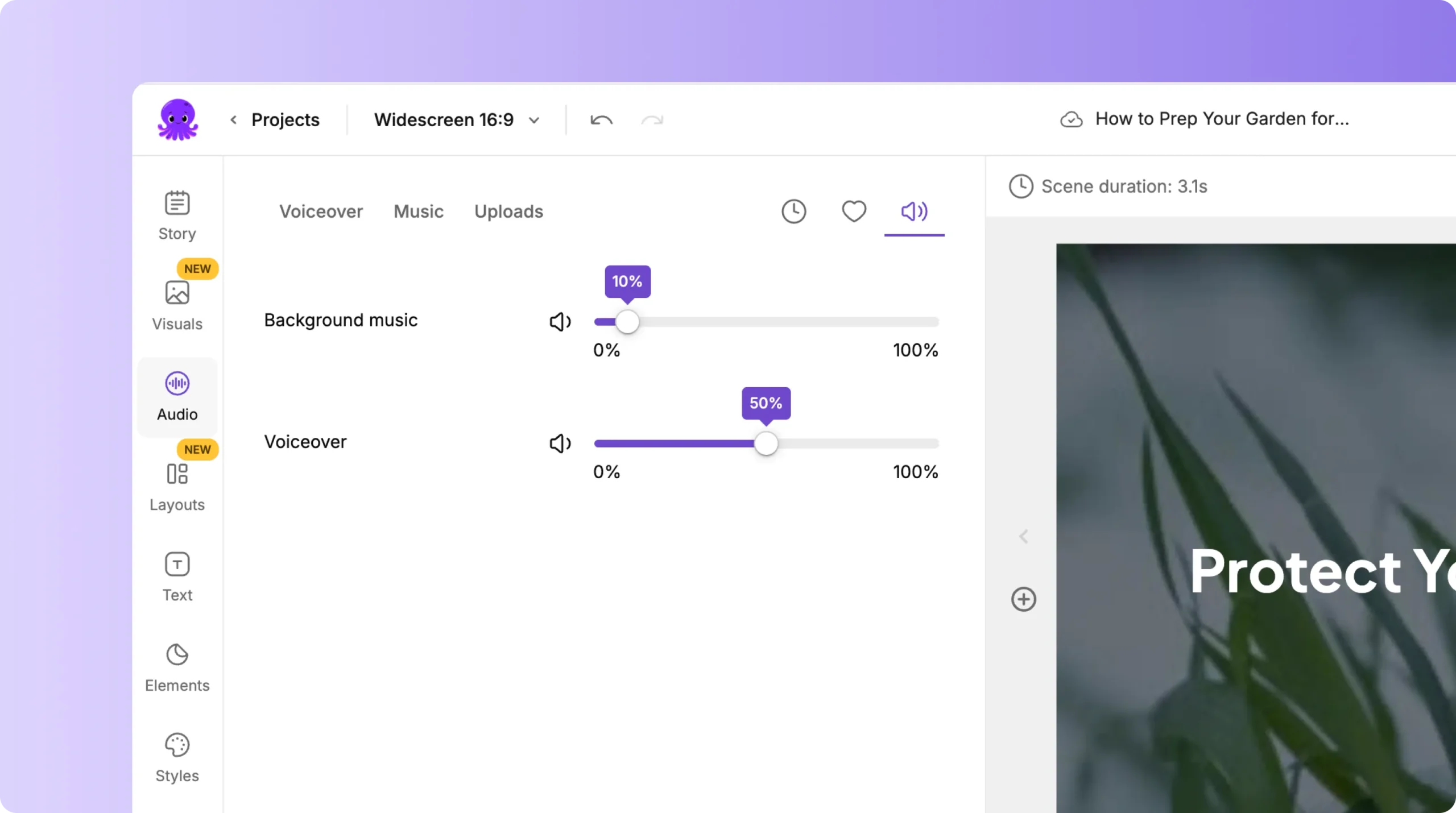
Pictory automatically balances levels to avoid overpowering your narration.
Step 6: Preview and Export Your Final Video
Once everything sounds right:
Click Preview Video to review your synced project.
Make sure voiceover, music, and visuals all align smoothly.
Select Download Video to export your final file.
Choose your format (MP4) and aspect ratio (16:9, 9:16, or 1:1).
Your completed video—with your own voiceover perfectly synced—is ready for sharing.
Pro Tips for Using Upload Voiceover & Auto-Sync
Record clear audio: Use a good microphone and quiet environment to improve sync accuracy.
Keep consistent pacing: Avoid long pauses or abrupt cuts in narration.
Edit your script beforehand: Match scene text to your voiceover for smoother alignment.
Leverage Brand Kits: Add consistent logos, fonts, and colors to keep your video professional.
Test playback on multiple devices: Ensure timing feels seamless across platforms.
Why Use Auto-Sync for Voiceovers in Pictory?
Manual syncing can take hours. Pictory’s Auto-Sync reduces that to minutes while maintaining accuracy and emotional flow. It’s designed for creators who want to sound authentic without getting stuck in complex editing tools.
Whether you’re narrating a brand video, e-learning course, or YouTube episode, Pictory helps you tell your story clearly and confidently.
FAQs About Upload Voiceover & Auto-Sync
1. Can I upload multiple voiceover files? Yes, you can upload multiple files and assign them to different scenes if needed.
2. Does Auto-Sync support different accents or languages? Yes, Pictory’s Auto-Sync works with all supported languages and accent variations.
3. Can I adjust timing after Auto-Sync? Absolutely. Use the Manual Sync option for frame-by-frame control.
4. What’s the best audio format to upload? MP3 and WAV formats are most compatible and produce the best results.
5. Can I replace a voiceover after syncing? Yes, simply upload a new file, click Auto-Sync again, and Pictory will re-align your scenes.
Bring Your Authentic Voice to Every Video with Pictory AI
With Pictory AI’s Upload Voiceover & Auto-Sync, you can instantly align your own narration with your visuals—no editing expertise needed. It’s the fastest, most precise way to make your videos sound natural, authentic, and branded for your audience.
Start by uploading your voiceover today and let Pictory handle the timing for you.


