
The AI Script Generator inside the Idea to Video workflow helps you turn a simple topic or short prompt into a complete, ready-to-edit video script. With just a few words, Pictory’s AI analyzes your idea, builds a logical structure, and writes a professional script tailored to your video type and tone.
Whether you’re creating educational videos, social content, or brand explainers, the AI Script Generator saves hours of brainstorming and writing — helping you go from concept to full video faster.
What Is the AI Script Generator?
The AI Script Generator is the first step in Pictory’s Idea to Video workflow. It uses natural language processing to transform your short topic or idea into a structured video script complete with an introduction, main sections, and a conclusion.
You can then refine or rewrite this script directly using the Ask AI tools before moving on to the storyboard and video generation stages.
With the AI Script Generator, you can:
Create full video scripts instantly from an idea or topic
Choose your video type and audience tone
Edit and refine text directly in the Script Editor
Use Ask AI to rephrase, shorten, expand, or change tone
Automatically generate a storyboard and voiceover from the final script
Perfect for:
Marketers developing quick campaign scripts
Educators converting lessons into video explainers
Content creators turning ideas into ready-to-film concepts
Businesses producing internal or promotional videos
Step-by-Step: How to Use the AI Script Generator
Follow these steps to create and refine your AI-generated script inside the Idea to Video workflow.
Step 1: Start a New Idea to Video Project
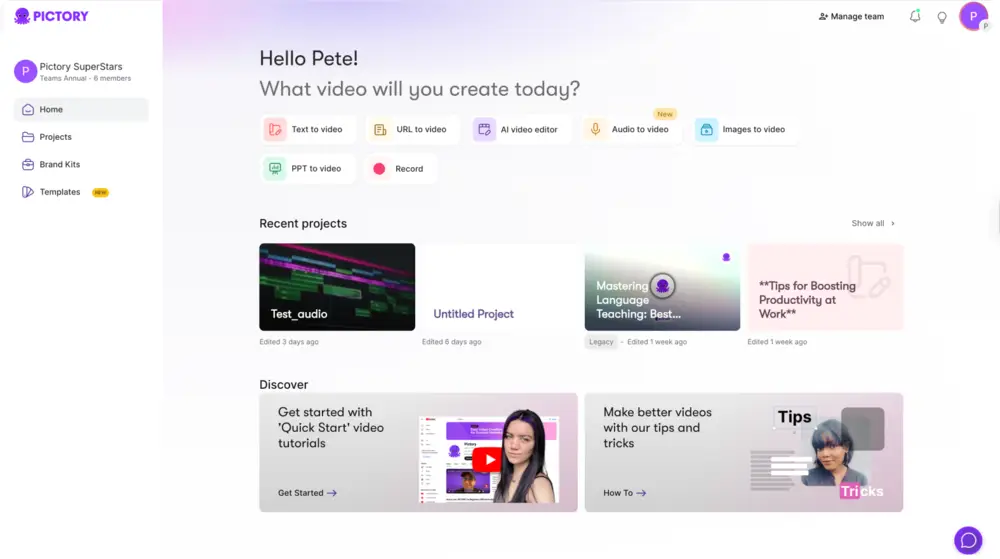
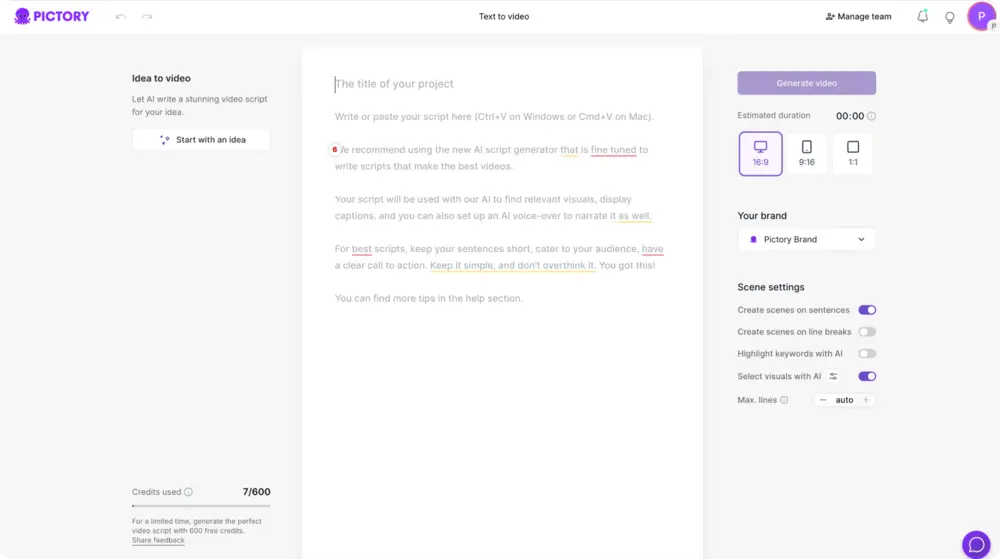
From your Pictory Home Page, click Text to Video, then choose Idea to Video.
You’ll be taken to the Idea Prompt screen.
Enter your main topic or a short descriptive phrase about your idea.
Example prompts:
“5 tips for staying productive while working from home.”
“What is sustainable fashion?”
“How to start a YouTube channel for beginners.”
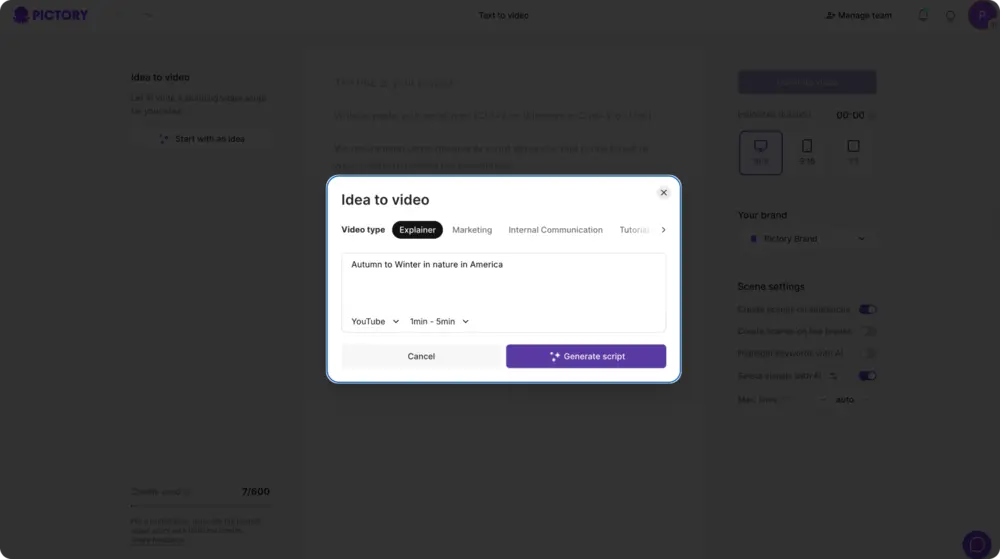
This prompt is the foundation for your AI-generated script.
Step 2: Select the Video Type
Next, choose the type of video you want Pictory to create.
Options include:
Explainer Video
Marketing Video
Tutorial
Internal Communication
Each type changes how the AI structures and phrases your script — for example, explainers are informative, while marketing videos use persuasive language.
Step 3: Click Generate Script
Once your topic and video type are set, click Generate Script.
Pictory’s AI instantly analyzes your prompt and creates a complete draft script. The AI considers context, tone, and length to produce a logical flow with a clear introduction, key points, and a conclusion.
A loading message will appear: “Generating your script, please wait…”
After a few seconds, your draft script appears inside the Script Editor.

Step 4: Review Your Draft Script
When your script is ready, it will open in the Script Editor window.
Here, you can:
Read through the automatically generated script
Make manual text edits directly
Break long sentences into shorter, more visual lines
Adjust tone or pacing for your audience
All changes you make here will carry forward to your storyboard later.
Step 5: Refine Your Script with Ask AI
Underneath your script, you’ll find the Ask AI button — a built-in assistant that lets you fine-tune your script automatically.
You can type instructions such as:
“Make this sound more conversational.”
“Shorten this paragraph.”
“Rewrite this section for a friendly tone.”
“Translate this script into Spanish.”
Pictory’s AI will update your text instantly, giving you full control over how your video sounds and flows.
You can also use Ask AI Optimize to smooth transitions and improve clarity.
Step 6: Add or Remove Script Sections
You can modify your script freely by adding or deleting sections. For example, you can:
Add a call-to-action at the end.
Insert new points or tips.
Remove unnecessary text or repetition.
Every change you make updates your video plan automatically before moving to visuals.
Step 7: Proceed to Storyboard Creation
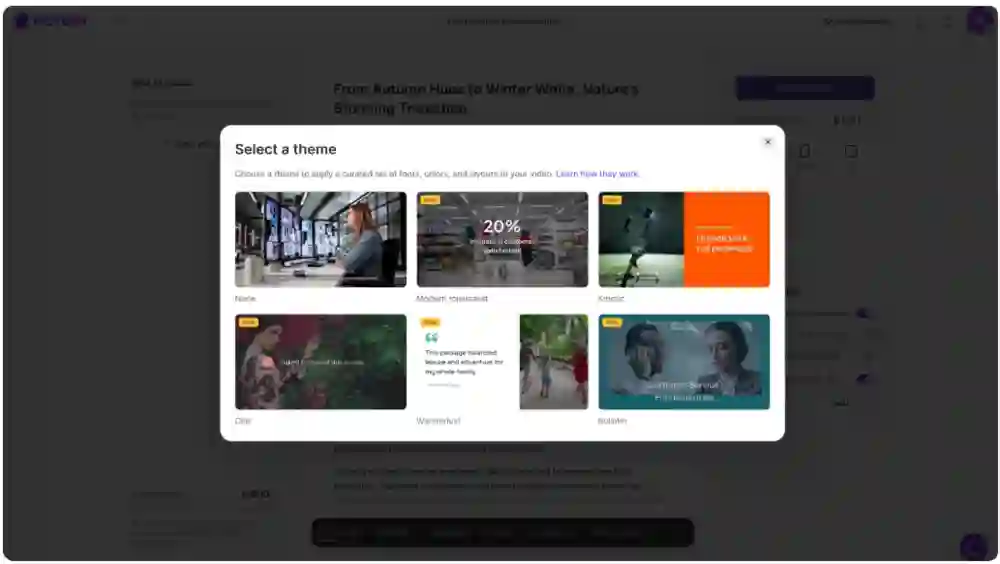
When you’re satisfied with your script, click Generate Video to move to the next stage — the Storyboard.
Pictory will:
Segment your script into scenes automatically
Match each line with visuals, captions, and music
Prepare a fully editable storyboard for review in the AI Video Editor
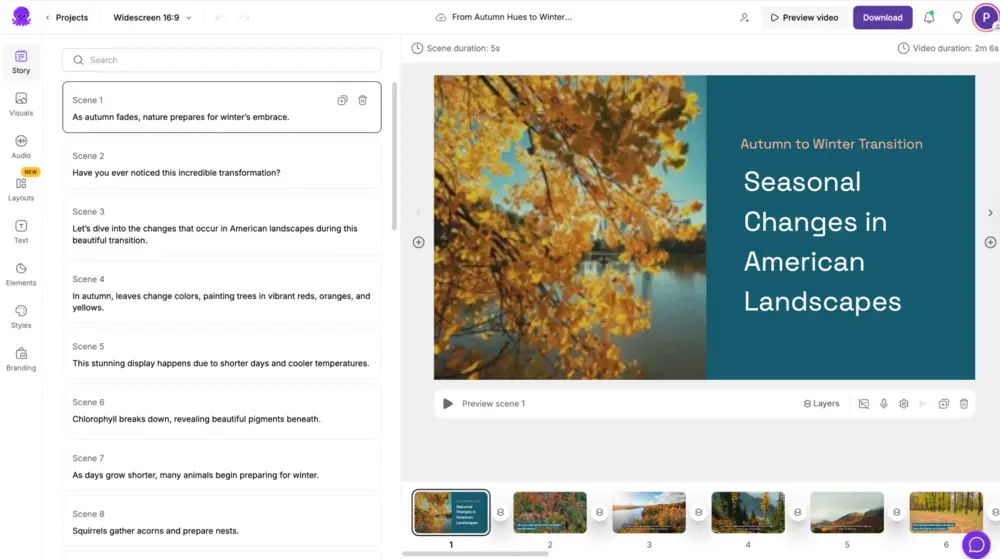
From here, you can continue customizing visuals, layouts, and brand elements.
Pro Tips for Better AI Script Generation
Start with a short, specific topic for the best results.
Choose your video type carefully — it shapes your script tone and format.
Use Ask AI for quick edits and translation.
Keep each idea focused on one clear message per video.
Preview your script before generating visuals to ensure it fits your target audience.
Why Use Pictory’s AI Script Generator
Pictory’s AI Script Generator saves time and helps creators produce structured, high-quality video scripts with minimal effort.
You get:
Full AI-generated scripts from a single idea prompt
Context-aware writing tailored to video type and tone
Easy editing with built-in Ask AI tools
Seamless transition from script to storyboard and visuals
Multilingual support for global video production
It’s the easiest and fastest way to go from concept to content.
Frequently Asked Questions
Q1. Where is the AI Script Generator located?
Inside the Idea to Video workflow under the Text to Video category on the Home Page.
Q2. Can I edit the script after AI generates it?
Yes. You can edit, rewrite, or use Ask AI to refine your script in the Script Editor before generating your video.
Q3. Can I choose the tone of my script?
Yes. Use Ask AI to adjust tone (for example, formal, friendly, persuasive, or educational).
Q4. Does Pictory support multilingual scripts?
Yes. You can ask AI to translate your script into other languages directly within the Script Editor.
Q5. Can I add my own sections or modify the structure?
Yes. You can freely add or delete script sections before moving to storyboard generation.


