
Brand Kits help you keep your videos consistent by storing your brand colors, fonts, and logos in one place. Instead of recreating your brand styling every time, you can apply a Brand Kit instantly to any project. This saves time and ensures that every video reflects your identity.
This guide shows you how to use Brand Kits across multiple projects in Pictory AI.
Why Brand Kits Matter
Brand Kits help you:
• Maintain consistent branding
• Speed up video creation
• Avoid manual design work
• Keep colors and fonts uniform
• Ensure every video follows brand guidelines
• Support collaboration across teams
Brand Kits are ideal for creators, marketing teams, educators, agencies, and enterprise users.
Step 1: Create Your Brand Kit
Before using a Brand Kit across multiple projects, you need to set one up.
To create a Brand Kit:
Open any project
Go to the Branding tab
Click Create Brand Kit
Upload your logo
Select your brand colors
Choose your brand fonts
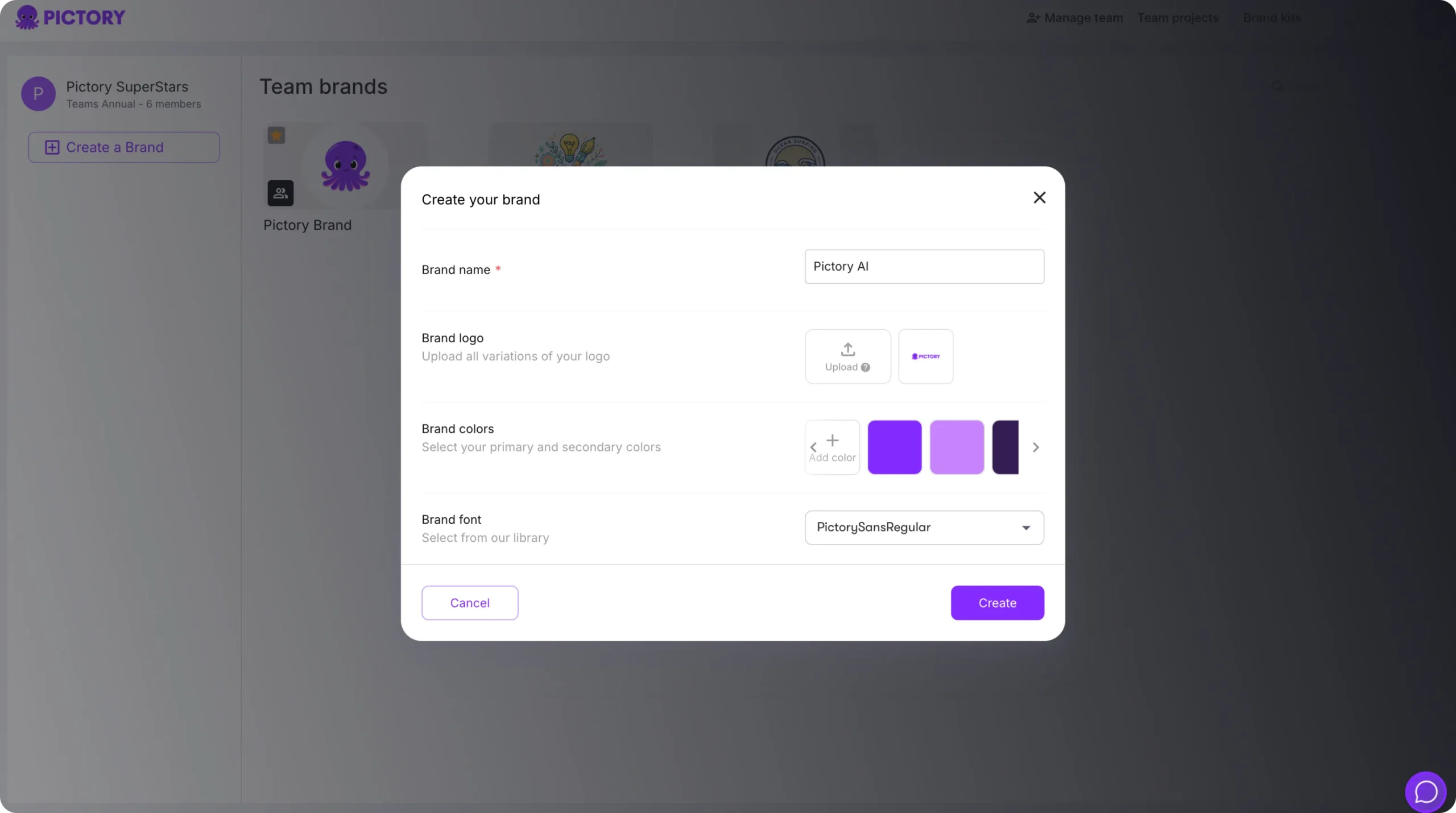
Save the Brand Kit once everything is set.
Your Brand Kit is now available for every project in your account.
Step 2: Apply a Brand Kit to a New Project
When you start a new project:
Upload your script, video, or audio
Move into the editor
Open the Branding tab
Select your Brand Kit
Click Apply
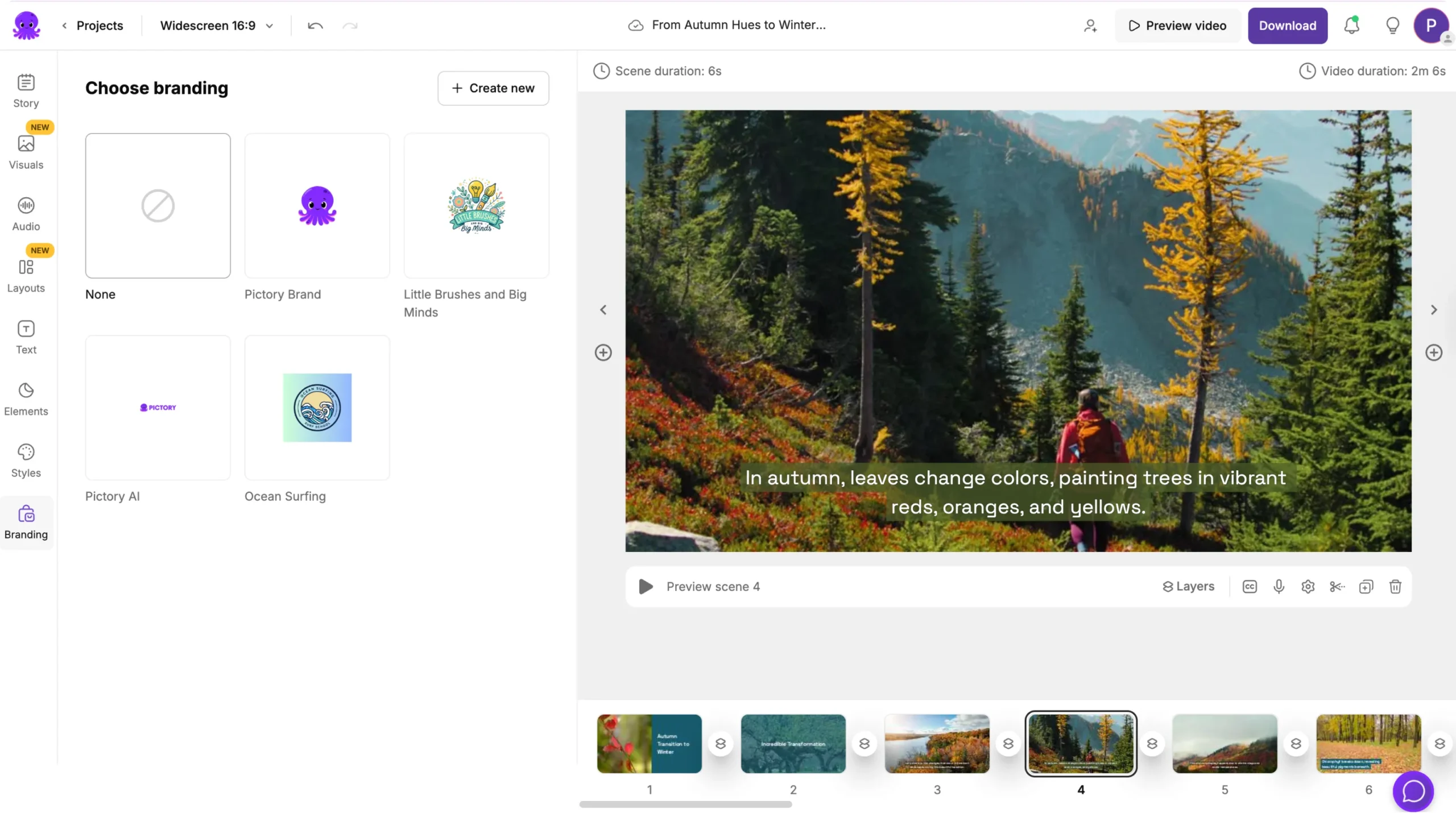
Your brand colors, fonts, and logo update immediately across all scenes.
Step 3: Apply a Brand Kit to an Existing Project
If you already created a project without branding, you can still apply your Brand Kit.
Open the project
Select the Branding tab
Choose the Brand Kit you want
Apply it to all scenes
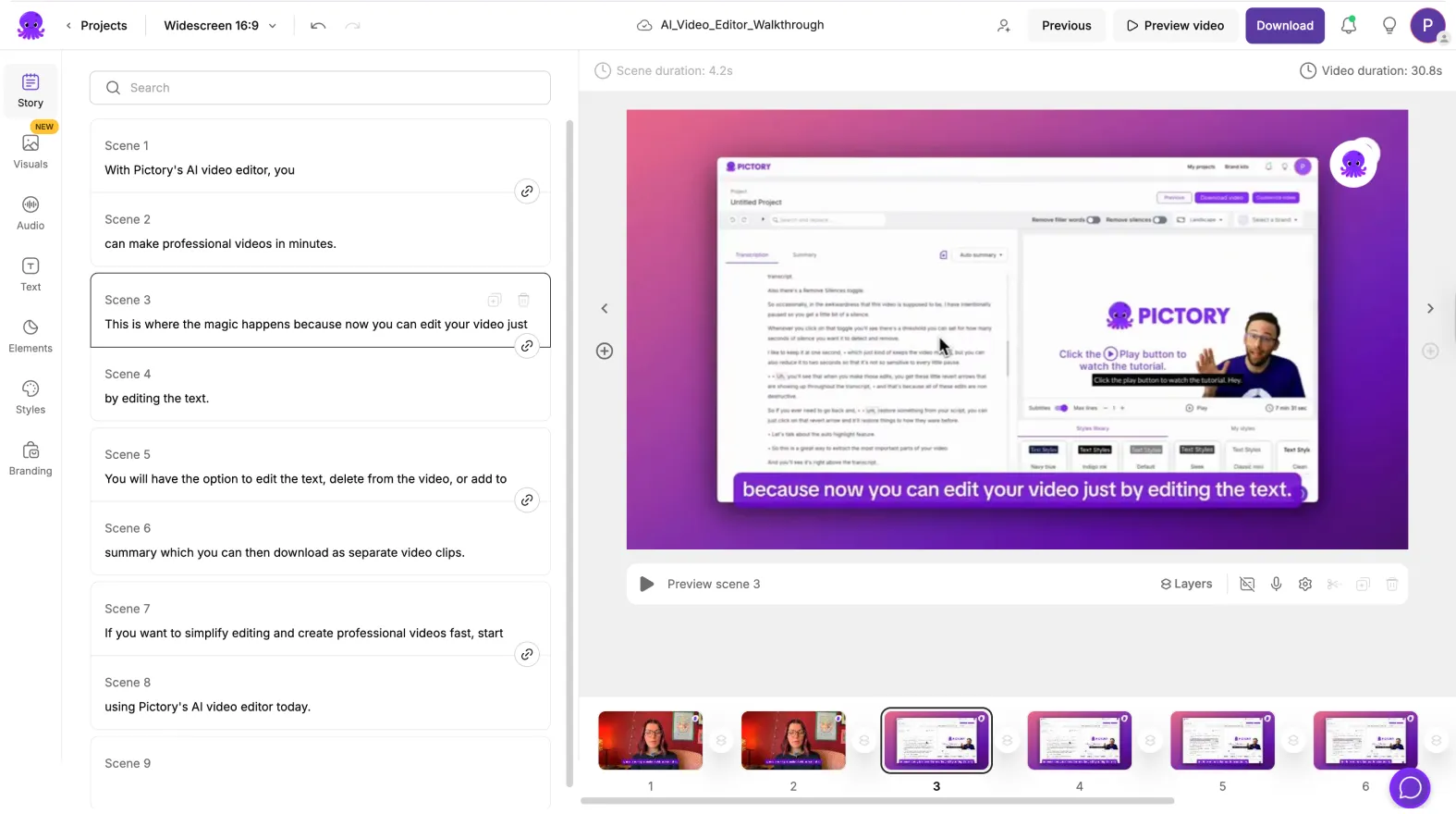
Your project updates in seconds with no need to redo visuals.
Step 4: Use Different Brand Kits for Different Clients or Campaigns
If you manage multiple brands, Pictory lets you store several Brand Kits.
This is helpful for:
• Agencies working with multiple clients
• Companies with separate sub brands
• Teams running multiple campaigns
• Creators producing content for partners
Switch between Brand Kits by selecting a new one and applying it to your project.
Step 5: Combine Brand Kits With Styles for a Complete Look
A Brand Kit controls brand elements such as:
• Fonts
• Colors
• Logo
A Style controls:
• Layout
• Animations
• Text movement
• Visual structure
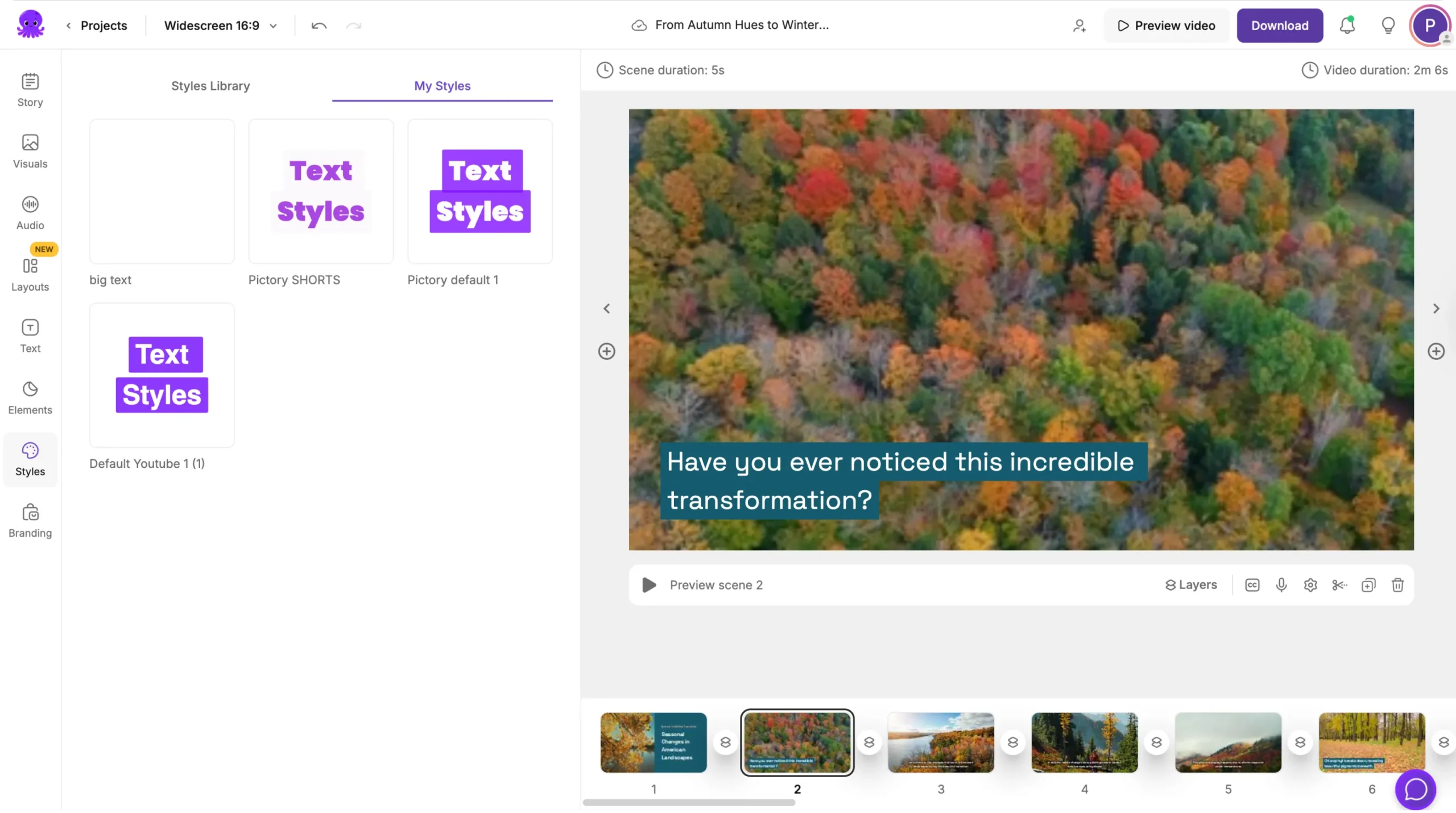
Use both for fully polished videos.
Apply your Brand Kit
Select a Style
Make small scene adjustments if needed
This gives your content both brand consistency and strong visual design.
Step 6: Preview Your Video to Confirm Brand Accuracy
Before exporting:
Click Preview Video
Check brand colors on text and elements
Confirm your logo placement
Verify that fonts appear correctly
Ensure readability across all scenes
Make adjustments if anything looks off.
Step 7: Export Consistent Branded Videos
Once everything looks right:
Click Download Video
Choose your aspect ratio
Export the final file
Your branding stays intact across all formats.
Create Consistent, Professional Videos With Brand Kits in Pictory AI
Brand Kits help you maintain consistent visual identity across all your projects. Whether you are producing marketing content, social videos, onboarding materials, or client work, Brand Kits save time and ensure accuracy. With one click, your entire project updates to match your brand.
Start using Brand Kits across your projects today in Pictory AI.


