

Instant Templates give you a fast way to create professional videos with predesigned layouts, animations, colors, and text styling.
These templates are built for specific video types, so you can create polished content in minutes without starting from scratch. Pictory AI makes it easy to apply an Instant Template and customize it to fit your message.
This guide shows you how to use Instant Templates inside Pictory AI.
What Instant Templates Do
Instant Templates provide ready made video designs that include:
• Prebuilt scenes
• Prewritten placeholders
• Designed layouts
• Branded style presets
• Animation settings
• Text and color treatments • Scene transitions
They give you a complete starting point instead of a blank project.
Instant Templates are ideal for:
• Social media clips
• Promotions
• Announcements
• Product highlights
• Event teasers
• Quotes and quick tips
• Testimonials
They help you create scroll stopping content quickly.
Step 1: Start With Instant Templates From the Home Screen
From the Pictory dashboard:
Click Instant Templates
Browse the available template categories
Select the type of video you want to create
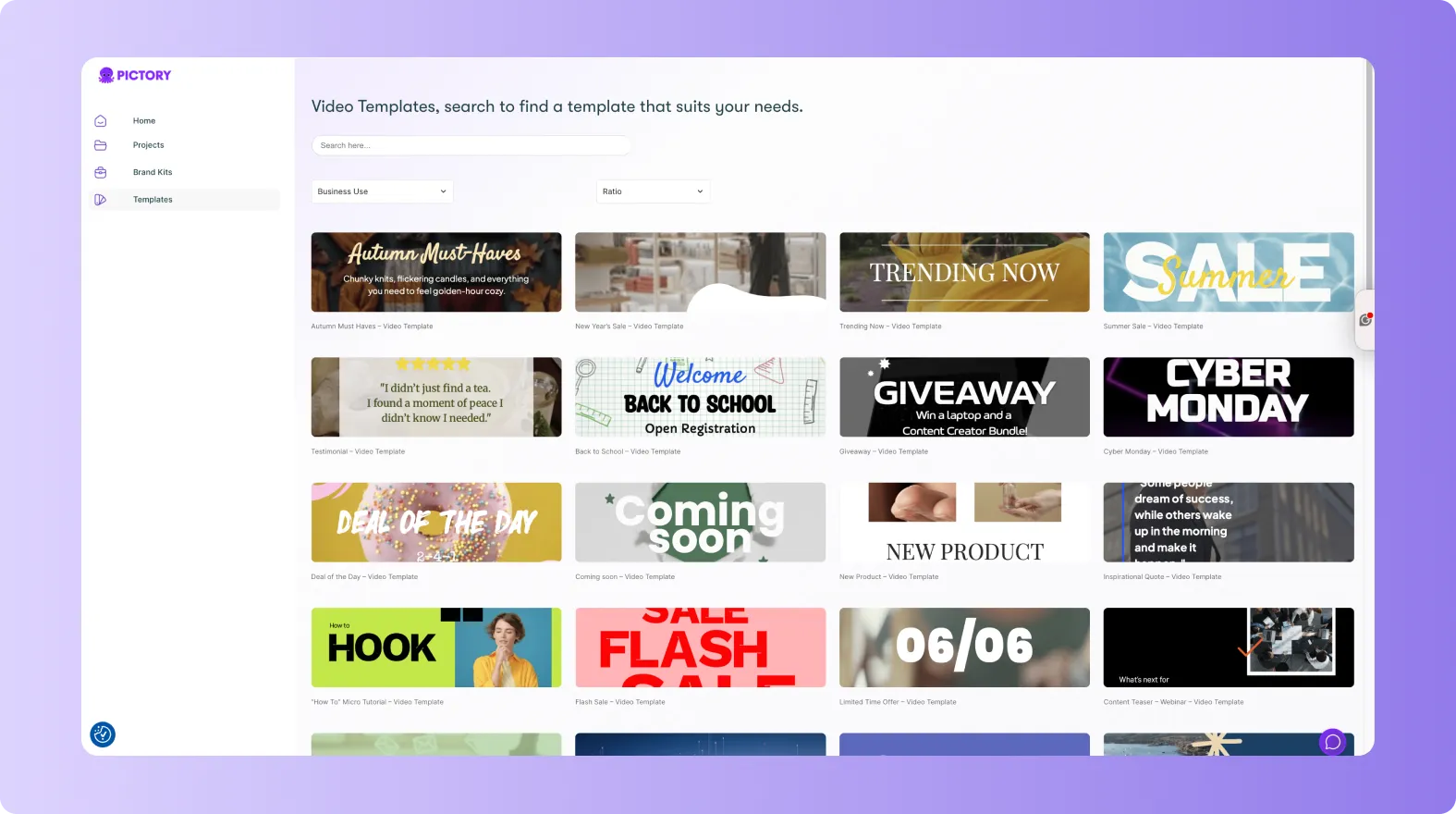
Each template is designed with a specific purpose in mind.
Examples include:
• Sale announcements
• New product alerts
• Quote cards
• Listicles
• Shorts and reels
• Motivational content
• Company updates
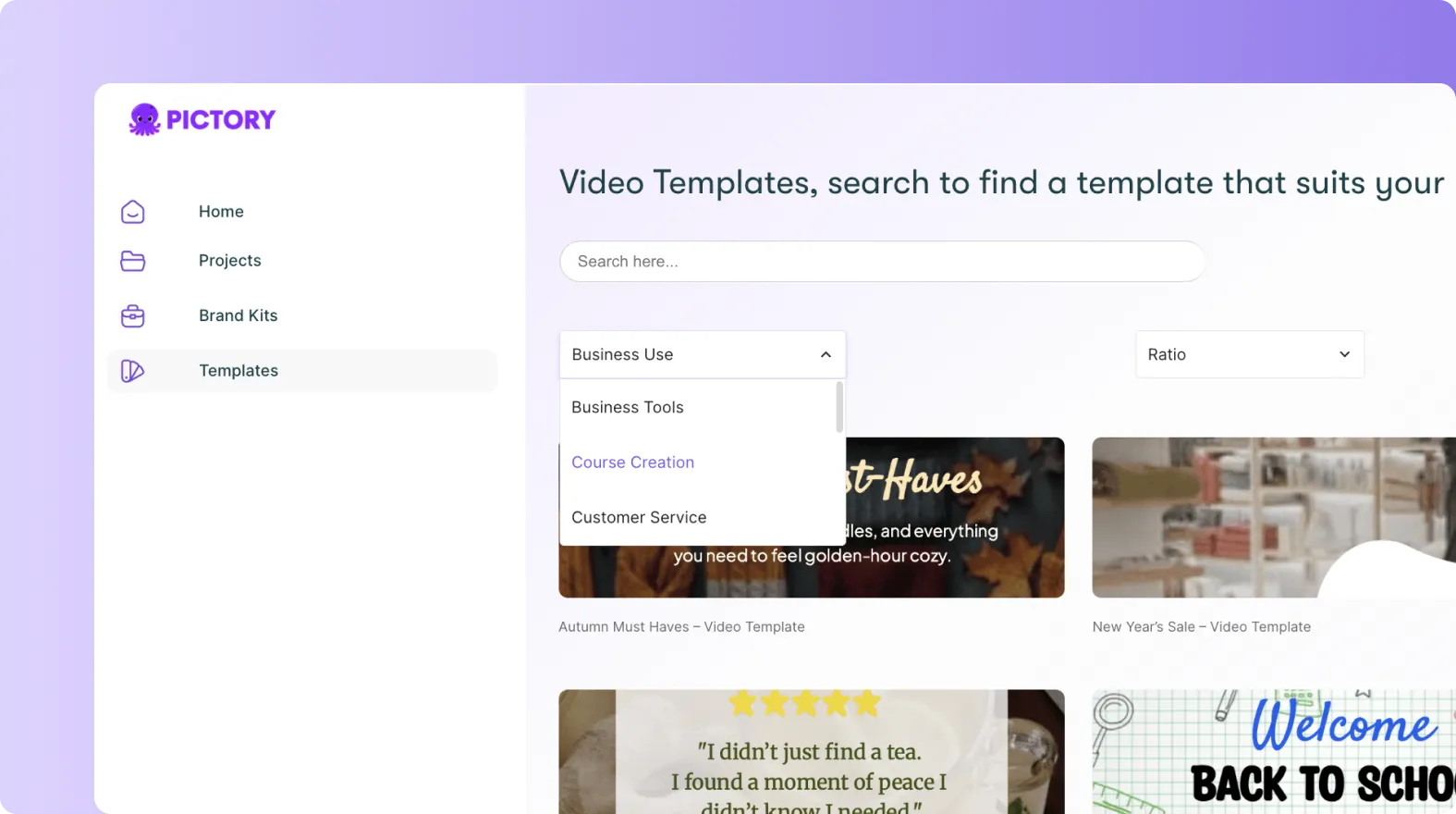
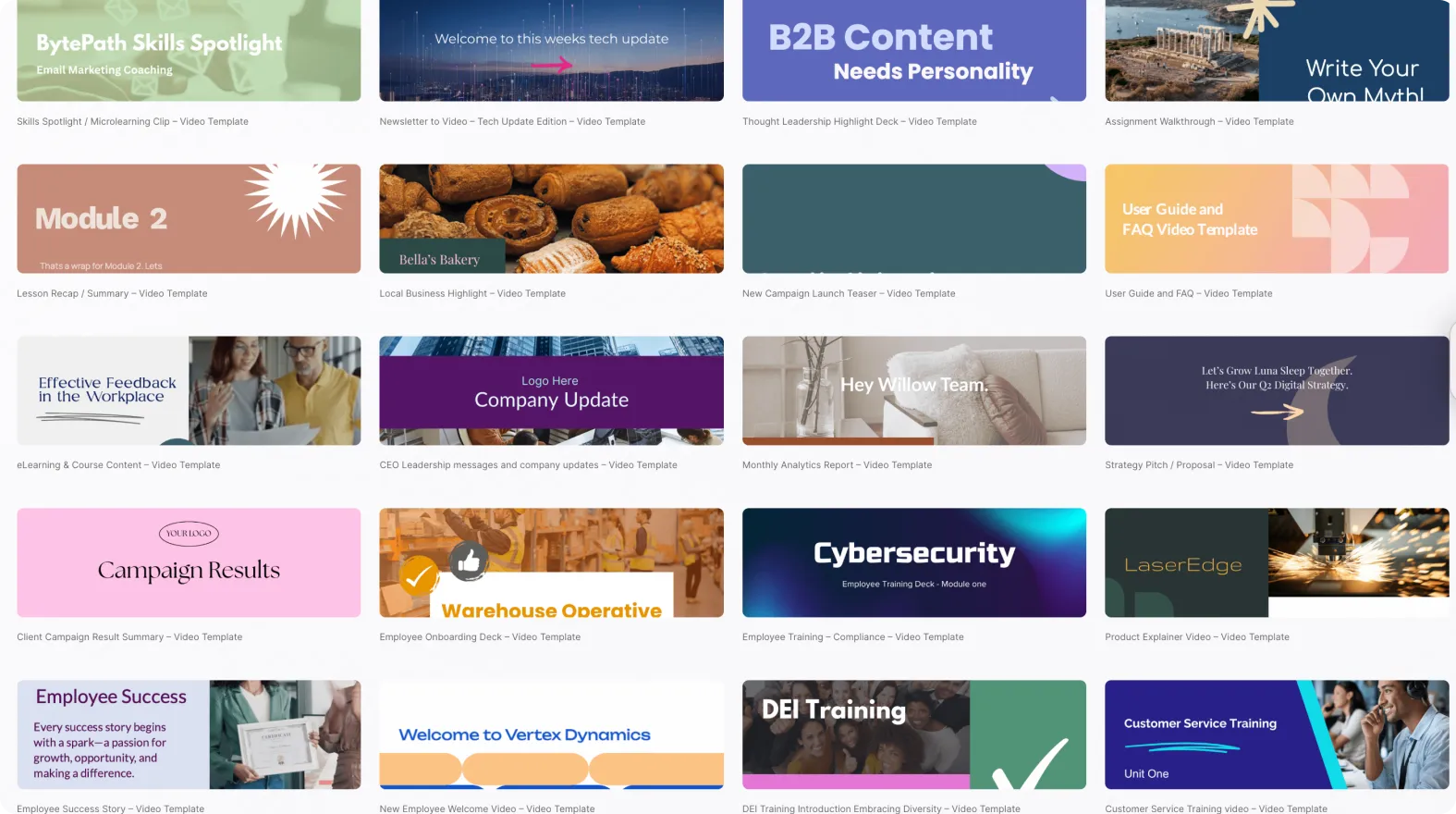
Choose a template that matches your goal.
Step 2: Preview a Template Before Selecting It
Click on a template thumbnail to preview how it looks.
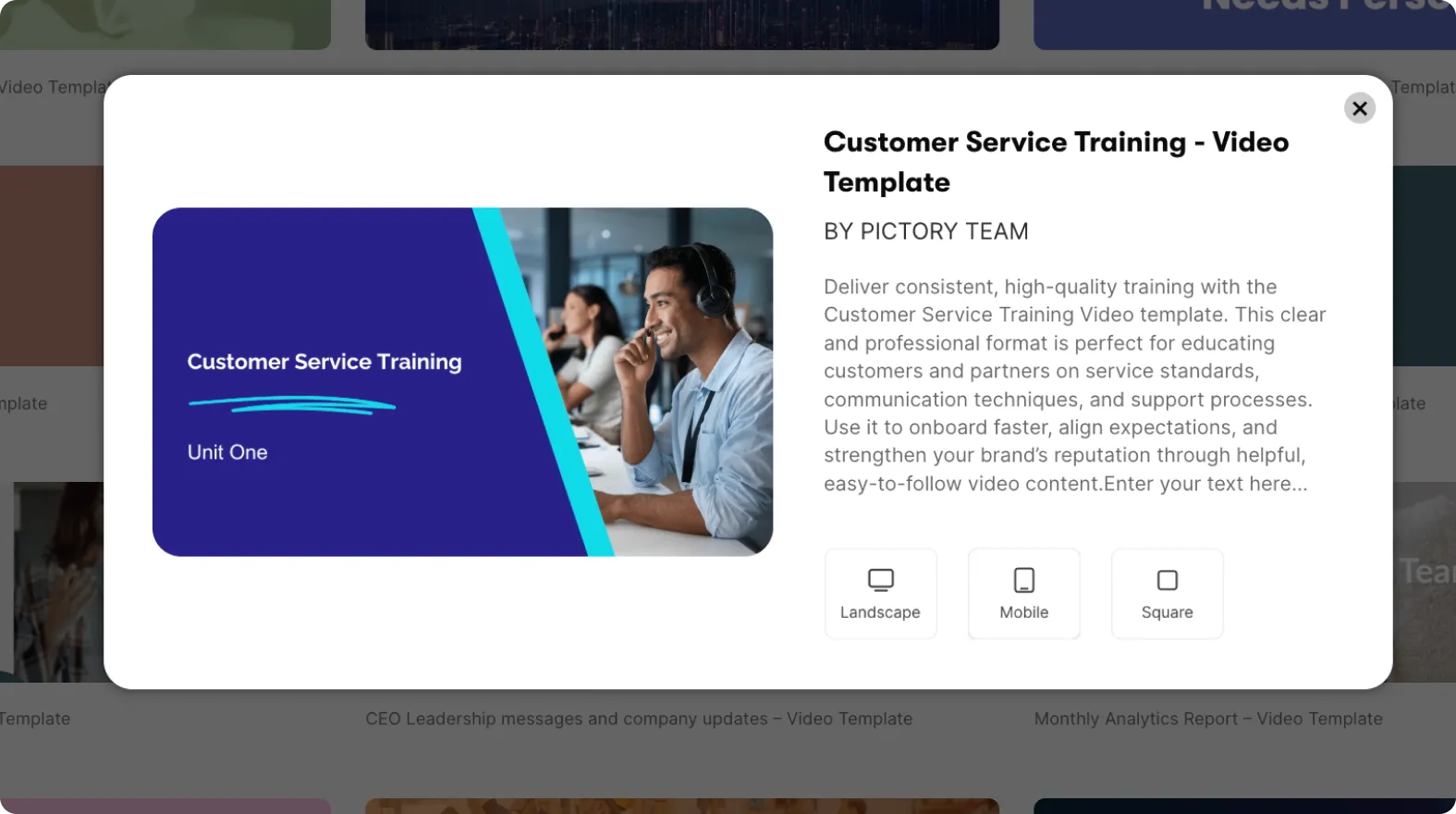
Previewing helps you choose a template that fits your brand and message.
Step 3: Apply the Instant Template
When you find the template you want:
Click Use Template
Pictory loads the full project with all scenes prebuilt
You can now replace text, visuals, and colors
Your template becomes your editable project.
Step 4: Replace Placeholder Text With Your Own
Each scene has sample text. Click a text box to edit it.
Update:
• Headlines
• Subheadings
• Tips or steps
• Call to action lines
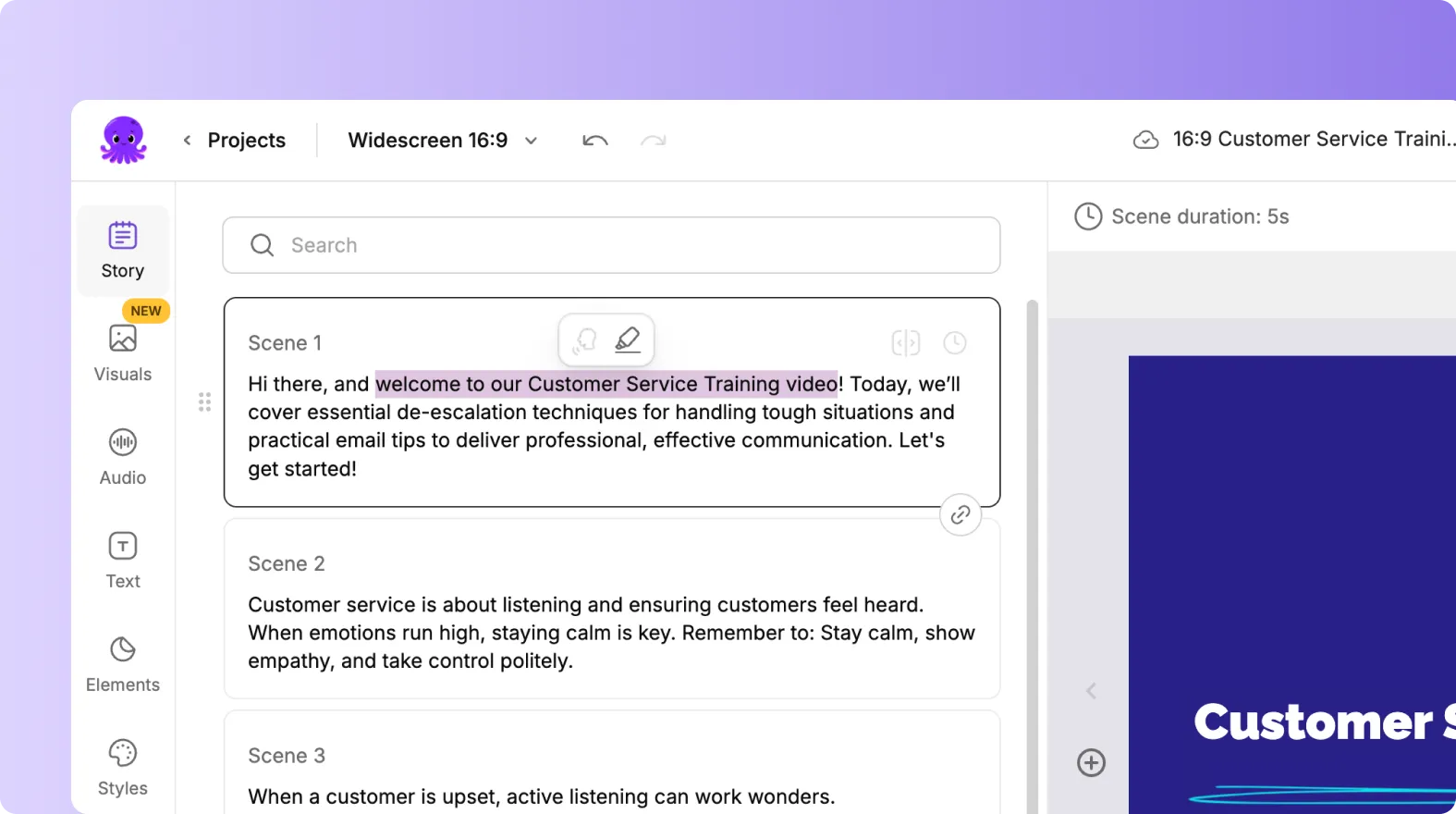
Keep the text structure, but insert your message.
Step 5: Swap Visuals to Match Your Message
Open the Visuals tab to replace templated images or video clips.
You can choose:
• Stock visuals
• Uploaded media
• AI generated visuals
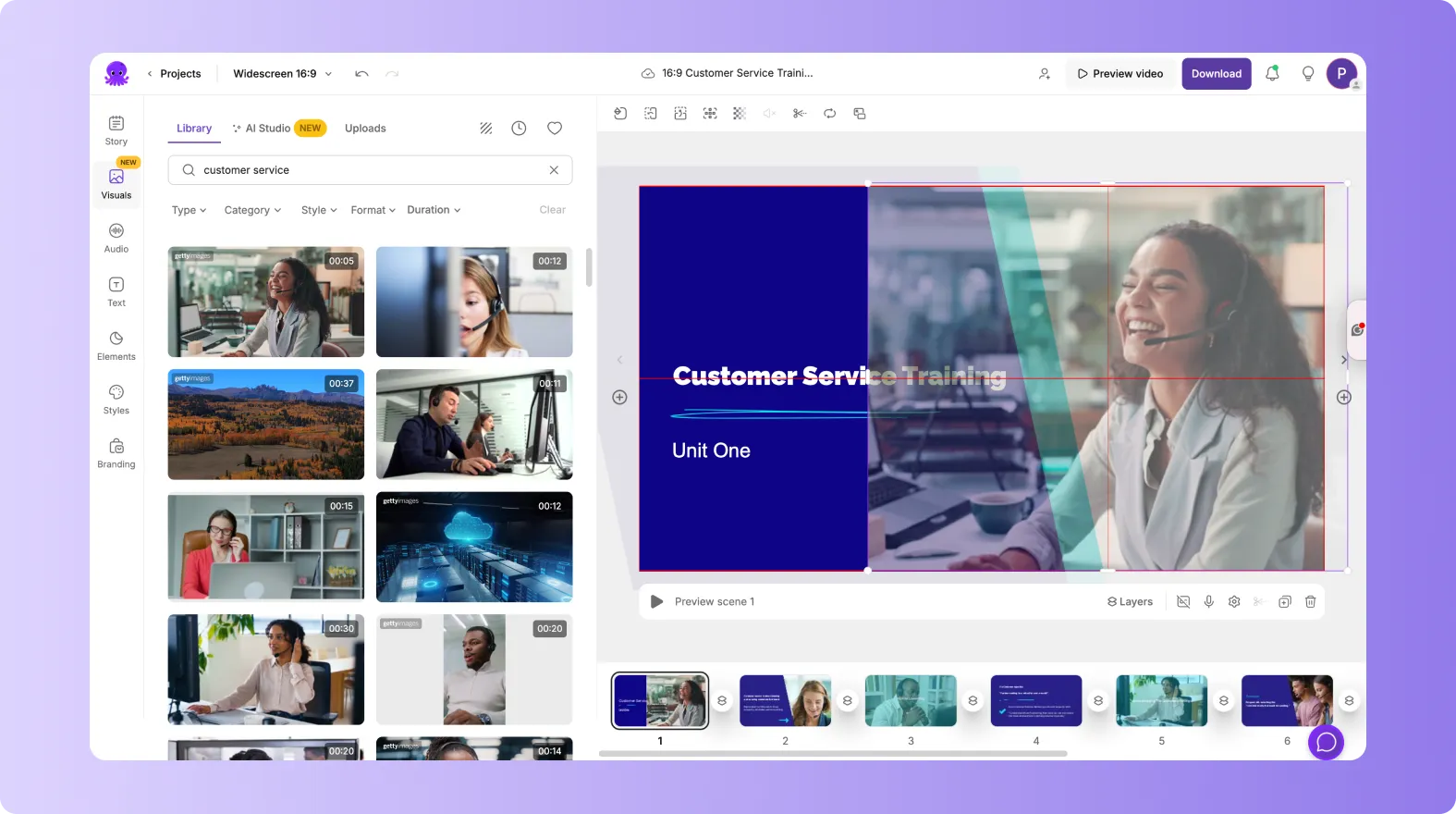
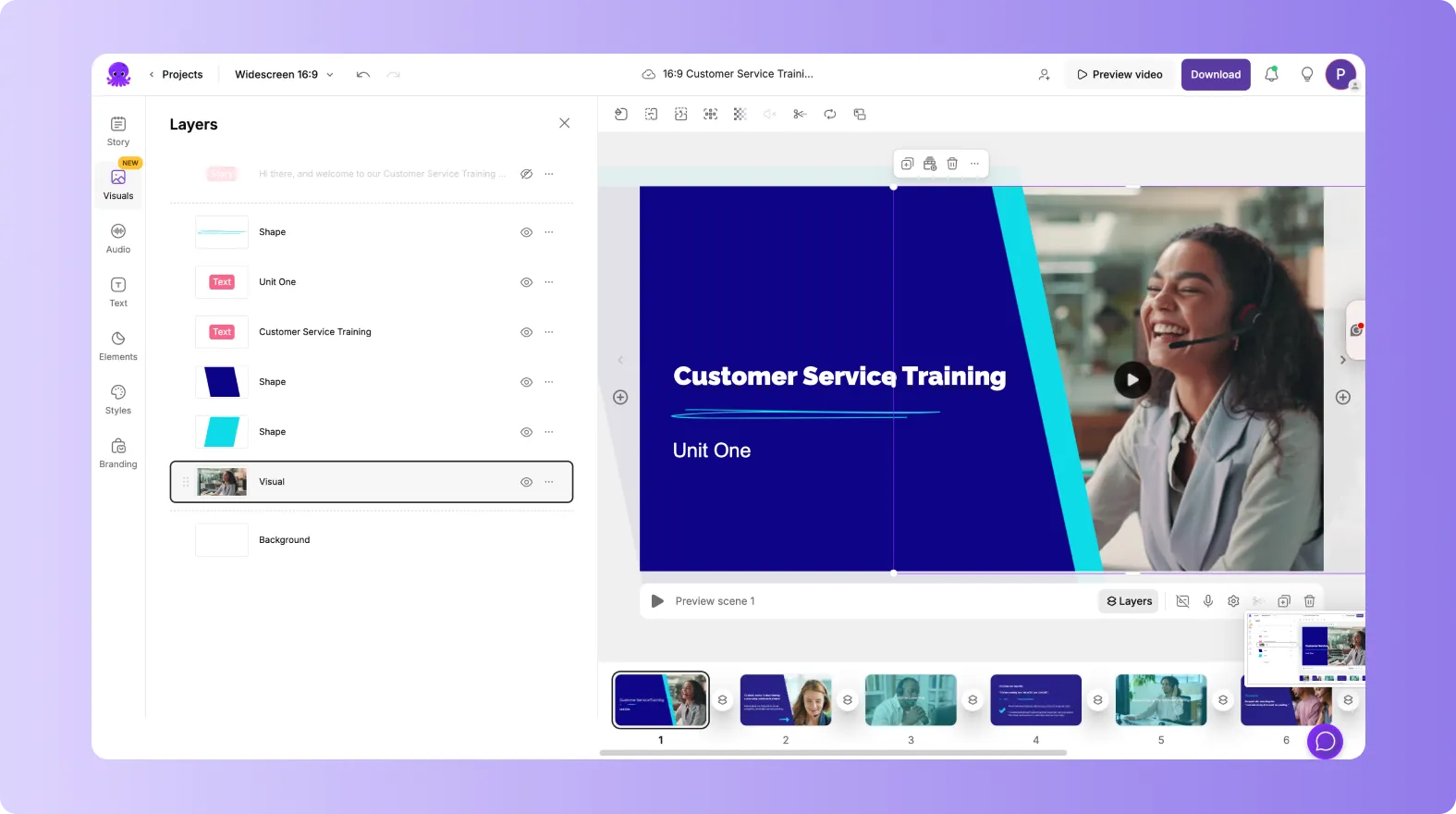
Instant Templates keep the same layout structure while allowing you to customize visuals freely.
Step 6: Apply Your Brand Kit
Instant Templates work smoothly with Brand Kits.
If you have a Brand Kit:
Go to the Branding tab
Select your Brand Kit
Apply it to the template
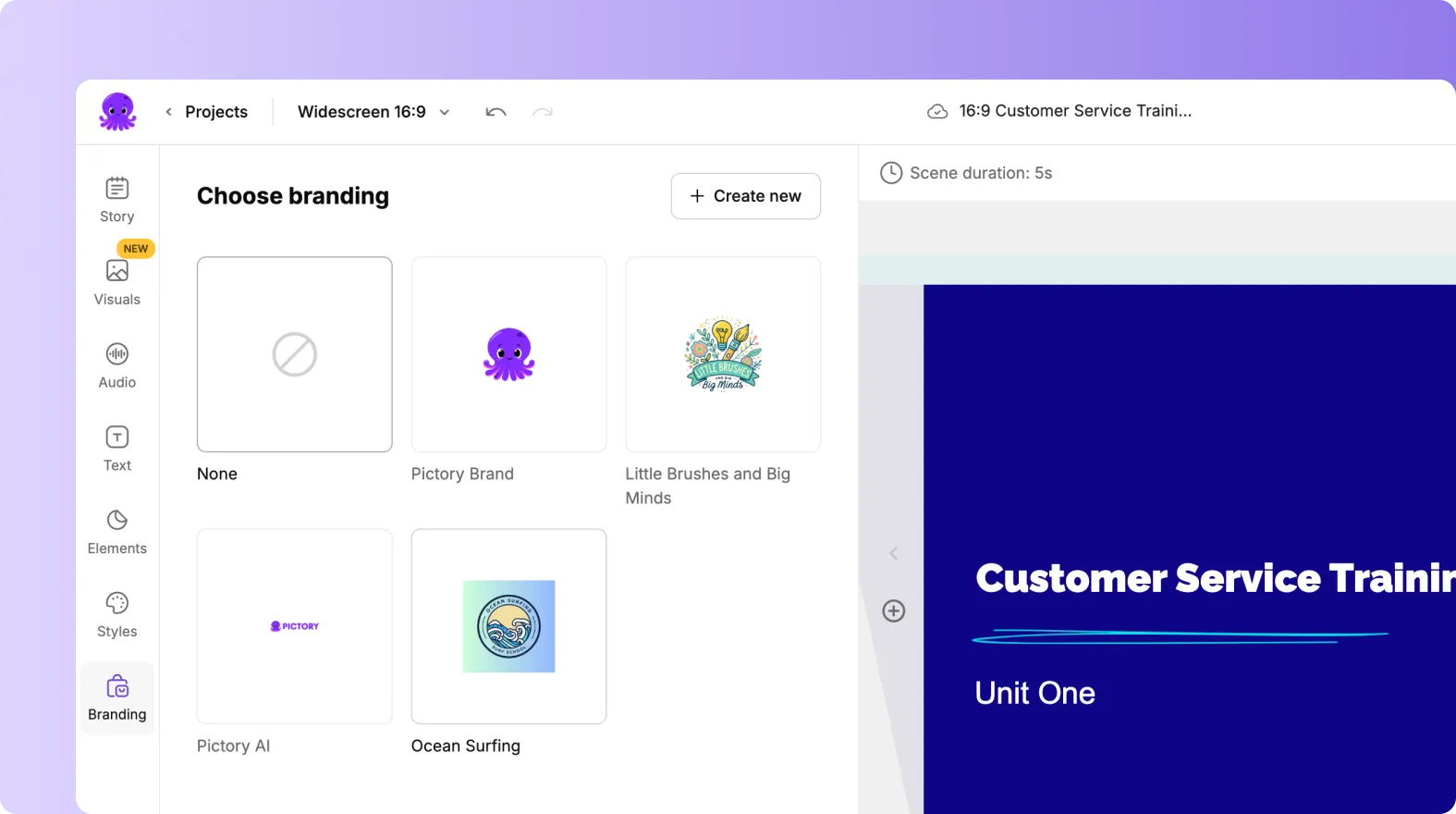
Your fonts, colors, and logo update instantly across all scenes.
This helps you maintain brand consistency in seconds.
Step 7: Customize Layouts and Elements
Even though templates come predesigned, you can still refine them.
You can adjust:
• Text size and placement
• Shapes and icons
• Animations
• Scene timing
• Color accents
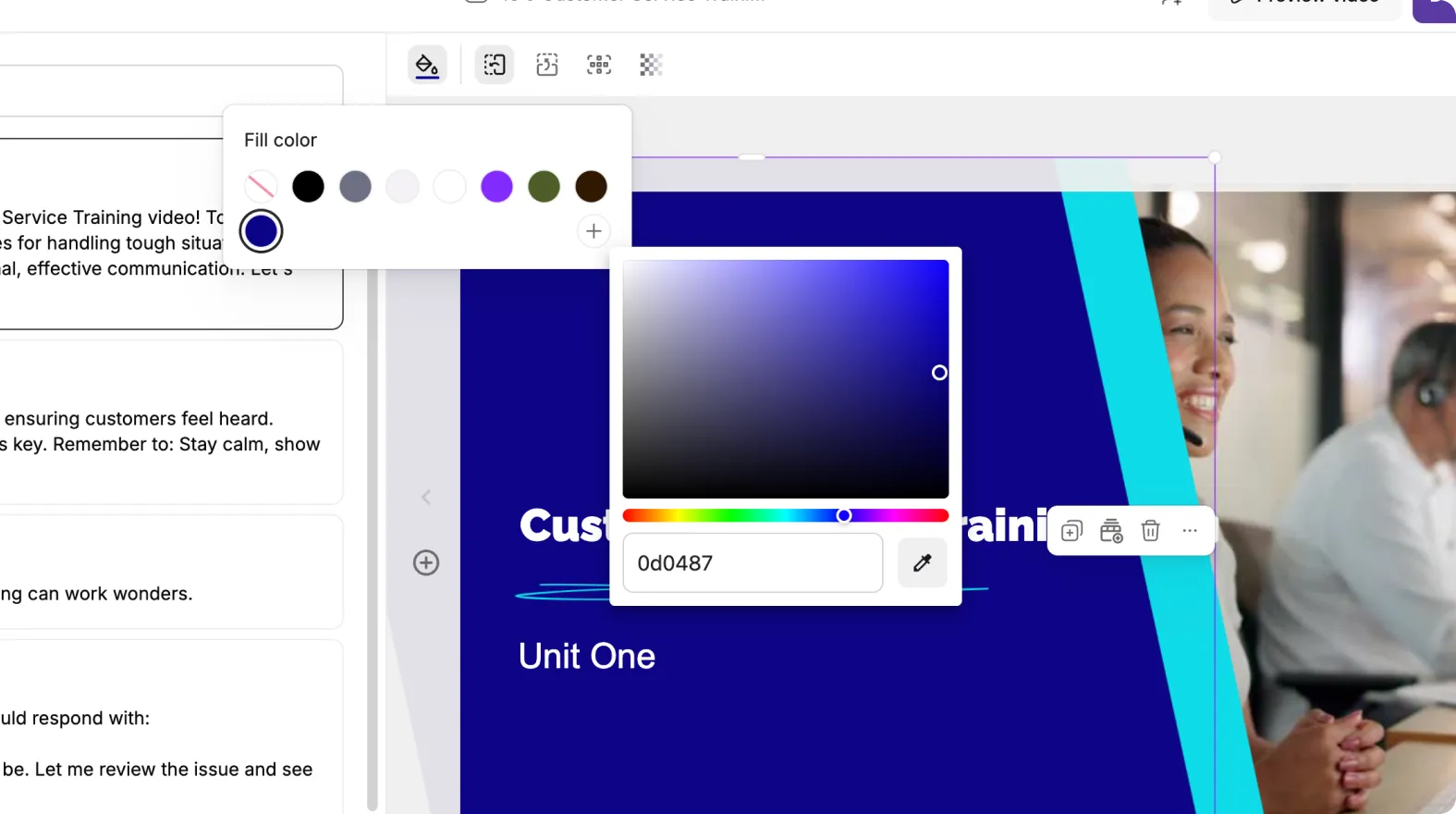
This lets you keep the structure while tailoring the design.
Step 8: Add or Remove Scenes as Needed
Your needs may differ from the template.
You can:
• Add scenes for more information
• Delete scenes you do not need
• Rearrange scenes for better flow
Instant Templates are flexible and work like any other project in Pictory.
Step 9: Preview Your Full Template Based Video
Click Preview Video to review:
• Transitions
• Animations
• Text timing
• Visual flow
• Overall pacing
Make any final adjustments before exporting.
Step 10: Export Your Final Video
When your template is fully customized:
Click Download Video
Choose your aspect ratio
Export your finished project
Your video now reflects the Instant Template style with your personalized content.
Create Fast, Polished Content Using Instant Templates in Pictory AI
Instant Templates help you build professional videos in minutes. With predesigned scenes and animated layouts, you get a strong creative foundation that saves time and improves quality. Whether you create social content, promos, or quick updates, Instant Templates help you produce branded videos quickly and confidently.
Start creating with Instant Templates today in Pictory AI.


