
Layout templates help you structure your scenes quickly and consistently. They control how your text and visuals are arranged on screen, making your video easier to follow and more visually appealing. Pictory AI includes a variety of layout templates that you can apply to any scene with one click.
This guide shows you how to use layout templates inside Pictory AI.
What Layout Templates Do
Layout templates control the placement and design of:
• Headings
• Subheadings
• Body text
• Visual backgrounds
• On screen spacing
They give your video a clear structure and help you format your scenes without manual design work. Layout templates are useful for:
• Training videos
• Product demos
• Tutorials
• Explainer videos
• Marketing and social content
Using templates keeps your video clean and consistent across all scenes.
Step 1: Open the Layouts Tab
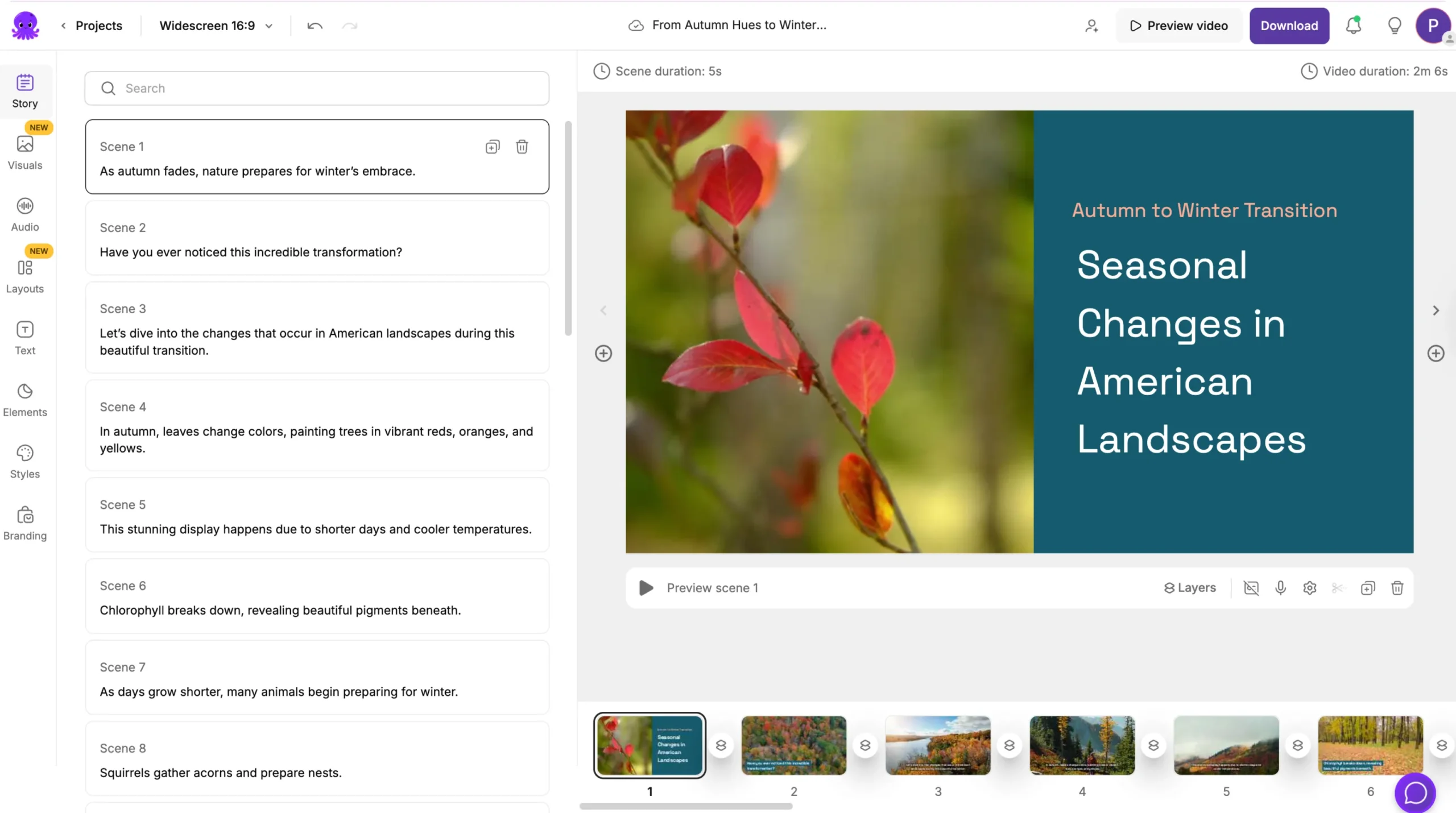
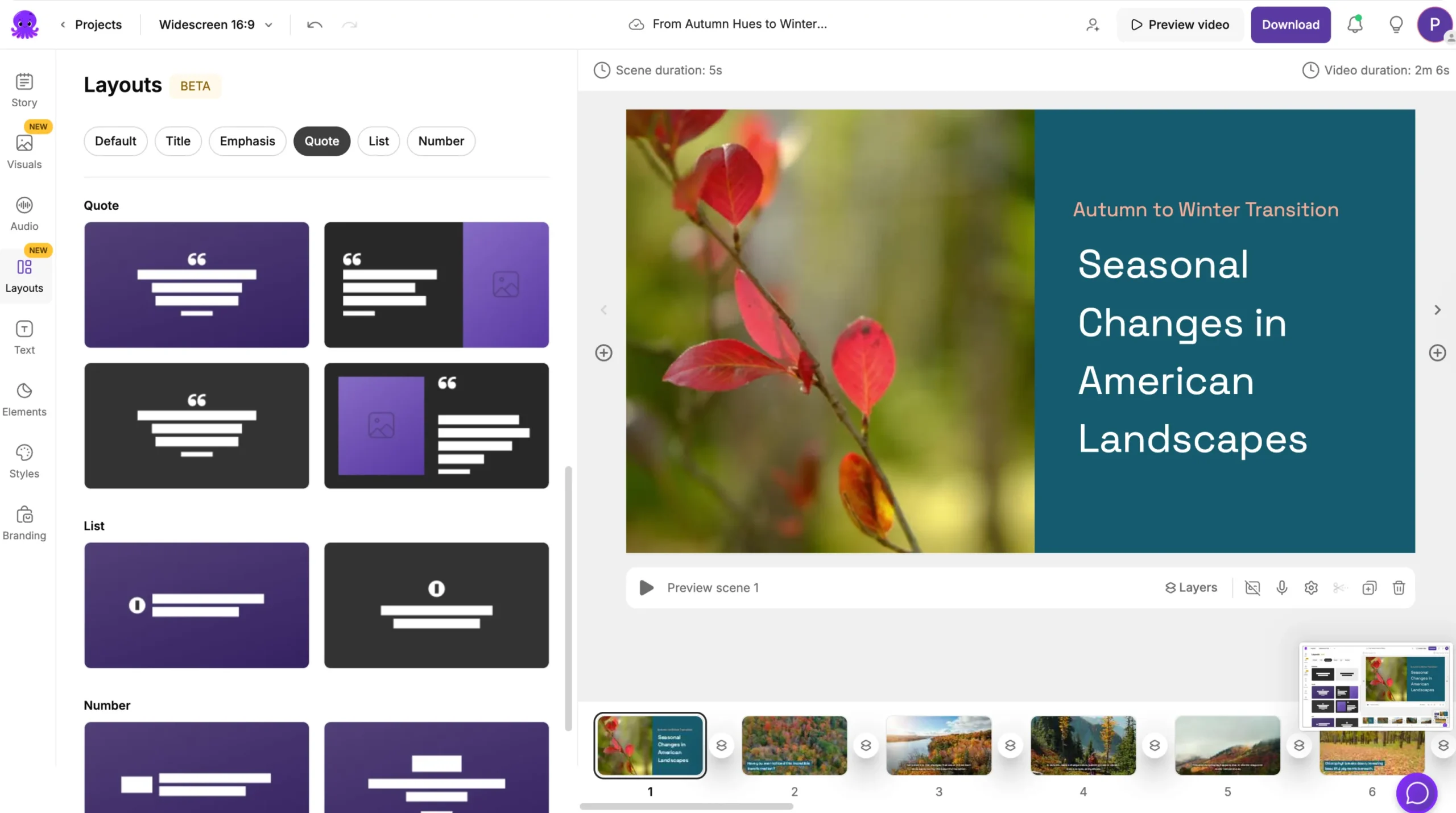
Start by selecting the scene you want to adjust. Open the Layouts tab on the left side of the editor. You will see a collection of template thumbnails. Each template shows a different arrangement of text and visuals.
Step 2: Preview Layout Templates
Hover over any template thumbnail to preview how it will look in your scene. Previewing helps you choose the layout that fits your message.
Check how the template affects:
• Text placement
• Visual spacing
• Readability
• Overall balance
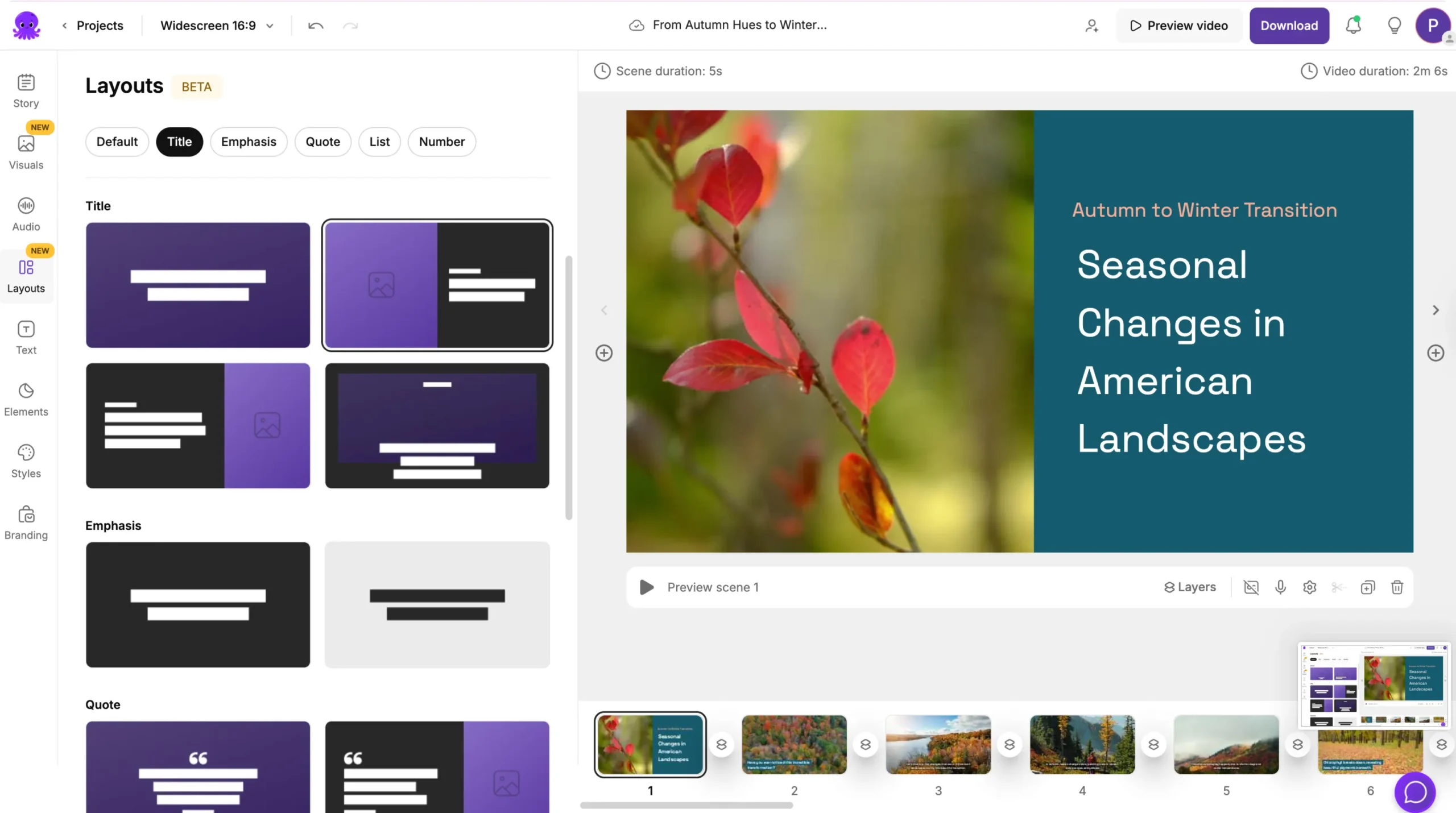
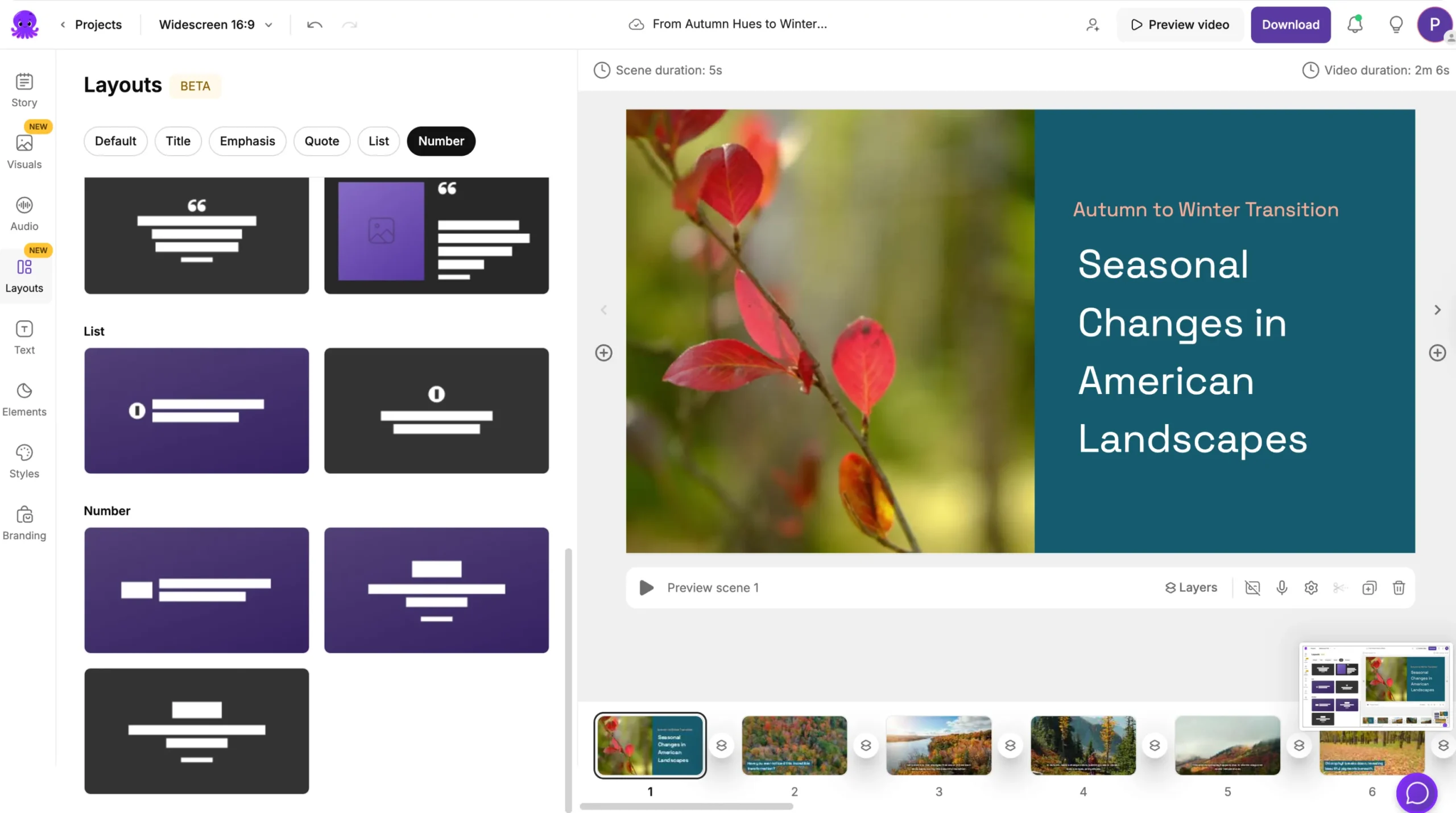
Choose a layout that supports your content and style.
Step 3: Apply a Layout Template
Click any template to apply it to your selected scene. Your scene updates instantly. Pictory adjusts your text and visual placement based on the template you chose.
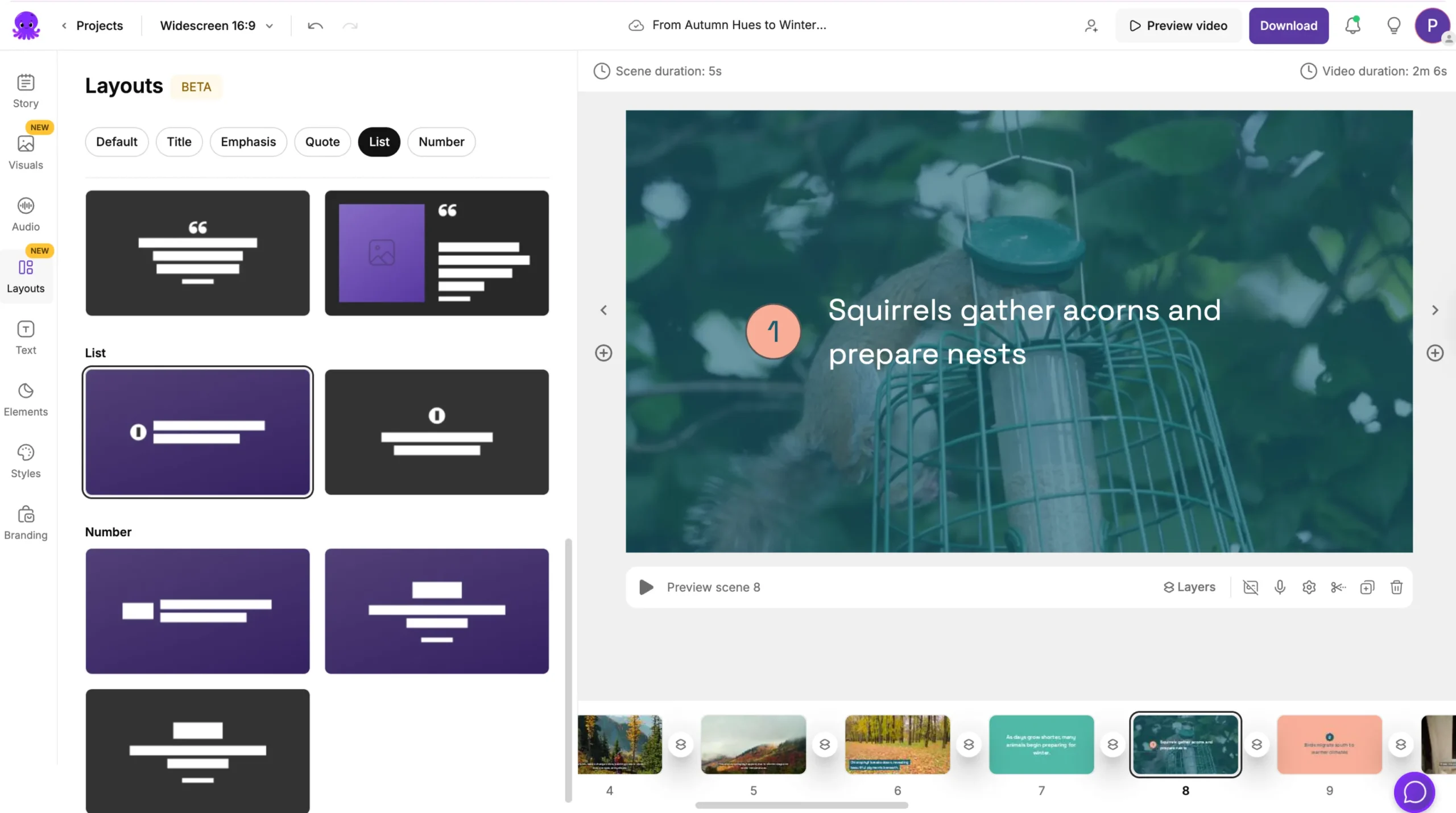
You can switch between layouts at any time without losing your text or visuals.
Step 4: Adjust Text and Visuals After Applying a Template
After applying a layout, refine your scene as needed.
You can:
• Move or resize text
• Change the image or video in the background
• Adjust text colors for contrast
• Modify spacing using the text editor
• Add elements such as arrows or labels
Layout templates give you a strong base, and you fine tune the details.
Step 5: Use Layouts to Highlight Key Information
Layout templates help you emphasize important content. Choose templates designed for:
• Titles and introductions
• Step by step explanations
• Side by side comparisons
• Callouts and instructions
• Quotes or statements
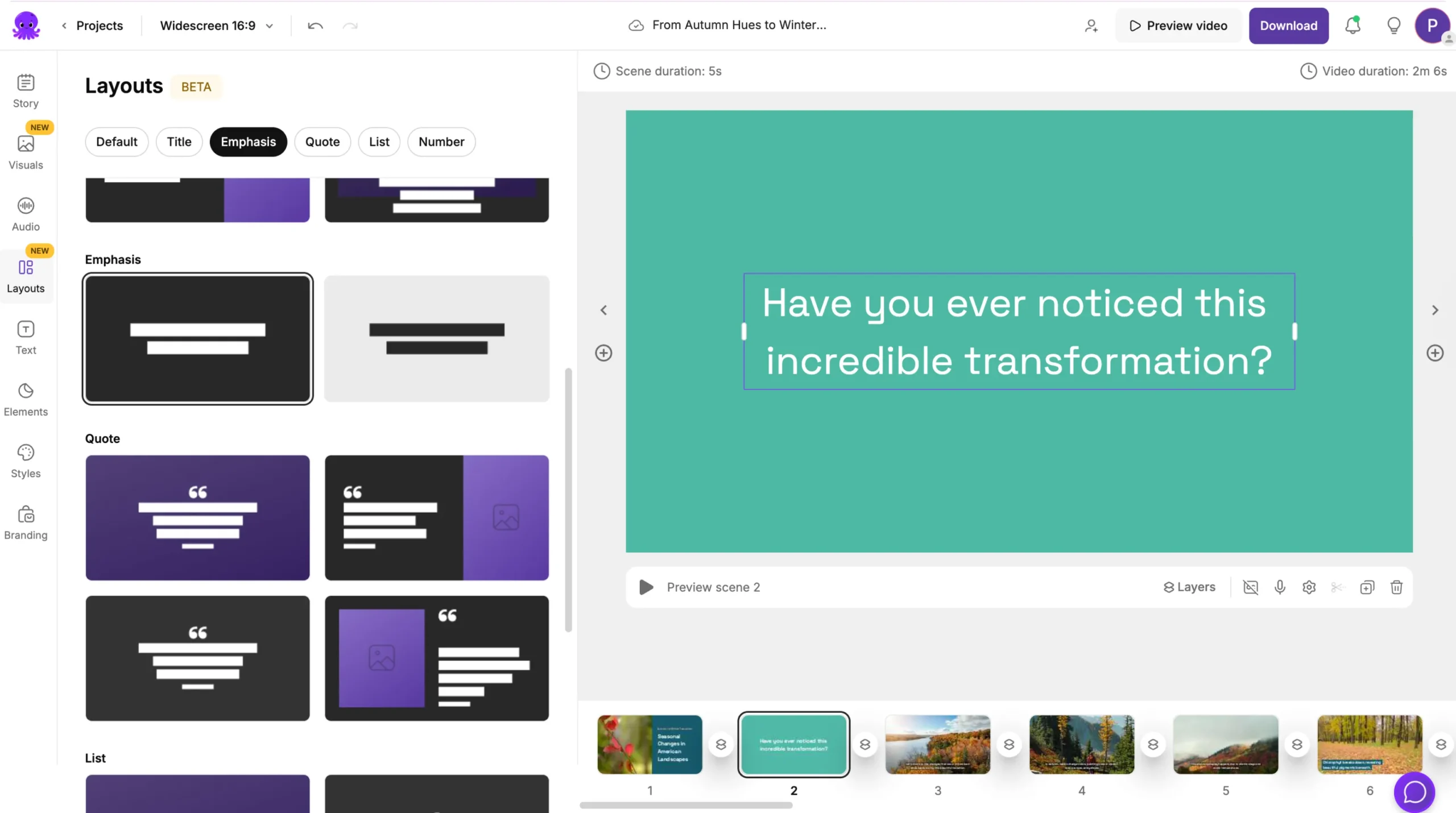
These layouts help viewers understand your message more easily.
Step 6: Combine Layout Templates With Styles and Branding
Layouts control structure. Styles control visual theme. Brand Kits control fonts, colors, and logos.
When combined, they create a clear, professional look across your video. You can apply a layout, then switch styles or branding without losing your scene structure.
Step 7: Preview Your Video Before Exporting
Before exporting your final video:
- Click Preview Video
- Watch your layout transitions
- Ensure text is readable in each format
- Confirm visuals fit each layout correctly
- Make adjustments if needed
Previewing ensures your layouts remain consistent across all scenes.
Create Professional Video Structure Using Layout Templates in Pictory AI
Layout templates help you format your scenes quickly while keeping your video visually organized. With a variety of prebuilt designs, you can choose templates that match your message, style, and purpose. They save time and help you produce a clean, professional looking video every time.
Start using layout templates in your next Pictory AI project to improve structure and clarity.


