
Stickers and GIFs help you add personality, emphasis, and visual interest to your videos. They can highlight important moments, add humor, or make your content more engaging for social media. Pictory AI makes it easy to insert, position, and customize stickers and GIFs on any scene.
This guide shows you how to use stickers and GIFs inside Pictory AI.
Why Stickers and GIFs Are Useful
Stickers and GIFs help you:
• Add energy to your video
• Highlight key points
• Increase engagement on social platforms
• Add reactions or expressive visuals
• Support storytelling in a fun way
They work well in tutorials, marketing clips, social content, explainers, and promotional videos.
Step 1: Open the Elements Tab
Start by selecting the scene where you want to add a sticker or GIF. Click the Elements tab on the left side of the editor. Here you will find visual add ons such as stickers, icons, shapes, and more.
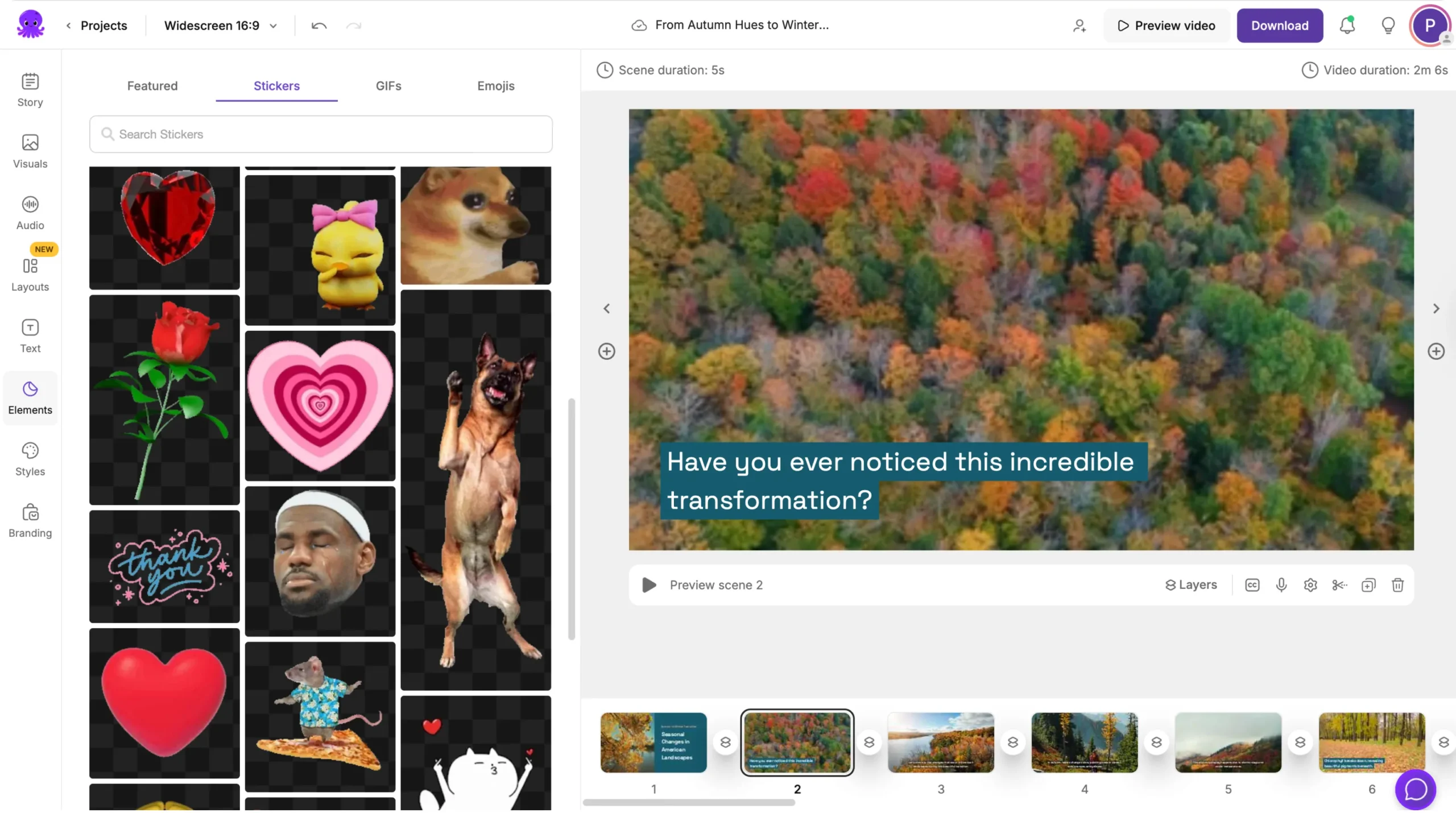
The Stickers and GIFs options appear inside this panel.
Step 2: Browse Available Stickers and GIFs
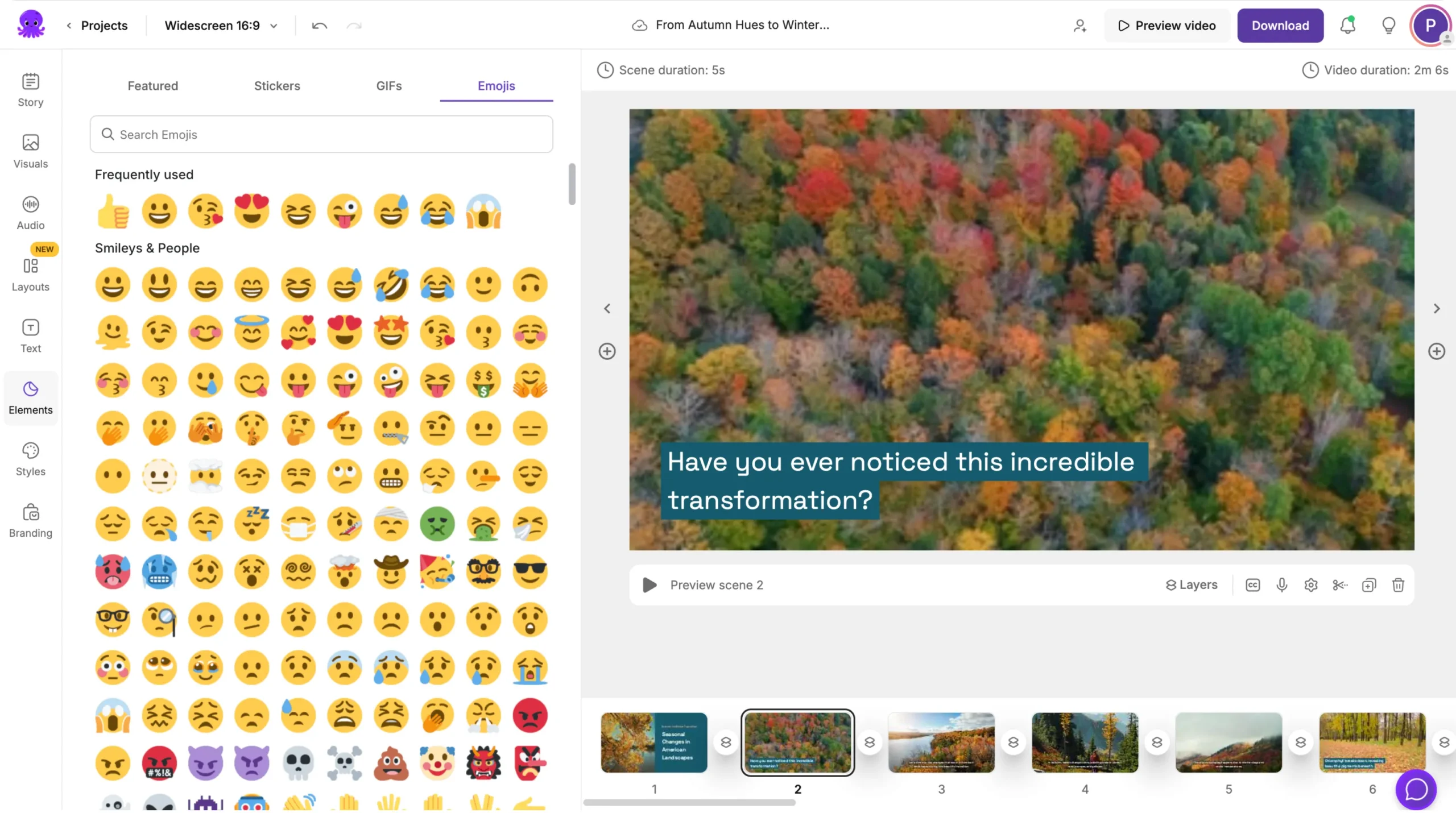
Scroll through the available categories to find stickers and animated GIFs that match your scene. Categories may include:
• Emojis
• Reactions
• Celebrations
• Arrows
• Expressions
• Decorative accents
You can browse until you find one that fits your message.
Step 3: Add a Sticker or GIF to Your Scene
Click the sticker or GIF you want to apply. It appears instantly on your scene.
From here, you can:
• Drag to reposition it
• Resize by pulling the corners
• Rotate using the rotation handle
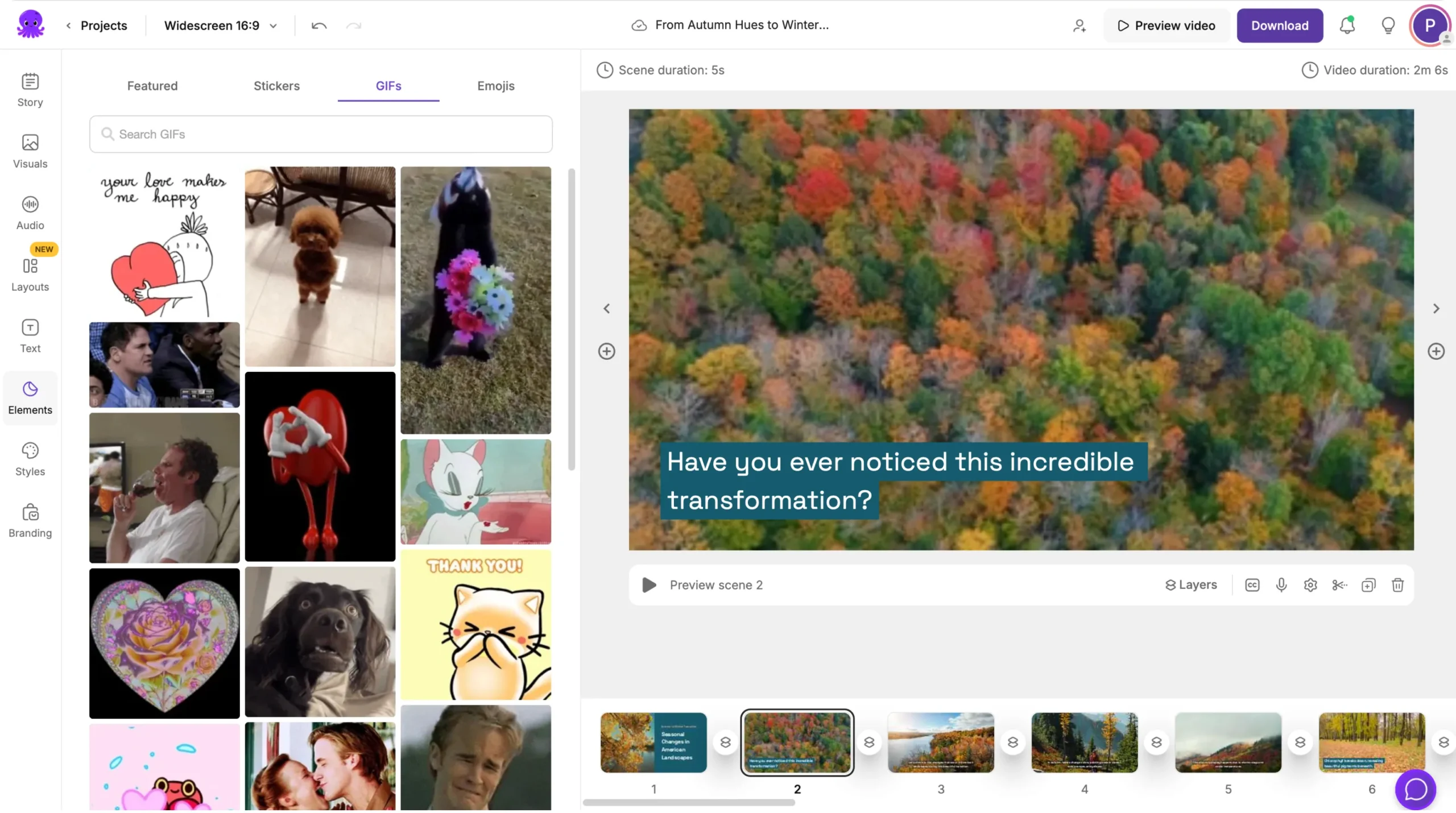
Stickers and GIFs can be placed anywhere on the scene.
Step 4: Adjust Placement for Better Visibility
Position your sticker or GIF so it does not block important text or visuals.
You can place them:
• In the corner for subtle emphasis
• Near text to highlight a key point
• Next to an object on screen
• Near characters or presenters
• In the center for dramatic impact
Placement affects how viewers react to them, so choose spots that enhance your message.
Step 5: Combine Stickers With Text or Elements
Stickers pair well with other design features such as:
• Callout text
• Arrows
• Shapes
• On screen labels
For example, you can add a checkmark sticker next to a success message or use a celebratory GIF when announcing an achievement.
This enhances storytelling and clarity.
Step 6: Use Stickers Sparingly for Professional Videos
Stickers and GIFs are powerful but should be used with intention. For business or training content, choose subtle stickers that support your message without distracting the viewer.
For social media content, you can use more expressive or playful options.
Choose the style that matches your audience.
Step 7: Preview Stickers and GIFs in Motion
GIFs animate, so always preview your scene.
- Click the play button on your scene
- Watch how the GIF loops
- Ensure timing does not clash with text or visuals
- Make adjustments if needed
This helps maintain a clean and polished look.
Step 8: Remove Stickers Anytime
To remove a sticker or GIF:
- Select it
- Click Delete
Step 9: Preview and Export Your Final Video
Before exporting your video:
- Click Preview Video
- Watch how stickers and GIFs appear throughout
- Confirm they enhance your message
- Adjust placement or size if necessary
- Export your finished video
This ensures your decorative elements feel intentional and polished.
Add Fun, Expression, and Emphasis With Stickers and GIFs in Pictory AI
Stickers and GIFs help you add personality and clarity to your video. Whether you are creating social content, promotional clips, or educational material, these visual elements can make your message easier to understand and more engaging. With Pictory AI, adding and managing them is quick and flexible.
Start enhancing your next video by using stickers and GIFs in Pictory AI.


