
The Audio tab controls everything related to sound in your video. This includes voiceovers, background music, and uploaded audio files. Good audio makes your video feel more professional, helps viewers understand your message, and creates the right mood.
This guide shows you exactly how to use the Audio tab in Pictory AI.
What the Audio Tab Does
The Audio tab is divided into three sections:
• Voiceover, where you choose AI narration
• Music, where you select background music
• Uploads, where you add your own audio files
Each audio source can be added to your video with one click.
The Audio tab works in every workflow including Text to Video, AI Video Editor, Audio to Video, PPT to Video, Images to Video, and Screen Recording.
Step 1: Open the Audio Tab
Inside the editor, click the Audio tab in the left menu.
You will see the three main audio sections.
- Voiceover
- Music
- Uploads
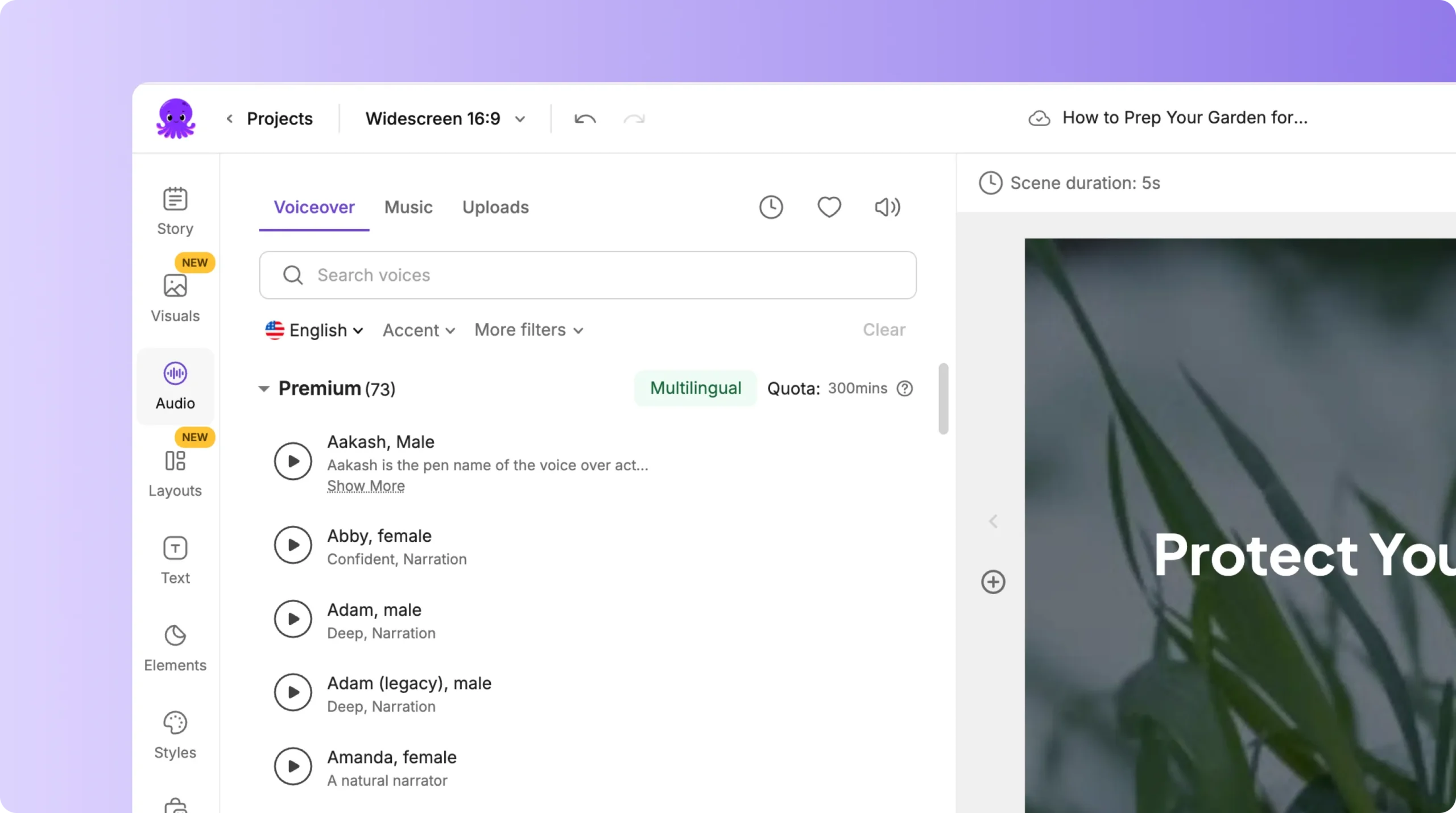
Choose the section that matches your audio needs.
Step 2: Add Voiceover Using AI Voices
AI voiceovers help you narrate your video without needing to record audio.
Steps:
- Open the Voiceover section in the Audio tab.
- Browse through available AI voices.
- Preview each voice to hear tone and style.
- Click Apply Voice to use it in your video.
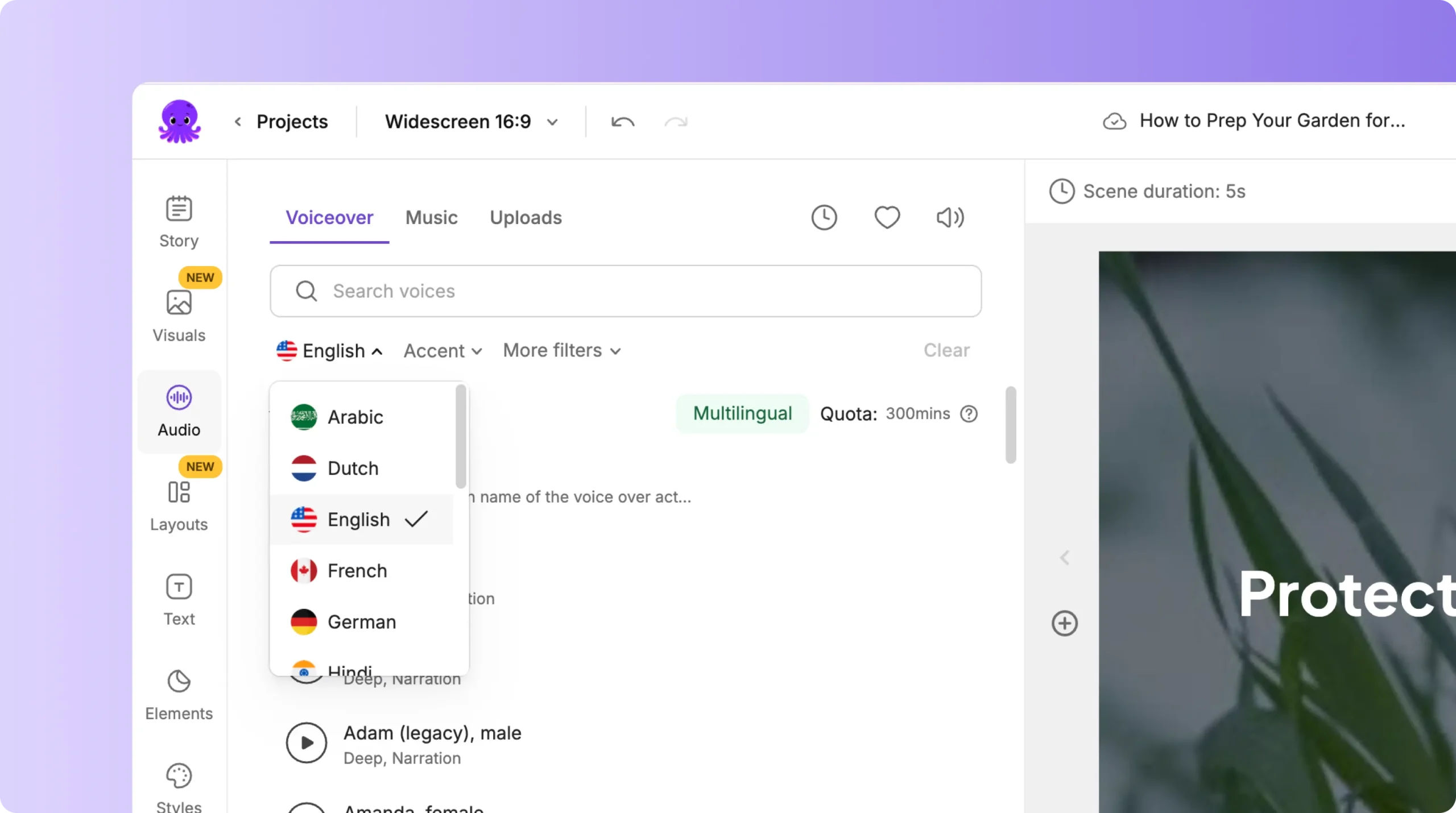
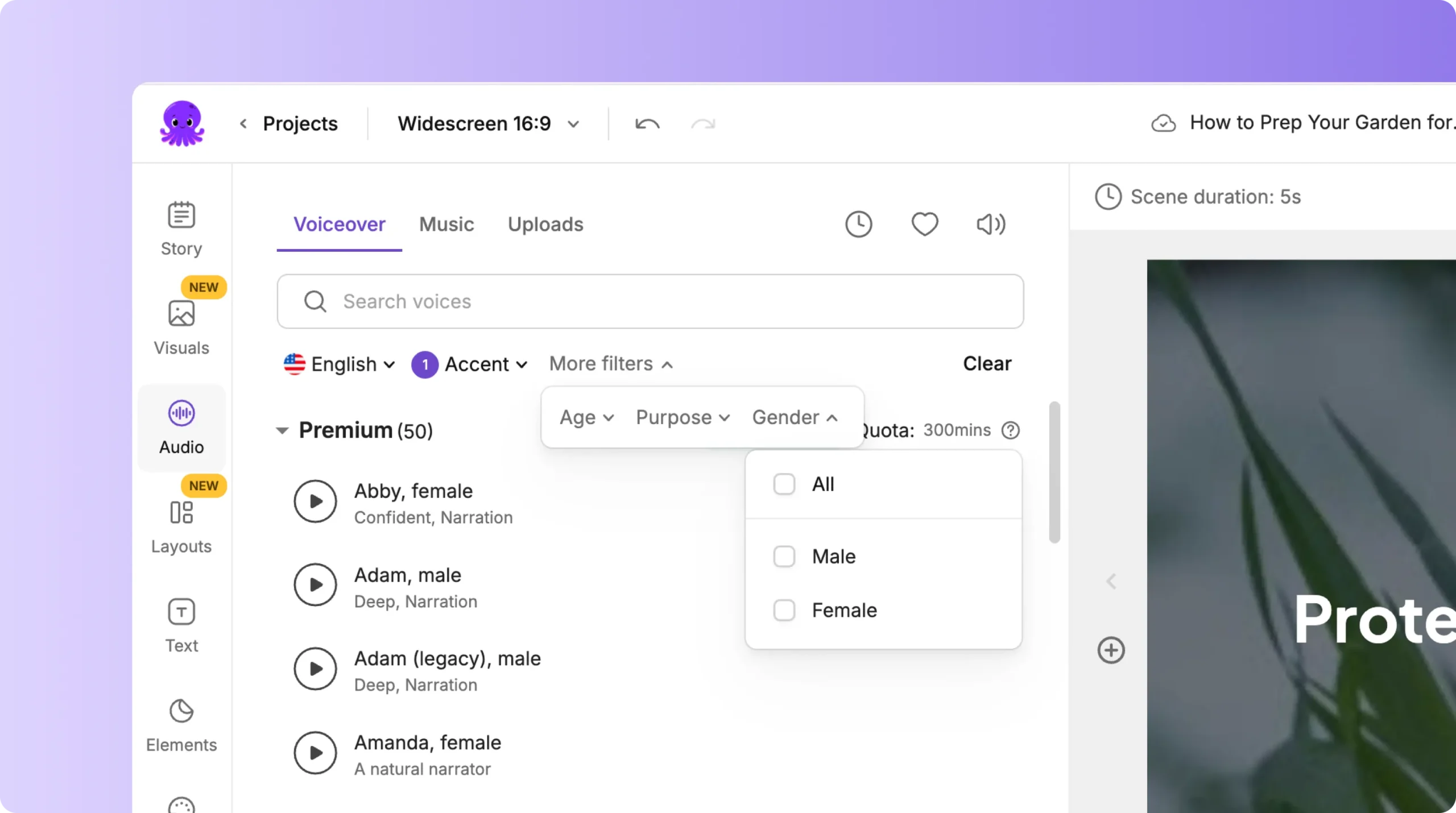
AI narration automatically matches the text in your scenes. It is useful for explainers, training videos, marketing content, and educational material.
Step 3: Upload Your Own Voiceover
If you prefer to use your own narration or a client’s recording, you can upload audio directly into your project.
Steps:
- Go to the Uploads section.
- Click Upload Audio File.
- Select your audio file.
- Choose Auto Sync to align it with your scenes.
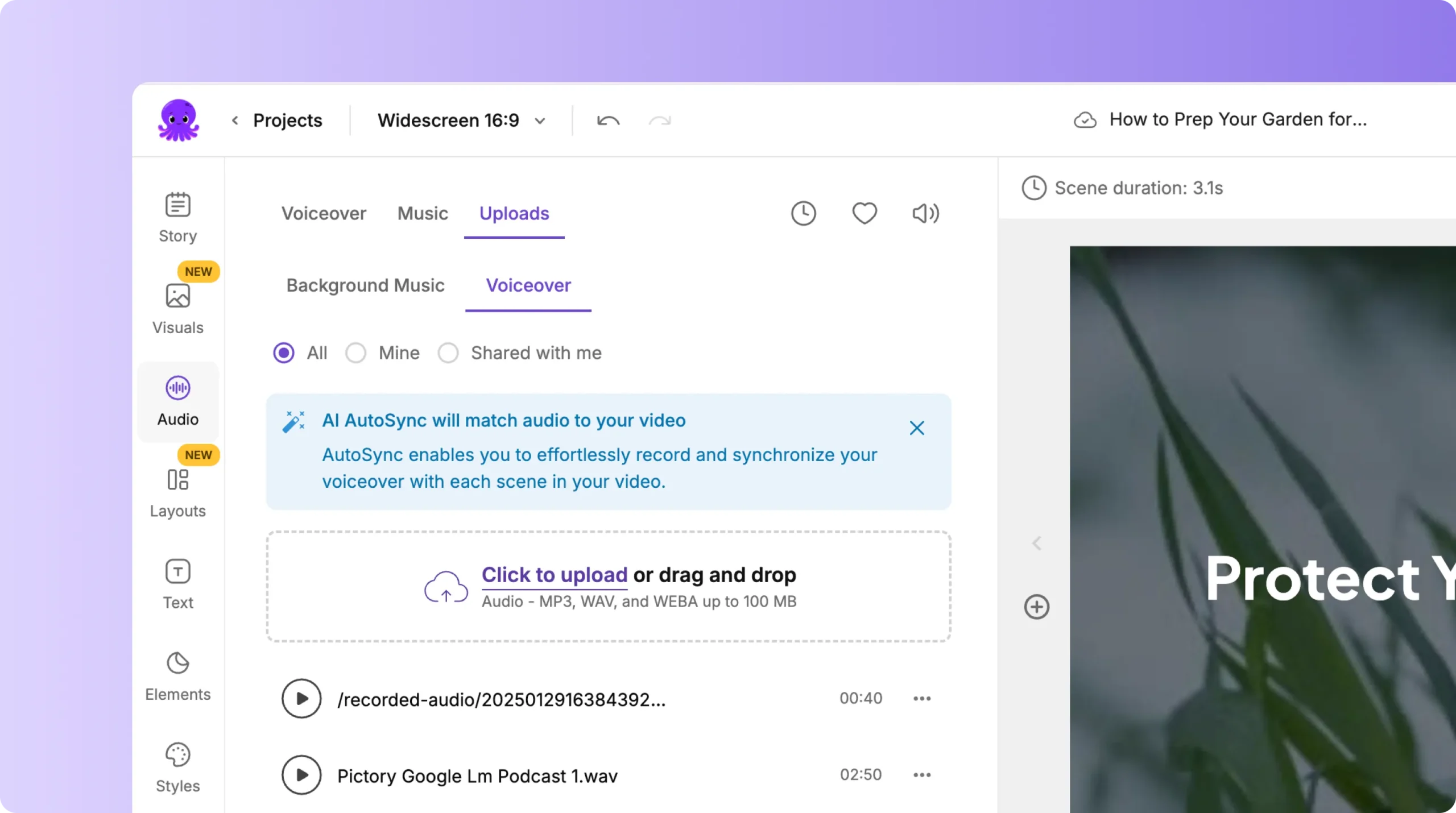
Auto Sync matches your narration to your text, creating smooth timing without manual editing.
Step 4: Add Background Music
Music sets the mood of your video.
Pictory includes a large library of royalty free tracks.
Steps:
- Open the Music section.
- Browse categories or search by keyword.
- Click on a track to preview it.
- Click Apply to add it to your video.
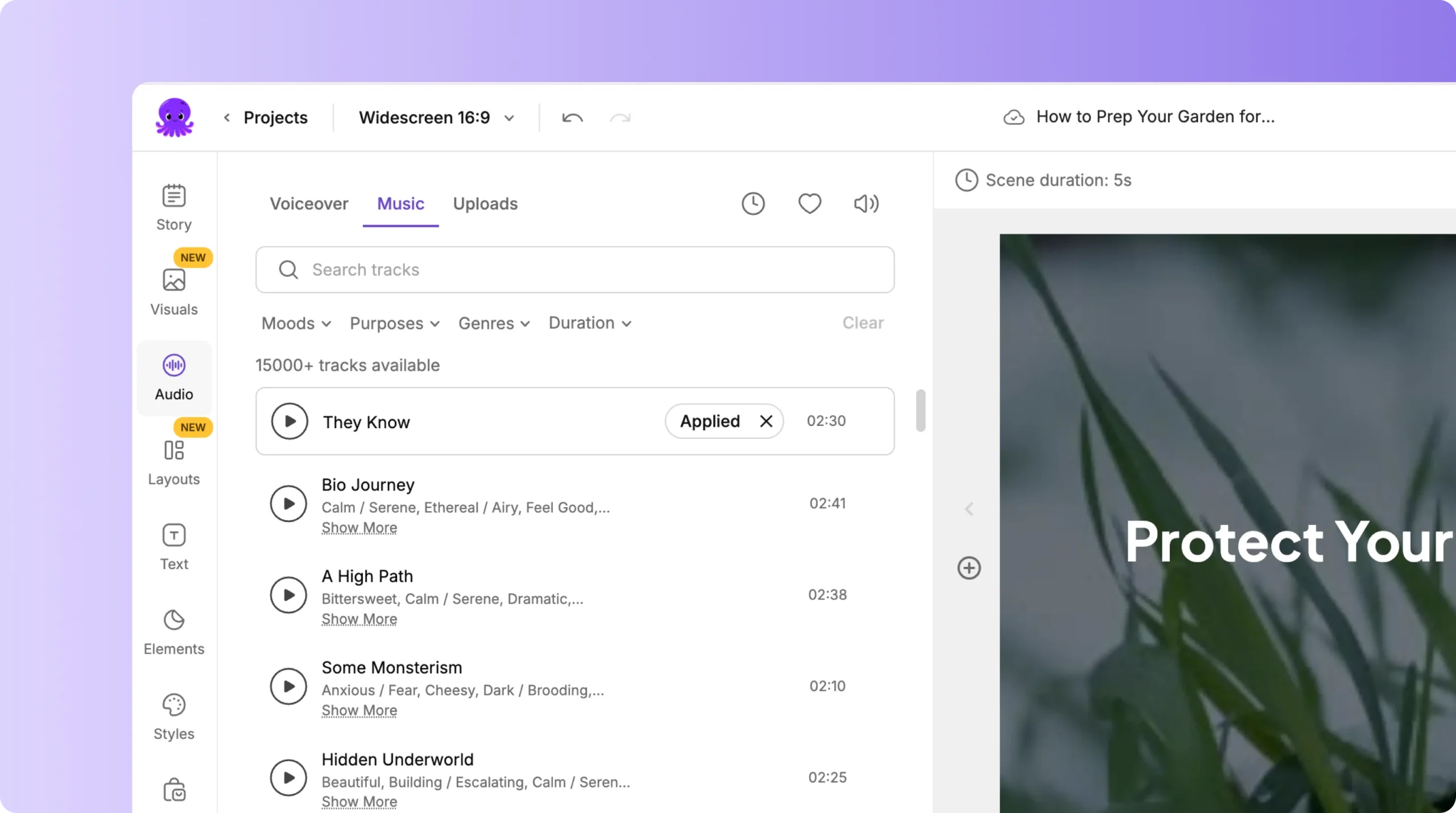

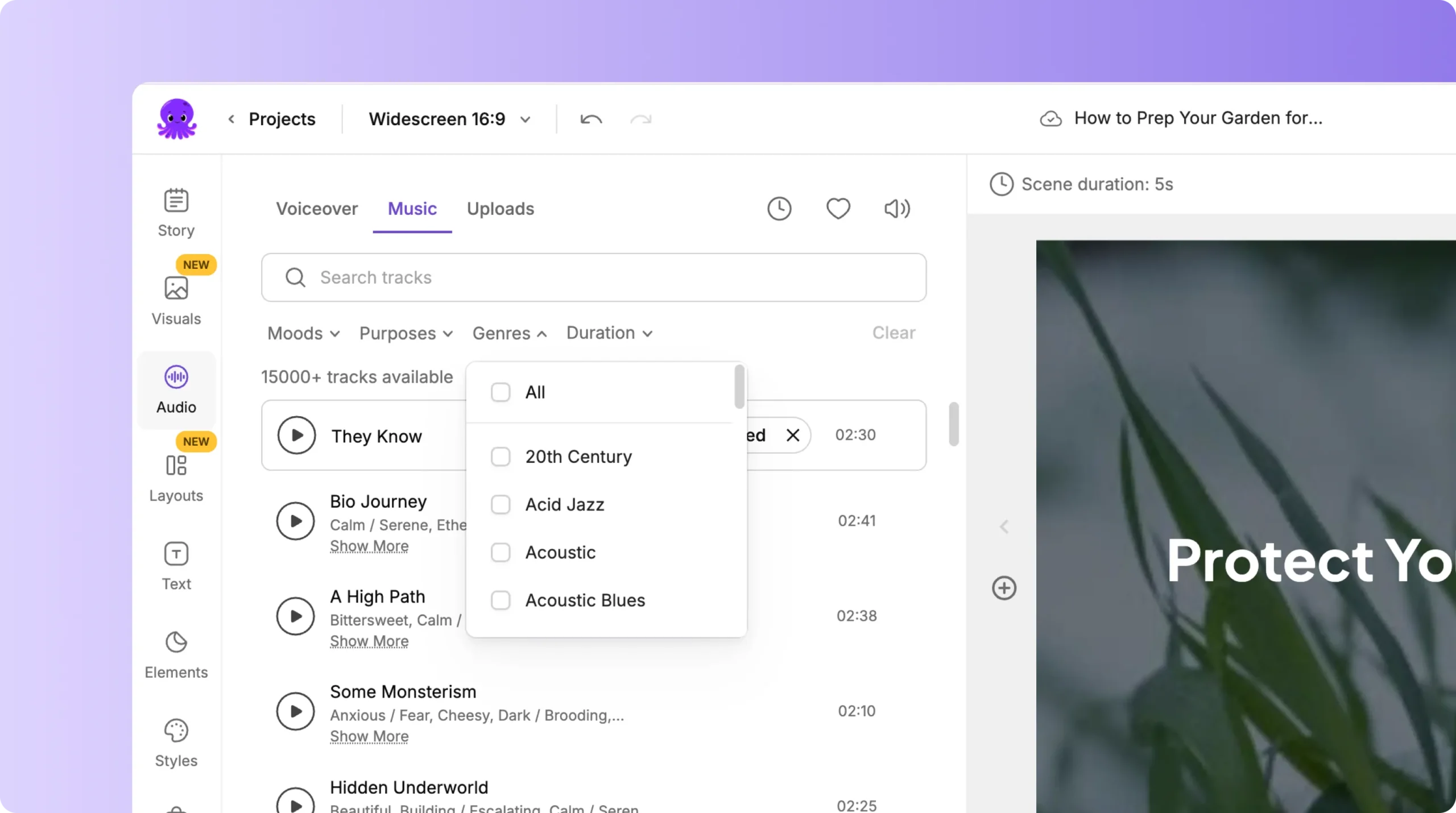
You can adjust music volume so your voiceover stays clear.
Use background music for:
• Marketing videos
• Product demos
• Corporate communications
• Social media content
• Tutorials and explainers
Step 5: Add Multiple Audio Layers if Needed
Some videos need more than one type of audio. You can combine:
• Voiceover narration
• Background music
• Uploaded sound effects or recordings
This gives you flexibility for demos, tutorials, and marketing content.
Step 6: Preview Audio Before Exporting
Before exporting your final video:
- Click Preview Video.
- Listen for volume balance between music and voiceover.
- Ensure transitions sound smooth.
- Make final audio adjustments if needed.
- Export your video in the format you want.
Good audio ensures your video feels polished and professional.
Create Professional Sound for Your Videos with the Audio Tab
The Audio tab gives you full control over narration, background music, and uploaded recordings. Whether you use AI voices or your own voiceover, you can create videos that sound clear, engaging, and on brand. Once you understand how each section works, your videos will have the strong audio foundation they need.
Start enhancing your next video today using the Audio tab in Pictory AI.


