
The Elements tab lets you add visual enhancements that help guide attention, highlight information, and improve clarity inside your video. These include arrows, shapes, icons, callouts, stickers, and other visual elements. They make your scenes easier to understand and help viewers focus on what matters.
This guide shows you how to use the Elements tab in Pictory AI.
What the Elements Tab Does
The Elements tab lets you place graphic elements directly on your video.
You can use them to highlight steps, point to important areas, or add simple visual decoration.
Types of elements include:
• Arrows
• Shapes
• Icons
• Callout boxes
• Decorative items
• Stickers and highlights
These visuals help viewers follow instructions and understand key points more easily.
Step 1: Open the Elements Tab
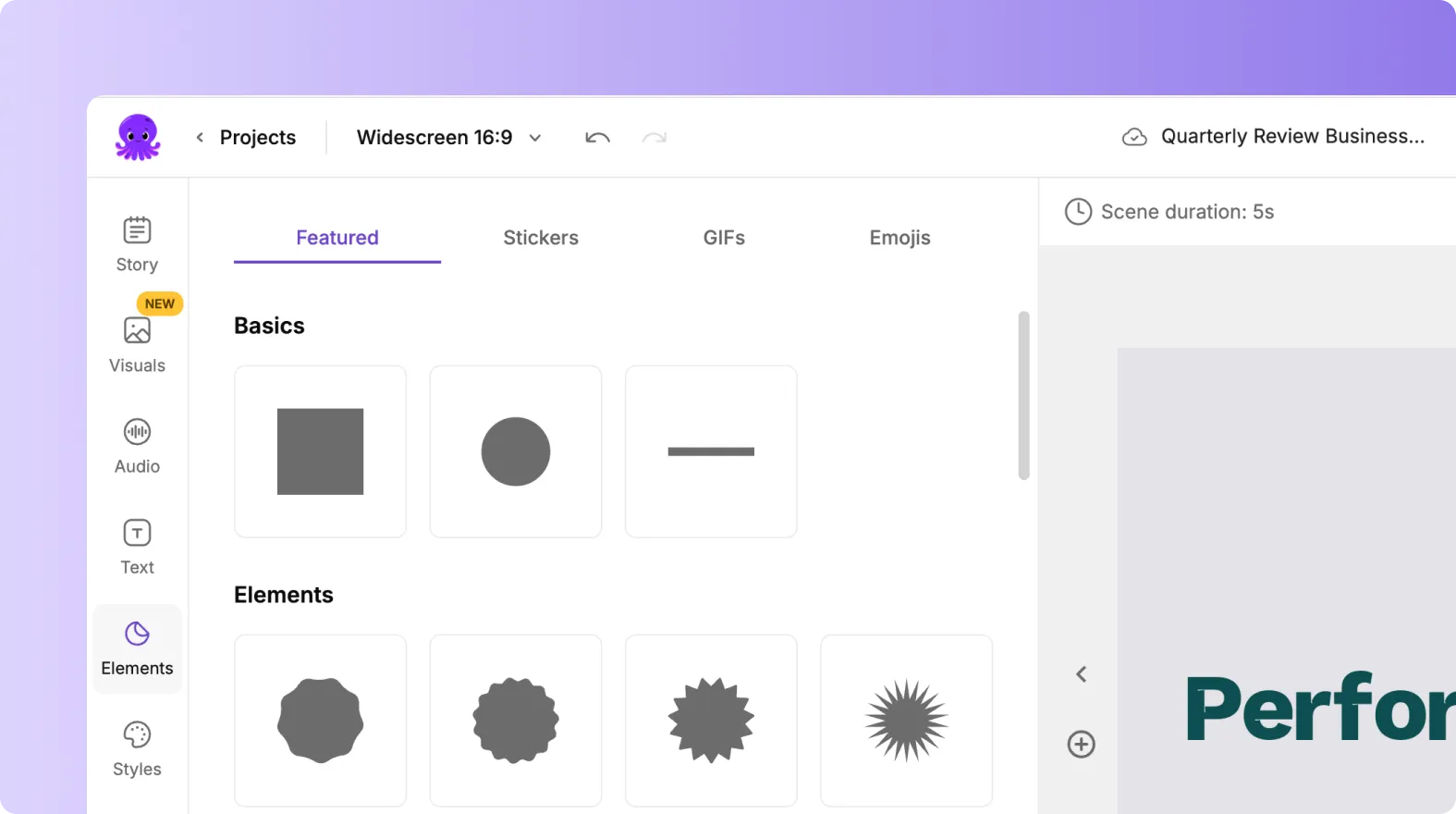
Inside the editor, select the scene you want to adjust. Click the Elements tab in the left side menu. You will see categories of elements you can browse and apply. Select a category to view available items.
Step 2: Add an Element to Your Scene
Click on the element you want to add. It appears immediately on your scene. You can move it by dragging and resize it by pulling the corners.

This helps you position elements exactly where you want them.
Step 3: Style and Format Your Element
When an element is selected, a toolbar appears above the preview panel.
Here you can adjust:
• Color
• Size
• Rotation
• Opacity
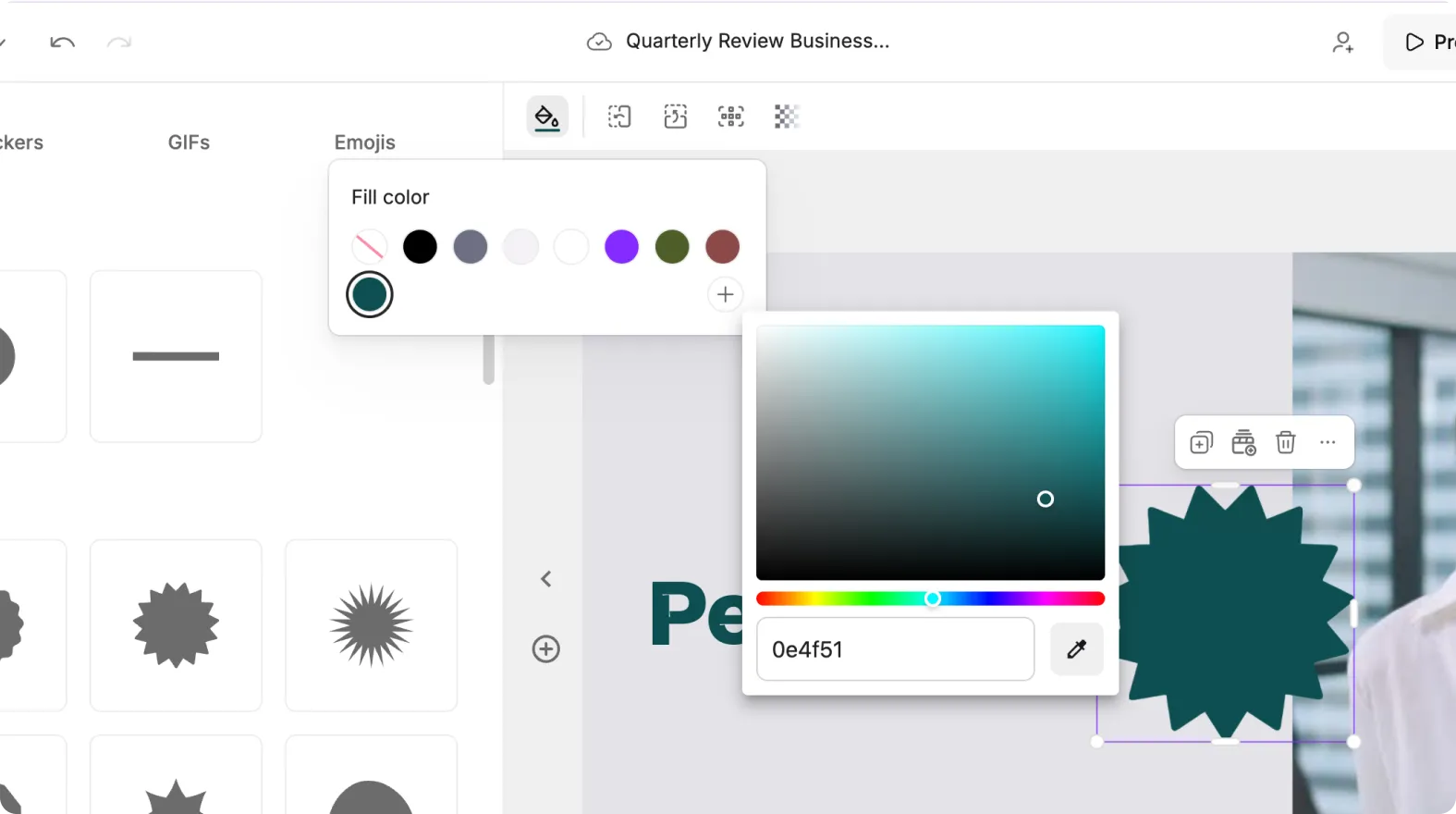
You can also flip or align the element to match your layout. These controls help you match the look and feel of your video.
Step 4: Use Elements to Highlight Key Areas
Elements can guide viewer attention. You can use arrows to point at a product feature, a button, or a visual detail. You can use shapes or callout boxes to highlight text or important messages.
Common uses include:
• Pointing at parts of a screen in tutorials
• Highlighting steps in a process
• Drawing attention to a product detail
• Adding callouts for instructions or reminders
These small touches help viewers stay focused and understand your content faster.
Step 5: Layer Elements With Text and Visuals
The Elements tab works well with both the Text tab and the Visuals tab. You can place an element behind or in front of your text depending on what you want to emphasize.
Examples include:
• Adding an arrow next to a heading
• Placing a shape behind text to improve readability
• Adding icons next to feature lists
• Using circles or boxes to frame important areas
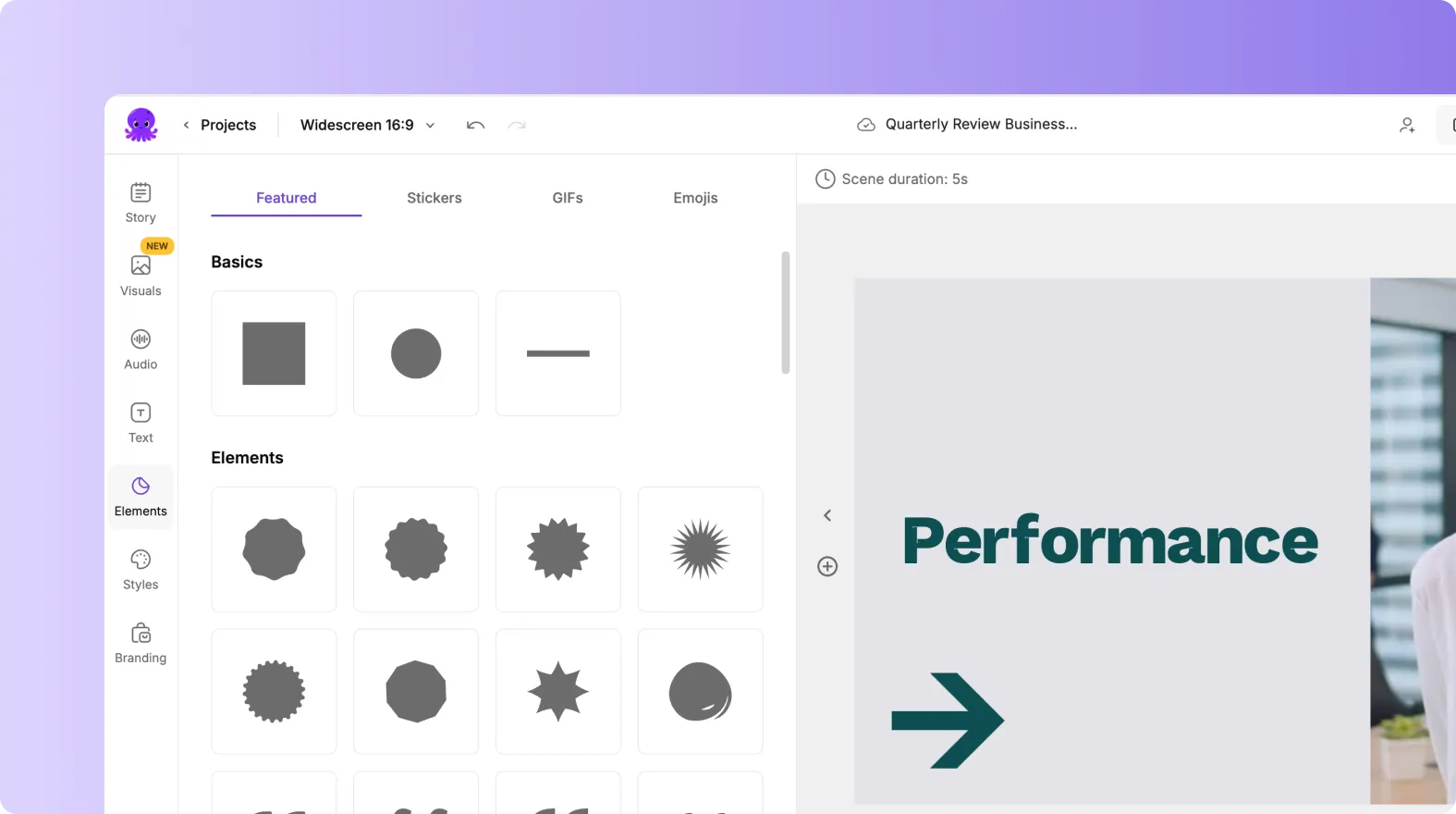
Layering helps your content feel structured and easy to follow.
Step 6: Keep Elements Simple and Purposeful
Elements should support the message, not overwhelm it. Use them to clarify information, not to decorate unnecessarily.
Good practices include:
• Using one or two key elements per scene
• Keeping color consistent with your Brand Kit
• Avoiding cluttered visuals
• Using arrows and shapes only when they support learning
Clean design improves clarity and professionalism.
Step 7: Preview Your Video to Check Element Placement
When your elements are in place:
- Click Preview Video.
- Watch how elements appear and move.
- Ensure they do not block text or important visuals.
- Make adjustments before exporting.
Proper placement ensures your video stays clear and easy to understand.
Create Clear, Engaging Videos Using the Elements Tab in Pictory AI
The Elements tab gives you simple tools to improve clarity, highlight key points, and guide viewer attention. By adding arrows, shapes, icons, and callout boxes, you can turn complex information into easy to follow visual steps. These small enhancements help your videos feel professional, structured, and viewer friendly.
Start enhancing your next video today with the Elements tab in Pictory AI.


