

The Projects Dashboard is your central workspace for managing all your videos in Pictory AI. It keeps your drafts, completed videos, templates, and brand assets organized so you can access everything quickly. Whether you work alone or as part of a team, the dashboard helps you stay efficient and in control of your content.
This guide shows you how to use the Projects Dashboard in Pictory AI.
What the Projects Dashboard Does
The Projects Dashboard allows you to:
• View all video projects in one place
• Organize content by status or category
• Open, duplicate, or delete projects
• Access Brand Kits and Instant Templates
• Filter and search for projects
• Collaborate with teammates
It serves as your main navigation hub inside Pictory.
Step 1: Open the Projects Dashboard
After signing into Pictory AI, you land directly on the Projects Dashboard. If you are already in the editor, click Projects in the top menu to return to the dashboard.
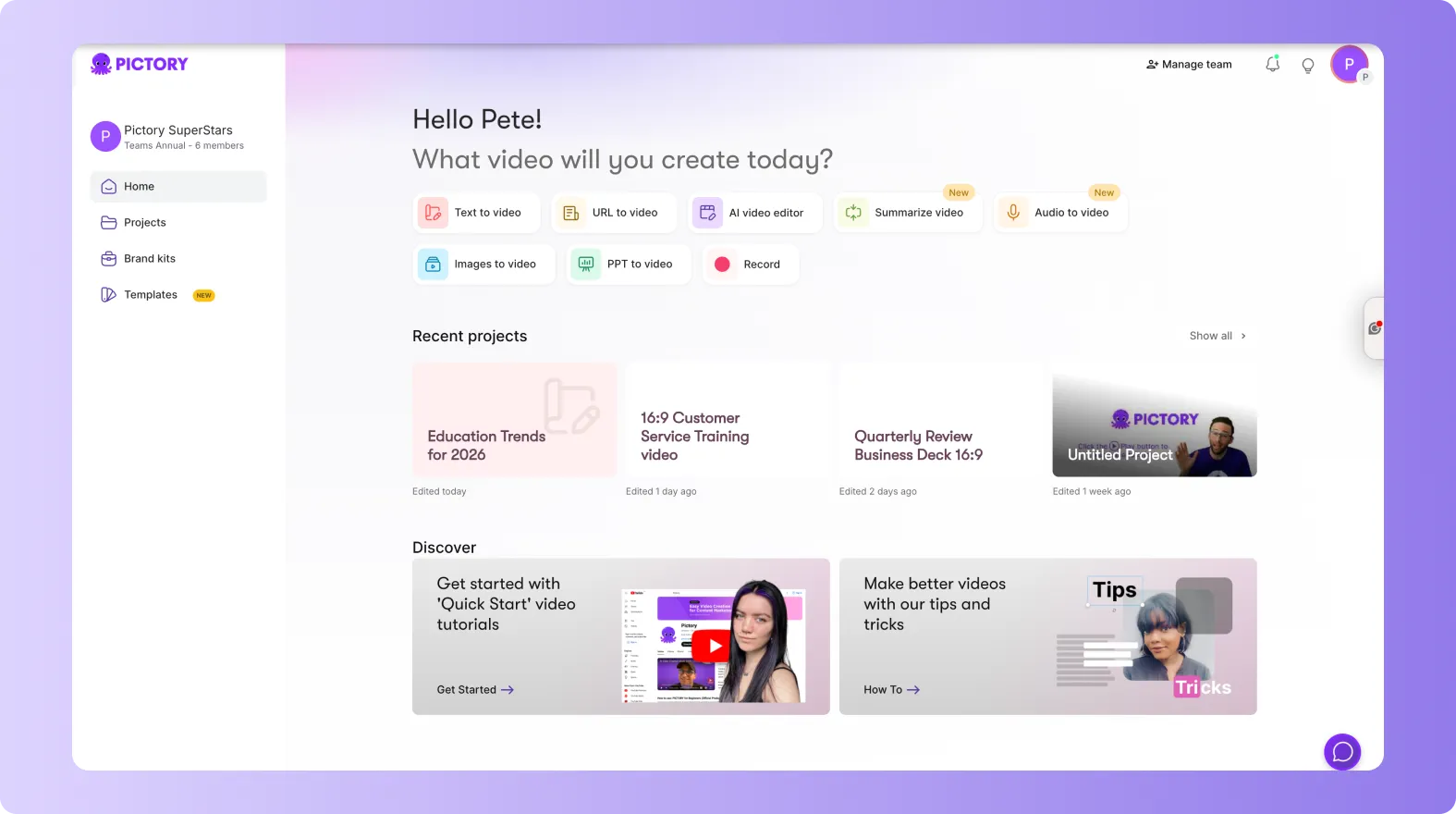
You will see a grid or list of your existing projects.
Step 2: Understand the Project Cards
Each project appears as a card showing:
• Thumbnail preview
• Project name
• Last modified date
• Status indicators
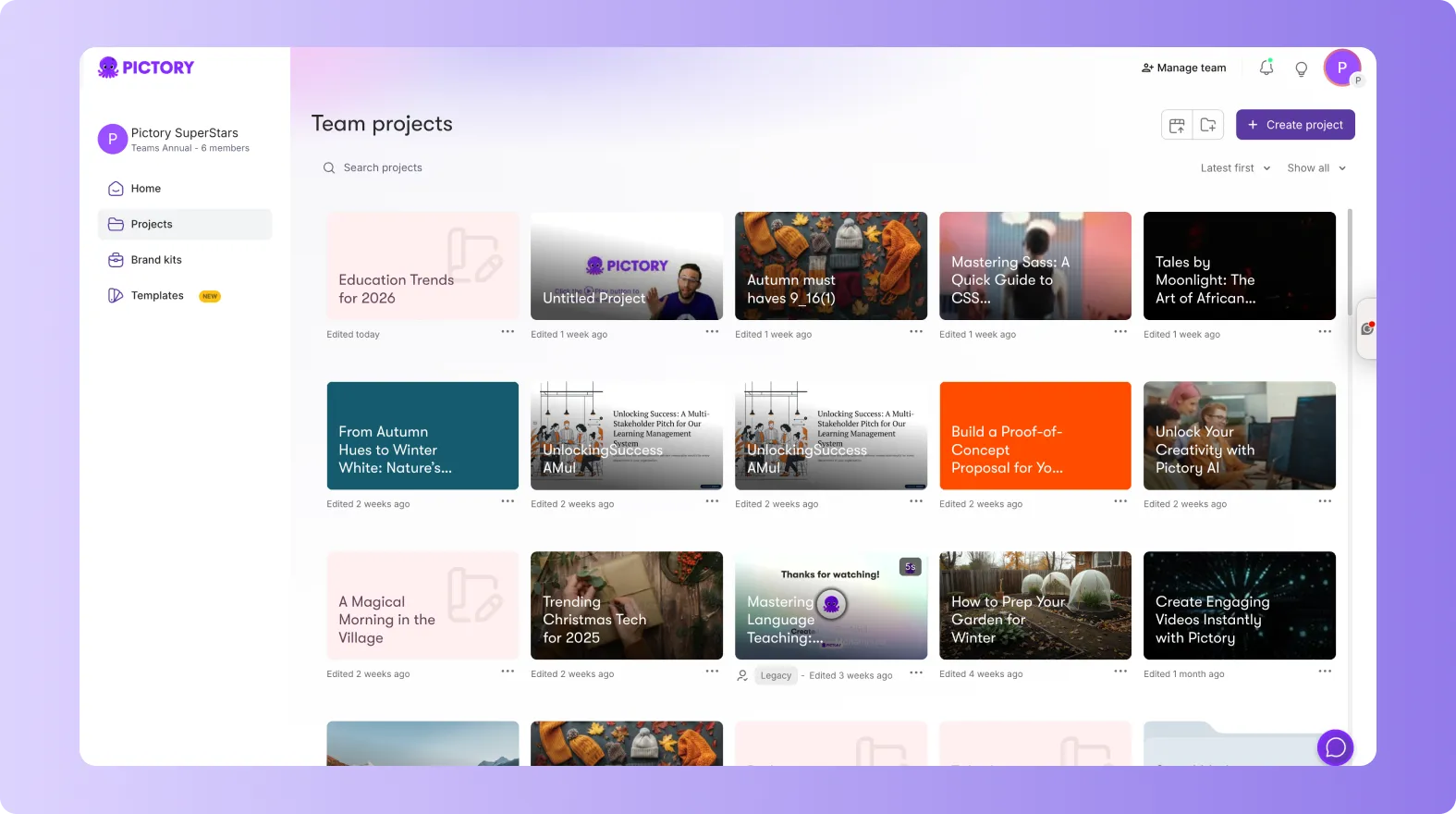
Project cards help you identify the correct file quickly, even if you manage many videos.
Step 3: Search for a Project
Use the search bar at the top of the dashboard to find projects by name. This is helpful when your workspace contains many drafts or when working across campaigns.

Step 4: Filter Projects for Better Organization
The dashboard includes filters to help you stay organized.
You can filter by:
• Recent projects
• Completed projects
• Drafts
• Shared projects
• Projects sorted by date or name
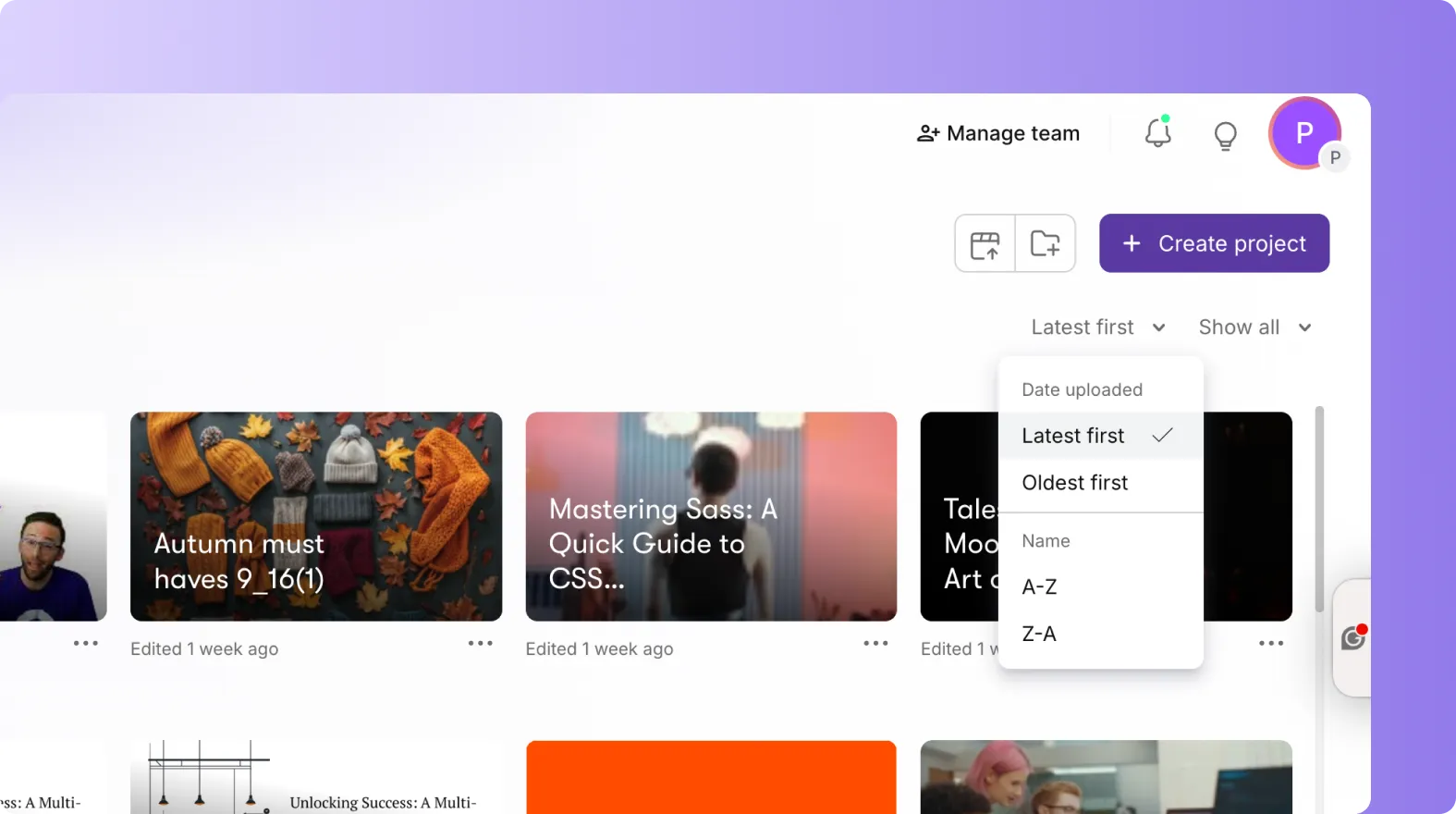
Filters save time when navigating large content libraries.
Step 5: Open a Project
To continue working on a video:
Click the project card
Pictory opens the editor
You can resume editing where you left off
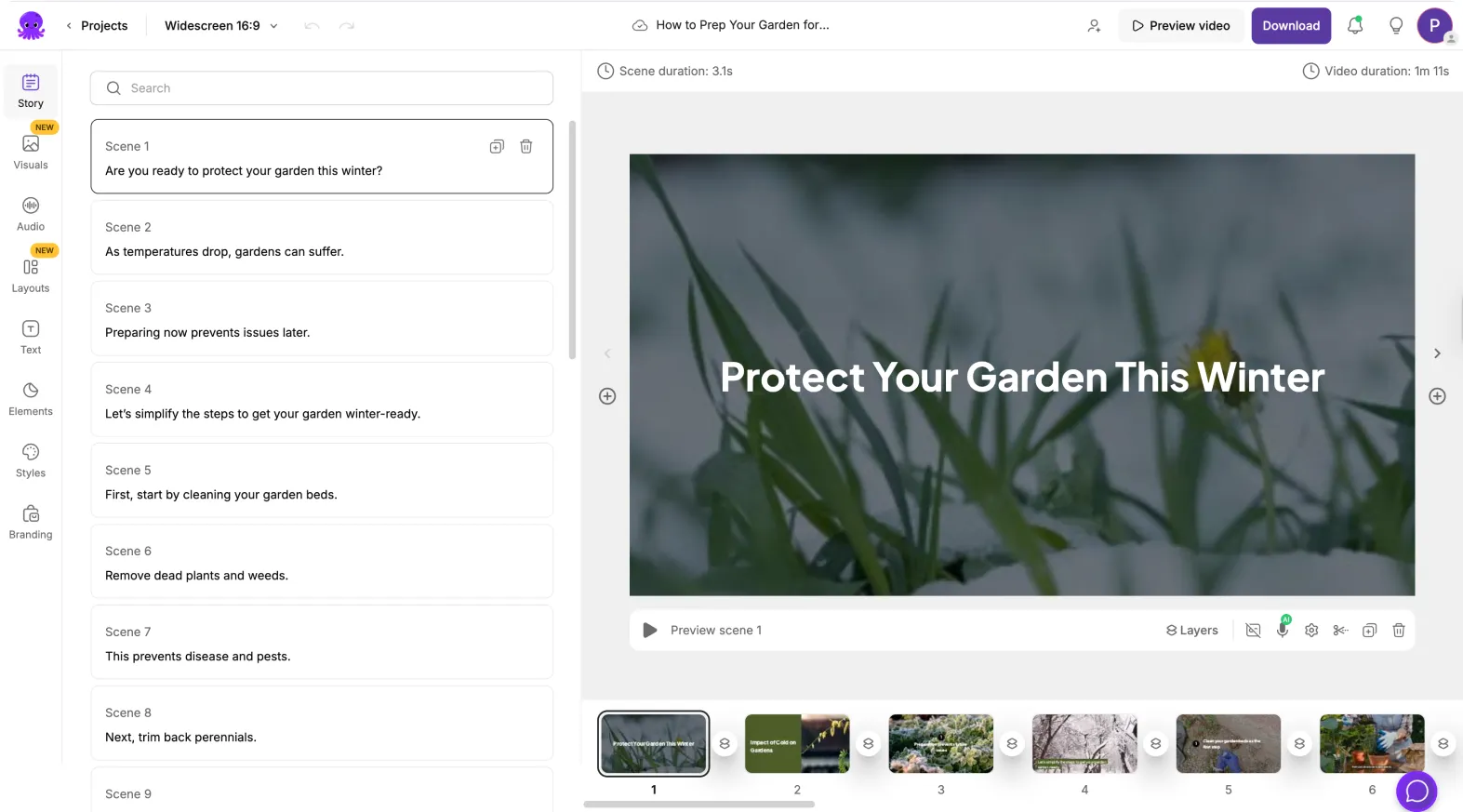
All scenes, audio, branding, and settings are preserved.
Step 6: Duplicate a Project for New Versions
Duplicating is helpful when creating similar videos or multiple variations.
To duplicate:
Click the three dot menu on the project card
Select Duplicate
A new version appears in your dashboard
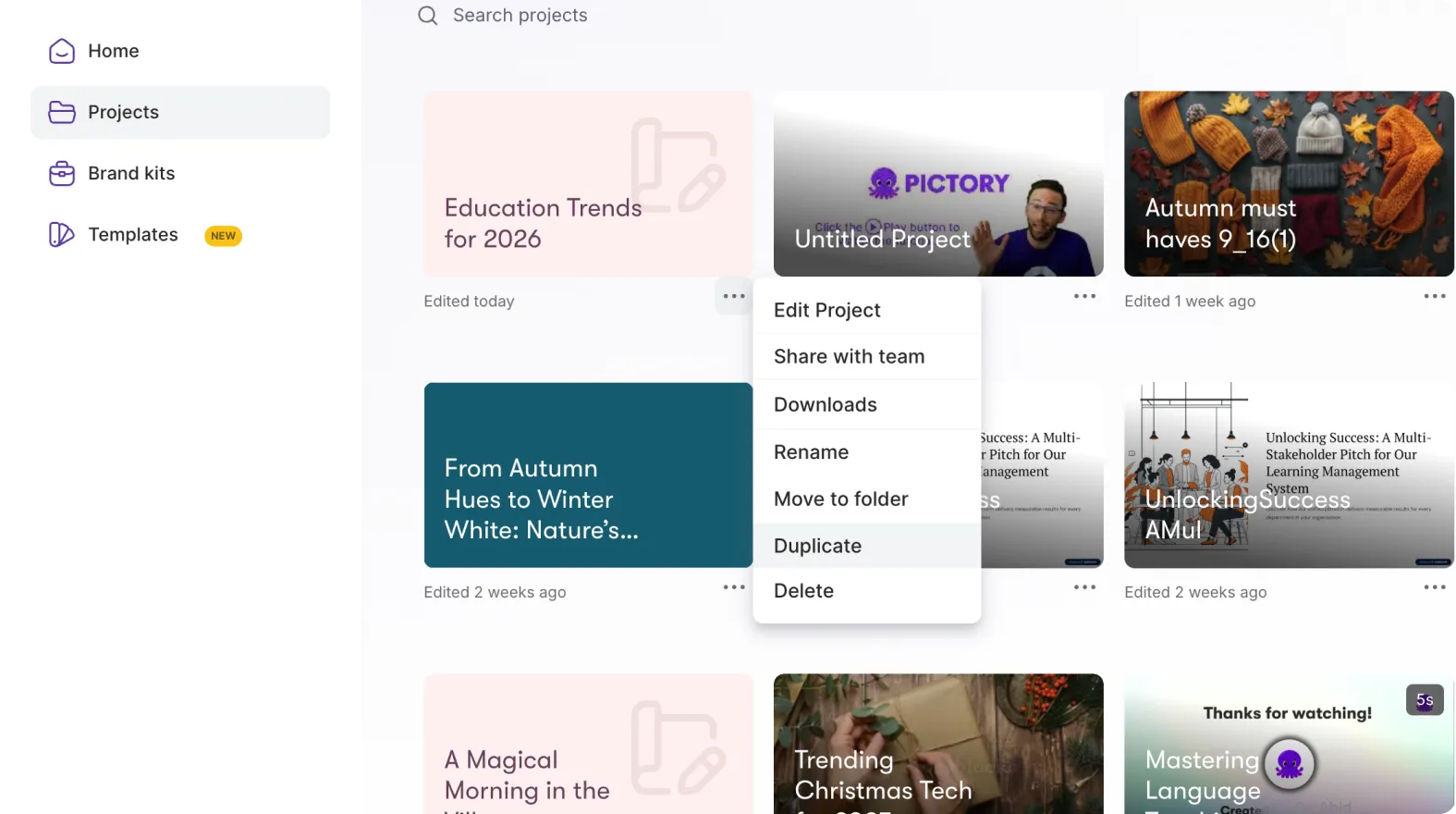
This is ideal for recurring content such as weekly updates, social clips, or campaign variations.
Step 7: Rename Projects for Clear Organization
You can rename any project to keep your dashboard organized:
Click the three dot menu
Select Rename
Enter a new project title

Use clear naming conventions such as:
• Client name + project
• Campaign + date
• Platform type
• Version identifiers
Clean organization helps teams work efficiently.
Step 8: Delete Projects You No Longer Need
To remove an outdated or unused project:
Click the three dot menu
Select Delete
Confirm removal

Deleting old projects helps declutter your workspace.
Step 9: Access Brand Kits and Instant Templates
From the dashboard, you can also open:
• Brand Kits
• Instant Templates
• Account settings
• Team workspace settings
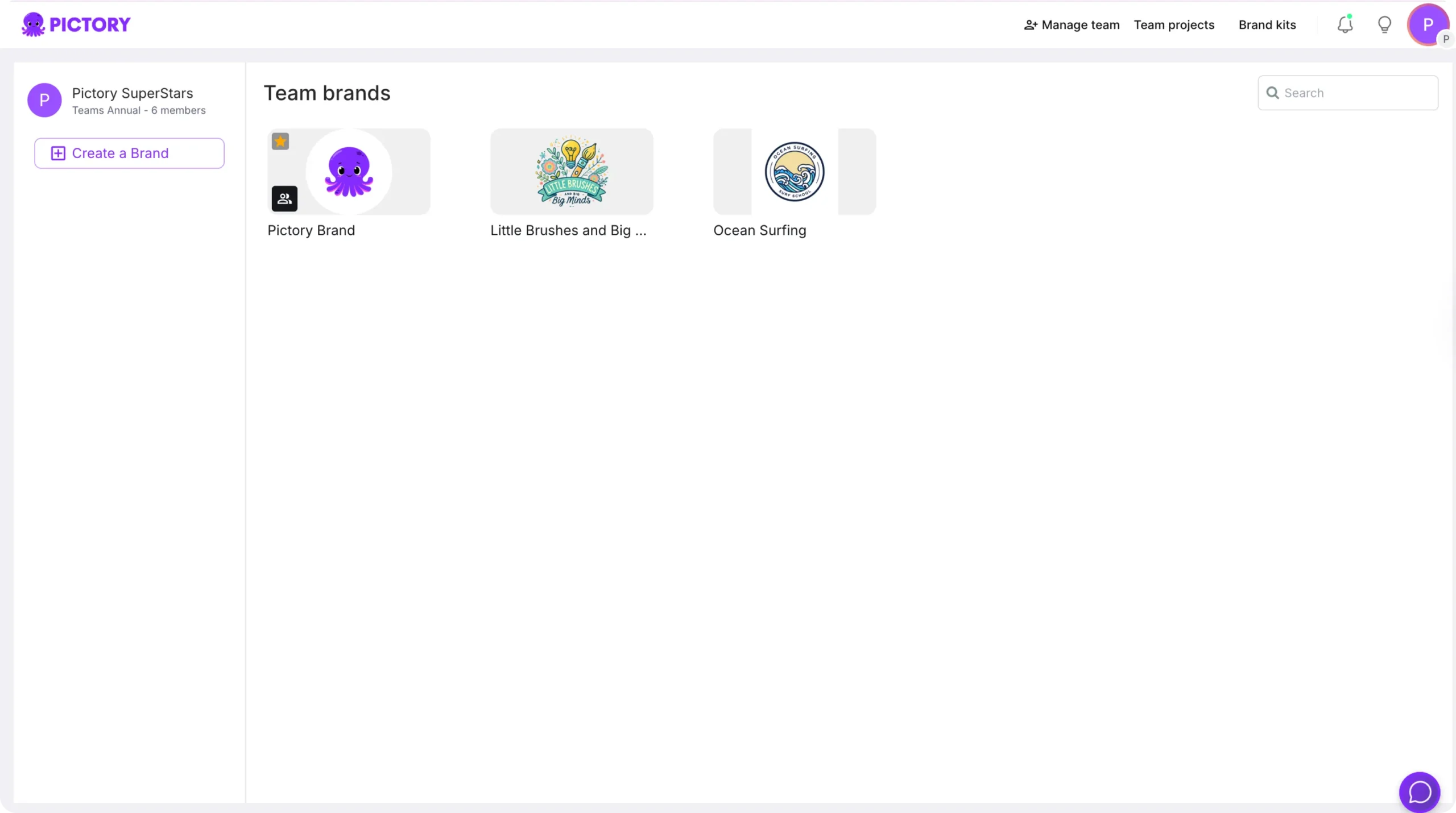
This central access point makes it easy to begin new branded projects quickly.
Step 10: Use the Dashboard for Team Collaboration
If you are part of a team:
• Shared projects appear automatically in your dashboard
• You can see who last edited each project
• You can duplicate or open shared work easily
• Team assets stay visible for all members
This creates a smooth workflow across departments or client accounts.
Manage Your Entire Video Workflow With the Projects Dashboard in Pictory AI
The Projects Dashboard keeps your content organized and accessible. By using filters, duplication tools, and shared project features, you can manage all your video work efficiently. Whether producing marketing content, training videos, or social clips, the dashboard helps you stay in control of your creative workflow.
Start using the Projects Dashboard today to streamline your editing process in Pictory AI.


