

The Story tab is the core of your editing workflow in Pictory AI. It controls your scenes, your script, and the overall structure of your video. Every scene you create, cut, rearrange, or edit happens inside the Story tab. It is the place where you shape your message and decide how your video flows from start to finish.
This guide shows you exactly how to use the Story tab to build a clear, polished video in Pictory AI.
What the Story Tab Does
The Story tab shows all your scenes in order. It contains your script, your captions, and your scene text. You can move scenes, split them, remove them, edit text, or change timing. This is the main workspace for structuring your video.
Inside the Story tab you can:
• View and edit every scene
• Reorder scenes
• Merge or split scenes
• Edit the script or captions
• Change visuals and layouts
• Delete unwanted parts
• Add new scenes
The Story tab is where you craft the narrative of your video.
Step 1: Open the Story Tab
In the editor, click the Story tab on the left side. You will see each scene displayed in a vertical list.
Each scene contains text, visuals, and timing.
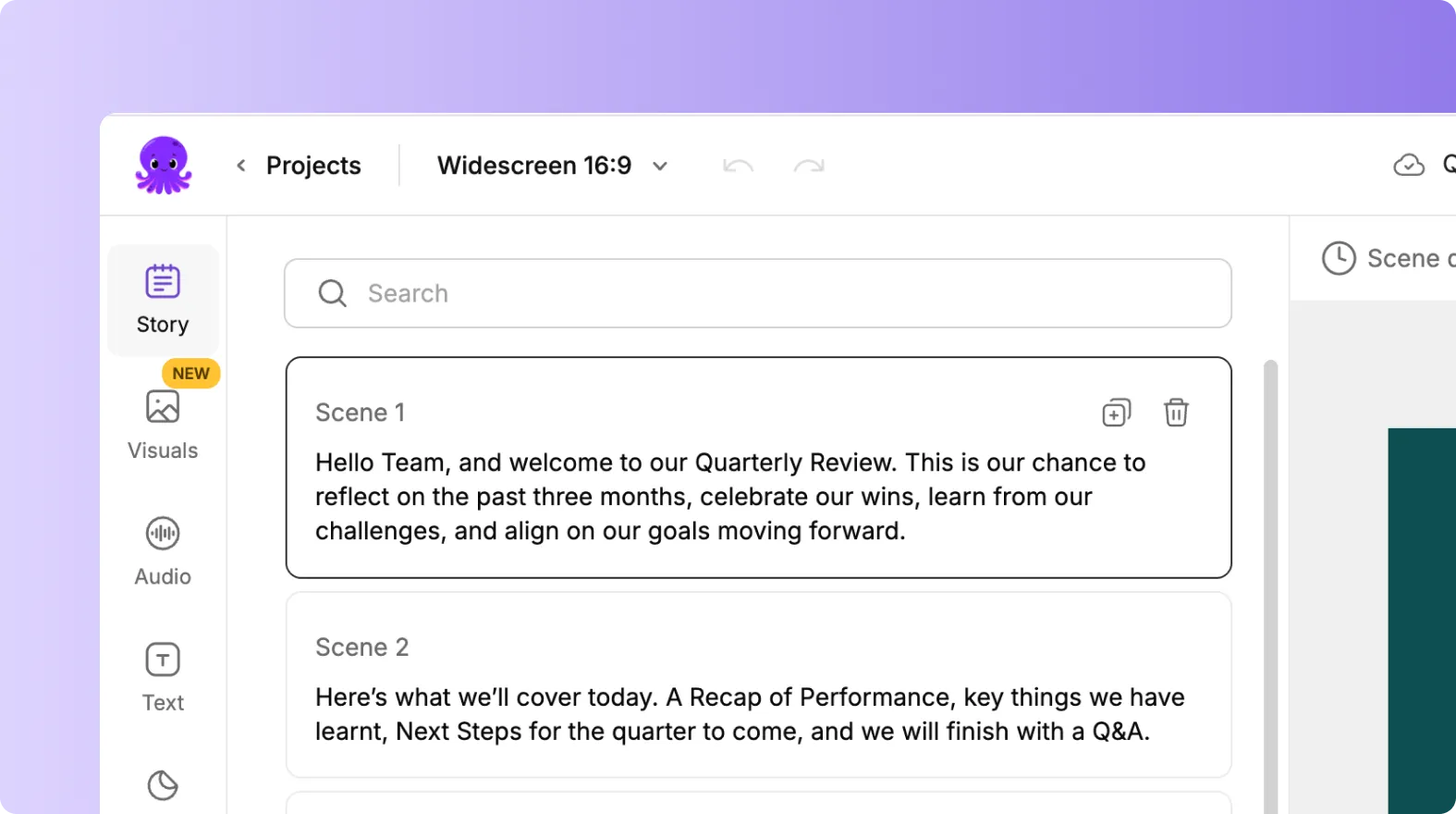
You can click any scene to edit it.
Step 2: Edit Your Scene Text
Every scene contains text from your script or transcription.
Click inside the text box to edit it. You can remove words, adjust phrasing, or rewrite your message.
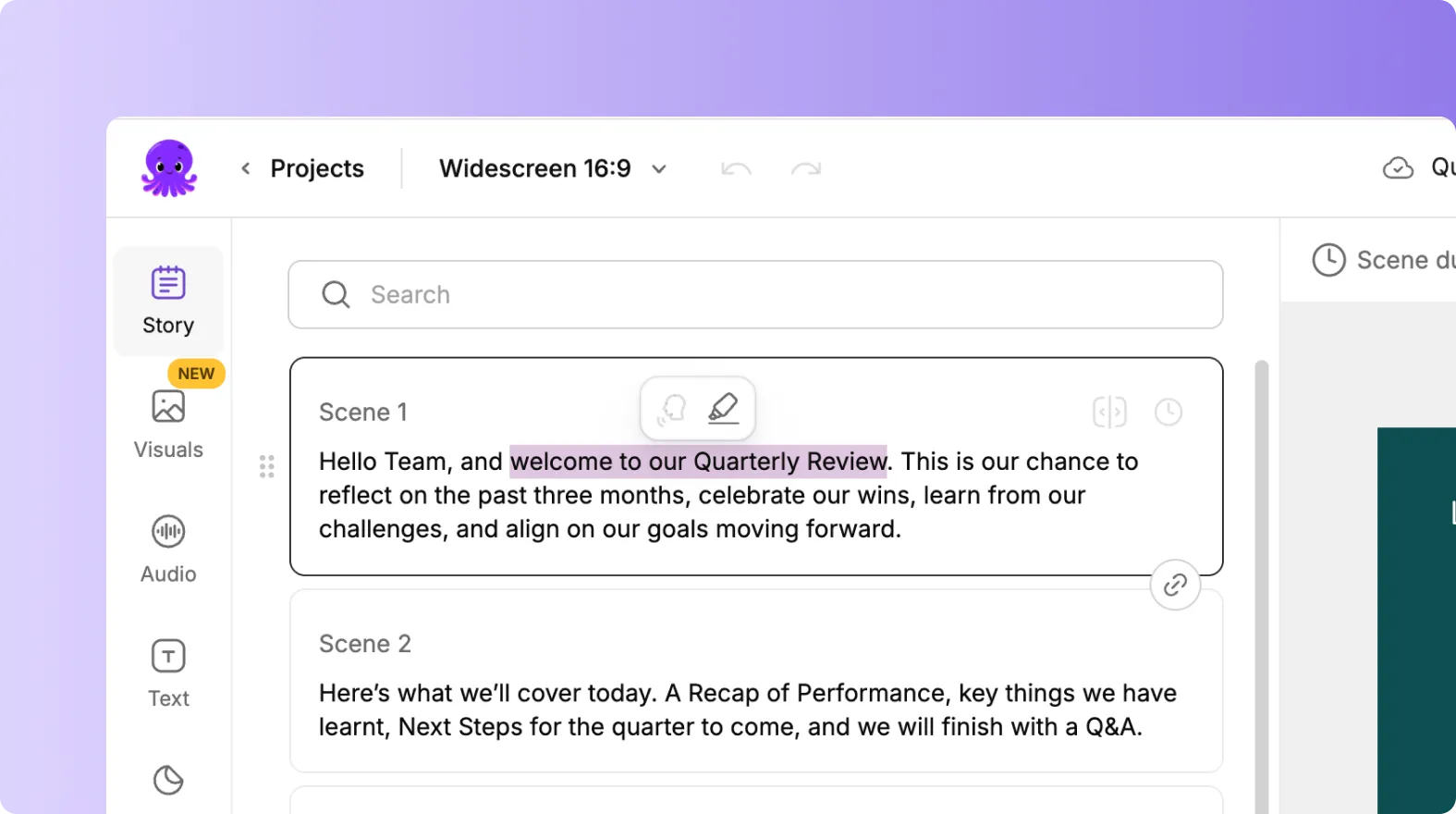
For tutorials or training videos, use short, clear sentences in each scene. This helps viewers follow your message easily.
Step 3: Reorder Your Scenes
You can change the flow of your video by reordering scenes.
Drag and drop scenes inside the Story tab to place them where you want.
This allows you to restructure your content without starting from scratch.
Reordering works well for:
• Training steps
• Product demos
• Story based videos
• Marketing sequences
This keeps your message organized and logical.
Step 4: Split or Merge Scenes
If a scene feels too long or has too much text, split it. If two scenes feel too short or repetitive, merge them.
To split a scene, click the split icon. Choose where you want the break. Pictory creates two separate scenes with clean timing.
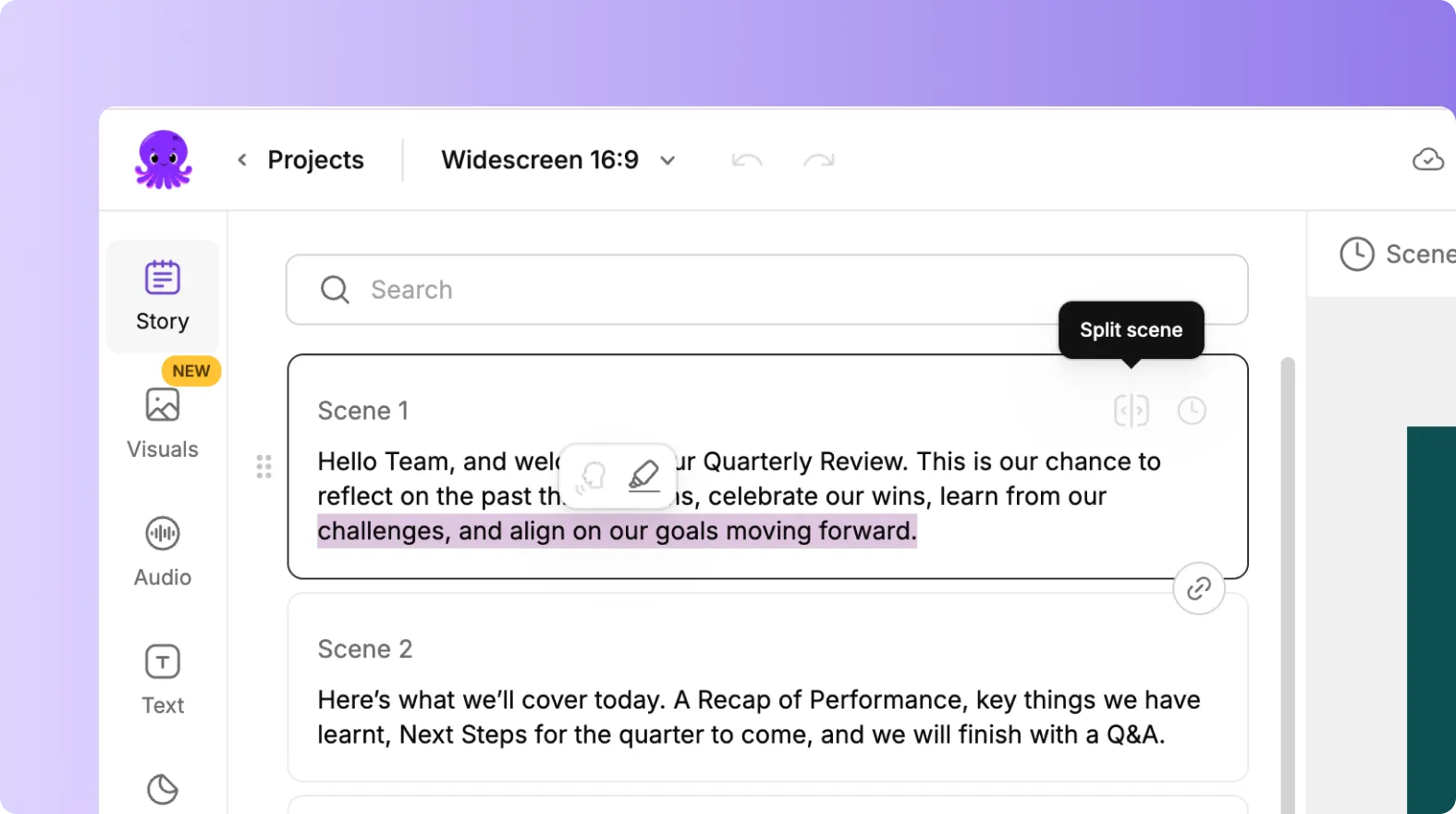
To merge scenes, select two scenes and choose merge. They become one scene with continuous text.
This helps you control pacing and clarity.
Step 5: Remove Unwanted Scenes
If a scene does not fit your message, you can remove it. Select the scene and click delete.
This cleans up your video and keeps only the parts you need.
It is helpful when:
• Removing filler content
• Editing interview clips
• Trimming long recordings
• Tightening your script
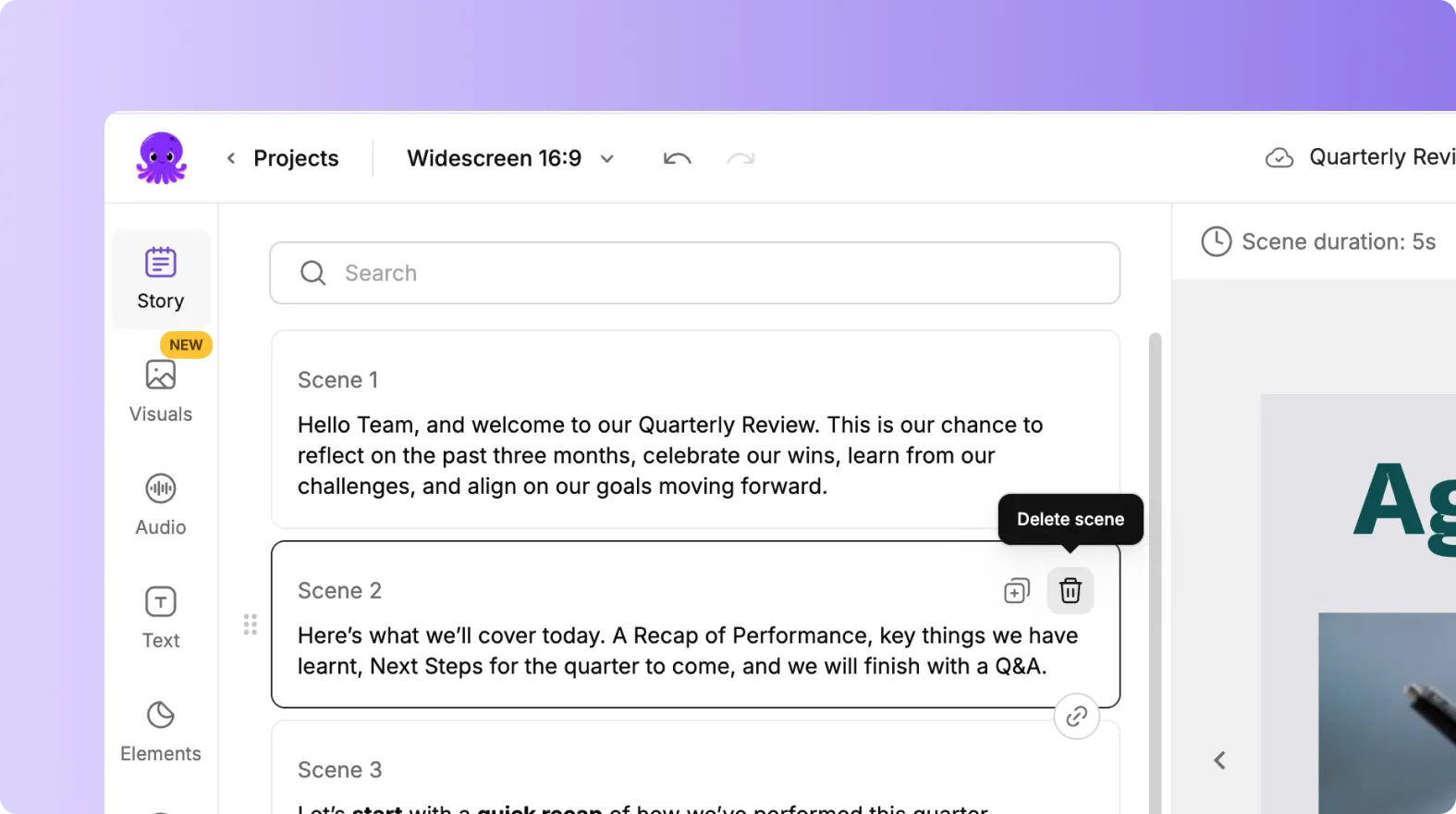
Deleting scenes keeps your video focused.
Step 6: Change Visuals and Layouts From Inside the Story Tab
The Story tab connects directly to the main editing tools. You can click a scene and then:
• Open the Visuals tab to change the background
• Open the Text tab to edit on screen text
• Open the Elements tab to add icons or callouts
• Open the Styles or Branding tabs for design updates
This makes it easy to build your video scene by scene.
Step 7: Add New Scenes
If you need to add more information, you can insert a new scene.
- Click Add Scene.
- Type in your text or paste new content.
- Pictory will generate a new scene with visuals based on your text.
This helps you expand your message without rebuilding the video.
Step 8: Preview Your Full Story
When your scenes are in place:
- Click Preview Video.
- Watch the flow of your scenes.
- Check pacing, structure, and message clarity.
- Make any final edits in the Story tab.
- Export your final video.
Previewing ensures your story feels smooth and engaging.
Build Clear, Structured Videos Using the Story Tab in Pictory AI
The Story tab is the heart of your video creation process. It helps you control your message, organize your scenes, and refine your script. When you master the Story tab, you can build videos that are structured, professional, and easy for viewers to understand.
Start shaping your next video today using the Story tab in Pictory AI.


