
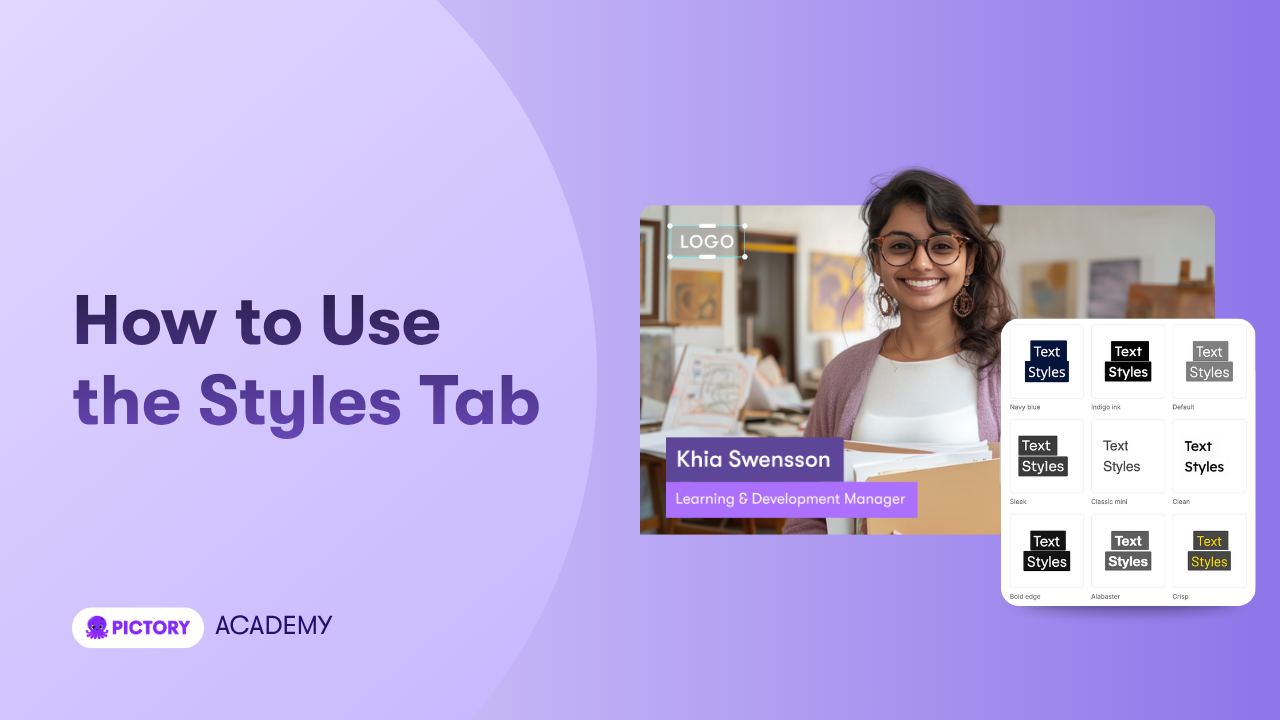
The Styles tab controls the overall look and feel of your video. It applies preset design themes that instantly change your fonts, layouts, transitions, and visual style. Styles help you create consistent, professional videos without designing each scene manually.
This guide shows you how to use the Styles tab in Pictory AI.
What the Styles Tab Does
The Styles tab gives you ready made design presets that control the full visual identity of your video. When you apply a style, Pictory updates scene layouts, fonts, motion effects, and transitions.
Each style includes:
• Specific font choices
• Text layout rules
• Animation and motion patterns
• Transitions between scenes
• Spacing and alignment settings
Styles save time and help keep your video consistent from start to finish.
Step 1: Open the Styles Tab
Inside the editor, click the Styles tab in the left side menu.
You will see a collection of design themes you can preview and apply.
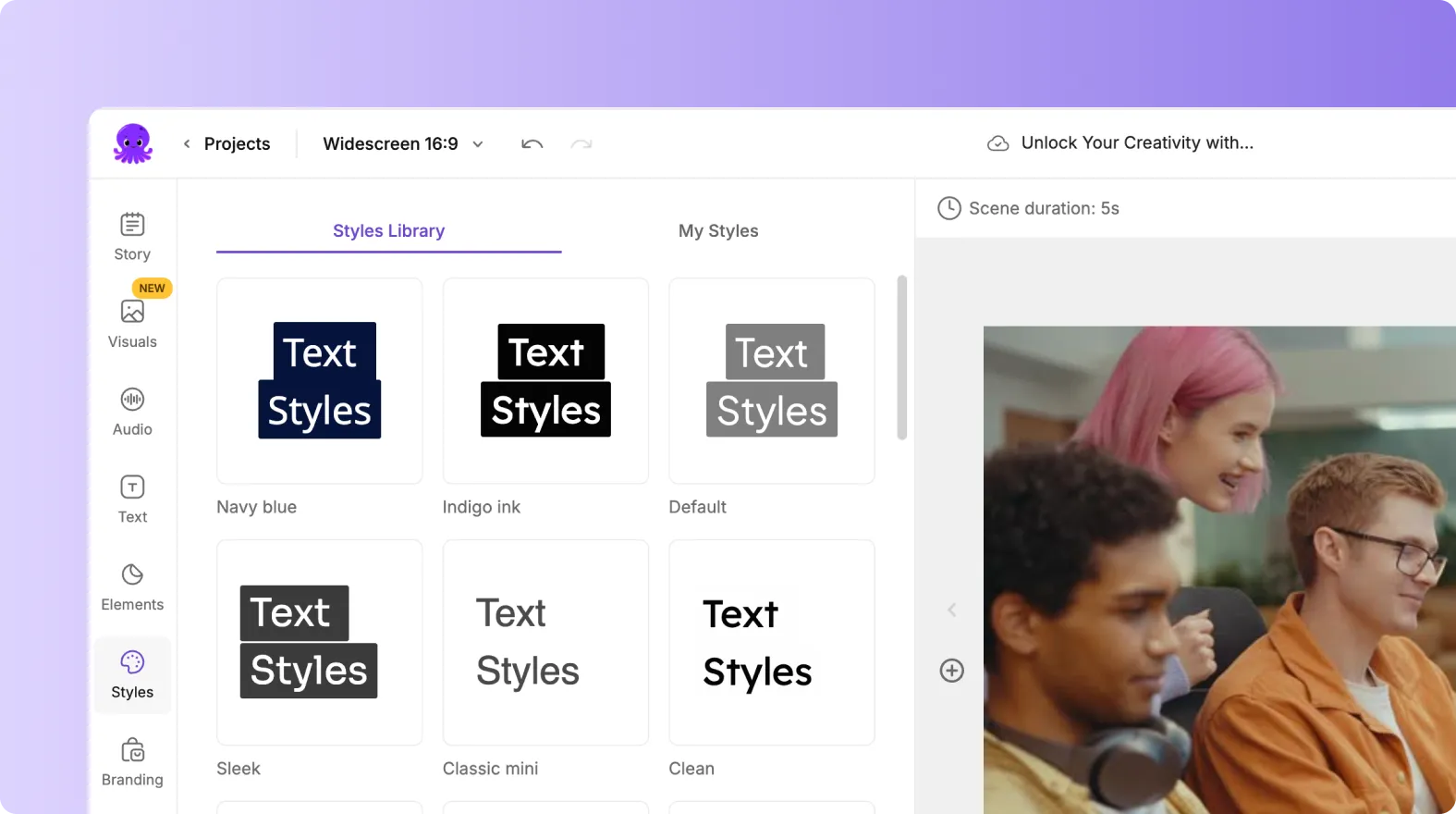
Styles are organized so you can compare them quickly and choose one that matches your video purpose.
Step 2: Preview Styles Before Applying Them
Hover over any style thumbnail to see how your video will look with that theme. Previewing lets you check:
• Text layout
• Font choices
• Transition timing
• Overall visual mood
This helps you choose the right style without committing to it yet.
Step 3: Apply a Style to Your Entire Video
Click on a style to apply it. Pictory updates every scene automatically, including text size, layout, motion, and transitions. This keeps your design consistent across all scenes.
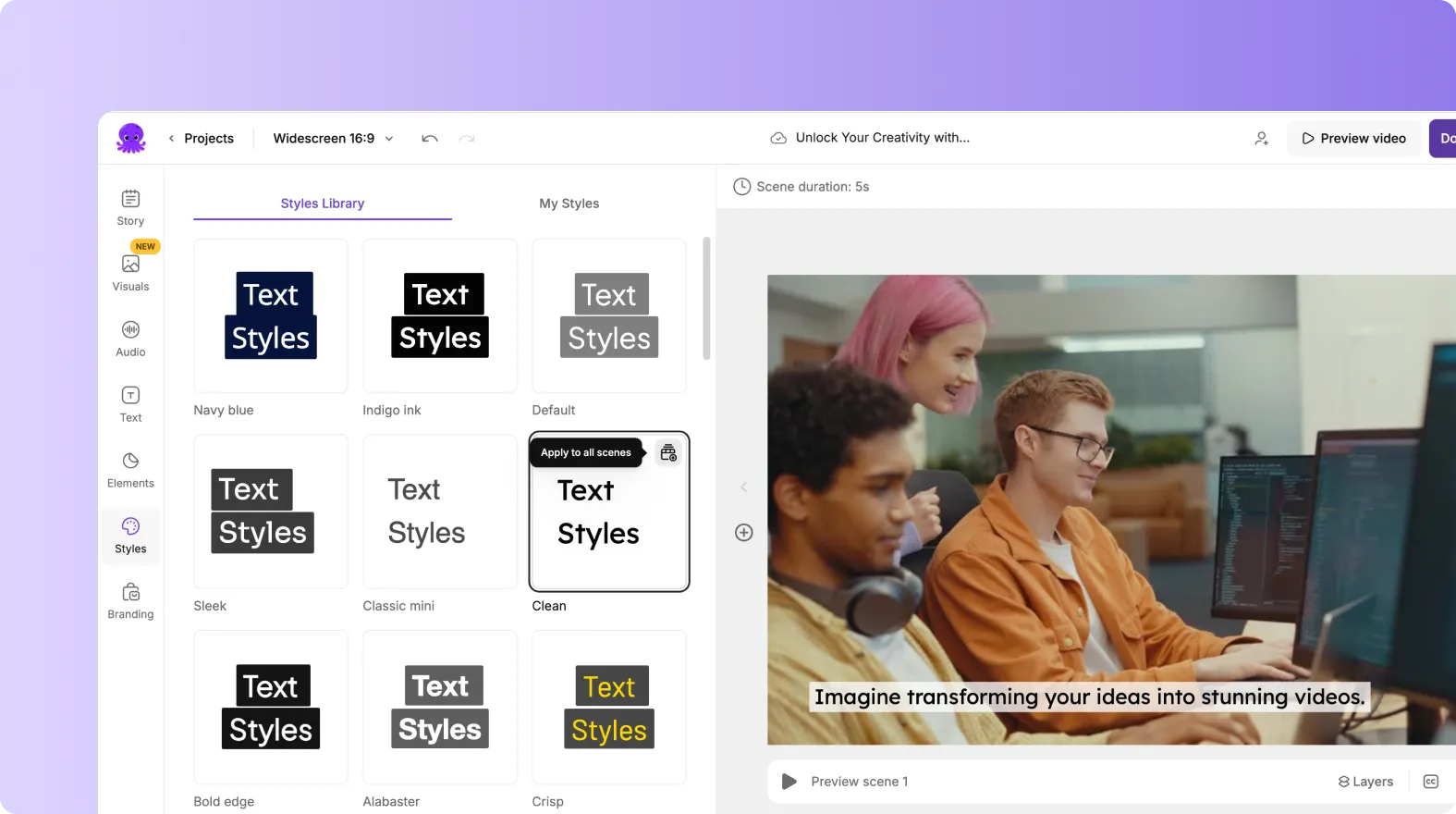
If you have a Brand Kit applied, your brand fonts and colors will blend with the chosen style.
Step 4: Choose a Style That Matches Your Purpose
Different types of videos benefit from different styles.
- For training and explainers, choose a simple, clean style.
- For marketing and ads, choose a bold, dynamic style.
- For storytelling and educational content, choose a balanced style with softer motion.
- For corporate communications, choose a professional style with minimal animation.
Choosing the right style improves viewer experience and credibility.
Step 5: Adjust Scenes After Applying a Style
When you apply a style, it updates all formatting, but you can still customize individual scenes.
You can adjust:
• Text placement
• Visual choices
• Element positioning
• Scene timing
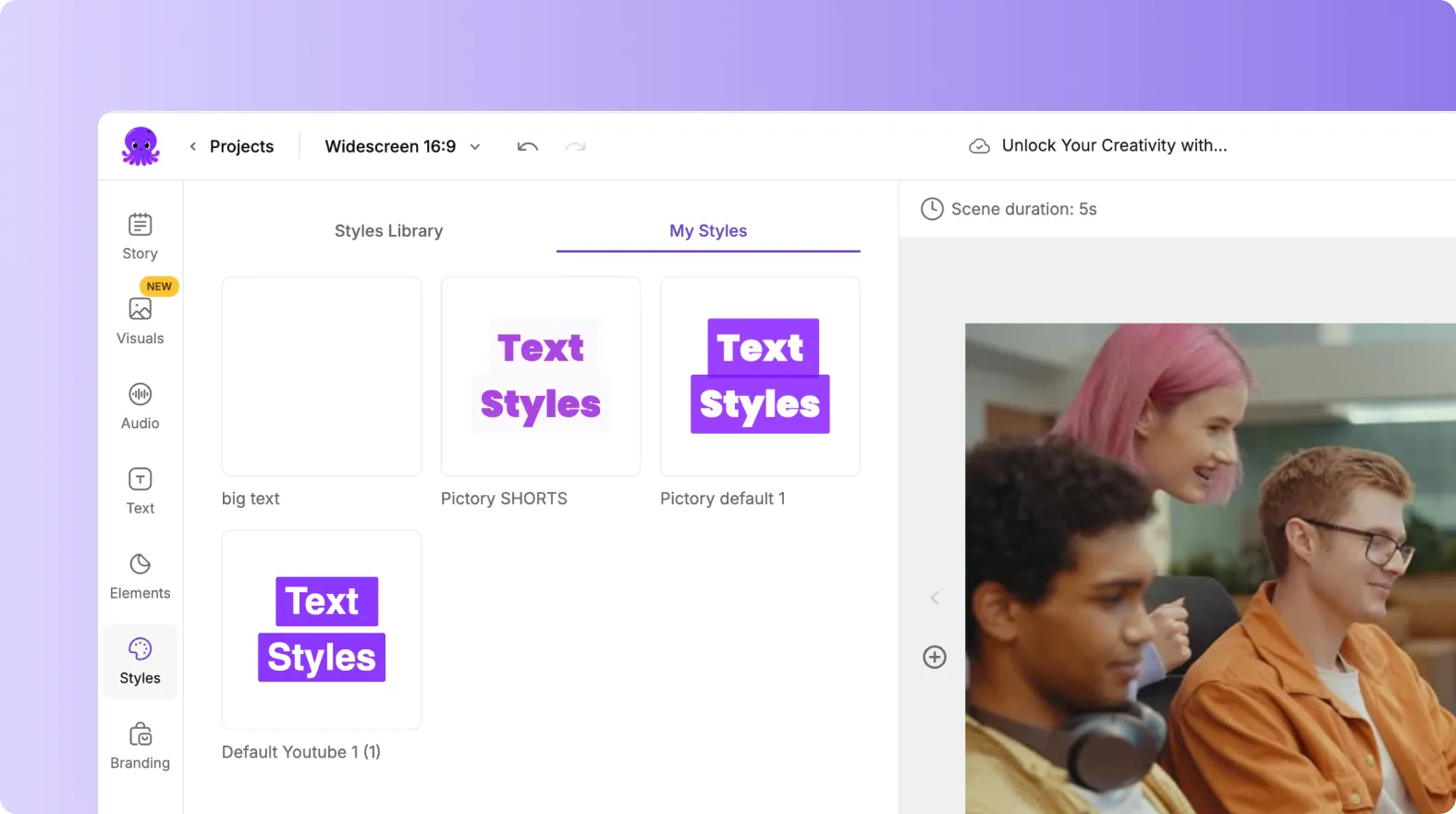
Styles create the foundation, and you fine tune the details.
Step 6: Combine Styles With Brand Kits
Using a Style with a Brand Kit ensures both design consistency and brand identity. Styles handle layout and motion. Brand Kits handle colors, fonts, and logos.
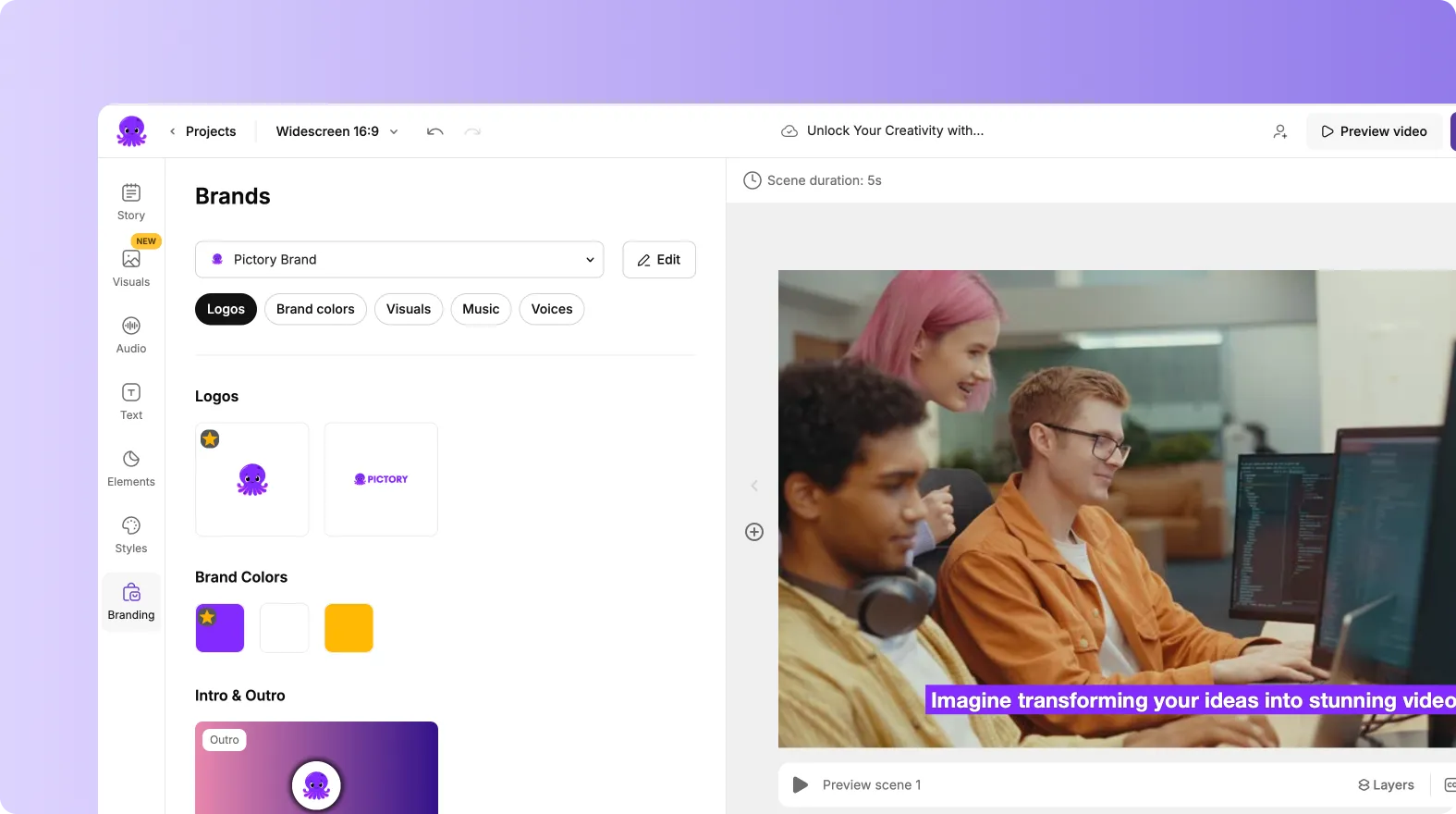
Together they create an aligned, professional look for every video.
Step 7: Switch Styles Any Time During Editing
You can change your style at any point in the editing process. If a style does not fit your message, simply select a new one. Your content will update instantly while keeping your media, text, and scenes intact.
This gives you full flexibility while creating your video.
Step 8: Preview the Full Video Before Exporting
When you finish styling your video:
- Click Preview Video.
- Watch transitions, text layouts, and motion effects.
- Make any style adjustments if something feels off.
- Export your final video.
Previewing helps ensure your style supports your message and looks good across all scenes.
Create Consistent, Professional Videos Using the Styles Tab in Pictory AI
The Styles tab helps you build a polished look for your video with one click. By choosing the right theme, you set the tone for your message and keep every scene consistent. Whether you are creating training content, marketing videos, or internal communications, using Styles gives your video structure and professionalism without extra work.
Start shaping the look of your next video today with the Styles tab in Pictory AI


