
The Text tab is where you add written content to your video. It controls headings, captions, labels, and any on screen text that helps explain your message. Good text improves clarity, reinforces learning, and guides viewers through each scene. Pictory makes it easy to add and style text so your video feels polished and professional.
This guide shows you how to use the Text tab in Pictory AI.
What the Text Tab Does
The Text tab lets you place written information directly on your video. You can add new text layers, edit them, and adjust how they look. This includes:
• Headings
• Subheadings
• Body text
• Labels and callouts
• Instructions and notes
The Text tab works in every workflow including Text to Video, AI Video Editor, PPT to Video, Audio to Video, Images to Video, and Screen Recording.
Step 1: Open the Text Tab
Inside the editing workspace, select the scene you want to edit. Click the Text tab in the left side menu. You will see three types of text you can add:
• Heading
• Subheading
• Body text
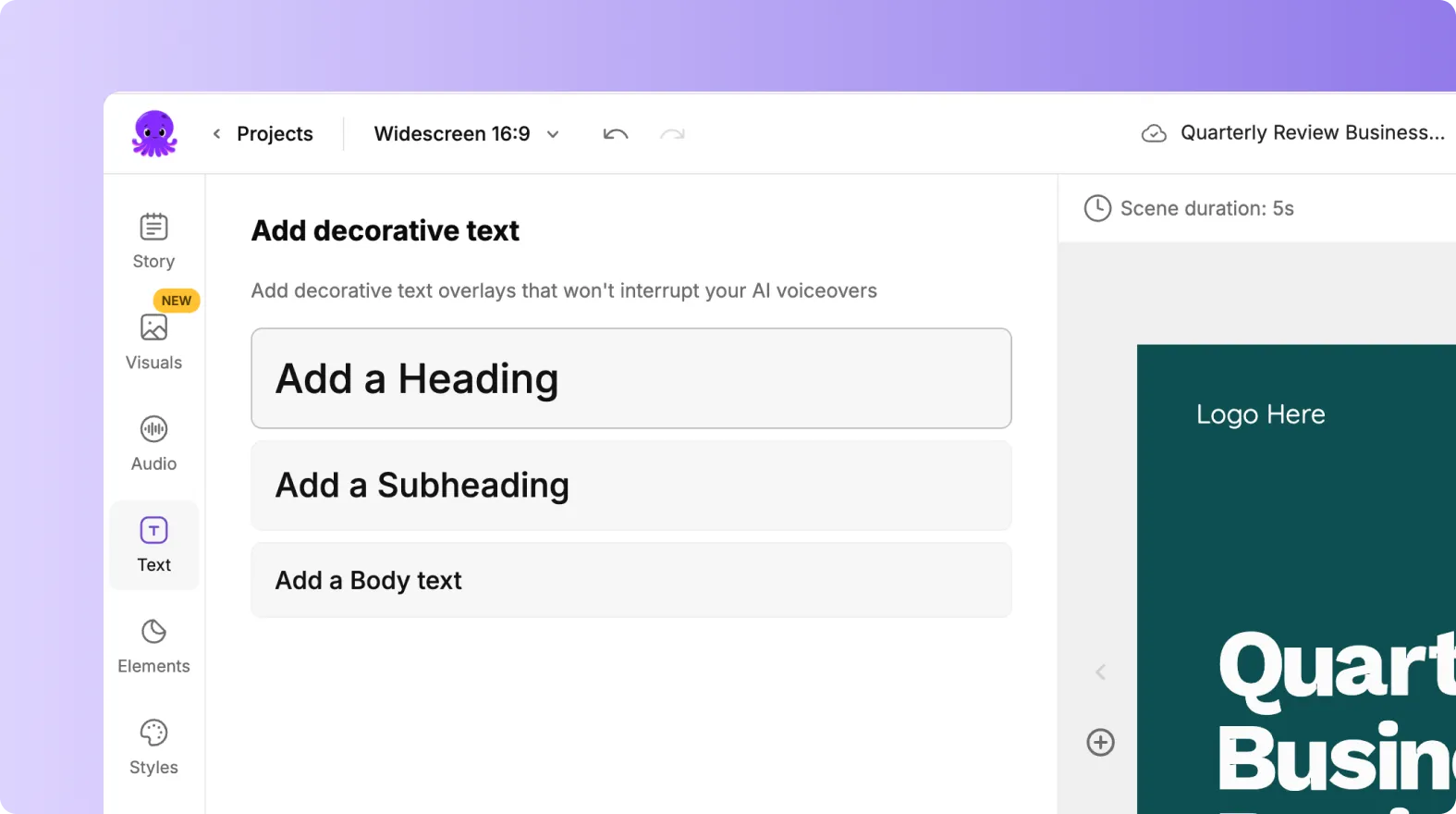
Choose the one that fits your scene.
Step 2: Add Text to Your Scene
Click the type of text you want to add. A text box appears on your scene. You can:
• Type your content directly
• Move the text box anywhere by dragging it
• Resize it by dragging the corners
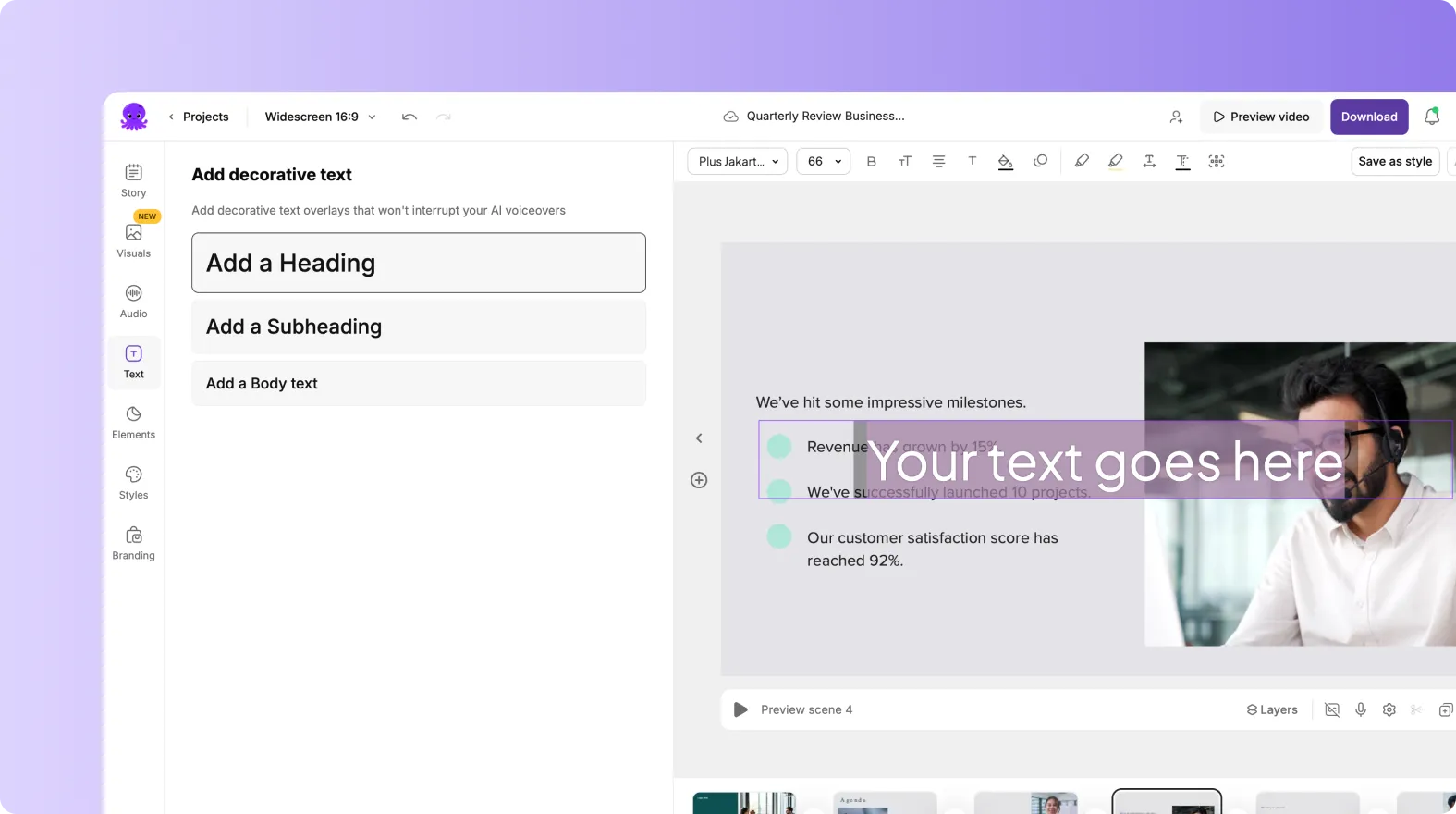
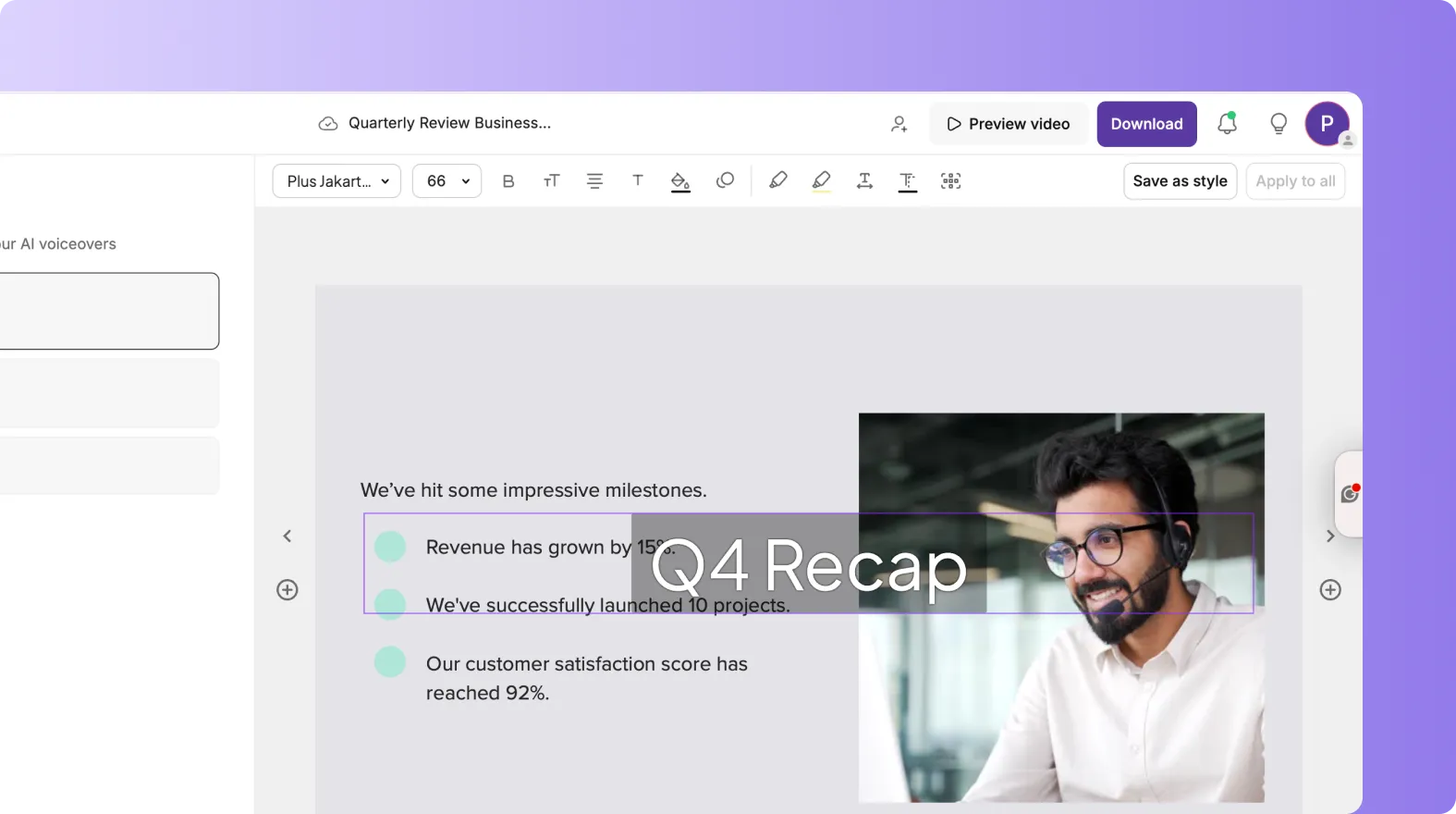
This gives you full control over where your text appears and how big it should be.
Step 3: Style Your Text Using the Top Toolbar
When your text is selected, you will see the text editing toolbar above the video preview. You can adjust:
• Font
• Size
• Color
• Alignment
• Background highlight
• Outline
• Shadow
• Line and letter spacing
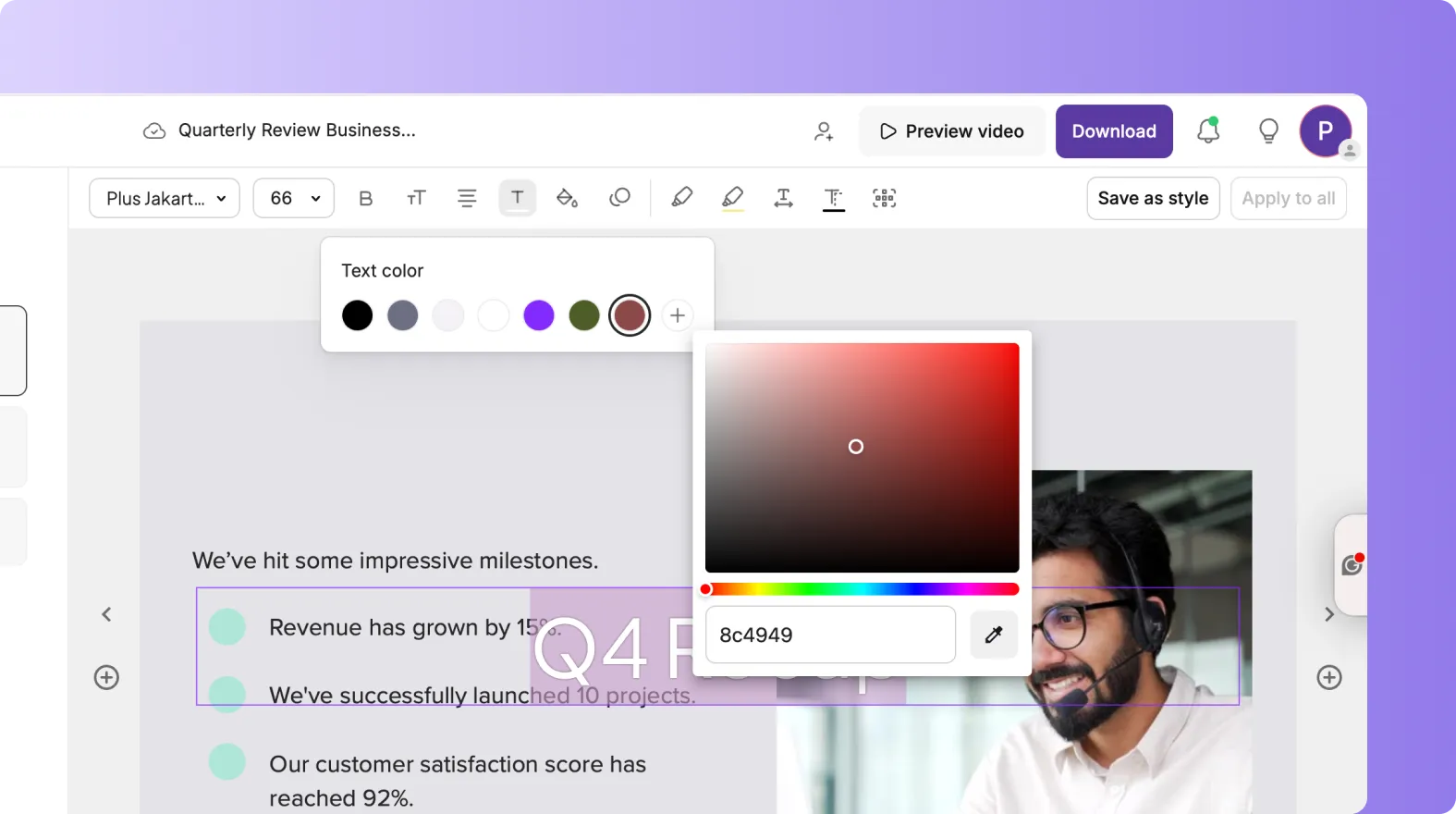
You can also click the Animate Text icon to add entry and exit effects. This helps your text look dynamic and more engaging.
Step 4: Position Your Text Clearly
Text placement affects readability. You can position your text at the top, middle, or bottom of the scene depending on your background visuals.

If your text sits on busy visuals, increase text size, add a background highlight, or choose a bold font style. Clear text placement makes your message easier to follow.
Step 5: Use Text for Steps, Labels, and Instructions
The Text tab is especially useful for:
• Tutorials
• Product demos
• How to videos
• Training and educational content
You can add step numbers, short explanations, labels, or supporting notes. Use headings for main points, subheadings for emphasis, and body text for details.
Step 6: Animate Your Text for Better Engagement
You can animate your text to help guide viewer attention. Click the Animate Text option in the text toolbar to open animation controls.
You can choose:
• Entry animations
• Exit animations
• Animation speed
• Writing style

Animations help your text appear smoothly and highlight important information.
Step 7: Combine Text With Visuals and Branding
Text works best when paired with clean visuals and branding.
Use the Visuals tab to choose a background that supports your message. Use the Branding or Styles tabs to apply consistent fonts and colors. This keeps your text aligned with your brand style.
Step 8: Preview and Adjust Before Exporting
When your text is in place:
Click Preview Video.
Check that your text is readable on every scene.
Make adjustments to size, placement, or animation if needed.
Export your video when everything looks right.
Strong text helps viewers stay focused and understand your story.
Create Clear, Engaging Videos Using the Text Tab in Pictory AI
The Text tab helps you communicate your message clearly. You can add headings, captions, labels, and animated text that supports your visuals and narration. With simple styling tools and full control over placement, you can create professional videos that viewers can follow easily.
Start adding text to your next video today using the Text tab in Pictory AI.


