

The Visuals tab is one of the most important tools in Pictory AI. It controls the images, footage, and visual elements that appear in each scene of your video. Your visuals shape the tone of your story, help viewers understand your message, and make your video more engaging.
This guide shows you exactly how to use the Visuals tab to create clear, polished videos with Pictory AI.
What the Visuals Tab Does
The Visuals tab lets you choose and manage all visual media in your video. It gives you access to three key visual sources:
• Library, this includes stock images and videos
• AI Studio, this generates images or videos from your prompts
• Uploads, this lets you add your own images and video clips
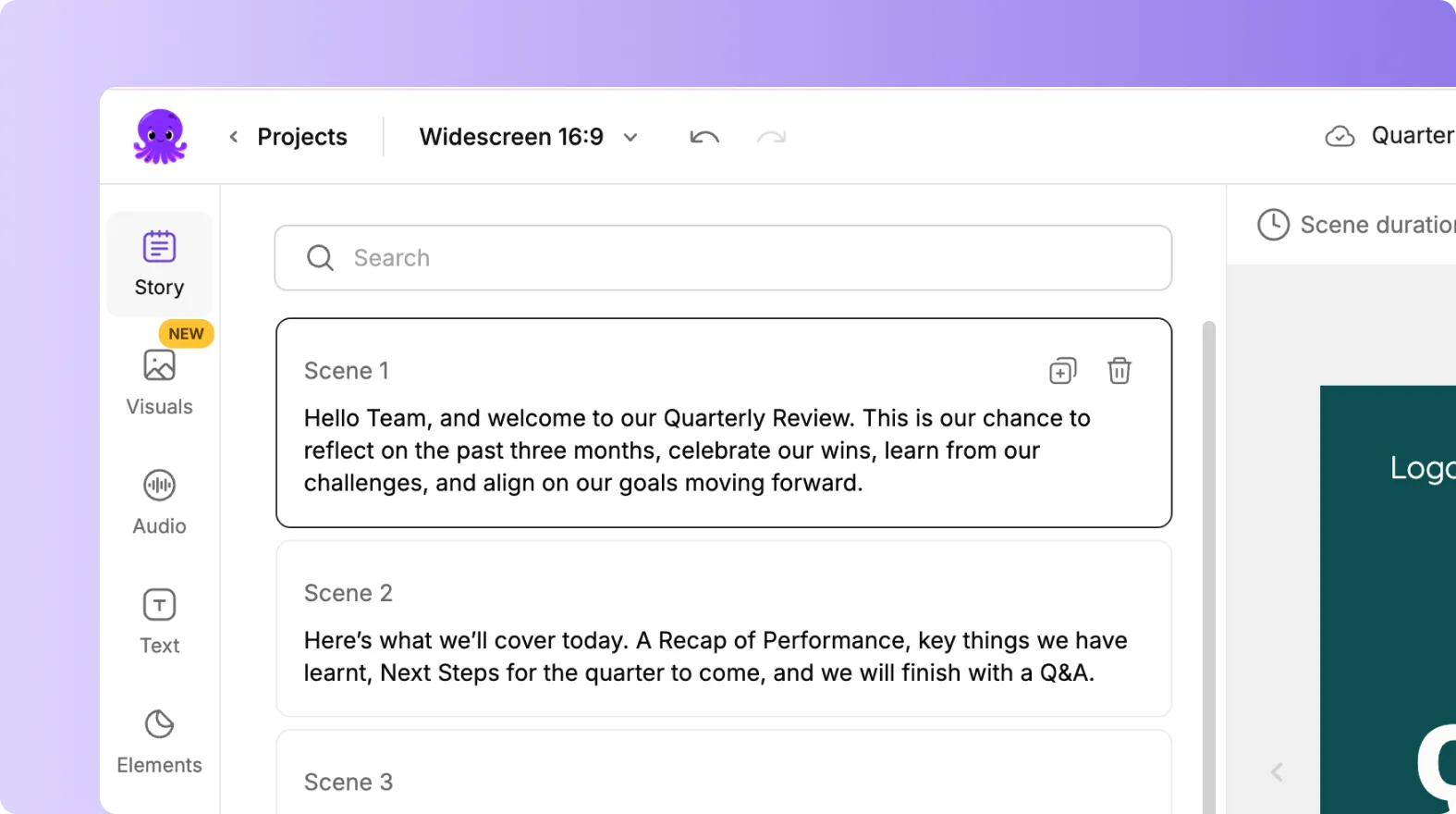
The Visuals tab controls what viewers see behind your text or narration. It is used in every workflow including Text to Video, Audio to Video, AI Video Editor, Images to Video, and PPT to Video.
Step 1: Open the Visuals Tab
Once you select a scene inside the editor, click the Visuals tab in the left menu.
You will see three options at the top:
- Library
- AI Studio
- Uploads
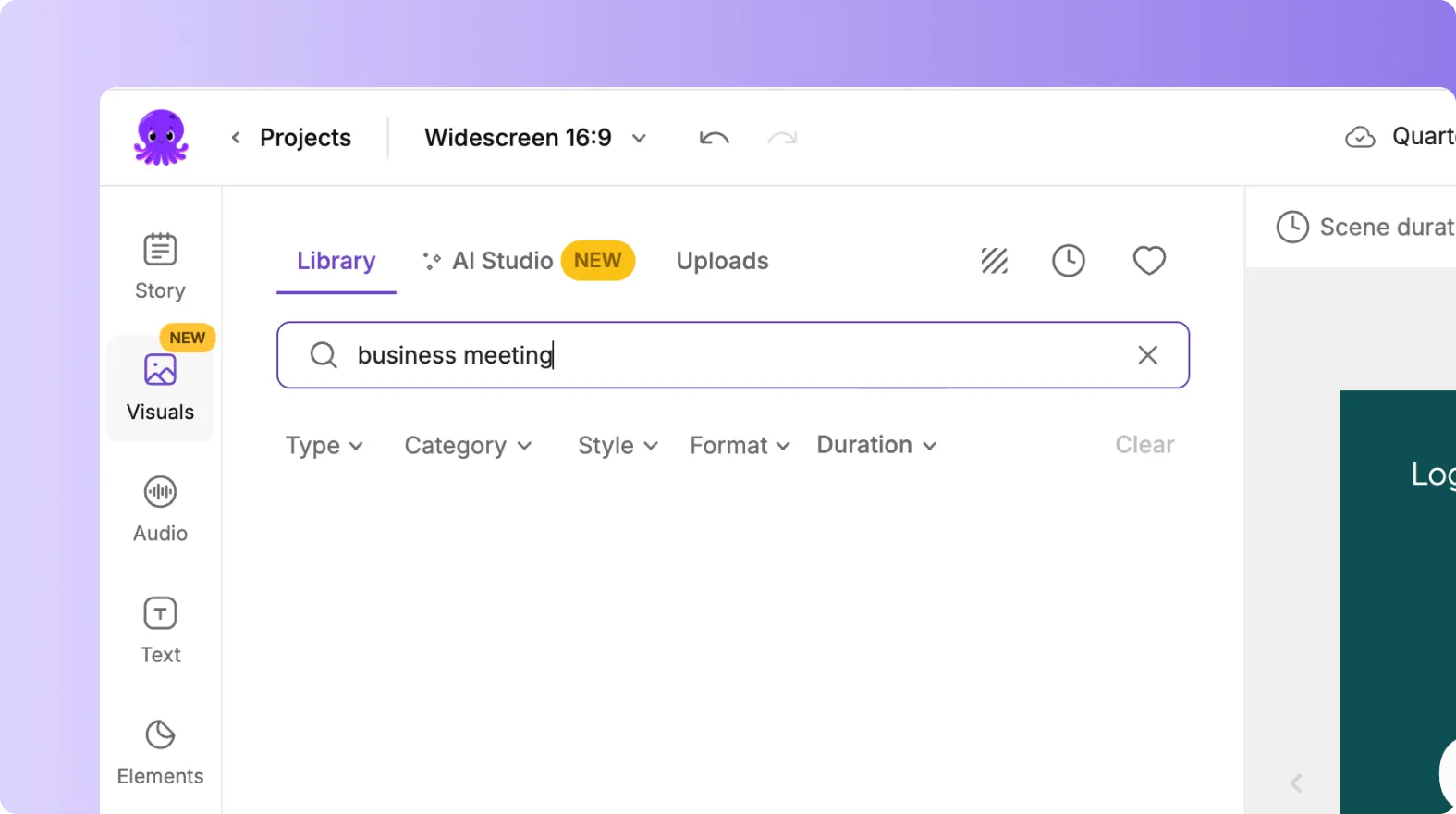
Use these sections to browse, search, or upload the visuals you want.
Step 2: Using the Library for Stock Media
The Library contains a wide range of stock images and video clips. You can search by keyword to find visuals that match your script or message.
Steps:
- Type your keyword into the search bar.
- Browse the available visuals.
- Click on a visual to apply it to your selected scene.
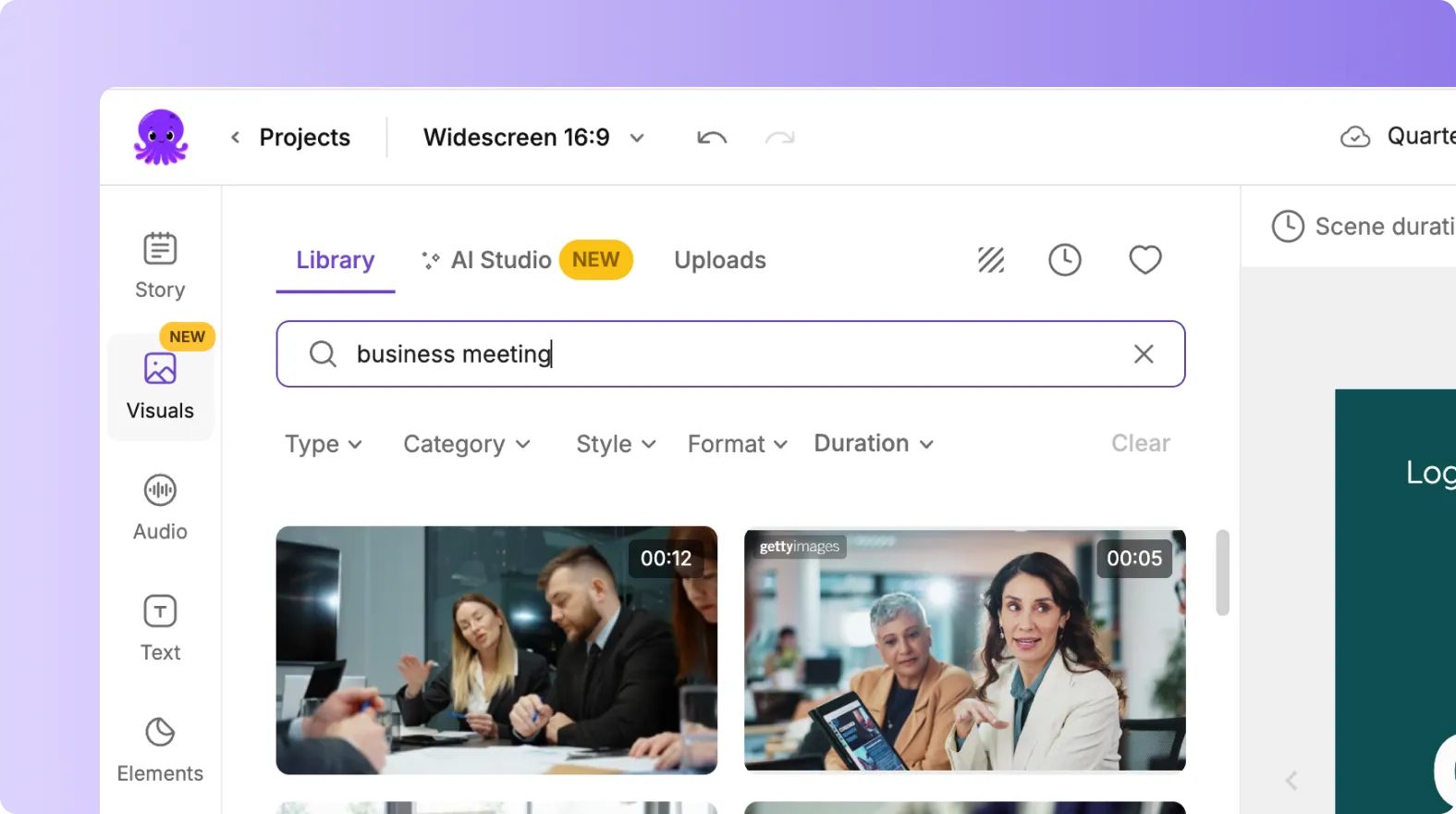
The Library is ideal for explainer videos, ads, training, and any content that needs professional background visuals.
Step 3: Generate Custom Visuals Using AI Studio
AI Studio lets you create original images or video clips using simple prompts. This is useful when you need a visual that does not exist in stock libraries.
Steps:
- Select AI Studio.
- Type a prompt describing the image or video you want.
- Generate the visual.
- Click Add to apply it to your scene.

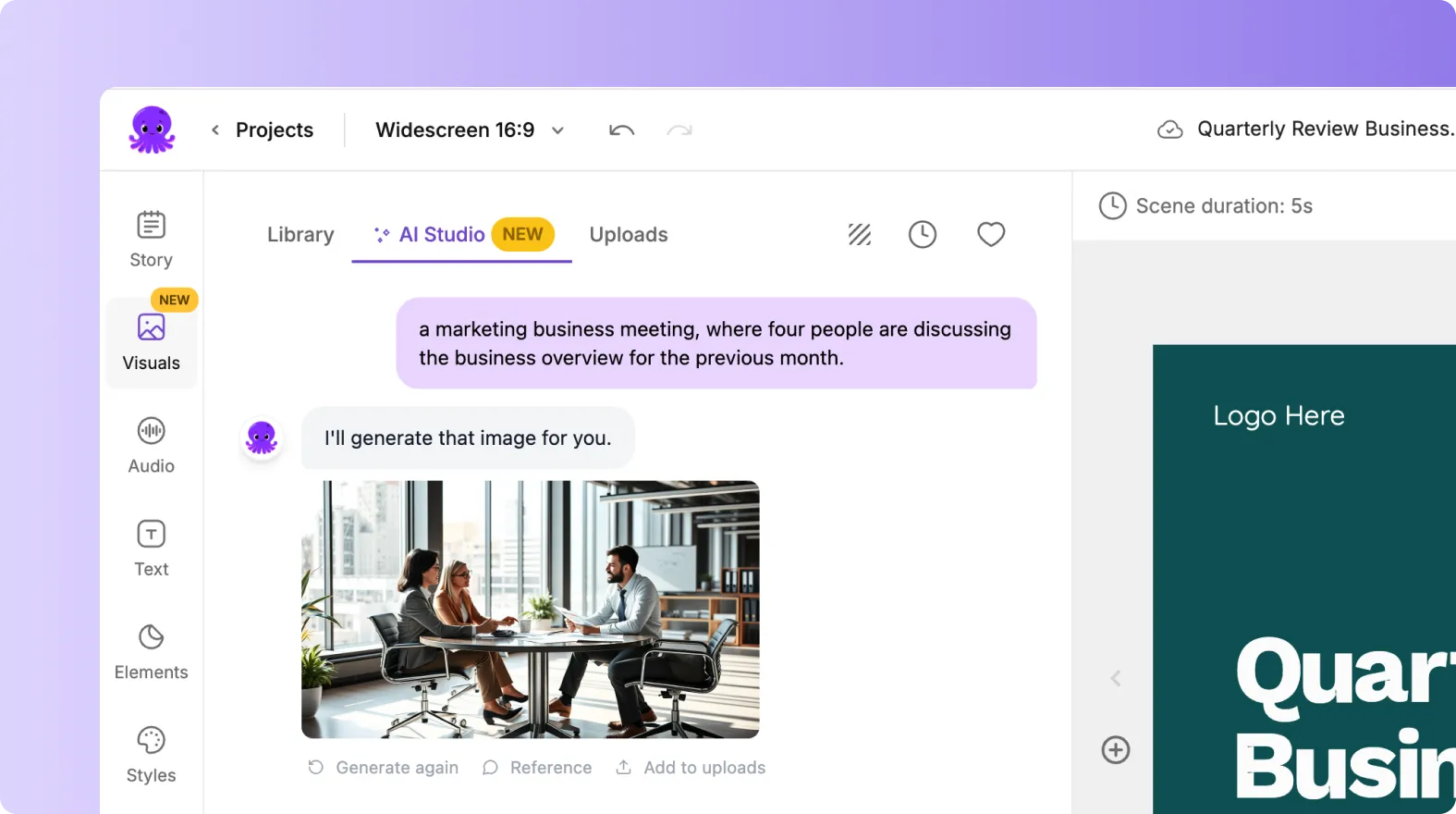
AI Studio helps you build unique visuals that match your brand, message, or training content.
Step 4: Upload Your Own Media
If you want to use screenshots, product images, personal videos, or brand visuals, use the Uploads section.
Steps:
- Click Uploads.
- Upload your image or video file.
- Select the file to apply it to your scene.
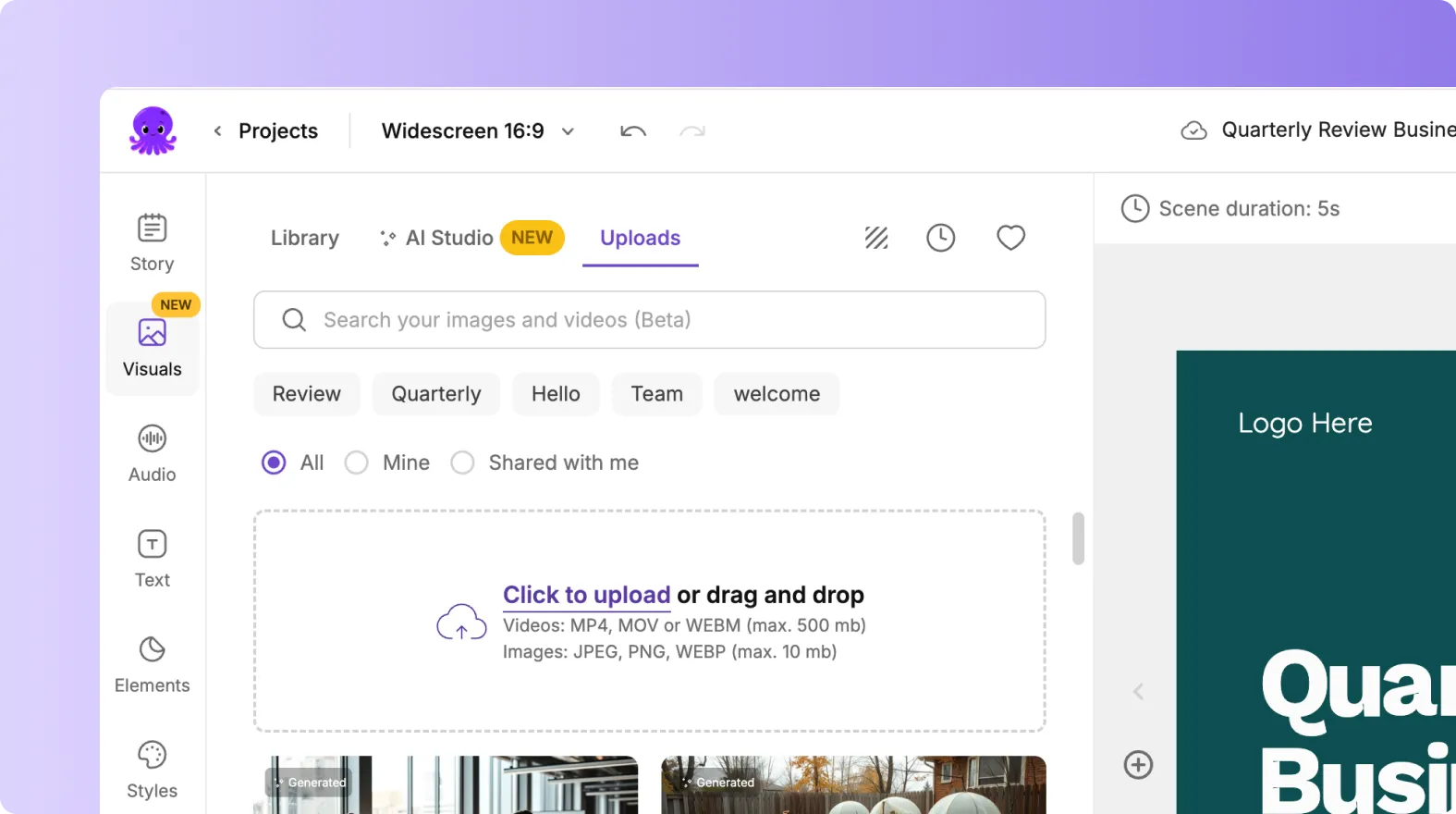
Uploads are perfect for product demos, tutorials, internal videos, or reels that require real footage.
Step 5: Replace or Change a Visual
To change a visual in any scene:
- Select the scene in the Story panel.
- Open the Visuals tab.
- Choose a new visual from Library, AI Studio, or Uploads.
- Click to apply it.
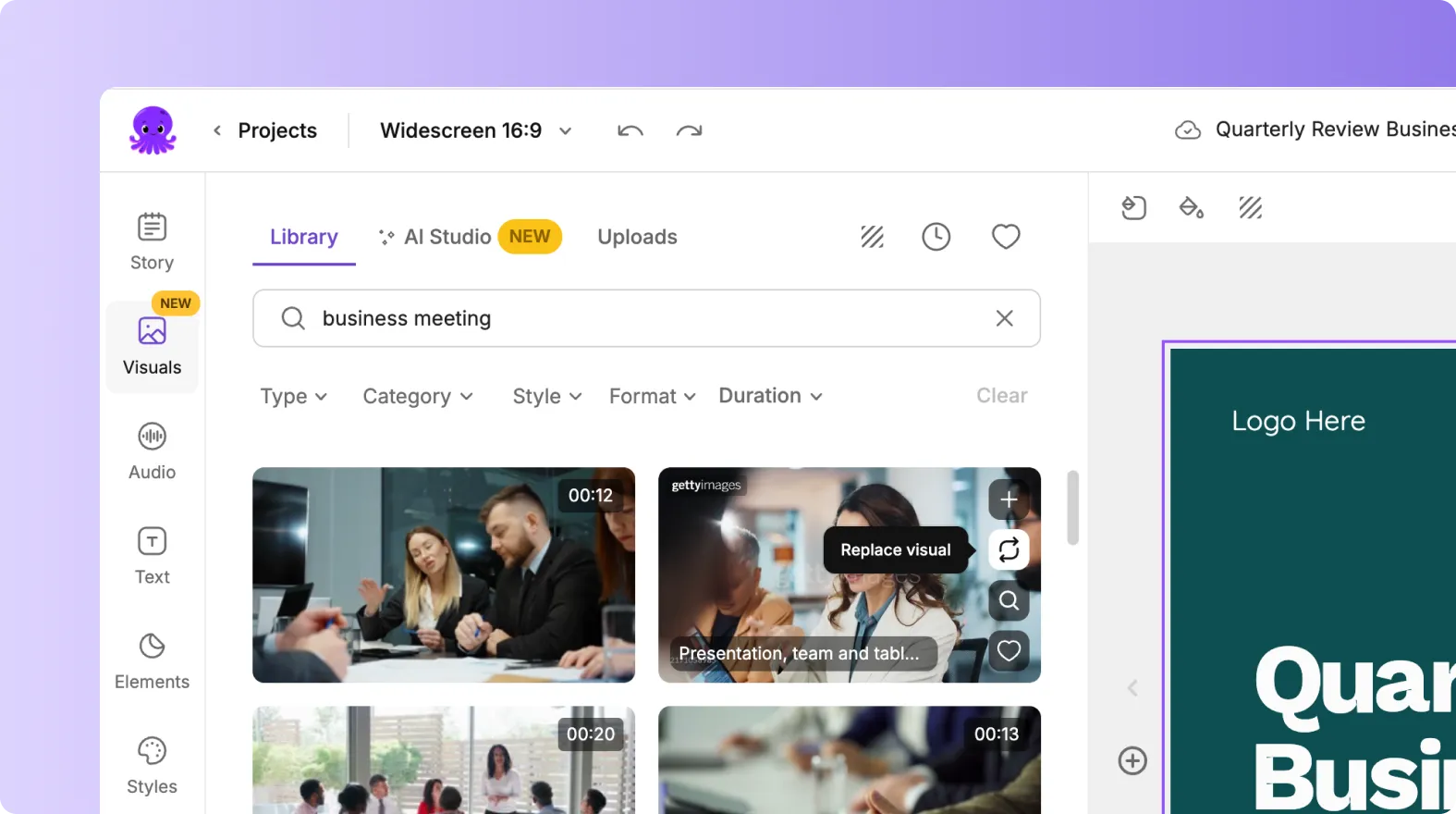
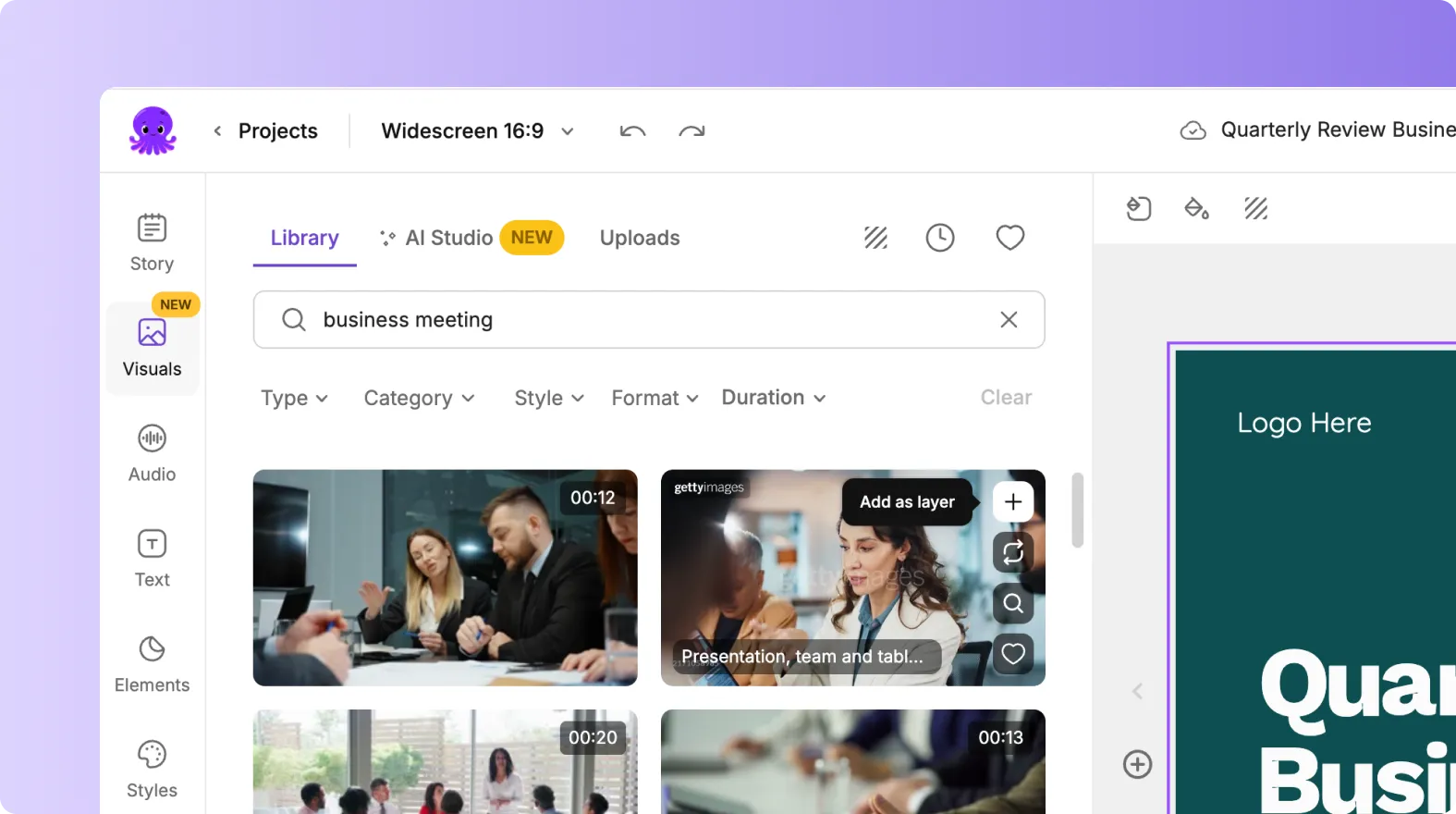
Your scene preview updates instantly so you can see how it looks.
Step 6: Add Multiple Visual Layers
Some videos need more than a single background visual. You can layer visuals by adding overlays, cutaways, or product images.
Steps:
- Use the Visuals tab to add your background.
- Switch to the Elements or Text tab to add additional layers such as logos, arrows, shapes, or callouts.
- Adjust size and position in the preview panel.
Layering helps you explain concepts visually and highlight important information.
Step 7: Use Visuals That Support Your Message
The best visuals are relevant, simple, and aligned with your script. Here are tips for choosing strong visuals:
• Match visuals to keywords in each scene
• Avoid visuals that distract from your message
• Use close up shots for instructions or training
• Use wide shots for mood and storytelling
• Keep visual style consistent across your video
Clear visuals improve comprehension and audience retention.
Step 8: Preview Your Visuals Before Exporting
When your visuals are ready:
- Click Preview Video at the top.
- Watch your video from start to finish.
- Check that visuals match the script and timing.
- Make any final adjustments.
- Export your video in your preferred format.
A final preview ensures your visuals feel smooth and consistent.
Create Professional Videos with the Visuals Tab in Pictory AI
The Visuals tab is where your story comes to life. Whether you use stock media, AI generated visuals, or your own uploaded content, you can create videos that look polished and professional. By controlling visuals scene by scene, you guide viewers clearly through your message and improve the impact of your video.
Start creating your next video today with the Visuals tab in Pictory AI.


