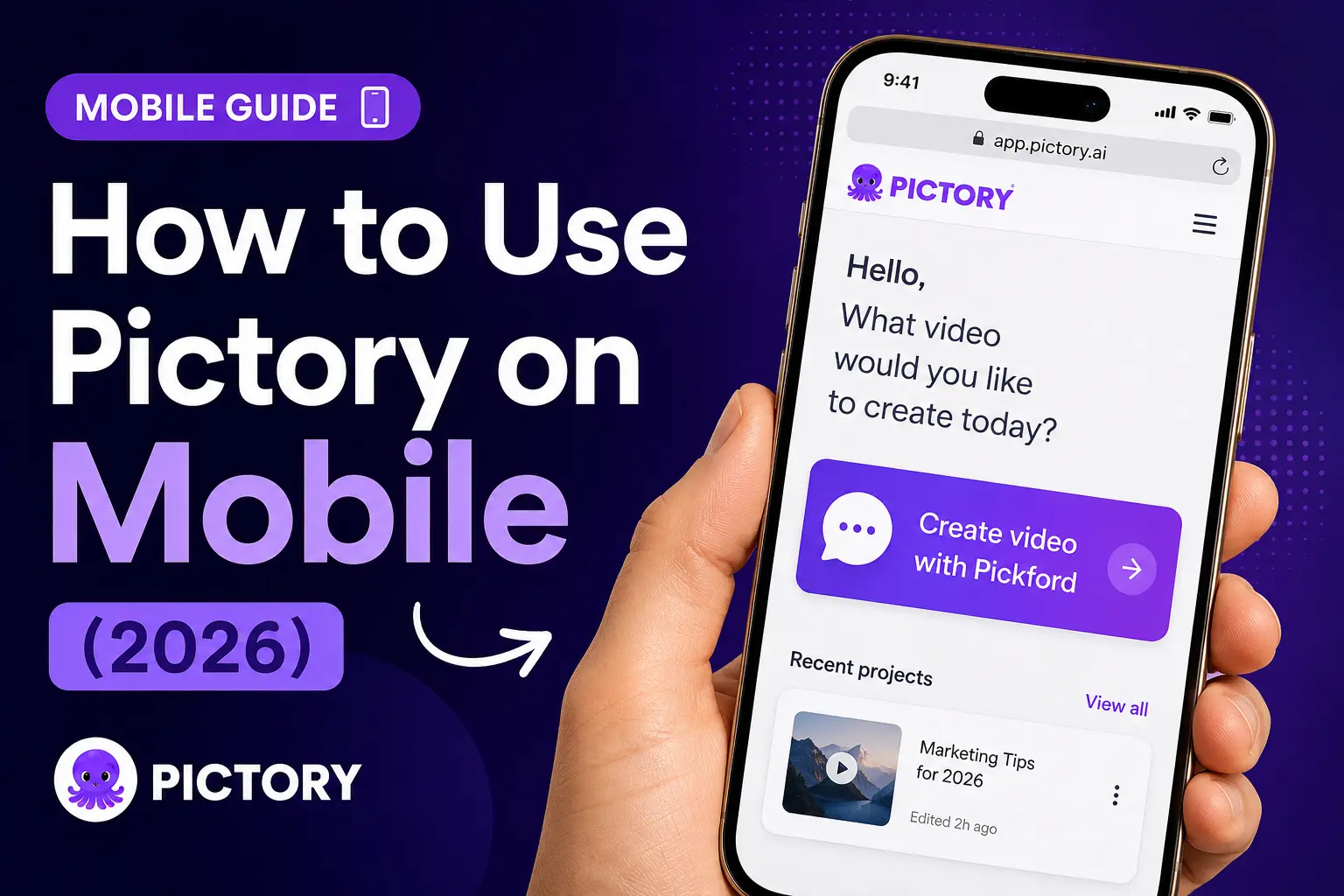
TL;DR
Pictory works on any mobile browser, no app download needed. On your phone you chat with Pickford, our AI assistant, to describe your video, pick a length and style, review the script, and get a preview to share. When you’re ready to fine-tune scenes and download the final watermark-free video, open the same project on desktop at app.pictory.ai. There’s no official Pictory app in the App Store or Google Play.
You’re on your phone, you want to create a video, and you’re wondering if Pictory has a mobile app. It doesn’t, and you don’t need one. Pictory’s mobile experience runs in your browser and gives you a fast way to go from idea to preview in about a minute. When you’re ready to polish and export, you pick up the same project on your desktop.
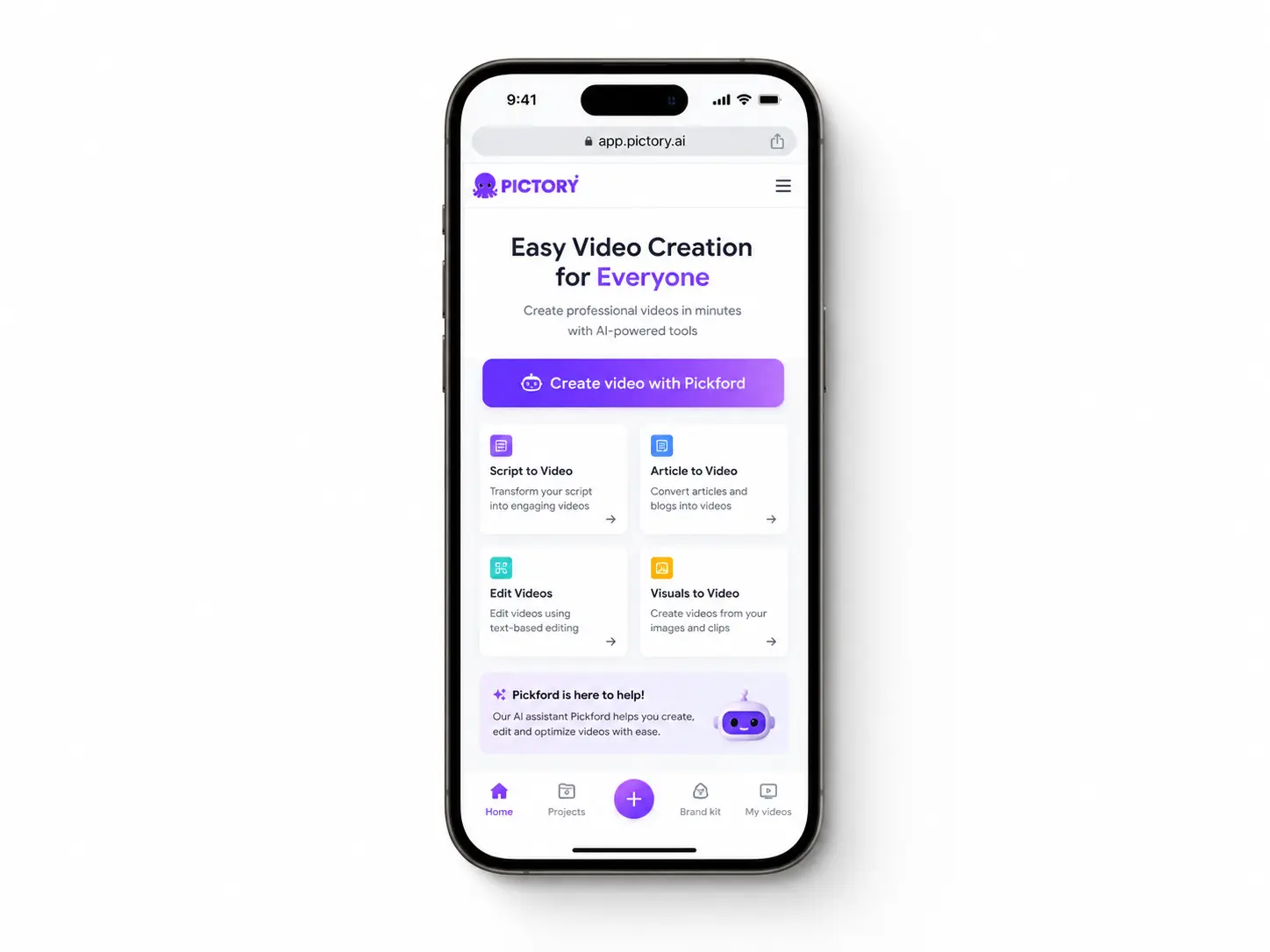
Mobile and desktop each have a job
Pictory splits the workflow between two experiences that share the same account. Understanding the split helps you get the most out of each device.
Mobile is built for fast starts. You open Pictory in your phone browser, tap into a chat with Pickford, and get from idea to preview in about a minute. It’s ideal for capturing ideas on the move, briefing your team quickly, or getting a rough draft in front of a client.
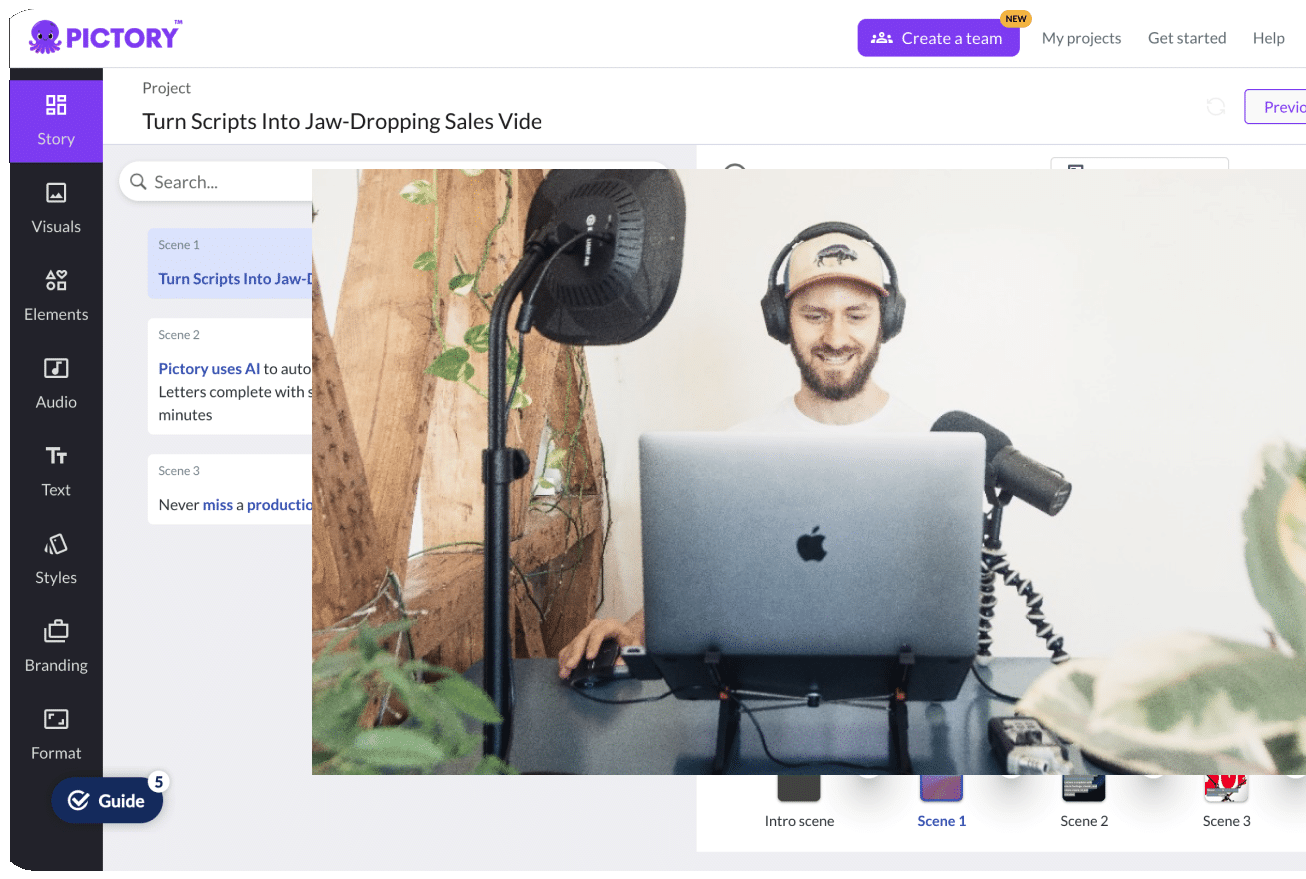
Desktop is where the full studio lives. Text to Video, URL to Video, PPT to Video, Doc to Video, Audio to Video, Images to Video, the AI Video Editor, Summarize Video, Screen Recorder, brand kits, AI avatars, and the final watermark-free download all happen at your desk.
There is no official Pictory app in the Apple App Store or Google Play. Any app using the Pictory name in any app store isn’t affiliated with Pictory. Learn more about fake Pictory apps.
How to create a video on mobile with Pickford
Here’s what the mobile flow looks like end to end. The whole thing takes about a minute on a decent connection.
Start a chat with Pickford
Open Pictory in your mobile browser at app.pictory.ai. On the home screen, tap Create video with Pickford. Recent chats and a summary of what Pictory can do also appear here.
Describe your video
Pickford opens with: “Welcome to Pictory! What kind of video would you like to make today?” Type your topic or idea in the Describe what you want box and send it.
Answer four quick questions
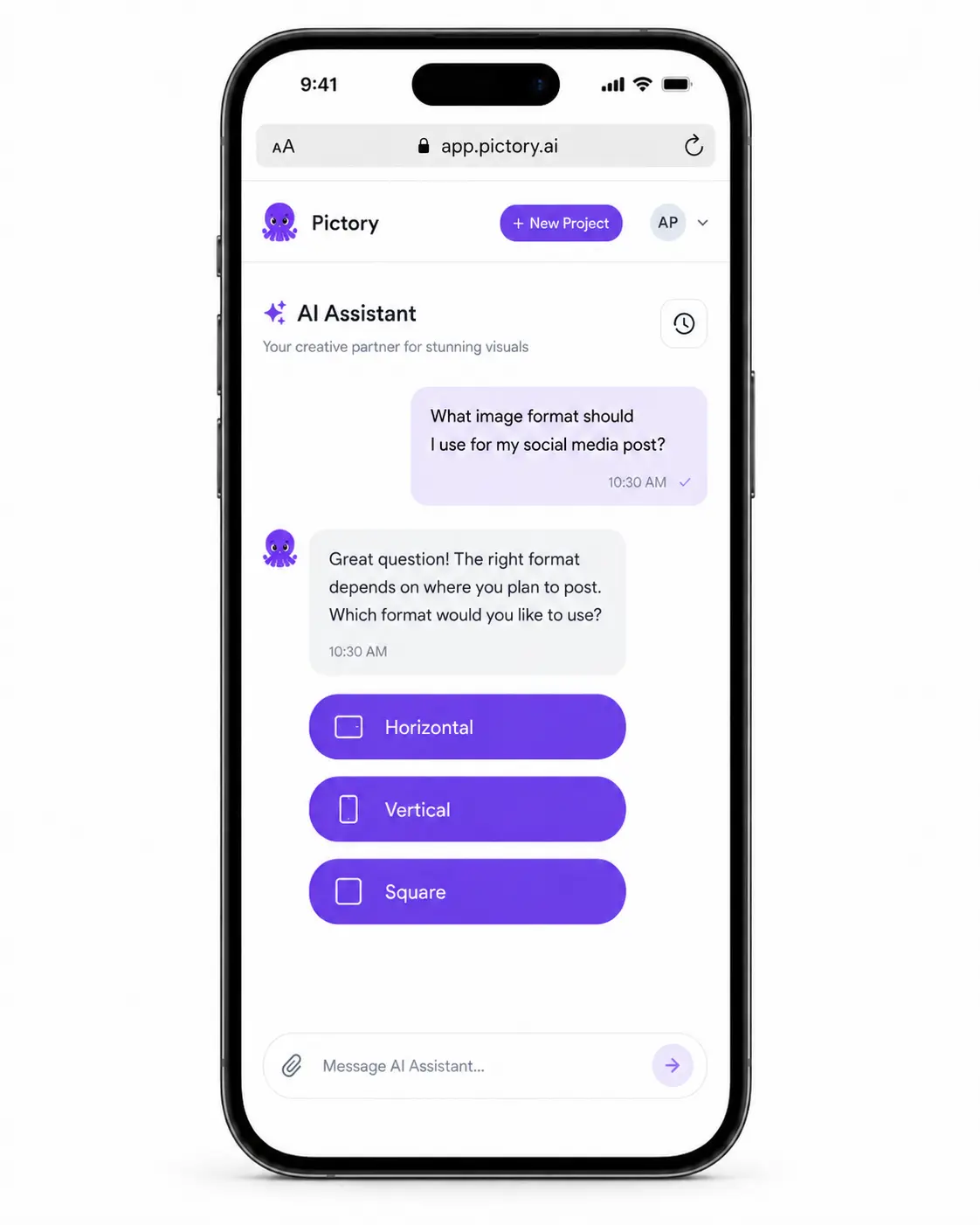
Pickford asks a short series of tappable questions:
- Length: 30s, 1 min, or 2 min
- Aspect ratio: Horizontal (16:9), Vertical (9:16), or Square (1:1)
- Voiceover: Male voice, Female voice, or No voiceover
- Theme: Modern (B&W), Colorful and bold, or Skip
Pickford confirms your choices back to you and offers to add specific points or move on with a general overview.
Review the script
Pickford generates a script and shows you the video details (name, duration, aspect ratio). Read the full script, tweak it if needed, then confirm or ask Pickford for changes in the chat.
View the preview
Pictory builds your video and shows “Your preview is ready!” Keep in mind that the quick preview may include placeholder elements or stock watermarks that won’t be in the final download.
Share, or continue on desktop
Below the preview you can tap Copy preview link to share the draft with your team, or open the same project on desktop at app.pictory.ai for the full editor and the final download.
What mobile is good for
Mobile isn’t a stripped-down desktop, it’s a purpose-built quick-start experience. Here’s where it shines.
Capturing ideas on the go
Ideas rarely arrive at your desk. Mobile lets you turn a train-ride thought into a scripted preview before you get home.
Sharing a draft link with your team
Copy preview link gets a draft in front of a colleague or client fast, without needing a full export first.
Pre-briefing your desktop session
Start on mobile, land at your desk, and pick up an already-built preview to refine. No blank canvas at 9am.
What desktop unlocks
When you open a project on desktop at app.pictory.ai, you get the full Pictory studio and the final, watermark-free download.
Paste or write a full script and get visuals, captions, and voiceover.
Turn any blog post URL into a scripted, branded video.
Upload a podcast or audio file and get a video with matching visuals.
Upload a deck (up to 90 slides) and turn it into a narrated video.
Turn a PDF into a summarized, engaging video.
Upload up to 5 GB or 180 min and edit by editing text, not timelines.
You’ll also get the full sidebar: Story, Visuals, Audio, Text, Elements, Styles, Branding, and Avatars. That’s where AI avatars, brand kits, and the AI Studio for generating custom images and video clips live.
Should you use Pictory on mobile?
If you need to capture an idea, brief your team, or hand a client a draft link before your next meeting, mobile handles it well. The Pickford chat is fast, the tap-driven questions cut friction, and the shareable preview link means feedback can start straight away.
For detailed scene work, brand kit application, avatar production, or the final download without watermarks, you’ll want desktop. That’s an honest limitation of a phone screen, not a Pictory one. The good news: your account and projects carry across both, so switching devices doesn’t cost you any progress.
The recommendation: use mobile to start fast when you’re away from your desk. Finish and export on desktop at app.pictory.ai. Either way, it’s the same Pictory account and the same project. Try Pictory free, no credit card required.
Start your next video on your phone
Open app.pictory.ai in your mobile browser and chat with Pickford. No download required.
Frequently Asked Questions
Related Articles
![[Article] Promo Video: How to Make One That Converts](https://pictory.ai/wp-content/uploads/2026/09/blog-video-promo-300x169.webp)