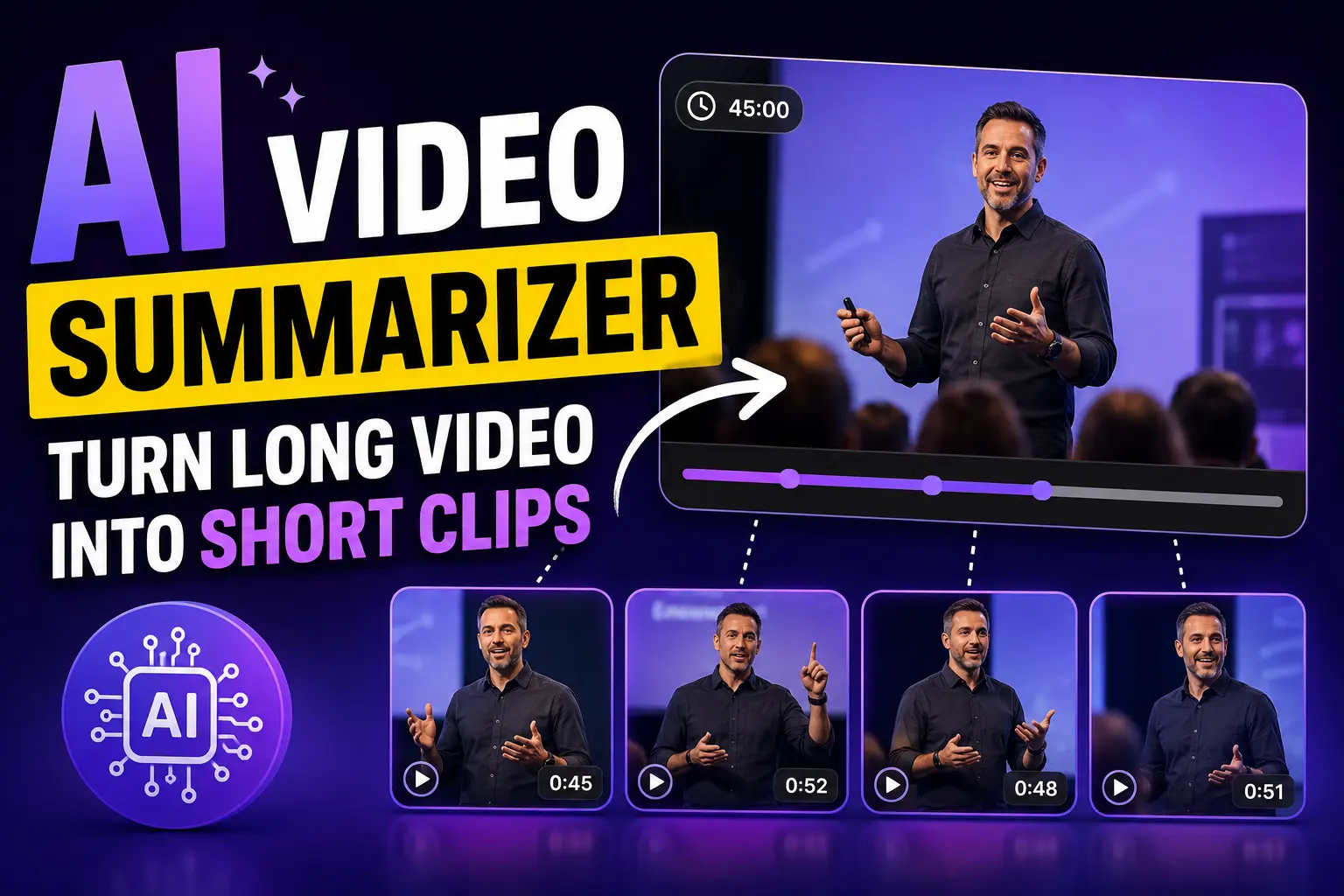
You recorded a 45-minute webinar and you need four clips for social by Friday. Scrubbing a timeline for the good bits is the slowest part of the job. An AI video summarizer does that pass for you, and the useful ones hand back finished clips instead of a page of notes. Pictory’s Summarize Video workflow does exactly that: upload once, pick a length, publish by Friday.
TL;DR
“Video summarizer” means two different things: tools that write notes about a video you watched, and tools that cut a long video down into short clips you can publish. This guide covers the second. Upload a recording, pick a target length, strip the filler and silences, and get shareable clips back.
“Video Summarizer” Means Two Different Things
The first kind reads a video and writes about it. You paste a link, it produces bullet points and key takeaways, and you skip watching. That’s for consuming someone else’s content.
The second kind cuts a long video into short clips you can publish. Same input, completely different output. That’s for people who made the video and need to get more out of it.
This guide covers the second. If you want written notes from a video you didn’t make, a text summarizer is the right tool and there are plenty of free ones. If you have a webinar, a podcast, or a recorded talk sitting in a folder doing nothing, keep reading.
What Does a Clip-Based Video Summarizer Actually Do?
It transcribes your video, identifies the segments that stand on their own, and assembles them into short clips at a length you choose. You get editable output, not a suggestion list, so the clip is ready to caption and publish rather than ready to build.
Three things happen under the hood. Transcription turns speech into text. Analysis finds passages that make sense without surrounding context. Assembly cuts those into clips and adds subtitles.
The part that decides whether it’s useful is editability. A tool that hands you a fixed clip is a novelty. One that hands you a transcript you can adjust, with the clip updating to match, is a working tool. Check that before you commit to anything.
How Do You Turn a Long Video Into Short Clips?
Upload the recording, let it transcribe, pick your target clip length, remove the filler and silences, then review the suggested clips and cut the ones that don’t work. About 15 minutes of your time for a 45-minute source video.
Upload the recording
Video or audio both work. Set the spoken language before you start, because a wrong language setting produces a transcript you’ll have to redo.
Pick a target length
30 seconds, one minute, two, or five. The choice shapes what gets kept, so pick based on where the clip will run rather than on how much you like the content.
Strip the filler and silences
Two toggles that remove the ums and the dead air. On a recorded talk this alone tightens the pacing more than any manual edit you’d have time to make.
Review the clips and cut the weak ones
Expect to keep about half. A clip that needs context from earlier in the talk won’t work on its own, and no amount of editing fixes that.
Add captions and branding, then export
Subtitles on, style picked, brand colors applied. Set once and every future clip from every future recording inherits the same look.
If you want more control than the automatic pass gives you, open the full editor afterwards and treat the clips as a starting storyboard, not a finished product. Pictory Academy walks the same flow with screenshots in how to create highlights and clips, and the video clip generator is the page to start from if you only need the cutting step.
What Length Should Your Clips Be?
Match the length to the destination, not to the content. Thirty seconds for a scroll feed, one to two minutes for LinkedIn or a newsletter, five minutes for a resource page or an internal recap. The same source video supports all four.
The most common mistake is picking five minutes because the material is good. Good material in the wrong length still doesn’t get watched. If a point genuinely needs five minutes, it needs a landing page around it, not a social post.
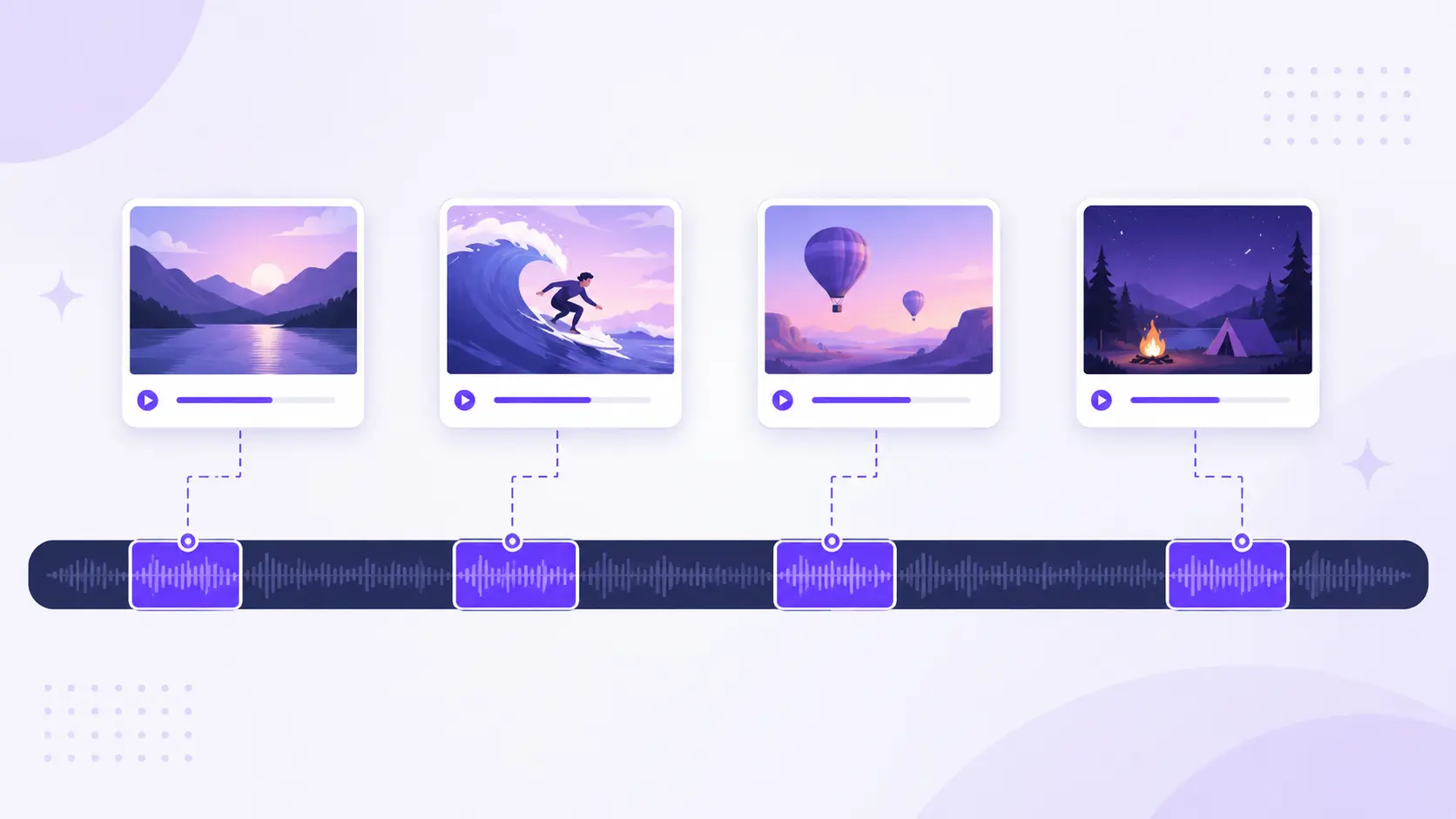
A practical pattern for a single webinar: one 30-second clip for the strongest single line, two one-minute clips for the two best sections, and one five-minute cut as the on-demand version. Four assets, one afternoon.
Filler Words and Silences Are the Fastest Win
Removing verbal filler and dead air is the highest-return edit available on recorded speech, and it takes two clicks. A talk that felt slow live becomes watchable, without changing a word of what was said.
It matters most on the formats you probably have most of: webinars, podcast recordings, internal presentations, conference talks. All of them are paced for a room, and rooms tolerate pauses that a feed does not.
Both are single toggles, covered step by step in how to remove filler words automatically and how to remove silence automatically. One caution. Stripping every pause can make a speaker sound rushed and slightly unnatural. Listen to a clip before you publish a batch, and if the delivery feels breathless, leave the silences in and only cut the filler.
Where Does Auto-Summarizing Get It Wrong?
Three predictable places. It picks passages that read well in the transcript but need visual context to make sense. It cuts mid-argument when the speaker takes a while to land a point. And it misses the genuinely best moment when that moment is a reaction rather than a sentence.
The fix is to treat the output as a first pass. Auto-highlight has done the tedious work of finding candidate segments across 45 minutes. Deciding which ones actually stand alone is a judgment call, and it takes you five minutes rather than an hour.
Also check names and technical terms in the transcript before exporting. Auto-transcription handles ordinary speech well and mangles product names, surnames, and acronyms, which are exactly the words your audience will notice.
Turn your last webinar into four clips
Upload once, pick a length, publish by Friday.
Verdict: When This Is Worth Doing
If you record anything longer than 20 minutes on a regular basis, this is the highest-return workflow available to you. The content already exists and it’s already approved. Cutting it into clips costs an afternoon and produces a month of posts.
It’s less useful on video that was already short and tightly edited. There’s nothing to summarize in a 60-second promo, and running one through a summarizer just removes things you deliberately put there.
Start with your best-performing recording, not your most recent one. You already know that material resonated, which removes the guesswork from deciding which clips to keep.
Start with the recording you already have
Filler and silences stripped, subtitles synced, branded and ready to post.
FAQ: AI Video Summarizer
What is an AI video summarizer?
It depends which kind. Some produce written notes from a video so you can skip watching. Others cut a long video into short, publishable clips. The first is for consuming content, the second for repurposing your own recordings into social posts.
How long does it take to summarize a long video?
Processing a 45-minute recording usually takes a few minutes, and your review time is another 10 to 15. The slow part is deciding which suggested clips stand on their own, which is judgment rather than processing.
Can you summarize a podcast or audio file?
Yes. Audio works the same way as video: the file gets transcribed, then cut into clips. For audio-only sources you’ll want visuals behind the clip, so pick a tool that adds footage or a branded background instead of exporting a black screen. Our guide to repurposing a podcast into video covers that end of it.
Does removing filler words make speech sound unnatural?
Removing filler alone rarely does. Removing every silence as well can make a speaker sound rushed. Listen to one clip before processing a batch, and if the delivery feels breathless, keep the silences and cut only the filler.
How many clips should you get from one webinar?
Four to six usable ones from a 45-minute recording is realistic. The tool will suggest more, and roughly half won’t stand alone without context from earlier in the talk. Cutting the weak ones is what makes the strong ones work.
Keep reading
The wider repurposing workflow this sits inside.
What to do with the clips once you have them.
The audio-only version, including what to put on screen.