
Corporate communications teams are expected to deliver leadership updates, policy changes, product launches, and crisis communications fast, consistently, and across channels. With Pictory, you can convert text to video using an AI text to video workflow that turns a script into a complete, brand-aligned video with captions, visuals, and voiceover in minutes, without a production bottleneck.
This guide shows enterprise teams how to use Pictory’s Text to Video generator inside the AI Studio to produce scalable internal communication videos, executive announcements, and employee updates.
Why AI Text to Video Works for Corporate Communications at Scale
Text-first workflows are already standard in comms: leadership memos, intranet posts, all-hands summaries, and talking points. A text to video AI generator bridges the gap between written messaging and the engagement of video.
- Speed: Publish time-sensitive messages faster than traditional corporate video production.
- Consistency: Apply Brand Kits so every department video stays on-brand.
- Reach: Use captions and multiple aspect ratios to support mobile and global teams.
- Efficiency: Reduce production overhead while maintaining professional quality.
If your message already exists as a web page or intranet post, you can also streamline creation using URL to Video. If it starts as a slide deck, use PPT to Video to turn presentations into polished updates.
Prepare Your Corporate Script for the Best Text to Video AI Results
Before you use an ai text to video tool, spend a few minutes structuring your message so the AI can create clean scenes and pacing.
- Keep sentences short and direct, ideally one key idea per sentence.
- Include a clear call to action such as “Complete the training by Friday” or “Read the updated policy.”
- Use plain language for company-wide audiences, especially for compliance and HR updates.
- Add line breaks where you want natural scene changes.
Tip: If you need a quick first draft, use the AI script generator in the Text to Video workflow, then refine it to match your corporate tone and approvals process.
How to Convert Text to Video in Pictory (Step-by-Step)
Follow these steps to turn a corporate communication script into a professional video using Pictory’s text to video generator.
Step 1: Start a Text to Video project
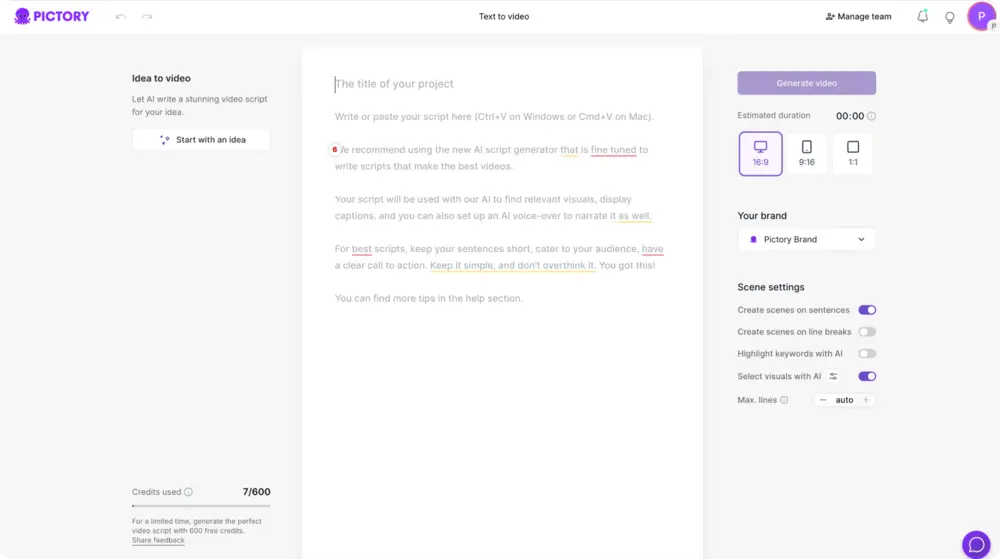
From the Pictory home screen, select Text to Video. This opens a script input field where you can paste or write your message. This script will drive visuals, captions, and voiceover.
For teams managing multiple assets, you can organize outputs as projects for easy searching and reuse in “My Projects.”
Step 2: Paste your corporate communications script and set scene rules
Paste your approved internal message or announcement into the script field. Then choose scene settings to control how your text becomes scenes:
- Create scenes based on sentences for clear pacing.
- Create scenes based on line breaks when you want manual control.
- Enable highlight keywords to emphasize policy changes, dates, and action items.
- Enable select visuals with AI to automatically match relevant footage to each scene.

If you are converting a policy memo or training update into video, consider shorter scenes with fewer lines to keep comprehension high.
Step 3: Refine the script in the Script Editor using Ask AI controls
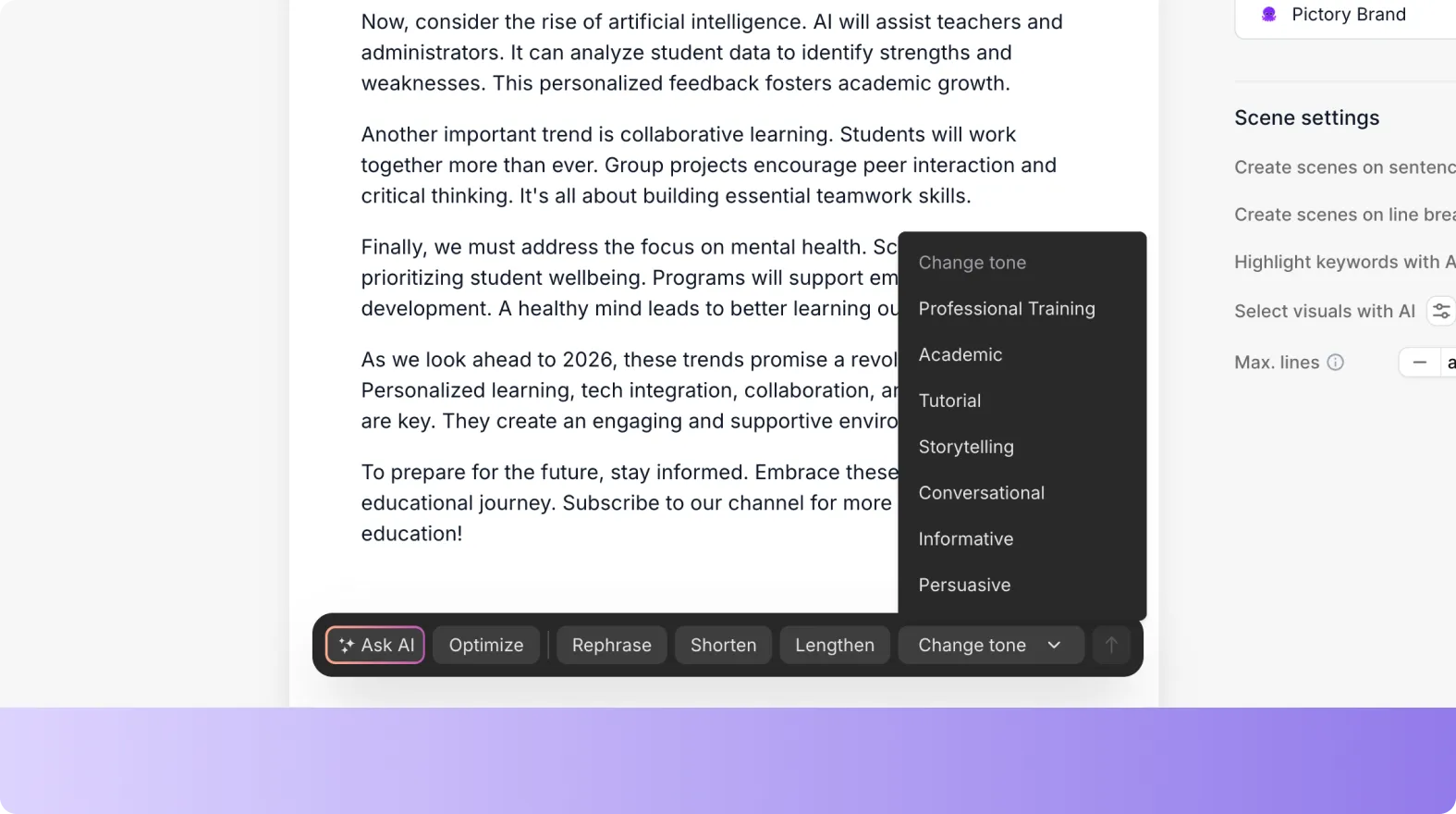
In the Script Editor, refine language and length while keeping your message intact. Use Ask AI controls to:
- Optimize clarity for company-wide audiences
- Rephrase for a more executive, supportive, or neutral tone
- Shorten or lengthen to match a required video duration
Also set your aspect ratio based on the channel:
- 16:9 for intranet, town halls, and LMS pages
- 9:16 for mobile-first internal feeds and Teams or Slack shares
- 1:1 for square placements or mixed layouts
Step 4: Apply your Brand Kit for consistent corporate video branding
Select the appropriate Brand Kit in the right panel to apply company fonts, colors, and logos. This is essential for enterprise teams that need brand consistency across departments.
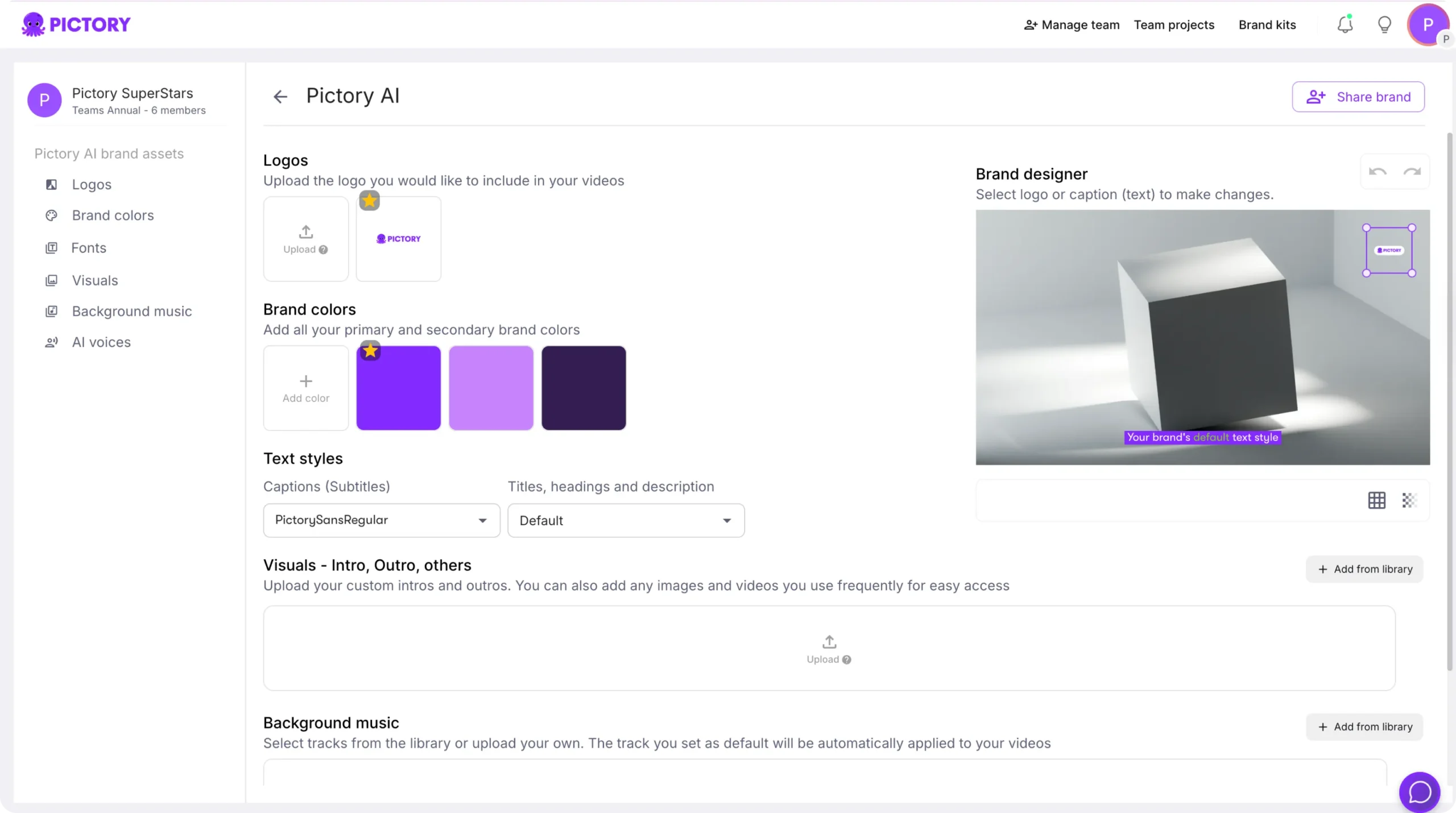
If your organization manages multiple brands or regions, create separate brand kits and apply the right one per audience segment to keep messaging aligned.
Step 5: Choose a layout theme and generate the video storyboard
Pick a theme such as Modern minimalist, Kinetic, or Bulletin depending on the formality of your message. Then click Generate video.
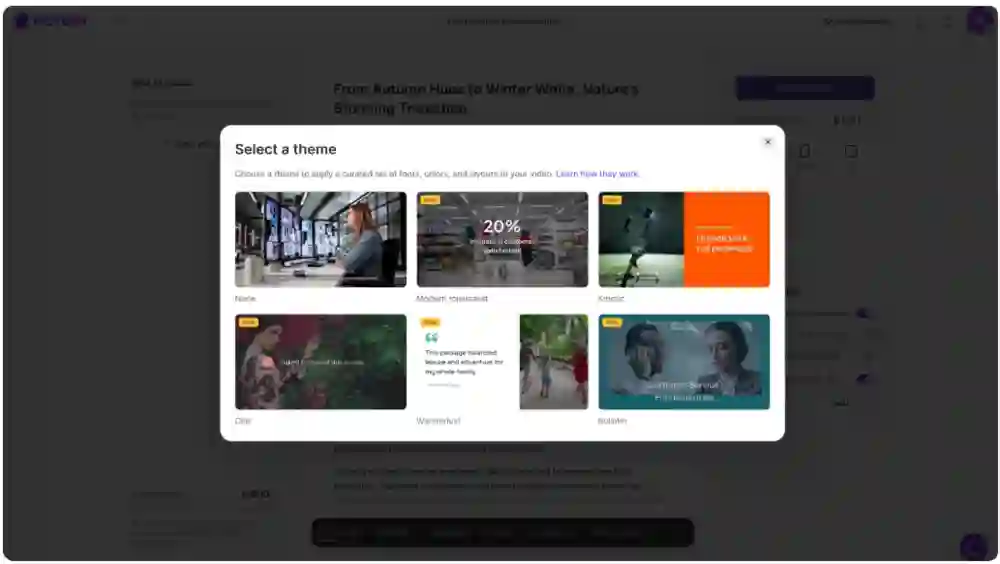
Pictory will process your script and build a storyboard. You will see a “Creating scenes” progress indicator while the AI generates scenes and matches visuals.
Edit and Personalize Corporate Videos Using the AI Video Editor
After the storyboard is created, you will land in the editor where you can polish the video with enterprise-level control. This is the same environment used in the AI Video Editor workflow, optimized for fast iteration.
- Story: Edit scene text, adjust timing, reorder scenes, and tighten message flow.
- Visuals: Swap stock footage, add uploads, or generate AI visuals directly in editor using AI Studio for scene-specific images and clips.
- Audio: Choose AI voiceover for consistent narration across global teams, and add background music where appropriate.
- Text and Elements: Add on-screen titles, policy references, dates, and icons for emphasis.
- Styles and Branding: Confirm fonts, colors, and layout alignment to match internal comms standards.
Use the updated timeline to navigate quickly through scenes. You can right-click scene thumbnails to duplicate, copy, paste, link with next, or delete, which is ideal when producing multiple versions of the same announcement.
Add Captions, On-Screen Text, and Text Animations for Clear Internal Messaging
Corporate communications videos should be understandable without sound. Captions and on-screen text also improve comprehension for global teams and accessible communications.
- Use short, high-contrast titles for the key point of each scene.
- Keep critical details on screen such as dates, owners, and required actions.
- Limit the number of lines per subtitle to keep the pace readable.

To make important points stand out, select a text layer and use the Animate Text option in the top toolbar to apply entry and exit effects. Keep animations subtle and consistent for enterprise content so the message stays primary.
Enterprise Workflow Tips: Announcements, Policy Updates, and Training Comms
Here are practical ways enterprise teams use text to video generation to deliver messages through video.
- Leadership updates: Convert executive notes into short weekly video briefs and publish consistently.
- Policy and compliance changes: Turn updated policy text into a clear recap video with bullet scenes and visible deadlines.
- Change management: Create a series of short videos for rollout phases, each with one objective and a single call to action.
- Sales enablement internal comms: Announce new messaging, pricing changes, or pitch updates in quick videos that teams will actually watch.
If you need to record a product walkthrough or internal tool demo, capture it with Smart Screen Recorder and then polish it with AI editing. If you are starting from images such as event photos or office updates, use Image to Video for faster assembly.
FAQ: Text to Video for Corporate Communications: Delivering Messages Through Video
What is the best way to structure a script for AI text to video in corporate communications?
Use short sentences, clear line breaks, and one key idea per scene. Add a call to action and repeat critical details like dates and owners on screen to reduce ambiguity.
Can I maintain brand consistency across departments using a text to video AI generator?
Yes. Apply a Brand Kit to set your logo, fonts, and color palette so every corporate video matches brand standards, even when multiple teams create content.
How do I add text to a video for policy updates and internal announcements?
In the editor, use the Text tools to add headings, subheadings, or body text overlays. For emphasis, you can highlight keywords and apply subtle text animations while keeping readability as the priority.
Can Pictory help repurpose existing corporate content into video besides scripts?
Yes. Use URL to Video to convert an article or intranet page into a script and video, or PPT to Video to convert slide decks into videos for internal distribution.
How can I create training-style internal comms videos from recordings?
Record with Smart Screen Recorder and then use AI-driven transcription and scene creation to quickly edit and publish a clean training communication video.
Is Pictory an AI video editor or a text to video tool?
Both. You can create videos directly from scripts using the Text to Video generator, and you can also polish, customize, and standardize outputs in the AI Video Editor environment.


