
Rearranging scenes helps you control the flow of your video. Whether you want to improve pacing, change the order of your message, or refine storytelling, moving scenes is simple inside Pictory AI. You can drag scenes into a new order, preview changes instantly, and update your narrative without recreating any content.
This guide shows you how to rearrange scenes inside Pictory AI.
Why Rearranging Scenes Matters
Changing the order of scenes helps you:
• Improve clarity
• Strengthen storytelling
• Adjust pacing
• Create smoother transitions
• Fix structural issues
• Customize videos for different audiences
Scene rearranging is useful for tutorials, product demos, training videos, story driven content, and marketing clips.
Step 1: Open the Story Tab
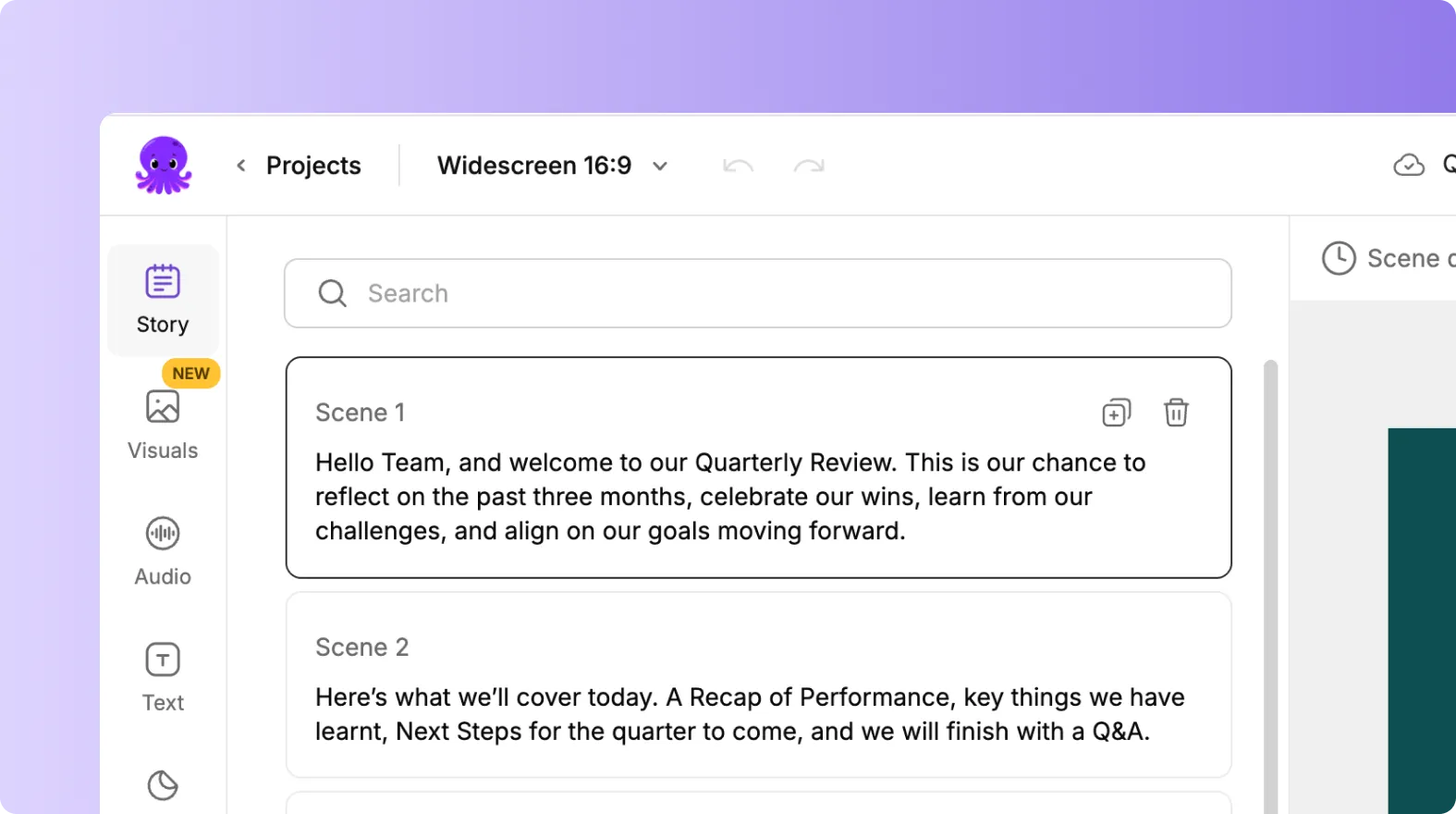
Select your project and enter the editing workspace. Click the Story tab on the left side of the editor.
The Story tab displays all scenes in a vertical list. Each scene shows its text and thumbnail.
Step 2: Identify the Scenes You Want to Move
Scroll through your scenes and decide which ones need repositioning. Look for:
• Steps that feel out of order
• Information that needs to appear earlier
• Repetitive sections
• Scenes that would create better flow in a different position
Knowing your goal makes rearranging faster.
Step 3: Drag and Drop Scenes Into a New Order
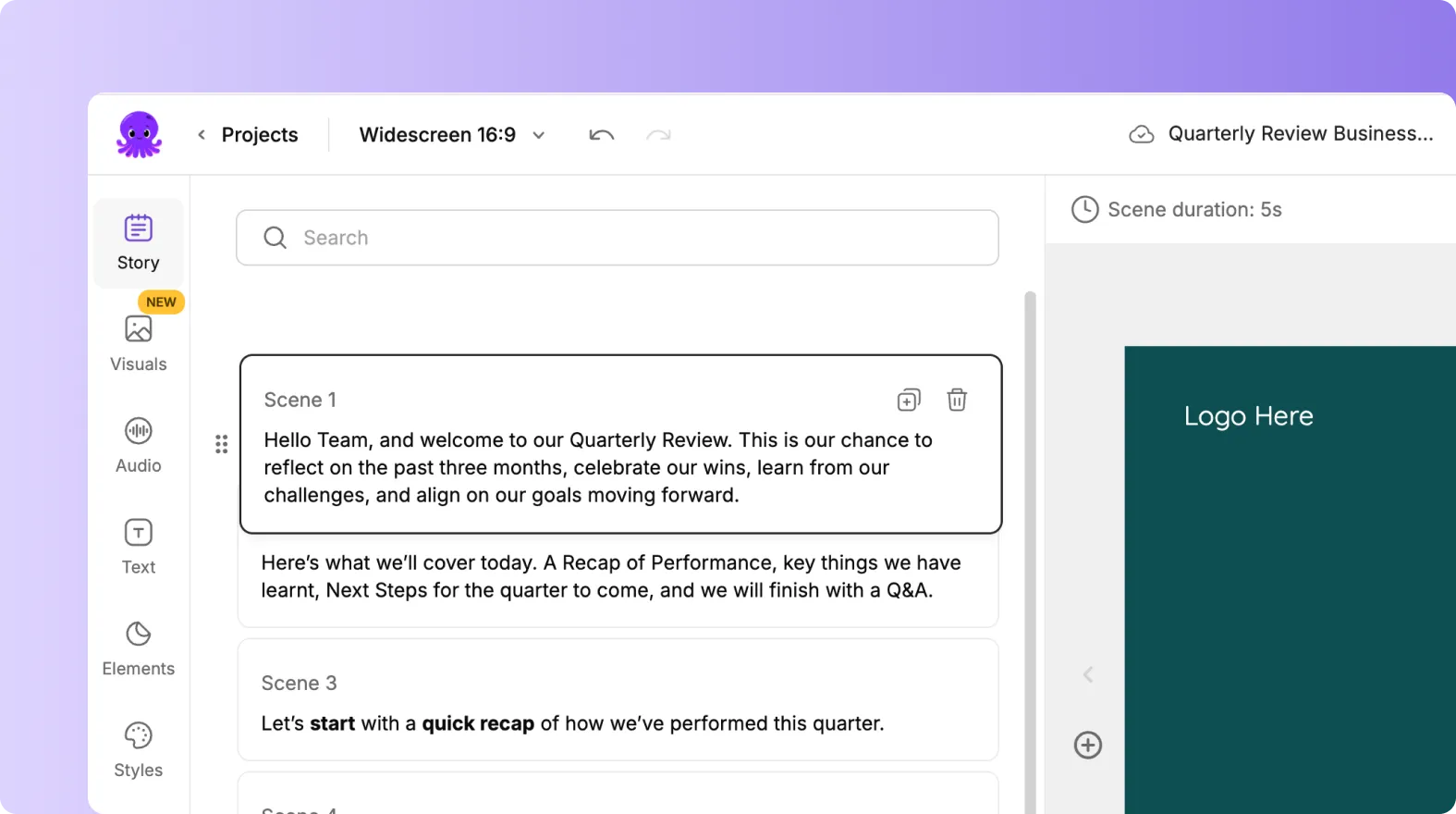
Click and hold the scene you want to move. Drag it up or down the list. Drop it in the new position.
Your video updates instantly. No visuals, text, or audio are lost.
This makes restructuring your video quick and easy.
Step 4: Preview the New Order
After rearranging:
- Click Preview Video
- Watch transitions between scenes
- Check pacing and clarity
- Confirm the narrative flows smoothly
If something still feels out of place, return to the Story tab and move scenes again.
Step 5: Adjust Text or Visuals After Rearranging
Sometimes changing the order affects how scenes connect. Review each reorganized scene to make sure:
• Text still makes sense
• Visuals support the new sequence
• Voiceover matches the updated flow
• Transitions feel natural
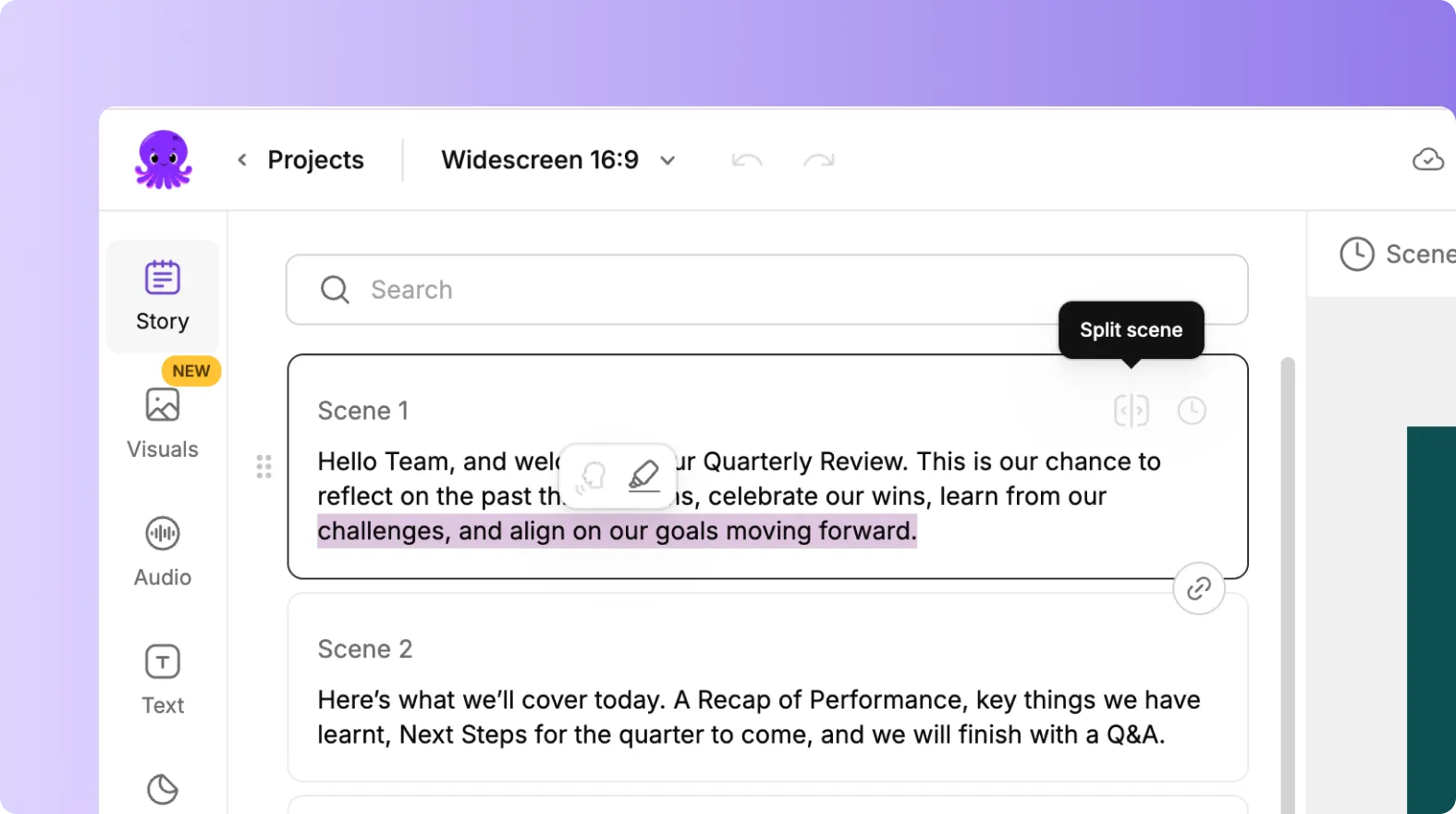
Make quick edits if needed to maintain coherence.
Step 6: Finalize and Export Your Reordered Video
When you are happy with the new scene order:
- Preview your full video one last time
- Check for smooth pacing
- Verify the message flows correctly
- Click Download Video
- Choose your preferred aspect ratio
Your exported video will reflect the updated structure.
Organize and Improve Your Video Flow by Rearranging Scenes in Pictory AI
Rearranging scenes is a simple but powerful way to improve your content. With drag and drop controls and instant previews, you can refine your storytelling, optimize pacing, and create multiple versions from one project. Whether you are editing tutorials, marketing videos, or training content, rearranging scenes helps you shape the perfect final result.
Start reorganizing your scenes today using the Story tab in Pictory AI.


