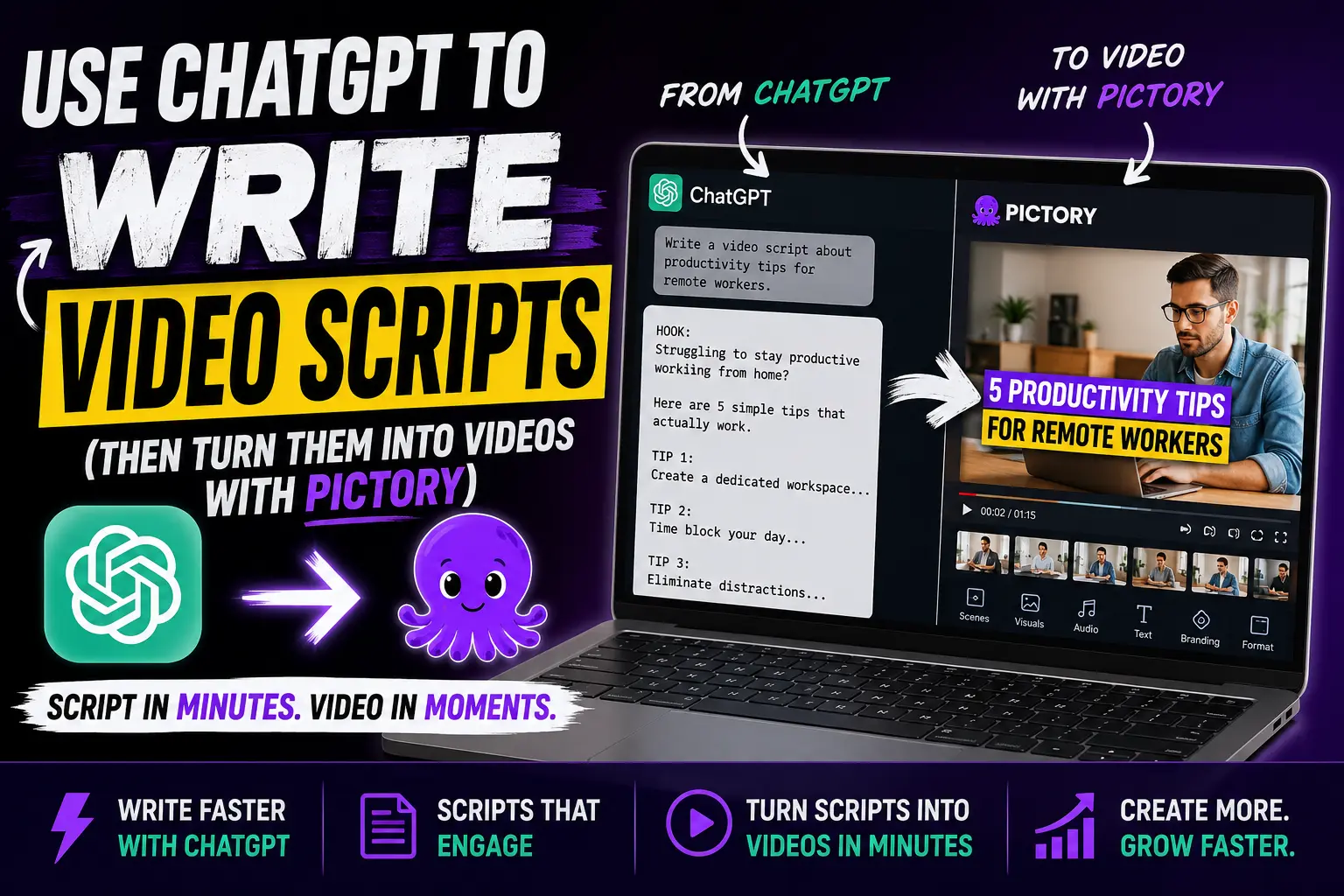
If you’ve ever stared at a blank script doc for 20 minutes, you’re not alone. Writing video scripts is one of the most time-consuming parts of content production, and it’s often the step that stops marketers and content teams from creating video consistently. ChatGPT changes that. You can go from a topic idea to a workable script in under five minutes. Pair that with Pictory, and the entire production workflow collapses from hours to a single focused session.
TL;DR
ChatGPT writes scripts fast, but it can’t produce a finished video. This guide walks through the full workflow: how to prompt ChatGPT for a publish-ready script, how to refine it, and how to paste it into Pictory’s Script to Video workflow to get a branded video with visuals, captions, and voiceover, no editing skills required.
Why ChatGPT Isn’t a Video Generator (And What Actually Is)
ChatGPT is a natural language model, not a video tool. What it does exceptionally well is generate structured, conversational text at speed: scripts, outlines, storyboard notes, and narration drafts. That’s the exact input Pictory needs to build a complete video.
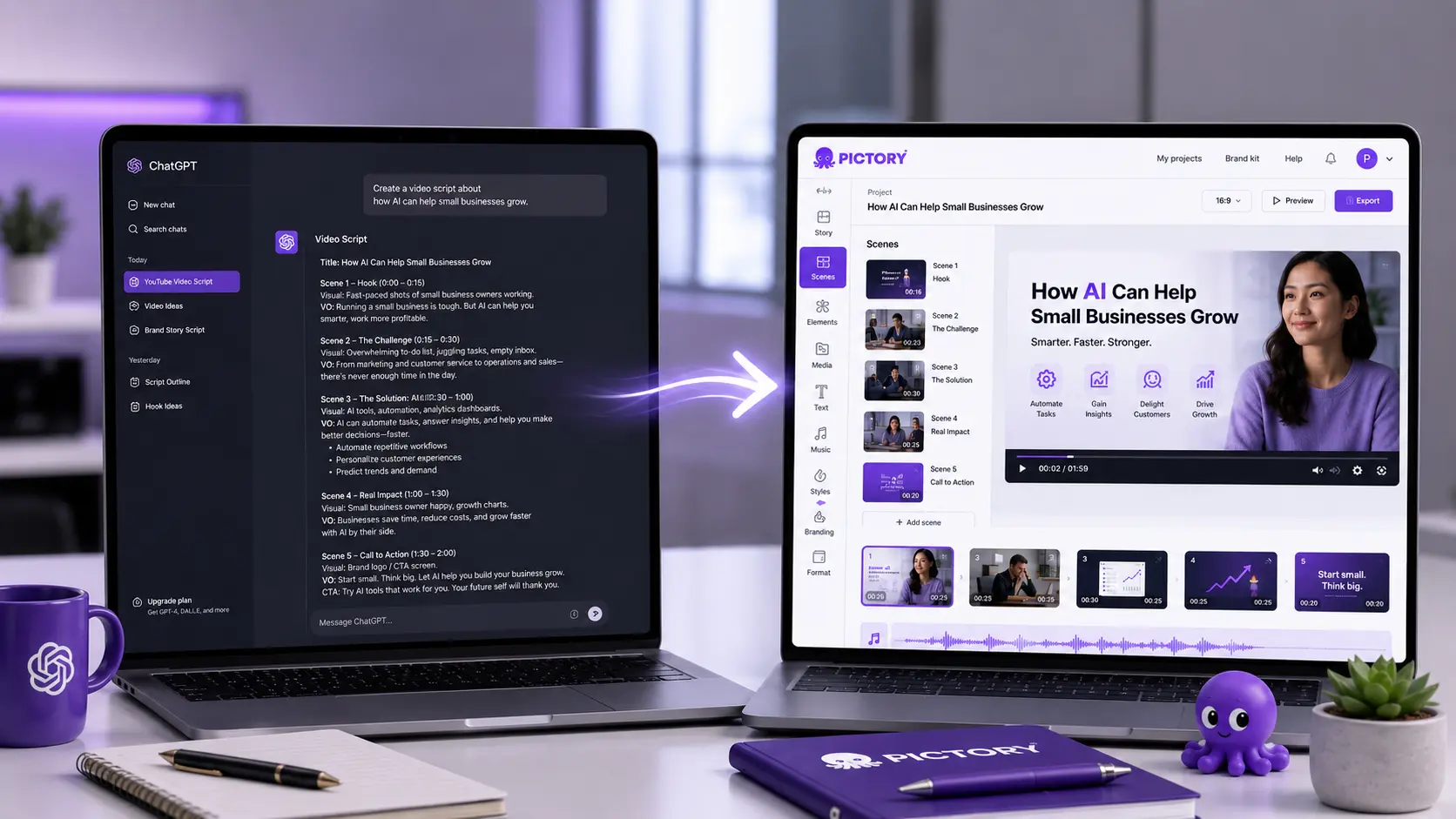
The gap between ChatGPT and a published video is the production layer: matching visuals to each line of script, generating or recording a voiceover, adding captions, and exporting a file. Pictory handles all of that, which is why it works as a ChatGPT video creator even though the two tools never talk to each other directly. You copy your ChatGPT script and paste it into Pictory’s Script to Video workflow. From there, Pictory splits the text into scenes, pulls matching visuals from a library of over 10 million clips and images, generates an AI voiceover, adds captions, and lets you apply your brand kit.
No direct integration is needed. No API key. You copy, paste, and produce.
AI tools are helping businesses save up to 80% of their time and budget on video production, and script generation is typically the first time sink they eliminate. | SellersCommerce, 2025
How to Write a Video Script With ChatGPT
What makes a good ChatGPT script prompt?
The quality of the script ChatGPT returns depends almost entirely on the quality of the prompt you give it. Vague prompts produce generic output. Specific prompts produce scripts you can use with minimal editing.
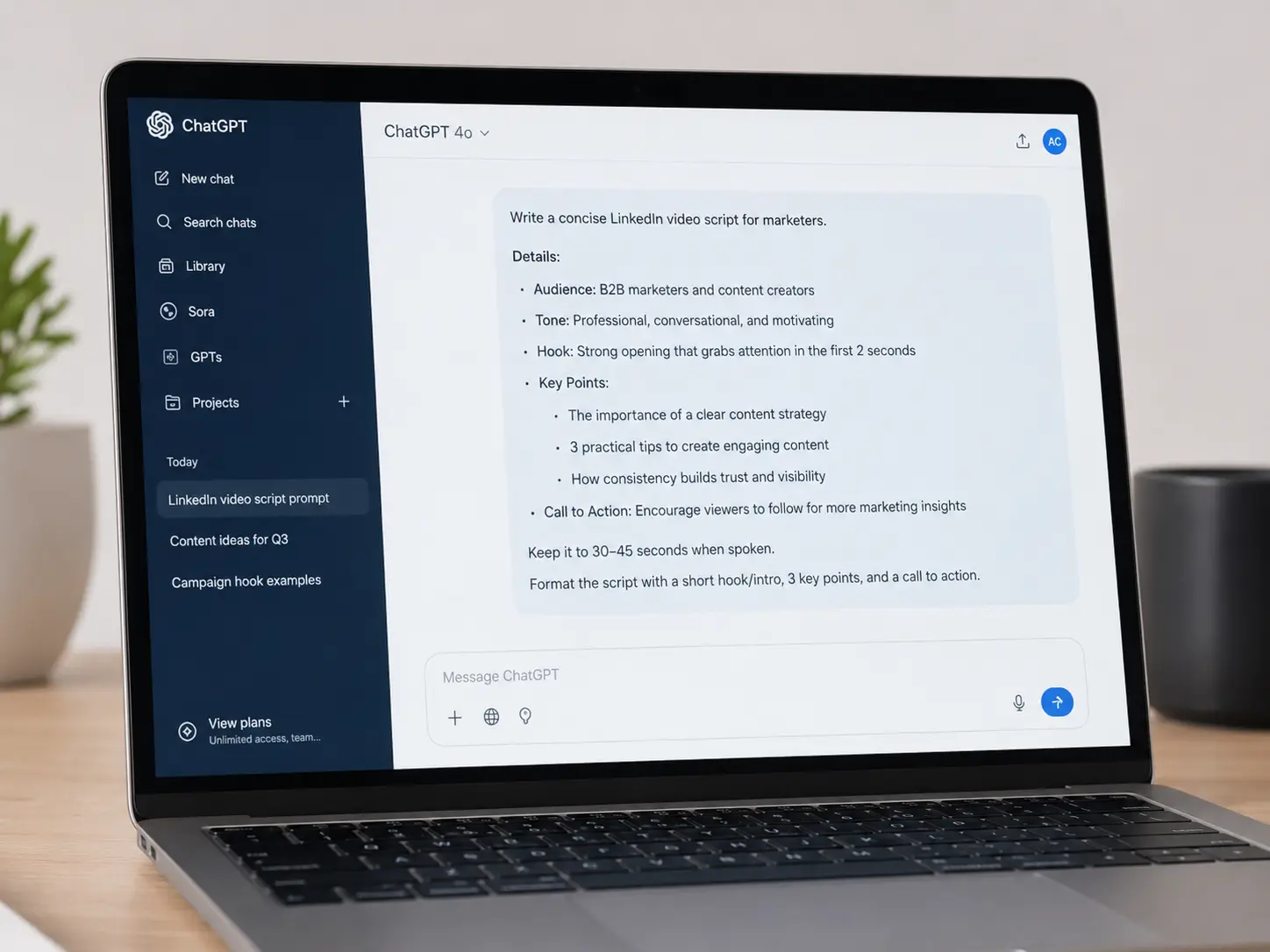
A strong video script prompt covers five things: topic, audience, tone, platform, and length. Here’s a reusable template:
“Write a [length]-minute video script for [audience] about [topic]. The tone should be [tone]. The video will be posted on [platform]. Keep sentences short and conversational. Include a hook in the first 15 seconds and a clear call to action at the end.”
Here’s an example using that template:
“Write a 90-second video script for small business marketers about how to repurpose blog posts into social media videos. Friendly and practical tone. The video will be posted on LinkedIn. Keep sentences short. Include a hook in the first 15 seconds and end with a call to action to try Pictory free.”
ChatGPT returns a structured draft in seconds. Read it aloud before moving to Pictory. Anything that sounds awkward when spoken needs a quick edit now rather than inside the video editor later.
What Should You Check Before Pasting a ChatGPT Script Into Pictory?
Catching issues in the text takes 60 seconds. Fixing them inside the video editor takes much longer. Run through this quick checklist first.
- Sentence length. Long sentences are hard to follow when spoken. If any sentence runs over 20 words, split it into two.
- Read it aloud. This is the fastest test. If you stumble over a phrase, rewrite it. ChatGPT occasionally produces lines that look fine on screen but feel awkward when spoken.
- Brand voice. ChatGPT doesn’t know your brand. Add your product name, a customer-specific detail, or a phrase that reflects how your team actually talks.
- Call to action. If you want viewers to sign up, download, or visit a page, make the CTA specific and keep it at the end of the script.
- Word count. A rough guide: 130 words narrates at roughly one minute. A 90-second video needs around 200 words. A two-minute video needs roughly 260.
How to Turn Your ChatGPT Script Into a Video With Pictory
Once your script is ready, the Pictory production workflow takes over. Here’s the full process, step by step. You can also find detailed guidance in the Pictory Academy if you want to go deeper on any individual step.
Select Script to Video from the Pictory home screen
Log in to Pictory and select Script to Video from the homepage. You’ll see an input field where you can paste or type your script directly. Before pasting, check the scene settings in the right-hand panel: you can choose to create scenes based on sentences (best for punchy short-form scripts) or on line breaks (better when your script has clear paragraph structure).
Paste your script and configure settings
Paste your refined ChatGPT script into the editor. In the right panel, set your aspect ratio: 16:9 for YouTube and desktop content, 9:16 for Reels, TikTok, and Shorts, or 1:1 for LinkedIn and Facebook. Select your brand kit to apply your logo, fonts, and colors across every scene automatically. If you haven’t built a brand kit yet, head to the Brand Kits section in the left sidebar before starting.
Estimated video duration appears in the panel. If the script is running long, use the Shorten option in the Ask AI toolbar to trim it before generating.
Choose a layout theme and generate
Click Generate Video. Pictory prompts you to select a layout theme: options include Modern Minimalist, Kinetic, Chic, Wanderlust, and Bulletin. Each theme controls how text and visuals are layered together across all your scenes. For professional B2B content, Modern Minimalist and Chic tend to work well. Pictory then processes your script into a storyboard, which takes under a minute.
Edit scenes in the video editor
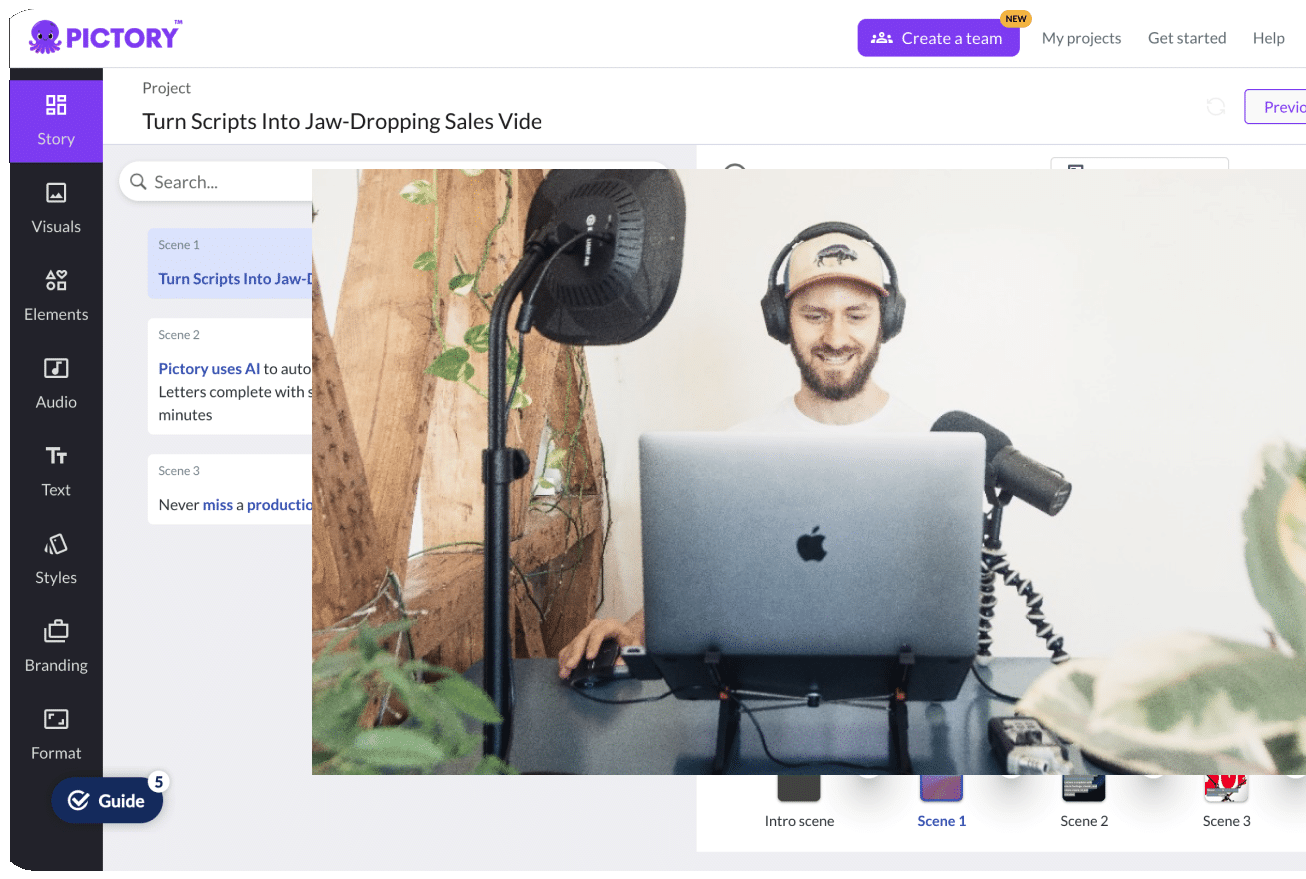
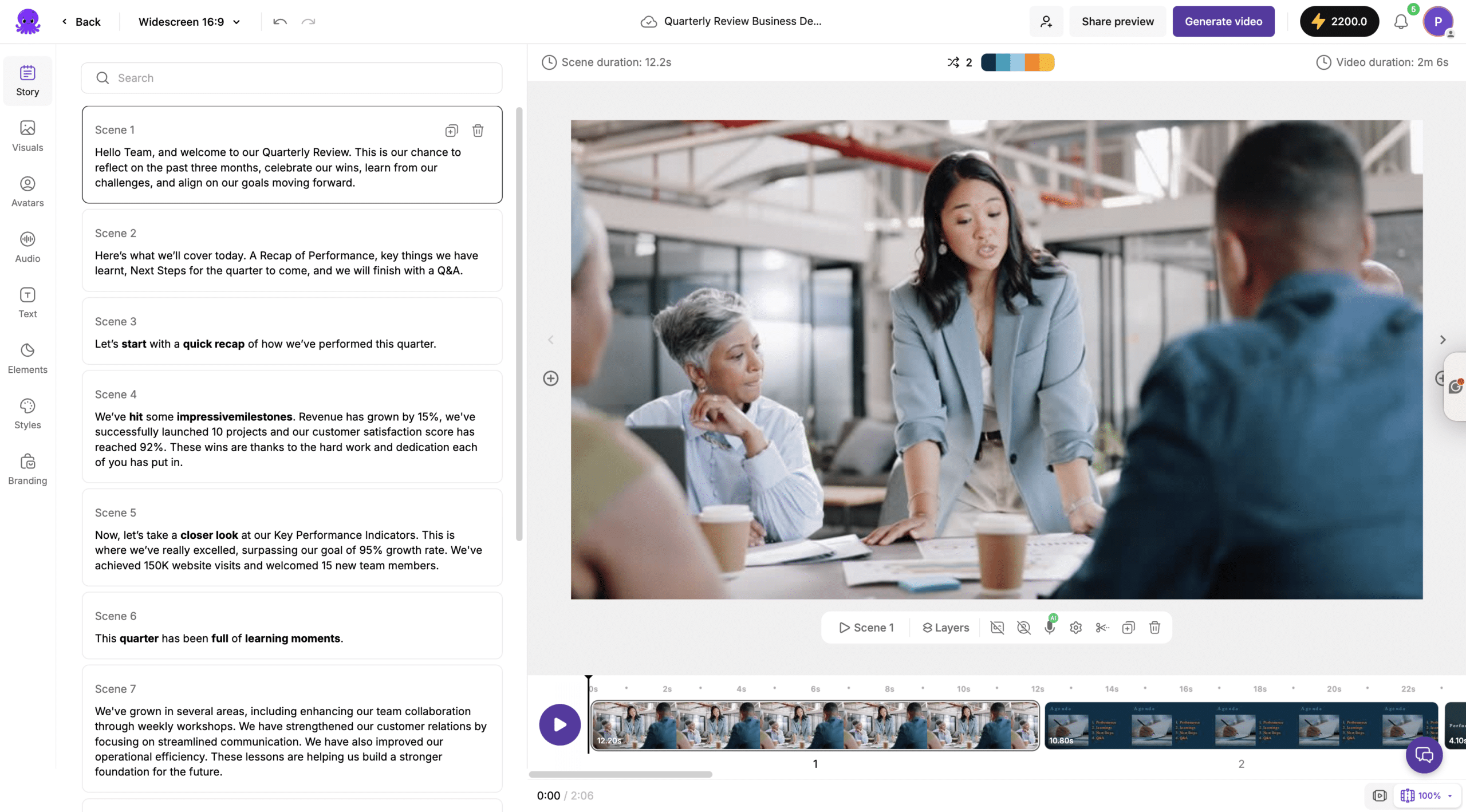
Once the storyboard is ready, you’re in the main video editor. The left panel shows your script broken into individual scenes. The right panel shows a live preview with synced visuals and captions. The bottom timeline shows scene thumbnails for quick navigation. Right-click any thumbnail to duplicate, reorder, copy, paste, or delete that scene.
From the left sidebar you can swap visuals (Library, AI Studio, or Uploads), change the voiceover in the Audio tab, edit scene text in the Story tab, apply text animations, adjust styles, and manage branding.
Preview, then download or share
Select Preview Video to watch the full video from start to finish. Make any final adjustments, then select Download Video to export. Use Share Preview to send a review link to a colleague or client before downloading. No account is required on their end.
ChatGPT Prompt Templates for Common Video Types
Different video formats need different script structures. These three templates cover the most common use cases for Pictory users. Copy any of them directly into ChatGPT, add your specifics, refine the output, then paste it into Pictory.
Explainer video
Best for: product education, “what is X” content, feature walkthroughs
“Write a two-minute explainer video script for digital marketers at small businesses. Explain how to repurpose a blog post as a social media video using AI tools. Friendly and practical tone. Short sentences only. Include a hook in the first 10 seconds and end with a call to action.”
Product or feature demo
Best for: new feature announcements, campaign teasers, lead generation
“Write a 90-second product demo script for a B2B SaaS video tool. The audience is marketing managers at companies under 50 employees. Focus on time-saving benefits. Professional but approachable tone. End with a free trial CTA.”
Internal training or onboarding
Best for: L&D teams, onboarding content, process documentation
“Write a three-minute training video script explaining how to use [feature name] in . The audience is new team members with no prior experience. Step-by-step structure. Clear, instructional tone. No jargon.”
Other Ways to Get Video Content Into Pictory
ChatGPT is one way to arrive at a script, and the ChatGPT to video workflow covers that path in full. Pictory also supports several other starting points, depending on what content you already have.
Paste a blog URL. Pictory extracts key content and builds a storyboard automatically.
Upload a podcast or voice recording. Pictory transcribes and matches visuals automatically.
Upload a PowerPoint. Each slide becomes a scene. Speaker notes can drive the voiceover.
Enter a topic or idea prompt. Pictory’s AI generates the script and video in one flow.
Got a ChatGPT script sitting in a doc?
Paste it into Pictory and have a finished video ready to publish today.
Is Using ChatGPT for Video Scripts Worth It?
For most content teams, the ChatGPT-to-Pictory workflow is a genuine time saver. AI tools are cutting video production time by up to 80%, and script writing is where that saving is most immediate. A task that used to take 30 to 60 minutes now takes under five. If you’re a marketer producing multiple videos a week, that compounds fast.
The workflow has limits worth knowing. ChatGPT doesn’t know your brand, your customers, or your product the way a subject-matter expert does. The output is a strong first draft, not a finished script, and pasting it straight into Pictory without reviewing it will usually mean more editing time inside the video editor, not less. Teams with highly regulated language, complex technical topics, or a distinctive on-camera personality may still want a human writer in the loop. The AI handles the structure and speed; the human adds the nuance.
The workflow that consistently works: refine the script as text first, then produce. Go into Pictory with a script you’d be happy to send in an email, and the video comes together in one session. Skip that step, and you’ll spend three times as long fixing it in the editor. And if you’d rather skip ChatGPT entirely, Pictory’s built-in AI Script Generator does the same job without leaving the platform: topic in, script out, video in minutes.
Turn your next ChatGPT script into a video today
Fast, scalable, and affordable, Pictory handles the production so you can focus on the message.
![[Article] Promo Video: How to Make One That Converts](https://pictory.ai/wp-content/uploads/2026/09/blog-video-promo-300x169.webp)