AI wedding video editor

Wedding Video Editor

Make your own wedding video from the photos and clips of the day. Put them in order, add your song and a few words, and download it to share.

  • Photos and clips in the order of the day
  • Your own song, or one from the library
  • Names, dates and captions on any scene
  • Free to try, online in your browser
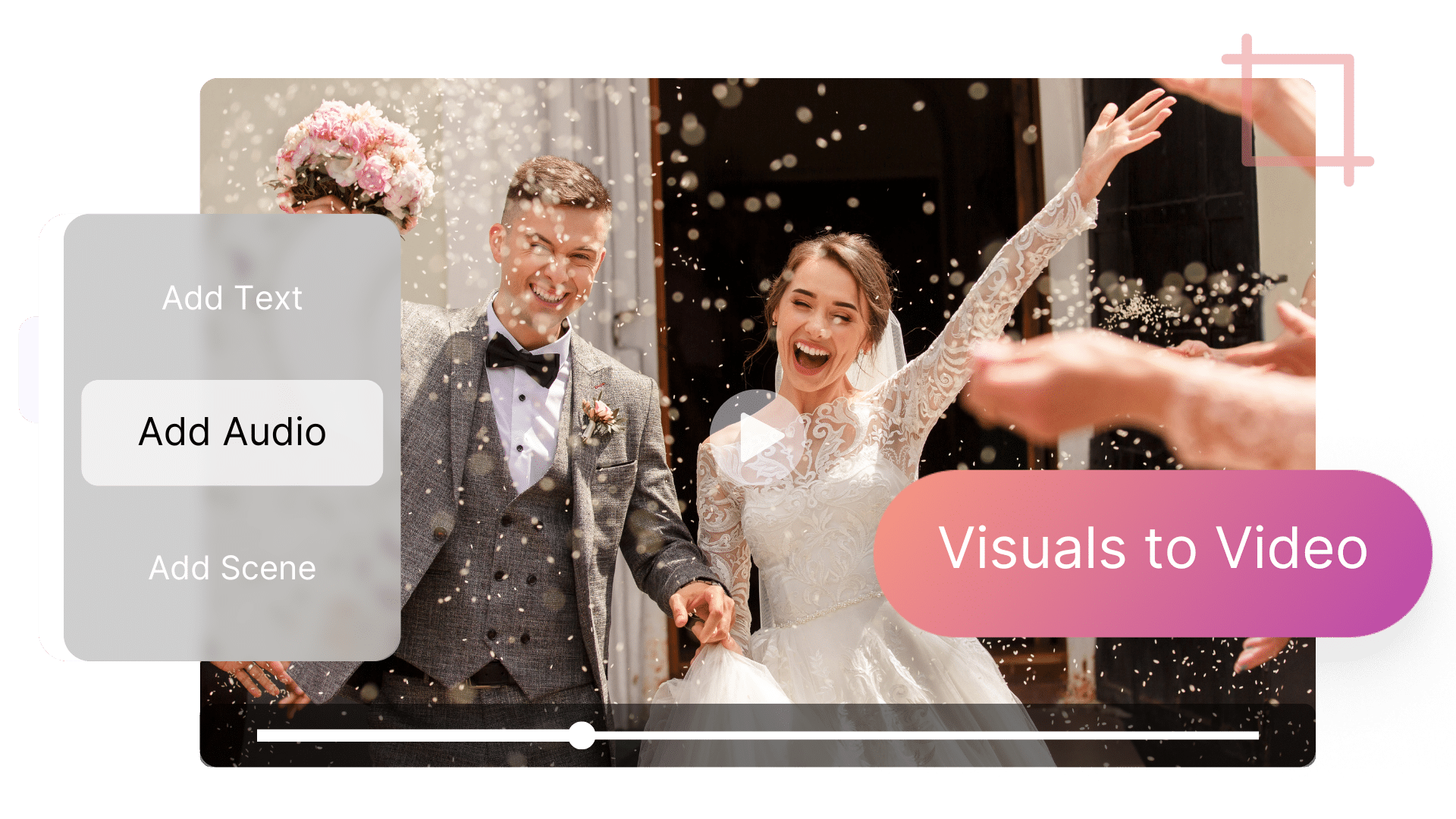
A bride and groom smiling in a garden at golden hour in a wedding video made with Pictory

4.6/5Trusted by over 20,000 teams and institutions worldwide.

  • Colibri Group logo
  • Kajabi logo
  • Royal Canin logo
  • BizLibrary logo
  • Regis Company logo
  • Forbes logo

What is a wedding video editor?

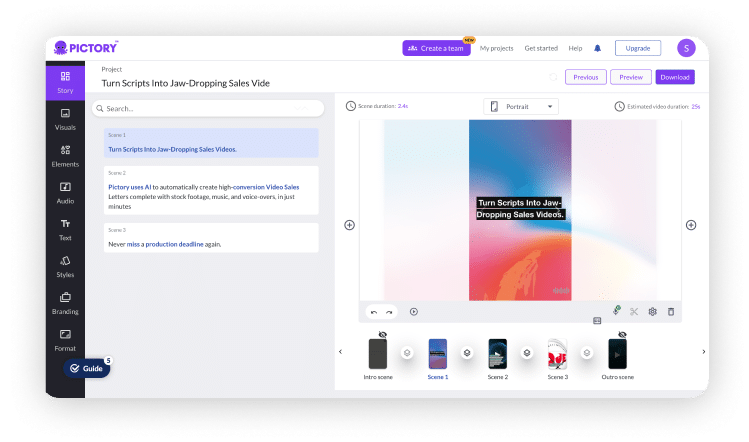
A wedding video editor is the tool you use to put wedding photos and clips into one video. In Pictory’s AI wedding video editor you upload them, drag them into the order of the day, add music and captions, and download the video.

Scenes in place of a timeline. Editing a wedding video usually means a timeline and a lot of small cuts. An AI video editor for a wedding video keeps it simple: each photo and clip becomes a scene, and you move, shorten or remove scenes until the story reads right.

Use it as a wedding video maker for the highlights, a marriage video for family abroad or a thank you for your guests. It runs in your browser and is free to try. For photos alone, see the slideshow maker.

Newly married woman on her sofa with the wedding album after making her own wedding video in Pictory

40 photos · 6 clipsEstimated duration 4:35

Video readyMusic added · captions on

Your source, any format

Start with your photos and clips

Upload the photos and clips from the day. Or upload the filmed ceremony and edit it with the AI video editor.

How it works

How to make a wedding video

To make a wedding video, choose Images to Video in Pictory and upload your photos and clips. Drag them into the order of the day and set how long each photo shows, 5 seconds by default. Click Generate Video, add music and captions, then download the video.

  1. Upload photos and clips

    Choose Images to Video, then drag in your files or browse for them.

  2. Put them in order

    Drag the thumbnails into the order of the day. Each photo is set to 5 seconds to start with.

  3. Add music and captions

    Click Generate Video. In the editor, add your song and type names or dates on any scene.

  4. Edit and download

    Move, shorten or remove a scene, then download the MP4.

Features

Wedding video maker features: order, music and captions

Order and timing

The day in the order it happened

Drag photos and clips into order before you generate the video, and move scenes on the timeline after. Change how long any photo stays on screen.

  • Drag to reorder
  • 5 seconds a photo by default
  • Photos and clips together
See the video montage maker

Music

Your song under the whole video

Upload the song from your first dance, or choose a track from the royalty-free music library. It plays across every scene.

  • Your own song, uploaded
  • Royalty-free music library
  • One track across the video
See how to add music to video
Woman with headphones around her neck after adding the first dance song to her wedding video

first-dance.mp3

Music addedAll scenes

Words and edits

Names, dates and the speeches

Type names, dates or a line from the vows on any scene. For a filmed speech, upload the video and cut it by editing the text of what was said.

  • A line of text on any scene
  • Edit a filmed speech by editing its text
  • MP4 in 16:9, 9:16 and 1:1
See the AI video editor
Groom in a grey suit in a wedding video with a caption from the speeches

Scene 12 · the toastTo the two of you

Captions on16:9 · ready to download

Ideas

Wedding video ideas

Wedding video ideas start with what you already have. Make a highlights video from the best clips and photos of the day. Turn the album into a slideshow for family who could not travel. Or make a save the date before the wedding and a thank you after it.

More AI video features

Your complete AI video generation tool

  • AI avatars

    Add a talking presenter, or a digital twin of you.

  • Captions

    Accurate, synced captions in your brand style.

  • Translation

    Captions and voiceover for every market.

  • Text editing

    Edit the transcript to edit the video.

  • Team workspaces

    Share projects and brand kits with your team.

  • API

    Generate branded videos from your own product.

AI Studio

Create any image or video you need with generative AI

The latest image and video models, built into the editor. Generate it, then drop it straight into your scene.

  • A white vase on the left and the same vase turned purple on the right, after the prompt "Make it purple"

    Generate and edit images

    Describe it, or edit an existing image with a prompt.

  • The same woman in a forest and on a city waterfront at sunset, matched to her reference photo

    Keep characters consistent

    Use reference images to keep the same person or product in every scene.

  • A barista talking to the camera in her cafe, with a play button and audio waveform

    Create video clips with sound

    Generate clips with audio. Yes, characters can talk.

  • A hiker on a mountain summit above the clouds, with a filmstrip showing the clip being extended
    Original clip, frame 1: sunrise over the clouds beside a mountain ridgeOriginal clip, frame 2: a hiker with a red backpack climbing toward the summitOriginal clip, frame 3: clouds below the rocky ridgeExtended clip, new frame 1: the sun low over a sea of cloudsExtended clip, new frame 2: the hiker standing on the summit with both arms raisedExtended clip, new frame 3: clouds rolling past the far ridges

    Extend any clip

    Keep any clip going with a new prompt, even one you uploaded.

  • Four versions of a lakeside cabin scene, with one selected

    Get four options at once

    Generate up to four versions and keep the best one.

  • A lavender water bottle styled with brand kit colors

    Stay on brand

    Your brand kit’s colors guide every generation.

Choose your model

Pick a model for stills or 5 to 10-second clips.

Also in AI Studio: Nano Banana Lite for images and Omni Flash for video.

Use cases

Who is using wedding video editors?

  • A newly married couple laughing in a field at sunset in their wedding highlights video
    Couples

    Wedding highlight videos for couples

    Turn the best clips and photos into a few minutes you will watch again.

  • A mother of the bride in a garden with white flowers in a wedding slideshow made from family photos
    Families

    Wedding slideshows from family photos

    Gather the photos everyone took into one video for the family.

  • A wedding photographer holding his camera at an outdoor venue in a highlight reel for a couple
    Photographers

    Highlight reels for wedding photographers

    Send the couple a short reel while the full gallery is being edited.

  • A wedding planner holding a clipboard in a reception hall in a save the date video
    Planners

    Save the date and thank you videos

    Make the video that goes out before the day and the one that follows it.

Why Pictory

Loved by creators, trusted by enterprise teams

From solo creators to global marketing teams. Read the case studies

  • 4.6 / 5

    Average rating on G2, plus Capterra’s Best Ease of Use award for 2025.

    • Capterra Best Ease of Use 2025 badge
    • Capterra Shortlist 2025 badge
    • Software Advice Front Runners 2025 badge
    • GetApp Category Leaders 2025 badge
  • 20,000+

    companies and institutions creating video with Pictory.

  • SOC 2

    and GDPR compliant, ready for enterprise security reviews

    AICPA SOC sealISO 27001 sealGDPR

Case studies

Teams that scaled video with Pictory

  • Whirlybird Labs logo over a bright glass office

    “Pictory is the easiest, most efficient way to get from an idea in text to multimedia imagery on the screen. It’s the critical component to get us out of death by PowerPoint.”

    Jason Hoss, Founder & CEO
    Read the Whirlybird Labs case study
  • VRC Investigations logo over a woman leading a meeting

    “Pictory helps us consistently deliver the high-quality videos we’re known for, content we’re proud of and our clients are proud to use. They always get a five-star response.”

    Curtis Whitfill, VP of Continuing Education
    Read the VRC case study
  • AppDirect logo over a presenter showing a chart to his team

    “82% of our 10,000+ partners keep coming back to our training videos even though they aren’t mandatory courses. That’s how we know the content’s working.”

    David Landsberger, Director of Partner Enablement
    Read the AppDirect case study
  • NetRock Custom Cybersecurity logo over a team working at their computers

    “It increased subscriber growth by 78% and cut my video creation time from a couple of hours to a few minutes. It’s been a godsend.”

    Christian Wentz, Owner
    Read the NetRock case study
  • Online Super Tutors logo over a tutor presenting a lesson

    “Through Pictory videos, leads up by 500%, video production costs are down 90%.”

    Andrew Reid, Founder
    Read the Online Super Tutors case study
  • Game of Yield logo over a man working at his computer

    “We only launched our new app a few months ago and already have over 500 subscribers. People come back regularly to watch more videos made with Pictory.”

    Dr. Yuri Kotik, Founder
    Read the Game of Yield case study

See all case studies

Compare

AI wedding video editor vs. video editing software

Forty photos and six clips from one wedding, made into a video two ways.

Comparison of Pictory’s AI wedding video editor and traditional video editing software
StepWith PictoryTraditional editing software
Getting startedUpload photos and clips in one stepImport each file into a project
Putting them in orderDrag the thumbnails into orderPlace each one on a timeline
Time on screen5 seconds a photo, changed scene by sceneSet clip by clip on the timeline
MusicUpload your song or choose a trackImport the song and fit it to the timeline
SpeechesCut a filmed speech by editing its textScrub through and cut on the timeline
Words on screenType a line on any sceneAdd and style a text layer for each one
Formats16:9, 9:16 or 1:1 from the same videoA new sequence for each format

Video API

Make video at scale from your own product

Send text, links or slides to the Pictory API and get branded videos back, automatically.

POST /v1/video/storyboard
{
  "videoName": "q3-update",
  "scenes": [{ "text": "Q3 in 90 seconds..." }]
}

Enterprise

Enterprise video at scale

Custom plans, onboarding and support for company-wide rollouts.

  • SOC 2 and GDPR compliant
  • Custom plans and personalized onboarding
  • Shared brand kits and team workspaces
  • Dedicated support

FAQ

FAQ: wedding video editor

Can’t find your answer? Contact our team.

Choose Images to Video in Pictory and upload your photos and clips. Drag them into the order of the day, click Generate Video, then add your song and a few captions in the editor. Download the video as an MP4.

Yes. Upload your own song, such as the one from your first dance, or choose a track from the royalty-free music library. It plays under the whole video.

Yes. Upload both and drag them into one order. Each photo and each clip becomes a scene, and JPG, PNG and BMP photos all work.

Yes. You can try Pictory’s wedding video maker on a free trial, online in your browser. The trial includes 50 AI credits, and videos downloaded on it carry a watermark. Paid plans start at $25 a month, billed annually.

Yes. Upload the video to the AI video editor and Pictory transcribes what was said. To edit the wedding video, you edit that text: remove a sentence and the footage goes with it.

Use 16:9 for a TV or a screen at the reception. Use 9:16 or 1:1 to share the highlights on phones and social media. You can download each one from the same video.

Limited Offer: 40% Off Pro Annual + 2X AI Credits

Limited Offer: 40% Off Pro Annual
+ 2X AI Credits