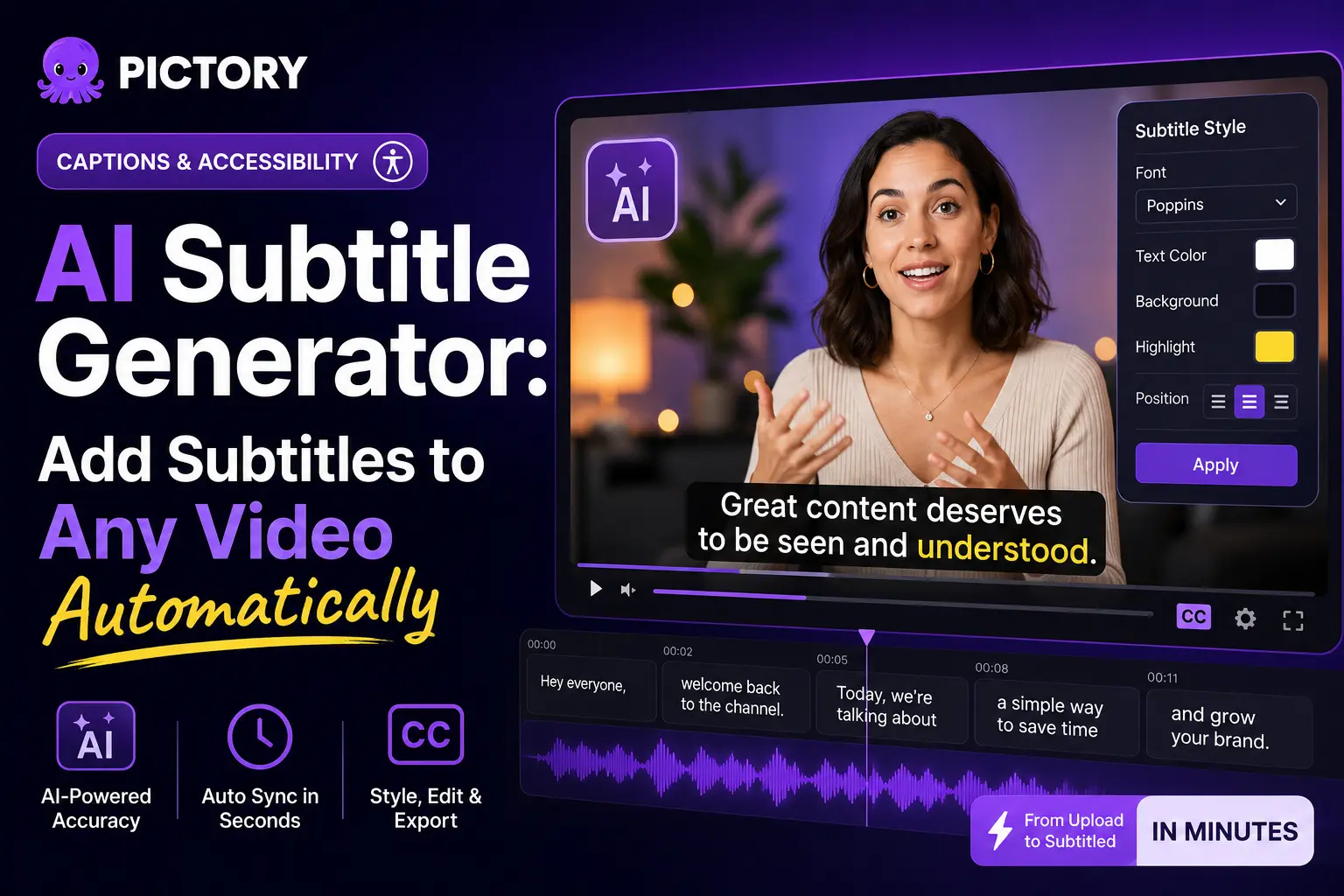
Adding subtitles used to mean hiring a transcriptionist or grinding through a timeline frame by frame. Today, AI handles it in seconds. The real challenge is picking the right workflow: one that gives you accurate, on-brand subtitles without a separate tool, a manual timing step, or a long editing session. Pictory’s AI subtitle generator handles transcription, sync, and styling inside one editor so you can go from raw footage to a captioned video in minutes.
TL;DR
An AI subtitle generator transcribes your video’s audio and syncs text to each spoken word automatically, so you don’t spend hours doing it by hand. This guide explains how subtitles affect engagement and reach, walks through how to add subtitles to any video using Pictory’s AI subtitle generator, and shows you how to style and export captions in the format you need.
What Is an AI Subtitle Generator?
An AI subtitle generator uses automatic speech recognition (ASR) to analyze the audio track in your video, convert spoken words into text, and timestamp each phrase so it appears on screen in sync with the speech. Most tools complete this for a short clip in seconds and for longer videos in a few minutes.
Good AI subtitle generators go beyond basic transcription. They handle multiple speakers, let you flag and remove filler words, allow brand font and color customization, and export in standard caption formats like SRT and VTT for platforms that host their own caption tracks. Pictory’s AI subtitle generator targets over 95% accuracy on clear audio and handles styling, timing adjustments, and export all inside the same editor.
Why Do Video Subtitles Matter for Engagement and Reach?
Subtitles are no longer just an accessibility feature. Research published by Sonix shows that 70% of Americans now watch video content with subtitles on, making captioning a universal viewing preference rather than a niche accommodation. And because 85% of social media videos are watched without sound, subtitles are often the only way your message reaches the viewer at all.
Videos with subtitles see up to a 40% increase in completion rates, a 16% lift in revenue compared to uncaptioned versions, and 40% more social media engagement overall. | Sonix
For search, captions provide crawlable text tied to your video that search engines can index, which helps organic discovery on YouTube and on-page for blog-embedded video. Captioning has gone from a nice-to-have to a core part of any content workflow that takes performance seriously.
How to Add Subtitles to a Video Automatically with Pictory
Pictory’s subtitle generation is built into every creation workflow, so there’s no separate captioning step at the end. Here’s how it works for an existing video you want to caption. For a step-by-step video walkthrough, see the Subtitles & Captions Academy guide.
Upload your video to the AI Video Editor
Go to your Pictory dashboard and select AI Video Editor. Drag and drop your video file (up to 5 GB, up to 180 minutes) or browse from your computer. Select your video’s primary language before uploading so the ASR engine uses the right language model.
Let the AI transcribe and generate subtitles
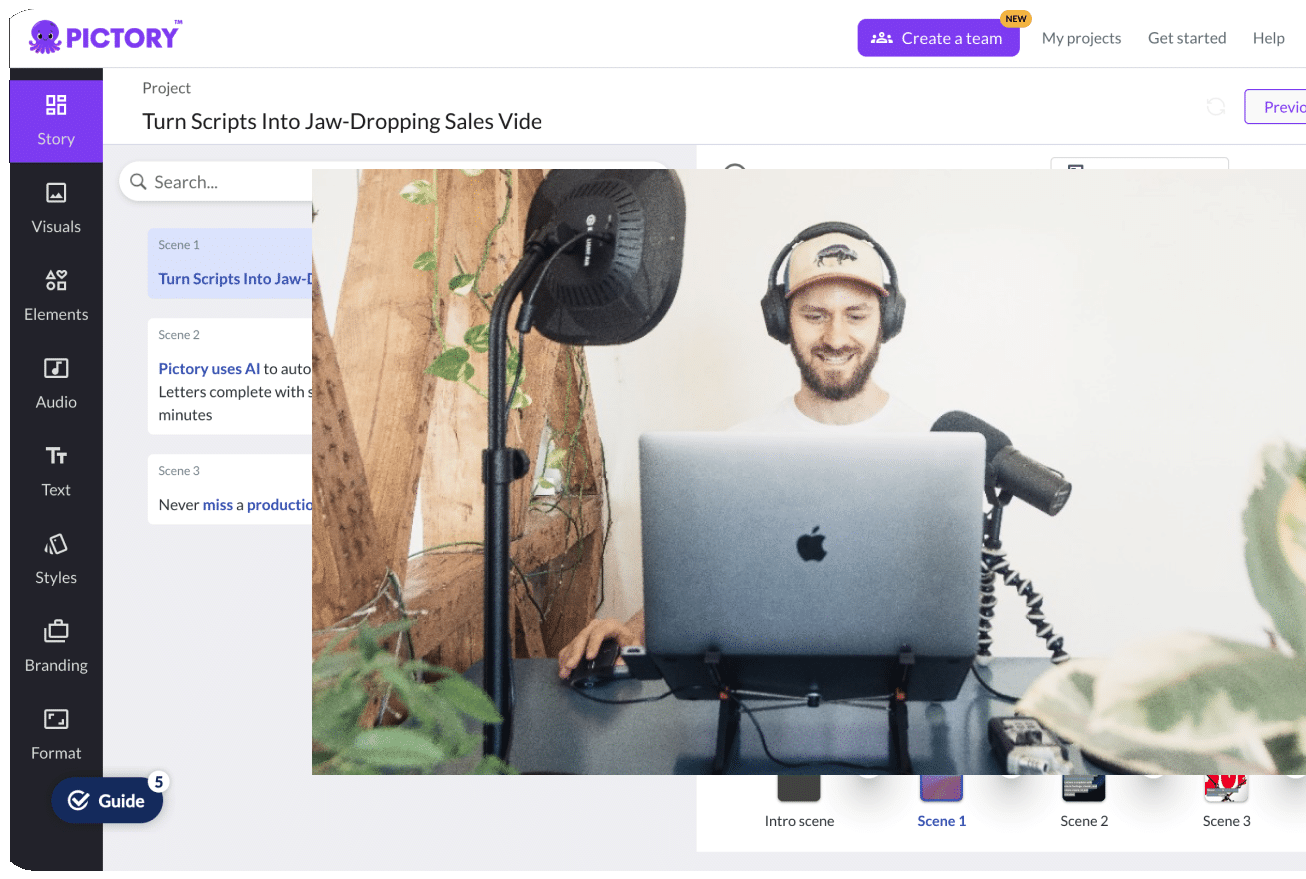
Pictory automatically transcribes your video as it uploads. A progress screen shows while the AI processes the audio. When processing is complete, you land in the Transcript Editor with speaker-based subtitles already synced to your video timeline. No manual timing work is needed.
Review and edit the transcript
Scan the transcript for any transcription errors and fix them directly in the text editor. Use the search and replace tool for quick bulk corrections. Toggle on “Remove filler words” or “Remove silences” to clean up the captions without editing each line manually. Pictory automatically removes filler words like “um” and “uh” when this option is enabled.
Style your subtitles
Open the Styles tab in the sidebar to choose a subtitle style. Preset options include Navy Blue, Indigo Ink, Sleek, Bold Edge, and more, each controlling font, color scheme, and background styling. Adjust the maximum lines per subtitle and font size to suit your content format. Apply a brand kit to pull in your custom fonts and colors instantly across every scene.
Export your captioned video
Select Download Video to get your captioned video as an MP4 with subtitles burned in (open captions, always visible). You can also export the transcript as an SRT or VTT file if you need closed captions that viewers can toggle on YouTube, Vimeo, or your LMS.
How Do You Style Subtitles to Match Your Brand?
Accurate subtitles are the baseline. How they look determines whether they feel like polished brand content or an afterthought. In Pictory’s editor, subtitle styling lives in two places and each serves a different purpose.
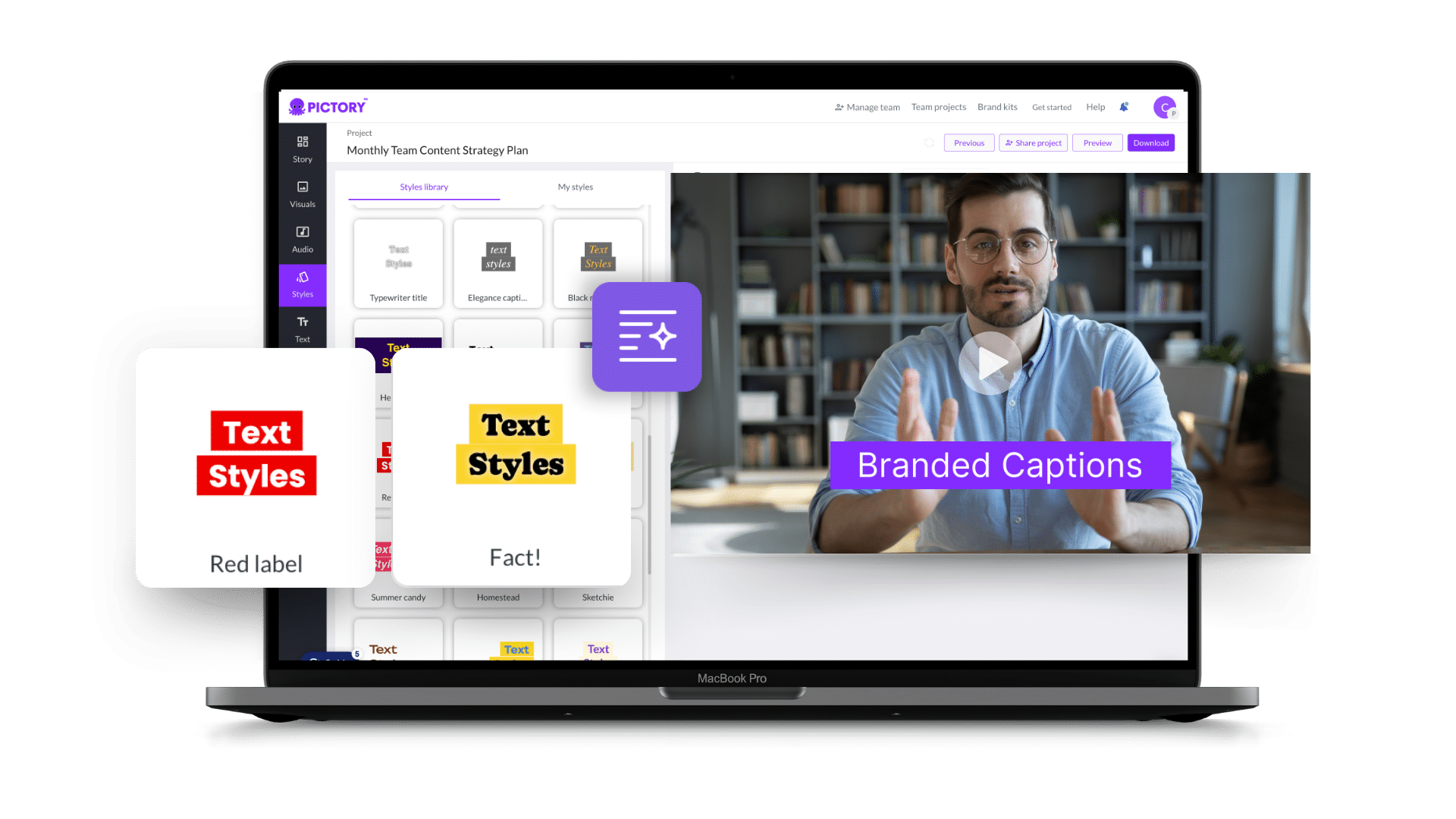
The Styles tab offers preset caption themes that control the font, color scheme, and text background. You can save a custom style under “My Styles” once you’ve configured it for a specific client or brand. This means the next video in that brand’s style takes seconds to caption rather than minutes of manual setup.
The Branding tab goes further. Apply a brand kit and Pictory pulls in your custom fonts, logo, and colors across every scene at once. You don’t manually restyle individual subtitle lines. One brand kit handles the whole video, cutting a 20-minute font-tweaking session down to about 30 seconds.
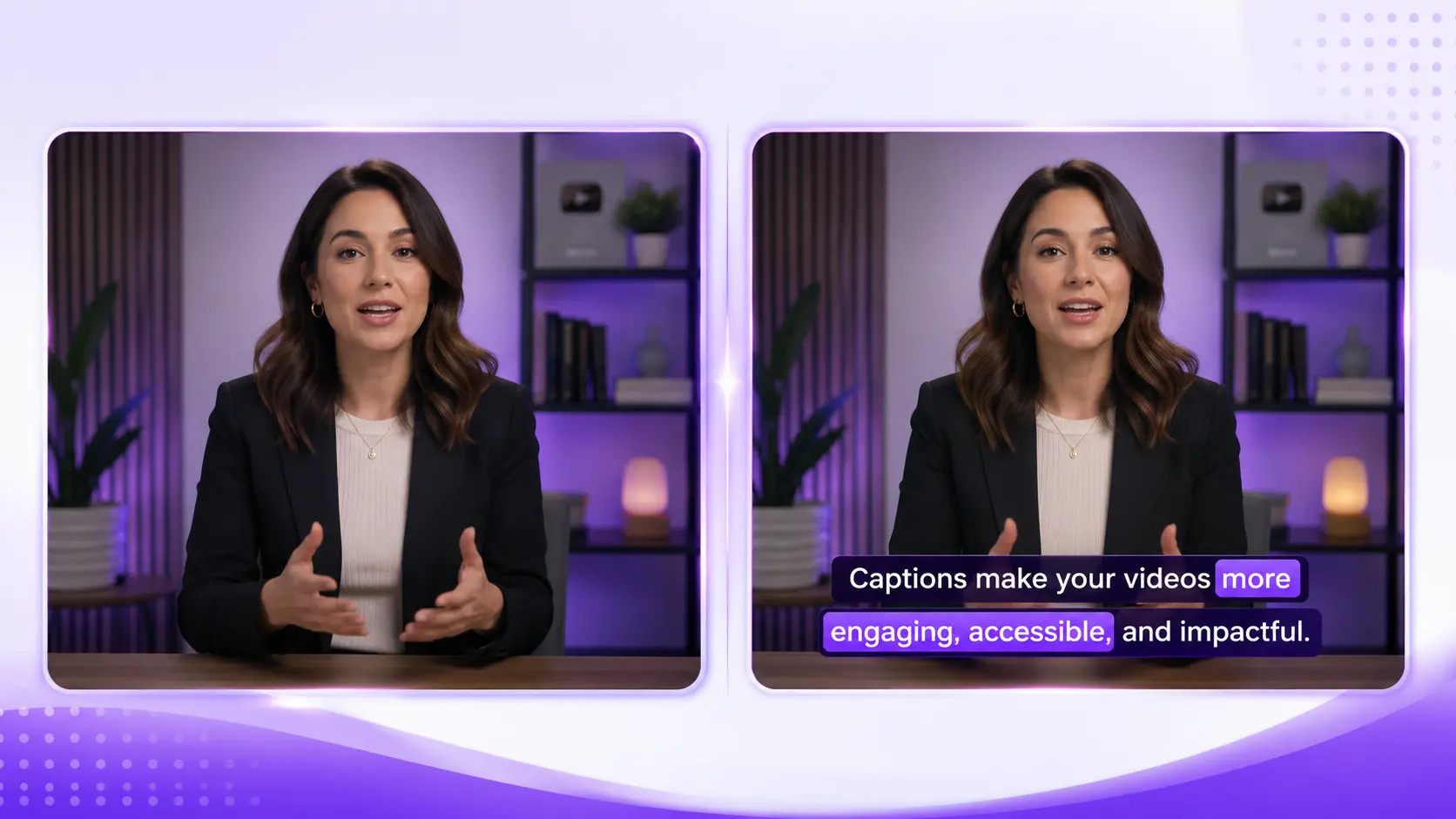
Pictory also lets you highlight keywords in a contrasting color mid-subtitle to draw attention to key phrases, and add entry and exit text animations (Fade, Typewriter, Wipe, Elastic) for short-form social content where animated captions drive more engagement.
Can You Export Subtitles as an SRT or VTT File?
Yes. When you download from Pictory, you can choose to export your video as an MP4 with open captions burned directly into the footage, or download the transcript as a separate SRT or VTT file. SRT files let you upload closed captions to YouTube, Vimeo, or most learning management systems so viewers can toggle them on and off.
For YouTube, uploading a separate SRT file also helps the platform index your spoken content for search, which supports video content repurposing and organic discovery. For enterprise teams distributing training content through an LMS, VTT is the standard format most platforms accept for accessible video delivery.
Which Videos Benefit Most from AI Subtitles?
The short answer: any video that will be watched on a mobile device, shared on social media, or used for training or onboarding benefits from subtitles. The longer answer depends on your distribution channel. Social media content without captions is at a structural disadvantage because most platforms autoplay video with audio off by default. Training and onboarding videos without captions exclude hearing-impaired employees and reduce knowledge retention for everyone else. YouTube content without captions misses out on the SEO benefit of crawlable spoken text.
The workflows that make the most sense to caption first are the ones where subtitling has historically been skipped due to time. Webinar recordings, podcast audiograms, training modules, and product demos are all high-value assets that typically go uncaptioned because manual transcription is slow. Pictory’s AI Video Editor generates subtitles automatically for all of these, so the barrier to captioning is close to zero.
See it work on your own footage
Upload any video and get styled, exportable captions in minutes.
Who Should Use AI Subtitle Generation and What Are Its Limits
AI subtitle generation in Pictory is the right fit for marketing, training, and social media teams that need accurate, on-brand captions without a separate transcription step. A solo marketer producing explainer clips, webinar highlights, or LinkedIn content can go from raw footage to a polished, captioned video in one session. An L&D team benefits from bulk processing: upload lecture recordings, get editable transcripts, and download captioned training videos at scale without manual work per video.
Where AI captioning has limits: highly technical content with dense industry jargon, strong accents, or multiple overlapping speakers will need a human review pass after AI transcription. Pictory’s transcript editor makes that review quick, but factor in correction time if your content falls into one of those categories. For legal depositions, medical documentation, or broadcast accuracy standards requiring 99%+ accuracy guarantees, a human captioning service remains the right companion to AI tooling.
For most content teams, AI subtitle generation is the difference between captioning being a task that gets skipped and captioning being built into every video you publish. Add subtitles to your next video with Pictory and see how long it actually takes. For most clips, you’ll have styled, exportable captions in under 10 minutes.
Caption your next video in minutes, not hours
Upload any video and let Pictory transcribe, sync, and style your captions automatically.
FAQ: AI Subtitle Generator
How accurate are AI-generated subtitles?
AI subtitle accuracy depends on audio quality and speech clarity. Pictory’s speech recognition engine targets over 95% accuracy on clear recordings with minimal background noise. Technical jargon, strong regional accents, and multiple overlapping speakers reduce accuracy. Pictory’s transcript editor lets you correct errors quickly before downloading, so you’re never stuck publishing unreviewed AI output.
Can I add subtitles in multiple languages?
Yes. Pictory supports subtitle generation in multiple languages. You select the video’s language at upload, and the AI uses the correct language model for transcription. Pictory also supports translated subtitles for international distribution. You can export separate SRT files per language, making it straightforward to reach global audiences from a single video. The multilingual subtitles Academy guide covers the full workflow.
What is the difference between open captions and closed captions?
Open captions are burned directly into the video file and are always visible regardless of the viewer’s device or platform settings. Closed captions are delivered as a separate text file (SRT or VTT) that viewers or platforms can toggle on or off. Pictory lets you export either format, or both, giving you flexibility across different distribution channels and platform requirements.
Does adding subtitles help with video SEO?
It does in two ways. Uploading an SRT caption file to YouTube gives Google crawlable text linked to your video content, which improves search indexing for spoken terms. Embedding a video transcript on the same page as your video adds indexable text that matches search queries you want to rank for, which increases organic discoverability over time without additional content creation effort.
Can I add subtitles to a video I didn’t create in Pictory?
Yes. Upload any existing video file (up to 5 GB) to Pictory’s AI Video Editor and the platform transcribes and generates subtitles automatically. The video doesn’t need to have been made in Pictory. Once transcribed, you can edit the transcript, apply caption styles, add brand kit elements, and download the updated video with subtitles burned in or as a separate SRT file.
Related Posts
![[Article] Promo Video: How to Make One That Converts](https://pictory.ai/wp-content/uploads/2026/09/blog-video-promo-300x169.webp)