We have created a Pictory AI video creation checklist for training videos for 2026. Training videos only work when they are clear, structured, and easy to follow. Whether you are creating onboarding content, internal tutorials, customer education, or compliance videos, the goal is the same. Help viewers understand and retain information without friction.
Pictory AI simplifies professional training video creation by combining scripting, visuals, branding, AI voices, captions, and layouts in one workflow. This checklist walks you through the exact steps to create effective training videos using Pictory, from source content to final export.
Use this guide as a repeatable system for building consistent, high quality training videos faster.
Free Pictory Video Creation Checklist for Clear and Effective Training Videos PDF Guide:
Create better training videos faster with our exclusive guide built for Pictory users Download Now.
Step 1: Start With Your Source Content in Pictory

Every great training video starts with existing material. Pictory is designed to transform content you already have into structured video.
You can begin with:
- A written script or training document
- A blog post or help article
- Slide decks or PowerPoint presentations
- Audio recordings or webinars
- Screen recordings or raw video footage
From the Pictory home screen, choose the workflow that matches your content:
Text to Video, URL to Video, PPT to Video, Audio to Video, or Record.
Starting with clear source material ensures your training video stays focused and prevents unnecessary editing later.
Step 2: Structure Scenes for Clarity and Learning
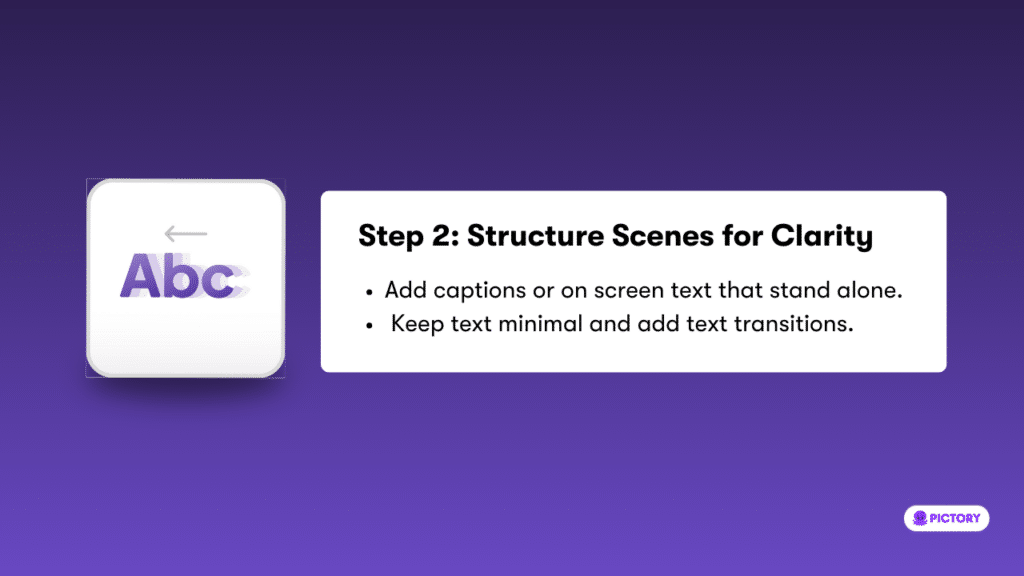
Training videos succeed when information is delivered in small, easy to understand segments. Pictory automatically breaks your script into scenes, but structure still matters.
Best practices for scene structure:
- Keep each scene focused on one idea or step
- Use captions or on screen text that can stand alone
- Avoid long paragraphs or dense text blocks
- Maintain a logical flow from one concept to the next
In the Script Editor, you can control scene length, line breaks, and pacing before generating the video. Clear structure improves comprehension and reduces viewer fatigue.
Step 3: Apply Your Brand Kit for Consistent Training Videos
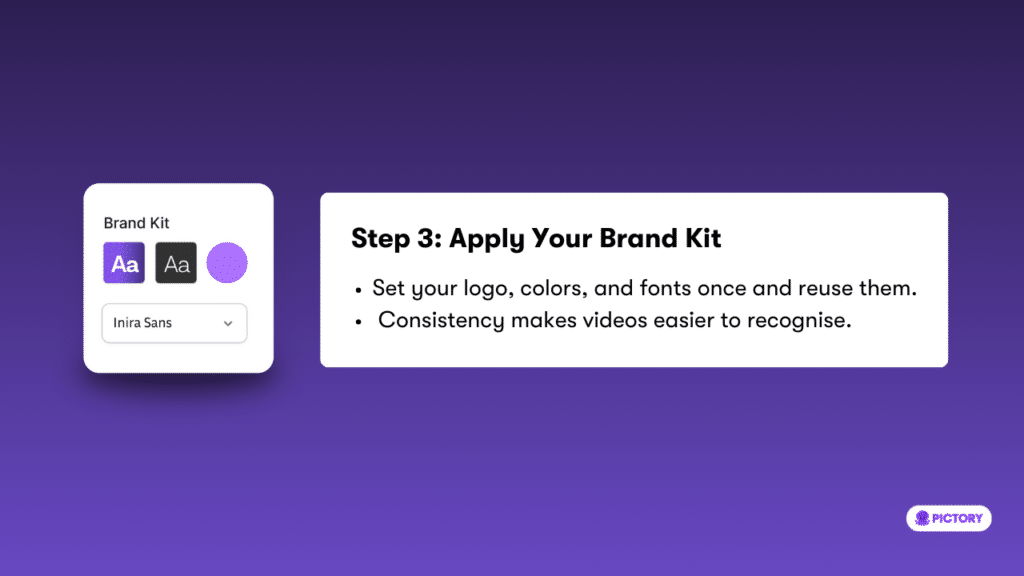
Consistency builds trust, especially for internal teams and customers. Pictory Brand Kits allow you to apply your visual identity once and reuse it across every training video.
With Brand Kits, you can:
- Upload logos and logo variations
- Set brand colors using exact hex codes
- Choose fonts for headings and captions
- Apply brand styling instantly inside the video editor
Once selected, your Brand Kit automatically styles text, layouts, and overlays so every training video looks professional and recognizable.
Step 4: Choose Visuals That Support the Message
In training videos, visuals should clarify, not distract. Every image or clip should reinforce what the learner is hearing or reading.
Use visuals to:
- Demonstrate steps or processes
- Reinforce key concepts
- Maintain visual interest without overwhelming the viewer
Inside the Visuals tab, you can:
- Search royalty free stock footage using clear keywords
- Upload your own screenshots or product images
- Select AI matched visuals based on your script
Choose visuals that match the tone and purpose of training content. Clean, relevant visuals improve retention and understanding.
Step 5: Create Custom Visuals with Pictory AI Studio
When stock footage does not fit your training needs, AI Studio helps you generate custom images and visuals directly inside Pictory.
Use AI Studio to:
- Create conceptual visuals for abstract ideas
- Generate illustrations for processes or workflows
- Customize imagery to match your brand tone
Be specific with prompts to get accurate results. Clear descriptions lead to better visuals that align with your training goals.
Step 6: Add Layouts and Elements Intentionally
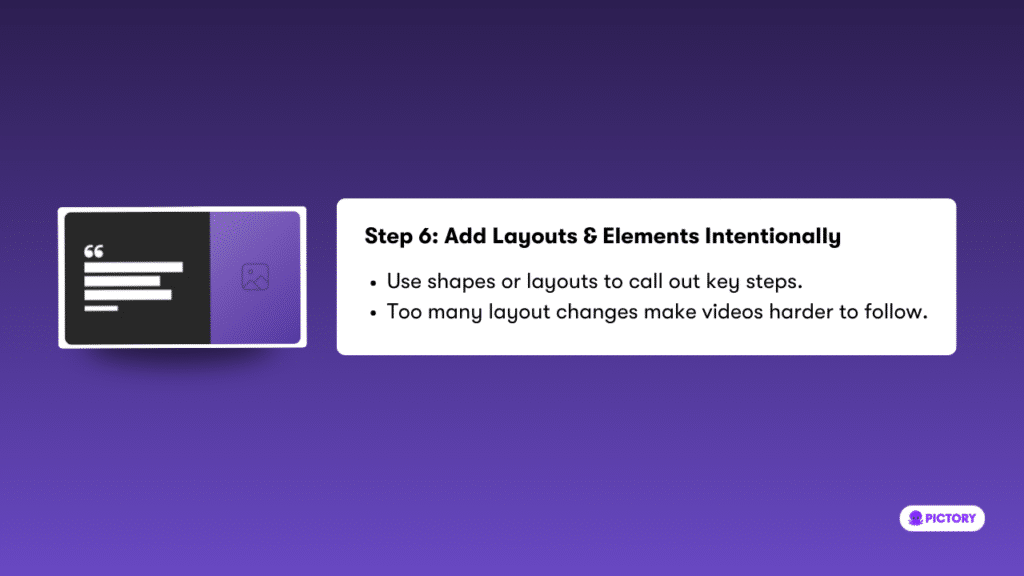
Layouts and elements guide attention and highlight important information. In training videos, simplicity is key.
Use layouts and elements to:
- Call out steps, lists, or definitions
- Emphasize key takeaways
- Separate sections visually
Avoid excessive layout changes. Too many transitions or effects can distract learners and reduce clarity. Use shapes, icons, and layouts with purpose.
Step 7: Use AI Avatars With Purpose
AI avatars can add clarity and engagement when used correctly in training videos.
Best uses for avatars include:
- Introducing lessons or sections
- Explaining concepts clearly
- Adding a human presence without recording on camera
Keep avatar scripts short and natural. Training content benefits from confident, conversational delivery that sounds clear and focused.
Step 8: Optimize Sound and Accessibility
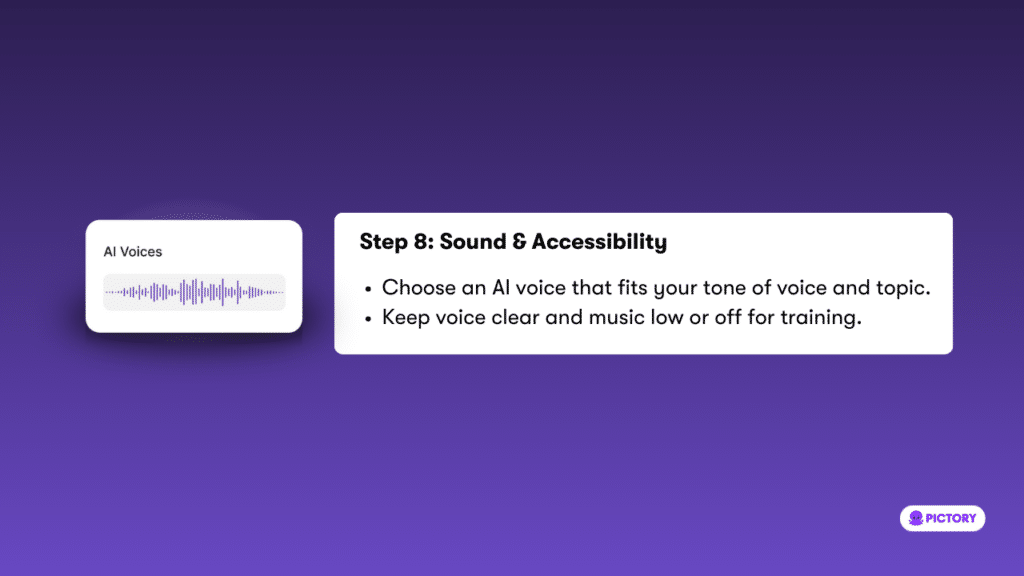
Sound quality and accessibility are critical for training content. Pictory makes it easy to add clear narration and captions.
Best practices:
- Choose an AI voice that matches your tone and audience
- Keep narration clear and paced for learning
- Use background music sparingly or remove it entirely for training
- Ensure captions are accurate and easy to read
Many learners watch videos on mute or in noisy environments. Captions improve accessibility and comprehension for all viewers.
Final Touches Before You Export
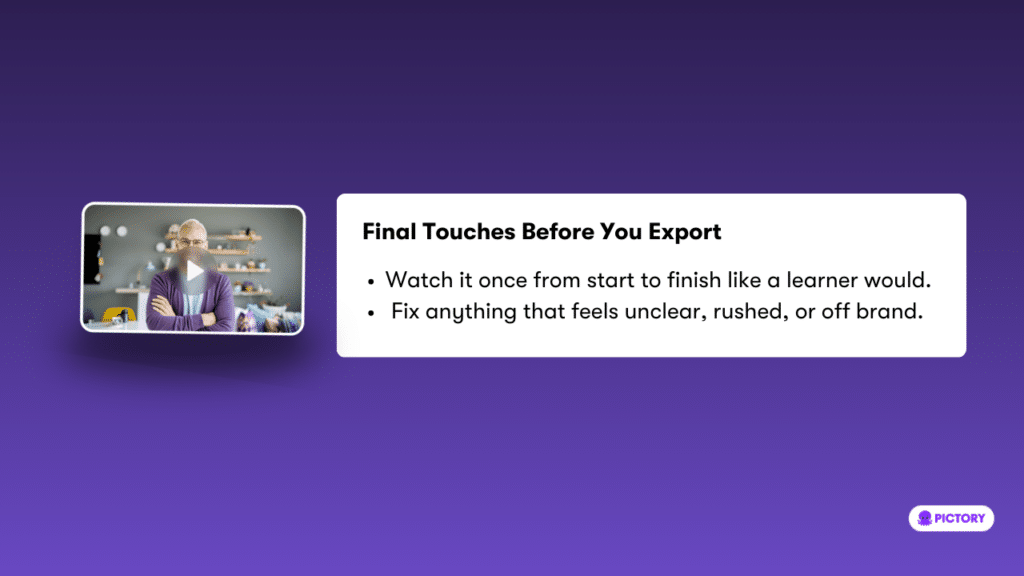
Before exporting your training video, review it from start to finish as if you are the learner.
Final checklist:
- Are scenes paced appropriately
- Is all on screen text readable on desktop and mobile
- Are branding elements consistent
- Is narration clear and balanced
- Are instructions easy to follow without confusion
A short review prevents misunderstandings and ensures your training video delivers real value.
Why This Video Creation Checklist Works for Training Videos
This checklist is designed specifically for instructional and training content. It prioritizes clarity, consistency, and accessibility while leveraging Pictory AI automation to save time.
Free Pictory Video Creation Checklist for Clear and Effective Training Videos PDF Guide:
Create better training videos faster with our exclusive guide built for Pictory users Download Now.
By following these steps, you can:
- Create repeatable training video workflows
- Maintain consistent branding across content
- Reduce production time without sacrificing quality
- Improve learner engagement and retention
Frequently Asked Questions About Training Videos with Pictory AI
How long does it take to create a training video with Pictory AI?
Most training videos can be created in 15 to 30 minutes once your source content is ready. Longer or more complex videos may take additional time for review and refinement.
Can I create both internal and customer training videos with Pictory?
Yes. Pictory supports internal training, onboarding, tutorials, compliance videos, and customer education content across industries.
Are captions and AI voices included in Pictory?
Yes. Pictory includes AI voiceovers and automatic captions that are licensed for commercial use and suitable for professional training content.
Can I update training videos later?
All projects are saved in My Projects, allowing you to edit, update, and reuse training videos whenever content changes.

![[Article] How AI Is Changing eLearning Video Production for L&D Teams in 2026](https://pictory.ai/wp-content/uploads/2026/06/eLearning-Video-Production-300x200.webp)