
AI video for instructional designers
Turn SME Documents and Slides Into E-Learning Videos
Take the document, deck or SOP the subject-matter expert gave you, and get a narrated, captioned training video you can edit scene by scene.
- Start from Word, PDF, PowerPoint or an SOP
- Edit the storyboard scene by scene
- AI voices or your own narration
- Chapters, quizzes and SCORM with Pictory Central
4.6/5Trusted by over 20,000 teams and institutions worldwide.





What is an instructional video maker?
An instructional video maker turns instructional content into video. In Pictory you start from a document, slides or a script, get narrated scenes with a visual for each point, and edit them like a storyboard before you export the video for your LMS or course.
One of the AI tools for instructional design that saves the most time. Most instructional design software assumes you will record and edit footage. Pictory starts from the text you already have, so the subject-matter expert’s document becomes the first draft of the video.
It sits beside your other instructional design tools: author the course where you always do, and use Pictory for the video. Team rollouts are on the L&D enterprise page.

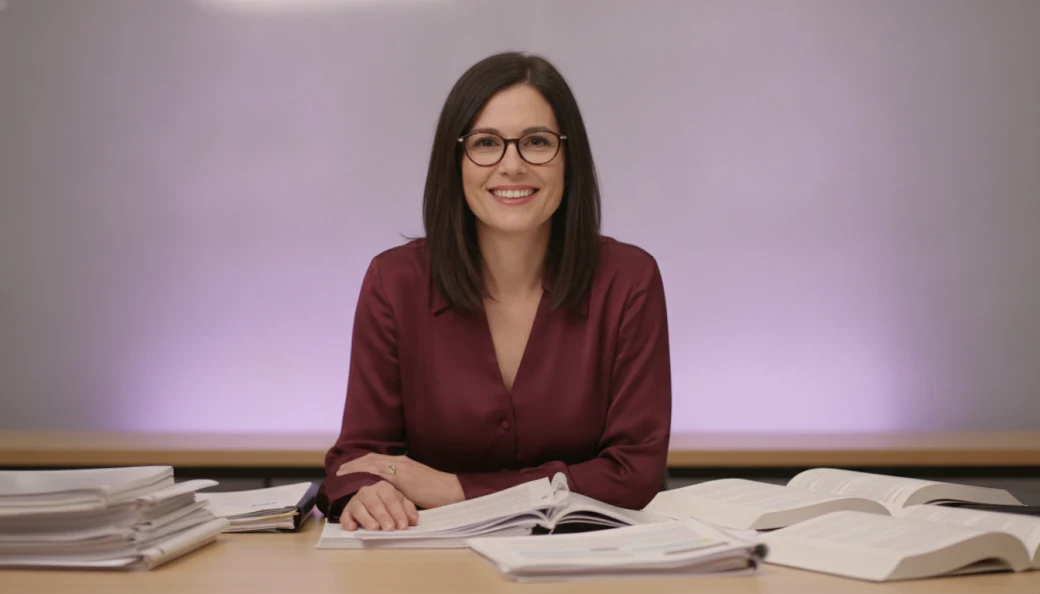
SME document14 pages
11 scenesReady to review
Start with
Start from what the SME gave you
Whatever the subject-matter expert sends, it can be the start of the video.
Doc to video
A Word document or a procedure.
PDF to video
A manual, an SOP or a policy.
PPT to video
A training deck and its notes.
Text to video
A script or a storyboard, pasted as text.
How it works
How to turn a document into a training video
To turn a document into a training video, upload it to Pictory and let it summarize the content into scenes. Review the script with your subject-matter expert, choose a voice and add captions, then download the video or send it to Pictory Central for chapters, quizzes and SCORM.
Upload the document
A Word file, a PDF, slides or an SOP.
Review the storyboard
The script drives the scenes; check it with the SME.
Add narration
An AI voice or your own recording, with captions.
Add quizzes and export
Pictory Central adds chapters, quiz questions and SCORM.


SOPs and procedures
SOP to video and storyboard to video
An SOP is already a script: each step becomes a scene, read by an AI voice, with captions. Paste a storyboard as text and the same thing happens, one scene per frame. You edit the wording and the visuals, then generate the instructional design video again.
Build the video
Storyboard, narration and captions
Storyboard
Edit it like a storyboard
Each scene holds its words and its visual. Change the wording, swap a visual or reorder scenes, and the narration follows the script.
- Scene-by-scene editing
- Stock, your own media or AI Studio
- Smart scene detection on uploaded video
Narration
Narration without a recording booth
Choose one of 170+ AI voices in 29+ languages, or record your own narration in the browser and upload it.
- 170+ AI voices in 29+ languages
- Your own recording
- The same voice across a course
Captions
Captions on every training video
Captions are made from the script and timed to the voice, and you can download them as an SRT file.
- Timed to the voice
- Your caption style
- SRT and TXT downloads
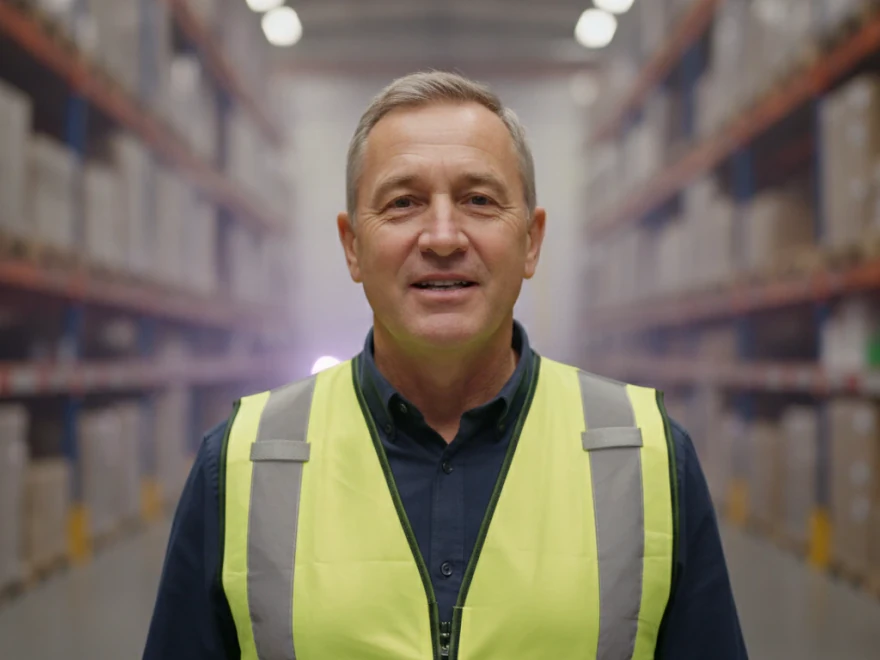
Captions onModule 2
NarrationAI voice
Your LMS
Quizzes, SCORM and your LMS
Pictory Central adds chapters and AI-generated quiz questions to a finished video; you review, edit or remove each question. It hosts the video and exports a SCORM video package for your LMS. Pictory Central is part of Pictory’s enterprise solution.
Keep it current
Update a course without re-shooting
When the procedure changes, edit the script and generate the video again; nothing is filmed, so nothing is re-shot. Make a version for another audience by changing the script, or translate the video into another language with the video translator.
 Español
For L&D teams
For L&D teams
Rolling video out across a learning and development team? The enterprise plan adds shared brand kits, Pictory Central and support for company-wide use.
More AI video features
Your complete AI video generation tool
AI avatars
Add a talking presenter, or a digital twin of you.
Captions
Accurate, synced captions in your brand style.
Translation
Captions and voiceover for every market.
Text editing
Edit the transcript to edit the video.
Team workspaces
Share projects and brand kits with your team.
API
Generate branded videos from your own product.



AI Studio
Create any image or video you need with generative AI
The latest image and video models, built into the editor. Generate it, then drop it straight into your scene.

Generate and edit images
Describe it, or edit an existing image with a prompt.

Keep characters consistent
Use reference images to keep the same person or product in every scene.

Create video clips with sound
Generate clips with audio. Yes, characters can talk.

Extend any clip
Keep any clip going with a new prompt, even one you uploaded.
 ✓
Get four options at once
Generate up to four versions and keep the best one.
Stay on brand
Bring in your brand from a website, a document or a logo, and it is applied to every scene.











 ✓

Choose your model
Pick a model for stills or 5 to 10-second clips.
Also in AI Studio: Nano Banana Lite for images and Omni Flash for video.
Use cases
Who is using instructional video makers?
 Compliance training
Policy training from a PDF
A policy document becomes a narrated module with captions.
Why Pictory
Loved by creators, trusted by enterprise teams
From solo creators to global marketing teams. Read the case studies
4.6 / 5
Average rating on G2, plus Capterra’s Best Ease of Use award for 2025.
20,000+
companies and institutions creating video with Pictory.
SOC 2
and GDPR compliant, ready for enterprise security reviews

 GDPR



Case studies
Teams that scaled video with Pictory

“Pictory is the easiest, most efficient way to get from an idea in text to multimedia imagery on the screen. It’s the critical component to get us out of death by PowerPoint.”
Read the Whirlybird Labs case study“Pictory helps us consistently deliver the high-quality videos we’re known for, content we’re proud of and our clients are proud to use. They always get a five-star response.”
Read the VRC case study“82% of our 10,000+ partners keep coming back to our training videos even though they aren’t mandatory courses. That’s how we know the content’s working.”
Read the AppDirect case study“It increased subscriber growth by 78% and cut my video creation time from a couple of hours to a few minutes. It’s been a godsend.”
Read the NetRock case study“Through Pictory videos, leads up by 500%, video production costs are down 90%.”
Read the Online Super Tutors case study“We only launched our new app a few months ago and already have over 500 subscribers. People come back regularly to watch more videos made with Pictory.”
Read the Game of Yield case study

Compare
Instructional video maker vs. video editing software
One SME document, turned into a module two ways.
| Task | With Pictory | Traditional editing software |
|---|---|---|
| First draft | Upload the SME’s document and get scenes | Write a script, then gather or film footage |
| Review with the SME | Share the script and scenes, edit the words | Re-edit the timeline after each round |
| Narration | AI voices or your own recording | Record and sync a voiceover |
| Updates | Edit the script and generate it again | Re-shoot or re-edit the module |
From the blog
Latest guides for learning and development
New guides from the Pictory blog.
API and MCP
Build video into your own tools
Send text, links or slides to the Pictory API, or connect an AI agent through the Pictory MCP server, and get branded videos back.
POST /v1/video/storyboard
{
  "videoName": "q3-update",
  "scenes": [{ "text": "Q3 in 90 seconds..." }]
}For organizations
Pictory for L&D teams
Bring video to every team, with one brand and the security reviews your company needs.
- Shared brand kits: logo, fonts and colors
- Pictory Central for interactive video, LMS use and SCORM export
- SOC 2 compliant and ISO 27001 certified
- Custom plans and dedicated support
Upload the Word document or PDF to Pictory. It summarizes the content into scenes with a visual and narration for each; you review the script, add captions and download the video.
Yes. Upload the .pptx file and Pictory turns the slides and speaker notes into a narrated video you can edit scene by scene. The PPT to video page shows the steps.
Yes, with Pictory Central. It adds AI-generated quiz questions (multiple choice, true or false and knowledge checks) to a finished video, and you review, edit or remove each one. See the quiz video maker.
Yes, through Pictory Central, which hosts the video with its chapters and quiz questions and exports a SCORM package. Pictory Central is part of Pictory’s enterprise solution.
Yes. The video translator makes a new version of the video in each language you choose, with the script, captions and on-screen text translated.
Yes. The free trial includes 300 AI credits, and videos downloaded on it carry a watermark. Plans start at $25 a month, billed annually.
Not Just an Instructional Video Maker
Explore our AI Generative Tools and Other Features