How to Turn an SOP Into a Training Video Course With Pictory 3
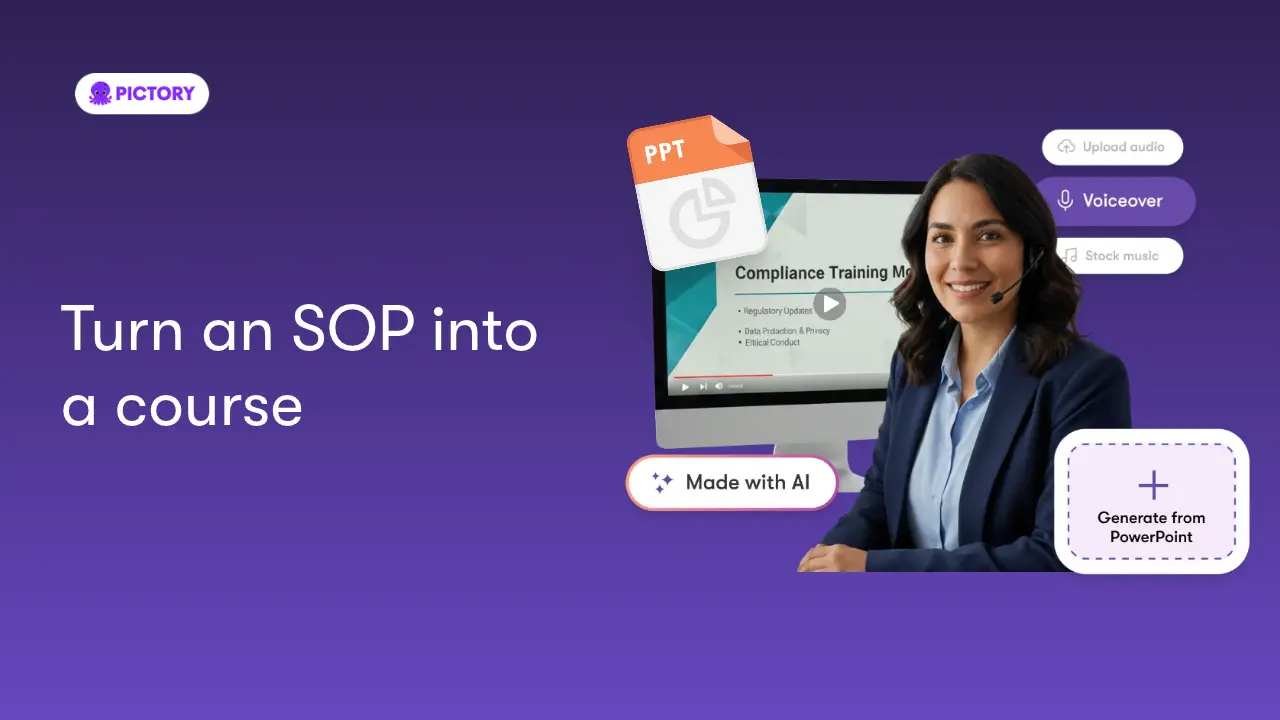
Your SOPs already hold the knowledge your team needs. The trouble is getting people to read them. Add the SOP as a source, brief the agent, and check the training video it prepares against the procedure.
Why turn an SOP into a video?
A video can carry the same procedure to everyone in the same way, in your brand. When the procedure changes, update the source and brief the agent again, or edit the affected scenes by chat or in the editor.
Before you start
- Have the SOP file ready. Clear headings and numbered steps give the agent more to work with.
- Set up a brand kit so your logo, fonts, and colors apply automatically. See Use brand kits and layout presets in Pictory 3.
- Decide the format. Horizontal suits many intranets and learning systems, and vertical suits mobile. Choose the aspect ratio during setup.
Step by step: turn an SOP into a training video
Step 1: Add the SOP
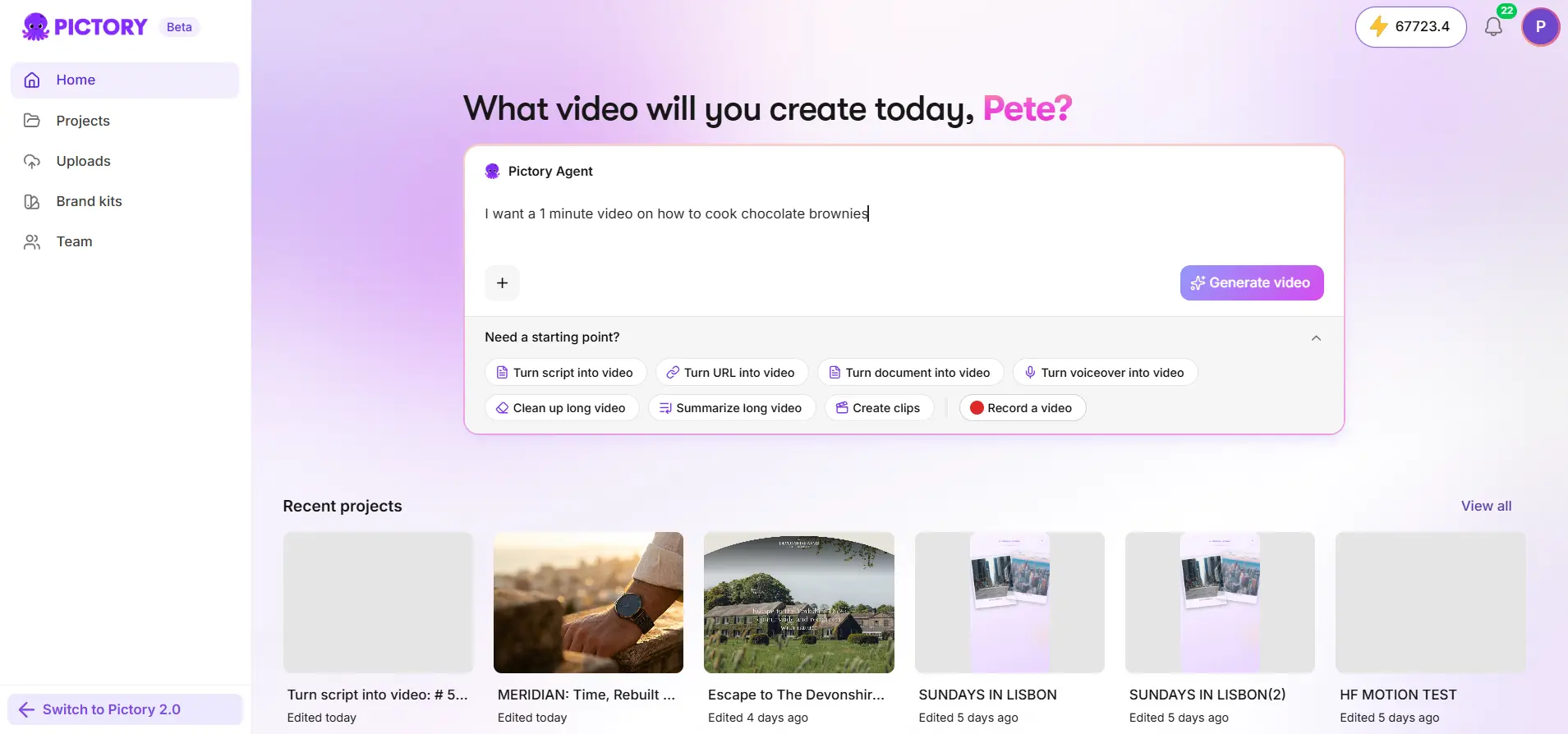
On the home page, add the SOP as a document. DOCX, DOC, PDF, TXT, MD, and RTF files work, up to 50 MB each.
Step 2: Brief the agent on audience, length, and focus
Name who the training is for, how long it should run, and which parts matter most. Say which sections to use and keep the steps in order.
- “Create a five-minute onboarding video from this SOP for new warehouse staff. Keep the procedure steps in their original order, preserve product terminology, and end with a recap of the safety checks.”
Step 3: Answer the setup questions
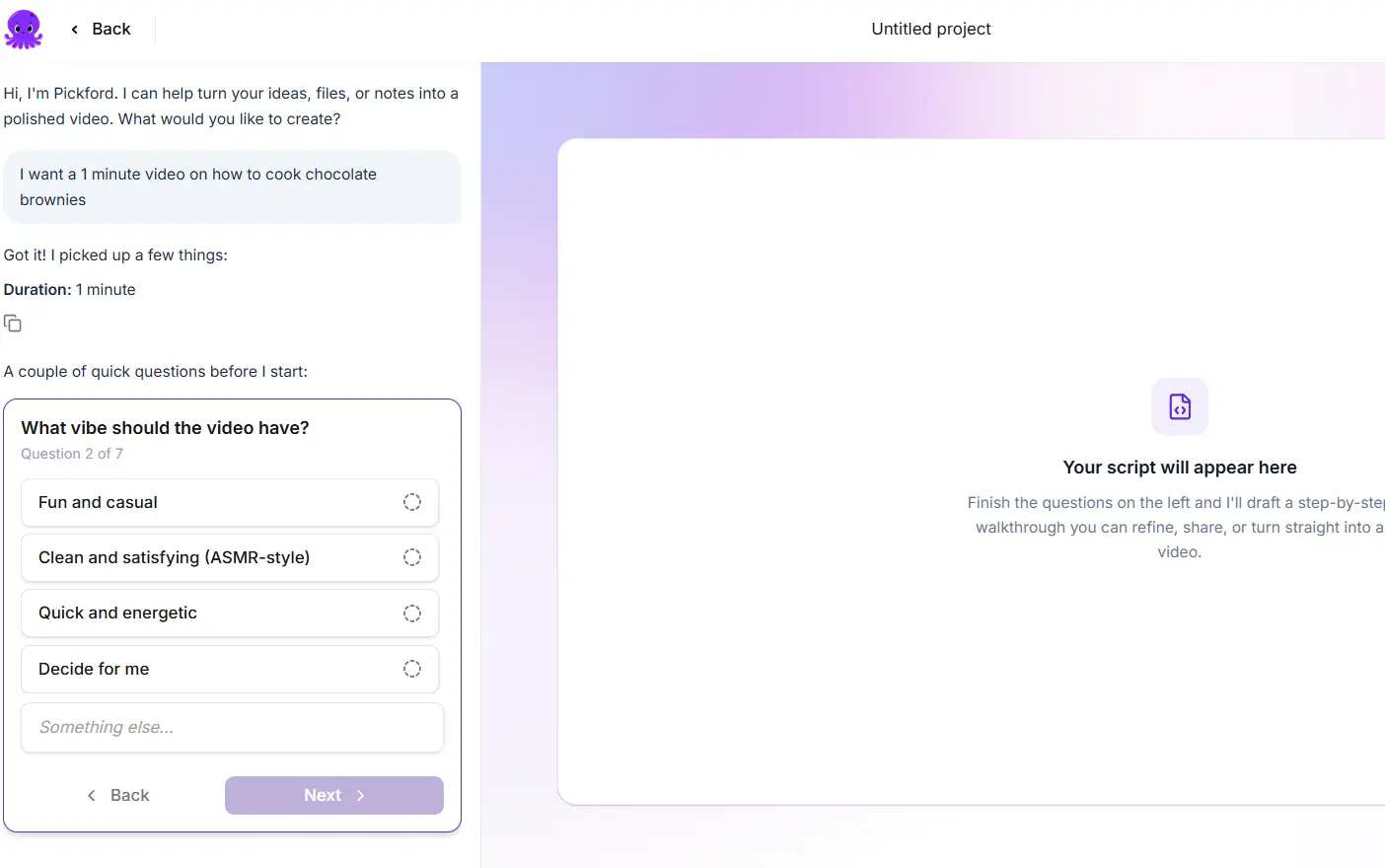
Choose the voiceover, visual sources, aspect ratio, layout preset, and brand kit. A clear voiceover usually helps training content.
Step 4: Check the script against the SOP
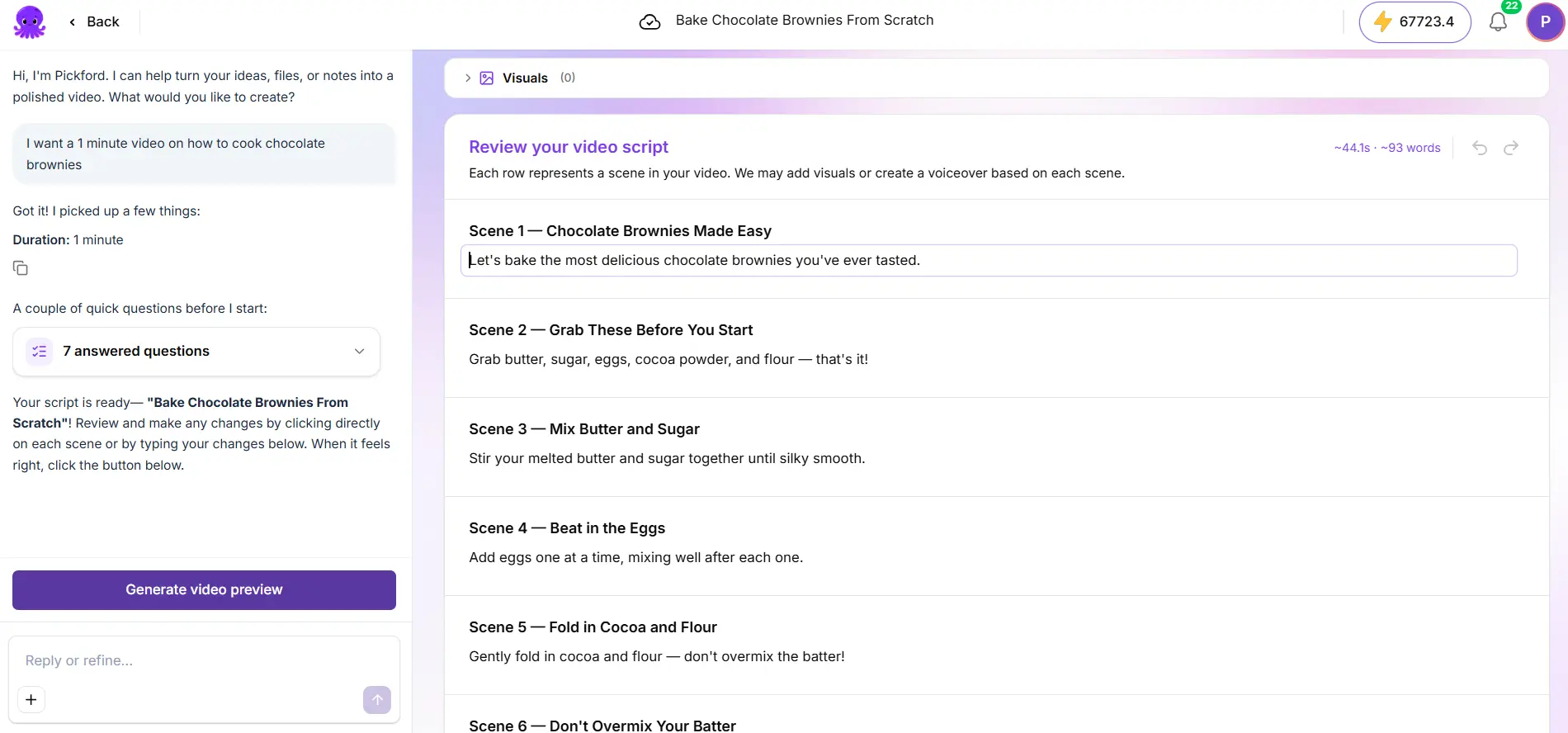
Read each scene. Confirm the steps appear in the original order and that safety details and product terms are exact.
Step 5: Generate the preview
Play it from beginning to end and check reading time on each scene.
Step 6: Refine by chat or in the editor
Ask for focused changes, such as improving the ending, or open the editor to adjust a scene.
Step 7: Generate and download
Wait for edits to save, apply any voiceover changes, then select Generate video.
How do you handle a long SOP?
Tell the agent which parts to use, such as chapters 2 and 3, and exclude the rest. Then create a separate video for each section you want to cover. Keep each brief specific so every video stays focused on one part of the procedure.
Tips for training videos
- Check the facts. The agent works from your source, so compare steps, names, and numbers with the SOP.
- Fix how terms are spoken. Use the pronunciation controls for product and place names. See Add voiceover, music, avatars, and voice clones.
- Review before sharing. Share a preview link with a subject-matter expert, then make their changes. See Save, share, and translate your projects.
Try it on your next video
Bring a brief or a source and review the story before it renders.
Related Academy guides
Academy guide.
Academy guide.
Academy guide.
Academy guide.
The hub for everything in Pictory 3.
Frequently asked questions
Can I turn any SOP into a video?
If the SOP is a readable document in a supported format, yes. DOCX, DOC, PDF, TXT, MD, and RTF files work, up to 50 MB each. A scanned PDF with no readable text needs a text-based export first. Clear headings and numbered steps give better results.
How do I keep the steps in order?
Tell the agent in your brief to keep the procedure steps in their original order and preserve product terminology. Then read the script against the SOP before you generate the preview, and ask for a precise correction if any step has moved or changed.
Can I make a video for each section of a long SOP?
Yes. Name the sections to use in your brief, such as chapters 2 and 3, and exclude the rest. Then start a new video for each other section you want to cover, so each one stays focused on a single part of the procedure.
What if the SOP changes?
Update the source document and brief the agent again, or edit the affected scenes by chat or in the editor. A finished file reflects only the version used to generate it, so generate the video again after any edit before you share it.
Can I get a subject-matter expert to check it?
Yes. Share a preview link so the reviewer can watch the video without getting access to edit your project. Ask them to note scene numbers or times, then make their changes by chat or in the editor and refresh the shared preview afterward.