

Filler words can make your video sound less professional and harder for viewers to follow. Removing them manually takes time, especially in long recordings. Pictory AI includes an automatic filler word removal feature that cleans up your audio and transcript instantly.
This guide shows you how to remove filler words automatically inside Pictory AI.
What the Filler Word Removal Feature Does
The filler word tool scans your transcript and automatically removes common verbal fillers. These include words and sounds such as:
• “Um”
• “Uh”
• “Like”
• “You know”
• Repeated words
• Stutters
• Unnecessary hesitations
Pictory edits both the transcript and the audio to give you a cleaner, more professional result.
Step 1: Upload Your Video
Start by uploading your recording using the AI Video Editor or Audio to Video workflow. Pictory automatically:
• Transcribes your file
• Organizes the transcript into scenes
• Opens the Transcript Editor
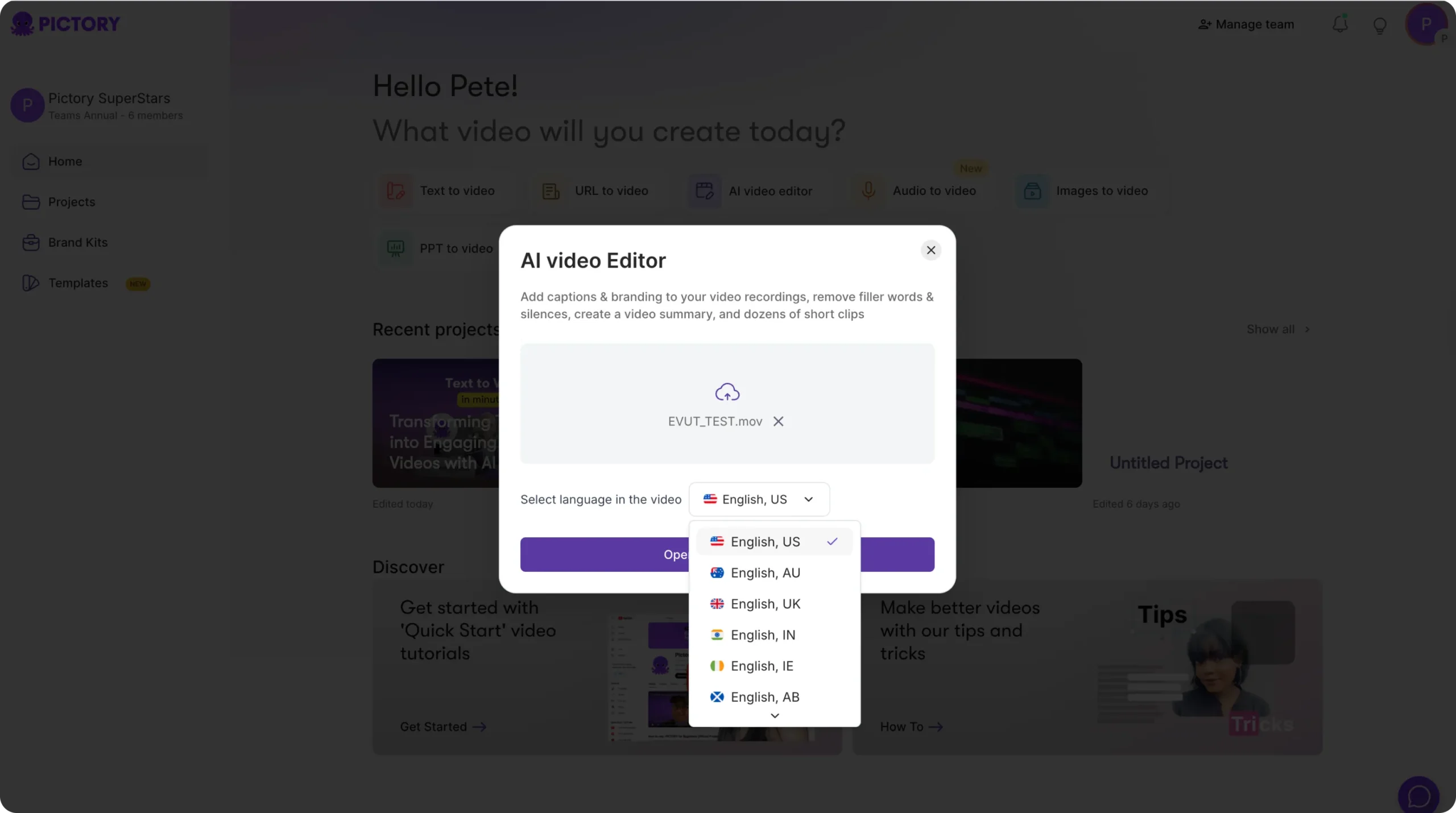
Once transcription is finished, you can begin cleaning up your audio.
Step 2: Open the Transcript Editor
Inside the project, navigate to the Transcript Editor. You will see your full transcript on the left and your video preview on the right.
This is where the filler word tools are located.
Step 3: Turn On the Remove Filler Words Toggle
In the Transcript Editor, look for the toggle labeled Remove Filler Words. Switch it on.
Pictory automatically removes filler words from the transcript and syncs the cleaned text with your video.
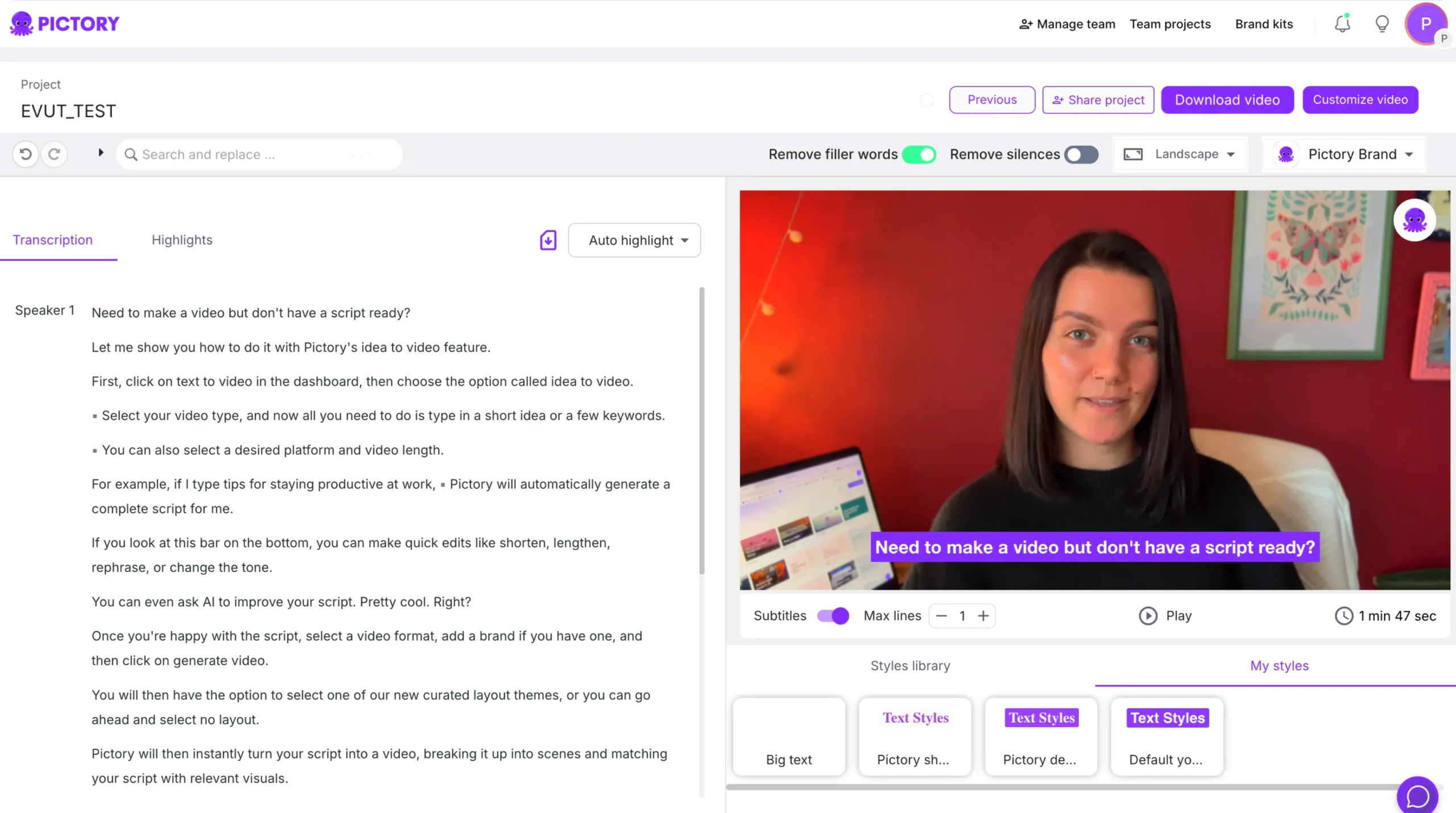
This process happens instantly.
Step 4: Review the Cleaned Transcript
Once filler words are removed:
• Read through the updated transcript
• Make any additional adjustments manually
• Confirm that the flow of the sentence still sounds natural
Pictory removes fillers carefully to keep your message clear and intact.
Step 5: Preview Your Video After Cleaning
Click Preview Video at the top of the editor. Watch and listen closely to your cleaned audio.
Previewing helps you confirm:
• The removal feels smooth
• The audio sounds natural
• No important phrases were affected
• Your pacing remains consistent
You can turn the toggle off if you need to compare results.
Step 6: Combine Filler Word Removal With Remove Silence
For even cleaner audio, turn on the Remove Silences toggle. This removes long pauses, awkward gaps, and unnecessary breaks.
Using both tools together gives you:
• Clearer pacing
• More concise delivery
• A cleaner transcript
• A more professional final video
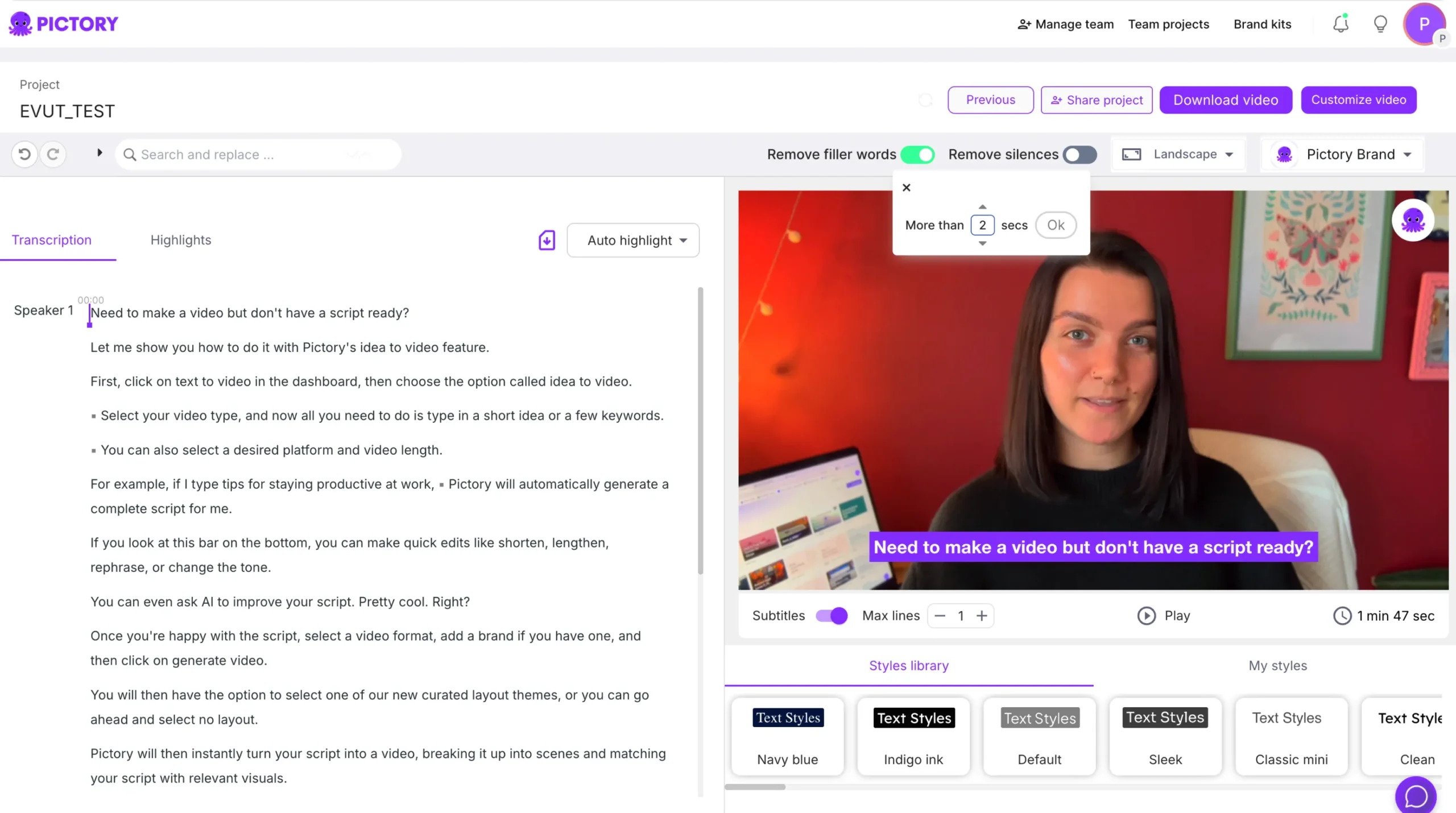
This combination is ideal for training, interviews, presentations, and long form content.
Step 7: Continue Editing or Move to Storyboard
After cleaning your transcript:
• Click Customize Video to move into the storyboard
• Continue editing visuals, layouts, and text
• Export your final video when you are ready
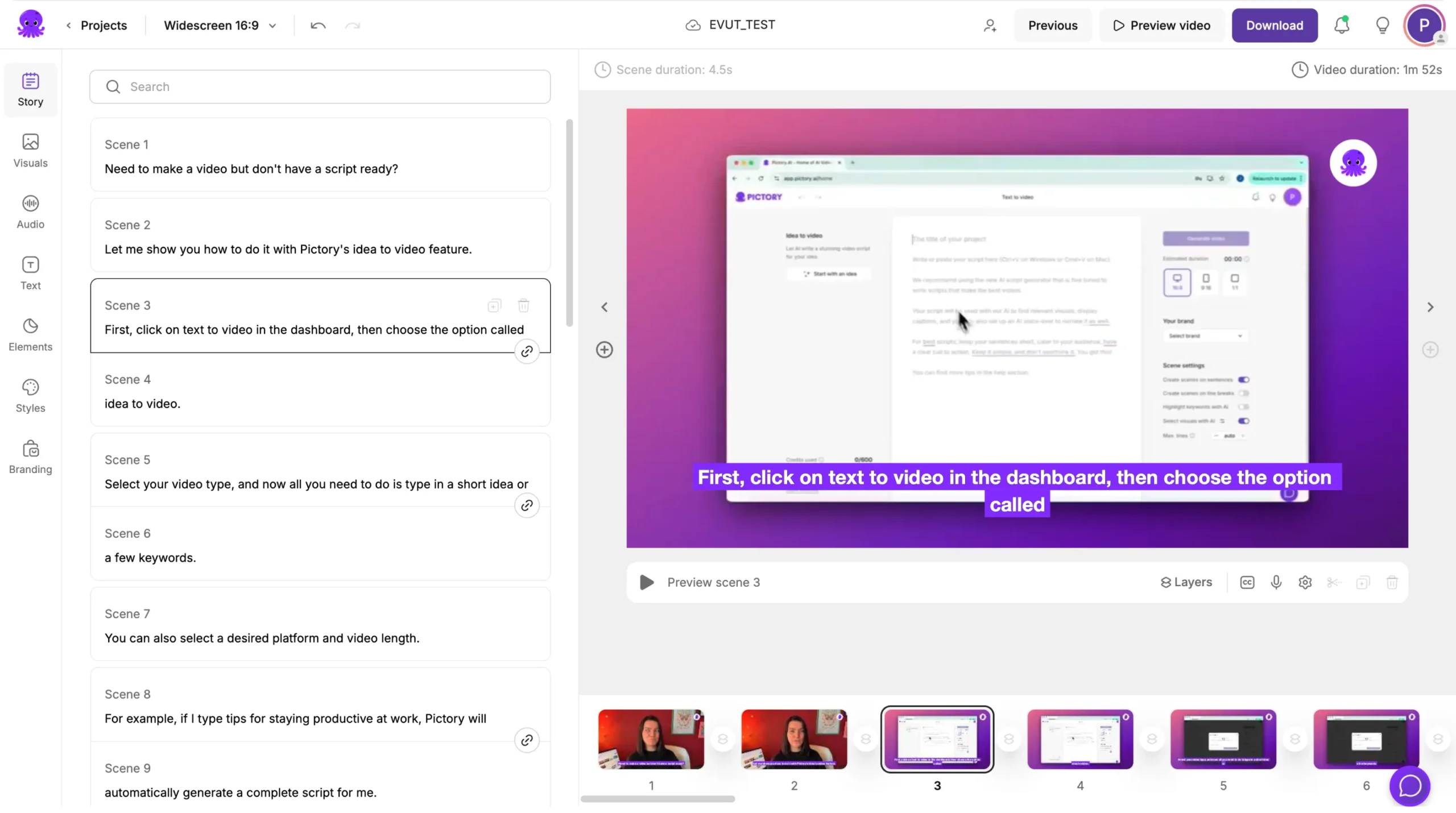
Once filler words are removed, your content becomes easier to watch and more engaging.
Step 8: Export Your Cleaned Video
When you finish reviewing your edits:
Click Download Video
Choose your preferred aspect ratio
Export your polished video
Your final file will reflect all the cleaned audio and transcript adjustments.
Create Clear, Professional Videos Using Automatic Filler Word Removal
Automatic filler word removal helps you clean your audio quickly and professionally. With one toggle, you can improve pacing, clarity, and viewer experience. This tool is essential for anyone working with live recordings, interviews, talking head videos, or long form content.
Start cleaning your audio today using the Remove Filler Words feature in Pictory AI.


