Text to image AI
AI Image Generator
Describe a picture and Pictory’s AI Studio creates it. Pick a model and a style, then add the image to your video or download it.
- Images from a text prompt
- Five models and six styles
- Add to a scene or download
- Free to try, online in your browser

4.6/5Trusted by over 20,000 teams and institutions worldwide.






What is an AI image generator?
An AI image generator turns a text prompt into an image. In Pictory you describe the picture in AI Studio, pick a model and a style, and generate it. Then add the image to a video scene or download it. Try text to image AI free on a trial.
From text to picture in one step. Type what you want to see, or let Pictory suggest a prompt from your scene, which makes it a script to images generator too. Choose from five image models and six styles, including Photorealistic, Artistic and Cartoon.
It is an AI image generator from text built into a video editor, so text to images work goes straight into a scene. Use it as an AI photo generator for realistic shots or for illustrations. To animate a picture, see image to video.

PromptA lavender field at sunrise
Image addedScene 3 · Photorealistic
In every workflow
Use AI images in your videos
Add a generated image to any scene, or on top as a layer, however you start your video. To turn an image into a clip, see image to video.
Idea to Video
One sentence in. Script and scenes out.
Text to Video
Paste any text and get a finished video.
URL to Video
Drop in a link. Pictory turns the page into a video script.
Blog to Video
Turn a post into a video for social.
PPT to Video
Your slides and notes, narrated and on screen.
PDF to Video
Turn reports and guides into videos people actually finish.
Audio to Video
Give podcasts visuals and captions for YouTube.
Images to Video
Upload photos and clips. Get a story back.
AI Video Editor
Upload a video and edit it by editing the text.
How it works
How to generate an image with AI
To generate an image with AI, open a project in Pictory, go to the Visuals tab and choose AI Studio. Describe the image you want, pick a model and a style, then click Generate. Add the result to your scene or as a layer, or download it.
Open AI Studio
Open any project, click Visuals, then AI Studio. Choose Images.
Describe the image
Type what you want to see, or get a prompt for the scene.
Choose a model and a style
Pick one of five image models and six styles, then click Generate.
Add it to your scene or download
Add the image to the scene or as a layer, or download the file.
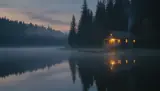
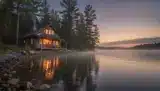
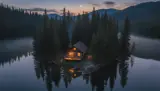
Text to image
Text to image AI free
You can try text to image AI free in Pictory. The free trial includes 50 AI credits, and each image uses credits, with the amount set by the model you choose. Describe a picture, generate it and add it to a video to see how it looks.
Features
AI image generator features: models, styles and editing
Models and styles
Five image models and six styles to choose from
Pick the model that suits the picture, then set the style and the shape. Generate up to four versions and keep the one you like.
- Flux, Seedream, Nano Banana, Nano Banana Pro and Nova Canvas
- Photorealistic, Artistic, Cartoon, Minimalist, Vintage or Futuristic
- 16:9, 9:16 or 1:1
Edit with AI
Edit an image with a text prompt
Change a color or restyle the whole picture by describing the edit. Use a reference image to keep the same person or product from scene to scene.
- Edit an image by describing the change
- Apply a new style to an image
- Reference images for a consistent look
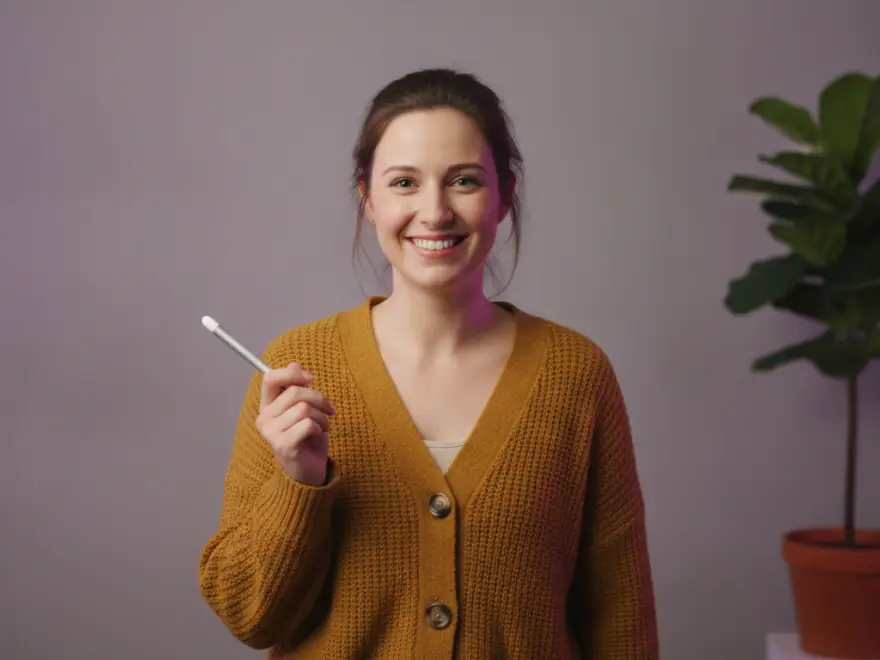
Edit with AIMake the sky warmer
Image updatedNano Banana · Artistic
In your video
Generated images that go straight into your scene
Add an image to the current scene, or on top as a layer. Save it to your uploads to use again, or download the file.
- Add to a scene or as a layer
- Add to uploads to use it in other videos
- Your brand kit’s colors guide every image
More AI video features
Your complete AI video generation tool
AI avatars
Add a talking presenter, or a digital twin of you.
Captions
Accurate, synced captions in your brand style.
Translation
Captions and voiceover for every market.
Text editing
Edit the transcript to edit the video.
Team workspaces
Share projects and brand kits with your team.
API
Generate branded videos from your own product.



AI Studio
Create any image or video you need with generative AI
The latest image and video models, built into the editor. Generate it, then drop it straight into your scene.

Generate and edit images
Describe it, or edit an existing image with a prompt.

Keep characters consistent
Use reference images to keep the same person or product in every scene.

Create video clips with sound
Generate clips with audio. Yes, characters can talk.

Extend any clip
Keep any clip going with a new prompt, even one you uploaded.
 ✓
✓Get four options at once
Generate up to four versions and keep the best one.
Stay on brand
Your brand kit’s colors guide every generation.








 ✓
✓
Choose your model
Pick a model for stills or 5 to 10-second clips.
Also in AI Studio: Nano Banana Lite for images and Omni Flash for video.
Use cases
Who is using AI images?
 Marketing
AI images for social media videos
Make the exact picture a post needs, in your brand’s colors.
- Education
Illustrations for lessons and courses
Describe the diagram or the scene and add it to the lesson video.
- Small business
Product scenes for online stores
Place a product in a setting that fits it, and use it in the video.
- Creators
Custom visuals for YouTube videos
Make the scene you have in mind, in the style of your channel.
Why Pictory
Loved by creators, trusted by enterprise teams
From solo creators to global marketing teams. Read the case studies
4.6 / 5
Average rating on G2, plus Capterra’s Best Ease of Use award for 2025.
20,000+
companies and institutions creating video with Pictory.
SOC 2
and GDPR compliant, ready for enterprise security reviews

 GDPR
GDPR





Case studies
Teams that scaled video with Pictory

“Pictory is the easiest, most efficient way to get from an idea in text to multimedia imagery on the screen. It’s the critical component to get us out of death by PowerPoint.”
Read the Whirlybird Labs case study“Pictory helps us consistently deliver the high-quality videos we’re known for, content we’re proud of and our clients are proud to use. They always get a five-star response.”
Read the VRC case study“82% of our 10,000+ partners keep coming back to our training videos even though they aren’t mandatory courses. That’s how we know the content’s working.”
Read the AppDirect case study“It increased subscriber growth by 78% and cut my video creation time from a couple of hours to a few minutes. It’s been a godsend.”
Read the NetRock case study“Through Pictory videos, leads up by 500%, video production costs are down 90%.”
Read the Online Super Tutors case study“We only launched our new app a few months ago and already have over 500 subscribers. People come back regularly to watch more videos made with Pictory.”
Read the Game of Yield case study


Models
AI image models in Pictory
Pictory’s AI Studio has five image models. Pick by the kind of picture you need: a simple scene, words in the image, fine detail, a cinematic look or realistic people.
| Model | What it suits | Try it for |
|---|---|---|
| Flux | Basic layouts | Simple backgrounds and everyday scenes |
| Seedream | Text and numbers | Signs, labels and title cards |
| Nano Banana | Fine detail | Product close-ups and textures |
| Nano Banana Pro | A cinematic look | Opening shots and key scenes |
| Nova Canvas | Lifelike people | Presenters, teams and customers |
Video API
Make video at scale from your own product
Send text, links or slides to the Pictory API and get branded videos back, automatically.
POST /v1/video/storyboard
{
  "videoName": "q3-update",
  "scenes": [{ "text": "Q3 in 90 seconds..." }]
}Enterprise
Enterprise video at scale
Custom plans, onboarding and support for company-wide rollouts.
- SOC 2 and GDPR compliant
- Custom plans and personalized onboarding
- Shared brand kits and team workspaces
- Dedicated support
Yes. You can try Pictory’s AI image generator on a free trial that includes 50 AI credits. Each image uses credits, and the amount depends on the model you choose. Paid plans start at $25 a month, billed annually.
Open a project in Pictory, go to Visuals and choose AI Studio. Type a description of the picture, pick a model and a style and click Generate. Then add the image to your scene or download it.
Text to image AI makes a picture from a written description. You type the text, and a model turns that text into a picture. In Pictory the result can go straight into a video scene.
Start with the kind of picture. Flux suits basic layouts, Seedream handles text and numbers, Nano Banana is strong on detail, Nano Banana Pro gives a cinematic look and Nova Canvas makes lifelike people. Try two on the same prompt and compare.
Yes. Add a generated image to the current scene, or on top as a layer. Choose Add to uploads to keep it for another video.
Yes. AI Studio can animate an image into a short clip. See image to video for how it works.
Not Just an AI Image Generator
Explore our AI Generative Tools and Other Features