How to Record, Clean Up, and Repurpose Existing Videos in Pictory 3
Capture a recording or upload one, then use its transcript to remove passages, create summaries, and make clips.
How do you record your screen or camera?
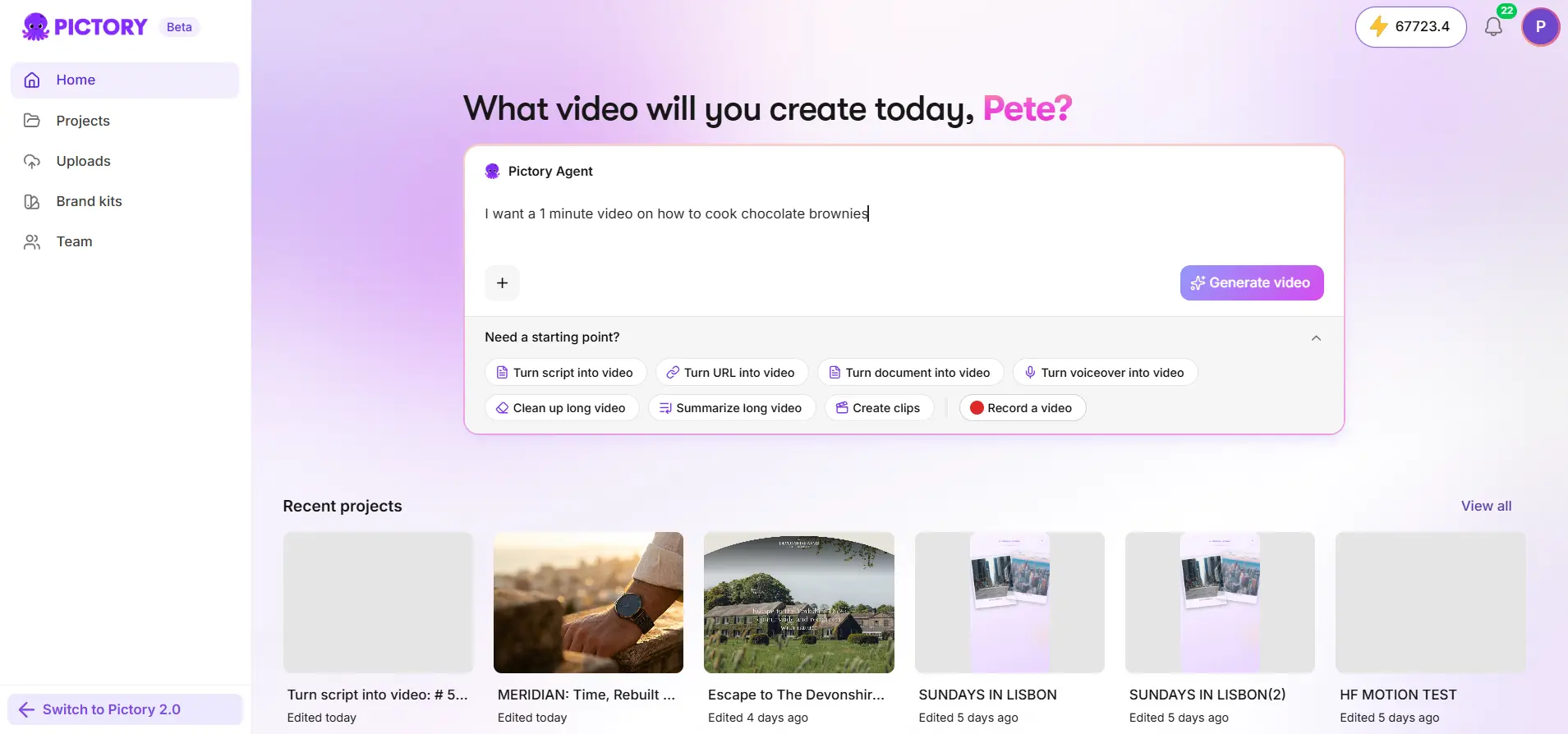
Step 1: Choose Record video
On the home page, choose Record video.
Step 2: Pick your sources
Select screen, camera, or both. Allow the browser to use your intended devices.
Step 3: Set up screen capture
For screen capture, choose the tab, window, or screen. Check the microphone and framing.
Step 4: Record and review
Record, stop, and review the captured video.
Step 5: Download or edit
Use the offered download or sharing action for the recording as it is, or select Edit using AI for transcript editing.
Start recording from the home page rather than inside an existing conversation or the editor. If a device is unavailable, check browser permissions and other apps using it. Make a short test before a long session.
How do you edit an uploaded recording?
Upload one source video from the home page, or choose Edit using AI after recording, and wait for transcription. Read the transcript, ask for filler-word, pause, or repeated-material removal, review the removals, and play the edited preview.
Remove a passage to exclude its speech from that view, and restore a removal to bring it back. Correct a transcription error when the displayed words are wrong. A text correction changes the transcript or captions, not the recorded speech. Cuts select ranges from the original source, which stays unchanged, so listen around cuts to check meaning and pacing.
How do you create summaries and clips?
Ask for a shorter summary and describe the points or duration to keep. Ask for clips around topics or moments, such as one interview answer per clip. Open each result in Clips and review its start, ending, title, and meaning.
A summary selects speech from the recording. It doesn’t generate a new spoken summary in the original speaker’s voice. Cleaning up the full video doesn’t change clips you’ve already made, so review those separately or create a new set after cleanup.
How do you style and download the results?
For the selected full video, summary, or clip, choose caption styling or No captions, then apply a brand kit and check the logo and colors. Play the view to check captions against the recorded picture. Use the individual video controls for one result, or Download all for the available set, and wait for any required generations to finish. Use the offered text or caption export formats when you need those files too.
Can you open a result in the editor?
Yes. Choose the option to open the result in the editor to finetune it manually. Then check its retained speech, captions, and branding. Recorded speech still comes from the source recording, and this workflow uses one source video.
For audio-only narration, use Add audio recording during creation. See Turn an audio recording into a video.
Try it on your next video
Bring a brief or a source and review the story before it renders.
Related Academy guides
Academy guide.
Academy guide.
Academy guide.
Academy guide.
The hub for everything in Pictory 3.
Frequently asked questions
Can I record my screen in Pictory 3?
Yes. Choose Record video on the home page, then select screen, camera, or both. Allow the browser to use your devices, record, stop, and review. Download the recording as it is, or select Edit using AI to edit it through its transcript.
How do I remove filler words from a video?
Upload your video or choose Edit using AI after recording, wait for transcription, and ask for filler-word, pause, or repeated-material removal. Review the removals, play the edited preview, and restore any removal you want back. The original source stays unchanged.
Does fixing a transcript error change what the speaker says?
No. A text correction changes the transcript or captions, not the recorded speech. Recorded speech still comes from the source recording. If the displayed words are wrong, correct them for accurate captions, but the audio itself stays as it was recorded.
Can Pictory create a spoken summary in the speaker’s voice?
No. A summary selects speech from the recording. It doesn’t generate a new spoken summary in the original speaker’s voice. Describe the points or duration you want kept, then review what the summary selected, play it through, and check the cuts for meaning and pacing.
How do I download all my clips?
Open the results, choose caption styling or No captions for each, apply a brand kit if you want one, and use Download all for the available set. Wait for any required generations to finish. Use the individual video controls if you only need one result.