How to Add Voiceover, Music, Avatars, and Voice Clones in Pictory 3
Choose how your video sounds and who presents it, then check the combined result. You can create personal avatars and voice clones, and use them, in the editor. The agent doesn’t create them.
How do you choose and update an AI voice?
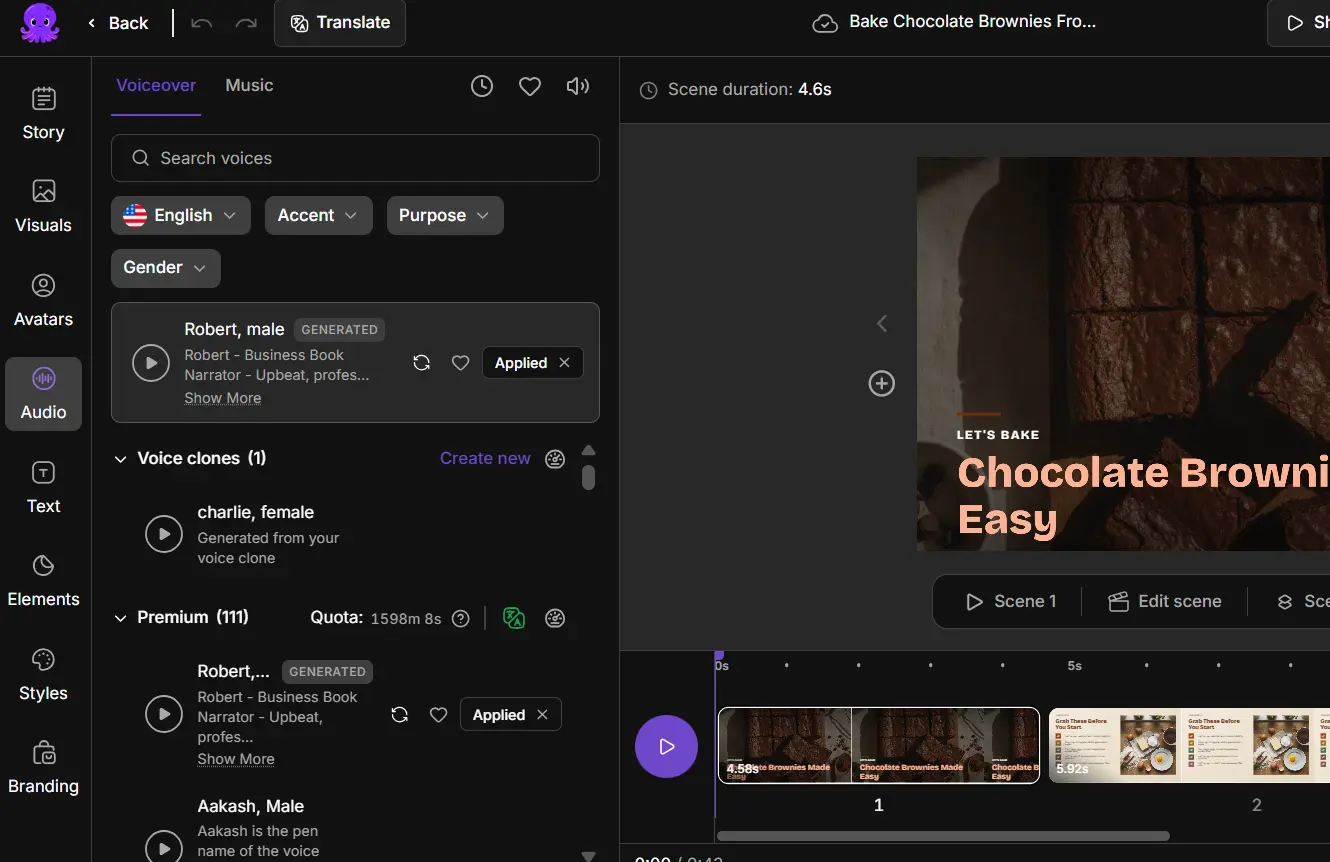
Choose a voice during setup, or open the voiceover controls in Audio. Search or filter voices by language and other offered attributes, listen to a sample, and apply it. After editing the script, select Apply Changes.
Step 1: Open the voice controls
Choose a voice during setup, or open the voiceover controls in Audio.
Step 2: Find a voice
Search or filter the available voices by language and other offered attributes. Listen to a sample.
Step 3: Apply the voice
Apply the voice and generate the narration.
Step 4: Apply script changes
After editing the script, select Apply Changes and choose the offered scope for changed scenes or the full script.
Step 5: Check the result
Wait for generation, then check that spoken words and captions match.
Regenerating the full voiceover creates new audio for the entire narration. Review the confirmation and the account-usage information first. A project using an uploaded recording plays the original speech instead of synthesizing the script.
How do you correct pronunciation and pauses?
From the story menu, select the word or phrase and open the pronunciation control. Enter the offered guidance, listen to the sample, and apply it to the scene or to all scenes. Use the pause control at the narration cursor for a pause.
Apply voiceover changes, then listen to the full sentence. These controls can’t alter words already spoken in an uploaded recording.
How do you add music and balance the audio?
In Audio, browse or search music, listen to a sample, and apply the track. Use the removal control to take it off. Open audio settings to adjust Background music and Voiceover, and keep the speech clear.
Music-volume changes can be previewed directly. If a voiceover-volume change marks narration as out of date, use Apply Changes. Check scene controls for source-clip sound, narration, and music, and review the scope before you apply mute to all scenes. Listen to the intro, ending, and transitions for competing audio.
How do you use an AI avatar?
Select a scene and open Avatars. Choose a stock or custom presenter, apply it, and follow the voice and generation prompts. Avatars can be previewed with their lips blurred. The final lipsync happens when you generate the video.
Select the avatar to adjust the available position, size, crop shape, background, and border controls. Keep it clear of captions and important content. Use the visibility control to show or hide it, and the all-scenes controls to make the same change throughout.
How do you create a personal avatar?
Create a personal avatar in the editor, from Avatars, not through the agent. Upload or record clear training footage of one person, complete the consent step, submit, and apply the finished avatar from your library when processing ends.
Step 1: Open the creation option
In Avatars, choose the custom-avatar creation option and read the instructions.
Step 2: Upload or record footage
Upload or record clear, unedited training footage of one person speaking naturally to the camera. MP4, WEBM, and MOV uploads are supported.
Step 3: Name the avatar
Review the details and name the avatar.
Step 4: Complete consent
Record or upload the consent statement displayed in the wizard, and complete the consent step.
Step 5: Submit and apply
Submit, wait for processing, and apply the completed avatar from your library.
Follow the duration, file-size, and recording requirements shown in the wizard. Use a steady camera, clear speech, good lighting, and little background noise.
How do you create a voice clone?
Create a voice clone in the editor, from the voiceover controls, not through the agent. Upload or record clean training audio, record the consent statement, submit, then choose the finished clone from the voiceover library to generate narration.
Step 1: Start a clone
In the voiceover controls, find your voice-clone section and select Create new.
Step 2: Add training audio
Read the instructions, then upload or record clean training audio. WAV, M4A, and MP3 samples are supported.
Step 3: Name the clone
Review the sample information and name the clone.
Step 4: Record consent
Complete the consent recording using the displayed statement and submit.
Step 5: Use the clone
Choose the completed clone from the voiceover library, generate narration, and listen to the result.
Tip: A clone speaks new script text with an AI voice. An uploaded recording plays the original take. If avatar or clone generation fails, check the displayed requirements and retry with corrected training or consent material.
Try it on your next video
Bring a brief or a source and review the story before it renders.
Related Academy guides
Academy guide.
Academy guide.
Academy guide.
Academy guide.
The hub for everything in Pictory 3.
Frequently asked questions
How do I change the AI voice in my video?
Open the voiceover controls in Audio, search or filter the voices, and listen to a sample. Apply the voice and generate the narration. After you edit the script, select Apply Changes and choose the scope for changed scenes or the full script.
How do I fix how a name is pronounced?
From the story menu, select the word or phrase and open the pronunciation control. Enter the offered guidance, listen to the sample, and apply it to one scene or all scenes. Then apply voiceover changes and listen to the full sentence.
Do I need consent to create an avatar or voice clone?
Yes. Both wizards include a consent step. You record or upload the consent statement displayed in the wizard before you submit. Follow the duration, size, and recording requirements shown there, and retry with corrected training or consent material if generation fails.
Can I ask the agent to create my avatar or voice clone?
No. You create personal avatars and voice clones in the editor, and you apply them there too. The agent doesn’t create them. Open Avatars for a personal avatar, or the voiceover controls for a clone, follow the wizard, and complete the consent step before you submit.
What is the difference between a voice clone and my own recording?
A clone speaks new script text with an AI voice that’s based on your training audio. An uploaded recording plays your original take, word for word, and narration rewrite is restricted while it supplies the voiceover. Choose whichever suits the sound you want.